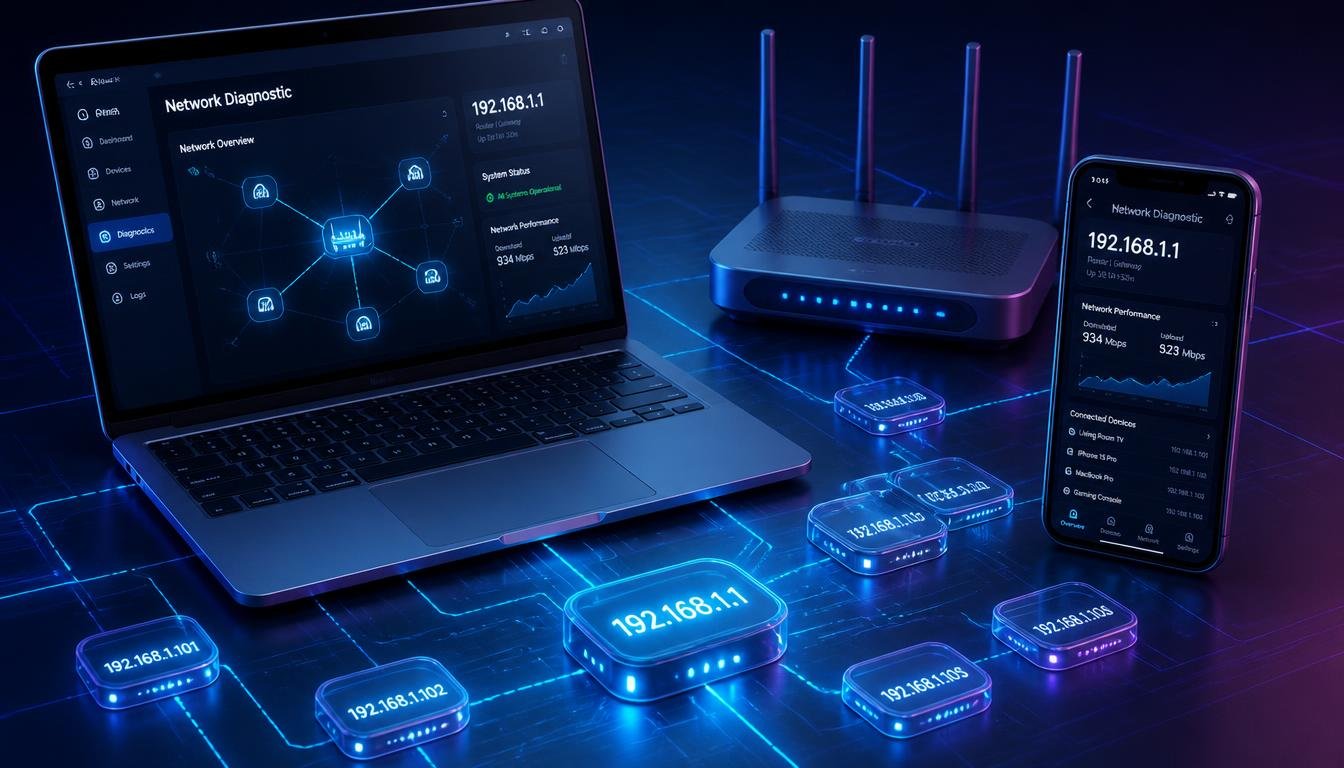
How to Find IP Settings: Windows, Mac, Android, iPhone Fix
A dropped local network connection or an unreachable gateway can bring your entire workstation to a complete halt within seconds. Knowing exactly how to find ip settings across your operating systems allows you to diagnose connectivity failures, reconfigure DHCP protocols, and restore internet access immediately without waiting for technical support.
Quick Answer Box How to Find IP Settings
To view your current network parameters, open the command line utility on your computer or access the network menu on your mobile device. On Windows, run
ipconfig /allin Command Prompt. On macOS, open System Settings and navigate to Network. On mobile devices, tap your active Wi-Fi network details to display your local address and gateway configuration instantly.
Understanding Local IP Private Settings vs Public IP Gateway Settings
Before modifying your network configuration, you must distinguish between your internal local network address and your external public network footprint.
| Feature / Category | Local IP (Private Settings) | Public IP (Gateway Settings) |
| Primary Protocol | Assigned locally via internal DHCP router engine | Assigned externally by your Internet Service Provider |
| Network Location | Private Local Area Network (LAN) / Wi-Fi | Wide Area Network (WAN) / Global Internet |
| Visibility Scope | Visible only to devices connected to the same local router | Visible to external web servers and remote online services |
| Access Method | Command Prompt, Terminal, or operating system settings | Router administration gateway or external IP lookup tools |
Step-by-Step Guides: How to Find IP Settings Across All Devices
Different operating systems store network configuration profiles in distinct system menus. Follow these precise instructions to locate your parameters on any platform.
Windows 11 and Windows 10 Network Configuration
Windows provides both graphical interfaces and terminal environments to access your active network parameters.
Using Command Prompt and PowerShell
- Press the Windows Key + R to open the Run dialog box.
- Type
cmdand press Enter to launch the Command Prompt. - Type
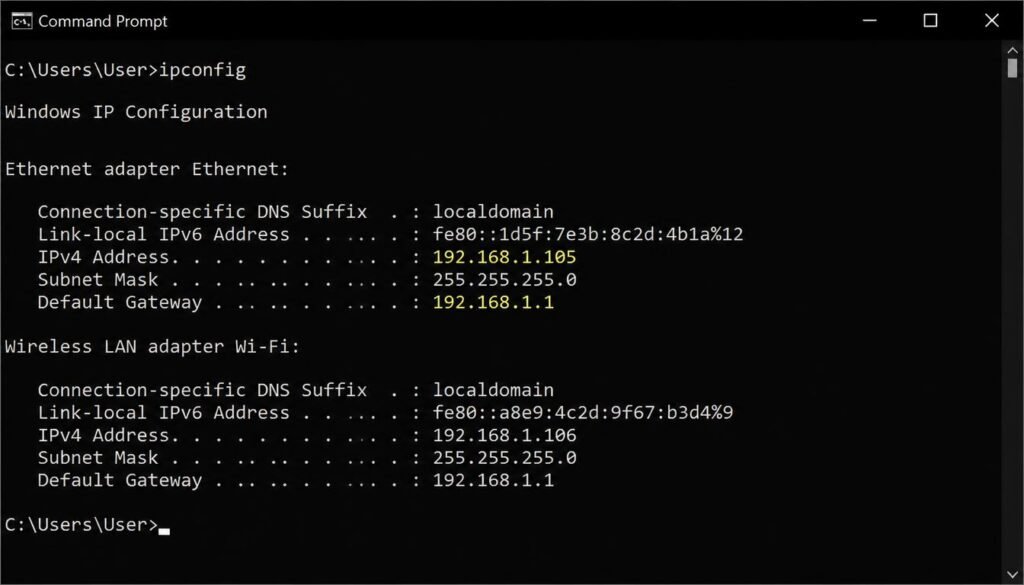
ipconfig /alland press Enter. - Locate your active network adapter (Wi-Fi or Ethernet) to review your IPv4 Address, Subnet Mask, and Default Gateway.
If you need to verify your connection parameters while learning how to find ip address windows 11 in cmd, executing this simple command exposes all active network bindings instantly.
Using Windows System Settings
- Open Settings by pressing Windows Key + I.
- Click on Network & internet in the left sidebar.
- Select Wi-Fi or Ethernet depending on your active physical connection.
- Click on Hardware properties to view your assigned network configuration.
How to Find IP Settings?
If your network speed feels unusually slow while retrieving these parameters, reviewing our guide on resolving network bandwidth throttling can help identify background line congestion.
macOS Network Settings
Apple computers allow users to inspect network details through system preferences or the Terminal application.
- Click the Apple Menu in the top left corner and select System Settings.
- Click Network in the left navigation pane.
- Select your connected network interface (Wi-Fi or Ethernet) and click Details.
- Click the TCP/IP tab to inspect your IPv4 address, Subnet Mask, and Router Gateway.
Alternatively, open the Terminal application and type ifconfig to output your raw system interface parameters.
Android Mobile Devices
Finding network details on Android varies slightly depending on your manufacturer skin, but follows a universal structure.
- Open the Settings app on your Android device.
- Tap Network & internet or Connections, then select Wi-Fi.
- Tap the Gear icon next to your connected Wi-Fi network name.
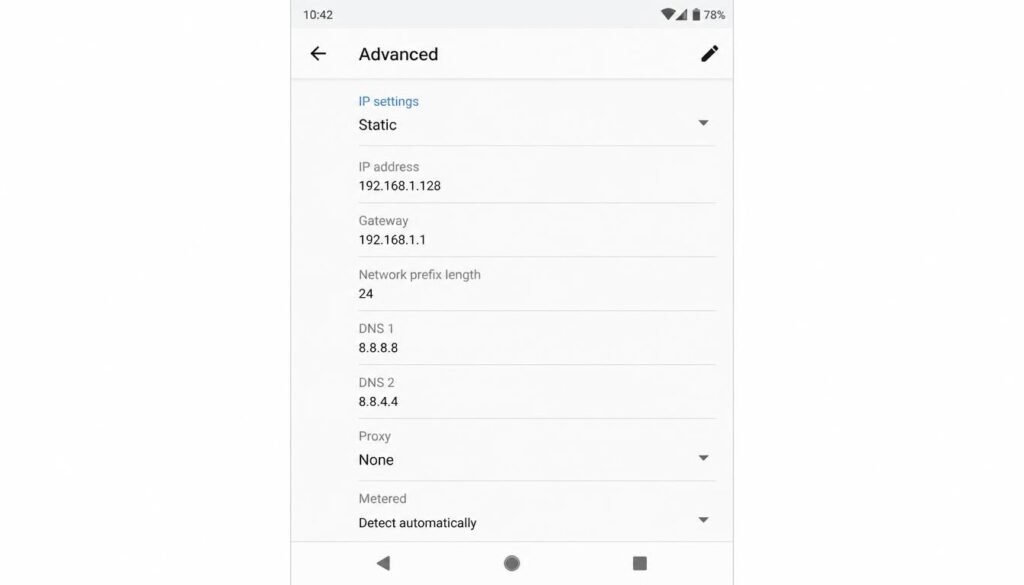
- Scroll down to view your IP address. If you need advanced parameters, change IP settings from DHCP to Static.
If low signal range causes your connection to drop while adjusting these options, checking our tutorial on improving weak wifi signal performance ensures your mobile device maintains a stable gateway link.
iOS and iPhone Devices
Apple mobile devices consolidate all wireless parameters into a single network panel.
- Open Settings on your iPhone.
- Tap Wi-Fi.
- Tap the blue Info icon (i) next to your active connected network.
- Scroll down to the IPv4 Address section to inspect your IP Address, Subnet Mask, and Router Gateway.
Learning how to find phone ip address iphone parameters helps you verify whether your mobile hardware is communicating properly with your local router.
Router Gateway Administration Management
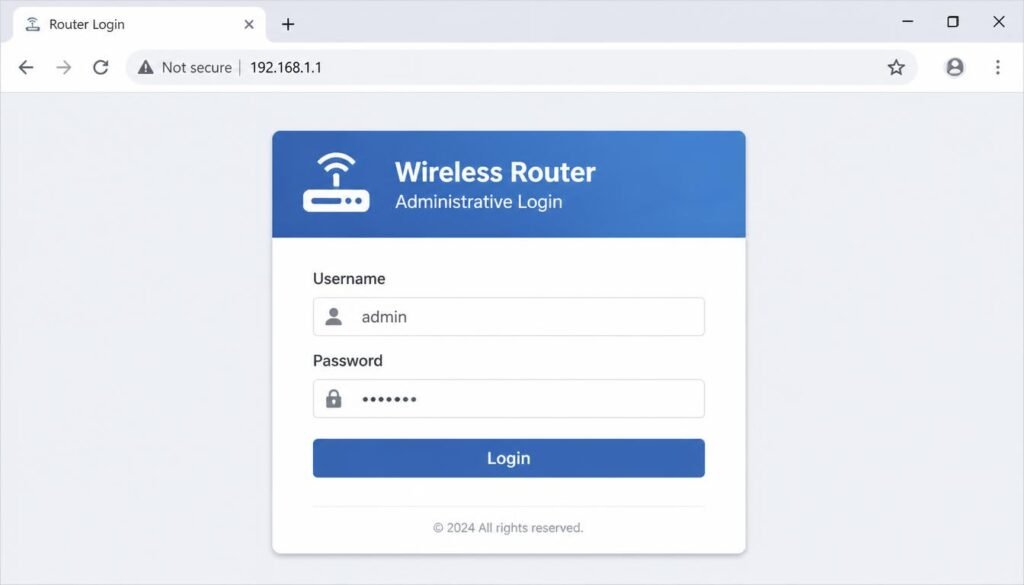
To manage network-wide rules or modify your default gateway parameters, you must access your router administrator dashboard.
- Open any standard web browser on a device connected to the network.
- Enter your router default gateway address (typically
192.168.1.1or192.168.0.1) into the URL address bar. - Enter your administrative credentials to log in.
- Navigate to the LAN Settings or DHCP Server menu to manage your network parameters.
If you are setting up network hardware on a desktop computer and need your saved Wi-Fi credentials beforehand, our guide on how to see wifi password on windows will help you reconnect quickly. When managing custom network equipment, following best practices for managing router configuration settings prevents unauthorized access to your gateway.
Advanced Troubleshooting: Edge Cases and Competitor Information Gaps
Standard tutorials often fail when unique system configurations block standard network diagnostic commands.
Resolving Hidden IP Settings Caused by VPN Adapters
Active Virtual Private Networks create virtual TAP/TUN network adapters that override your physical network readings. If your Command Prompt displays unexpected virtual subnets, temporarily disconnect your VPN software or disable its emergency kill-switch feature to reveal your true underlying local network parameters.
Static IP Assignment vs Dynamic DHCP Conflicts
When a device uses static IP assignment, it bypasses the router automatic DHCP engine. If another device on the network claims that same IP address, an IP conflict error occurs. Switching your device back to dynamic DHCP allows the router to reassign a clean, non-conflicting internal address automatically.
Retrieving IP Addresses Directly From URLs via Command Line
If you need to resolve an external website URL to its direct numerical address, open your Command Prompt or Terminal and run a domain query:
Bash
nslookup domain.com
Alternatively, running a standard ping test provides immediate address translation:
Bash
ping domain.com
Fallback Methods for Unresponsive Router Gateways
When standard gateway addresses such as 192.168.1.1 fail to load in your browser, your router may be operating on a non-standard subnet. Run ipconfig on Windows or netstat -rn on macOS and look specifically for the Default Gateway entry. If your adapter displays an address starting with 169.254.X.X, your device has failed to reach the DHCP server entirely and has assigned itself an Automatic Private IP Address (APIPA).
If you frequently format system drives or modify administrative tools, knowing how to handle modifying file extensions and installer formats ensures your administrative utility scripts execute correctly. Furthermore, if you organize your physical workspace for dual-monitor network monitoring, reviewing our walkthrough on measuring laptop display dimensions helps you select compatible workstation mounts. Finally, if you want to understand how network administrators log connected traffic, reading our breakdown on checking browser search history privacy settings answers common security questions.
Frequently Asked Questions
How do I find my IP settings?
Open Command Prompt on Windows and run ipconfig /all, or open System Settings on macOS and navigate to the Network menu. On mobile devices, tap the settings icon next to your connected Wi-Fi network to view your network details.
Where do you find IP settings?
IP settings are located within the network management interface of your operating system. On desktop computers, you can find them in System Settings or terminal tools, while on mobile devices they live inside the Wi-Fi network details panel.
How do I find my 192.168 IP?
Connect your device to your local Wi-Fi or Ethernet network and open Command Prompt or Terminal. Run ipconfig or ifconfig and look for the IPv4 address line starting with 192.168 under your active network adapter.
How do I go to IP settings?
On Windows, press Windows Key + I, select Network & internet, and click on your active connection properties. On mobile devices, open your device Settings, tap Wi-Fi, and tap the information icon next to your active network connection.
How do I find my phone IP address on iPhone?
Open the Settings application on your iPhone and select the Wi-Fi menu. Tap the blue information icon next to your active connected network to view your assigned IPv4 address and gateway details.
How to find IP address Windows 11 in cmd?
Press the Windows Key, type cmd, press Enter, and type ipconfig into the terminal window. Press Enter to view your IPv4 Address, Subnet Mask, and Default Gateway immediately.
What is my IP address versus my default gateway?
Your IP address is the unique numerical identifier assigned specifically to your individual device on the local network. Your default gateway is the IP address belonging to your router, which routes your traffic out to the internet.
How to get IP address in cmd from URL?
Open Command Prompt, type nslookup followed by the website domain name, and press Enter. The terminal will query DNS servers and return the exact public IP address associated with that web address.
Why are my IP settings showing as 169.254 automatic private IP address?
A 169.254 address indicates that your device could not communicate with your router DHCP server to receive an address. Restarting your router or resetting your network adapter usually resolves this assignment issue.
How to find ip settings on router when offline?
Connect your computer directly to the router using an Ethernet cable and open Command Prompt. Run ipconfig and use the Default Gateway address displayed to access your router offline login page through a web browser.