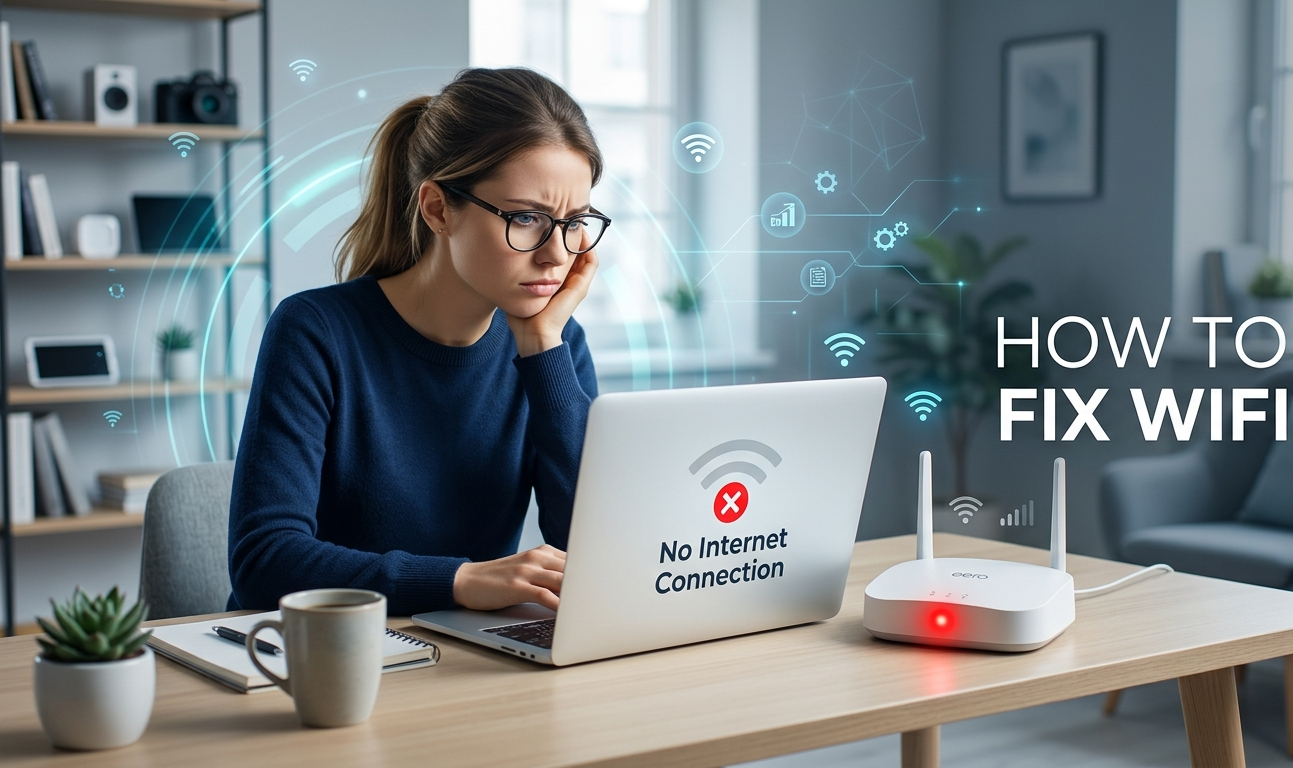
How to Fix WiFi In Just 60 Sec Easy Step By Step Guide(2026)
How to Fix WiFi?
Is your WiFi suddenly not working, showing No Internet or running extremely slow? You’re not alone WiFi connection problems are one of the most common tech issues in 2026 and the good news is that most of them can be fixed in under 5 minutes at home.
This guide covers 10 proven methods to fix WiFi on Windows 10, Windows 11, Android, and iPhone — no technician required.
⚡ Quick Answer
Most WiFi problems are fixed by: Restarting your modem and router (unplug both, wait 60 seconds, plug modem in first, then router). If that does not work, forget and reconnect to the WiFi network, then run the built in Windows Network Troubleshooter. If only one device is affected, update its WiFi adapter driver. If the problem is network-wide, check for an ISP outage before trying anything else.
How to Fix WiFi?
Why Is My WiFi Not Working?
Before jumping to fixes, it helps to understand the common causes:
- Router or modem needs a restart
- Outdated or corrupted network drivers
- IP address conflict on your network
- ISP (Internet Service Provider) outage
- Wrong WiFi password or forgotten network
- Too many devices overloading the router
- Weak signal due to router placement
- WiFi adapter accidentally disabled or in airplane mode
- Router firmware out of date
Table of Contents
- Restart Your Router and Modem
- Check Your Network Connection Status
- Test With Multiple Devices
- Forget and Reconnect to WiFi
- Run Windows Network Troubleshooter
- Update Your Network Adapter Driver
- Check for IP Address Conflict
- Flush DNS Cache
- Change DNS Server to Google DNS
- Check for ISP Outage
- Fix Power Management Settings
- Adjust Router Placement
- Reset Network Settings
Start with the simplest troubleshooting methods before moving on to more complex solutions.
How to fix WiFi quickly?
Follow these steps if you need a quick fix for How to Fix WiFi.
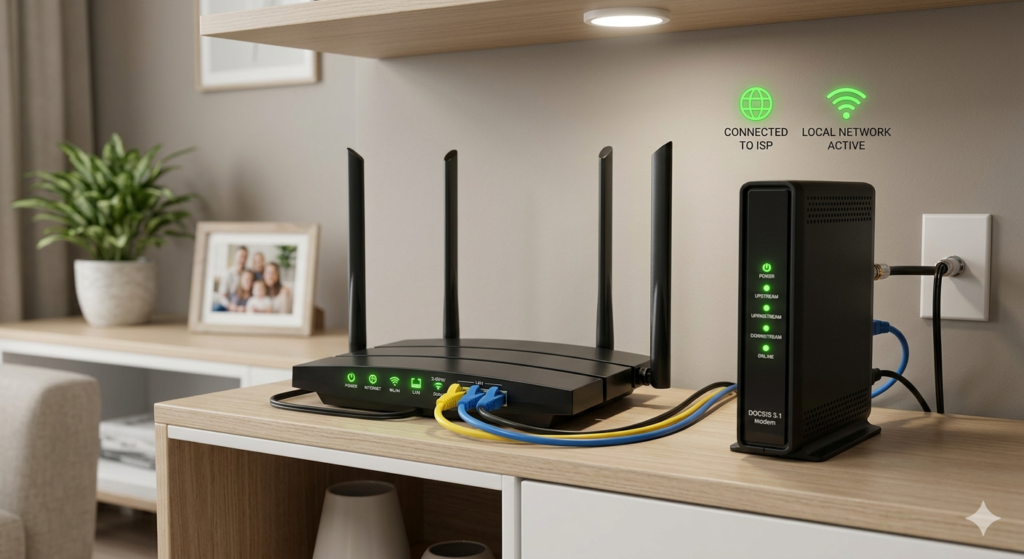
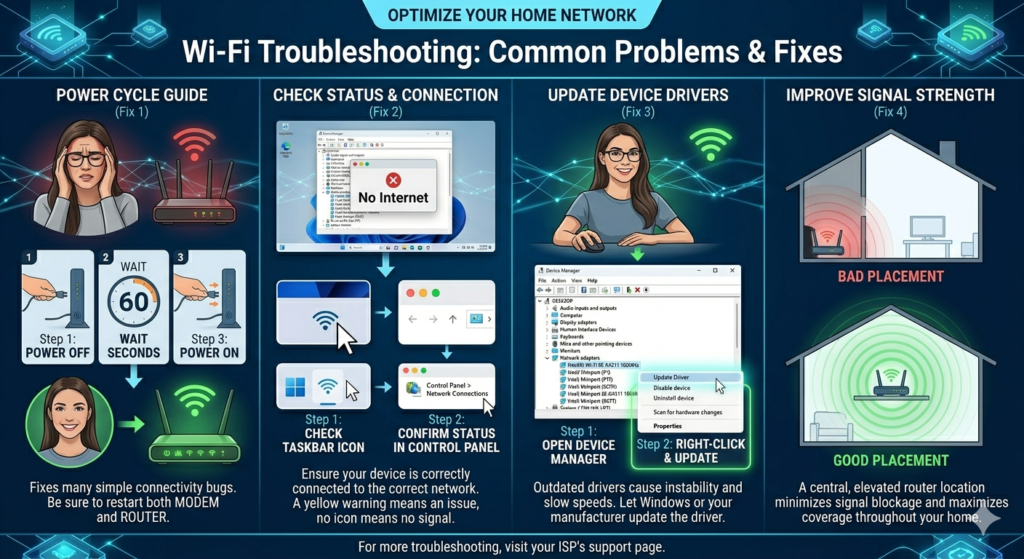
Fix 1: Restart Your Router and Modem (Fixes 60% of Issues)
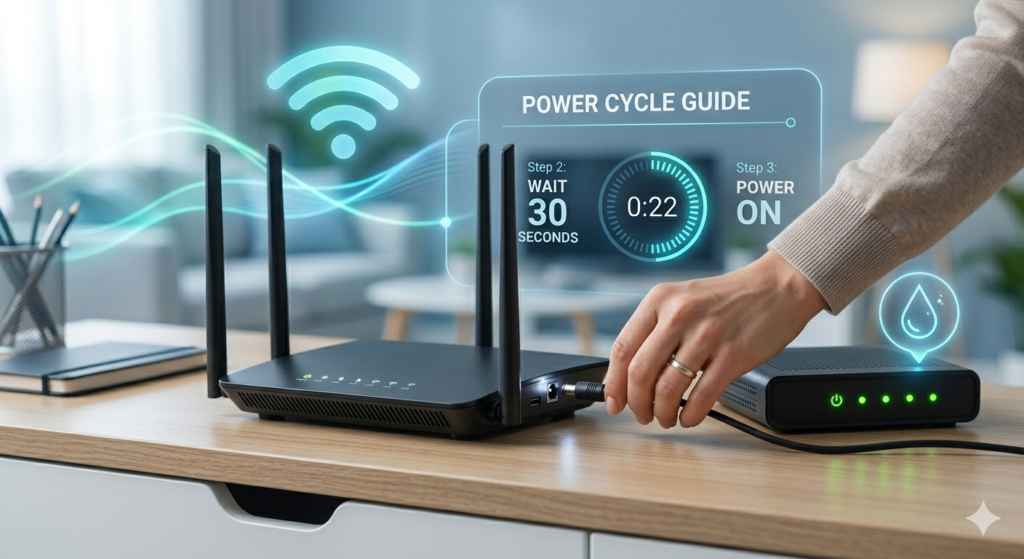
How to Fix WiFi?
This is the single most effective fix and should always be your first step.
How to restart properly:
- Unplug your router from power
- Unplug your modem from power
- Wait 60 full seconds (not 10 seconds — this matters)
- Plug the modem back in first
- Wait until modem lights stabilize (30-45 seconds)
- Plug the router back in
- Wait 1-2 minutes, then reconnect your device
Why this works: Routers accumulate temporary errors over days of continuous use. A proper restart clears these errors and refreshes your IP address assignment.
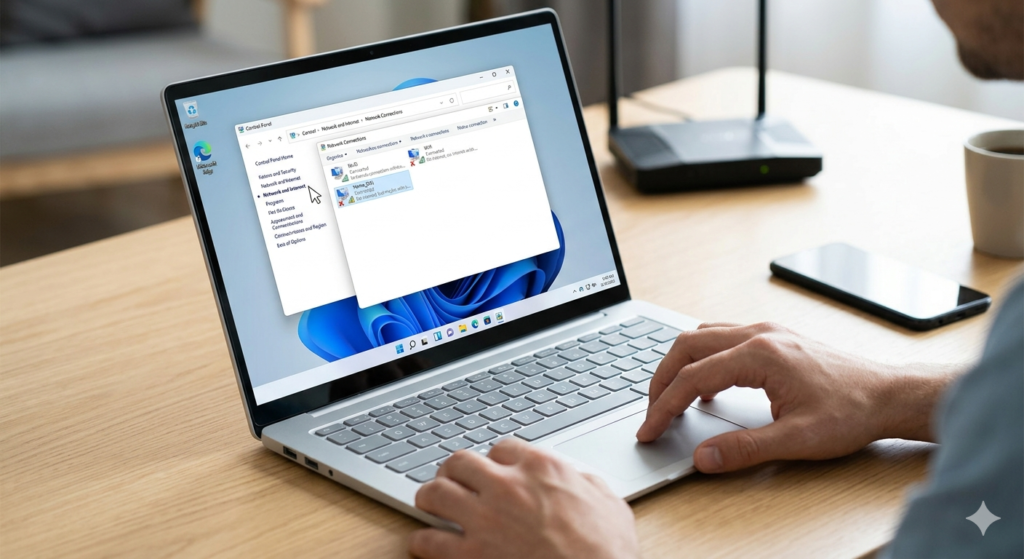
Fix 2: Check Your Network Connection Status
Sometimes your device shows “Connected” but isn’t actually getting internet. Here’s how to check:
On Windows 11/10:
- Click the WiFi icon in the taskbar
- If it shows “No Internet Access” — your device is connected to the router but the router has no internet
- Go to Settings → Network & Internet → WiFi to see full status
On Android:
- Go to Settings → WiFi → tap your network → check “Internet available”
On iPhone:
- Go to Settings → WiFi → tap the (i) icon next to your network
- Also check that Airplane Mode is off and WiFi is toggled on in Control Center
WiFi Not Working
Fix 3: Test With Multiple Devices
Before troubleshooting further, figure out whether the problem is network-wide or device-specific — this saves a lot of time.
This single check tells you exactly where to focus your troubleshooting.
Fix 4: Forget and Reconnect to WiFi
Corrupted saved network settings can block your internet access even when your password is correct.
On Windows:
- Click the WiFi icon in taskbar
- Right-click your network → Forget
- Click the network again → enter your password
- Click Connect
On iPhone/Android:
- Go to WiFi Settings
- Tap your network → Forget This Network
- Reconnect and enter your password again
Fix 5: Run Windows Network Troubleshooter
Windows has a built-in tool that automatically detects and fixes many common WiFi problems.
Steps:
- Press Windows + I to open Settings
- Go to System → Troubleshoot → Other Troubleshooters
- Click Run next to “Internet Connections”
- Follow the on-screen instructions
This tool can fix DNS issues, IP conflicts, and adapter problems automatically.
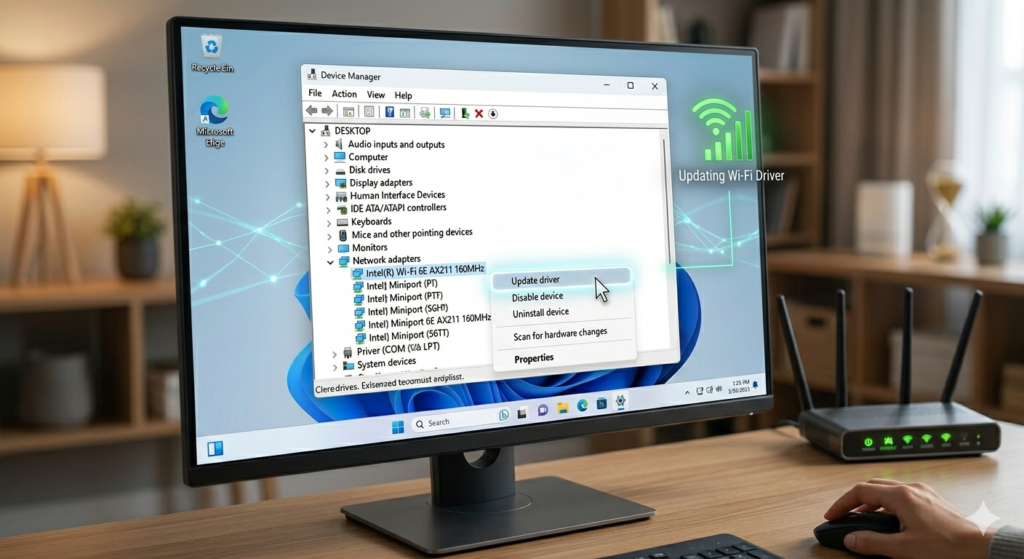
Fix 6: Update Your Network Adapter Driver
Outdated network drivers are a very common cause of WiFi problems, especially after Windows updates and they’re often the reason WiFi works on your phone but not your laptop.
How to update:
- Press Windows + X → click Device Manager
- Expand Network Adapters
- Right-click your WiFi adapter → Update Driver
- Select Search automatically for drivers
- Restart your computer after the update
If Windows can not find a new driver, visit your laptop manufacturer’s website (Dell, HP, Lenovo, etc.) and download the latest WiFi driver manually.
Fix 7: Check for an IP Address Conflict
If your laptop connects to WiFi but still can not load any websites, an IP conflict could be the cause.
How to check (Windows):
- Press Windows + R, type
cmd, press Enter - Type
ipconfigand press Enter - Look at the IPv4 Address next to your WiFi adapter
- If it starts with 169.254.x.x, your device failed to get a valid IP from the router this confirms an IP conflict
Fix it:
ipconfig /release
ipconfig /renew
Run both commands in Command Prompt (as administrator), then restart your computer.
Fix 8: Flush DNS Cache
A corrupted DNS cache can cause websites to not load even when your WiFi connection is active.
On Windows:
- Press Windows + R, type
cmd, press Ctrl+Shift+Enter (run as admin) - Type this command and press Enter:
netsh winsock reset- Then type:
ipconfig /flushdns- Restart your computer
This fix is especially useful when some websites load but others don’t.
While debloating Windows 11 frees up system memory and CPU power, an unstable network can still slow down your workflow. If your device experiences network drops after optimizing background processes, follow these quick solutions to restore your internet connection.
WiFi Not Working
Fix 9: Change DNS to Google DNS
Your ISP’s default DNS servers can sometimes be slow or fail completely. Switching to Google DNS (8.8.8.8) often improves both speed and reliability.
On Windows:
- Press Windows + R → type
ncpa.cpl→ Enter - Right-click your WiFi connection → Properties
- Double-click Internet Protocol Version 4 (TCP/IPv4)
- Select Use the following DNS server addresses
- Enter:
- Preferred:
8.8.8.8 - Alternate:
8.8.4.4
- Preferred:
- Click OK → restart your browser
Fix 10: Check for ISP Outage
Sometimes the problem has nothing to do with your devices — your Internet Service Provider may be having an outage in your area.
How to check:
- Visit downdetector.com and search your ISP name
- Call your ISP’s customer support line
- Check your ISP’s official Twitter/social media for outage announcements
If there’s an outage, unfortunately you just have to wait. Your ISP will restore service automatically.
Fix 11: Check Power Management Settings
Windows sometimes turns off your WiFi adapter automatically to save battery this is a hidden cause of random disconnections.
Steps:
- Open Device Manager
- Expand Network Adapters → right-click your WiFi adapter → Properties
- Go to the Power Management tab
- Uncheck “Allow the computer to turn off this device to save power”
- Click OK
Fix 12: Improve Router Placement
Weak WiFi signal is often mistaken for a “broken” connection. Your router’s location matters more than most people realize.
Best practices:
- Place router in the center of your home, not in a corner
- Keep it elevated — on a shelf or table, not the floor
- Keep away from microwaves, cordless phones, and baby monitors (they use the same 2.4GHz frequency)
- Avoid placing behind thick concrete walls or inside cabinets
- If you use a mesh WiFi system, make sure satellite units aren’t too far from the main router and aren’t using the same SSID name as a workaround
- If your home is large, consider a WiFi extender or mesh system
How to Fix WiFi
Fix 13: Reset Network Settings (Last Resort)
If nothing else works, resetting all network settings to default will clear any deep configuration errors.
On Windows:
- Go to Settings → Network & Internet
- Scroll down → click Network Reset
- Click Reset Now → Yes
- Your computer will restart
- Reconnect to your WiFi after restart
⚠️ Note: This will remove all saved WiFi passwords, VPN settings, and custom network configurations.
If this still doesn’t fix it, the issue could be a hardware failure in your WiFi adapter or chip, or a BIOS setting disabling WiFi at this point, a USB WiFi adapter or professional repair may be needed.
Still Not Fixed? Try These Quick Checks
| Problem | Most Likely Cause | Quick Fix |
|---|---|---|
| Connected but no internet | Router/ISP issue | Restart router |
| WiFi shows but won’t connect | Wrong password | Forget & reconnect |
| Very slow speed | Too many devices | Disconnect unused devices |
| WiFi keeps dropping | Weak signal or power saving | Move closer to router / Fix power settings |
| Some sites won’t load | DNS issue | Flush DNS (Fix 8) |
| Phone connects, laptop doesn’t | Outdated driver / IP conflict | Update driver (Fix 6) / Check IP (Fix 7) |

How to Fix WiFi?
FAQs about How to Fix WiFi Connections
Why does my WiFi say “Connected, No Internet”?
This means your device is connected to the router, but the router itself has no internet. Restart your modem and router first. If that doesn’t help, check if your ISP has an outage.
How do I fix WiFi on Windows 11?
Start with the Windows Network Troubleshooter (Fix 5) — it automatically detects most Windows 11 WiFi issues. If that fails, update your network driver (Fix 6).
Why does my WiFi keep disconnecting?
This is usually caused by power management settings turning off your WiFi adapter to save battery. See Fix 11 for the exact steps to disable this.
Why does WiFi work on my phone but not my laptop?
This is almost always a driver or IP conflict issue specific to the laptop, not a network-wide problem. Update your network adapter driver (Fix 6) and check for an IP conflict (Fix 7).
Should I restart my router or modem first?
Always restart the modem first, then the router. Wait 60 seconds between them. This order matters because the router needs the modem to establish internet before connecting to it.
How do I fix my Wi-Fi connection?
To fix your Wi-Fi connection quickly:
Restart your Wi-Fi router by unplugging it for 30 seconds.
Toggle Airplane Mode ON and OFF on your device to refresh network adapter settings.
Forget the Wi-Fi network in your settings and reconnect by entering the password again.
Why is my Wi-Fi connected but no internet?
A “Connected, no internet” status usually means your device is connected to your router, but the router lacks internet access from your ISP. Common causes include temporary ISP service outages, DNS server errors, or an outdated router IP configuration.
How do I reset my Wi-Fi?
To reset your Wi-Fi router:
Locate the small Reset button on the back or bottom of your router.
Use a paperclip to press and hold the button for 10 to 15 seconds until the lights flash.
Wait 2 to 3 minutes for the router to reboot back to factory default settings.
How do I fix Wi-Fi on my computer?
To fix Wi-Fi on Windows or Mac:
Run the built-in Network Troubleshooting tool in system settings.
Update your Wireless Network Adapter driver through Device Manager.
Open Command Prompt as Administrator and run netsh winsock reset to clear network stack errors.
Final Thoughts
Most WiFi problems can be solved within minutes using the fixes above. Start with Fix 1 (restart router) and Fix 3 (test multiple devices) — together these two steps solve or diagnose the majority of cases. If that doesn’t work, work through the list in order.
If you’re having a specific WiFi problem like WiFi connected but no internet access or slow WiFi on Xbox Series X, we have dedicated guides for those issues as well.