How to See WiFi Password on Windows Instantly (2026 Guide)
Your cousin walks in, phone in hand, asking for the network name so she can join the WiFi, and the sticker on the router downstairs rubbed off years ago. This is exactly why so many people search for how to see WiFi password on windows every single week, and the good news is that Windows already stores the answer on your machine, whether you are on Windows 11, Windows 10, or an older Windows 7 device connected by WiFi or by an Ethernet cable right now.
This guide goes beyond the basic Network and Sharing Center trick that most articles repeat. It covers the exact netsh wlan terminal command that reveals a saved password in plain text within seconds, the ncpa.cpl shortcut that skips the entire Settings app on Windows 11, the method for pulling a saved WiFi credential when your PC is currently wired in over Ethernet, and the workaround for standard user accounts that do not have administrator rights.
Quick Answer: How to See WiFi Password on Windows Instantly
If you need the fastest possible route, follow this sequence on any Windows 11 or Windows 10 machine that is currently connected to the network in question.
- Press Windows key plus R to open the Run dialog.
- Type ncpa.cpl and press Enter to open Network Connections directly.
- Double click the WiFi adapter that shows Connected status.
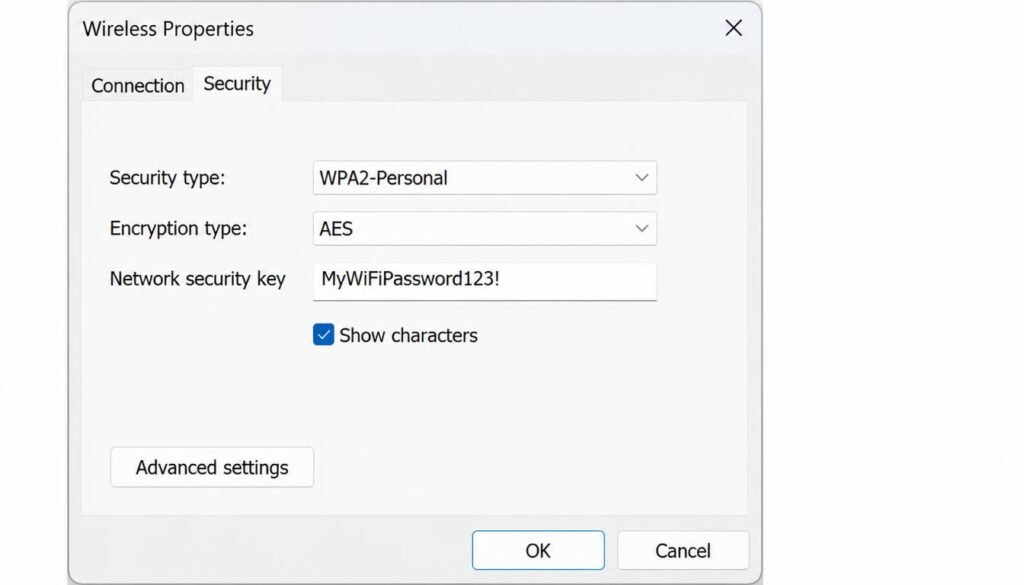
- Select Wireless Properties, then click the Security tab.
- Check the box labeled Show Characters.
- The plain text password now appears in the Network Security Key field.
This method works because Windows already holds the credential locally, it only hides the characters behind dots by default for privacy reasons.
Windows Version Comparison Table
Different Windows versions expose the network security key through slightly different paths. Use this table to jump straight to the method that matches your operating system and account type.
| Windows OS Version | Recommended Method | Required Command / Path | Admin Rights Required? |
|---|---|---|---|
| Windows 11 | ncpa.cpl Wireless Properties | Win + R, ncpa.cpl | No, if connected already |
| Windows 10 | Network Status Adapter Options | Settings, Network and Internet | No, if connected already |
| Windows 7 | Manage Wireless Networks | Control Panel, Network and Sharing Center | No, if connected already |
| Any version, any account | Command Prompt netsh wlan | netsh wlan show profile name equals YourWiFi key equals clear | Yes, administrator terminal |
| Currently wired over Ethernet | Command Prompt netsh wlan | netsh wlan show profiles, then key equals clear | Yes, administrator terminal |
| Standard user, no admin password | Router gateway login page | Browser, 192.168.1.1 or 192.168.0.1 | No, router login only |
Method 1: How to See WiFi Password on Windows 11 via Settings and Control Panel
Windows 11 reorganized the network menu, so the familiar Control Panel route is now buried a little deeper, though it still exists alongside the new design.
Open Settings by pressing Windows key plus I, then select Network and Internet from the left sidebar. Click WiFi, then click the name of the network you are currently connected to. On the details page, scroll down and click the small link labeled WiFi Network Security Key, or alternatively click Hardware Properties, since Microsoft has shifted this exact label between recent updates.
If that link does not appear on your build, close Settings and use the ncpa.cpl shortcut instead, since it reaches the classic dialog every time regardless of which Windows 11 feature update you are running. Right click the Start button, select Network Connections, or type ncpa.cpl into the Run dialog for a one step jump. Double click the connected WiFi adapter, choose Wireless Properties, open the Security tab, and check Show Characters to reveal the network security key in full plain text.
Method 2: How to View WiFi Password on Windows 10 using Network Status
Windows 10 keeps this process almost identical to the classic Control Panel flow, which is one reason so many people still prefer this version for quick administrative tasks.
Click the WiFi icon in the taskbar, then click Network and Internet Settings. Select Network and Sharing Center from the related settings section. Click the name of your active WiFi connection, which opens the WiFi Status window. Click Wireless Properties, then the Security tab, then check Show Characters. The password appears instantly in the Network Security Key box, ready to copy and paste onto a new phone or a guest laptop.
This is the standard path for anyone searching view WiFi password windows 10 without touching a single terminal command, and it does not require administrator rights as long as your account was the one that originally connected to the network.
If you decide to update your network credentials after viewing the old key, read our walkthrough on how to change WiFi password on router settings to secure your network properly.
Method 3: Using Command Prompt (CMD) to Reveal Any Saved WiFi Password
For anyone comfortable with a terminal, the fastest and most reliable method by far uses a single netsh command. This approach works identically on Windows 11, Windows 10, and Windows 7, and it retrieves the password even for networks you are not currently connected to, as long as Windows saved a profile for that network in the past.
Open Command Prompt as an administrator by searching cmd, right clicking Command Prompt, and selecting Run as Administrator. First, list every saved profile on the machine.
netsh wlan show profiles
Locate the exact name of the network you want, then run the following command, replacing YourWiFi with that exact profile name.
netsh wlan show profile name="YourWiFi" key=clear
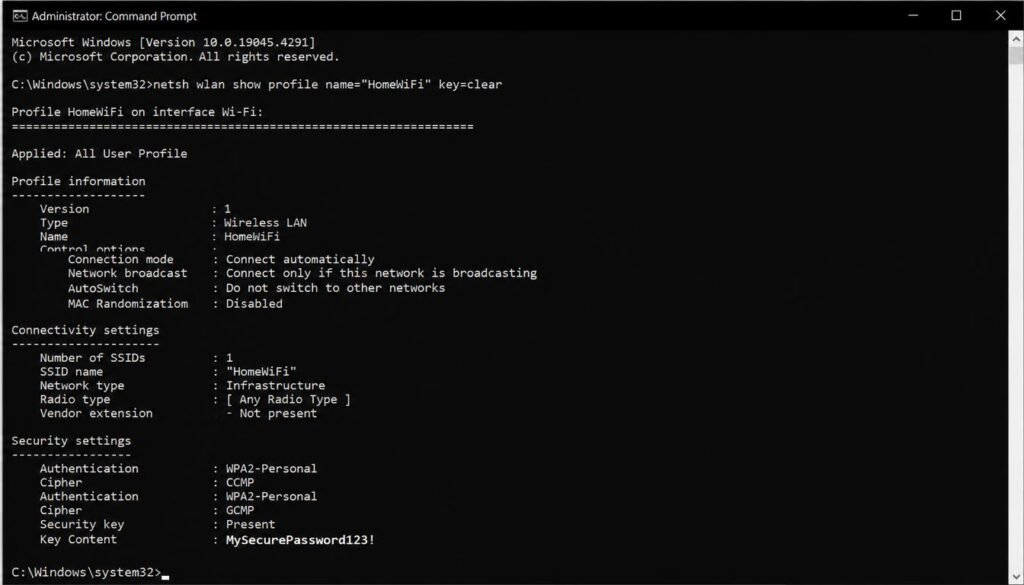
Scroll down through the output until you reach the Security Settings section. The line labeled Key Content shows the network security key in complete plain text. This is the definitive answer for anyone specifically searching show WiFi password windows 10 cmd or view WiFi password windows 11 cmd, since it bypasses every graphical menu entirely and pulls the credential straight from the stored profile database.
If Command Prompt fails to recognize your wireless card, review our guide on using a Windows 11 debloater to safely boost PC speed and restore system network services.
Method 4: How to See WiFi Password on PC Ethernet or Offline Saved Profiles
A common point of confusion arises when a desktop PC or laptop is currently plugged into Ethernet, with the WiFi adapter either disabled or simply not the active connection. In this scenario, the graphical Wireless Properties path described in Method 1 and Method 2 will not display an active network to click on, since Windows only shows Wireless Properties for a connection that is currently associated.
The netsh wlan command from Method 3 solves this instantly, because it reads saved profiles from the operating system database rather than from the live connection state. Even with the WiFi radio switched off and an Ethernet cable doing all the work, running netsh wlan show profile name=”YourWiFi” key=clear from an administrator Command Prompt still returns the stored password, answering the exact question of how to see WiFi password on pc ethernet without needing to reconnect to WiFi first.
If your desktop or laptop frequently drops connection despite being close to the router, check our step-by-step guide on how to fix weak WiFi signal to optimize router bands and antenna placement.
Method 5: How to See WiFi Password on Windows 11 Without Admin Rights
Standard user accounts sometimes find the Show Characters checkbox greyed out, or the account simply lacks permission to open an administrator Command Prompt. For this situation, the router itself becomes the source of truth rather than Windows.
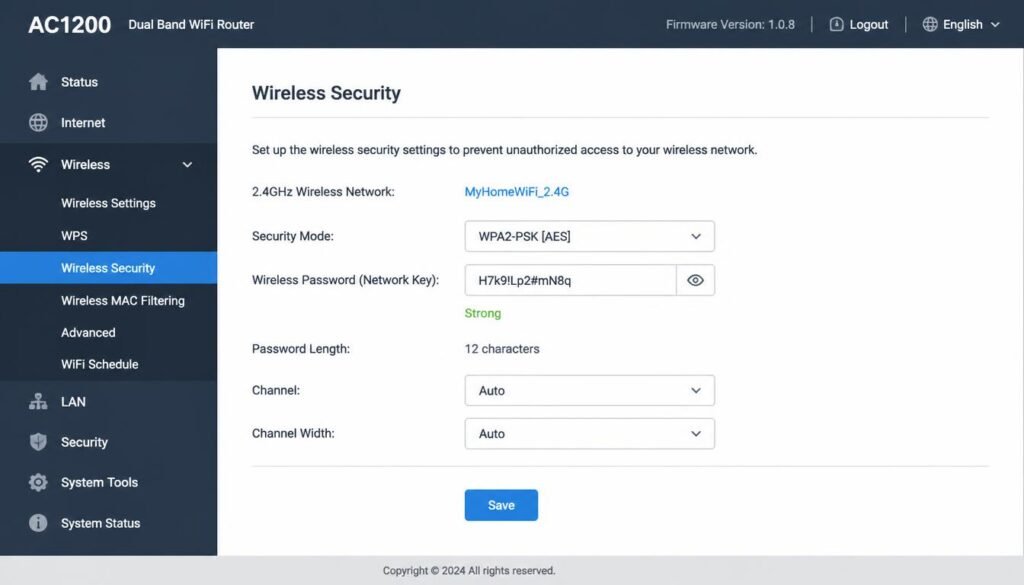
Open any web browser while connected to the network, and type the router default gateway address into the address bar, most commonly 192.168.1.1 or 192.168.0.1. Log in using the router administrator credentials, which are frequently printed on a separate label from the WiFi password sticker. Navigate to the Wireless or Wireless Security section of the router dashboard, where the current network security key is displayed directly, often already unmasked.
How to See WiFi Password on Windows?
If you do not know the router login details either, press Windows key plus R, type cmd, and run ipconfig without administrator rights. Locate the line labeled Default Gateway under your active adapter, since this is your router address regardless of account privilege level, giving you the answer to how to see WiFi password on windows 11 without admin through the browser instead of the operating system.
If Windows keeps rejecting the correct network key during login, read our detailed breakdown on common WiFi authentication issues for quick security handshake fixes.
Method 6: How to See WiFi Password Windows 7 Legacy Path
Windows 7 remains in use on older laptops and specialized equipment, and the process closely mirrors Windows 10 with slightly different menu labels. Click the wireless network icon in the system tray, then click Open Network and Sharing Center. Click Manage Wireless Networks, right click the connected network name, and select Properties. Open the Security tab and check Show Characters to reveal the password in plain text.
For anyone whose Windows 7 machine will not display this option, the identical netsh wlan show profile command from Method 3 functions on this legacy version as well, since the underlying WLAN AutoConfig service architecture has not fundamentally changed across these three operating system generations.
If you are setting up other smart devices across your home network after retrieving your security key, read our complete guide on how to connect TV to WiFi for quick network setup.
Troubleshooting and Security Error Fixes
Grayed out Show Characters checkbox. This typically means your account does not hold administrator privileges on the machine, or a group policy has disabled password visibility for security compliance reasons on a work or school device. Signing in with an administrator account, or running the netsh wlan command from an elevated Command Prompt, resolves this in almost every case.
Access Denied error in Command Prompt. This error appears when Command Prompt was opened as a standard user rather than as an administrator. Close the window, search cmd again, right click the result, and select Run as Administrator before retrying the netsh wlan command.
Profile not found error. This means the exact name typed after name= does not match the saved profile precisely, including capitalization and spacing. Run netsh wlan show profiles again and copy the name exactly as displayed, wrapping it in quotation marks if it contains spaces.
Router admin credentials unknown. If the printed sticker is missing and the previous owner changed the login, holding the physical reset button on the router for about thirty seconds restores factory defaults, after which the original printed username and password will work again, though this also erases custom WiFi settings and requires reconfiguration.
Why Windows Hides the Password by Default
Windows masks the network security key behind a row of dots for a straightforward security reason. Anyone who gains physical access to an unlocked computer, even briefly, could otherwise read every saved WiFi credential on the machine without needing any technical skill at all. The Show Characters checkbox and the netsh wlan key=clear parameter both exist as deliberate, user controlled overrides rather than as loopholes, since Microsoft still requires either an already authenticated session or administrator level terminal access before the plain text value becomes visible.
This design also explains why a standard account without administrator rights sometimes hits a locked checkbox on a shared or managed device. IT administrators frequently disable this visibility through Group Policy on work laptops specifically to prevent an employee from copying the corporate network key onto a personal device or handing it to an unauthorized visitor. If your work laptop blocks every method described above, that restriction is almost certainly intentional, and the router gateway method described in Method 5 will likely be blocked for the same reason on a managed corporate network.
What to Do After You Retrieve the Password
Once the plain text key is visible, resist the temptation to leave it sitting in an open Notepad window or a screenshot buried in your Photos app, since either one becomes a soft target if the device is later lost, stolen, or accessed by someone else in the household. Copy it directly into the new device setup screen, or into a password manager entry labeled with the network name, then close the Wireless Properties window immediately afterward.
If retrieving the password reminded you that it has not changed in years, or that it is short enough to guess through a basic brute force attempt, this is a good moment to log into the router directly and set a stronger passphrase, ideally sixteen characters or longer mixing unrelated words, numbers, and symbols. A weak network security key undermines every other precaution on the network, regardless of how carefully the rest of the household guards it.
Frequently Asked Questions
How to see WiFi password on Windows 11 without admin?
Use the router default gateway address in a browser and log in with the router administrator credentials, or run ipconfig to find the gateway address without needing elevated Windows privileges. This retrieves the network security key directly from the router dashboard instead of the operating system.
How to see WiFi password Windows 7?
Open Network and Sharing Center, click Manage Wireless Networks, right click the connected network, select Properties, then Security tab, then check Show Characters. The netsh wlan show profile command also works identically on Windows 7.
View WiFi password Windows 10?
Click the WiFi icon, select Network and Internet Settings, open Network and Sharing Center, click the connection name, select Wireless Properties, then Security tab, then check Show Characters to reveal it in plain text.
View WiFi password Windows 11?
Use the ncpa.cpl Run dialog shortcut to open Network Connections directly, double click the connected WiFi adapter, select Wireless Properties, open the Security tab, and check Show Characters.
Show WiFi password Windows 10 cmd?
Open an administrator Command Prompt and run netsh wlan show profile name equals YourWiFi key equals clear, then read the Key Content line under Security Settings for the plain text password.
How to see WiFi password on PC Ethernet?
Run the netsh wlan show profile command from an administrator Command Prompt, since it reads saved profiles from storage regardless of whether the WiFi adapter is currently active or the PC is connected through Ethernet instead.
View WiFi password Android?
Open Settings, then Network and Internet, then WiFi, tap the connected network, and select Share to generate a QR code that reveals or transmits the password, a process covered in full inside our WiFi password sharing guide.
View WiFi password Windows 11 CMD?
Open Command Prompt as an administrator and run netsh wlan show profile name=”YourWiFi” key=clear, then locate the Key Content field within the printed Security Settings section for the exact plain text credential.
How do I show my WiFi password on my PC?
The fastest universal method on any Windows version is the netsh wlan show profile name equals YourWiFi key equals clear command run from an administrator Command Prompt window.
Can you check WiFi password on Windows 10?
Yes, Windows 10 stores every previously connected network profile locally, and both the graphical Wireless Properties route and the netsh wlan terminal command retrieve the plain text credential without contacting the router.
How do I view the password of my WiFi?
Open Wireless Properties through Network Connections, check Show Characters on the Security tab, or run the netsh wlan show profile command in an administrator Command Prompt for the identical result.
How to see the WiFi password on pc cmd?
Type netsh wlan show profiles first to find the exact saved network name, then run netsh wlan show profile name=”YourWiFi” key=clear and read the Key Content value under Security Settings.
Final Thoughts
Knowing how to see WiFi password on windows removes the recurring headache of tracking down a worn out router sticker every time a new device needs to join the network. Between the ncpa.cpl shortcut, the netsh wlan terminal command, and the router gateway fallback for restricted accounts, every Windows 11, Windows 10, and Windows 7 scenario covered above has a direct, tested path to the plain text password.
If your device still refuses to join the network even after retrieving the correct password, the problem likely sits elsewhere in the connection chain. Our WiFi Not Working guide walks through ten separate fixes for that exact situation, and our Network Adapter Not Working guide covers driver and hardware level causes in depth.