Chrome OS feels fast and secure, but it is not designed for compiling code, running desktop level creative software, or gaming through Steam and Proton. If you have ever hit that wall, you are not alone. This guide covers every real way how to install linux on a chromebook hardware, from the native container that ships with modern devices to a full hardware level replacement of Chrome OS.
Quick Answer (How to Install Linux on a Chromebook)
You can install Linux on a Chromebook two main ways. The first is Crostini, the native Linux development environment that runs Debian in a secure container alongside Chrome OS, no USB drive required. The second is a full Linux OS replacement, installed through Developer Mode and a USB drive, which removes Chrome OS entirely or sets up a dual boot.
Which Method Should You Use? Diagnostic Matrix
Before picking a path, compare the technical tradeoffs. This table accounts for device age, comfort with the terminal, and what you actually plan to do once Linux is running.
| Installation Approach | Technical Complexity | System Changes | Performance & Compatibility | Ideal Use Case |
| Crostini (native Linux) | Low | Minimal, sandboxed container | Good for CLI tools, code editors, and GUI apps; includes virtio GPU acceleration | Students, developers, casual scripting |
| Full Linux via USB (Ubuntu, Lubuntu, Linux Mint) | High | Replaces or dual boots Chrome OS, requires Developer Mode and custom firmware | Near native performance, full hardware and direct GPU access | Power users repurposing an old Chromebook |
| MrChromebox UEFI firmware flash | High | Overwrites stock firmware entirely | Enables standard Linux distributions and full desktop replacement | Advanced users converting a Chromebook into a normal laptop |
Method 1: Install Linux on Chromebook Without USB (Crostini)
If your goal is simply to run Linux command line tools, code editors, and IDEs, you do not need a USB drive at all. Google built the Crostini Linux environment directly into Chrome OS, and turning it on takes about 10 minutes. This is the method most people actually need when they search for how to install Linux on a Chromebook without a USB drive.
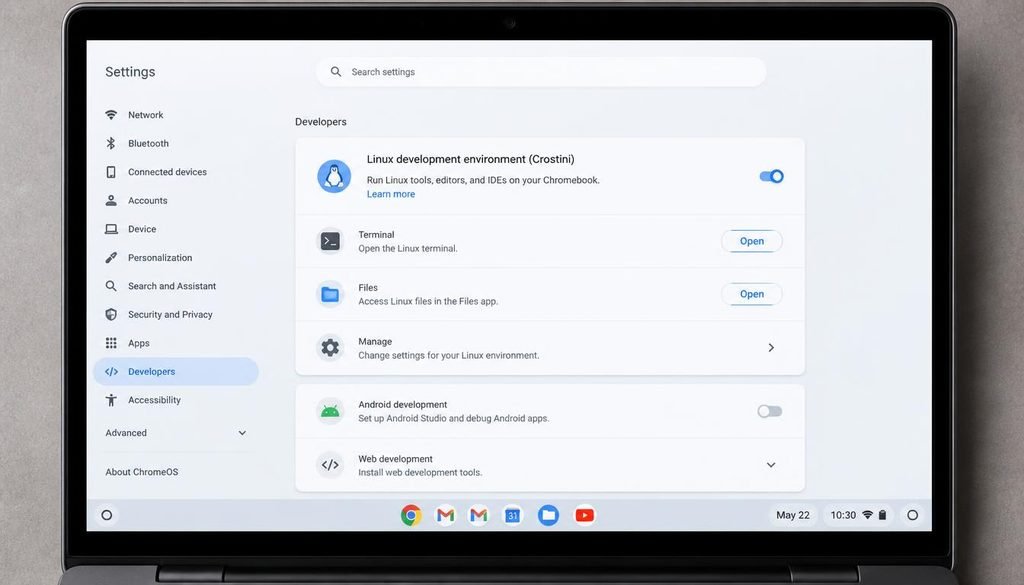
- Click the clock in the bottom right corner and select Settings.
- Scroll down and select About ChromeOS, then Developers.
- Next to “Linux development environment,” select Set up.
- Follow the onscreen prompts and wait for the container to finish provisioning.
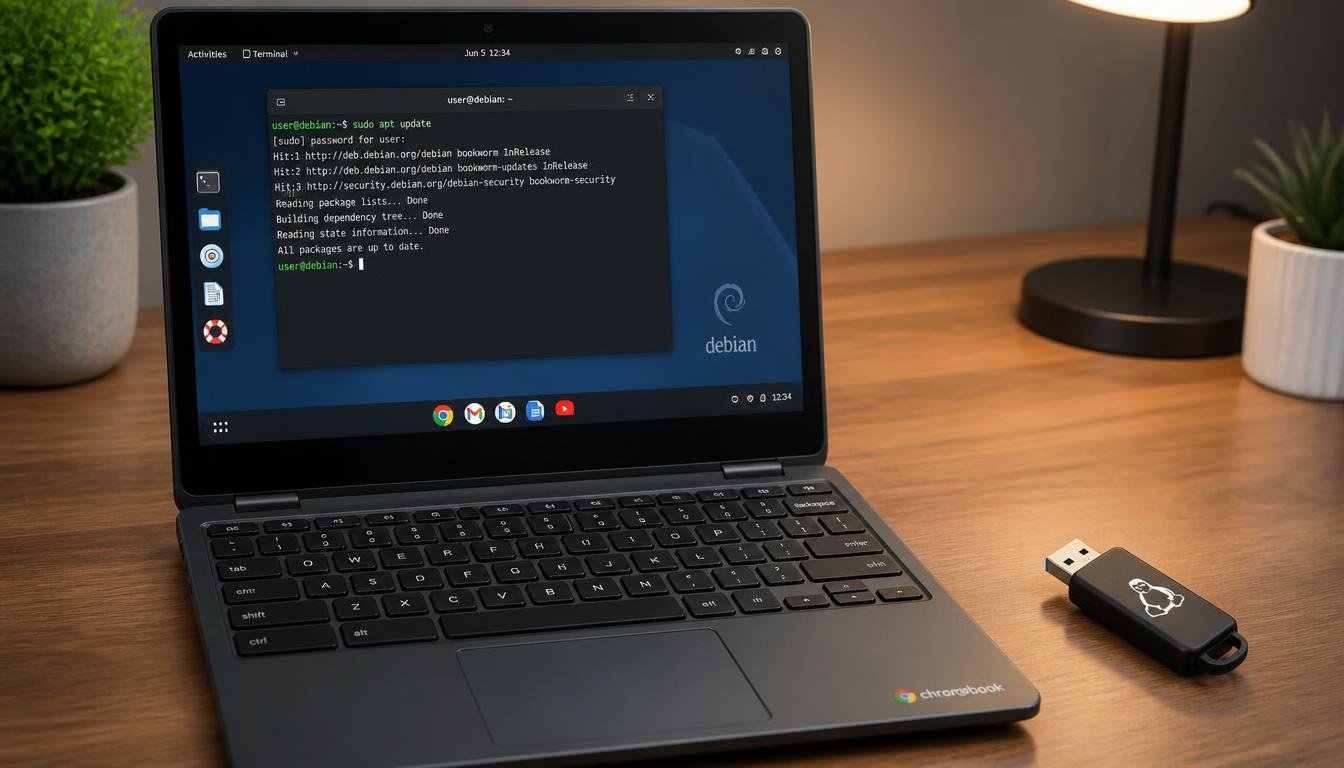
- A Terminal window opens automatically. You are now running a Debian environment, often nicknamed Penguin, directly on top of ChromeOS.
Once the terminal is open, update your package list before installing anything else:
sudo apt update && sudo apt upgrade
From here you can install almost any Debian compatible package using the apt package manager, or grab sandboxed applications through flatpak if a native .deb package is not available. Developers who also manage a home network while working in this container often run into the same DNS and adapter quirks covered in our guide on fixing WiFi connection problems on Windows and Chrome devices, since a misconfigured adapter can make apt updates fail silently.
Penguin Linux Chromebook Commands You Will Use Often
sudo apt update && sudo apt upgraderefreshes and installs the latest package versions.sudo apt install <package-name>installs new software, such as VS Code or GIMP.df -hchecks how much container storage remains, which matters on lower capacity devices.sudo apt autoremoveclears out dependencies that are no longer needed and frees space.
Installing a Desktop Environment Inside Crostini
Crostini ships without a full desktop, but many Linux GUI applications open in their own window without one. If you want a more complete desktop experience, XFCE is the lightest option and tends to run acceptably even on Chromebooks with 4GB of RAM:
sudo apt install xfce4
Heavier environments such as GNOME are technically possible but often strain older hardware, since GPU acceleration is not yet supported inside the container. If your device feels sluggish after adding a desktop environment, it is worth reviewing our notes on speeding up a slow Windows or Chrome device by trimming background processes, since the same RAM and CPU pressure principles apply across operating systems.
Method 2: Install Linux on Chromebook From USB (Developer Mode)
If Crostini feels limited, or your hardware needs full driver access, GPU acceleration, or native Steam support, the next step is a genuine Linux distribution installed from a USB drive. This route requires enabling Developer Mode, which resets the device and disables some Chrome OS security protections.
- Back up your files first. Developer Mode triggers a full device wipe called a Powerwash.
- Press and hold Esc + Refresh, then press the Power button to enter Recovery Mode.
- At the recovery screen, press Ctrl+D and confirm to enable Developer Mode.
- Wait for the device to reboot and finish provisioning again. This can take several minutes.
- Open Crosh by pressing Ctrl+Alt+T in the browser, then type
shellto reach a shell capable of running Linux inside ChromeOS itself. - From here, tools such as chrx or Crouton can be downloaded and run to install a full distribution like GalliumOS, Lubuntu, or Debian onto a partition or USB Drive.
How to Install Linux on a Chromebook?
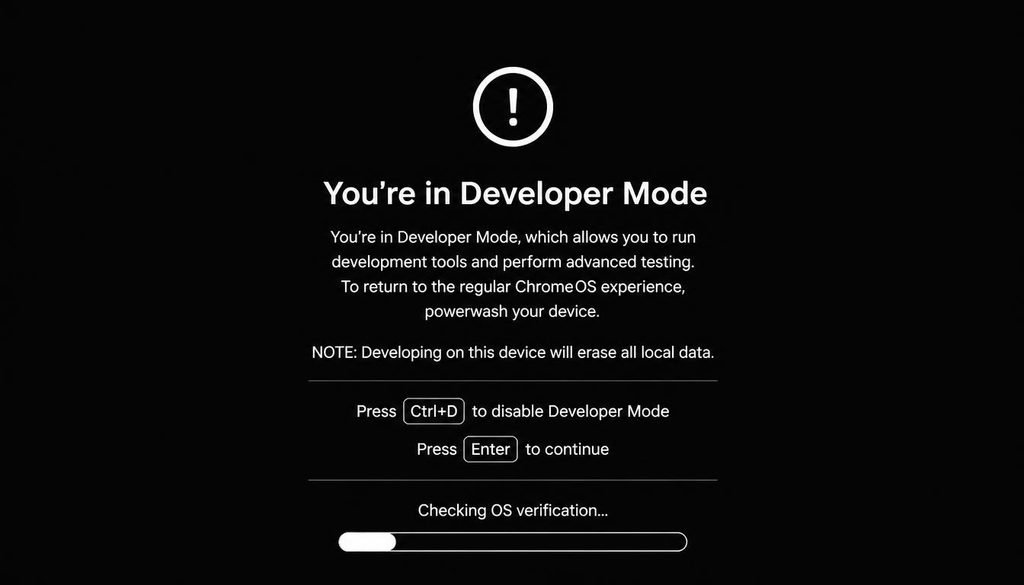
Crosh itself acts as the gateway shell that lets you download the installer scripts before dropping into a true Bash environment.
Removing Chrome OS Entirely
Some users want a clean break rather than a dual boot setup. Removing Chrome OS entirely generally means flashing custom firmware, since stock Chromebook firmware is designed to boot ChromeOS by default. The MrChromebox project provides UEFI firmware, built on Coreboot and SeaBIOS, that replaces the stock firmware and lets the device boot any standard Linux ISO exactly like a regular PC. This process varies significantly by manufacturer and model, so always confirm your exact board name in About ChromeOS before flashing anything, since applying the wrong firmware image can leave a device unable to boot.
If you plan to keep the machine on your home network after the conversion, budget time for driver hunting. Wireless chipsets on ARM based Chromebooks in particular sometimes lack mainline Linux support, and our breakdown of troubleshooting persistent WiFi disconnects covers several of the same driver level fixes that apply once a generic distribution is running on Chromebook hardware.
Installing Linux on an Old Chromebook
Older Chromebooks, especially models from 2017 or earlier with 16GB or 32GB of eMMC storage, need extra care. Full Linux distributions typically require several gigabytes just for the base system, and Crostini itself reserves space for its virtual disk. Before starting, clear unnecessary files, since running out of room partway through can corrupt the container or the partition table. Our guide on clearing storage without deleting important data outlines the same cache and temporary file principles that apply when a Chromebook’s internal storage is nearly full.
For genuinely old or low memory hardware, lightweight distributions such as Lubuntu or a stripped down XFCE setup inside Crostini perform far better than Ubuntu’s default GNOME desktop. If storage runs out during setup, most installers will simply fail rather than corrupt existing data, but it is safer to confirm at least 10GB of free space before beginning any full OS installation.
What Can You Do With Linux on a Chromebook
Once Linux is running, the practical upgrades are substantial:
- Full development environments for Python, Node.js, Java, or Go, with proper compilers and debuggers.
- Native code editors and IDEs such as VS Code, IntelliJ, or Android Studio.
- Creative software including GIMP, Inkscape, Blender, and Audacity.
- Office suites such as LibreOffice for offline document editing.
- Command line administration tools for managing servers, containers, or home network equipment, similar to the diagnostic commands covered in our network troubleshooting command reference.
- Gaming through Steam and Proton, though this generally requires the full USB installation method rather than Crostini, since GPU passthrough is limited inside the container.
GPU Acceleration, USB Passthrough, and Storage Limits
Three technical details trip up almost everyone attempting a deeper Linux setup on Chrome hardware.
GPU acceleration inside Crostini is supported natively through virtualized drivers using virtio GPU technology. While this handles lightweight graphic tasks, media players, and standard 2D games smoothly, demanding 3D rendering and heavy gaming will still underperform compared with a full Linux installation. A native install through Developer Mode and USB gives direct, unvirtualized hardware GPU access instead.
USB device passthrough works differently in Crostini than on a full Linux desktop. Chrome OS requires you to explicitly share a connected USB device with the Linux container through the file manager or a terminal command before Linux software can see it, which catches many new users off guard when a USB drive, webcam, or Arduino board does not appear immediately.
Storage allocation for Crostini is set during initial setup and can be resized later from Settings, then About ChromeOS, then Developers, then Manage disk size, though shrinking the container below its current usage is not possible. Full installations instead depend on how much space you reserved on the drive during partitioning, so plan generously if you intend to install multiple large applications later.
Developer Mode trades away some of the protections that make Chrome OS a relatively safe daily driver. Once enabled, the verified boot process no longer checks the system for tampering on every startup, and a visible warning screen appears each time the device powers on. This is a normal side effect, not a sign of a broken device, but it means a stolen or lost Chromebook in Developer Mode is easier for someone else to access than one running standard Chrome OS.
For most people using Crostini only, none of this applies, since Crostini runs entirely inside the existing Chrome OS security model and does not touch Developer Mode at all. The tradeoff only becomes relevant once you move to a full Linux installation from USB or a firmware flash. If you manage a shared or work owned device, check with an administrator first, since many organizations block Developer Mode through device policy for exactly this reason. Households running several connected devices on the same router often run into overlapping issues here too, and our guide on improving weak signal strength across a home network is a useful companion once a freshly converted Chromebook needs to rejoin the network with a new operating system and a new set of drivers.
Choosing the Right Distribution for Your Hardware
Not every Linux distribution behaves the same way on Chromebook hardware, and picking the wrong one is a common reason installations feel sluggish or unstable afterward:
- Lubuntu: Uses the LXQt desktop environment and consumes noticeably less RAM than mainstream Ubuntu, making it the top choice for older Chromebooks with 4GB of memory or less.
- Linux Mint (XFCE Edition): Provides a highly stable, lightweight desktop that feels familiar to traditional desktop users while keeping system resource consumption low on aging processors.
- Debian: Debian is what actually runs inside Crostini already, so sticking with Debian for a full installation keeps your command habits and package names consistent between both environments.
- Standard Ubuntu: Works well on newer, higher RAM Chromebooks converted with MrChromebox firmware, though its default GNOME desktop demands significantly more hardware resources than LXQt or XFCE.
- Driver Compatibility Check: Whichever distribution you choose, confirm WiFi and touchpad driver support for your specific board before committing to a full wipe, since chipset support is the single most common cause of a technically successful installation that still feels broken on day one.
Frequently Asked Questions (How to Install Linux on a Chromebook)
Can I turn my Chromebook into Linux?
Yes. You can either enable the native Crostini environment for a Linux container alongside Chrome OS, or use Developer Mode with a USB drive and, in most cases, custom firmware to replace Chrome OS with a standalone Linux distribution.
Is it a good idea to install Linux on a Chromebook?
It is a good idea if you need development tools, offline creative software, or full hardware access that Chrome OS does not provide. It is less advisable on a low storage device you rely on daily for schoolwork, since a full installation can wipe existing files.
Can I install Linux on a Chromebook without developer mode?
Yes, through Crostini. Developer Mode is only required for a full Linux distribution installed from USB or for flashing custom firmware, not for the native container.
Does my Chromebook support Linux?
Most Chromebooks released after 2019 support Crostini out of the box. Older or lower end models may lack support, so checking the official list of supported devices before attempting setup avoids wasted time.
What happens if my Chromebook runs out of storage during Linux installation?
The installation typically fails safely rather than corrupting your existing Chrome OS files, but it can leave the Linux container or partition in an unusable state. Freeing at least 10GB before starting prevents this in almost every case.
How do I uninstall or remove Linux from my Chromebook?
For Crostini, go to Settings, then About ChromeOS, then Developers, and select Remove under the Linux development environment. For a full USB drive installation, you generally need to reformat the affected partition or restore stock firmware through the manufacturer’s recovery tool.
Can I run Windows programs inside Linux on a Chromebook using Wine?
Yes, though performance and compatibility vary widely. Wine runs many older or lightweight Windows applications reasonably well inside a full Linux installation, but demanding software often performs poorly inside the more limited Crostini container.
Why is my Linux terminal on Chromebook showing permission denied?
This usually means a command needs elevated privileges. Prefixing the command with sudo, such as sudo apt install <package>, resolves most permission denied errors inside the Debian container.
Can you install Steam games on Linux Chromebook?
Steam can run on a full Linux distribution installed through Developer Mode and USB, though GPU limitations on many Chromebook models mean performance is best for lighter, less graphically demanding titles.
How do I update Linux applications on my Chromebook?
Run sudo apt update && sudo apt upgrade regularly inside the Terminal to update packages installed through apt. Applications installed via flatpak update separately using the flatpak update command.
Final Thoughts
Chrome OS and Linux are not mutually exclusive anymore. For most people, the Crostini Linux environment covers the daily need for a Linux container without touching Developer Mode or risking a Powerwash. For those who need full hardware access, GPU acceleration, or an entirely separate operating system, Developer Mode, a USB drive, and in some cases a Coreboot or SeaBIOS firmware flash unlock a genuinely full Linux desktop experience. Match the method to your hardware’s age, your storage headroom, and how much of your daily workflow depends on ChromeOS remaining intact, and you will have Linux installed on your Chromebook within an afternoon.
If you want to customize your newly installed Linux workspace or convert configuration files easily across systems, you can follow our simple guide on how to change file type in Windows 11 to manage extensions safely. Additionally, if you experience network drops or slow internet performance after setting up your Chromebook on home wireless networks, check out our step-by-step instructions on how to troubleshoot Spectrum Wi-Fi to keep your connection stable and fast.