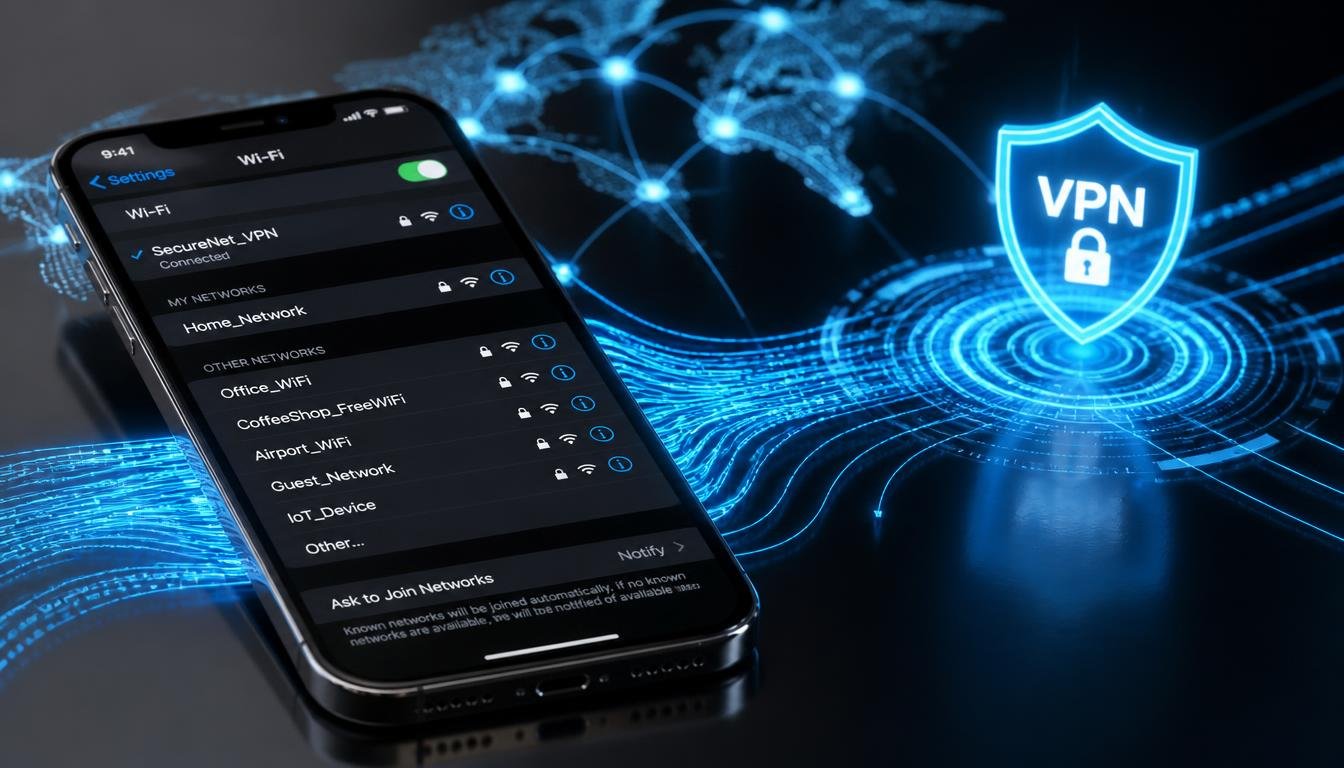
Your iPhone carries more than one IP address at once, and most guides only ever explain how to touch one of them. If you are looking for how to change IP address on iPhone, whether that means a quick local network tweak or a full public address swap for privacy or streaming, the method you need depends entirely on which address you are trying to change.
Quick Answer: How to Change IP Address on iPhone
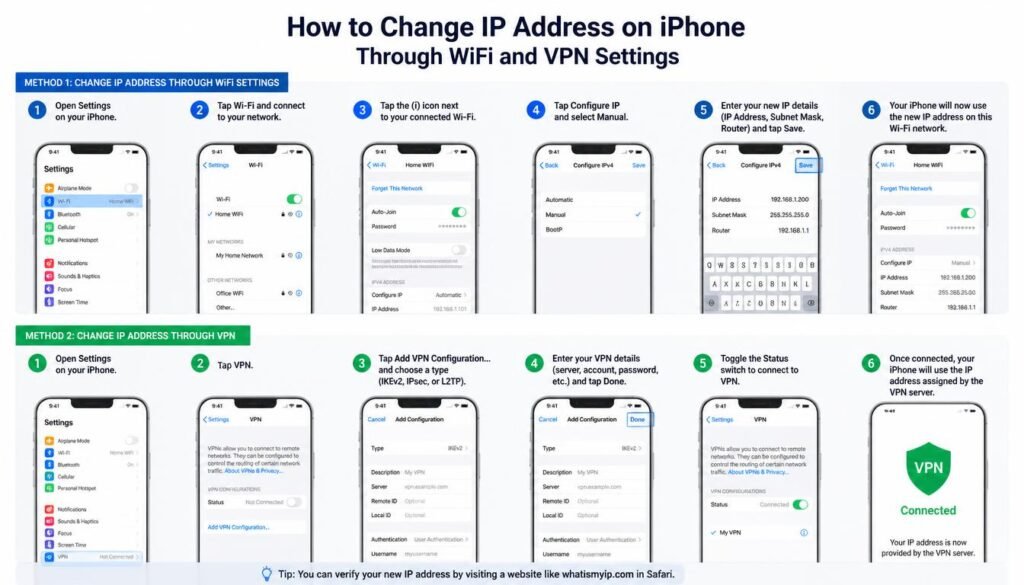
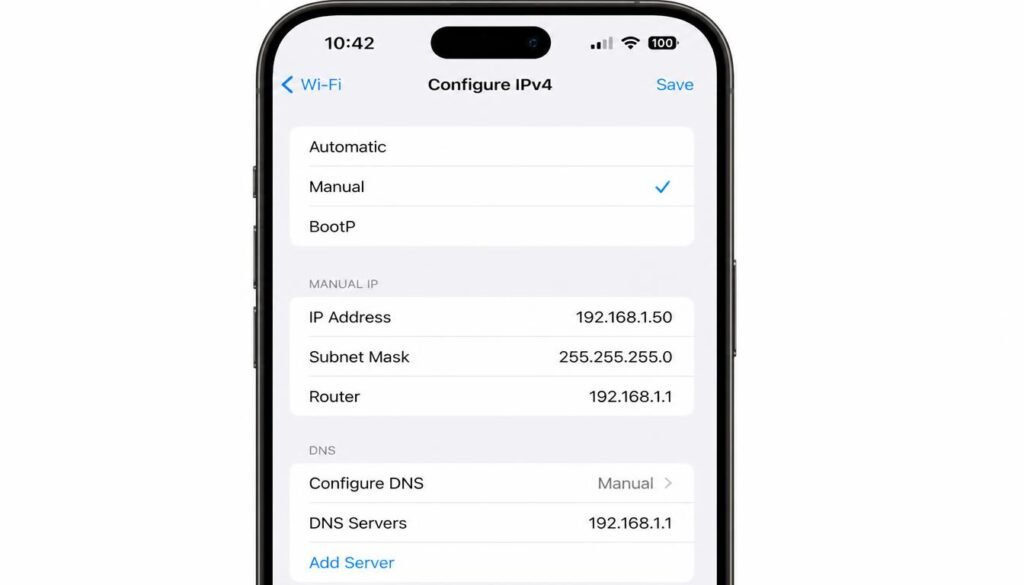
- Local WiFi IP: Open Settings, tap WiFi, tap the info icon, tap Configure IP, choose Manual.
- Public IP (fastest): Connect a VPN app and pick a server location.
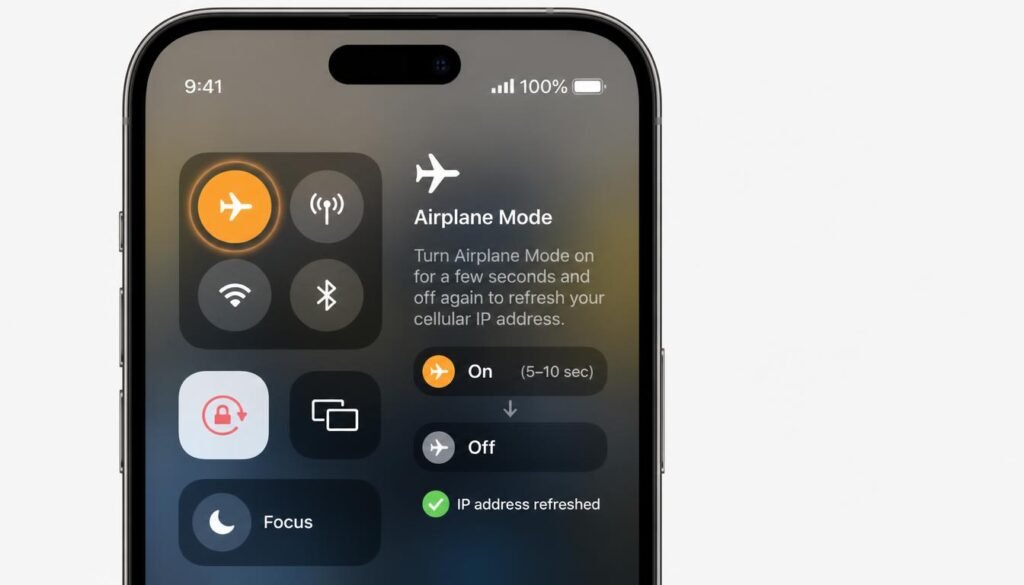
- Cellular IP: Toggle Airplane Mode on and off for thirty seconds.
- Router restart: Restart your modem to request a fresh ISP lease.
Why iPhone Actually Has Two Different IP Addresses
Before picking a method, it helps to understand why “my IP address” means two different things on iPhone. Your phone holds a local IP address, assigned by whichever router you are connected to, that only matters inside that specific network. Separately, your phone (or more accurately, your home router or your carrier) holds a public IP address, the number the wider internet sees whenever you visit a website, stream a video, or open an app.
This distinction is exactly why so many people follow a WiFi settings tutorial and then feel confused when nothing changes on the outside. Editing the local address inside Settings, WiFi, Configure IP only changes how your router identifies your phone on your own network. It has zero effect on what Instagram, Netflix, or your bank’s fraud detection system sees, because those services only ever look at your public address. Keeping that separation in mind before you start saves a lot of wasted troubleshooting time, and it is the reason the five methods below are organized by which address type they actually touch.
How to Change IP Address on iPhone: Comparing All 5 Methods
Each method below changes a different layer of your network address, and picking the wrong one for the job is the most common reason people think their IP address has not actually changed.
| Method | IP Type Changed | Technical Difficulty | Privacy Level | Cost |
|---|---|---|---|---|
| Manual WiFi IP edit | Local (LAN) | Moderate | Low | Free |
| VPN connection | Public (WAN) | Easy | High | Free tier or paid |
| Airplane Mode toggle | Cellular (public) | Easy | Low to moderate | Free |
| Router or modem restart | Public (WAN) | Easy | Low | Free |
| Proxy or Smart DNS | Public (WAN), partial | Moderate | Moderate | Free tier or paid |
How to Change IP Address on iPhone?
Method 1: Changing Your Local WiFi IP Address Manually
This is the method most competing guides describe first, but it only ever touches your local network number, the one your router hands your phone inside your home or office WiFi. It does not change what websites see on the outside.
- Open Settings and tap WiFi.
- Tap the blue information icon next to your connected network.
- Scroll to Configure IP and tap it.
- Select Manual instead of Automatic.
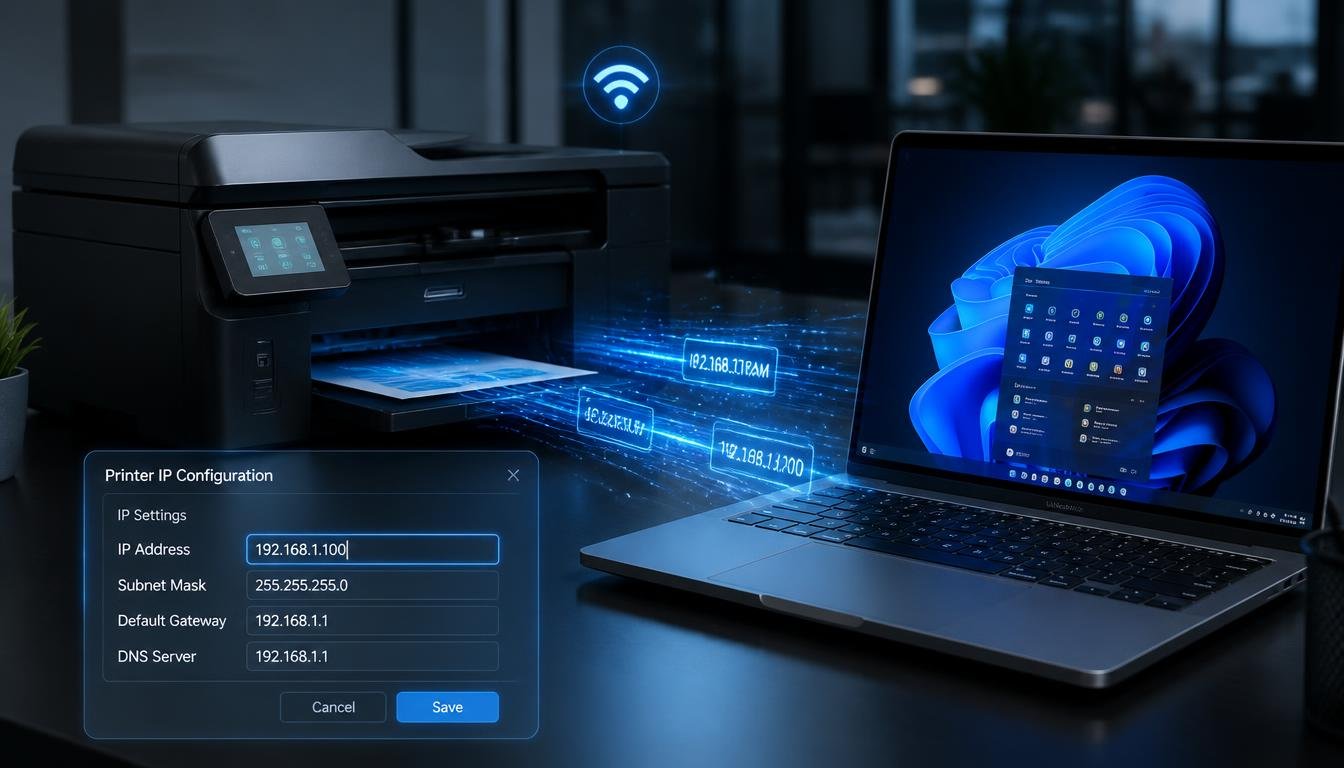
- Enter a new IP address inside your router’s subnet, such as 192.168.1.150 if your router uses the 192.168.1.x range, along with the matching Subnet Mask and Router (gateway) address.
- Tap Save.
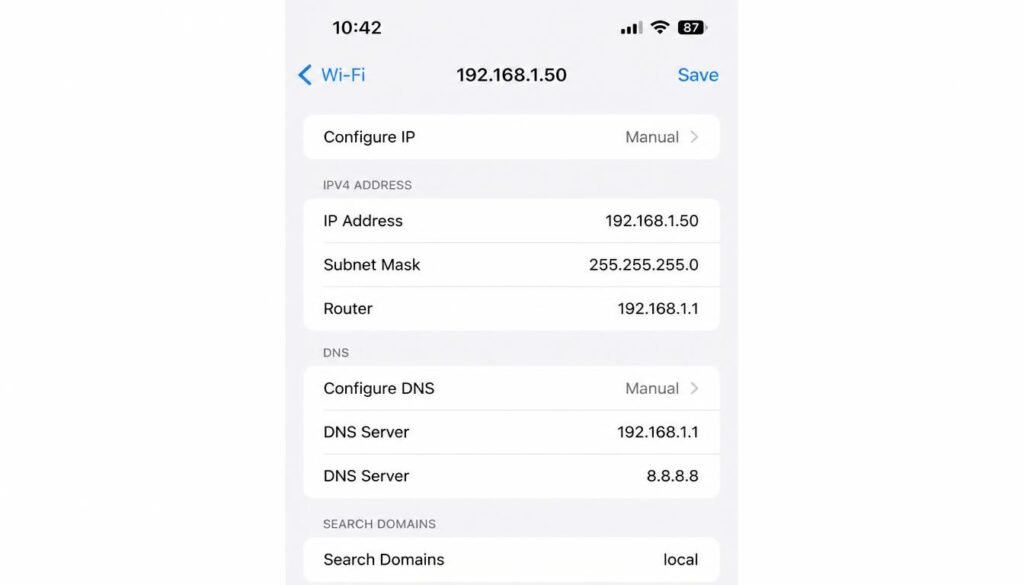
Before you attempt this, it helps to confirm your router’s subnet and gateway first. Our guide on inspecting how to find IP settings walks through pulling those exact values from your device so you do not enter a conflicting address by guesswork. If you are unsure why a fixed local address might matter for a smart home device or a game console, the explanation in what is a static IP address breaks down the tradeoffs between manual and automatic assignment.
A manual local IP is useful for port forwarding, printer sharing, or keeping a specific device reachable at the same address every time, but it does nothing for your identity the outside internet sees. If your goal is privacy or unblocking content locked to a region, skip ahead to Method 2.
Method 2: Changing Your Public IP Address on iPhone to Another Country
A VPN app is the only method on this list that reliably swaps your public address to another country on demand, and it answers the specific question most people searching this topic actually have.
- Download a reputable VPN app from the App Store.
- Create an account and sign in.
- Choose a server location in the country you want your traffic to appear to come from.
- Tap connect. Your public IP address changes the moment the tunnel activates.
- Verify the change by searching “what is my IP” in Safari before and after connecting.
Free VPN tiers exist and can technically handle this task at no cost, but they typically cap server locations, throttle speed, and offer weaker leak protection than paid plans. If privacy rather than location spoofing is your priority, our breakdown of does a VPN change your IP address explains exactly what a VPN changes and what it leaves untouched, including the GPS caveat that trips up most users who assume a VPN hides their physical location entirely.
How to Change IP Address on iPhone?
One detail almost no competitor mentions: iOS also includes a Private WiFi Address feature, separate from your actual IP address, that randomizes your device’s MAC address per network for tracking prevention purposes. On iOS 18 and later, open Settings, tap WiFi, tap the info icon next to a network, and tap Private WiFi Address to choose between Off, Fixed, and Rotating. This setting protects against local network tracking. It does not change the public IP address that websites see, and confusing the two is the single most common mistake in this topic.
Method 3: How to Change IP Address on iPhone Cellular Data
Cellular carriers assign IP addresses from a shared pool, and mobile networks almost universally sit behind Carrier-Grade NAT, or CGNAT, meaning your phone’s cellular IP is already shared among many customers at once. This is why cellular IP behavior differs sharply from WiFi behavior, and why the fix looks completely different.
- Open Settings.
- Tap Airplane Mode to turn it on.
- Wait at least thirty seconds.
- Tap Airplane Mode again to turn it off and reconnect to your carrier network.
- Confirm the change by checking your public IP in a browser.
Toggling Airplane Mode forces your device to drop its current cellular session and request a new address from the carrier’s dynamic pool when it reconnects. This does not always produce a different visible address, because CGNAT can route many customers through the same externally visible IP regardless of which internal address your phone holds. If Airplane Mode does not change the address after two or three attempts, a full device restart or, in rare cases, moving to a different cell tower area will usually force a new assignment.
This carrier level pooling also explains why some apps treat cellular connections as less trustworthy than home WiFi. A shared address behind CGNAT can carry a reputation built up by hundreds of other customers using that same exit point, which occasionally triggers extra verification steps on banking or streaming apps even when your own account activity is completely normal. Switching temporarily to a WiFi network, or connecting a VPN over cellular data, avoids this shared reputation issue because it routes your traffic through a dedicated exit address instead of the carrier’s shared pool.
Method 4: Rotating Your IP for Instagram and Snapchat
A meaningful share of people searching how to change IP address on iPhone for Instagram or Snapchat are actually dealing with an action block, a temporary shadowban, or a location lock rather than a true restriction tied to your IP address, and this distinction matters for which fix actually works.
For Instagram, action blocks are almost always tied to account behavior, not your IP address. Changing your IP through a VPN or Airplane Mode cycle can help if the platform mistakenly flagged your network for suspicious traffic, but it will not lift a block caused by rapid following, liking, or messaging activity. Waiting out the cooldown period alongside reducing behavior that looks automated resolves most cases faster than any IP change.
For Snapchat, a location lock or “ghost mode” style restriction is frequently tied to GPS data rather than your network address, which means a VPN alone often will not resolve it, since Snapchat can still read your device’s actual location permissions independent of your IP. Disabling location services for the app temporarily, alongside an IP change, gives the best chance of resetting a restriction tied to location.
Method 5: iPhone vs iPad vs Android IP Modification
The underlying mechanics stay the same across Apple’s mobile lineup and Android, but the exact menu paths differ slightly, which matters if you manage more than one device type.
Learning how to change IP address on iPad follows an identical path to iPhone, since both run the same WiFi settings panel: Settings, WiFi, the info icon, then Configure IP. The Private WiFi Address toggle sits in the exact same location as well.
Learning how to change IP address on Android generally means opening Settings, tapping Network & Internet or Connections, selecting WiFi, tapping the gear icon next to your network, and switching IP settings from DHCP to Static. For a full walkthrough covering every platform that also covers Android VPN configuration, our guide on guide on how to modify IP address settings covers the comparable steps in more depth.
Regardless of platform, how to change IP address on phone always splits into the same two categories: a local network edit that only your router sees, and a public address change that the wider internet sees. If you regularly troubleshoot network settings on a desktop alongside your phone, the walkthrough on how to find IP address on computer covers the equivalent commands for Windows, Mac, and command line lookups.
If your WiFi itself feels unstable rather than your IP address, an overcrowded router channel is a common and unrelated culprit. Our guide on adjusting your WiFi channel settings covers how to reduce interference on a busy home network, which can look like an IP problem but is actually a signal problem.
Frequently Asked Questions
Can I change my IP address online?
Yes. A browser proxy or a VPN app changes the public IP address that websites see without requiring any physical hardware changes, though a full VPN app offers stronger encryption and more reliable results than a proxy used only inside a browser.
How do I change my IP address?
The fastest method is connecting through a VPN app, which changes your public IP address instantly. For a local network address, open your device’s WiFi settings and switch IP configuration from Automatic to Manual.
Can you legally change your IP address?
Yes, changing your own IP address through a VPN, proxy, or router restart is legal in nearly every country. Legal issues only arise if you use an IP change to commit fraud, evade a legitimate ban tied to illegal activity, or bypass restrictions in violation of a service’s terms in ways that cross into unlawful conduct.
How do I get a new IP address on my cell phone?
Toggle Airplane Mode on for thirty seconds, then turn it off to force your carrier to assign a new cellular IP address. If that does not produce a change, a full restart or a VPN connection will reliably assign a new address.
How do I change my iPhone IP address to another country for free?
Free VPN apps can route your traffic through an international server at no cost, though most free tiers limit which countries are available and cap connection speed compared to paid plans.
Does toggling Airplane Mode on iPhone change the cellular IP address?
Often, yes, since it forces your device to request a fresh address from the carrier’s pool when it reconnects. Because most carriers use Carrier-Grade NAT, the externally visible address does not always change even when your internal assignment does.
Will changing my IP address unblock my Instagram account?
Rarely on its own. Instagram action blocks are typically tied to account behavior rather than your network address, so an IP change alone usually will not lift a block caused by activity that looks automated.
What is the difference between Private WiFi Address and changing IP on iOS?
Private WiFi Address randomizes your device’s MAC address on each WiFi network to prevent local tracking, while changing your IP address alters the number websites and apps see on the wider internet. The two settings are unrelated and live in different parts of the WiFi menu.
How do I change IP address on iPad running iPadOS?
The process matches iPhone exactly: open Settings, tap WiFi, tap the info icon next to your network, and tap Configure IP to switch to Manual, or use a VPN app for the public address.
How does changing an IP address on Android compare to iPhone?
Android requires navigating to Network & Internet or Connections, then WiFi, then the gear icon next to your network to switch from DHCP to Static, while iPhone reaches the same setting through WiFi, the info icon, and Configure IP. Both platforms support VPN apps identically for public IP changes.
Final Thoughts
Knowing how to change IP address on iPhone comes down to identifying which address you actually need to change first. A local WiFi edit only affects how your router sees your device, a VPN or Airplane Mode cycle changes what the outside internet sees, and confusing the two is why most troubleshooting attempts fail. Once you match the method to the problem, whether that is unblocking content locked to a region, resolving a restriction at the app level, or simply reclaiming a bit of privacy from your carrier and ISP, the fix usually takes less than five minutes.
If you also use non-Apple mobile devices in your daily workflow or manage a multi-platform home network, reviewing our step-by-step walkthrough on how to change IP address on Android will help you apply these exact same networking concepts across both mobile operating systems.