How To Change WiFi Password on Router 2 Minutes Fix Guide
You suspect a neighbor is riding your bandwidth, you just moved into a new place with a router someone else configured, or you simply have not touched your network settings in years. Whatever brought you here, learning how to change WiFi password on router settings takes under three minutes on almost any device, and this guide walks through the exact clicks for TP-Link, D-Link, fiber ISP routers, and mobile devices, so you never land on the wrong menu again.
Quick Answer: Changing Your Router’s WiFi Password
- Connect a phone or computer to your current WiFi network, then open a browser and type your router IP address, usually 192.168.1.1 or 192.168.0.1.
- Log in with your admin username and password, printed on the router label if you never changed them.
- Open the Wireless or WiFi Settings menu and enter a new WiFi password of at least 12 characters.
- Save or apply the change, then reconnect every device on the network using the new password.
- Choose WPA2 or WPA3 encryption in the same menu for the strongest available protection.
Table of Contents
- Why You Should Change Your WiFi Password Regularly
- WiFi Security Protocols Explained: WEP vs WPA vs WPA2 vs WPA3
- Changing Your Router’s WiFi Password (Universal Steps for Any Brand)
- How to Change WiFi Password on a TP-Link Router
- How to Change WiFi Password on a D-Link Router
- How to Change Fiber WiFi Password (PTCL, Nayatel, and Other ISP Routers)
- How to Change WiFi Password From Mobile
- How to Rename WiFi Name and Password Together
- What Makes a Strong New WiFi Password
- Common Problems When You Reset Your Router Password
- Frequently Asked Questions
- Final Thoughts
Why You Should Change Your WiFi Password Regularly
A weak or years old WiFi password is one of the easiest ways for an unknown device to join your network without permission. Once someone is inside, they can slow down your connection, view which sites connected devices are visiting on unsecured traffic, and in the worst cases reach smart cameras, printers, or other devices sitting on the same network.
Changing your WiFi password on a regular schedule, ideally every three to six months, or immediately after a guest leaves, protects you in several concrete ways:
- It removes anyone who received the old password but should no longer have access, including past guests, tenants, or repair technicians.
- It limits the damage if the old password was ever written down, texted, or shared through an unsecured channel.
- It reduces the chance of bandwidth theft that quietly slows video calls, gaming, and streaming.
- It forces any device that was connecting silently in the background, such as a neighbor’s smart device that once joined by mistake, to disconnect until someone enters the new credentials.
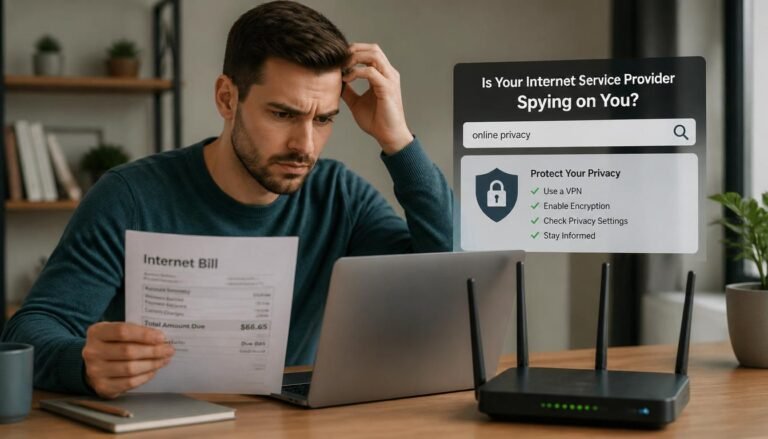
Beyond bandwidth theft, an old or shared password can also raise questions about what a router actually reveals about your online activity. If you are unsure whether your internet provider or a family member can see what you browse just from the billing side, our guide on whether search history shows up on a WiFi bill clears up what is actually visible and what is not.
WiFi Security Protocols Explained: WEP vs WPA vs WPA2 vs WPA3
Before you set a new password, check which encryption standard your router offers. This setting usually sits in the same screen as the password field, often labeled Security Mode or Encryption.
| Protocol | Security Level | Recommendation |
|---|---|---|
| WEP | Very weak, broken by modern tools within minutes | Avoid completely, upgrade your router if this is the only option |
| WPA | Outdated, replaced by WPA2 years ago | Avoid if a newer option is available |
| WPA2 | Strong and still the most widely supported standard | Safe minimum for almost every home network |
| WPA3 | Latest standard with stronger brute force protection | Use this if your router and devices support it |
Most home routers manufactured after 2018 support at least WPA2, and newer models increasingly ship with WPA3 or a WPA2/WPA3 mixed mode that lets older phones and new devices connect at the same time.
How To Change WiFi Password on Router?

How to Change WiFi Password on Router (Universal Steps for Any Brand)
Every router brand labels its menus a little differently, but the underlying process to change WiFi password on router settings follows the same pattern everywhere. Use these steps first if your specific brand is not listed later in this guide.
Steps to Change WiFi Password on Router From Any Web Browser
- Connect to the network you want to update. Use a phone, laptop, or desktop that is already joined to the WiFi network, or connect through an Ethernet cable for a more stable session.
- Open the admin panel. Type the router default gateway IP address into your browser address bar. See the comparison table below if you are not sure which address your brand uses.
- Log in. Enter the admin username and password. These credentials are different from your WiFi password and are usually printed on a sticker on the bottom or back of the router.
- Find the Wireless or WiFi settings. Look for a menu labeled Wireless, WiFi, or Wireless Security.
- Enter the new WiFi password. Replace the existing password field with a new one that is at least 12 characters long.
- Select your encryption type. Choose WPA2 or WPA3 if the option appears on the same screen.
- Save or apply the change. The router will briefly restart the wireless radio, so every connected device drops for a few seconds.
- Reconnect every device using the new WiFi password, including phones, laptops, smart speakers, and streaming boxes.
How To Change WiFi Password on Router?

A password change never affects physical coverage, so a lingering dead zone points to hardware or placement rather than your new credentials. Before buying anything, our guide on how WiFi boosters actually work explains what these devices can and cannot fix, so you know whether an extender is really the answer.
Default Gateway IP Addresses by Router Brand
| Brand | Common Default Gateway IP | Default Admin Login |
|---|---|---|
| TP-Link | 192.168.0.1 or 192.168.1.1, or tplinkwifi.net | admin / admin |
| D-Link | 192.168.0.1 | admin / blank password |
| Netgear | 192.168.1.1 or routerlogin.net | admin / password |
| ASUS | 192.168.1.1 or router.asus.com | admin / admin |
| Fiber ISP gateways (many regions) | 192.168.1.1 or 192.168.100.1 | printed on device label |
If none of these addresses load the login page, check the label on the underside of your router, since some manufacturers customize the default gateway for specific regional models.
How to Change WiFi Password on a TP-Link Router
- Connect to your current TP-Link WiFi network from a phone or laptop.
- Open a browser and go to tplinkwifi.net, or type 192.168.0.1 or 192.168.1.1 directly.
- Log in with your admin username and password.
- Select Wireless from the left menu, then Wireless Settings.
- Enter the new password in the Wireless Password field.
- Confirm WPA2 or WPA3 is selected under Security Mode.
- Click Save, then reconnect your devices with the new password.

How To Change WiFi Password on Router?
TP-Link also offers the Tether app for Android and iOS, which lets you complete every one of these steps from a phone without opening a browser at all, covered in more detail in the mobile section below.
How to Change WiFi Password on a D-Link Router
- Connect to your current D-Link WiFi network.
- Open a browser and enter 192.168.0.1.
- Log in using the admin credentials on your router label. Many D-Link models ship with the password field left blank by default.
- Go to Setup, then Wireless Settings, then choose Manual Wireless Network Setup.
- Enter the new password in the Pre Shared Key or Password field.
- Click Save Settings, wait for the router to restart the wireless radio, then reconnect your devices.
How To Change WiFi Password on Router?

How to Change Fiber WiFi Password (PTCL, Nayatel, and Other ISP Routers)
Fiber and broadband gateways issued directly by an internet service provider often ship with a modified admin panel, but the change fiber WiFi password process still follows the universal steps. A few extra points apply specifically to ISP supplied hardware:
- The default gateway is frequently 192.168.1.1 or 192.168.100.1, though some ISPs use a unique address printed only on the router label or the original setup card.
- The admin login on ISP gateways is sometimes locked to a technician account. If your normal admin credentials fail, contact your ISP support line and ask specifically for the WiFi password change permission on your account, since some regions restrict full admin access on leased hardware.
- After you save a new password, ISP gateways in fiber setups can take slightly longer than standalone routers to apply the wireless restart, sometimes up to a full minute, so allow extra time before assuming the change failed.
- If your fiber gateway also functions as a modem and router combo, changing the WiFi password does not affect your internet plan, speed, or billing in any way.
A device shows the network but the WiFi icon has a red X or exclamation mark. This usually points to the network adapter itself rather than the password you just entered. Our guide on a network adapter not working covers the driver reset and adapter reinstall steps that resolve this even after a fresh password change.
How to Change WiFi Password From Mobile
Many people ask how can I change WiFi password from mobile without touching a laptop at all. The answer depends on whether you use the manufacturer app or a mobile browser.
How to Change WiFi Password on Router Using Android
- Connect your Android phone to the current WiFi network.
- Open Chrome or any browser and type your router IP address, such as 192.168.1.1.
- Log in with your admin credentials.
- Open Wireless Settings and enter the new password.
- Tap Save, then reconnect on the same phone using the new credentials.

How To Change WiFi Password on Router?
If your router brand has a dedicated app, such as TP-Link Tether or the ASUS Router app, install it from the Google Play Store, log in, and look for a Wireless or Network Settings option that lets you update the password without opening a browser.
How to Update Your Router’s WiFi Password Using iPhone
- Connect your iPhone to the current WiFi network under Settings > WiFi.
- Open Safari and type your router IP address into the address bar.
- Log in with your admin credentials.
- Go to Wireless Settings, enter the new password, and save.
- Return to Settings > WiFi on the iPhone, tap your network name, and enter the new password when prompted.
This same method to change WiFi password from phone works whether you are on cellular data temporarily or connected to the current WiFi network, as long as the phone can reach the router admin panel.
How to Rename WiFi Name and Password Together
If you want to know how to change WiFi name at the same time as the password, both fields almost always sit on the same Wireless Settings screen.
- Open the Wireless Settings menu using the steps for your brand above.
- Find the SSID or Network Name field and type a new name to rename WiFi name.
- In the same screen, update the Password field with your new WiFi password.
- Save both changes together, then reconnect every device using the new network name and password.

A custom SSID does not add extra encryption, but it does make your network harder to identify by name, and it signals to anyone scanning nearby networks that the connection is actively managed rather than left on factory defaults.
What Makes a Strong New WiFi Password
A strong new WiFi password protects everything else on this list from being wasted effort. Aim for the following:
- At least 12 to 16 characters, longer where your router allows it.
- A mix of uppercase letters, lowercase letters, numbers, and symbols.
- No names, birthdays, addresses, or the word password itself.
- A passphrase built from unrelated words plus numbers and symbols, for example TableLantern42!Cloud, which is easier to type correctly than a random string and just as hard to guess.
- A password manager entry, so you do not need to memorize it or write it somewhere insecure.
Common Problems When You Reset Your Router Password
Devices will not reconnect after the change. Every device that was previously connected loses access the moment you save a new password. Go to the WiFi settings on each phone, laptop, or smart device and select the network name again, then enter the new password when prompted.
You forgot the admin login, not the WiFi password. If you cannot remember your admin credentials, use the small recessed reset button on the back of the router, usually held for 10 seconds, to restore factory settings. This clears the WiFi password too, so you will need to set both again from scratch.
Smart home devices lose their connection permanently. Some cameras, plugs, and locks store the WiFi credentials internally and need to be reconfigured through their own app after any password change, not just reconnected from a settings menu.
Most password related connection problems fall into one of a small number of categories, and the fixes below cover the ones that come up most often right after a router change. If none of the specific fixes below solve it, our broader guide on 10 ways to fix WiFi connection problems walks through every remaining troubleshooting layer, from the router itself down to individual device settings.
Frequently Asked Questions
How to change the WiFi password on a TP-Link router?
Connect to your TP-Link network, open tplinkwifi.net or type 192.168.0.1 into a browser, log in with your admin credentials, open Wireless Settings, enter the new password, and save. The Tether app offers the same steps from a phone without a browser.
How to change WiFi password from mobile?
Connect your phone to the current WiFi network, open a browser, type the router IP address, log in with the admin credentials, then update the password field under Wireless Settings and save. Most router brands also offer a dedicated app that skips the browser step entirely.
How to change the WiFi password on a router using Android?
Open Chrome on your Android phone, type your router IP address such as 192.168.1.1, log in, go to Wireless Settings, enter the new password, save, then reconnect the phone using the new credentials.
WiFi password change online?
Some ISPs offer an online account portal where you can change your WiFi password without logging into the router admin panel directly, though this depends entirely on your specific provider and whether your gateway is registered to a managed account. Most home routers still require logging into the local admin panel through the router IP address instead.
How do I change my 192.168.1.1 password?
192.168.1.1 is a default gateway address, not a password itself. Type it into a browser, log in with your router admin credentials, then look for the Wireless Password field under Wireless Settings to set a new WiFi password.
How to change WiFi password on Android?
The process is the same as changing it from any Android browser: connect to the network, open the router IP address in Chrome, log in, and update the password under Wireless Settings.
How to change my WiFi name and password on my phone?
Open your router admin panel from your phone browser using the router IP address, log in, and update both the Network Name (SSID) and Password fields on the same Wireless Settings screen, then save.
How to change WiFi password on iPhone?
Open Safari on the iPhone, type the router IP address, log in with your admin credentials, update the password under Wireless Settings, save, then reconnect through Settings > WiFi on the iPhone using the new password.
How do I change the password on my home WiFi router?
Connect to the network, open a browser, enter the router default gateway IP address, log in with the admin credentials found on the router label, open Wireless Settings, enter a new password of at least 12 characters, and save.
Can I change my WiFi password by myself?
Yes. Changing a WiFi password requires only the router admin login, which most home users already have or can find printed on the router itself. No technician visit or special account access is normally required unless your router is a leased ISP gateway with restricted admin access.
How do I change my 192.168.1.1 password?
See the answer above under the same question. The address itself has no password; the WiFi password lives inside the Wireless Settings menu once you have logged into the admin panel through that address.
How do I change my home connect router password?
Log into your router admin panel using its default gateway IP address, locate the Wireless or WiFi Settings menu, and update the password field there, then save and reconnect every device in the home using the new password.
Final Thoughts
Learning how to reset your router’s WiFi password once means you can repeat it in under three minutes every time it matters, whether that is after a guest leaves, on a fixed three to six month schedule, or the moment an unfamiliar device shows up in your connected devices list. Pair a strong new password with WPA2 or WPA3 encryption, and update your network name at the same time for the clearest security upgrade available without buying new hardware.
Once your WiFi password and encryption are locked down, it is worth checking that your wired connections are pulling their expected share too. If a device plugged directly into the router still feels slower than WiFi, our guide on why Ethernet can run slower than WiFi walks through the driver and port speed checks that usually explain it.