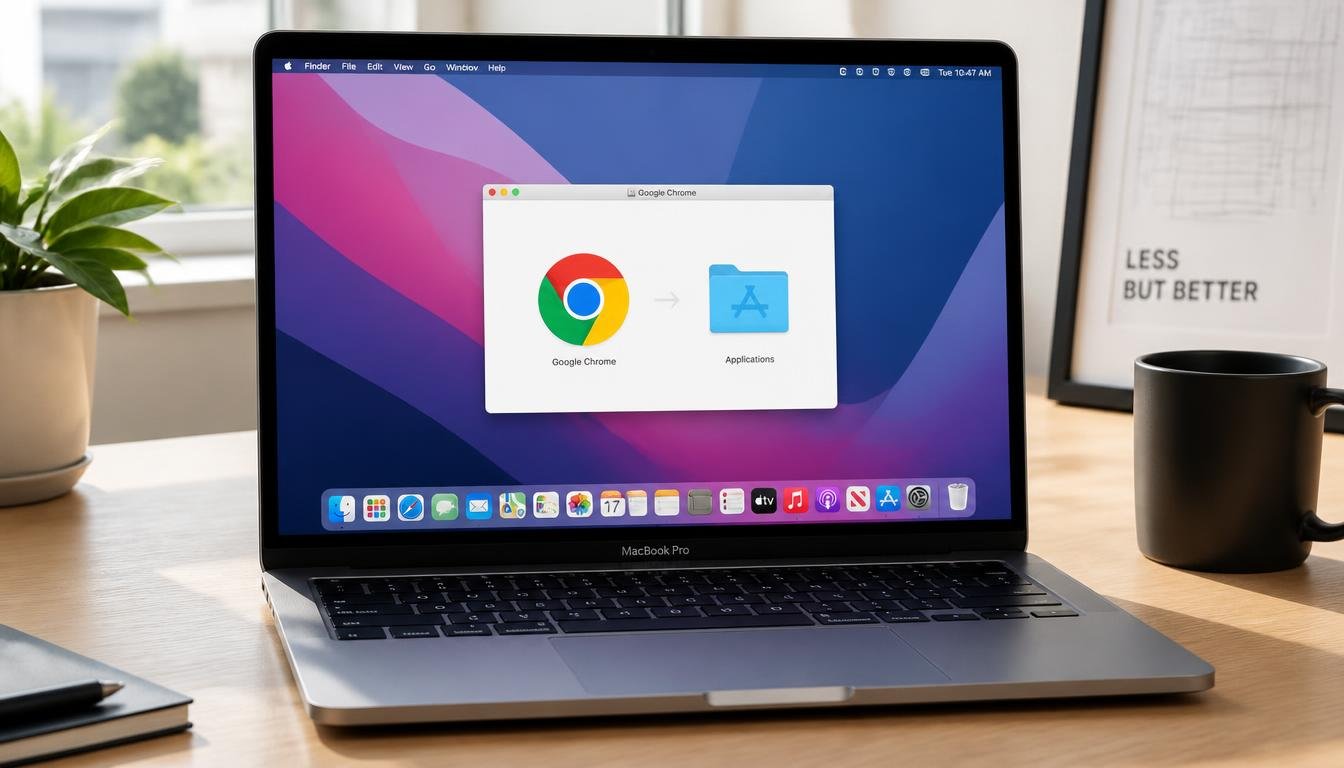
How to Download Chrome on Mac: Step-by-Step Guide (2026)
Safari ships with every Mac, yet it cannot run several extensions, developer tools, and cross platform sync features that Chrome handles without effort. If you are wondering how to download Chrome on Mac correctly, whether you own a MacBook Air, MacBook Pro, iMac, or Mac mini, the process itself takes under two minutes, but a handful of Gatekeeper prompts and installer quirks trip up more people than you would expect.
Quick Answer:
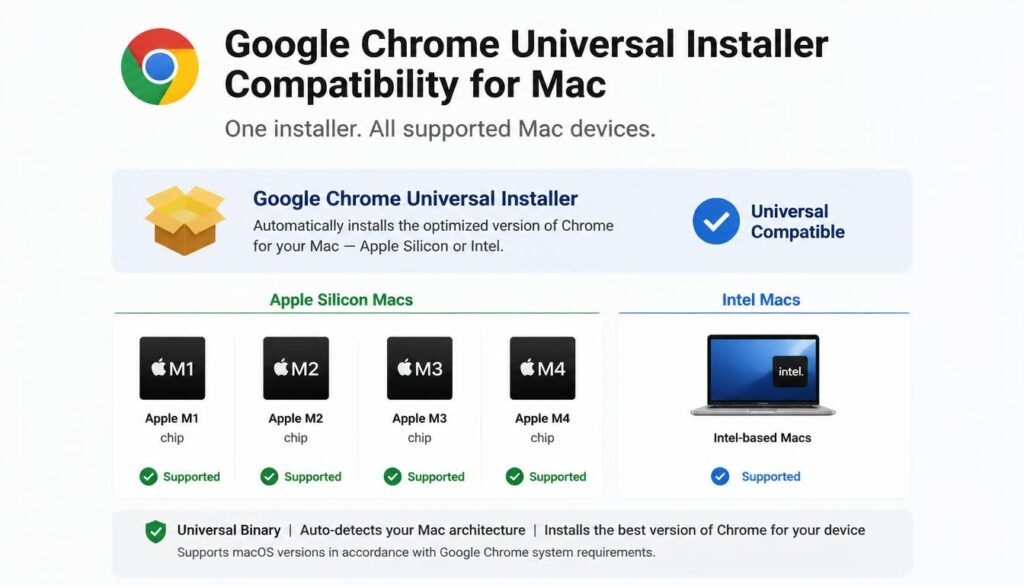
To download Chrome on a Mac, open Safari, go to google.com/chrome, click Download Chrome, and open the googlechrome.dmg file once it lands in your Downloads folder. Drag the Chrome icon into the Applications folder, then launch it from there. macOS may show an “unidentified developer” warning the first time you open it; right click the icon and select Open to bypass this safely. The installer Google provides today is a single universal file that runs natively on both Apple Silicon (M1 through M4) and Intel Mac models, so there is no need to choose a chip specific version for a standard install.
Step by Step Guide: How to Download Chrome on Mac Correctly
Follow this sequence exactly and the entire process should not exceed two minutes on a normal broadband connection.
Step 1: Navigate to the Official Google Chrome Website
Open Safari, or any browser currently installed on your Mac, and type google.com/chrome into the address bar. Avoid searching for “chrome download” through a general search engine and clicking the first sponsored result, since imitation sites and bundled installer scams frequently outrank the legitimate Google Chrome website for that exact phrase. The official page always lives at google.com/chrome and displays a single blue Download Chrome button.
If your installer download freezes midway due to low network range, checking your connection using our guide on improving weak wifi signal performance ensures a smooth download without corrupting the file.
Step 2: Confirm the macOS Requirement Before Downloading
Chrome requires macOS 13 Ventura or a newer release. If your Mac runs an older system, the installer will still download, but Chrome will refuse to open once installation finishes. Check your current macOS version by clicking the Apple menu in the top left corner, selecting About This Mac, and reading the version number listed beneath the model name.
Step 3: Download googlechrome.dmg to Your Downloads Folder
Click the Download Chrome button. A short terms of service screen appears; click Accept and Install to begin the transfer. The file, named googlechrome.dmg, saves automatically to your Downloads folder and typically finishes in under a minute on a stable connection. Unlike the separate 32 bit and 64 bit builds Windows still ships for older hardware, this single Mac file is a universal binary, meaning the exact same download runs at full native speed whether your Mac uses an Apple Silicon chip or an Intel processor.
Step 4: Open the DMG and Drag Chrome Into Applications
Locate googlechrome.dmg in Finder, either through the Downloads folder or by clicking the small download arrow icon in Safari’s toolbar. Double click the file to mount it. A window opens showing the Chrome icon next to a shortcut to your Applications folder. Drag the Chrome icon directly onto the Applications folder shortcut. macOS copies the application over, and you may be asked to enter your administrator password to authorize the copy, since installing new applications system wide is a protected action on every modern Mac.
How to Download Chrome on Mac?
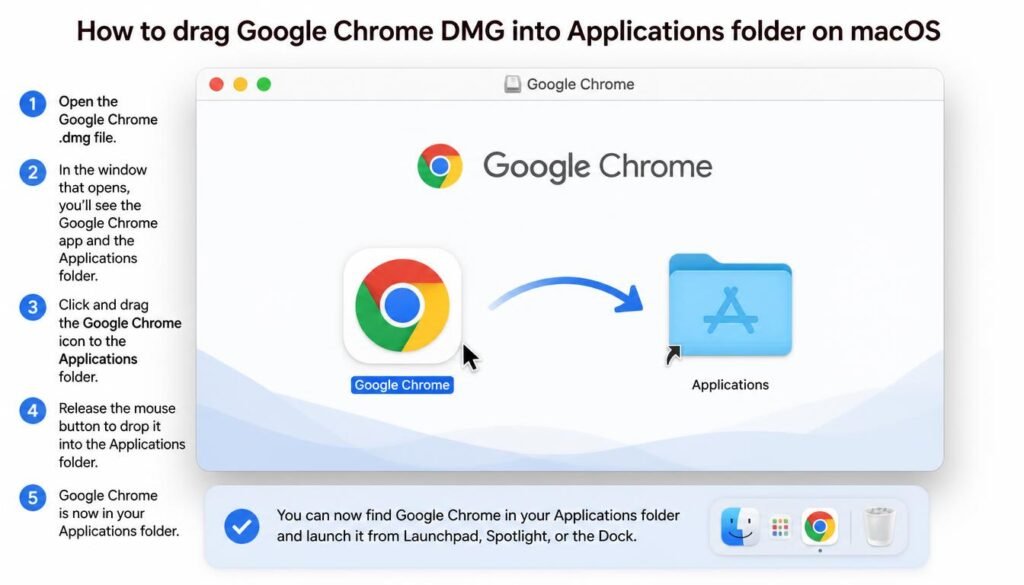
Step 5: Launch Chrome and Clear the Security Prompt
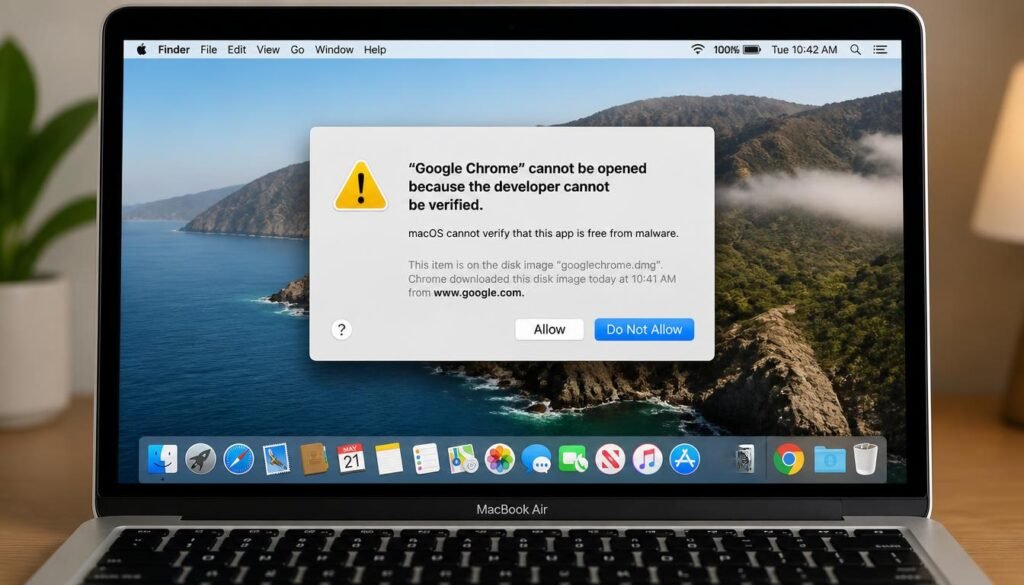
Open Finder, click Applications in the sidebar, and double click Chrome. The first launch on a fresh Mac sometimes triggers a Gatekeeper warning stating that Chrome cannot be verified or was downloaded from the internet. This is expected behavior for a freshly downloaded application rather than a sign of a corrupted file, and the troubleshooting section further down covers the exact steps to clear it. Once Chrome opens, it prompts you to sign in with a Google Account, set Chrome as your default browser, and import bookmarks from Safari if you choose to.
Installing Chrome on Specific Mac Models and Operating Systems
The core installation steps above apply identically across the current Mac lineup, but a few model specific notes are worth knowing before you begin.
Google Chrome for MacBook Air and MacBook Pro Setup
Every MacBook Air released since 2020 and every MacBook Pro released since late 2020 uses an Apple Silicon chip, meaning the standard googlechrome.dmg download already installs the correct native build with no extra steps. Older MacBook Air and MacBook Pro models built with an Intel processor use the identical download link and installer window, since the universal binary automatically loads the Intel compatible code path on that hardware.
If you are unsure which exact model you own before checking system requirements, the same About This Mac window used above also displays your device name, and pairing that with measuring laptop display dimensions is a quick way to confirm you are buying compatible accessories once Chrome and your other daily software are installed.
How to Download Chrome on Older macOS Versions
If your Mac still runs macOS 12 Monterey or an earlier release, the current Chrome installer will not launch after installation completes. In this situation, two paths exist: upgrade macOS through System Settings, General, Software Update, or install one of the final Chrome versions that still supported your specific system, available through Google’s legacy release archive for users who cannot upgrade their hardware. Upgrading macOS is the more sustainable option, since older Chrome builds no longer receive security patches.
Architecture Differences: Apple Silicon (M1 through M4) vs Intel Chip Installers
Most modern download guides make a bigger deal of this distinction than current reality warrants. Because Google ships one universal googlechrome.dmg file, a standard user never needs to identify their chip type before downloading. The distinction only matters for IT administrators deploying Chrome across many machines through Google’s enterprise bundle, where separate Apple Silicon and Intel packages remain available for controlled rollouts, or for anyone using modifying file extensions and installer formats on cross platform installer packages as part of a broader software deployment workflow.
Comparative Analysis: Google Chrome vs Apple Safari on macOS
Both browsers ship free and both render modern websites competently, so the decision usually comes down to ecosystem needs rather than raw capability.
| Category | Google Chrome | Apple Safari |
|---|---|---|
| Resource Usage | Higher RAM usage per tab, more aggressive background processes | Lower RAM usage, tuned specifically for Apple hardware and battery life |
| Extension Ecosystem | Chrome Web Store, by far the largest extension library available on any browser | Smaller Safari Extensions catalog through the Mac App Store |
| Cross Platform Syncing | Full bookmark, password, tab, and history sync across Windows, Mac, Android, and iOS | Sync works well within Apple devices through iCloud, weaker outside the Apple ecosystem |
| Security Protocols | Frequent update cycle, strong sandboxing, broad third party security research coverage | Deep macOS integration, strict default tracking prevention, tightly sandboxed by Apple |
| Developer Tools | Extensive DevTools suite favored by most web developers | Web Inspector available, smaller developer community focus |
| Battery Impact on MacBook | Noticeably higher battery drain during extended browsing sessions | Optimized for longer battery life on MacBook Air and MacBook Pro |
If your daily workflow depends on Chrome extensions, cross device syncing with a Windows PC or Android phone, or specific developer tools, Chrome remains the stronger practical choice despite the heavier resource footprint. If battery life and native macOS integration matter more than extension variety, Safari continues to hold a real advantage on portable Mac hardware.
Troubleshooting Common Chrome Installation Errors on macOS
Most Chrome download app install failures on a Mac trace back to one of three predictable causes, all of which have a direct fix.
Fixing “Chrome Cannot Be Opened Because It Is From an Unidentified Developer”
This Gatekeeper message appears the first time you open almost any application downloaded outside the Mac App Store, and Chrome is no exception on a freshly configured Mac. To clear it, locate Chrome inside your Applications folder, hold Control and click the icon, then select Open from the shortcut menu. A new dialog appears with an Open button instead of the earlier warning; click it, and macOS remembers this choice for all future launches. If Control clicking still refuses to reveal an Open option, go to System Settings, Privacy and Security, scroll to the Security section, and click Open Anyway next to the message referencing Chrome.
Resolving Corrupt DMG File Mounting Issues in Finder
If double clicking googlechrome.dmg produces an error stating the file is damaged or cannot be mounted, the download itself was interrupted or corrupted mid transfer, usually due to an unstable internet connection or a security tool intercepting the file. Delete the file from your Downloads folder entirely, confirm your internet connection is stable, and download it again directly from google.com/chrome rather than resuming a partial download. Clearing your browser cache before re downloading also helps if Safari attempted to serve a cached, incomplete version of the file.
What to Do When the Google Chrome Installer Gets Stuck or Fails to Open
If the DMG mounts successfully but double clicking the Chrome icon inside it does nothing, or the drag to Applications step appears frozen, quit Finder through the Apple menu, Force Quit, select Finder, and relaunch it. Then try opening the DMG again. If the installer window opens but visibly freezes partway through the drag and drop copy, check available storage under About This Mac, Storage, since a nearly full startup disk frequently causes silent installation failures that mimic a stuck installer. Clearing several gigabytes of space and repeating Step 4 above typically resolves this without needing to redownload anything.
Setting Chrome as Your Default Browser Without System Crashes
Once Chrome is installed and running, open Chrome Settings, click Default Browser in the left sidebar, and select Make Default. macOS will show a native confirmation dialog; click Use Chrome to finalize the change system wide. This method avoids the rare crash reports associated with switching default browsers through Safari’s own preferences panel instead, since routing the change through Chrome’s own settings uses Apple’s supported API for default application changes rather than a workaround.
If you ever need to reverse this, open System Settings, Desktop and Dock, scroll to Default Web Browser, and select Safari from the dropdown menu to switch back at any time.
Frequently Asked Questions
Why can I not use Chrome on my Mac?
Chrome will not open if your Mac runs macOS 12 Monterey or an earlier version, since current Chrome builds require macOS 13 Ventura or newer. Update macOS through System Settings, General, Software Update, then reinstall Chrome once the update finishes.
Why can I not download Chrome on my Mac?
A blocked download usually stems from an unstable internet connection interrupting the transfer, a security extension intercepting the file, or insufficient storage space on your startup disk. Confirm your connection is stable, check available storage under About This Mac, and try the download again directly from google.com/chrome.
Where does Chrome download to on Mac?
Chrome downloads to your Downloads folder by default, visible in Finder’s sidebar or through the small download arrow icon inside Chrome’s toolbar once installation is complete.
How do I reinstall Google Chrome on my Mac?
Drag the existing Chrome icon from Applications to the Trash, empty the Trash, then download a fresh googlechrome.dmg file from google.com/chrome and repeat the standard installation steps. Your bookmarks and saved passwords remain intact as long as you are signed into the same Google Account after reinstalling.
Is Google Chrome free for MacBook users?
Yes, Chrome is completely free for every Mac model, including MacBook Air, MacBook Pro, iMac, and Mac mini, with no purchase, subscription, or license key required at any point.
How do I set Google Chrome as the default browser on Mac?
Open Chrome Settings, select Default Browser from the sidebar, click Make Default, then confirm Use Chrome in the system dialog that appears.
Will downloading Chrome slow down my MacBook Air?
The download and installation process itself takes under two minutes and has no lasting performance effect. Chrome does use more RAM per open tab than Safari during regular browsing, so a MacBook Air with 8GB of RAM may feel this more than a higher memory configuration, particularly with many tabs open simultaneously.
How do I update Google Chrome manually on macOS?
Open Chrome, click the three dot menu in the top right corner, hover over Help, then select About Google Chrome. Chrome checks for updates automatically on this screen and installs any available update once you relaunch the browser.
Can I transfer my Chrome bookmarks from a Windows PC to Mac?
Yes. Sign into the same Google Account on both the Windows PC and the Mac version of Chrome, and enable sync under Chrome Settings, You and Google, Sync. Bookmarks, saved passwords, and open tabs transfer automatically between the two machines within a few seconds of enabling sync.
If you are setting up Chrome on a new machine and need to retrieve your saved network credentials beforehand, follow our tutorial on how to see wifi password on windows to get reconnected quickly.
How do I completely remove old Chrome residual files before reinstalling?
Drag Chrome from Applications to the Trash, then open Finder, press Command+Shift+G, and type ~/Library/Application Support/Google/Chrome to locate remaining profile data. Delete this folder along with ~/Library/Caches/Google/Chrome if you want a fully clean reinstall with no saved settings carried over, then empty the Trash before downloading a fresh copy.
Final Thoughts
Downloading Chrome on a Mac is a two minute task once you know which prompts to expect, and the single universal installer Google now provides removes the chip selection confusion that used to complicate this process on Apple Silicon hardware. Whether you are setting up a new MacBook Air, migrating from a Windows PC, or simply tired of Safari’s extension limitations, the steps above cover every checkpoint from the initial download through the first security prompt and default browser switch.
If your new setup also involves connecting external displays or peripherals, our guide on display mirroring and casting methods covers wired and wireless options that work alongside a freshly installed browser. And if switching to Chrome makes you curious about what your browsing activity actually reveals to others on your network, our breakdown of checking browser search history privacy settings clears up a common misconception worth knowing regardless of which browser you choose.