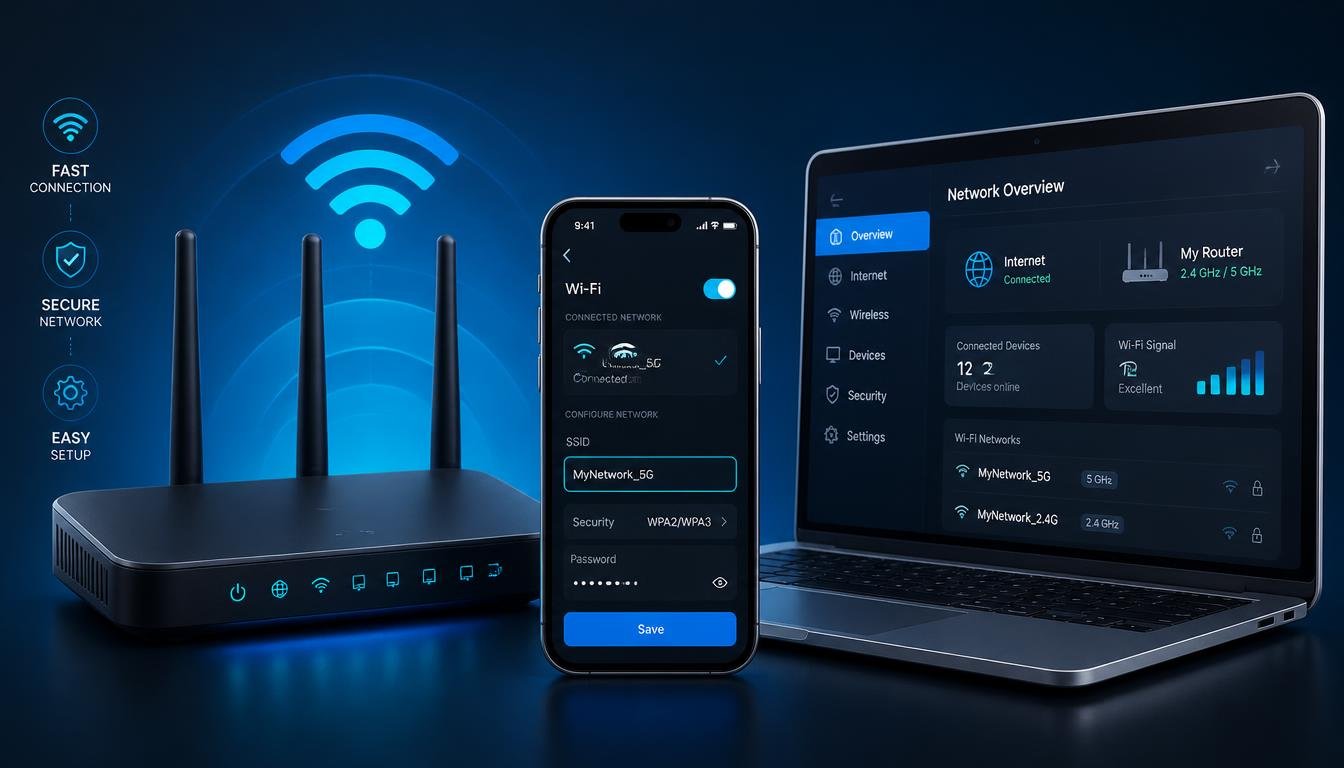
You moved into a new place and the network is still called something like “Netgear74” or “ASUS_5G”, a neighbor keeps joining a network that shares your old default name, or you simply want a WiFi name your household actually recognizes. Learning how to change WiFi name settings takes less time than making a cup of tea, and this guide walks through the exact clicks for a router admin panel, a phone, a laptop, Google Home, and the TP-Link app, so you never end up stuck on the wrong settings screen.
Quick Answer:
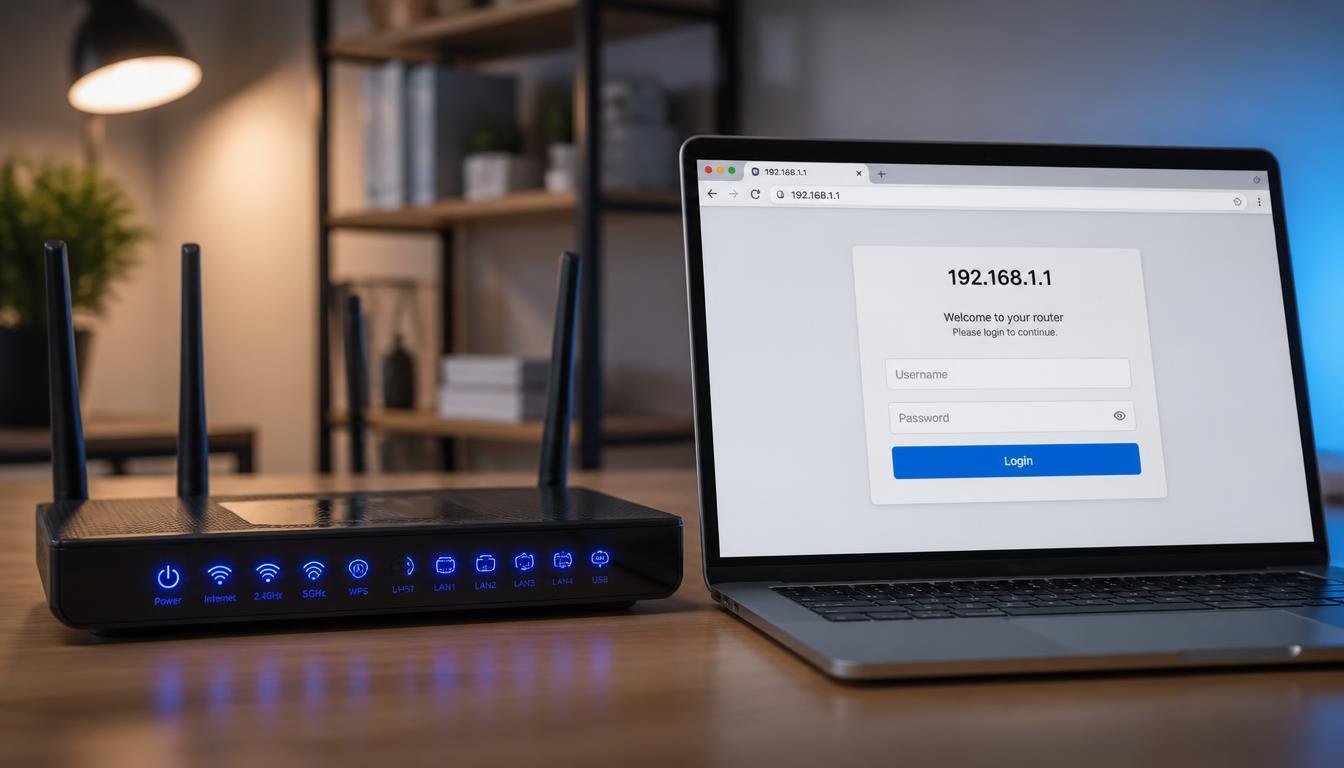
To change your WiFi name, open a browser and type your router IP address, usually 192.168.1.1 or 192.168.0.1. Log in with your admin credentials, open Wireless Settings, and replace the SSID field with a new network name. Save the change, then reconnect every device using the new name and existing password.
Default Router Gateway IPs by Brand
Every brand ships a different default gateway address and login combination, and typing the wrong one is the single biggest reason people get stuck before they even reach the Wireless Settings screen.
| Brand | Default Gateway IP | Default Admin Login | Admin URL Alternative |
|---|---|---|---|
| TP-Link | 192.168.0.1 or 192.168.1.1 | admin / admin | tplinkwifi.net |
| Netgear | 192.168.1.1 | admin / password | routerlogin.net |
| ASUS | 192.168.1.1 | admin / admin | router.asus.com |
| Linksys | 192.168.1.1 | admin / admin | myrouter.local |
| Tenda | 192.168.0.1 | admin / admin | tendawifi.com |
If none of these addresses load a login page, check the label on the underside of the router itself, since some regional models and fiber ISP gateways use a custom IP printed only on the device sticker.
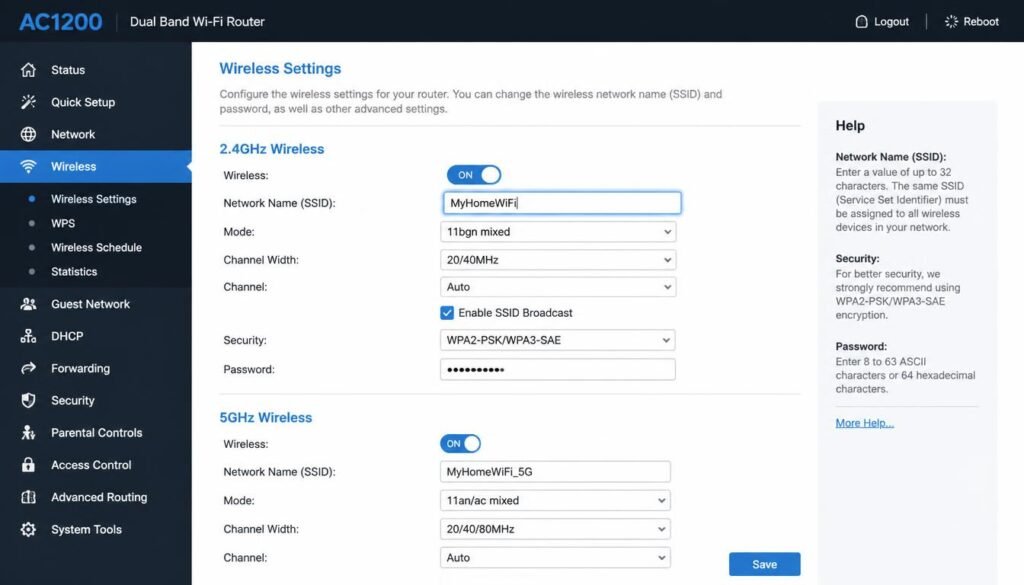
How to Change WiFi Name via Web Browser
The browser method works on almost any router brand and does not require installing an app, which makes it the most reliable fallback when a manufacturer app is missing or outdated. If you also plan to update your credentials in the same session, our guide on how to change WiFi password on router covers the encryption settings that sit on the same screen.
Step by Step: 192.168, How to Change WiFi Name From a Router Login Page
- Connect a phone or computer to your current WiFi network, or plug in an Ethernet cable for a more stable session.
- Open a browser and type your router default gateway IP address into the address bar. Use the comparison table above if you are not sure which address your brand uses.
- Enter the admin username and password. These credentials are different from your WiFi password and are usually printed on a sticker on the router itself.
- Locate the menu labeled Wireless, WiFi, or Wireless Settings.
- Find the field named SSID or Network Name and replace it with your new WiFi name.
- Click Save or Apply. The router briefly restarts its wireless radio, so every connected device drops for a few seconds.
- Reconnect every device using the new network name, entering the existing password when prompted.
Choosing a network name that reveals your address, apartment number, or full legal name gives away information to anyone scanning for nearby networks. A short, neutral name is safer, and if you are also curious what a network name actually exposes to your household or a service provider, our explainer on whether search history shows up on a WiFi bill clears up what billing records can and cannot reveal.
Renaming Your Network on Mobile: Android and iPhone
Most people now ask how to change WiFi name in mobile rather than sitting down at a laptop, and the good news is that the phone browser reaches the exact same admin panel a computer does.
Changing the Network Name and Password on Android
- Connect your Android phone to the current WiFi network.
- Open Chrome or any browser and type your router IP address, such as 192.168.1.1.
- Log in using your admin credentials.
- Open Wireless Settings and replace the Network Name field with your new WiFi name.
- Tap Save, then reconnect the same phone using the new name and existing password.
If your router brand ships a dedicated app, such as the Netgear Nighthawk app or the ASUS Router app, installing it from the Google Play Store often skips the browser step entirely and presents the SSID field directly on the home screen.
Renaming Your Network on iPhone
- Connect your iPhone to the current WiFi network under Settings, then WiFi.
- Open Safari and type your router IP address into the address bar.
- Log in with your admin credentials.
- Go to Wireless Settings, update the Network Name field, and save.
- Return to Settings, then WiFi on the iPhone, and reconnect using the new name.
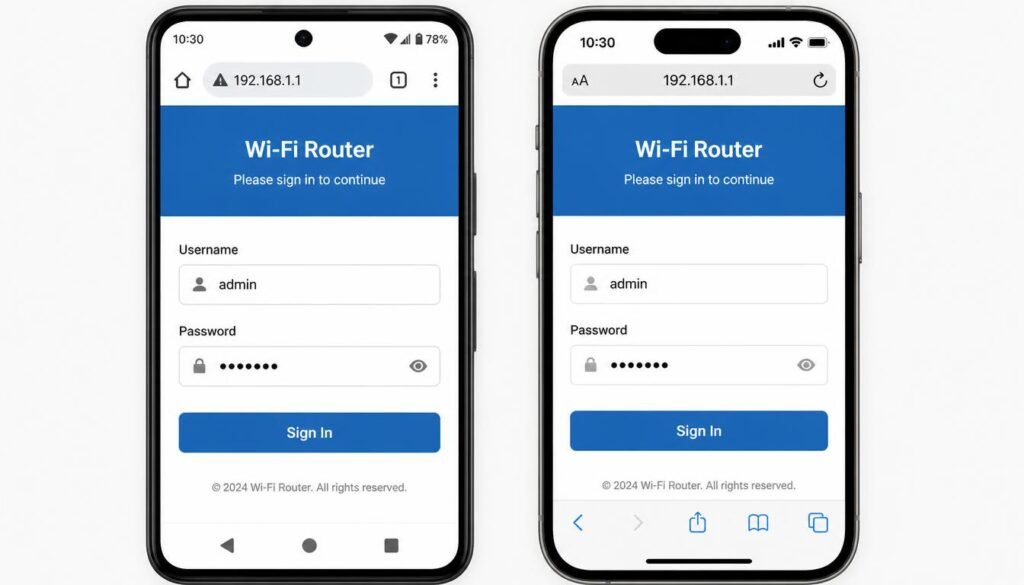
This same approach works even if the phone is temporarily on cellular data, as long as it can still reach the router admin panel over the same local network once reconnected. It also answers how to change my WiFi name and password on my phone in one pass, since both fields normally sit on the identical Wireless Settings screen.
Updating Your Network Name on Laptop
A laptop reaches the router admin panel the same way a phone does, through a browser pointed at the gateway address, but the steps to open network settings differ slightly between Windows and macOS.
Renaming Your Network on Laptop (Windows)
- Connect the laptop to the current WiFi network.
- Open any browser and type the router gateway IP address into the address bar.
- Log in with the admin username and password.
- Open Wireless Settings and replace the SSID field with the new network name.
- Save the change, then open the Windows network icon in the taskbar and reconnect using the updated name.
Renaming Your Network and Password on Laptop (macOS)
- Connect the Mac to the current WiFi network.
- Open Safari or Chrome and enter the router IP address.
- Log in with the admin credentials.
- Update the Network Name and Password fields inside Wireless Settings.
- Save the change, then click the WiFi icon in the macOS menu bar and reconnect the Mac using the new details.
A renamed network only affects the name devices see when scanning for signals, so a laptop with a persistently weak connection after the rename likely has a placement or interference issue rather than a naming problem. Our guide on 10 ways to fix WiFi connection problems walks through the remaining troubleshooting layers if a laptop refuses to reconnect cleanly.
Renaming Your Network Using the Google Home App
Google Home controls the WiFi name only when a Google Nest WiFi or Google WiFi mesh system is the actual router, not when Google Home is simply connected to someone else’s router as a smart speaker.
- Open the Google Home app and tap the WiFi icon at the bottom of the screen.
- Tap Settings, then WiFi point or network settings, depending on the app version.
- Select Network Name, also referred to as SSID, and enter the new WiFi name.
- Confirm the change and wait for the mesh system to apply it across every point in the house.
- Reconnect every device to the network using the new name and existing password.
Renaming a network this way works slightly differently from a standalone router because Google Home applies the new name across the entire mesh at once rather than a single access point, so give the system a full minute before assuming a satellite unit did not update.
Updating Your Network Name and Password on TP-Link Routers and Apps
TP-Link offers two equally valid paths, the browser admin panel and the dedicated Tether app, and both reach the identical settings underneath.
Browser Method for TP-Link
- Connect to your current TP-Link WiFi network.
- Open a browser and go to tplinkwifi.net, or type 192.168.0.1 or 192.168.1.1 directly.
- Log in with your admin username and password.
- Select Wireless from the left menu, then Wireless Settings.
- Update the Wireless Network Name field with the new SSID.
- Click Save, then reconnect your devices.
TP-Link Tether: WiFi Name Change App
- Install the TP-Link Tether app from the App Store or Google Play Store.
- Open the app and log in with your TP-Link ID or local admin credentials.
- Select your router from the device list.
- Tap Wireless Settings, then edit the Network Name field.
- Save the change directly inside the app, without opening a browser at all.
The rename and password update TP-Link users search for most often comes down to this exact app flow, since the Tether app lets both fields be edited in the same screen without any router login page involved.
Dual Band SSID: Separating 2.4 GHz and 5 GHz Networks
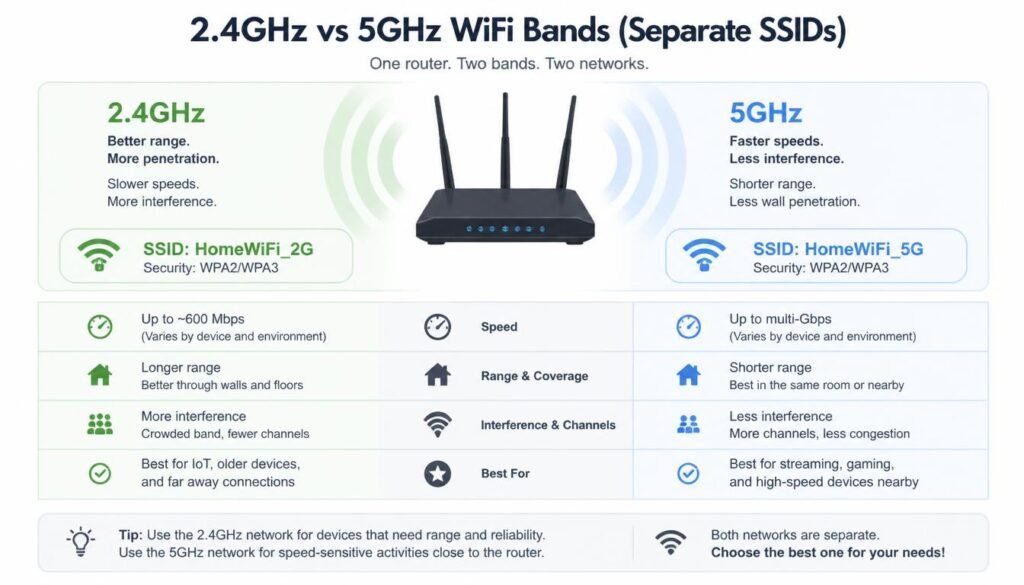
Most modern routers combine the 2.4 GHz and 5 GHz radios under one shared network name by default, which is convenient for phones but creates real problems for smart home devices.
The 2.4 GHz band travels further through walls but moves data more slowly, while the 5 GHz band moves data faster but loses strength over distance and through obstacles. When both bands share a single SSID, a phone bounces between them automatically, but many smart plugs, cameras, and sensors only support 2.4 GHz and cannot always negotiate that handoff correctly, which shows up as random disconnects.
Separating the bands into two distinct network names, such as HomeNetwork and HomeNetwork_5G, solves this by letting a person manually place slower IoT devices on the 2.4 GHz name while phones and laptops stay on the faster 5 GHz name.
- Log into the router admin panel using the browser method above.
- Open Wireless Settings and look for separate tabs or sections labeled 2.4GHz and 5GHz.
- Enter a distinct network name in each band’s SSID field.
- Save the change, then manually reconnect each device to the band that suits it best.
If a smart camera or plug still drops off after separating the bands, the issue is often placement rather than naming. Our guide on does using WiFi use data also explains how band separation affects data usage tracking for anyone monitoring a metered connection.
What Happens After You Change Your WiFi Name
Every device that was connected under the old name treats the new SSID as an entirely unfamiliar network, even though the password has not changed, which is the single most common source of confusion right after a rename.
- Phones, laptops, and tablets will show the new name in their WiFi list and require the existing password to be entered once.
- Smart home devices that store network credentials internally, including some cameras, locks, and plugs, may need to be reconfigured through their own manufacturer app rather than simply reconnected from a settings menu.
- Printers and smart TVs on the same network will drop and need to be pointed at the new name the same way a phone does.
- Guest devices that saved the old name will not update automatically and will need the new details shared again.
A rename can also interrupt an active casting session, since the sending device and the display briefly fall onto different networks until both are pointed at the new name. If a TV or projector drops out mid session and a cable is available, our guide on whether you can screen mirror without WiFi covers the wired and offline options that keep working regardless of what the network is called.
For a faster way to hand the new credentials to guests without reading a password out loud, our guide on how to share WiFi password covers the QR code and one tap methods available on modern phones.
Frequently Asked Questions
Can you see search history on a WiFi bill after changing the network name?
No. A WiFi bill from an internet provider lists data usage and account charges, not browsing history or specific website visits, and renaming the network has no effect on what appears on that statement either way.
Will changing the WiFi name disconnect all connected devices?
Yes, briefly. Every device treats a renamed network as new and needs the existing password entered again, though the router itself only restarts its wireless radio for a few seconds during the save.
What is the difference between a WiFi name (SSID) and a WiFi password?
The SSID is the public label a network broadcasts so devices can find it in a list, while the password is the private credential required to actually join that network once selected.
How do I change my WiFi name if I forgot my router password?
Press the small recessed reset button on the back of the router, usually held for ten seconds, to restore factory settings. This clears the admin password too, so both the login and the WiFi name will need to be set again from the default values printed on the router label.
Is 192.168.1.1 the default IP address for all wireless routers?
No. It is common among Netgear, ASUS, and Linksys models, but TP-Link and Tenda often default to 192.168.0.1 instead, and some ISP fiber gateways use entirely custom addresses printed only on the device sticker.
Can I change my WiFi name using a mobile application instead of a browser?
Yes, provided your router brand offers a companion app such as TP-Link Tether, Netgear Nighthawk, or the ASUS Router app. These apps reach the identical Wireless Settings screen without requiring a browser login at all.
Why is my new WiFi name not showing up on my devices after saving?
Most devices cache a list of previously seen networks for a short period. Toggling WiFi off and back on, or manually refreshing the network list in settings, usually forces the device to detect the updated name within a minute.
Should I hide my WiFi name (SSID) for better network security?
Hiding an SSID stops it from appearing in a casual scan, but it does not encrypt traffic or block a determined attacker, since specialized tools can still detect a hidden network. Strong WPA2 or WPA3 encryption on the password matters far more than hiding the name itself.
What should I do if two WiFi networks in my house have the exact same name?
Rename one of them through its admin panel, since identical SSIDs confuse devices about which network to join and can cause random switching between the two even when only one has internet access.
How often should you update your router SSID and security keys?
There is no fixed requirement, but updating both after moving into a new home, after a repair technician has had router access, or roughly once a year for a household with frequent guests keeps the network easier to track and secure.
Final Thoughts
Learning how to change WiFi name once means the process becomes routine every time it matters afterward, whether that is settling into a new home, cleaning up a factory default name, or separating dual band SSIDs to stop a smart camera from dropping offline. The browser method works on virtually any brand, while a dedicated app such as TP-Link Tether or the Google Home app saves a step for supported hardware.
Once the new name is set and every device is reconnected, it is worth checking that the rest of the home network is running cleanly too. If a laptop plugged directly into the router still feels sluggish, our guide on fixing DNS server not responding on Windows 11 covers the resolver settings that commonly explain that gap.
If the machine itself feels generally overloaded rather than just slow on the network side, our roundup of the best Windows 11 debloater tools covers the safest way to clean it up without breaking anything.