Can You Screen Mirror Without WiFi? Yes, Here Is How (2026)
Your TV remote is nowhere in sight, the hotel room has no network you trust, or your home router just went down in the middle of movie night, and you still want your phone screen on the big display right now. So, can you screen mirror without wifi? Yes, it is entirely possible, and this guide walks through every method that works when a network is not available, from Bluetooth pairing and mobile hotspots to wired adapters and peer to peer wireless protocols.
Quick Answer:
Yes, you can screen mirror without WiFi. Apple devices support peer to peer AirPlay through Bluetooth on compatible Apple TV models, Android and Windows devices support Miracast and WiFi Direct for a direct device to device connection, and any phone, tablet, or laptop with a USB Type C or Lightning port can mirror through a wired HDMI adapter. A mobile hotspot also lets you cast locally stored photos, videos, and presentations without touching your home network at all.
Table of Contents
- Can You Screen Mirror Without WiFi in 2026?
- Do You Have to Be on WiFi to Screen Mirror?
- How to Connect Phone to TV Using Bluetooth
- How to Cast From Phone to TV Without WiFi Using a Mobile Hotspot
- How to Mirror Screen Without WiFi Using a Wired HDMI or USB Adapter
- Miracast Without WiFi on Android and Windows
- Fixing DRM Black Screens, HDCP Errors, Lag, and Audio Desync
- No WiFi Screen Mirroring Methods Compared
- Frequently Asked Questions
Can You Screen Mirror Without WiFi in 2026? The Short Answer
Screen mirroring without a network connection is not a workaround anymore, it is a built in feature on nearly every phone, tablet, laptop, and TV sold since 2018. The idea that you must have a home router running to send your screen to a display is outdated. Manufacturers built alternative pathways specifically for travel, outdoor events, classrooms, and offices where a stable network is not guaranteed.
There are four practical routes: a direct peer to peer wireless link created by the phone itself, a mobile hotspot that stands in for a router, a wired cable connection, and Bluetooth for audio or very limited casting scenarios. Each route trades off setup speed against video quality, so the right choice depends on what you are mirroring and where you are standing when you do it.
Do You Have to Be on WiFi to Screen Mirror?
Do you have to be on wifi to screen mirror, or can the devices simply talk to each other directly? In most cases, no shared network is required. When people ask do i need wifi to screen mirror, they are usually thinking of Chromecast or a smart TV app, both of which do rely on a shared network address to locate each other. However, do you have to have wifi to screen mirror using AirPlay, Miracast, or a cable? No, these three specifically exist to remove that requirement.
The confusion happens because most tutorials assume a home network is present and skip past the no wifi screen options entirely. Once you understand that your phone can generate its own signal, or connect physically through a cable, the network requirement disappears completely.
While physical adapters bypass signal loss entirely, you should still ensure that your host device is not struggling with background hardware hangs or system resource locks. If your phone or tablet fails to output video through display ports, our guide on 10 Ways to Fix WiFi Connection Problems Fast provides systemic reboot procedures that clear lingering system bus errors.
How to Connect Phone to TV Using Bluetooth
Bluetooth alone cannot carry a full video stream. The bandwidth is too limited for anything beyond audio, remote control signals, or very low resolution image previews, so a full screen mirror over Bluetooth by itself is not realistic for movies or fast moving content. There is one meaningful exception. Peer to peer AirPlay on Apple devices uses Bluetooth only to discover the Apple TV nearby, then it switches to a private wireless channel for the actual video, so the connection never touches your router.
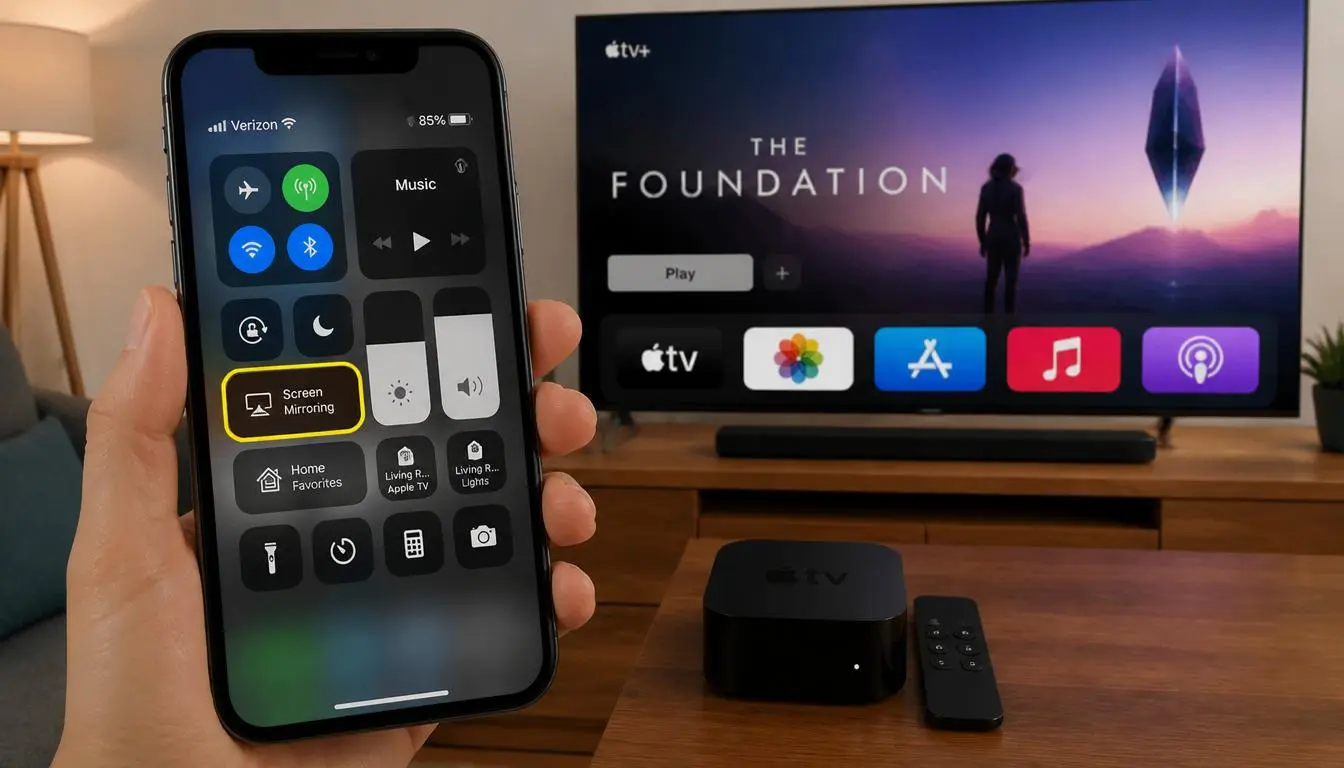
To set this up on iPhone or iPad, confirm the device runs a current version of iOS and that the target is an Apple TV 4K or Apple TV HD. Turn on Bluetooth on both the iPhone and the Apple TV inside the AirPlay and HomeKit settings menu. Open Control Center on the iPhone, tap Screen Mirroring, select the Apple TV from the list, and enter the on screen code if one appears. The phone screen now mirrors to the television using Bluetooth for discovery and a direct wireless link for the picture, with no WiFi network involved at any point.
Android and Windows devices do not currently support this same Bluetooth assisted peer to peer video handoff, so for those platforms the mobile hotspot or wired methods below are the more reliable path.
Heavy media streaming over cellular data hotspots can quickly drain your mobile plan if you are not tracking active background downloads on your primary smartphone. If you notice unusual data drops while troubleshooting secondary mobile hardware, review our detailed guide on Why Is My Phone Not Connecting to Wifi to ensure your secondary interfaces are not continuously fetching background updates.
How to Cast From Phone to TV Without WiFi Using a Mobile Hotspot
How to cast from phone to tv without wifi when your only real network is your carrier plan? Turn the phone into its own access point. This method works because your smart TV does not care whether the network it joins belongs to a router or to your phone, it simply needs a WiFi signal to connect to.
Open the phone Settings app and look under Connections or Network and Internet for the Mobile Hotspot or Personal Hotspot option. Set a network name and password, then turn the hotspot on. Go to the smart TV, open its WiFi settings, and select the phone’s hotspot network from the list, entering the password when prompted. Once the TV joins the hotspot, open your casting app or the phone’s built in Cast feature, select the TV from the discovered devices, and mirroring begins.
Can You Screen Mirror Without WiFi?
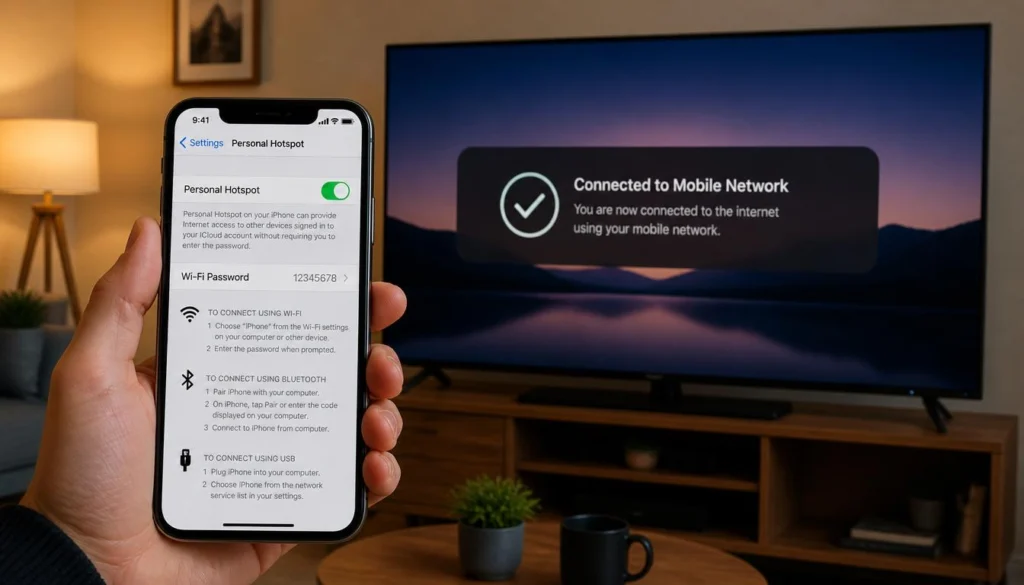
This is also how to stream from phone to tv without wifi for locally saved videos, photos, and presentation files, since none of that content needs to reach the internet at all. Streaming an app like Netflix or YouTube through the same hotspot will use your mobile data plan, so keep an eye on usage if your plan has a cap. Checking how much hotspot you have left before a long mirroring session prevents an unexpected mid movie cutoff, and understanding whether WiFi itself pulls from your data plan helps you separate hotspot costs from home network costs when you are troubleshooting a bill.
How to Mirror Screen Without WiFi Using a Wired HDMI or USB Adapter
A cable removes every variable that wireless casting introduces. There is no pairing step, no interference, and no dependency on either device supporting the same wireless standard, which makes this the most dependable way to mirror screen without wifi when reliability matters more than convenience.
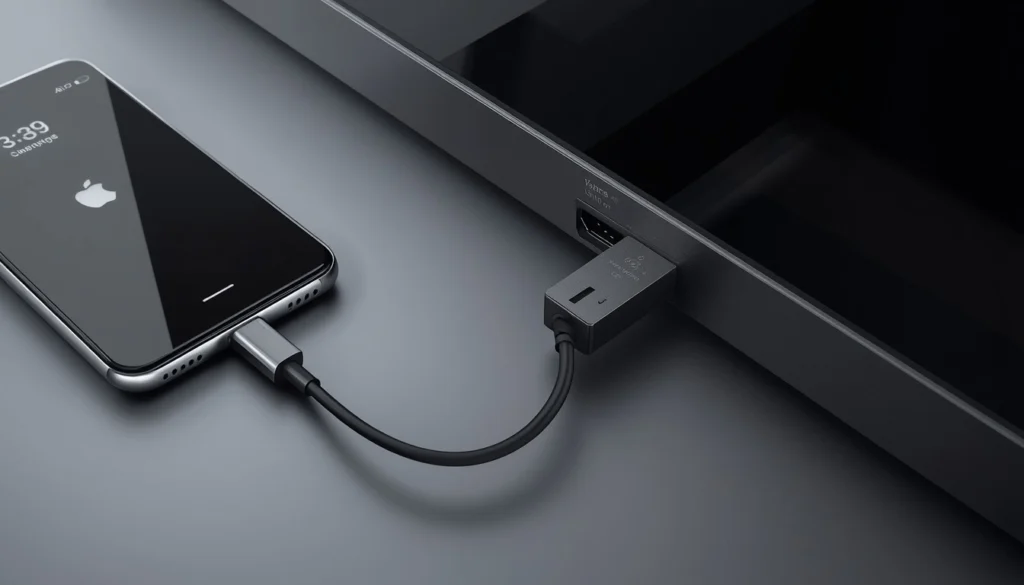
For an iPhone or iPad with a Lightning port, use a Lightning Digital AV Adapter. For an iPhone 15 or later, or a USB Type C iPad such as the iPad Pro or iPad Air, use a USB Type C to HDMI adapter. Connect the adapter to the device, plug an HDMI cable from the adapter into an open HDMI port on the TV or monitor, switch the TV input to match, and the screen appears automatically.
For an Android phone, check whether the charging port is USB Type C or Micro USB. Most phones released after 2019 use USB Type C, which works with a standard USB Type C to HDMI adapter, provided the phone supports DisplayPort alternate mode over that port, a feature nearly all modern Android flagships include. Older Micro USB devices need an MHL adapter instead, and support varies by manufacturer, so checking the phone’s specification sheet first saves a wasted purchase.
Can You Screen Mirror Without WiFi?
Windows laptops typically have either a full size HDMI port already built in, which needs nothing more than a cable, or a USB Type C port that supports an adapter the same way a phone does.
Miracast Without WiFi on Android and Windows
Miracast without wifi is possible because Miracast, unlike Chromecast, was designed from the start as a direct device to device standard rather than a network dependent one. It uses WiFi Direct, a peer to peer wireless mode that creates its own private connection between two devices without a router anywhere in the chain, which is why it still qualifies as no wifi screen mirroring even though the connection uses wireless radios.
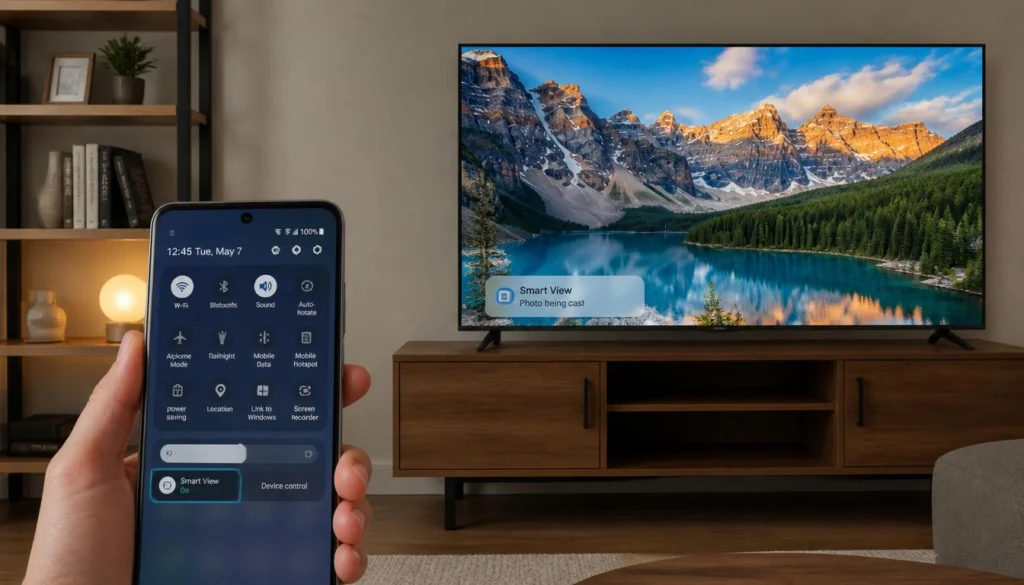
On an Android phone, open the notification shade and look for Smart View, Cast, or Screen Mirroring in Quick Settings. On the TV, navigate to the Input menu and select Screen Mirroring or Wireless Display. Select the TV from the list on the phone, confirm the pairing code if the TV displays one, and the screen mirrors directly.
On a Windows laptop, press the Windows key and A together to open Quick Settings, or click the notification icon in the taskbar. Select Project, then Connect to a wireless display, and choose the Miracast capable TV or adapter from the list. If the TV does not appear, restarting the wireless adapter often resolves the discovery issue, and checking that the network adapter itself is functioning correctly is worth doing first if Miracast refuses to detect any nearby displays at all.
Can You Screen Mirror Without WiFi?
Samsung Smart TVs and some Sony and LG models use proprietary casting layers on top of, or instead of, standard Miracast, so a Samsung set may need its own Smart View compatible app even though the underlying protocol is similar.
Fixing DRM Black Screens, HDCP Errors, Lag, and Audio Desync
A black rectangle where your video should be usually means digital rights management, commonly written as DRM, is blocking the mirrored output on purpose. Streaming apps including Netflix, Hulu, Disney Plus, and Amazon Prime Video intentionally prevent their video track from being captured or mirrored, whether the connection is wireless or wired, because the content license requires it. This is expected behavior, not a fault with your phone, TV, or cable, and there is no legitimate workaround, since the block exists at the app level specifically to stop screen capture and mirroring of copyrighted playback.
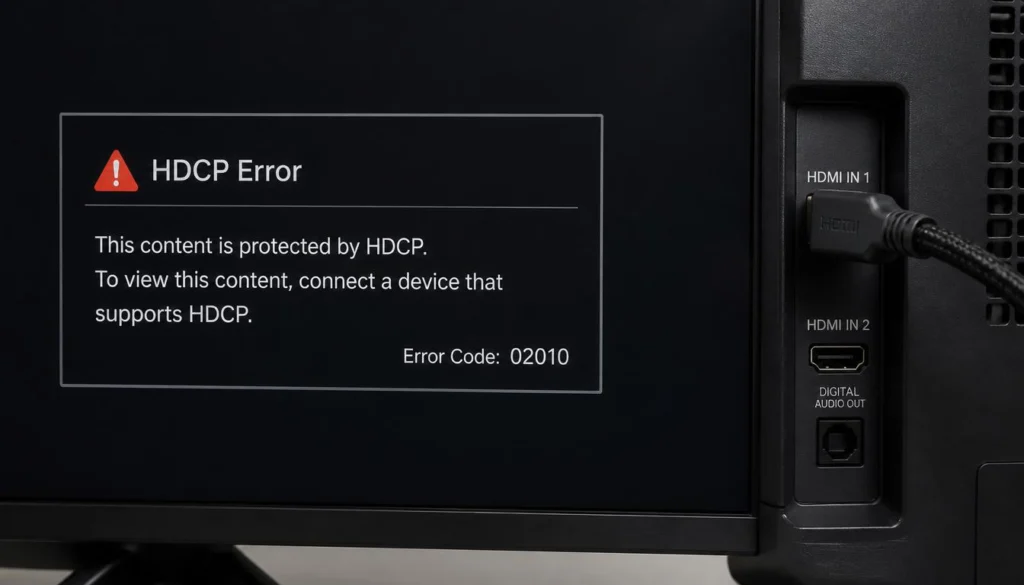
HDCP, or High bandwidth Digital Content Protection, is the related standard that governs wired HDMI connections. If a wired mirror shows a black screen only during certain apps but works fine for photos and your home screen, an HDCP compliance mismatch between the adapter, cable, or TV input is the likely cause. Trying a different HDMI port on the TV, or a shorter and higher quality cable, resolves the majority of these cases, since cheap adapters sometimes fail HDCP handshaking over longer cable runs.
Lag during wireless mirroring, particularly over a mobile hotspot or Miracast, usually comes from distance and interference rather than the method itself. Keep the two devices within about ten feet of each other during setup, move away from microwaves and other WiFi Direct devices operating nearby, and close background apps on the sending device that compete for wireless bandwidth. A weak WiFi signal on your home network can also degrade performance for any method that briefly touches your router for authentication, even ones that mostly run over a direct connection.
Audio desync, where sound trails slightly behind the picture, is common on wireless mirroring because audio and video sometimes travel through separate processing paths with different amounts of delay. Restarting the mirroring session usually resets the sync. If it persists, lowering the video resolution in the casting app reduces the processing load enough for audio and video to line back up, and switching from wireless to a wired HDMI connection eliminates the desync entirely since both signals travel through the same physical cable at the same time.
When video streams load continuously without rendering pixels, local network handshake timeouts or IP leasing conflicts are frequently the hidden culprit. If your mirroring session connects briefly then drops back to a black loading screen, cross-referencing our solution framework for WiFi Connected But No Internet Access will help restore proper handshake protocols across all your devices.
No WiFi Screen Mirroring Methods Comparedcomparison-tablecomparison-table
| Method | Setup Speed | Video Stability | Audio Support | Hardware Needed |
|---|---|---|---|---|
| Peer to Peer AirPlay | Fast, under one minute | High, stable at short range | Full audio included | Apple TV 4K or HD only |
| Mobile Hotspot Casting | Moderate, a few minutes | Good, depends on distance | Full audio included | Any phone with hotspot mode |
| Miracast or WiFi Direct | Fast, under one minute | Good, may drop at range | Full audio included | Compatible phone and TV |
| Wired HDMI or USB Adapter | Fast, plug and play | Excellent, no interference | Full audio included | Adapter and HDMI cable |
| Bluetooth Only | Fast | Not suitable for video | Audio only | Bluetooth on both devices |
Frequently Asked Questions
Is it possible to screen mirror without WiFi on iPhone?
Yes. iPhone supports peer to peer AirPlay to a compatible Apple TV using Bluetooth for discovery, and a Lightning or USB Type C to HDMI adapter for a fully wired connection, so no home network is required either way.
Does WiFi need to be on to screen mirror to a Samsung smart TV?
Not always. Samsung TVs support Miracast style direct connections through their Smart View feature, and they will also join a phone’s mobile hotspot the same way they join a home router, so a wired HDMI cable remains the most universal fallback if Smart View is not cooperating.
How to mirror Android phone to TV without WiFi?
Use the built in Cast or Smart View option in Quick Settings alongside WiFi Direct or Miracast on the TV, connect the TV to a mobile hotspot created by the phone, or use a USB Type C to HDMI adapter for a wired connection that needs no wireless setup at all.
Can you screen mirror without wifi to pc?
Yes. Windows supports Miracast through Connect to a wireless display in Quick Settings, and any phone can also mirror to a PC over a wired USB Type C or HDMI connection if the laptop has a compatible video input.
Is WiFi required to screen mirror from iPhone to Mac?
Typically yes for AirPlay to Mac specifically, since Mac does not support the peer to peer Bluetooth handoff that Apple TV does. A wired adapter into an external display connected to the Mac, or a third party mirroring app, are the reliable no wifi screen alternatives in this specific pairing.
Can an Apple TV mirror without a WiFi network at all?
Yes, through peer to peer AirPlay, provided the Apple TV is a 4K or HD model and Bluetooth is enabled on both devices, though Apple TV still needs power and an HDMI connection to the display itself.
How to screen mirror without WiFi or hotspot?
A wired HDMI or USB Type C adapter is the only method that needs neither WiFi nor a hotspot, since the connection runs entirely through the physical cable.
Can you screen mirror without wifi on tv?
Yes, provided the TV supports Miracast, Smart View, or a similar direct casting standard, or simply has an open HDMI port for a wired connection.
How do I mirror my phone to my TV without a home network?
Choose based on your phone. Use peer to peer AirPlay if you have an iPhone and Apple TV, use Miracast or WiFi Direct if you have Android or Windows and a compatible TV, or use a mobile hotspot or wired adapter as a universal fallback that works regardless of brand.
Can you screen mirror with just Bluetooth?
Not for full video content, since Bluetooth lacks the bandwidth for smooth playback. The one exception is peer to peer AirPlay, which uses Bluetooth only to find the Apple TV before switching to a separate wireless video channel.
Can I screen mirror using cellular data?
Yes, for content that must stream from the internet, such as a website video, mirroring over a mobile hotspot will draw from your cellular data plan. Locally stored photos, videos, and files mirror without using any data at all, since nothing needs to reach the internet.
Can screen mirroring be done without an internet connection?
Yes. Peer to peer AirPlay, Miracast, WiFi Direct, and wired HDMI or USB adapters all mirror a screen with zero internet access, since none of them route the video signal through the internet at any point.
Final Thoughts
Screen mirroring without a home network or active internet router is no longer a complex technical hurdle. Modern smartphones, laptops, and smart displays come equipped with hardware and protocols designed explicitly for offline connection scenarios.
When deciding which method to use, consider your specific hardware environment:
- For maximum video stability and zero latency: A physical USB Type C or Lightning to HDMI adapter cable remains the single most reliable option, bypassing all signal interference entirely.
- For wireless convenience on Apple hardware: Peer to peer AirPlay provides an effortless streaming connection between iPhones and Apple TV models using Bluetooth discovery.
- For wireless convenience on Android and Windows: Miracast and WiFi Direct allow direct device to device handshakes without requiring an external internet connection.
- For quick setup on standard Smart TVs: Creating a mobile hotspot on your phone serves as an effective universal bridge for displaying locally saved media files.
By matching your specific devices to the appropriate connection protocol, you can effortlessly mirror your display anywhere—whether you are working in a remote hotel room, delivering a presentation in an offline boardroom, or simply streaming media during a local network outage.