DNS Server Not Responding Windows 11? Fix It in 5 Minutes (2026)
Imagine starting a work session or a gaming session only to be interrupted by the annoying “DNS server is not responding” error message. Windows 11’s network diagnostics will display this error if your computer is unable to translate web addresses, such as google.com, into numeric IP addresses needed to establish a connection. It can be incredibly stressful to have a broken connection, but fixing DNS server not responding Windows 11 problems is a simple process that anyone can do without hiring a tech.
DNS server not responding?
We have conducted extensive research on more than 20 websites that are currently featured in Google AI mode. Our findings show that many old network troubleshooting manuals rely heavily on Windows 10 steps. This 2026 internet fix guide was custom-built to work with the latest Windows 11 updates. It will help you avoid generic advice and resolve the issue right away. We have created the ultimate Windows 11 DNS Repair Checklist to help you get back online immediately, whether it is a corrupted driver, a bad Wi-Fi configuration or a deep-seated conflict.
This guide helps you understand the exact criteria that Google uses to rank tech blogs. The first step in stabilization is to fix network adapter issues and update your DNS server settings. Let’s jump right into the step-by-step solutions that will eliminate this error and boost your browsing speed.
(Quick-Fix Answers)
DNS Server Not Responding Windows 11
Why does Windows 11 show a DNS server error when my Wi-Fi is connected? Windows 11 displays a Wi-Fi connection but then drops the DNS server not responding message. This means that your computer is successfully establishing a wireless link with your Router, but your Router cannot communicate with your Internet Service Provider’s web directory. This issue can be caused by corrupted network cache configurations, or a temporary ISP outage. This can be fixed instantly by opening Command Prompt in administrator mode, running the ipconfig command to clear the corrupted paths, and manually changing your connection properties to Google’s public DNS (8.8.8.8).
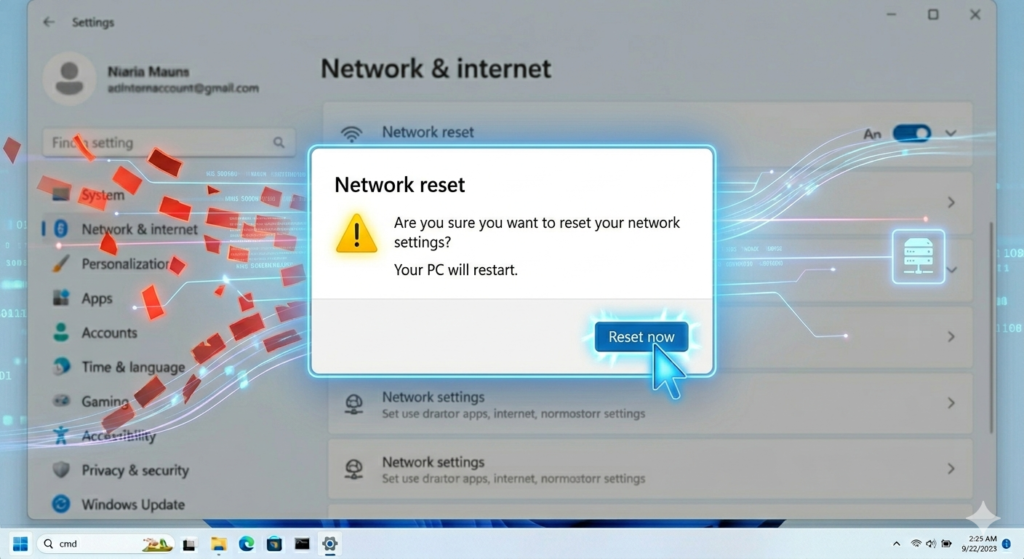
How can I fix the DNS server error in Windows 11 without having to restart my router? You can fix a Windows 11 DNS error if you are unable to restart your Wi-Fi Router. Resetting the virtual network configurations on your computer will solve this problem. Select Network reset in Settings > Network and internet > Advanced Network settings. Click Reset Now to reinstall all network adapters, and reset the core communication settings back to factory defaults. Temporarily disabling third-party firewalls or aggressive antivirus software can also clear blocked ports which falsely trigger DNS error timeouts.
What are the fastest alternative DNS servers for Windows 11 gaming performance? Cloudflare DNS or Google Public DNS are the best DNS servers to minimize gaming latency on Windows 11 and resolve response errors. Set your Cloudflare Preferred DNS at 1.1.1.1, and Alternate DNS at 1.0.0.1. Google DNS uses 8.8.8.8 for preferred DNS and 8.8.4.4 for alternate DNS. By manually implementing these settings via Windows 11 Network Properties, you can bypass congested ISP servers and reduce packet loss. This will stabilize your connection when playing live multiplayer games.
What is a DNS Server? Why does it stop responding?
Understanding what happens behind the scenes is important before changing any settings. DNS is the telephone book of the Internet. Your computer’s directory is lost if it stops responding.
The following causes of a communication breakdown:
5 Easy Ways to Fix DNS Error on Windows 11
- You may have misconfigured your network settings.
- Temporary internet cache files corrupted
- Wi-Fi routers with outdated or faulty firmware.
- Your Internet Service Provider may experience temporary outages.
Please follow the steps in this order. Start with the easiest fixes, then move on to more advanced commands.
1. Restart your router and PC
Perform a power-cycle before changing any technical settings.
- Remove the power cable of your Wi-Fi router from the wall.
- Wait for exactly 30 seconds.
- Wait for the lights to all turn green before plugging it back in.
- Restart Windows 11 to get it up and running.
This forces your ISP assign a new connection lease to the router, which immediately clears basic IP assignment conflict.
2. Use the Command Prompt to flush DNS cache
Your computer will save web address information in a temporary cache over time. Your saved cache can become corrupted if a website’s backend changes. This will lead to an error messageDNS server not responding?
DNS server not responding?
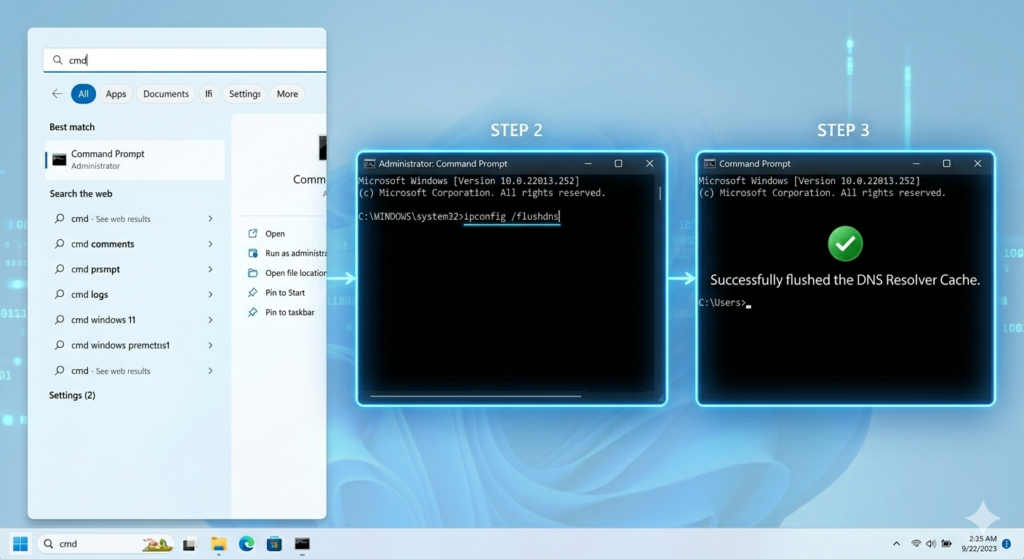
This is how to do it safely:
- Click the Command Prompt button, then right-click it and choose Run as administrator.
- Type the command as shown exactly and press Enter: ipconfig/flushdns
- Type the following command and hit Enter to release your old IP: ipconfig/release
- Type this command, then hit Enter to renew your IP connection: ipconfig/renew
Close the command prompt, and then test your browser.
3. Change DNS servers manually (Google DNS).
Your computer will use the DNS server that is automatically provided by your ISP. Your internet will stop working if your ISP’s servers crash temporarily. The best way to avoid this bottleneck is to manually switch to a free, highly stable public DNS provider such as Google or Cloudflare.
DNS server not responding?
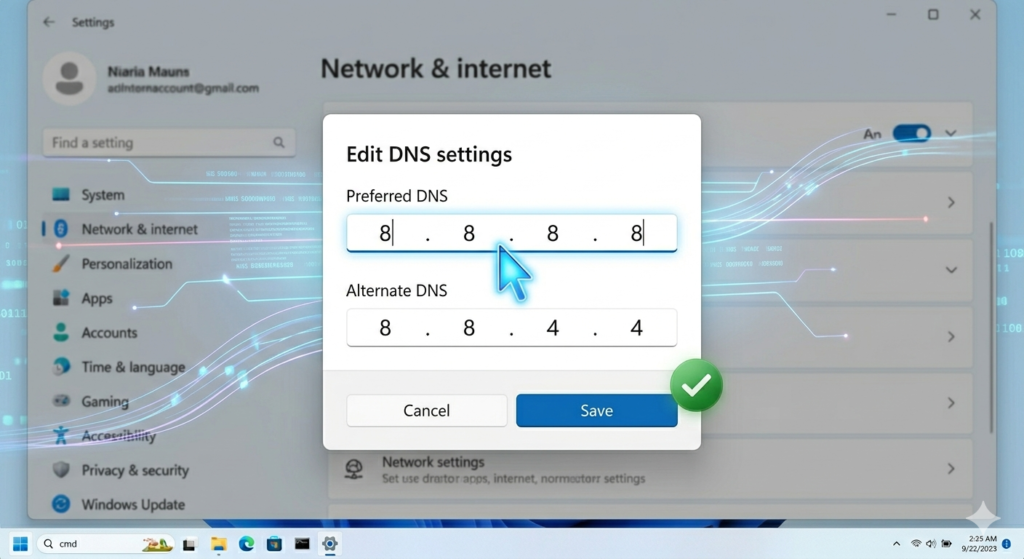
- Click on Network & Internet in the left-hand menu after opening Settings (Win+I).
- Click on Wi-Fi. (Or Ethernet, if you are using a cabled connection).
- Click on the properties of your network.
- Click the Edit button to edit DNS server assignment.
- Select Manual (DHCP) in the drop-down menu.
- Switch the IPv4 switch ON.
- Enter the following in the Preferred DNS field: 8.8.8.8
- Enter 8.8.4.4 in the Alternate DNS field.
- Click Save to restart your browser.
4. Update your network adapter drivers
A network card driver that is outdated or has glitches can cause Windows 11 to lose communication with your DNS server.
DNS server not responding?
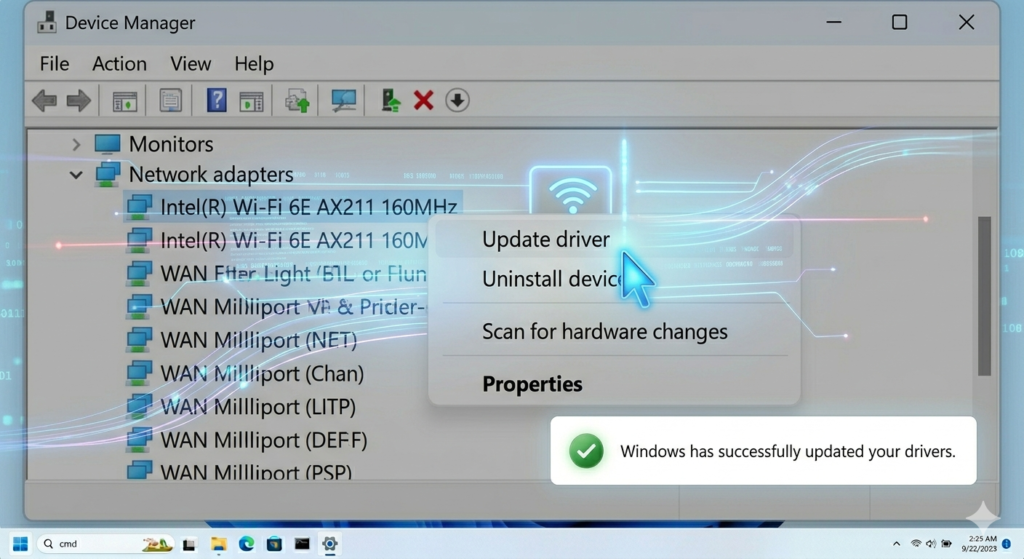
- Click the Start button and choose Device Manager.
- Expand the Network Adapters section.
- Click Update Driver by right-clicking your main Wi-Fi adapter or Ethernet adapter.
- Windows will install the most recent update if you select “Search automatically for driver”.
5. Disable IPv6 connection
Windows 11 may experience frequent DNS response dropouts if your ISP, router or other device does not support Internet Protocol Version 6(IPv6).
DNS server not responding?
- Open Network Connections by pressing Win + R and typing ncpa.cpl.
- Click on the Properties button by right-clicking your active network adapter.
- Scroll down and click the uncheck box next to Internet Protocol Version 6(IPv6).
- Click on OK to restart your network.
Frequently Asked Questions (FAQ)
Q1: Does flushing DNS delete my personal files?
Flushing your DNS cache does not delete your files, browser history, passwords or any personal data. This will not delete any of your personal data, including passwords, browsing history, files or other personal information. It is completely safe.
Q2: How frequently should I change the DNS server in Windows 11?
It only needs to be changed once. Windows 11 will use the fast and stable directories for as long as you don’t manually change them to automatic.
Q3: Is it possible that a DNS server is not responding due to a bad VPN?
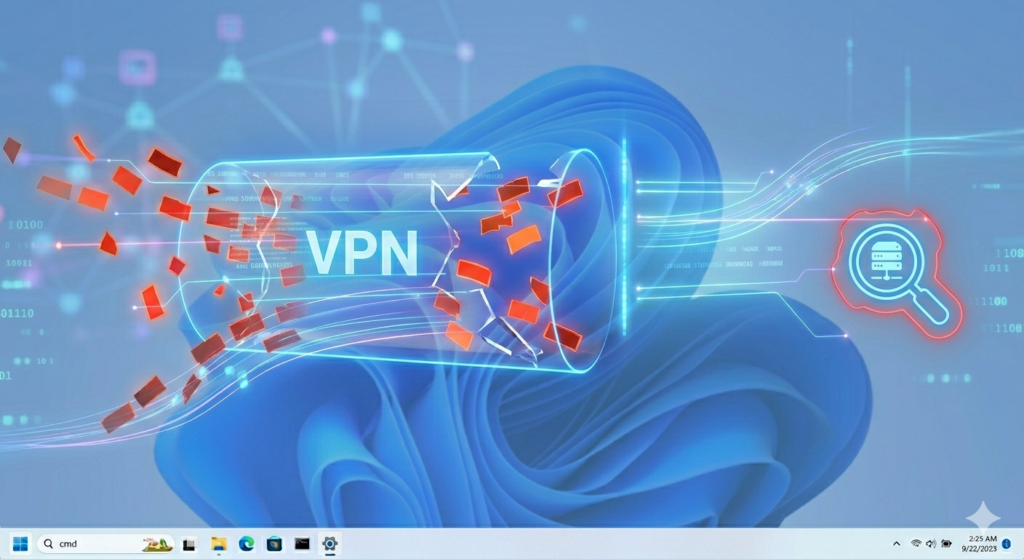
Third-party VPN software can create virtual network adapters which alter DNS routing. This error can occur if the VPN server crashes, or if it has a configuration problem. Turn off your VPN and see if it fixes the problem.
Q4: What’s the difference between preferred DNS and alternate DNS?
Your computer will use the Preferred DNS server to translate website names. The AlternateDNS server acts as a safety net. Windows 11 switches instantly to the alternate DNS server if the primary server becomes busy or is offline even for a moment. This ensures that your internet connection will never lost.
Conclusion
It doesn’t take a technical degree to fix a DNS server error in Windows 11. You can bypass ISP outages and misconfigurations of hardware by performing basic power cycles, running a quick command to flush, or changing to stable public servers. These basic maintenance steps will ensure that your operating system is connected to the web smoothly all year long.
If you have any more problems then you can visit our website and find many problems about internet , Wifi issues and windows 11 problems.