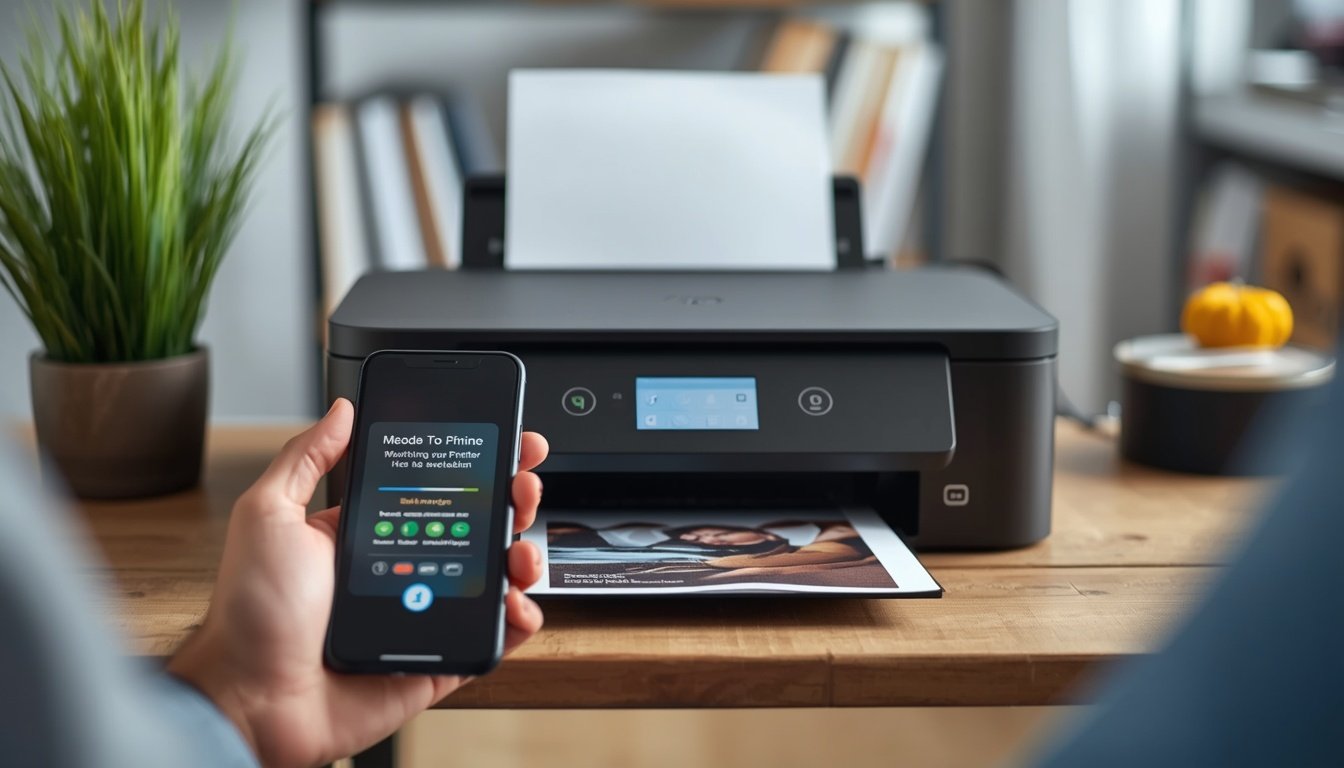
Your printer is powered on, your phone is unlocked, and nothing happens when you tap print. This is one of the most frustrating tech issues in home offices, but it rarely means your hardware is broken. Anyone learning how to connect phone to printer setups usually faces a simple communication breakdown between devices. Whether you need to print smartphone photos or send a PDF from a tablet, this complete guide covers every wireless, USB, and app connection method for every brand.
Quick Answer: How to Connect Phone to Printer
- Android: Open Settings, tap Connected Devices, select Printing, and enable Default Print Service or your manufacturer plugin.
- iPhone: Open your document, tap Share, select Print, and choose your printer via AirPrint with no extra app required.
- No Wi-Fi / Cable Setup: Connect directly using a USB OTG adapter cable plugged into your Android phone charging port.
Connection Method Comparison
| Connection Method | Connection State Required | Technical Difficulty | Speed | Best For |
| Local Wi-Fi Network | Phone and printer on same router | Beginner | Fast | Everyday home and office printing |
| Wi-Fi Direct | Direct radio link, no router needed | Beginner | Fast | Quick printing away from home network |
| USB OTG Cable | Direct physical cable connection | Intermediate | Fastest | Older printers with no wireless support |
| Bluetooth | Paired via Bluetooth radio | Beginner | Moderate | Basic text documents and receipt printers |
| Manufacturer Apps | App installed with user login | Beginner | Fast | Remote printing and multi-function controls |
Before troubleshooting wireless settings on your phone, confirm that your printer holds a valid network connection. Reviewing how to find IP address on computer configurations can help verify whether your local router is properly assigning numbers across your network segment.
Why Your Phone Cannot Find the Printer
Before walking through brand steps, understanding why wireless phone connections fail saves hours of troubleshooting. Desktop computers use a stable fixed network path, while mobile phones constantly switch between Wi-Fi bands, cellular data, and VPN setups.
The single most common cause is a Wi-Fi frequency mismatch. Most budget wireless printers only connect to the 2.4GHz Wi-Fi band, whereas modern mobile phones automatically default to the faster 5GHz band. If your router uses a single name for both bands, your phone may sit on 5GHz while the printer sits on 2.4GHz, making them invisible to each other.
If you have already completed the process to connect printer to Wi-Fi, but your phone still cannot locate it, splitting your router bands into two separate network names will resolve the connection issue.
Another common technical barrier involves IP conflicts on your network adapter. When a router reassigns temporary network addresses, your mobile device can lose track of the hardware. Inspecting how to find IP settings on your mobile network helps verify whether your device holds an active local gateway profile.
How to Connect Printer to Android Phone
Android manages mobile printing through an operating system feature called the print service framework. You can use native options or official manufacturer plugins to add printer to android devices.
Step 1: Enable the Print Service
- Open Settings on your Android device.
- Tap Connected Devices, then select Connection Preferences.
- Tap Printing.
- Select Default Print Service and toggle the switch to On.
- Alternatively, download your official manufacturer plugin from the Play Store, such as HP Print Service Plugin, Canon Print Service, or Epson Print Enabler.
Step 2: How to Print Something From Your Phone
- Open the file, document, or webpage you want to print.
- Tap the three-dot menu or the Share icon.
- Select Print from the option list.
- Select your active printer from the top dropdown menu and tap the Printer icon.
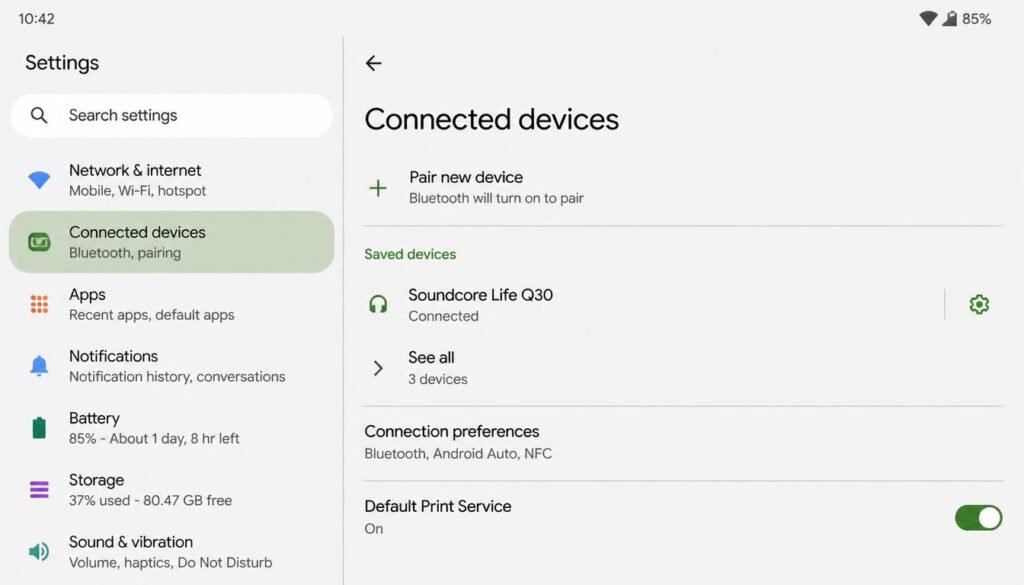
This straightforward process answers how can I print from android phone applications like Chrome, Gmail, Google Drive, or your photo gallery. It is also the exact workflow used when learning how to print from android phone to printer setups in shared office spaces.
If your Android device experiences system slowdowns while attempting cell phone printing with large PDF files, reviewing our steps on how to change IP address on Android helps clear cached network profiles without deleting your installed plugins.
The USB OTG Cable Method (Wired Mobile Setup)
If your printer lacks wireless capabilities entirely, you can still execute wireless printing from android alternatives using a direct cable connection. This method relies on USB OTG (On-The-Go) technology, which allows your mobile device to act as a USB host.
- Confirm your mobile device supports USB OTG host mode within its hardware specifications.
- Purchase a USB-C to USB-A OTG adapter that matches your mobile charging port.
- Connect the standard printer USB cable into the OTG adapter, then plug the adapter into your phone.
- When the pop-up window appears on your screen, tap Allow to grant physical USB host permission.
- Launch your manufacturer printing app to detect the attached USB device.
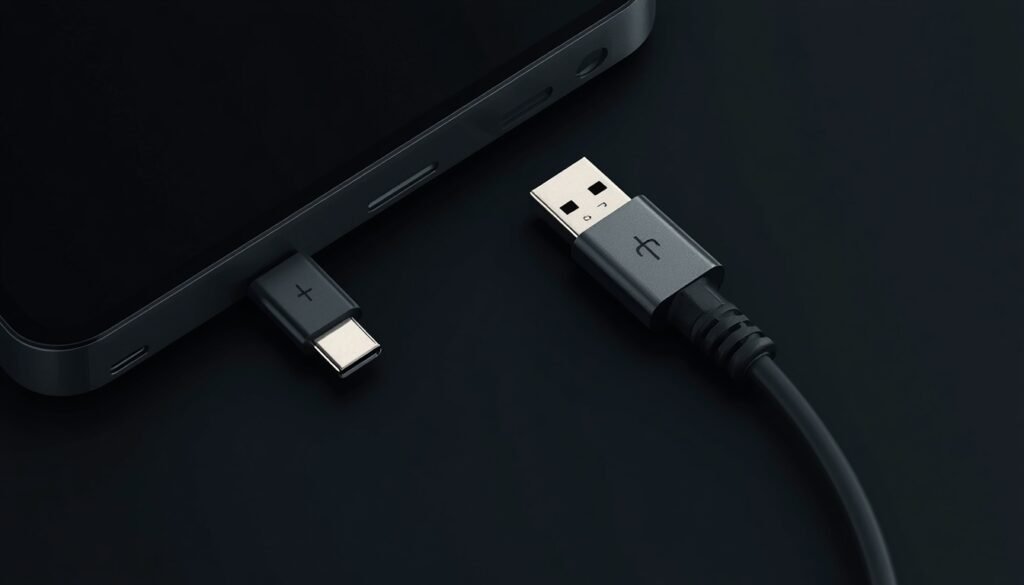
How to Connect Phone to Printer?
Failing to grant physical USB host permissions is the main reason wired phone setups fail. Always grant permission when prompted so Android can communicate directly with the printer board.
How to Connect Phone to Printer iPhone (AirPrint Setup)
Apple integrates AirPrint directly into iOS, allowing iPhone users to execute print smartphone commands without installing third-party drivers.
Step 1: Connect to the Same Network
Ensure your iPhone and printer join the exact same Wi-Fi network name. AirPrint will not function if your iPhone operates on cellular data or a guest Wi-Fi network.
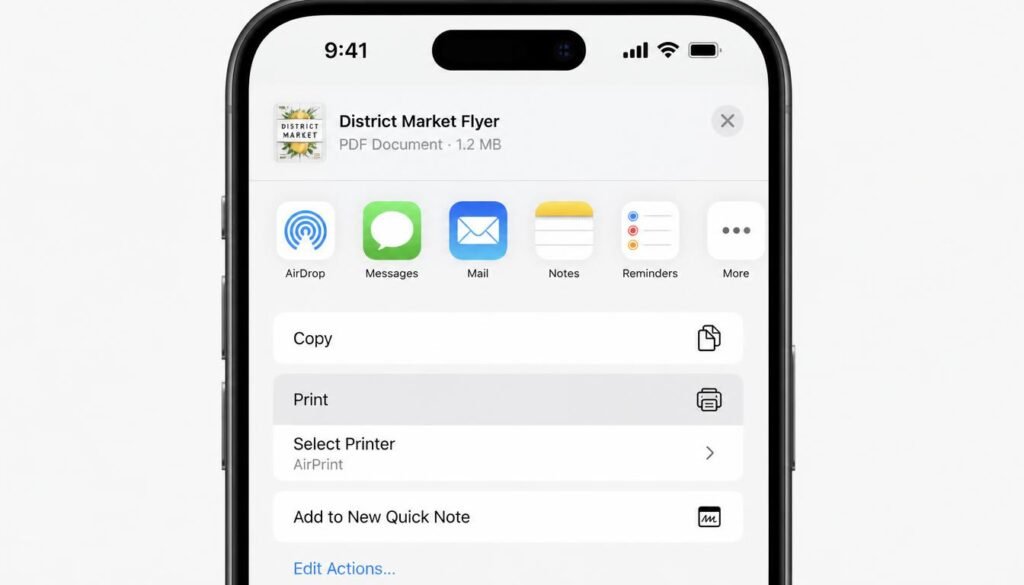
Step 2: Send a Print Command
- Open the image, document, or email you wish to print.
- Tap the Share button, which resembles a square with an upward arrow.
- Scroll down and select Print.
- Tap Select Printer and choose your AirPrint-compatible machine.
- Tap Print in the top right corner.
AirPrint vs Android Default Print Service
AirPrint utilizes Apple Bonjour networking protocol to automatically discover devices across subnets without manual drivers. Android Default Print Service relies on Mopria Alliance standards or dedicated plugins. If an older printer lacks Mopria approval, an iPhone may see it instantly via AirPrint while an Android phone requires a dedicated manufacturer plugin.
For iPhone users who regularly switch between home networks, following our guide on steps to change IP address on iPhone ensures your device holds a clean network configuration when searching for local AirPrint nodes.
Brand Specific Connection Guides
How to Connect Phone to Printer HP
HP units utilize the HP Smart App across Android and iOS devices.
- Download HP Smart from the Play Store or App Store.
- Open the application and sign in or create an account.
- Tap the Plus icon to search for nearby hardware.
- Select your HP model from the screen and follow the pairing wizard.
How to Connect Phone to Printer Canon
- Download Canon PRINT Inkjet/SELPHY from your app store.
- Open the application, grant local network permissions, and tap Add Printer.
- Choose your Canon model from the detected network list.
- Confirm the pairing by running a test print.
How to Connect Printer to Android Phone: Epson and Brother
- Epson: Install Epson Smart Panel or Epson iPrint, tap Add Printer, and select your connected EcoTank or WorkForce model.
- Brother: Download Brother Mobile Connect, select Add Printer, and allow the app to scan your wireless router.
If your Brother unit refuses to show up during a mobile app scan, the underlying Wi-Fi module on the printer may need a reset. Our step-by-step guide on how to connect Brother printer to Wi-Fi walks through the touchscreen setup and WPS button methods in detail.
Local Wi-Fi vs Wi-Fi Direct
Understanding the difference between Local Wi-Fi and Wi-Fi Direct prevents unexpected connection failures.
- Local Wi-Fi Network: Both your phone and printer connect to your home router. Traffic routes through the router, allowing your phone to print while keeping full internet access active. This is the best method for print from android to wireless printer daily setups.
- Wi-Fi Direct: The printer broadcasts its own temporary Wi-Fi signal directly to your phone without a router. While connected via Wi-Fi Direct, your phone will usually lose internet access because mobile devices cannot maintain two Wi-Fi connections at once.
If your printer periodically drops off your network after a router reboot, assigning a fixed IP address stops the router from changing its location. Understanding what is a static IP helps explain how locking an IP number prevents recurring offline status errors.
How to Connect Phone to Printer Bluetooth
Bluetooth printing applies primarily to mobile receipt printers, portable photo printers, and compact label makers.
- Press and hold the Bluetooth button on your printer until the status light begins flashing.
- On your phone, open Settings and tap Bluetooth.
- Select your printer name from the Available Devices list.
- Confirm the pairing code if prompted on screen.
- Open your manufacturer app to send documents, because standard system print menus do not always support Bluetooth output.
Advanced Network Troubleshooting
AP Isolation Settings
Many modern Wi-Fi routers feature AP Isolation or Client Isolation. This security option prevents devices on the wireless network from talking to each other. Access your router admin settings and disable AP Isolation if your phone cannot find your printer despite both sharing the same Wi-Fi connection.
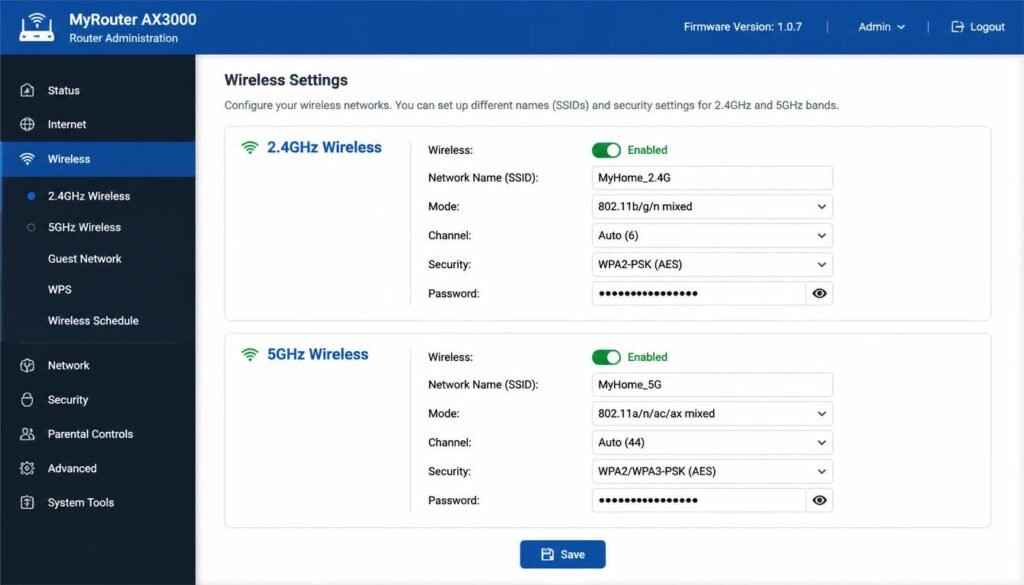
Outdated Network Assignments
If your phone shows a persistent connection error, your mobile device may hold an outdated network address lease. Following our guide on how to modify IP address settings allows you to refresh your network profile and clear communication locks.
Frequently Asked Questions
How do I get my phone to find my printer?
Ensure both devices connect to the exact same Wi-Fi network and 2.4GHz frequency band. On Android, enable Default Print Service under Settings > Connected Devices > Printing. On iPhone, choose your printer inside the Share > Print menu using AirPrint.
Why can’t my phone find my printer?
The most common reasons are frequency band mismatches between 2.4GHz and 5GHz, disabled mobile print services, router AP isolation features, or an offline printer status.
How do I pair my iPhone with my printer?
Connect your iPhone to the same Wi-Fi network as the printer. Open the item you want to print, tap Share, select Print, tap Select Printer, and choose your AirPrint device.
Where do I find the printer settings on my phone?
On Android devices, navigate to Settings, tap Connected Devices, and select Printing. On iPhone devices, printer choices appear inside the Print menu when sharing a document.
How to connect phone to printer using Wi-Fi Direct without a router?
Enable Wi-Fi Direct on your printer control panel, open Wi-Fi settings on your phone, locate the printer Wi-Fi Direct signal name, enter the network key printed on the status sheet, and send your print job.
Can you connect a phone to a printer with a USB cable without Wi-Fi?
Yes. Android phones that support USB OTG can connect directly to a printer USB port using an OTG adapter cable once host permissions are granted on screen.
Why is my Android phone saying printer unavailable?
This error means your phone lost contact with the printer network address. Restarting your router, toggling your Wi-Fi connection, or re-enabling the print service plugin resolves the issue.
How to print from phone to printer using Bluetooth?
Enable Bluetooth pairing mode on your printer, open Settings > Bluetooth on your mobile device, pair with the hardware, and print using the official manufacturer application.
Do I need a specific app to print from an iPhone?
No. As long as your printer supports Apple AirPrint, no extra app is required. If your printer lacks AirPrint support, download the manufacturer app from the App Store.
How to connect phone to HP printer using HP Smart App?
Download HP Smart from your app store, sign in, tap the Plus icon to search your network, select your HP model from the list, and follow the on-screen pairing prompts.
Final Thoughts
Connecting a smartphone to a printer becomes simple once you choose the correct connection path for your hardware. Start by ensuring both devices share the same 2.4GHz Wi-Fi network for daily wireless tasks. Fall back to manufacturer apps like HP Smart or Epson Smart Panel when plugin support is needed, or use a USB OTG adapter cable when Wi-Fi is unavailable. By resolving network frequency mismatches and enabling native print services, you can establish a reliable mobile printing setup on both Android and iPhone devices.
If your phone still fails to communicate with the printer or you need to enter the device network path manually inside your printing app, our complete guide on how to find printer IP address details every method to locate the exact network address across Windows, Mac, routers, and mobile devices.