Your Android phone is broadcasting the same public IP address to every website, app, and network administrator watching your traffic right now, and that single detail can trigger IP bans, blocked streaming content, and privacy exposure you never agreed to. Knowing how to change IP address on Android is not a niche skill reserved for network engineers. It is a basic control every phone owner should hold, and this guide walks through every method that actually works in 2026.
Quick Answer: How to Change IP Address on Android
- Open a VPN application and connect to a server to instantly mask your public IP address and location.
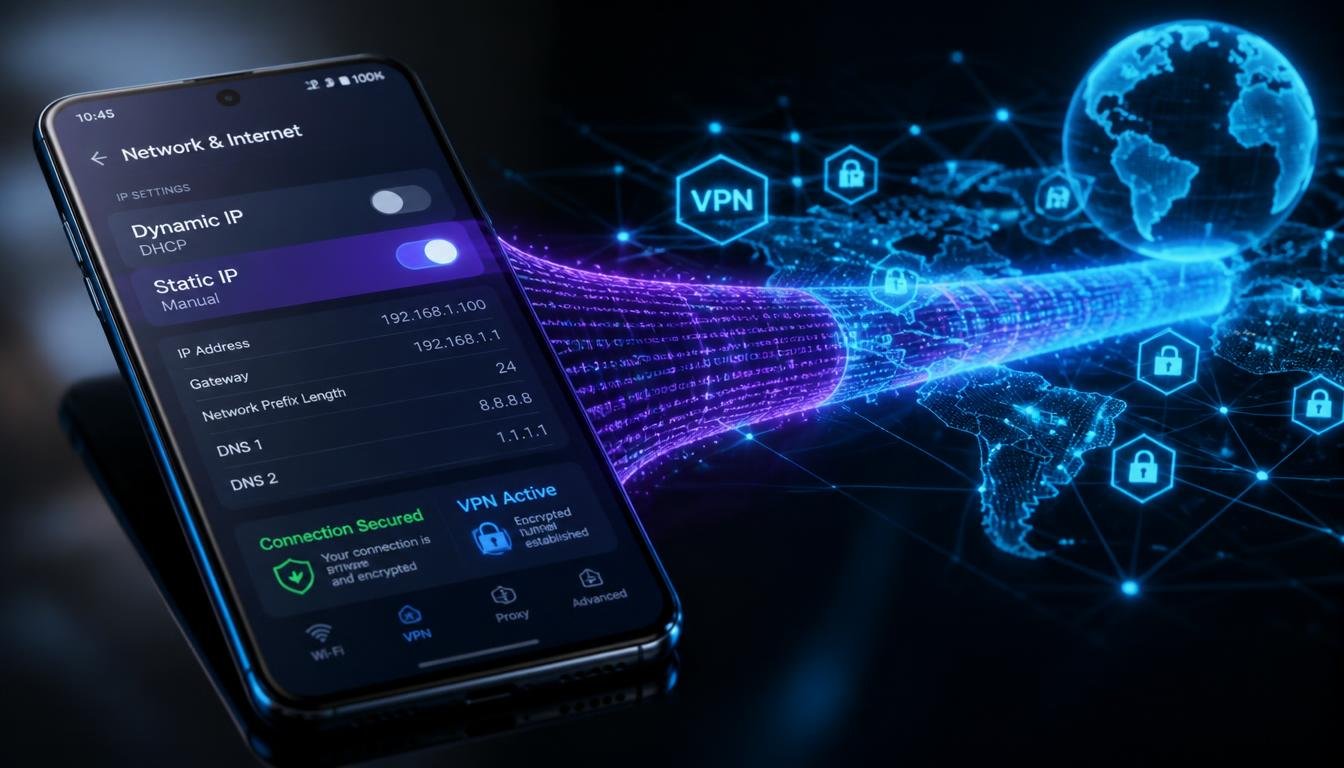
- Go to Settings, then Network and Internet, then WiFi, tap the gear icon next to your network, choose Advanced, then IP Settings, and switch from DHCP to Static to set a local IP manually.
- Toggle Airplane Mode on for thirty to sixty seconds to force your carrier to assign a new dynamic public IP.
- Switch between WiFi and mobile data to instantly pick up a different IP lease from a different network.
- Add a proxy server address in your WiFi advanced settings to mask traffic without full encryption.
| Method | Speed | Security Level | Address Type Changed | Cost |
|---|---|---|---|---|
| VPN | Moderate, depends on server load | High, encrypted tunnel | Public (WAN) | Free tiers exist, paid plans typically five to twelve dollars monthly |
| Manual Static IP | No impact on speed | Low, no encryption | Local (LAN) | Free |
| Airplane Mode Cycle | Instant, no slowdown | None, unencrypted | Public (WAN), carrier assigned | Free |
| Mobile Data Switching | Instant | None, unencrypted | Public (WAN) | Free, uses cellular data allowance |
| Proxy Server | Often slower, single hop routing | Low to moderate, no encryption | Public (WAN), application level only | Free and paid options available |
How to Change IP Address on Android?
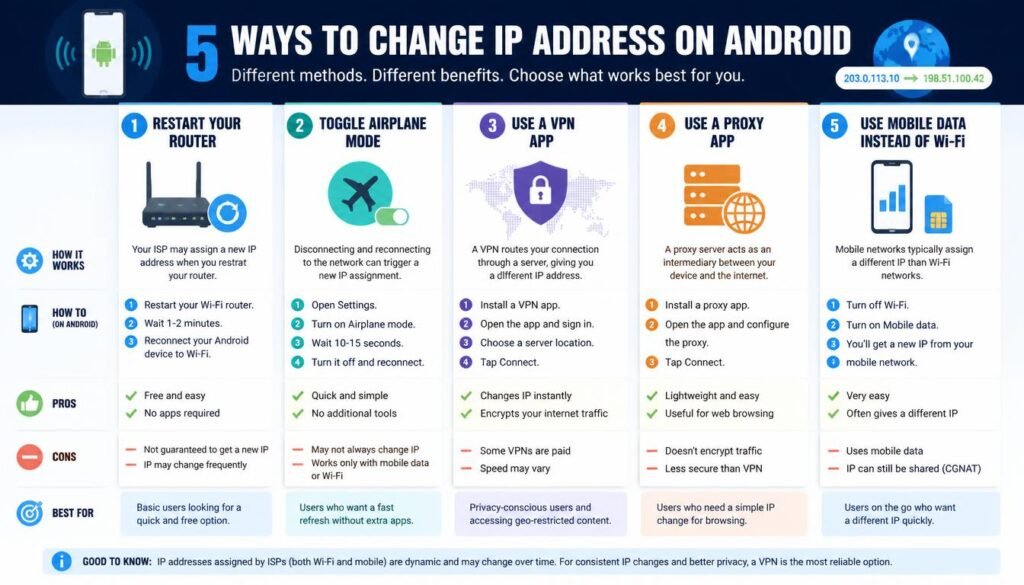
Understanding Android IP Architecture: Public (WAN) vs Local (LAN)
Every Android phone holds two separate IP addresses at the same time, and confusing the two is the most common reason people fail when attempting to change their address. The public IP address, sometimes called the WAN address, is what the outside internet sees. Your internet service provider or mobile carrier assigns this address, and it identifies your connection to every website, app server, and remote service you reach. The local IP address, or LAN address, is only visible inside your home or office network. Your router or mobile hotspot hands this address out using DHCP so your phone, laptop, and smart TV can talk to each other without colliding.
Cellular carriers complicate this picture further through Carrier-Grade NAT, commonly abbreviated as CGNAT. Instead of giving every phone its own unique public IP, carriers pool thousands of subscribers behind a small number of shared public addresses. This is why toggling Airplane Mode does not always change the address that a website sees. If your carrier uses CGNAT, dozens or hundreds of other customers may share the exact same visible public IP as you, and that shared address may barely rotate even after a full network reset.
Modern Android versions add another layer with MAC Address Randomization. Since Android 10, and enforced more aggressively in Android 12 through the current Android 16 releases, your phone generates a randomized hardware identifier for each WiFi network it joins. This protects you from being tracked across different networks by your device’s fixed hardware address, but it is a separate mechanism from your IP address. Randomizing your MAC address does not change your local IP, and it certainly does not touch your public IP. People often confuse the two and assume a MAC reset solved an IP leak when nothing on the facing the public internet side actually moved.
Method 1: How to Change IP Address on Android Using a VPN (Public IP)
A VPN remains the most reliable and complete solution because it replaces your visible public IP with the address of the VPN server, encrypts the entire connection, and works identically whether you are on WiFi or cellular data.
How to Change IP Address on Android Step by Step With a VPN App
- Install a reputable VPN application from the Google Play Store.
- Open the app and sign in or create an account.
- Select a server location. This step is the direct answer to how to change IP address on Android to another country, since selecting a server in Germany, Japan, or Canada assigns you a public IP registered in that region.
- Tap Connect and wait for the encrypted tunnel to establish, usually within a few seconds.
- Confirm the change by searching “what is my IP” in a browser and comparing the result to your previous address.
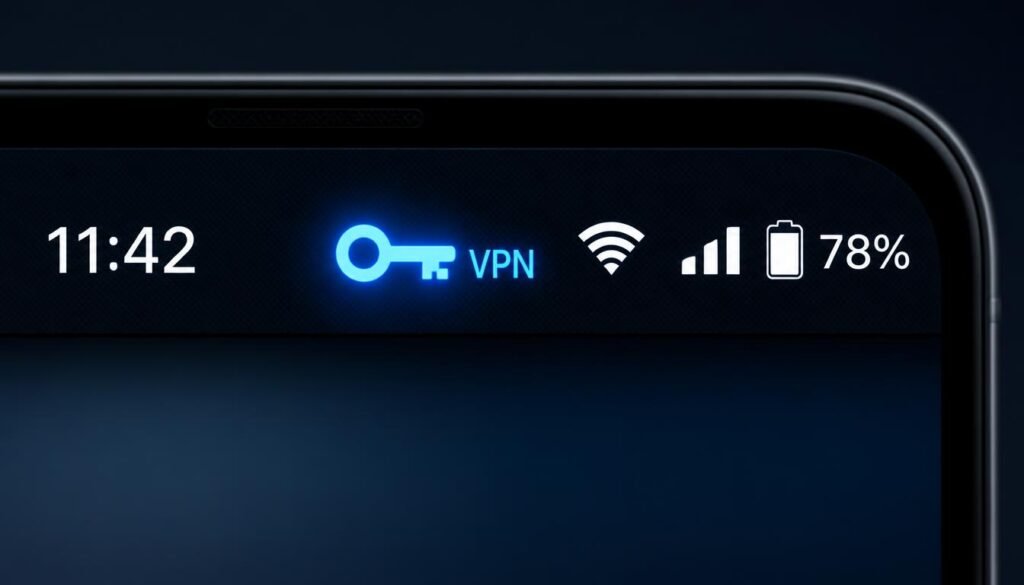
On Android 13 and Android 14, the system displays a persistent notification and a small key icon in the status bar once a VPN tunnel is active, which serves as built in confirmation that traffic is being routed correctly. On Android 15 and Android 16, Google added a Private DNS indicator alongside the VPN icon inside the same Quick Settings panel, so you can verify both protections are running from a single glance.
Free versus paid options matter here. Free VPN tiers usually cap your data, throttle speed during peak hours, and rotate through a smaller pool of shared servers, which is exactly how to change IP address on Android for free without spending money, though at the cost of consistency. Paid plans offer dedicated server fleets, no data caps, and typically include a kill switch that blocks all traffic if the tunnel drops unexpectedly, closing the exact leak window that free tiers often leave open.
Avoid searching for a change IP address Android APK from unofficial file sharing sites. Sideloaded VPN APKs bypass the Play Store’s security scanning and have repeatedly been found bundling code that harvests personal data or outright malware. If you already understand how to troubleshoot Android WiFi configuration errors that appear after installing a shady application, you already know how disruptive a bad sideload can be to a stable connection.
Method 2: How to Change IP Address on Android Manually (Static LAN IP)
This method changes your local address only, and it is ideal for people who need a device to keep the same IP for port forwarding, gaming, or smart home automation rather than for hiding their identity online.
- Open Settings on your Android phone.
- Tap Network and Internet.
- Tap WiFi, then tap the gear icon beside your connected network.
- Tap Advanced to expand the hidden options.
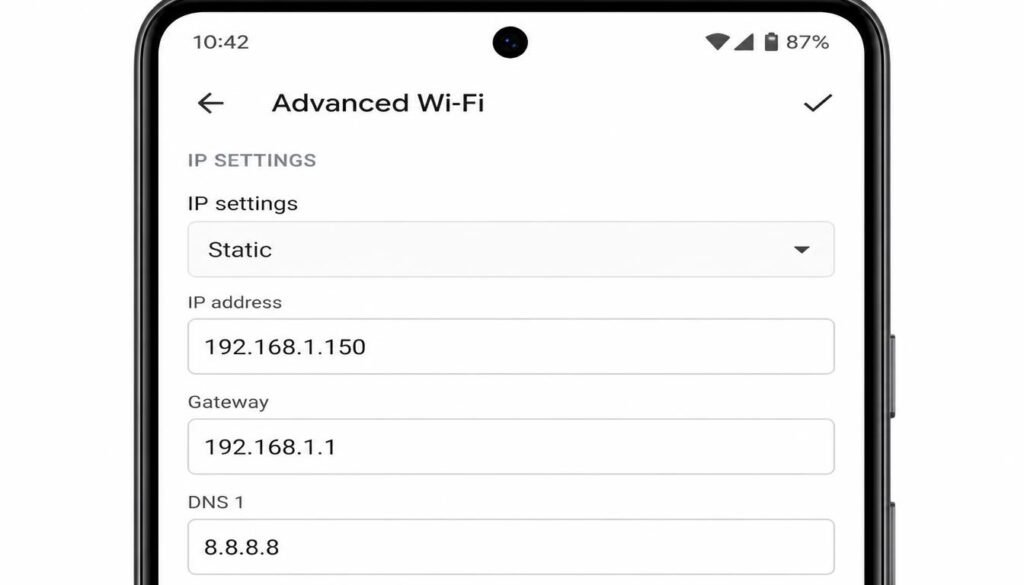
- Tap IP Settings and switch the dropdown from DHCP to Static.
- Enter the following fields carefully:
- IP Address: a unique address inside your router’s range, such as 192.168.1.50.
- Gateway: your router’s own address, almost always 192.168.1.1 or 192.168.0.1.
- Network Prefix Length: usually 24, which corresponds to a subnet mask of 255.255.255.0.
- DNS 1: a primary resolver such as 8.8.8.8.
- DNS 2: a backup resolver such as 1.1.1.1.
- Tap Save.
How to Change IP Address on Android?
Understanding the difference between the Gateway and the Network Prefix Length prevents most static IP failures. The Gateway is the single address that routes your traffic out of the local network toward the internet, functioning as a doorway. The Network Prefix Length, tied directly to your subnet, instead defines the entire pool of addresses that count as local neighbors on the same segment. Entering a static address outside that pool, or pointing the Gateway field at the wrong device, is the single most common reason a manually assigned address fails to connect at all. For anyone who wants to configure static IP routing settings beyond a single phone, the same logic scales up to routers and entire office subnets.
On Samsung Galaxy devices running One UI, the menu path differs slightly. Instead of Network and Internet, Samsung places the option under Settings, then Connections, then WiFi. Tapping the gear icon opens a nearly identical Advanced section, though One UI labels the toggle “IP Settings” with the same DHCP versus Static choice. This is the most direct answer to how to change ip address on android samsung, since the underlying fields, Gateway, Prefix Length, and DNS entries, remain identical to stock Android once you reach the static screen.
A manually assigned static local IP is also the closest thing to how to change phone IP address permanently on a home network, since the address will never rotate through DHCP again unless you manually revert it or your router’s address pool changes entirely.
Method 3: The Airplane Mode Cellular Refresh Trick (Free & Instant)
This is the fastest and simplest free method, though its effectiveness depends heavily on how your carrier structures CGNAT.
- Swipe down to open Quick Settings and tap the Airplane Mode icon.
- Wait a full thirty to sixty seconds. This delay matters because your carrier’s DHCP server needs time to release your old lease before it will issue a new one, and disabling Airplane Mode too quickly often returns the exact same address.
- Tap Airplane Mode again to disable it and reconnect to the cellular network.
- Check your new public IP through a browser search.
Because this method relies entirely on your carrier’s DHCP pool rotation, it is genuinely free and instant, which makes it a popular answer whenever someone asks how to change ip address on android for free with zero setup. However, if your carrier assigns a nearly static address behind CGNAT, repeating this toggle several times in a row may return the same IP each time, since you are simply being handed back into the same shared pool.
Method 4: Switching Between WiFi and Cellular Mobile Data
Jumping between a local WiFi network and your cellular radio forces an entirely different IP lease because you are switching to a different network path altogether, not just requesting a new lease from the same one.
- Open Quick Settings and disable WiFi.
- Confirm your phone has switched to 4G or 5G mobile data in the status bar.
- Wait a few seconds for the new connection to stabilize.
- Recheck your IP address, which will now reflect your carrier’s public range instead of your home router’s.
Reversing the process, moving from cellular back onto WiFi, produces the opposite swap and hands you back your home network’s public IP as assigned by your internet service provider. This is one of the reasons people troubleshooting a dropped connection are told to resolve mobile data network disconnects before assuming a deeper software fault is at play, since a clean radio switch alone often clears temporary address conflicts.
Method 5: Configuring a Proxy Server on Android
A proxy server reroutes your traffic through an intermediary server, which changes the IP address that destination websites see, but it does not encrypt your data the way a VPN tunnel does.
- Go to Settings, then Network and Internet, then WiFi.
- Tap the gear icon next to your connected network.
- Tap Advanced, then Proxy.
- Change the dropdown from None to Manual.
- Enter the proxy hostname and port number provided by your proxy service.
- Tap Save.
Because a proxy only forwards your browser or traffic at the application level and leaves the connection unencrypted, anyone monitoring the same network, such as a public coffee shop hotspot, can still see the raw contents of unencrypted traffic passing through. A proxy masks the IP address that destination sites see without providing the protection at the tunnel level that a VPN builds in by default, which is why privacy focused users treat proxies as a lightweight convenience rather than a full privacy solution.
Crucial Troubleshooting: Why Your Android IP Address Is Not Changing
Several hidden factors sabotage every method above if left unchecked.
DNS caching stores old lookup results even after your IP address changes, which can make websites behave as though nothing happened. Flushing your browser cache or restarting the browser app usually clears this. If problems persist at the system level, it helps to fix DNS server not responding errors using the same flush and renew logic that applies across devices.
IPv6 address leaks are one of the most overlooked failures. Many VPN applications only tunnel IPv4 traffic by default, leaving your phone’s separately assigned IPv6 address exposed and visible to websites that check for it. Look for an explicit “Block IPv6 traffic” or “IPv6 leak protection” toggle inside your VPN app’s settings and enable it.
Active VPN kill switch failures happen when a connection briefly drops and the app fails to block outgoing traffic during the gap, which exposes your real IP for a few seconds. Confirm your VPN’s kill switch setting is toggled on, not merely available, since many apps ship with it disabled out of the box.
Static IP conflict errors occur when two devices on the same network are manually assigned the identical address, causing one or both to silently drop off the connection. Always manage local subnet gateway settings carefully and choose an address near the outer edge of your router’s range to avoid colliding with devices using DHCP.
WebRTC leaks deserve special attention on Android’s Chrome and other browsers built on Chromium. WebRTC is a browser feature used for video calls and real time communication, and it can reveal your true local and public IP addresses even while a VPN is active, because it uses a separate connection negotiation process that some VPN apps fail to intercept. Testing your connection on a dedicated WebRTC leak test website after connecting to a VPN is the only reliable way to confirm you are protected.
Comparing across platforms helps clarify expectations too. Anyone researching how to change IP address on iPhone will find the same five underlying categories, VPN, manual static configuration, network toggling, cellular switching, and proxy setup, though Apple’s menu structure places these settings under Settings, then WiFi, then the info icon, rather than the gear icon and Advanced menu pattern Android uses. The core networking concepts, including CGNAT behavior and DNS leak risk, remain identical across both operating systems.
Before you finish troubleshooting, it is worth confirming your connection is stable in the first place. You can verify active network connection status directly from your device settings, and if the connection itself looks unstable rather than simply unchanged, resetting saved network profiles or running a clear Android system network cache routine often resolves the underlying instability before you attempt another IP change. Retrieving your router’s exact broadcast name is equally useful during this process, and you can retrieve hidden router SSID details directly from your phone’s WiFi menu if the network list looks incomplete.
Frequently Asked Questions
How to change IP address on Android to another country?
Install a VPN application, open its server list, and select a location inside the country you want. Once connected, your public IP address will register as belonging to that country, and geographically restricted content or services will typically unlock within seconds.
How to change phone IP address permanently?
Assign a manual static IP through Settings, then Network and Internet, then WiFi, then Advanced, then IP Settings. Because DHCP will no longer control the address, it will not change again on that specific network unless you edit the setting yourself.
How to change ip address on android samsung?
Go to Settings, then Connections, then WiFi, tap the gear icon on your network, then Advanced, then IP Settings, and switch from DHCP to Static. One UI uses a different menu label than stock Android, but the underlying fields are the same.
How to change ip address on android for free?
Toggle Airplane Mode for thirty to sixty seconds, switch between WiFi and mobile data, or install a free tier VPN application. All three methods cost nothing, though free VPN tiers typically include data caps or slower server speeds.
Does Airplane mode permanently change your IP address?
No. Airplane Mode forces your carrier to release and reassign a dynamic public IP, but the change is not permanent, and your carrier’s CGNAT pool may return the same or a similar address depending on how addresses are rotated internally.
What is the difference between changing a public and local IP on Android?
A public IP change affects how the wider internet identifies your device and is achieved through VPNs, Airplane Mode cycling, or network switching. A local IP change only affects how devices inside your own network see your phone and is achieved through manual static IP configuration.
Can I change my Android IP address without a VPN?
Yes. Airplane Mode cycling, switching between WiFi and cellular data, manual static IP configuration, and proxy server setup all change some form of your IP address without requiring a VPN application, though none of them add encryption to your traffic.
Why does my Android IP show the same location after changing WiFi?
Your geolocation based on IP address is tied to your internet service provider’s registered address block, not your physical location. If your provider assigns addresses from a regional pool, switching networks within that same provider’s coverage area often returns a nearly identical geolocation result.
Is it safe to assign a static IP address on an Android phone?
Yes, assigning a static IP is safe as long as you choose an address outside your router’s active DHCP range to avoid conflicts. It does not weaken your phone’s security on its own, though it also does not add any encryption or privacy protection.
Does changing my Android IP address hide my location from GPS?
No. Your IP address only affects rough network based location estimates used by websites and apps. GPS uses satellite signals entirely independent of your IP address, so changing your IP has no effect on GPS location tracking inside apps that request that specific permission.
Final Thoughts: Taking Full Control of Your Android IP Setup
Changing your IP address on Android is not just a fix for temporary network errors—it is a core security skill that allows you to bypass geographic restrictions, manage router-level assignments, and reclaim your digital privacy.
Whether you choose a instant VPN tunnel to shield your public WAN identity, cycle Airplane Mode for a quick carrier refresh, or learn how to modify IP address configurations manually to set up static local routing, each method serves a distinct network purpose.
If you are expanding your technical network management beyond mobile devices, understanding how your Android setup fits into your home or office architecture is the next logical step. You can easily compare your mobile configuration with your desktop interfaces by learning how to find IP address on computer systems across Windows and macOS.