Why Does My WiFi Keep Disconnecting? 13 Proven Fixes (2026)
You are in the middle of a video call, or three episodes into a show, and the connection drops without warning. Seconds later it reconnects on its own, only to fail again an hour later. If you keep asking yourself why does my WiFi keep disconnecting, the honest answer is that the cause is rarely one single thing. It is usually a combination of router settings, device power management, and radio interference working against you at the same time, and this guide walks through every layer so you can find the exact one causing your drops.
Quick Answer
Random WiFi disconnections are most often caused by power saving settings that switch off your wireless adapter, outdated network drivers, channel congestion on the 2.4 GHz band, or a router that needs a firmware update. Start by disabling the setting labeled Allow the computer to turn off this device to save power inside Device Manager. Next, update your wireless driver, then move your router away from other electronics and switch to a less crowded channel. If the problem is limited to one device, the fault sits with that device, not your whole network.
Primary Reasons Why WiFi Keeps Disconnecting Randomly
Before you touch a single setting, it helps to understand what actually happens inside your device and router when a connection drops. Most disconnection reports fall into one of five categories, and identifying which category applies to you will save hours of guesswork.
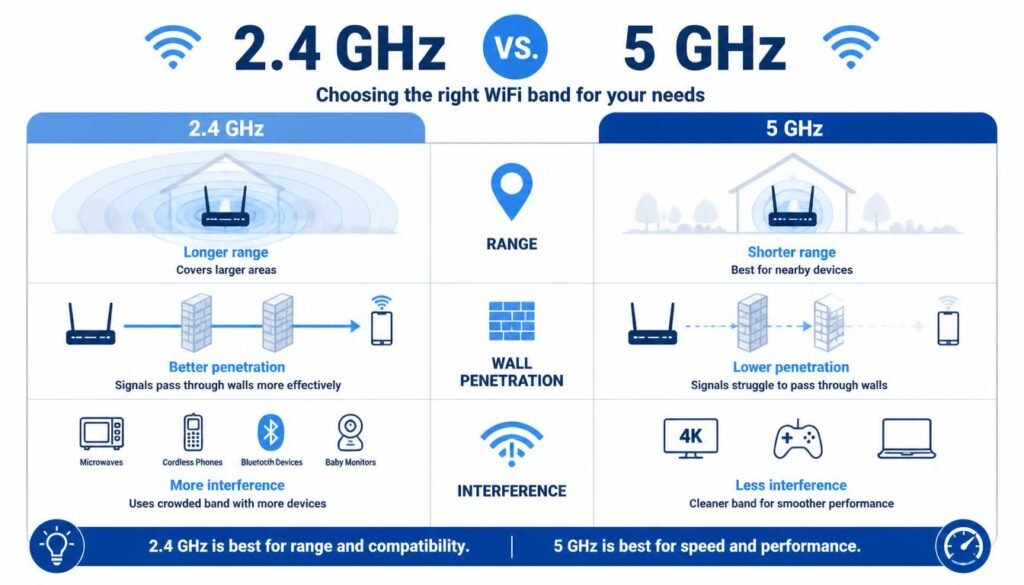
Signal interference is the most common cause on the 2.4 GHz frequency, since it is shared with microwaves, cordless phones, Bluetooth accessories, and baby monitors. Outdated network drivers are the second most common cause, particularly after a Windows update replaces a working driver with a generic one. Router overheating can silently degrade performance during long uptime stretches, especially with routers tucked inside cabinets with no airflow. Power management settings on laptops and phones aggressively cut wireless radio activity to save battery, which is often the true answer to why does my WiFi keep disconnecting even though the router itself is fine. Finally, IP address conflicts occur when two devices on the same network are assigned the same address, forcing one of them off the network without warning.
For a broader library of connectivity fixes beyond this specific issue, our WiFi and networking troubleshooting guides cover router placement, extenders, and signal boosting in more depth.
Troubleshooting WiFi Disconnections Across Specific Devices
The fix that works for a desktop tower rarely works for a phone, and a Smart TV has almost nothing in common with a laptop running Windows 11. The sections below isolate the exact steps for each device type.
Why Does My WiFi Keep Disconnecting Only on PC
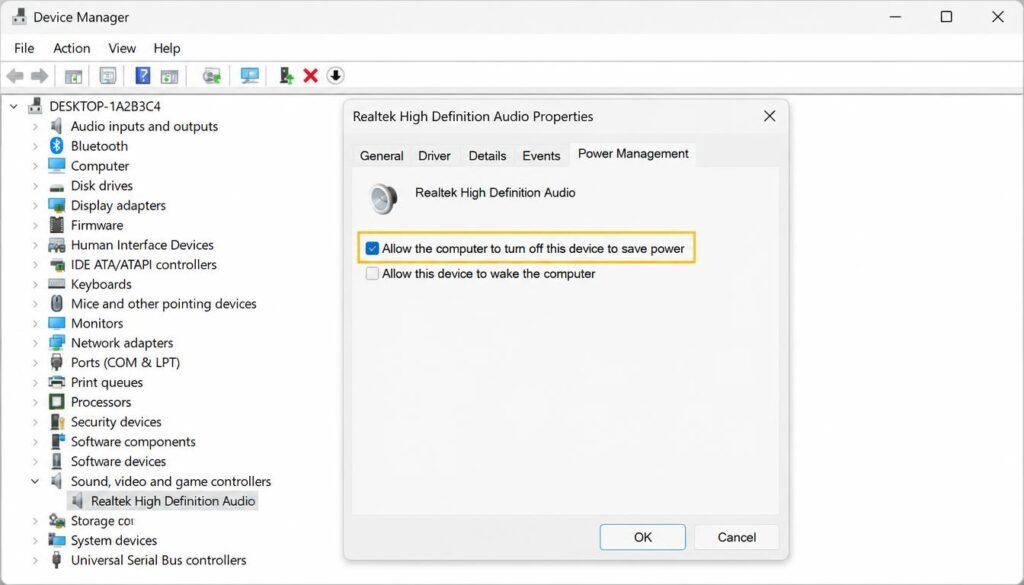
If every other device in your home stays connected while your desktop or laptop drops repeatedly, the router is not the problem. Open Device Manager, expand Network adapters, right click your wireless adapter, choose Properties, then open the Power Management tab and uncheck Allow the computer to turn off this device to save power. This single change resolves a large share of single device drops, since Windows is designed to power down idle radios to conserve energy.
If the issue persists after that change, the network adapter driver itself may be corrupted or mismatched with your current Windows build. Our detailed network adapter troubleshooting guide walks through driver rollback, reinstalling the adapter from Device Manager, and confirming the hardware connection on desktop PCI cards.
Why My WiFi Keeps Disconnecting Windows 11
Windows 11 introduced a more aggressive WLAN AutoConfig service that occasionally drops and rebuilds wireless profiles on its own, which shows up as a brief disconnect every few minutes. Open Services, locate WLAN AutoConfig, right click it, choose Restart, then confirm the Startup type is set to Automatic. Combine this with a clean driver update from Device Manager rather than relying on Windows Update, since manufacturer drivers are frequently newer and more stable.
Command Prompt offers a fast reset for corrupted network stacks on Windows 11. Open Command Prompt as an administrator and run netsh winsock reset, followed by ipconfig /flushdns, then restart the computer. This clears cached DNS entries and resets the network socket layer without touching your saved WiFi passwords. Readers who want the complete walkthrough with every command explained can follow our step by step WiFi fix guide for additional Windows specific fixes.
Why Does My WiFi Keep Disconnecting on My Laptop
Laptops introduce a variable that desktops do not have, which is battery status. Many laptops apply a separate, more restrictive power profile the moment they switch from AC power to battery, and that profile often throttles the wireless radio to extend runtime. Open Settings, then System, then Power, and set the Power mode to Best Performance while plugged in to rule this out as a factor.
Roaming Aggressiveness is a setting buried in the Advanced tab of your wireless adapter properties, and on many laptops it defaults to a level that disconnects from a weak signal too quickly while searching for a marginally stronger one nearby. Lowering this value from Highest to Medium often stops laptops from bouncing between access points on a mesh network.
Why Does My WiFi Keep Disconnecting on My Phone
Phones apply their own layer of aggressive power saving that is separate from anything happening on your router. Android phones include a Smart Network Switch or adaptive connectivity feature that automatically jumps to mobile data whenever the WiFi signal weakens even slightly, which feels identical to a disconnection from the user’s side. Disabling this feature in your WiFi settings usually stops the behavior immediately.
For visibility into exactly which network your phone is trying to hold onto, checking locating your WiFi network SSID confirms your phone is not accidentally connecting to a duplicate or neighboring network with a similar name.
WiFi Keeps Disconnecting on iPhone
iPhone disconnections frequently trace back to Private WiFi Address, a feature introduced to protect against tracking that occasionally conflicts with routers using strict MAC address filtering or static DHCP reservations. Open Settings, tap WiFi, tap the information icon next to your network, and toggle Private WiFi Address off for that specific network only.
If the problem started after an iOS update, a full network settings reset often clears the issue. Open Settings, then General, then Transfer or Reset iPhone, then Reset Network Settings. This removes saved WiFi passwords and VPN configurations, so keep those details available before proceeding.
Why Does My WiFi Keep Disconnecting on My TV
Smart TVs are rarely updated as often as phones or laptops, and outdated firmware is a well documented cause of frequent WiFi drops on nearly every major brand. Check your TV’s settings menu for a software update option, since manufacturers frequently release patches specifically addressing wireless stability.
TVs also sit further from the router than most devices, often behind a wall mount or inside a cabinet, both of which weaken signal strength considerably. If moving the router is not practical, a wired ethernet connection to the TV eliminates wireless disconnection issues entirely and usually improves streaming quality as a side benefit.
Why Does My WiFi Keep Disconnecting on Only One Device
When one device drops while everything else on the network stays connected, the fault lives on that specific device rather than the router or your internet service. Start by forgetting the network on the affected device and reconnecting from scratch, since a corrupted saved profile can cause repeated authentication failures that look identical to a signal drop.
If forgetting and reconnecting does not help, compare the device’s WiFi standard against your router. An older device limited to 802.11n connecting to a router broadcasting only 802.11ax on a narrow channel width can experience compatibility related drops that never appear on newer hardware.
Why Does My Internet Keep Disconnecting for a Few Seconds
Brief drops lasting only a few seconds, rather than full disconnections, usually point to DHCP lease renewal or channel switching rather than a hardware failure. Routers periodically renegotiate DHCP leases, and on some models this process causes a momentary interruption visible as buffering or a dropped video call.
Extending your router’s DHCP lease time inside the router’s admin panel, typically found under LAN or Network settings, reduces how often this renegotiation happens. A lease time of 24 hours instead of the common default of a few hours cuts down on these short, repeated interruptions significantly.
Advanced System and Router Level Fixes
Once you have ruled out the device specific causes above, these deeper fixes address the router and operating system layers directly.
Device Manager Power Management Fix: As covered earlier, disabling Allow the computer to turn off this device to save power inside your wireless adapter properties remains the single most effective fix for Windows machines experiencing random drops, particularly laptops running on battery.
Command Line Network Reset: Running netsh winsock reset followed by ipconfig /flushdns in an administrator Command Prompt clears corrupted network configuration data that accumulates over months of use. For a full breakdown of every diagnostic command available on Windows, our Windows PC performance fixes section covers driver management and system level network tools in detail.
why does my WiFi keep disconnecting?
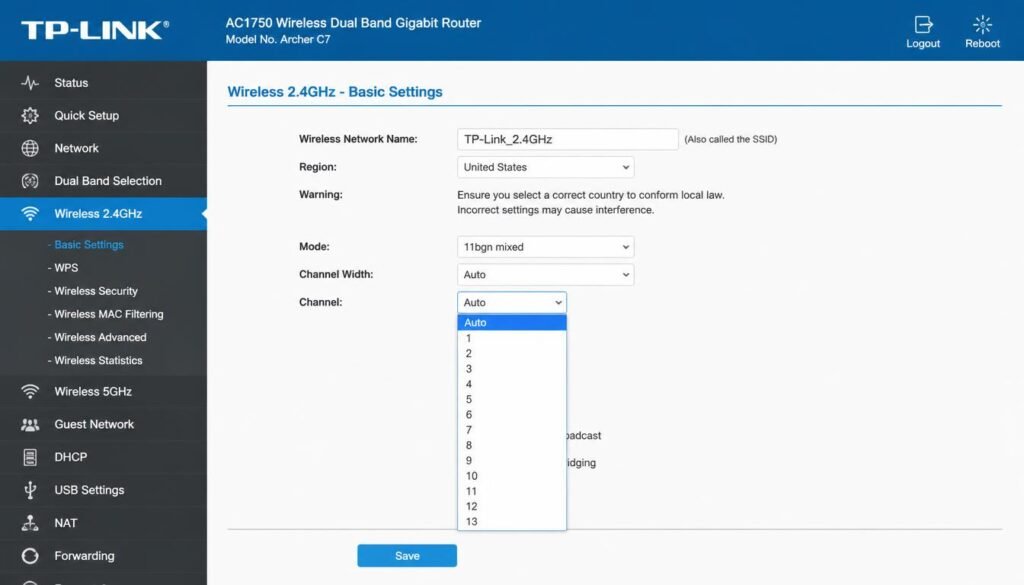
Router Dual Band Steering and Channel Width: Many modern routers broadcast one combined network name across both 2.4 GHz and 5 GHz bands, which sounds convenient but can cause devices to bounce between bands unpredictably. Log into your router’s admin panel and temporarily split the bands into two separate network names to identify whether band steering is the source of your drops, then set the channel width on 2.4 GHz to 20 MHz rather than the wider Auto setting, since the wider setting increases the odds of overlapping with a neighboring network.
If your router’s firmware has not been updated in more than six months, check the manufacturer’s admin panel for a pending update before making any further changes, since outdated firmware is a documented and often overlooked cause of unstable connections. For readers troubleshooting DNS related drops specifically, our web network and DNS tools resources cover flushing, changing DNS servers, and diagnosing lookup failures step by step.
Background system bloat can also interfere with network services on Windows machines that have accumulated years of installed software and startup programs. Our Windows 11 system performance tweaks guide removes unnecessary background processes that can compete with network drivers for system resources.
Comparative Analysis: 2.4 GHz vs 5 GHz Disconnection Factors
| Factor | 2.4 GHz | 5 GHz |
|---|---|---|
| Range | Longer range, reaches through more floors | Shorter range, weakens faster over distance |
| Wall Penetration | Stronger penetration through walls and floors | Weaker penetration, struggles with thick walls |
| Interference | High, shared with microwaves, Bluetooth, and cordless phones | Low, mostly clear of household electronics |
| Stability Solution | Manually select channel 1, 6, or 11 to avoid overlap | Widen the channel only if few neighboring networks are present |
For most homes with more than a handful of nearby WiFi networks, keeping stationary devices like desktops and TVs on 5 GHz while leaving phones and other mobile devices free to roam on 2.4 GHz produces the most stable overall setup.
Mobile devices in particular benefit from a dedicated look at radio settings, and our mobile wireless settings guides collection covers adaptive connectivity, Private WiFi Address, and other phone specific toggles that desktop guides typically skip.
Frequently Asked Questions
Why does my WiFi keep disconnecting randomly?
Random disconnections are typically caused by power management settings switching off your wireless adapter, an outdated network driver, or interference on the 2.4 GHz band from nearby electronics. Testing whether the drops happen on every device or only one narrows the cause quickly.
How do I stop my WiFi from disconnecting?
Disable the power saving option for your wireless adapter in Device Manager, update your network driver, and move your router to an open area away from microwaves and cordless phones. If the drops continue, switch your router to a manually selected, less congested channel.
Why will my WiFi not stay connected?
A connection that will not hold typically points to either a corrupted saved network profile or a router firmware issue. Forgetting and reconnecting to the network, then checking for a router firmware update, resolves the majority of these cases.
Why does my 2.4 GHz keep dropping?
The 2.4 GHz band is shared by a limited number of non overlapping channels, and in apartments or dense neighborhoods, dozens of nearby networks compete for the same three usable channels. Manually selecting channel 1, 6, or 11 based on the least congested option nearby usually stabilizes the connection.
Why does my WiFi disconnect when I move to another room?
This points to a coverage gap rather than a technical fault. Thick walls, metal appliances, and distance from the router all weaken the signal enough to trigger a drop. A WiFi extender or mesh system placed between the router and the weak spot typically resolves this.
Can an outdated router firmware cause frequent disconnections?
Yes. Outdated router firmware is a documented and common cause of degraded performance, security vulnerabilities, and random disconnects. Checking the router’s admin panel for a pending firmware update takes only a few minutes and often resolves issues that seem unrelated to firmware at first glance.
How does channel overlap affect network stability?
When two or more routers broadcast on the same or adjacent 2.4 GHz channel, their signals interfere with each other, causing packet loss and intermittent drops that mimic a hardware fault. Selecting a channel with the least nearby traffic, verified with a WiFi analyzer app, eliminates this interference.
Why does my WiFi disconnect when using high bandwidth applications?
Streaming, large downloads, and video calls push more data through the connection at once, which can expose a weak signal or an undersized router that was previously stable under light use. If drops only happen during heavy use, the router itself, rather than any single device, is usually the limiting factor.
Does a failing network interface card cause intermittent connection drops?
Yes. A failing wireless adapter or network interface card produces symptoms nearly identical to a software or driver problem, including intermittent drops, slow speeds, and the adapter disappearing from Device Manager entirely. If the adapter appears and disappears while gently moving the device, a hardware fault rather than a software fix is the likely cause.
How do IP address lease expirations affect connection stability?
When a device’s DHCP lease expires, it must renegotiate a new IP address with the router, and on some routers this brief renegotiation causes a momentary drop visible as buffering or a stalled connection. Extending the DHCP lease time inside the router’s admin panel reduces how frequently this renegotiation interrupts an active connection.
Final Thoughts
If you are still wondering why does my WiFi keep disconnecting after working through this guide, remember that the drops almost always trace back to one of three layers: the device, the router, or the frequency band carrying the signal. Working through the device specific fixes above before moving to router level changes will identify the actual cause faster than guessing at router settings first. If a specific device keeps failing after every fix in this guide, the wireless adapter inside that device may need replacement or professional repair.