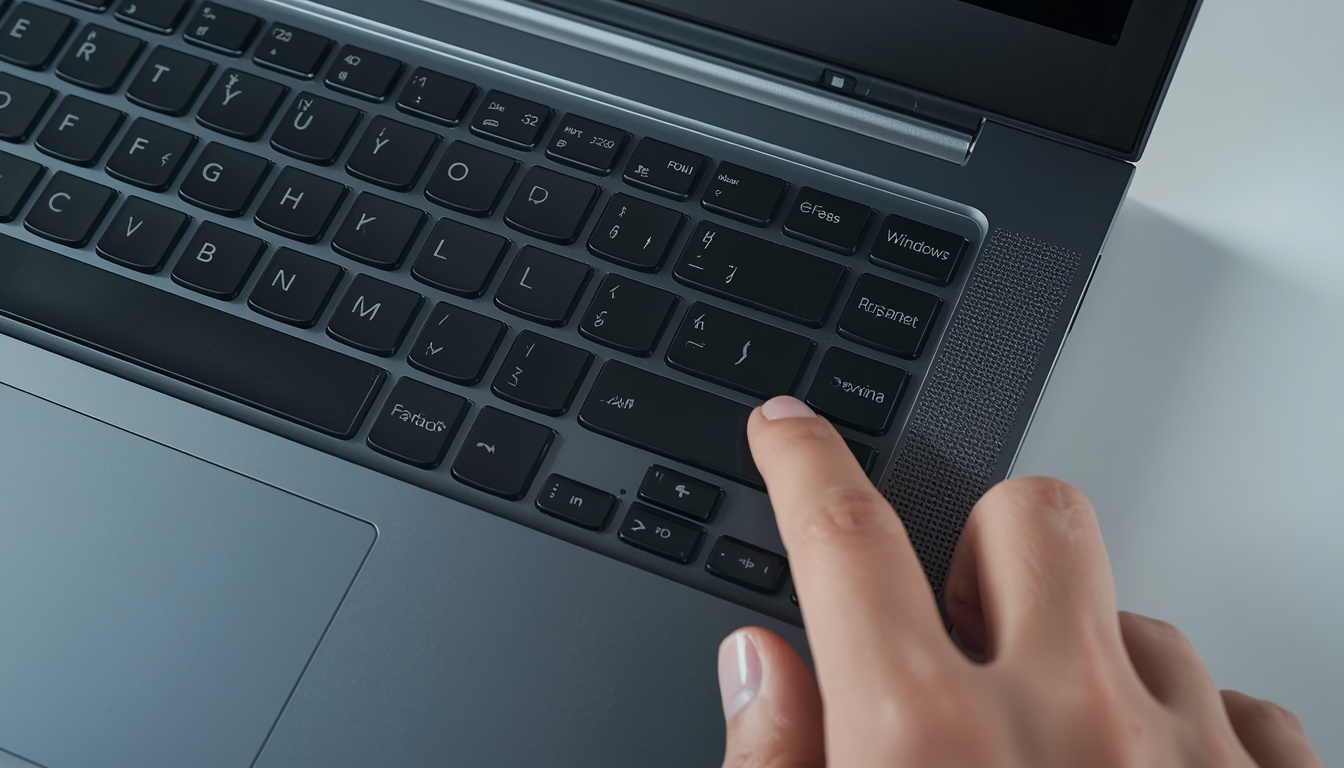
If you have ever tried to capture a tutorial, a gameplay clip, or a quick bug report and ended up with a video that has no sound, a frozen frame, or a Game Bar that refuses to open, you are not alone. Learning how to screen record on Lenovo laptop the right way means understanding both Windows settings and the hardware quirks that are unique to ThinkPad and IdeaPad models. This guide walks through every built in method, the exact keyboard shortcuts, and the hardware specific fixes that most generic tutorials never mention.
Quick Answer: Fastest Way to Screen Record on Lenovo Laptop
For most people, the quickest built in option is the Xbox Game Bar shortcut.
| Quick Fact | Detail |
|---|---|
| Fastest Shortcut | Windows key + Alt + R |
| Tool Required | None, built into Windows 10 and Windows 11 |
| Cost | Completely free |
| Audio Captured | System audio and microphone, if enabled |
| Works On | Lenovo ThinkPad, IdeaPad, Legion, and Yoga models |
Screen recording problems are often connected to other display related quirks on Lenovo devices. If your screen resolution looks off while recording, check our guide on How to Measure Laptop Screen Size to confirm your display specifications are correctly detected by Windows.
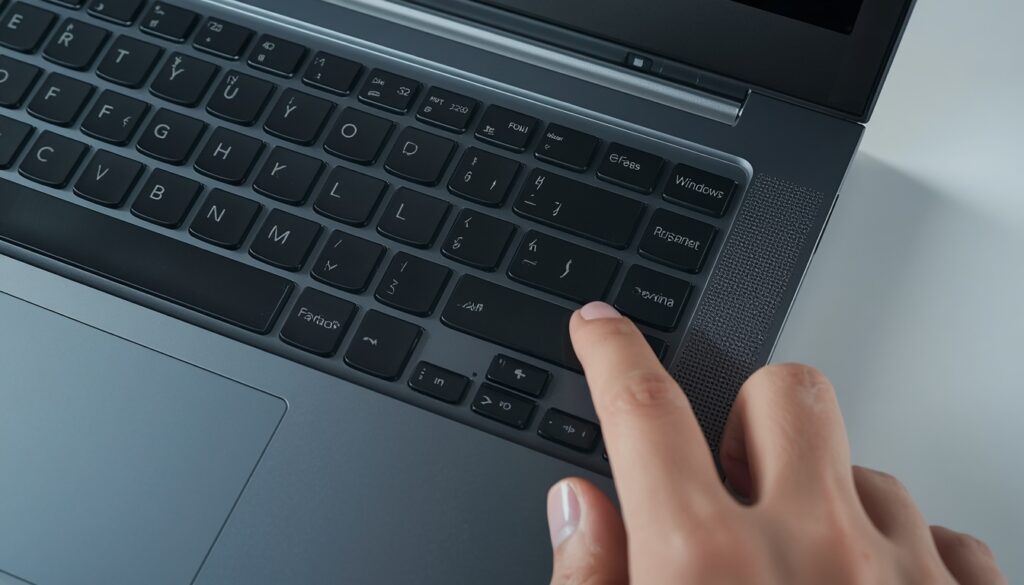
How to Screen Record on Lenovo Laptop?
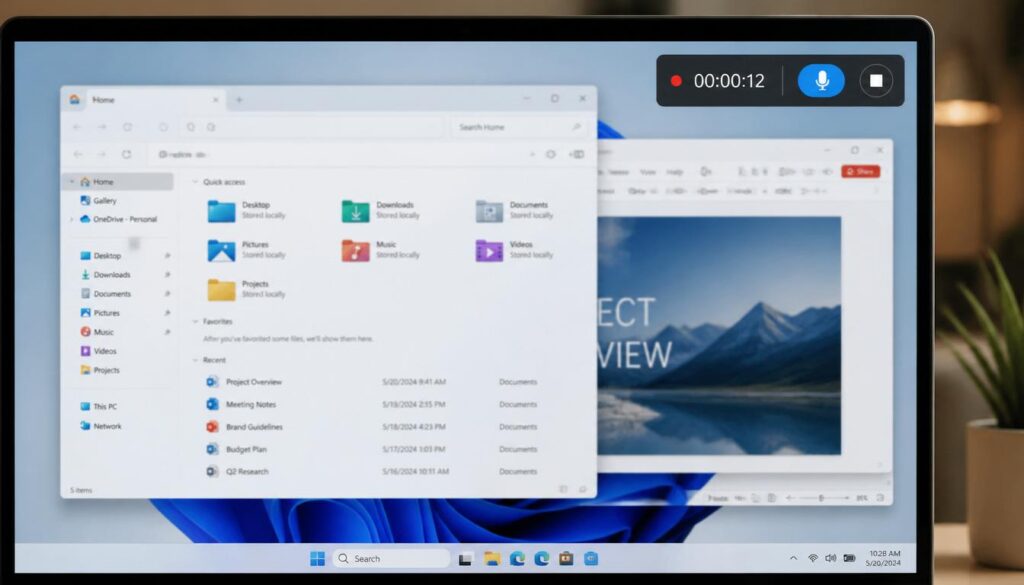
Press Windows key + Alt + R and a small recording widget appears in the top right corner of the screen. Recording starts immediately, and the file is saved automatically to your Videos folder under Captures. No installation is required, and this method works on every modern Lenovo laptop running Windows 10 or Windows 11.
Method 1: Xbox Game Bar (The Free Built In Way)
The Xbox Game Bar is the default recording tool baked into Windows, and it remains the fastest way to record your screen without downloading anything.
Step by Step Instructions
- Open the application or window you want to record.
- Press Windows key + G to open the Xbox Game Bar overlay.
- Click the Capture widget, or simply press Windows key + Alt + R to start recording instantly.
- A small timer will appear in the corner of your screen, confirming the recording is active.
- Press Windows key + Alt + R again to stop, or click the stop button on the floating capture bar.
- Your recording is saved automatically as an MP4 file in This PC > Videos > Captures.
How to Screen Record on Lenovo Laptop?
How to Enable Microphone Audio
A common complaint is a recording that plays back completely silent. This happens because microphone permissions are turned off by default in many Lenovo factory configurations.
- Open the Xbox Game Bar with Windows key + G.
- Locate the Audio widget, which looks like a small speaker icon.
- Toggle on the Microphone switch before you start recording.
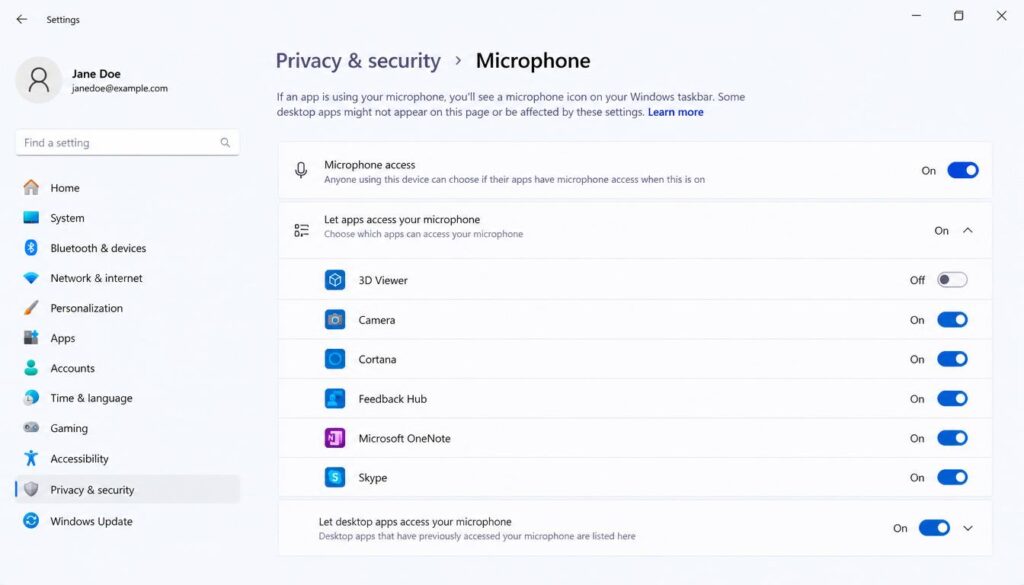
- If the toggle does nothing, check Windows microphone permissions under Settings > Privacy and Security > Microphone, and make sure “Let apps access your microphone” is switched on.
This single step resolves the majority of silent recording issues reported on Lenovo forums and support communities.
Method 2: Windows 11 Snipping Tool (The New Update)
Many users do not realize that the Windows 11 Snipping Tool received a major update that now includes screen recording, not just screenshots. This is one of the biggest gaps left out of most competitor guides, since older articles only describe the Snipping Tool as a screenshot utility.
How to Record With Snipping Tool
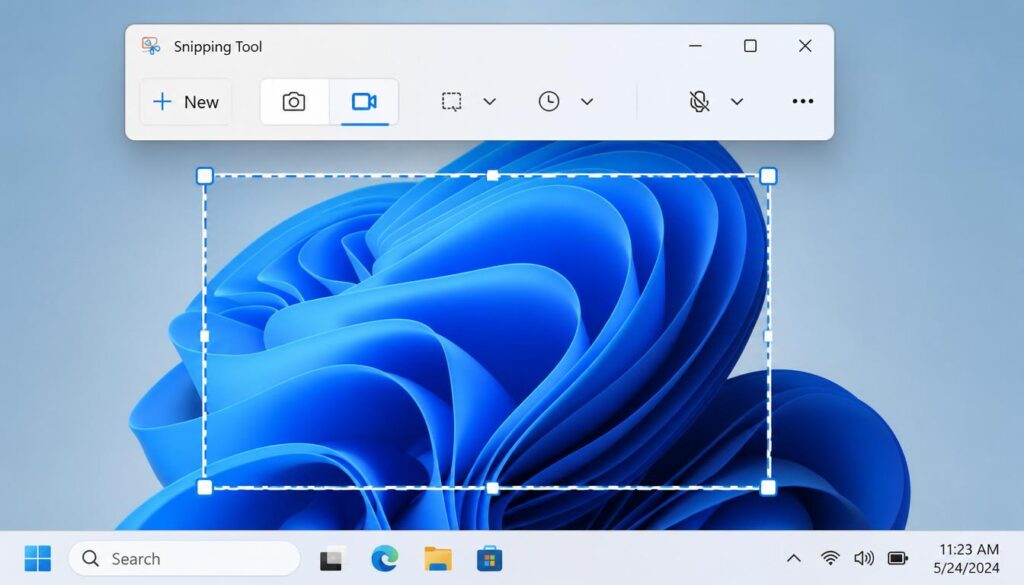
- Press Windows key + Shift + S to open the Snipping Tool overlay.
- Select the video camera icon at the top of the toolbar instead of the screenshot icon.
- Drag your cursor to select the exact region of the screen you want to capture.
- Click Start to begin recording that specific area only.
- Click the red Stop button in the floating toolbar when finished.
- The recording opens automatically inside the Snipping Tool app, where you can save it as an MP4 file.
How to Screen Record on Lenovo Laptop?
This method is ideal when you only need to record a small portion of the screen, such as a single browser tab or a settings panel, rather than the entire display.
Method 3: Third Party Extensions and Tools (Loom, Tella, and Free Alternatives)
Built in tools cover most everyday needs, but third party software adds features such as cloud hosting, automatic transcription, and instant shareable links. The choice here genuinely depends on your workflow.
- Loom: Best suited for teams that need instant shareable links and asynchronous video messaging. The free plan has a recording length limit, and longer recordings require a paid subscription.
- Tella: Focused on polished, presentation style recordings with built in webcam overlays and zoom effects, but most advanced editing features sit behind a paywall.
- OBS Studio: A completely free, open source alternative favored by gamers and streamers who need multiple audio sources and scene switching, though the interface has a steeper learning curve.
- ShareX: A lightweight, free, open source tool that handles both screenshots and screen recording with a smaller learning curve than OBS.
If your goal is a quick internal recording with no cost and no time limit, the built in Windows methods above will almost always be enough. Third party tools earn their value when you need cloud sharing, branding, or advanced editing.
A stable internet connection matters when uploading recordings to Loom or Tella. If your uploads keep failing or buffering, our article on Why Is My Ethernet Slower Than WiFi explains how to fix unexpected speed drops between wired and wireless connections.
Method 4: Lenovo Specific Settings That Affect Recording Quality
This is the section most competitor articles skip entirely, since guides from Tella, Loom, and even Lenovo’s own glossary page rarely mention how Lenovo Vantage and hardware settings influence recording performance.
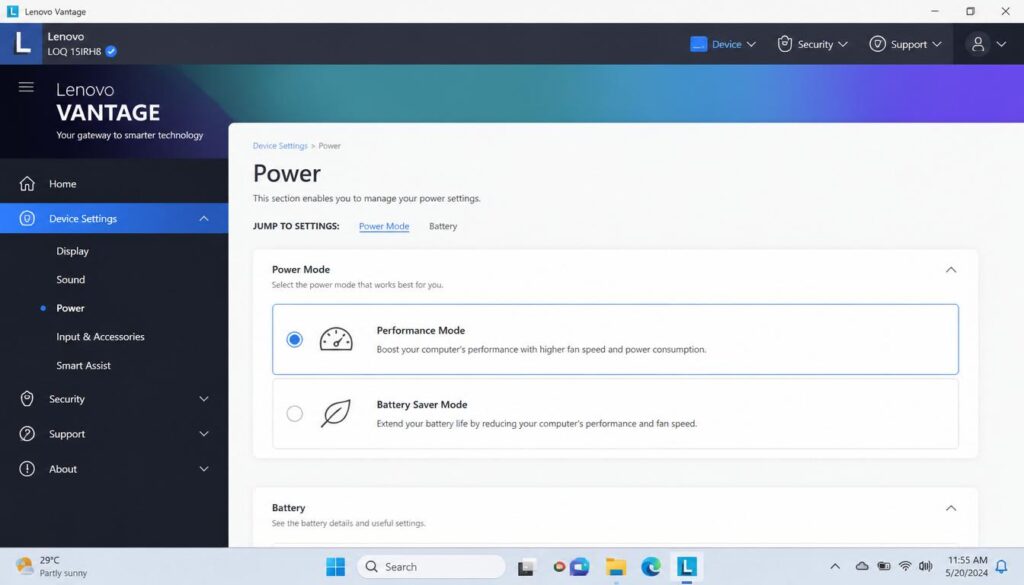
Lenovo Vantage and Power Settings
Lenovo Vantage controls thermal and power profiles that can directly affect recording smoothness. If a recording stutters or drops frames partway through, check the following:
- Open Lenovo Vantage from the Start menu.
- Navigate to Device Settings > Power.
- Switch the power mode to Performance or Balanced, since Battery Saver mode can throttle the CPU and GPU, leading to a noticeable frame rate drop during recording.
- If you have a dedicated graphics card, confirm in Windows Graphics Settings that the recording application is assigned to the high performance GPU rather than integrated graphics.
How to Screen Record on Lenovo Laptop?
How to Screen Record on Lenovo Laptop?
Hardware Keys and Function Row Conflicts
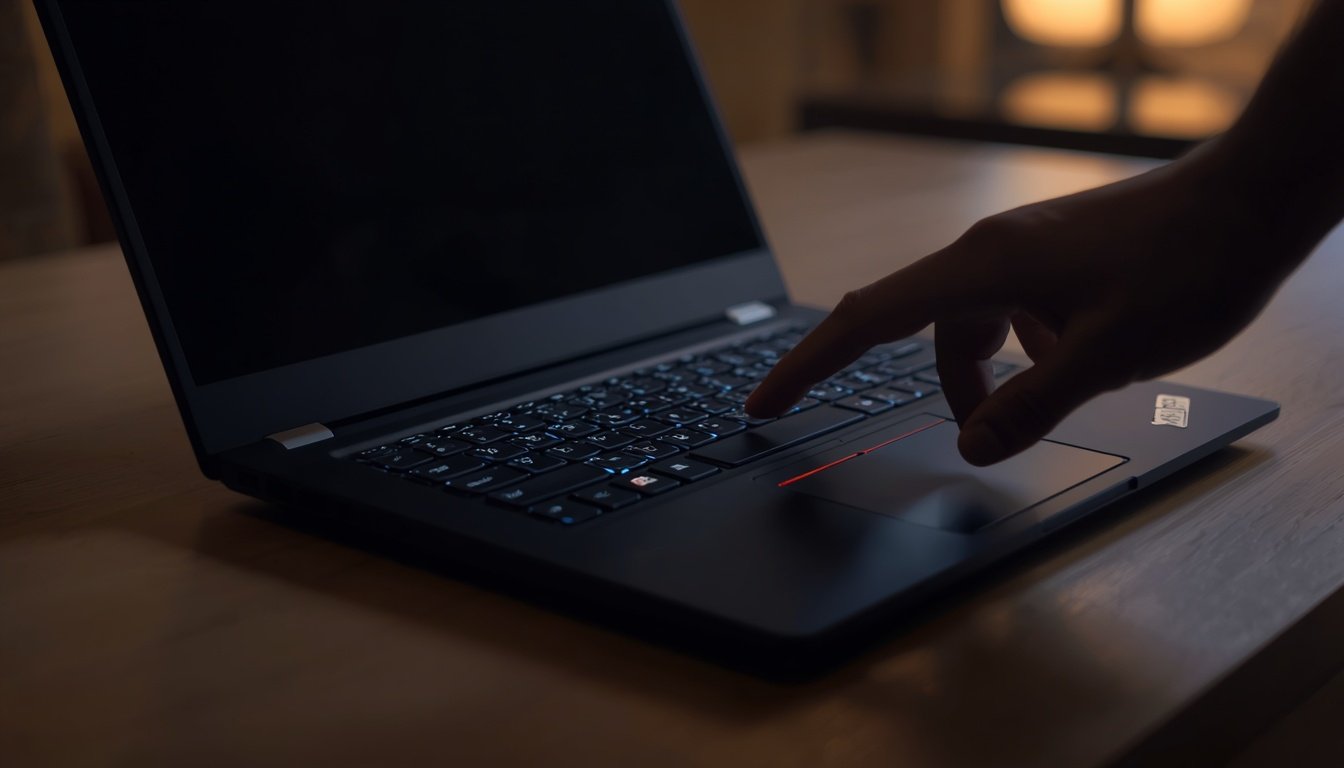
Some Lenovo ThinkPad models map function keys to volume, microphone mute, or camera privacy shutters. A physical microphone mute switch, common on several ThinkPad and Legion models, will block audio capture even if the software settings are correct. Always check for a small mute light or physical switch near the keyboard before assuming a software bug is the cause.
Troubleshooting Section: Fixing Common Lenovo Recording Problems
Why Is Xbox Game Bar Greyed Out?
If the Capture option appears greyed out, it is almost always because Game Bar permissions have not been enabled for that specific app.
- Open Settings > Gaming > Xbox Game Bar and confirm the toggle is switched on.
- Go to Settings > Gaming > Captures and check that recording is enabled.
- Some applications, such as File Explorer or certain Lenovo utility software, are blocked from being recorded by Windows for security reasons, and the Capture button will remain greyed out for those specific windows.
How to Fix Internal Audio Not Recording on Lenovo
Internal audio not recording is one of the most searched problems related to this topic, yet most guides never explain the fix.
- Confirm in the Game Bar Audio widget that the system audio toggle is switched on, separate from the microphone toggle.
- Open Settings > System > Sound > Volume Mixer and check that the recording app is not muted there.
- Update your audio drivers through Lenovo Vantage under Device Settings > Audio, since outdated Realtek or Dolby audio drivers are a frequent cause of missing internal audio on Lenovo laptops.
If you are also experiencing connection drops while recording online meetings or game sessions, our guide on Authentication Issue WiFi walks through fixing the most common WiFi authentication errors on any device.
How to Fix Microphone Privacy Settings
- Open Settings > Privacy and Security > Microphone.
- Confirm “Microphone access” is turned on at the top of the page.
- Scroll down and individually enable the toggle for the specific recording app you are using.
- Restart the app after changing the permission, since Windows does not always apply the new setting until the application reopens.
If your Lenovo laptop is also running slower than expected during recording or daily use, the cause might be deeper than just power settings. Our guide on Windows Installation Has Failed on Windows 11 or 10 covers system level issues that can affect overall performance and stability.
Quick Reference Table: Comparing Every Method
How to Screen Record on Lenovo Laptop?
| Method | Best For | Keyboard Shortcut | Audio Support |
|---|---|---|---|
| Xbox Game Bar | Quick full screen recordings | Windows key + Alt + R | System audio and microphone |
| Windows 11 Snipping Tool | Recording a specific region | Windows key + Shift + S | System audio and microphone |
| Loom | Team sharing and async video messages | None, app based | Microphone, system audio on paid tiers |
| Tella | Polished presentation style videos | None, app based | Microphone and system audio |
| OBS Studio | Advanced multi source recording | Customizable | Fully customizable audio routing |
FAQ How to Screen Record on Lenovo Laptop?
1. Can I screen record on a Lenovo laptop without downloading any software?
Yes, every Lenovo laptop running Windows 10 or Windows 11 has Xbox Game Bar and Snipping Tool built in, so no extra download is required.
2. Where are my Lenovo screen recordings saved?
Recordings made through Xbox Game Bar are automatically saved in This PC, Videos, Captures folder as MP4 files.
3. Does Lenovo Vantage affect screen recording quality?
Yes, Lenovo Vantage power mode settings can cause a frame rate drop during recording if the laptop is set to Battery Saver mode instead of Performance or Balanced mode.
4. How do I record only part of my screen on a Lenovo laptop?
Use the updated Windows 11 Snipping Tool, press Windows key plus Shift plus S, select the video camera icon, then drag to choose the exact region you want to record.
5. Why does my Lenovo screen recording have no sound?
This usually happens because the microphone or system audio toggle is switched off inside the Xbox Game Bar Audio widget, or microphone privacy permissions are disabled in Windows settings.
Final Thoughts
Knowing how to screen record on Lenovo laptop comes down to choosing the right tool for the task and understanding the few hardware specific settings that generic Windows tutorials leave out. For a fast, no cost recording, Windows key + Alt + R through Xbox Game Bar will cover almost every situation. For region specific captures, the updated Snipping Tool in Windows 11 is a genuinely underrated option. If you run into stuttering, silent audio, or a frame rate drop, the Lenovo Vantage power settings and audio driver updates resolve the issue in nearly every reported case. For more Windows 11 system fixes and Lenovo specific troubleshooting guides, continue exploring the rest of SmartTechFixer.com.
For more everyday fixes beyond screen recording, browse our full collection of guides, including practical tips like How to Change Wi-Fi Channel to Fix Slow Internet for anyone dealing with sluggish connections while recording or streaming.