How to Connect Hotspot to Laptop: Complete 2026 Fix (All OS)
Your deadline is close, the office WiFi is down, and your laptop screen shows nothing but a spinning circle. Learning how to connect hotspot to laptop the right way turns that moment of panic into a thirty second fix, whether your hotspot lives on an iPhone, an Android phone, or a dedicated mobile router. This guide walks through every Windows version, every major laptop brand, and both the wireless and USB methods, then closes the gaps that most tutorials leave open, including driver failures, authentication errors, and the exact command line fixes that restore a connection Windows refuses to complete.
Quick Answer
To connect a hotspot to a laptop, open the personal hotspot or mobile hotspot menu on your phone, turn the toggle on, then select the same network name from the WiFi list on your laptop and enter the password. If the laptop cannot see the network at all, plug in a USB cable instead and enable USB tethering from the phone settings, since this method bypasses wireless driver problems entirely. Most connection failures trace back to an outdated network adapter driver, a mismatched WiFi band, or a saved profile that no longer matches the current password.
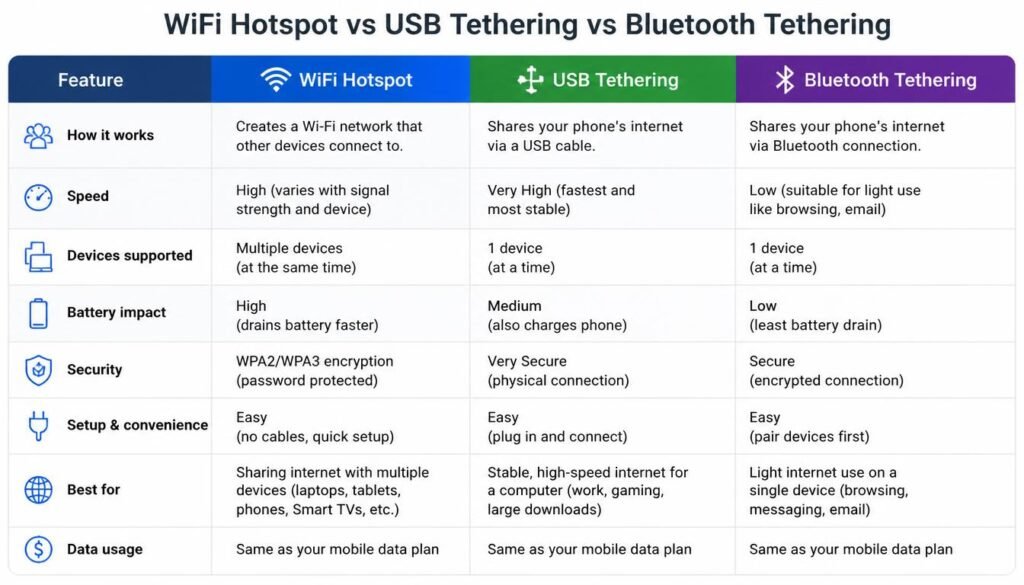
WiFi Hotspot vs USB Tethering vs Bluetooth Tethering
Choosing the right connection method before you start troubleshooting saves considerable time, since each method fails in a different way and for a different reason.
| Connection Method | Speed | Battery Consumption | Setup Complexity | Stability |
|---|---|---|---|---|
| WiFi Hotspot | Fast, close to full cellular data speed | High, since the radio broadcasts constantly | Low, standard password entry | Moderate, sensitive to distance and band |
| USB Tethering | Fastest, limited only by the cable and cellular signal | Lowest, since the phone charges while connected | Low, though drivers occasionally require a manual fix | Highest, immune to wireless interference |
| Bluetooth Tethering | Slowest of the three options | Moderate, lower than WiFi but higher than idle | Higher, pairing takes more steps than WiFi | Lower, prone to drops over distance |
USB tethering wins on stability and battery life because the connection does not depend on radio signal strength at all. WiFi hotspot remains the most convenient choice for most people, since it does not require a cable and supports multiple connected devices at once. Bluetooth tethering exists mainly as a backup option, and it rarely makes sense unless neither of the other two methods is available.
How to Connect Hotspot to Laptop on Windows 11
Windows 11 changed the location of several network settings compared to earlier versions, which is why the process below differs slightly from Windows 10.
- On your phone, open the mobile hotspot or personal hotspot menu and turn the toggle on. Note the network name and password shown on that screen.
- On the laptop, select the WiFi icon in the bottom right corner of the taskbar, then select the arrow beside the WiFi tile to open the full network list.
- Choose your phone name from the list of available networks and select Connect.
- Enter the password exactly as shown on your phone, then select Next.
- Windows 11 will ask whether the network is private or public. Choose private if this is your own device, since a private profile allows file sharing and printer discovery on that hotspot connection.
If your phone name does not appear in the list at all, the laptop wireless adapter may be disabled or the phone hotspot may be broadcasting on a band the laptop does not support. Both issues are covered in the troubleshooting section further down this guide.
How to Connect Mobile Hotspot to Laptop on Windows 10
The Windows 10 process follows nearly the same logic as Windows 11, though the menu layout is different.
- Turn on the phone hotspot and note the network name and password.
- Select the WiFi icon in the taskbar on the laptop.
- Select your phone from the available network list and select Connect.
- Type the password when prompted and select Next.
- If Windows 10 asks about network discovery, select Yes only on a trusted personal hotspot.
Windows 10 sometimes retains an old saved profile for a hotspot name you have used before, particularly if you recently changed the hotspot password. If the laptop connects instantly but shows an error afterward, forget the network under WiFi settings and reconnect from scratch so Windows requests the current password rather than reusing an outdated one.
How to Connect Hotspot to Laptop Windows 7
Windows 7 lacks the modern quick settings panel, so the hotspot connection process runs through the classic network list instead.
- Turn on the phone hotspot first, since Windows 7 detects networks more slowly than newer versions.
- Click the network icon in the system tray at the bottom right of the screen.
- Select your phone hotspot from the list of visible networks and click Connect.
- Enter the security key when prompted and click OK.
- If Windows 7 asks you to set a network location, choose Home network for a personal hotspot.
Windows 7 reached the end of extended support several years ago, which means wireless drivers for this version no longer receive routine updates from most manufacturers. If a Windows 7 laptop refuses to detect any hotspot at all, download the wireless driver directly from the laptop manufacturer support page rather than relying on Windows Update, since that service no longer supplies driver packages for this operating system.
How to Connect Hotspot to Laptop HP
HP laptops use the standard Windows network stack, so the connection steps mirror the Windows version installed on the machine. A small number of HP models include a physical wireless switch or a function key combination, commonly Fn plus F12 or a dedicated antenna icon key, that disables the wireless radio entirely at the hardware level.
If an HP laptop shows no WiFi networks whatsoever, including your own home network, check this physical switch before assuming a software fault. HP Support Assistant, preinstalled on most models, can also detect and reinstall the correct wireless driver automatically, which resolves a large share of hotspot detection failures on this brand without requiring a manual Device Manager visit.
How to Connect iPhone Hotspot to Laptop
Apple built additional compatibility controls into the iPhone hotspot menu that are not present on Android, and skipping them causes a large share of failed connections between an iPhone and a Windows laptop.
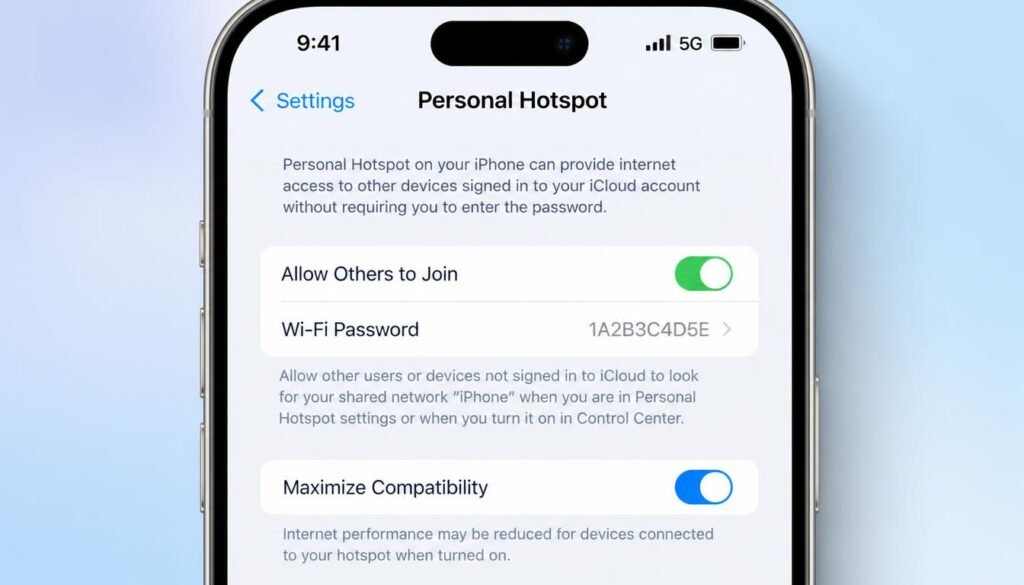
- On the iPhone, open Settings, then select Personal Hotspot.
- Turn on Allow Others to Join.
- Note the WiFi password shown directly beneath the toggle. Select it to change it if you prefer a custom passphrase.
- Turn on Maximize Compatibility. This setting forces the hotspot to broadcast on the older 2.4 gigahertz band instead of 5 gigahertz, which resolves connection failures on laptops with an older wireless adapter that cannot see 5 gigahertz networks at all.
- On the laptop, select the iPhone name from the WiFi list and enter the password shown in step 3.
How to Connect Hotspot to Laptop?
Maximize Compatibility trades a small amount of top speed for far broader device support, and it should remain on unless every device you connect already supports 5 gigahertz WiFi. An iPhone hotspot also disconnects automatically after a short idle period unless the iPhone screen stays on or the device remains plugged into power, so keep this in mind during a long working session.
How to Connect Laptop to Hotspot Android
Android hotspot menus vary slightly between manufacturers, though the underlying steps remain consistent across Samsung, Google, Xiaomi, and most other brands.
- Open Settings on the Android phone.
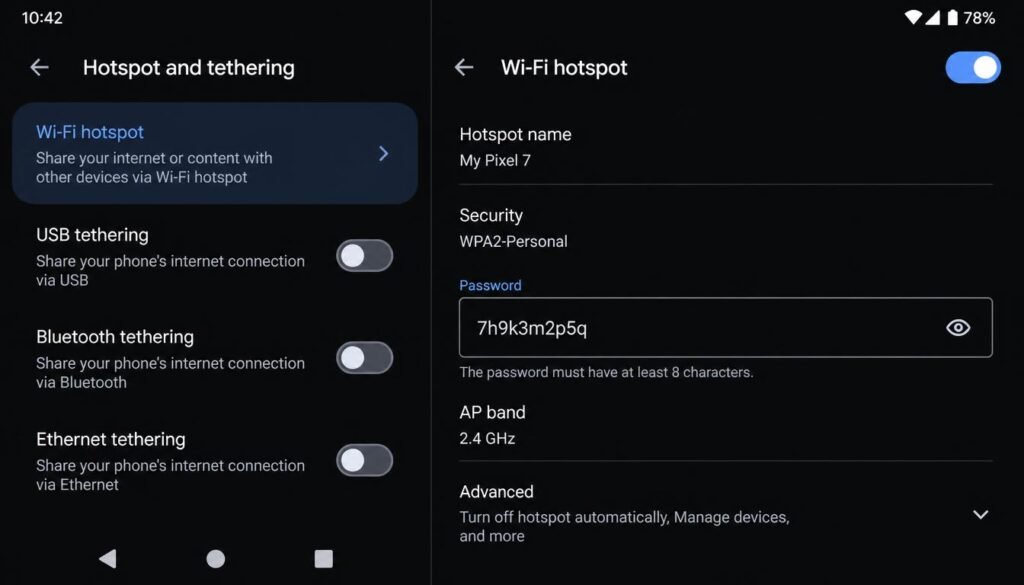
- Select Network and Internet, then select Hotspot and Tethering. Samsung devices list this under Connections instead.
- Select WiFi Hotspot and turn it on.
- Select WiFi Hotspot again to view the network name and password, or select the eye icon to reveal the password in plain text if you have forgotten it.
- On the laptop, select the Android device from the WiFi list and enter the password.
If you cannot locate the password on your own device, our dedicated guide on how to find your hotspot password covers the exact menu path for every major Android brand, including Samsung and Xiaomi variants that rename the settings screen.
How to Connect Hotspot to Laptop?
Some Android phones default to a 5 gigahertz hotspot band for better speed, which older laptops cannot detect. Select the band or frequency option inside the hotspot menu and switch it to 2.4 gigahertz if your laptop hotspot list stays empty despite the phone showing the hotspot as active.
How to Connect Hotspot to Laptop Using USB
USB tethering avoids wireless interference entirely and delivers the most stable connection of the three methods, though it requires a brief driver installation the first time you use it.
- Connect the phone to the laptop using a data capable USB cable. A charging only cable will not work for tethering.
- On an Android phone, open Settings, select Network and Internet, then Hotspot and Tethering, and turn on USB Tethering.
- On an iPhone, connect the cable and select Trust This Computer if prompted, then open Settings, select Personal Hotspot, and turn on Allow Others to Join. iPhone routes tethering automatically once the cable is connected and trusted.
- Windows should install the correct network driver automatically within a few seconds. Look for a new adapter labeled RNDIS or Remote NDIS in Device Manager to confirm the driver installed correctly.
- If no internet connection appears after the driver installs, open Device Manager, expand Network Adapters, right click the RNDIS entry, and select Update Driver to force Windows to search for a current version.
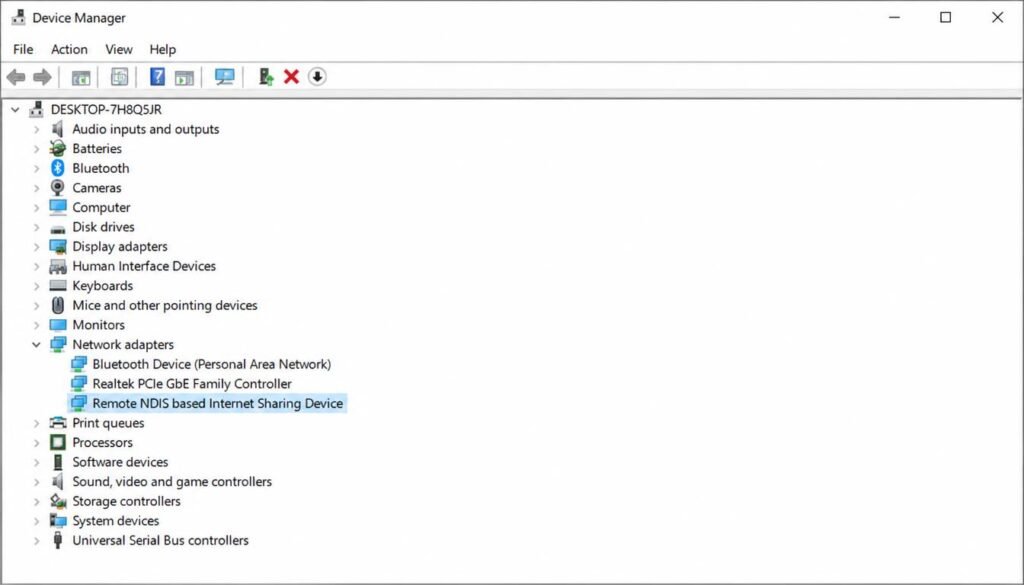
RNDIS, short for Remote Network Driver Interface Specification, is the protocol that allows a phone to appear as a standard network adapter to a Windows laptop over USB. When this driver fails to install, the phone often still shows as charging in File Explorer but never appears as an internet connection in Windows. Unplugging the cable, waiting ten seconds, and reconnecting typically forces Windows to reattempt the driver installation from scratch.
How to Connect Hotspot to Laptop Wirelessly
Every method described above other than USB tethering answers the question of how to connect hotspot to laptop without a cable, and the core requirement stays the same regardless of phone brand. The laptop wireless adapter must be turned on, the hotspot must be actively broadcasting, and both devices must share a compatible frequency band. The sections above cover the brand specific menu paths in full, so use the guide for your specific phone and laptop combination above rather than a generic set of steps.
Advanced Troubleshooting: Why Can I Not Connect a Hotspot to My Laptop
When the standard steps above do not work, the fault almost always sits in one of five places: the wireless driver, the network stack, the frequency band, the saved profile, or a background restriction on the phone itself. Working through the checks below in order resolves the vast majority of cases where a person already knows how to connect hotspot to laptop in theory yet still ends up without a working connection in practice.
Reset the Network Adapter and Clear the Network Stack
A corrupted network stack causes a laptop to see the hotspot perfectly while still failing to load any actual web page. Open Command Prompt as an administrator and run the following commands one at a time, restarting the laptop after the second command.
netsh winsock reset
netsh int ip reset
ipconfig /flushdns
The first command rebuilds the Windows Sockets catalog, which handles communication between applications and the network. The second command resets the entire TCP/IP stack to its default configuration, clearing corrupted routing entries that block internet traffic even when the wireless connection itself looks healthy. The third command clears the local DNS cache, which resolves cases where websites will not load despite a fully working connection. For a broader walkthrough of this exact symptom, our guide on WiFi connected but no internet access covers additional fixes beyond the command line reset.
Update or Reinstall the Wireless Adapter Driver
An outdated wireless driver frequently fails to recognize newer hotspot broadcast standards, particularly on laptops running Windows 7 or an early build of Windows 10. Open Device Manager, expand Network Adapters, right click the wireless adapter, and select Update Driver. If Windows reports that the current driver is already up to date despite ongoing connection failures, select Uninstall Device instead, then restart the laptop so Windows reinstalls a fresh copy automatically. Our complete breakdown of network adapter not working covers additional driver level fixes, including manufacturer specific download links for Dell, HP, and Lenovo hardware.
Switch Between 2.4 Gigahertz and 5 Gigahertz Bands
Many phones default to broadcasting a hotspot on 5 gigahertz for faster speed, yet a large number of older laptop wireless cards can only detect 2.4 gigahertz networks. On an iPhone, this is solved directly by the Maximize Compatibility toggle described earlier in this guide. On Android, open the hotspot settings menu, select the band or frequency option, and choose 2.4 gigahertz manually. Our detailed guide on fixing a weak WiFi signal explains the practical difference between these two bands and when each one makes sense for a given device.
Fix a Hotspot Authentication Error
If the laptop finds the hotspot network but rejects the password with an authentication error rather than simply failing to connect, the issue is rarely a typing mistake. Forget the network entirely on the laptop, confirm the current password directly on the phone screen, and reconnect from scratch rather than retyping into the existing saved profile. Our complete authentication issue WiFi guide walks through additional fixes specific to this exact error message across Windows, Android, and iPhone.
Check for a Data Limit or Background Restriction on the Phone
A hotspot that connects successfully but stops passing any data after a few minutes often points to a mobile carrier data limit rather than a laptop problem. Check your carrier app or the phone settings to confirm you have not reached a hotspot specific data cap, since many carriers throttle or fully block hotspot traffic once that separate limit is reached even while regular phone data usage continues normally. Our guide on checking how much hotspot data you have left explains exactly where to find this figure on both Android and iPhone.
Frequently Asked Questions
How do I connect my phone hotspot to my laptop?
Turn on the mobile hotspot or personal hotspot toggle on your phone, then select the phone network name from the WiFi list on your laptop and enter the password shown on the phone screen. The exact menu names differ slightly between Android, iPhone, and older Windows versions, though the underlying steps remain the same across every combination.
Why can I not connect a hotspot to my laptop?
The most common causes are an outdated wireless driver, a mismatched frequency band between the phone and the laptop, a corrupted network stack, or a saved network profile holding an old password. Running a network adapter driver update and a Command Prompt reset using netsh winsock reset resolves the majority of these cases.
How do I activate the hotspot on my laptop?
A laptop cannot broadcast a cellular hotspot on its own, since it has no SIM card or cellular radio. What most people mean by this question is connecting the laptop to a hotspot broadcast from a phone, which the sections above cover in full for every major operating system and phone brand.
How to connect hotspot directly to laptop?
The most direct method is USB tethering, since it requires no wireless password entry and connects the moment the cable is plugged in and tethering is enabled on the phone. This method also avoids every wireless interference issue that can affect a WiFi based hotspot connection.
Why is my laptop connected to hotspot but has no internet?
This usually means the wireless link between the laptop and the phone succeeded, but either the phone has run out of mobile data, is experiencing a poor cellular signal, or the laptop network stack has a corrupted routing entry. Running ipconfig /flushdns alongside a full netsh int ip reset resolves the laptop side of this issue in most cases, while checking your remaining hotspot data resolves the phone side.
Does tethering via USB consume more data than WiFi?
No. USB tethering and WiFi hotspot both draw from the exact same mobile data allowance on the phone, since the connection method only changes how the signal physically reaches the laptop rather than how much data passes through it. Our guide on does using WiFi use data explains the underlying data consumption logic in more depth.
How to fix a hidden mobile hotspot on Windows?
If a hotspot does not appear in the Windows network list despite being active on the phone, confirm the laptop wireless adapter is turned on, move the laptop within a few feet of the phone, and switch the phone hotspot to the 2.4 gigahertz band, since a hidden or invisible entry in the network list is almost always a band compatibility issue rather than a true hidden network setting on the phone.
Can I connect an iPhone hotspot to a Windows laptop without iTunes?
Yes. iTunes has no role in a standard WiFi or USB hotspot connection between an iPhone and a Windows laptop. Simply enable Personal Hotspot on the iPhone and connect through the normal Windows WiFi list, or plug in a cable and select Trust This Computer for USB tethering, without installing any additional Apple software.
How to switch mobile hotspot frequency band from 5 gigahertz to 2.4 gigahertz?
On an iPhone, turn on the Maximize Compatibility toggle inside the Personal Hotspot settings screen, which automatically forces the 2.4 gigahertz band. On Android, open the hotspot settings menu, select the AP band or Hotspot frequency option, and choose 2.4 GHz manually from the list, then reconnect the laptop to the same network with the updated band active.
If your laptop continues to struggle with any wireless connection beyond hotspot pairing specifically, our broader guide on a laptop not connecting to WiFi covers hardware level diagnostics that apply to home networks as well as mobile hotspots.
Final Thought
Connecting a mobile hotspot to a laptop is a straightforward process once you understand the underlying network configurations and frequency band settings. Whether you choose the wireless convenience of a Wi-Fi hotspot or the battery-efficient stability of USB tethering, following the correct platform-specific steps ensures a reliable internet connection anywhere. When technical glitches arise, systematically checking wireless drivers, clearing saved network profiles, and resetting the Windows network stack will resolve the vast majority of connectivity obstacles. Additionally, if your overall system performance remains slow even after restoring network connectivity, learning how to use a Windows 11 debloater to safely boost PC speed can help remove unnecessary background processes and optimize your machine for maximum productivity.