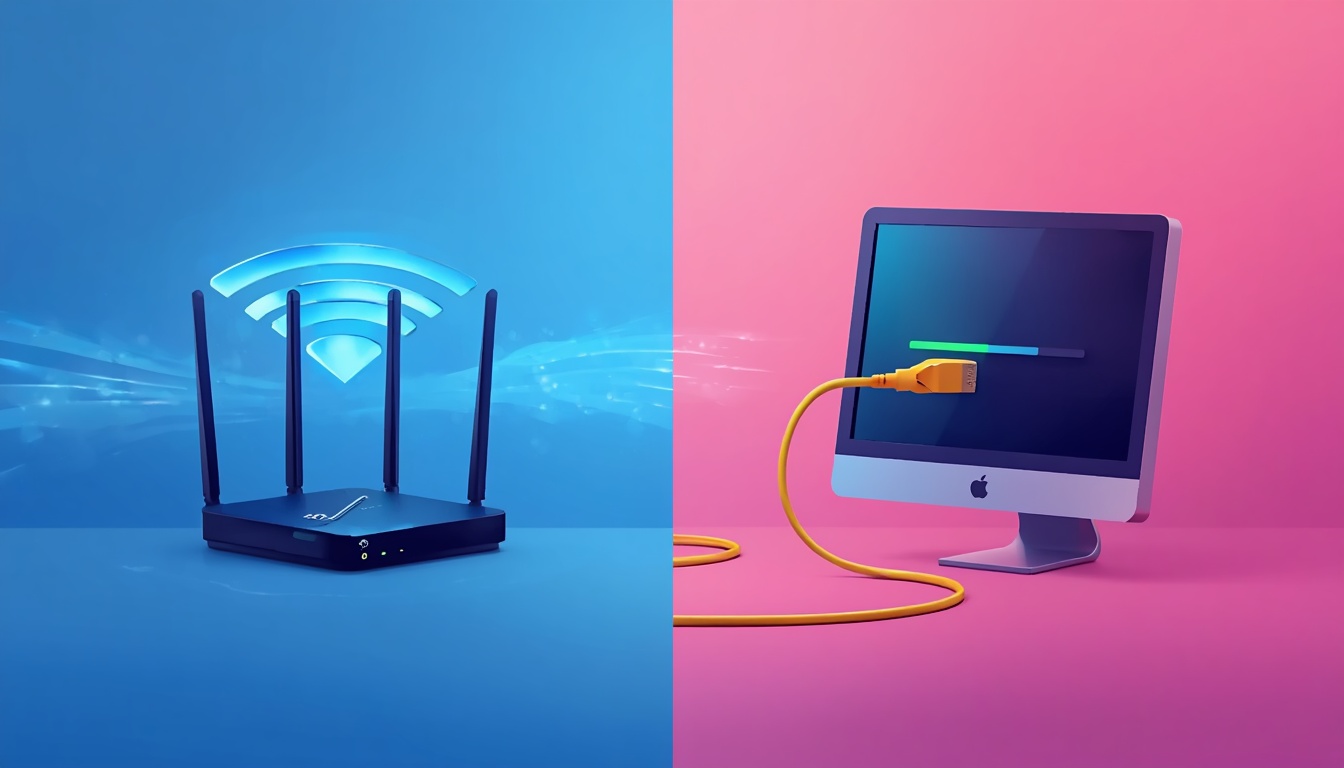
Here is something that will make your head hurt: you skip the WiFi, grab a cable, plug straight into the router and your speed drops. Your phone, sitting on the couch, is pulling 180Mbps on wireless. Your PC, physically wired to the same router, is limping at 60Mbps.
Why Is My Ethernet Slower Than WiFi?
That’s not a network problem. That is an insult.
I have been down this exact rabbit hole, and I will tell you upfront most of the articles out there will tell you to restart your router and update your drivers. Cool advice. Did not work for me either. The actual fixes are more specific, and once you know where to look, most people solve this in under 15 minutes.
Let’s get into it.
The Short Answer (If You’re In a Hurry)
If your Ethernet is slower than WiFi right now, here is what is probably happening: your LAN port is physically capped at 100Mbps and cannot go higher, your adapter is stuck in the wrong duplex mode and only sending or receiving at a time instead of both, a power-saving feature inside your network driver is quietly throttling your speed, or Windows TCP stack got messed up after an update and is now bottlenecking your connection at the software level.
One of those four things covers about 90% of cases.
Run These Checks Before Anything Else
- Open ncpa.cpl → right-click Ethernet → Status → check what speed it shows.
- Device Manager → your NIC → Properties → Advanced → look at Speed & Duplex.
- Open CMD as admin, type
netsh interface tcp show global, check Auto-Tuning Level. - In Device Manager Advanced tab, look for “Energy Efficient Ethernet”—is it on?
- Check the text printed on your Ethernet cable—does it say Cat5 (without the ‘e’)?
- Try a different numbered port on the back of your router.
- Check when your NIC driver was last updated.
Work through that list first. If something jumps out, skip straight to the relevant fix below.
Why Is My Ethernet Slower Than WiFi ? What Is Actually Going On
Before you start pulling cables and running commands, it helps to understand why this happens. Logically, it makes no sense wired connections are supposed to be faster and more stable than wireless ones.
However, here is the technical reality: modern WiFi 6 routers advertise theoretical speeds from 600Mbps to over 2Gbps. If you are paying for a 200Mbps internet plan but your computer’s ethernet port has an old 100Mbps hardware ceiling (Fast Ethernet), WiFi will naturally perform faster even though a wireless connection is objectively less stable. In this scenario, the hardware specifications simply limit the ethernet cable.
Beyond hardware limitations, the issue could stem from outdated network drivers, Windows networking features that cause conflicts, or faulty router ports. Pinpointing why your ethernet is slower than WiFi depends on identifying the exact layer where the problem exists: hardware, driver, or the operating system (OS).
To make troubleshooting easier, I have organized this guide by checking hardware first, followed by software adjustments. It is best not to skip straight to complex Windows commands until you have ruled out physical issues. Sometimes, a simple $12 cable replacement fixes the problem faster than any registry tweak.
Hardware Checks First Because Software Won’t Fix a Physical Problem
Your LAN Port Might Be Physically Capped at 100Mbps
This is the most common cause of slow wired internet, yet it is often overlooked because it seems too basic to check.
Why Is My Ethernet Slower Than WiFi
Why Is My Ethernet Slower Than WiFi
There are generally two types of Ethernet ports found in computers built over the last 15 years:
| Standard | Real-World Max Speed | What to Look For |
| Fast Ethernet (100BASE-TX) | ~94 Mbps | Spec sheet says “10/100” |
| Gigabit Ethernet (1000BASE-T) | ~940 Mbps | Spec sheet says “10/100/1000” or “GbE” |
Why Is My Ethernet Slower Than WiFi?
If your internet plan offers speeds above 100Mbps as most modern plans do a Fast Ethernet port will bottleneck your entire network. In this case, it does not matter how high-quality your cable is, how new your router is, or what Windows settings you tweak. The port itself has a physical hardware limit, and software adjustments cannot force data to transfer faster than the hardware supports.
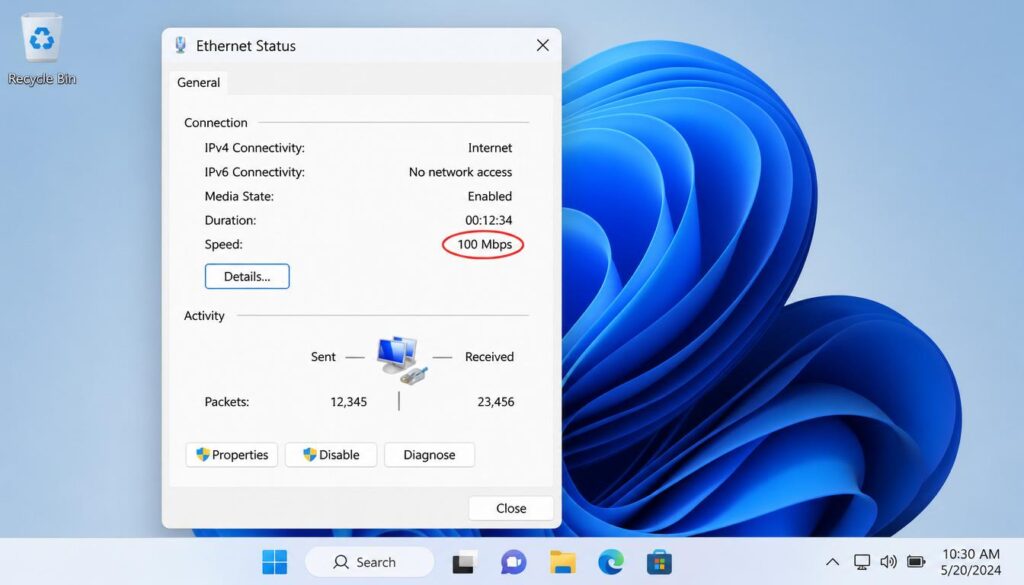
To check your current port speed, press Win + R, type ncpa.cpl, and hit Enter. Right-click your Ethernet connection and select Status. Look at the value next to Speed. If it shows exactly 100Mbps, then one of the components in your connection chain (your network interface card, the cable, or the router port) is limiting the speed to Fast Ethernet.
To verify whether your computer’s built-in network interface card (NIC) is the bottleneck rather than the cable, search Google for your specific laptop model or motherboard name followed by the word “specs.” Look closely at the LAN or Network section. If it reads “10/100,” you have a Fast Ethernet NIC. The easiest solution is to purchase a USB 3.0 to Gigabit Ethernet adapter, which generally costs around $15 and resolves the limit immediately. For a desktop PC, a PCIe Gigabit network card is available at a similar price point.
The Cable Itself Can Kill Your Speed Without Warning
Here is a simple detail that many people overlook: Ethernet cables have categories, and using the wrong one directly impacts your performance.
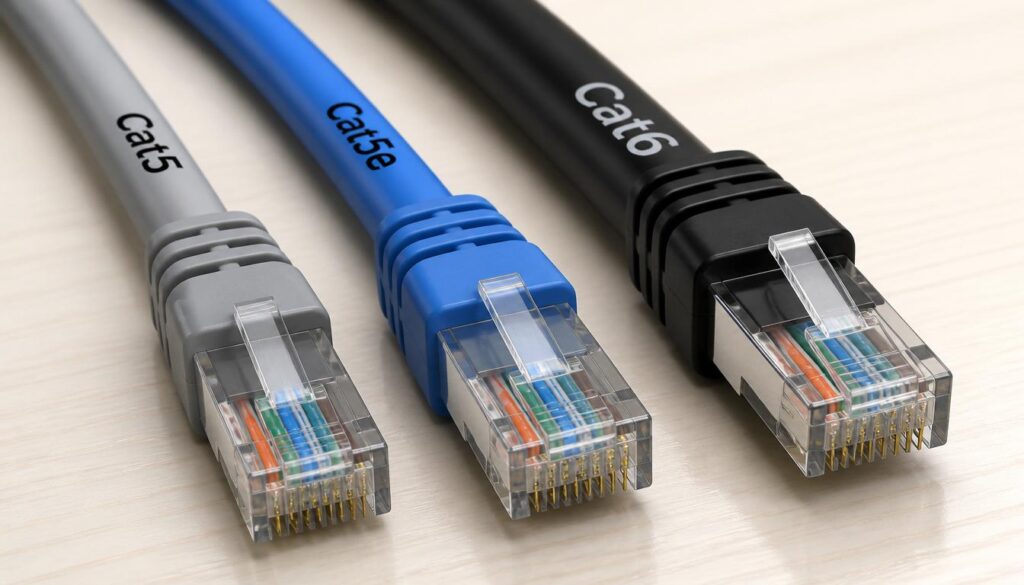
You can find the specifications printed right on the cable jacket. Look closely for these labels:
- Cat5: This older standard caps out at 100Mbps. If you are paying for a high-speed modern internet plan but using an old Cat5 cable, this is likely the root cause of your slowdown.
- Cat5e: Supporting speeds up to 1Gbps, this is the baseline standard for modern connectivity. Most cables manufactured in the last decade are Cat5e, though older cords left in storage might not meet this mark.
- Cat6: This also supports up to 1Gbps but features improved shielding to minimize crosstalk and interference. It is highly recommended for longer cable runs.
- Cat6a: Capable of handling up to 10Gbps, this standard is generally more power than a standard home setup needs, but it is an excellent choice for future-proofing your network.
Why Is My Ethernet Slower Than WiFi
Why Is My Ethernet Slower Than WiFi
Beyond checking the category, you should physically inspect both connectors. A bent pin or a slightly loose connector can force the Network Interface Card (NIC) and your router to negotiate a lower link speed (such as dropping from 1Gbps to 100Mbps) rather than disconnecting entirely. This happens silently without error messages or warnings, leaving you with mysteriously slow internet.
If you have a spare Ethernet cable, swap it out first to retest your connection before spending time troubleshooting in Device Manager.
Try a Different Port on Your Router
This quick check takes less than a minute and is frequently missed in basic troubleshooting guides.
Individual LAN ports on a router can fail even when the rest of the device operates perfectly. A single damaged port might get stuck negotiating at a lower 100Mbps limit while the other ports function at full Gigabit speeds. Physical wear, accumulated dust, or internal hardware degradation can cause this specific issue.
Unplug the cable from its current LAN port and connect it to a different numbered port. Run another speed testif your performance returns to normal, you have successfully identified a faulty port at zero cost.
Windows and Driver Fixes — When the Hardware Is Fine But Speed Still Suffers
Force Gigabit Speed and Fix the Duplex Problem
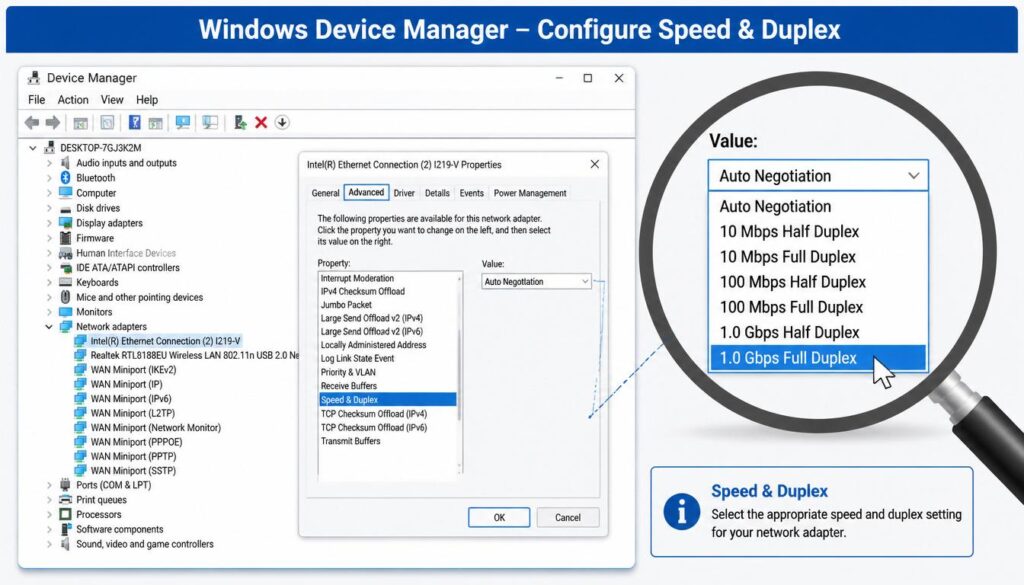
Your network adapter includes a configuration property called Speed & Duplex. By default, this is set to Auto Negotiation, which allows your Network Interface Card (NIC) and router to automatically determine the highest shared speed. While this system usually functions without issue, certain driver versions or older routers can cause the negotiation to fail silently, dropping your connection to a much lower speed.
The main bottleneck occurs if the connection defaults to Half Duplex. Unlike Full Duplex, which allows data to be sent and received simultaneously, Half Duplex can only handle data in one direction at a time. This limitation can cut your expected throughput by 40% to 60%.
Why Is My Ethernet Slower Than WiFi
Why Is My Ethernet Slower Than WiFi
Here is how to check and manually configure this setting in Windows:
- Press
Win + Xand select Device Manager. - Expand the Network adapters section.
- Right-click your Ethernet controller (e.g., Realtek PCIe GBE Family Controller or Intel I219-LM) and select Properties.
- Go to the Advanced tab.
- Scroll through the Property list, select Speed & Duplex, and change its value from Auto Negotiation to 1.0 Gbps Full Duplex.
- Click OK, wait roughly 10 seconds for the adapter to reset, and then run a network speed test.
Note: Only force 1.0 Gbps Full Duplex if your router ports and Ethernet cable actually support Gigabit speeds. If you force this setting on an older Cat5 cable, the adapter may fail to connect entirely. If that occurs, simply revert the setting to Auto Negotiation or 100Mbps Full Duplex, or replace the cable.
Turn Off Energy Efficient Ethernet (EEE)
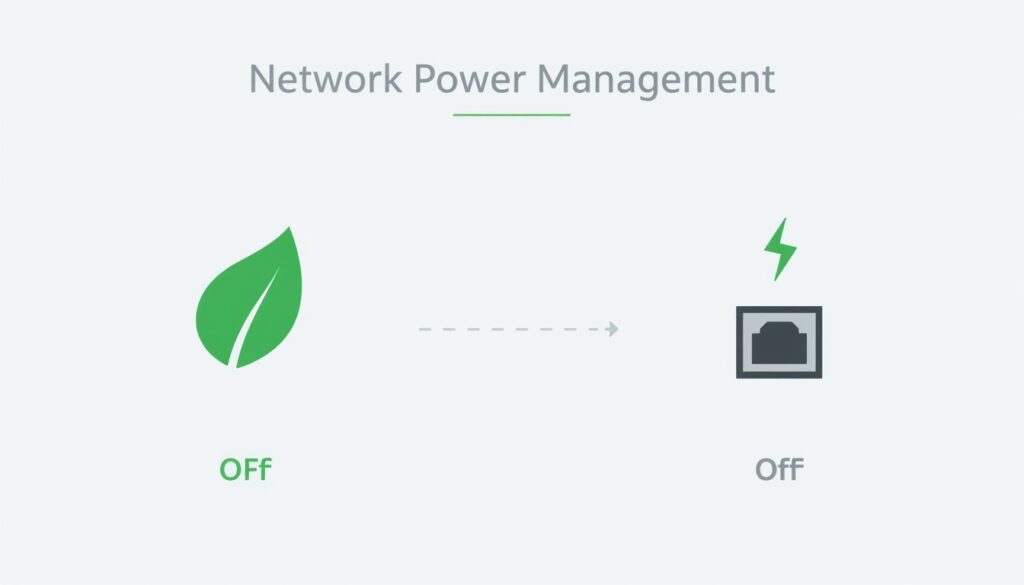
Energy Efficient Ethernet (EEE) is a power-saving feature built into most modern Intel and Realtek network controllers. It is designed to lower electricity consumption by placing the Network Interface Card (NIC) into a low-power state during periods of low network activity.
However, the “low activity” detection mechanism in many driver versions is miscalibrated. The NIC can mistakenly initiate power-saving mode during active tasks—such as a speed test, large file download, or video stream. This causes sudden speed drops, random lag spikes, and connection instability, as the driver continuously toggles power states. Intel’s I225-V controller and various Realtek gigabit adapters are widely known to exhibit this behavior.
Why Is My Ethernet Slower Than WiFi?
Why Is My Ethernet Slower Than WiFi?
Why Is My Ethernet Slower Than WiFi?
Disabling this feature stabilizes the connection. Follow these steps to turn it off:
- Open Device Manager, expand Network adapters, and double-click your network interface card (NIC) to open Properties.
- Go to the Advanced tab.
- Scroll through the Property list and locate Energy Efficient Ethernet (on some drivers, this is labeled as Green Ethernet).
- Change the Value drop-down menu to Disabled.
- Switch to the Power Management tab at the top.
- Uncheck the option that says “Allow the computer to turn off this device to save power.”
- Click OK to save the changes and reset the adapter.
Users on Gigabit network plans frequently report a substantial and stable speed improvement after disabling these power-saving features. The increase in power consumption on a desktop or plugged-in laptop is entirely negligible.
Reset the Windows TCP Stack ? This Fixes More Than You’d Think
If your ethernet speed is still struggling, it is time to look at how Windows handles your network data. Windows manages the flow of internet data through your ethernet connection using a system called the TCP/IP stack. Inside this stack, a built-in feature called TCP Receive Window Auto-Tuning constantly works in the background to adjust your receive buffer size. It basically determines how much data your system can handle at any single moment. When everything is running smoothly, it adjusts on its own and your connection stays fast.
However, this setting can easily break or get stuck in a restricted mode. This usually happens right after a major Windows Update or when you uninstall a VPN. In this scenario, your ethernet cable is perfect and your drivers are fully updated, but Windows itself is artificially capping your download speeds at the operating system level. If you have been wondering why your ethernet is running slower than your Wi-Fi, this hidden glitch is almost always the hidden culprit that mainstream troubleshooting guides overlook.
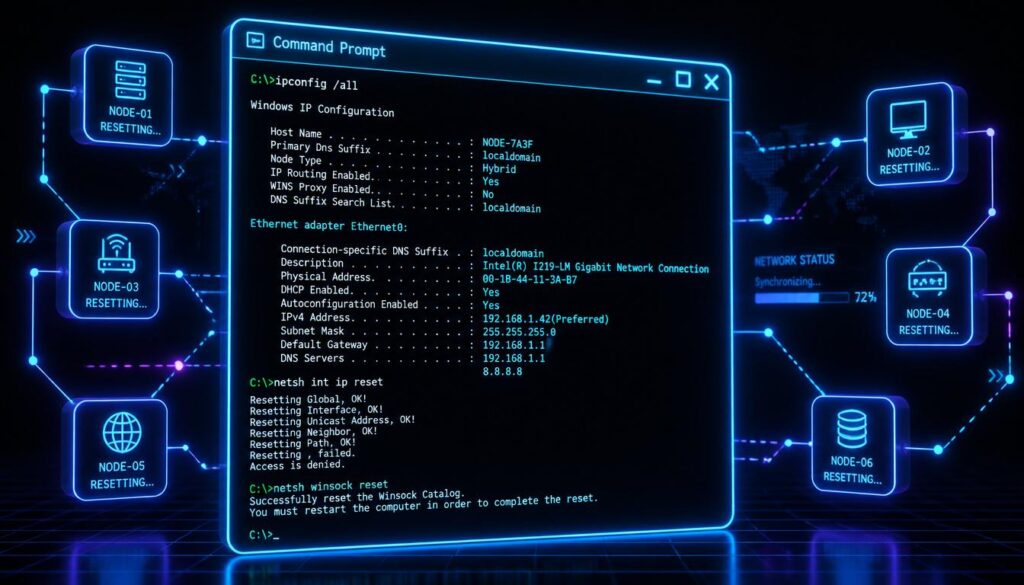
To check if your system is affected, open the Command Prompt as an administrator by searching for CMD in the Start menu, right-clicking it, and selecting “Run as administrator.” Once the window opens, type the following command and press Enter:
netsh interface tcp show global
Look closely at the line that reads “Receive Window Auto-Tuning Level.” For a healthy connection, it must say normal. If it displays disabled or highlyrestricted, you have officially found the root cause of your slow speeds.
Why Is My Ethernet Slower Than WiFi?
Why Is My Ethernet Slower Than WiFi?
To fix this restriction, type this command and press Enter:
netsh int tcp set global autotuninglevel=normal
Right after that, you should completely flush and reset your network configuration to clear out any leftover glitches. Run the following three commands one after the other, hitting Enter after each one:
netsh int ip reset
netsh winsock reset
ipconfig /flushdns
Once all three commands are processed, restart your computer. This forced reboot forces Windows to rebuild its networking configurations from scratch, successfully wiping out any corrupted data caches that accumulated over time.
If you recently uninstalled a VPN: Services like NordVPN, ExpressVPN, and other popular tools frequently leave behind broken filter drivers inside the Windows network layer during uninstallation. These residual files act like invisible speed limiters on your physical ethernet connection. While the winsock reset command usually clears them out, stubborn cases might require you to download and run the official uninstall cleanup utility directly from that specific VPN provider’s website.
Update Your NIC Driver — But Do It Right
While updating drivers is the generic advice given for every internet problem, it actually helps in specific situations. For example, Realtek rolled out several driver versions between 2023 and 2025 that suffered from severe performance drops on specific PCIe network controllers. Similarly, early hardware revisions of the Intel I225-V network card had an internal flaw that triggered packet loss at higher bandwidths, leading to capped speeds even on Gigabit connections.
The most important rule here is to avoid using Windows Update to update your Network Interface Card (NIC) drivers. Windows Update rarely has the absolute latest version from the actual manufacturer, and it frequently pushes generic, unstable versions that can make your performance worse.
Instead, get your updates directly from the official hardware source. If your computer uses a Realtek controller, go to realtek.com, head to the downloads section, and search for your specific chip model. For Intel hardware, look up your card on intel.com/support. If you are troubleshooting a laptop or a pre-built brand-name desktop, your best bet is to visit the manufacturer’s dedicated support page (like Dell, HP, ASUS, or Lenovo) because they provide custom-tailored driver packages built for your exact system layout.
If your slow ethernet speeds started immediately after a recent update, you should roll back the driver instead of downloading a new one. Open Device Manager, right-click your network card under Network Adapters, choose Properties, switch to the Driver tab, and click Roll Back Driver. Keep in mind that this button will only be clickable if Windows has saved your previous driver files, which it typically stores for about 30 days.
Speed Bottleneck Reference Table
Why Is My Ethernet Slower Than WiFi?
| What You’re Seeing | What’s Actually Causing It | How to Fix It |
| Speed stuck exactly at 100Mbps | Fast Ethernet NIC or port (100BASE-TX ceiling) | Use a USB-to-Gigabit adapter or try a different router port |
| Speed spikes then suddenly drops | Energy Efficient Ethernet throttling during transfer | Disable EEE in adapter Advanced Properties |
| Speed all over the place, sometimes 10Mbps | Auto-Negotiation falling back to Half Duplex | Force 1Gbps Full Duplex in Speed & Duplex setting |
| Fast on Wi-Fi, slow on ethernet after a Windows update | TCP stack got corrupted or restricted | Run netsh winsock reset and netsh int ip reset |
| Your PC is slow on ethernet, everything else on router is fine | Single bad LAN port on router | Unplug and try a different numbered port |
| Old laptop, nothing works | Hardware-level Fast Ethernet NIC | Buy a USB 3.0 to Gigabit Ethernet adapter (~$15) |
| Speed test slow but large file downloads seem okay | QoS Packet Scheduler reserving bandwidth | Uncheck QoS Packet Scheduler in adapter Network Properties |
| Desktop is fine, laptop is slow on same cable | Laptop power plan throttling the NIC | Switch power plan to High Performance |
Why Is My Ethernet Slower Than WiFi?
Questions People Actually Ask
Why Is My Ethernet Slower Than WiFi?
My ethernet shows it’s connected at 1Gbps but the speed test only shows 300Mbps. Is something broken?
Nothing is broken on your computer. The 1Gbps speed you see in your Windows network status is simply the “Link Speed.” This number shows the maximum data capacity of the physical path between your network card and your router. Your actual real-world internet speed depends entirely on your internet package. If you pay your ISP for a 300Mbps plan, that is the maximum speed you will get. Having a Gigabit port simply ensures that your computer’s hardware will never limit or choke your internet plan.
Ethernet is slower than Wi-Fi on YouTube and Netflix specifically, but speed tests look normal. What’s happening?
Video streaming platforms send and receive data differently than standard speed test servers. Instead of running a single, continuous high-speed data stream, they transfer media using a rapid sequence of smaller data packets. This specific type of web traffic is incredibly sensitive to misconfigured TCP buffers and aggressive Quality of Service (QoS) rules. To test this, type ncpa.cpl in the Windows run box, right-click your active ethernet connection, open its Properties, and uncheck the box next to QoS Packet Scheduler. Click apply and check if your streaming performance improves.
I have a brand new Cat6 cable and I’m still getting 100Mbps. Why?
Your brand new cable is likely working perfectly. A hard cap at exactly 100Mbps means there is a physical hardware bottleneck somewhere else in your connection path. Either your computer’s built-in network card is an older “Fast Ethernet” model limited to 100Mbps, or you have plugged into an older 100Mbps port on your router. You can double-check this by looking at your connection status inside Device Manager or testing different physical ports on the back of your router.
Ethernet was completely normal yesterday and slow today. I didn’t change anything.
When you don’t change any settings yourself, it usually means Windows quietly updated something in the background overnight. Automatic operating system updates often push unauthorized network driver changes or reset custom TCP configurations without telling you. Start by running the network reset commands outlined earlier in this guide, and then check your driver history in Device Manager to see if your network card received an automatic update within the last 24 hours.
My Realtek adapter says it’s connected at Gigabit but actual throughput maxes out around 500Mbps
This is a well-documented hardware quirk tied to specific Realtek PCIe network controllers, especially when paired with budget motherboards. To resolve this speed cap, download the latest standalone driver package straight from realtek.com rather than trusting the version Windows automatically assigns. If that does not help, open your adapter’s Advanced properties tab, locate the Interrupt Moderation setting, and change it to Disabled. This adjustment will use a tiny fraction of extra CPU power during heavy downloading, but it frequently unlocks your full bandwidth potential.
Does using an ethernet adapter through a USB hub hurt my speed?
Yes, it can degrade your speeds significantly. If your external USB hub uses the older USB 2.0 standard, its absolute maximum theoretical bandwidth limit is 480Mbps. However, due to natural protocol overhead and power sharing, real-world ethernet speeds over a USB 2.0 hub usually max out between 200Mbps and 300Mbps. If you want to achieve true, unthrottled Gigabit performance, always plug your standalone USB ethernet adapter directly into a blue USB 3.0 port on your computer.
One Last Thing Why Is My Ethernet Slower Than WiFi?
Fixing a slow ethernet connection is incredibly frustrating because different troubleshooting guides point you in completely different directions. A physical 100Mbps port limitation and a corrupted software TCP stack look exactly the same from the user’s perspective, yet their solutions require completely different steps.
Always start your troubleshooting process with the physical hardware first. Swapping out a questionable cable, switching to a different port on your router, or verifying your network card’s specifications takes less than five minutes and requires zero technical skills. If your physical hardware checks out fine, only then should you start tweaking internal driver configurations like duplex settings or disabling Energy Efficient Ethernet (EEE).
If you have gone through every single setting change and your connection is still slow, try bypassing your router completely. Connect the main ethernet cable coming out of your internet provider’s modem directly into your PC’s network port and run a fresh speed test. If your internet speeds instantly jump back up to normal, you know with absolute certainty that your router has a firmware bug or a failing internal LAN switch.
Still having WiFi or network issues after fixing your ethernet speed? Check out our guide on why your WiFi keeps disconnecting, or if you’re dealing with authentication errors, read how to fix WiFi authentication problems for a complete walkthrough. For slow internet on mobile devices, our WiFi vs cellular data troubleshooting guide covers that too.