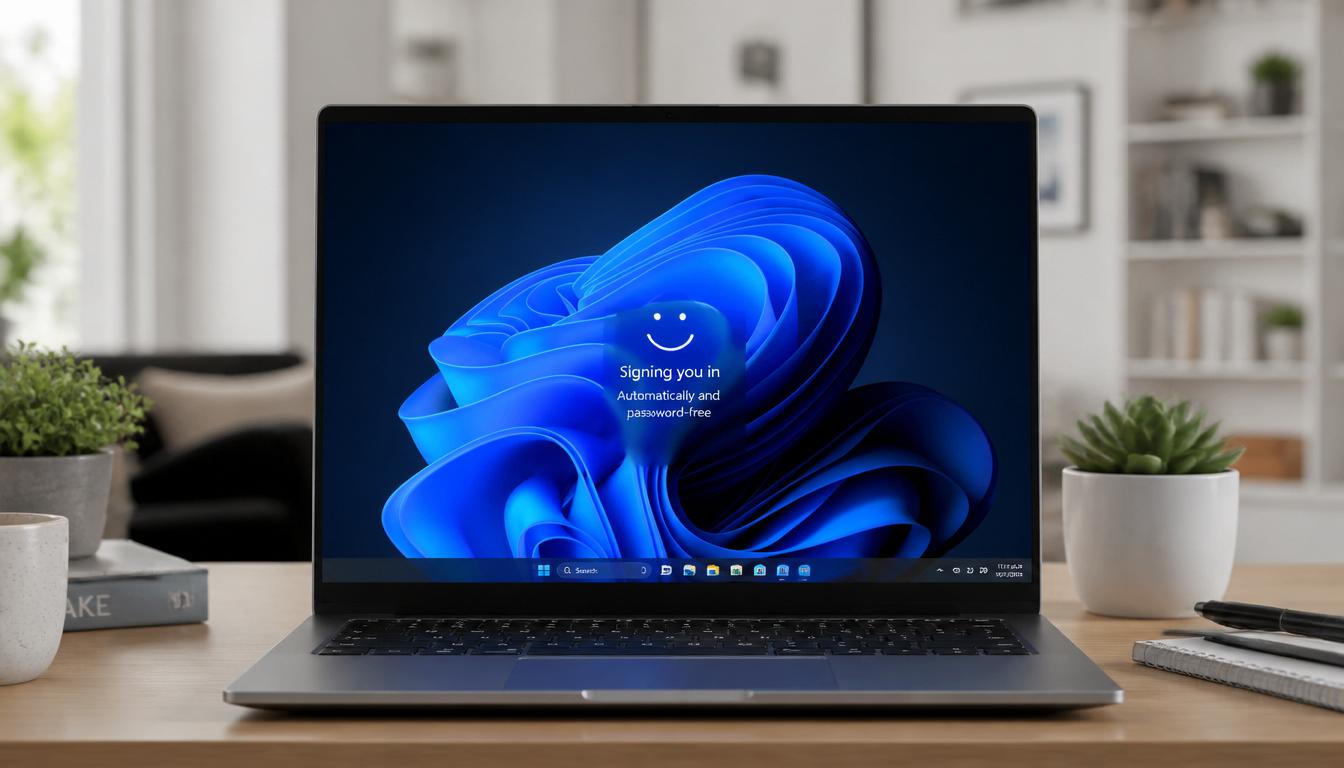
Every single time your computer boots, you are forced to stop, stare at a login screen, and type a password just to reach your own desktop. It is a small delay that repeats itself hundreds of times a year, and on a personal or home machine, it delivers almost no real security benefit while stealing minutes you will never get back. If you are ready to remove that screen permanently and boot straight into Windows, this guide will walk you through every working method, including the two critical fixes that most tutorials completely leave out.
Setting up windows 11 automatic login is not always as simple as opening one tool and unchecking one box. Microsoft has quietly changed how passwordless sign in works, and thousands of users now open the standard tool only to discover the option they need is missing entirely. This guide covers the standard method, the safer official Microsoft tool, the manual registry approach, and the exact fix for that missing checkbox problem that leaves so many people stuck.
Quick Answer: How to Enable Windows 11 Automatic Login
If you only need the short version, here it is:
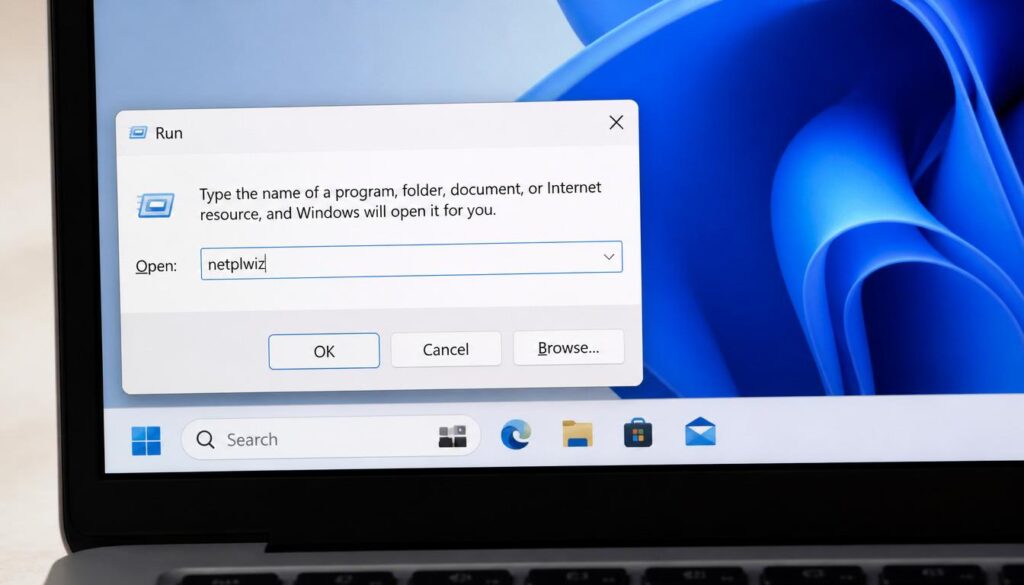
- Press Windows key + R, type netplwiz, and press Enter.
- Select your account, then uncheck the box labeled Users must enter a user name and password to use this computer.
- Click Apply, then type your account password twice when the confirmation window appears.
- Click OK and restart your computer to confirm that the change has taken effect.
- If the checkbox is missing, turn off Only allow Windows Hello sign in under Settings, Accounts, Sign in options, or edit the DevicePasswordLessBuildVersion registry value to 0, then repeat the steps above.
- For a safer alternative that does not store your password in plain text, download and run the official Microsoft Autologon tool instead.
The rest of this guide explains each of these steps in full detail, including exactly what to do when things do not go according to plan.
Understanding How This Feature Works and Why It Fails
This feature allows your computer to skip the sign in screen entirely and load directly to the desktop of a chosen user account. Behind the scenes, Windows stores your credentials so it can log you in automatically on every restart, without you touching the keyboard.
For years, this was a two minute fix using a built in tool. On modern Windows 11 installations, however, Microsoft has pushed hard toward passwordless authentication through Windows Hello PIN sign in options and biometric tools. This shift is great for security on shared or business devices, but it has created a frustrating side effect for home users who simply want their personal laptop or desktop to boot straight to the desktop. The option that used to control automatic sign in can vanish from the interface, leaving users searching for answers that most articles do not fully explain.
Before making any changes, it is worth pointing out an important tradeoff. Enabling this setup means that anyone who can physically access your device can reach your desktop without knowing your password. This is a reasonable choice for a private home computer that only you use, but it is not recommended for laptops that travel with you, shared family computers, or any device that holds sensitive data.
Method 1: The Netplwiz Command (Standard Method)
This is the built in Windows tool designed specifically for managing sign in requirements, and it remains the fastest starting point for most people.
Easy Windows 11 Automatic Login Fix
Easy Windows 11 Automatic Login Fix
Steps to Configure Windows 11 Automatic Login Safely
- Press Windows key + R to open the Run dialog box.
- Type the netplwiz command and press Enter, or click OK.
- In the User Accounts dialog box that opens, select the account you want to log in automatically from the list.
- Look for the checkbox labeled Users must enter a user name and password to use this computer, and click to uncheck it.
- Click Apply.
- A new window titled Automatically sign in will appear. Enter your password in the first field, then confirm it again in the second field. If you sign in with a Microsoft account, type the full email address associated with that account in the user name field rather than a short local name.
- Click OK to close both windows and restart your computer.
If this process worked without issue, you are finished. If instead you found no checkbox at all inside the dialog box, move on to the next section, because this is the single most common obstacle people run into.
While optimizing your login speed, you might also face irritating network drops right after booting. If your device displays a connected status but fails to load pages, check out our step-by-step fix on WiFi Connected But No Internet Access to get your network back on track instantly.
The Missing Checkbox Problem: The Fix Every Other Guide Skips
This is the gap that separates a genuinely useful guide from a shallow one, because it is the exact issue that sends most frustrated users back to Google looking for a real answer.
On many current Windows 11 installations, particularly those using a Microsoft account, the checkbox simply does not appear. This happens because Microsoft passwordless sign in feature is active, and the operating system hides the manual password toggle. Without that checkbox, there is nothing to uncheck, and the standard method above cannot proceed.
There are two reliable ways to force the checkbox back into view to bypass Windows 11 password screen successfully.
A shaky or flickering screen can make technical tweaks like editing the registry quite difficult. If you notice display issues during your setup, follow our complete How to Fix Lenovo Laptop Screen Shaking guide to stabilize your display before modifying system settings.
Solution A: Turn Off the Windows Hello Sign In Restriction
- Open Settings using Windows key + I.
- Navigate to Accounts, then select Sign in options.
- Scroll down until you see a setting called For improved security, only allow Windows Hello sign-in for Microsoft accounts on this device.
- Turn this toggle off.
- Reopen the tool using the steps from Method 1. The missing checkbox should now be visible.
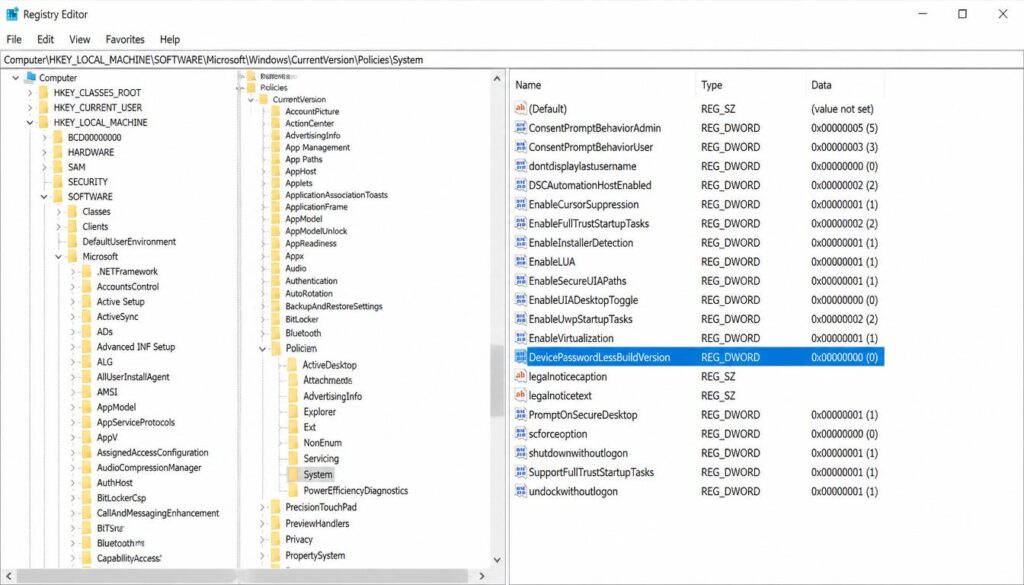
Solution B: Edit the DevicePasswordLessBuildVersion Registry Key
This is a slightly more technical fix, but it works even when Solution A is unavailable or grayed out.
- Press Windows key + R, type Registry Editor regedit, and press Enter.
- Navigate to the following path by pasting it directly into the address bar at the top:
HKEY_LOCAL_MACHINE\SOFTWARE\Microsoft\Windows NT\CurrentVersion\PasswordLess\Device - In the right hand pane, look for a DWORD value named DevicePasswordLessBuildVersion.
- Double click it and change the value data to 0, then click OK.
Easy Windows 11 Automatic Login Fix
Easy Windows 11 Automatic Login Fix
Easy Windows 11 Automatic Login Fix
Close the editor and restart your computer. Open the user accounts manager again, and the checkbox will now be present and fully functional.
Method 2: The Microsoft Autologon Tool (Advanced and Safer Option)
The netplwiz method and the direct registry method both share a real security drawback: your password gets stored in a way that a skilled user could potentially extract from the system in plain readable text. If you want an auto login setup without that particular risk, use the official tool built by Microsoft Sysinternals team.
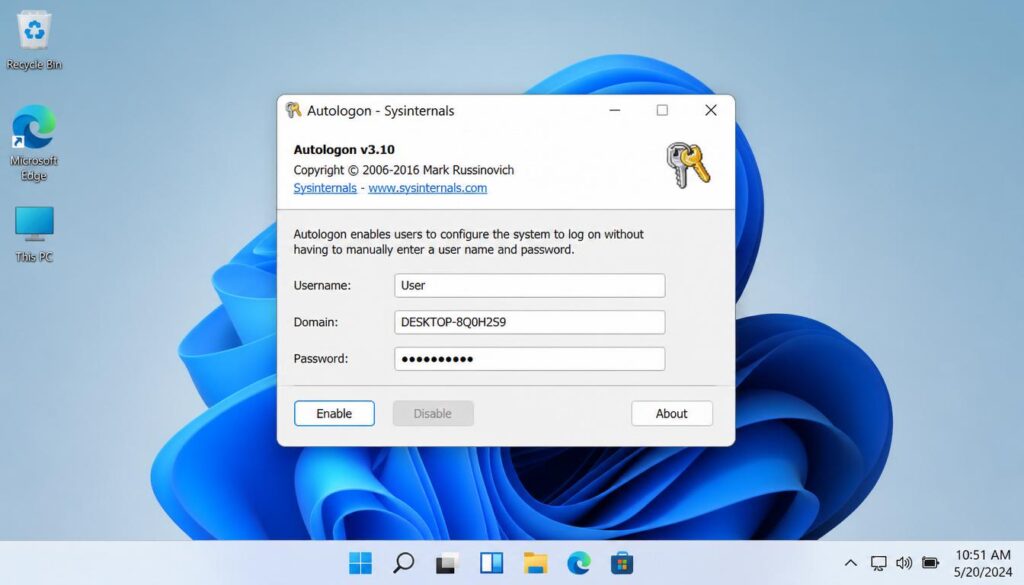
The advantage of this utility is that it encrypts your password using the Windows LSA secrets storage mechanism rather than saving it as plain text. It accomplishes the same end result, but does so through a supported, digitally signed utility.
- Download the tool directly from the official Microsoft Sysinternals Autologon page.
- Extract the downloaded zip file to a folder of your choice.
- Double click Autologon.exe to launch it and accept the license agreement.
- In the tool, enter your Username, your Domain (or leave it blank for a local account), and your Password.
- Click Enable and restart your computer.
Easy Windows 11 Automatic Login Fix
Easy Windows 11 Automatic Login Fix
Bypassing the login prompt saves time, but ensure your system does not slow down due to built-in telemetry features afterward. You can significantly improve overall performance by looking into our comprehensive guide on Windows 11 Debloater to remove unwanted apps and services safely.
Method 3: Manual Registry Modification
For users who prefer complete manual control, or who are scripting this change across multiple machines, you can configure the system directly through the registry.
- Open the run box, type regedit, and navigate to:
HKEY_LOCAL_MACHINE\SOFTWARE\Microsoft\Windows NT\CurrentVersion\Winlogon - Locate or create the following string values inside this key:
- AutoAdminLogon: Set the value data to 1 to enable automatic sign in.
- DefaultUserName: Set the value data to the exact user name or full email address.
- DefaultPassword: Create this string value and enter your account password.
Be aware that this specific path stores your password in plain text, so treat this manual registry method as a fallback for troubleshooting rather than a long term solution on a device that holds sensitive local account vs Microsoft account information.
Fixing the Password Prompt After Sleep or Standby
Getting the system to skip the password at startup solves only half the problem, because Windows will still demand a password every time the computer wakes up from sleep or standby.
- Open Settings with Windows key + I.
- Go to Accounts, then Sign in options.
- Scroll down to the Additional settings section.
- Find the setting labeled If you have been away, when should Windows require you to sign in again.
- Change the dropdown to Never.
Modifying system configurations can sometimes lead to unexpected errors if network certificates clash. If your system encounters connectivity blocks right after a registry reboot, our detailed solution for DNS Server Not Responding Windows 11 will help you resolve the issue in under five minutes.
Frequently Asked Questions
Will this setup work after a major Windows update?
Generally yes, though major feature updates occasionally reset sign in related settings. If it stops working after a large update, simply repeat the netplwiz steps or reopen the Autologon tool and re-enable it.
Can I still lock my computer manually if needed?
Yes. Automatic login only affects the startup and wake sequence. You can still press Windows key + L at any time to manually lock your session, and you will be asked for your password or PIN to unlock it again.
Is it safe to enable Windows 11 automatic login on a laptop?
It is generally not recommended for laptops that travel with you, as anyone who steals the device can access your desktop instantly. However, for a stationary personal home computer in a secure location, it is a perfectly reasonable convenience tradeoff.
Why is the automatic login checkbox missing in my netplwiz setup?
Microsoft automatically hides the traditional password checkbox when Windows Hello features (like a PIN, face unlock, or fingerprint) are turned on. Disabling “Only allow Windows Hello sign-in” in your Accounts settings or changing the registry value DevicePasswordLessBuildVersion to 0 will bring it back.
Can I configure auto login if I use a Microsoft Account?
Yes. However, during the confirmation step in netplwiz, you must enter your full Microsoft account email address in the username field rather than your local nickname, along with your actual account password.
Does enabling automatic login bypass the password requirement after sleep mode?
No. Netplwiz only affects system restarts and cold boots. To stop Windows from asking for a password when waking up from standby, you must manually go to Settings > Accounts > Sign-in options and change the “Require sign-in” dropdown to “Never”.
What is the safest way to automate my Windows 11 sign in?
The safest method is using the official Microsoft Sysinternals Autologon utility. Unlike manual methods that save your password as readable plain text in the registry, this tool uses advanced LSA secrets encryption to secure your credentials safely.
Final Thoughts
Bypassing the login screen is a small change with an outsized impact on daily convenience. The standard netplwiz route works perfectly for most, the registry tweak restores the missing checkbox for Microsoft account users, and the official Sysinternals tool keeps your credentials encrypted and safe. Pick the method that matches your technical comfort level, and enjoy a faster, smoother desktop experience.
Keeping your local machine fast involves managing background tasks effectively. If you want to optimize your laptop further for daily tasks after disabling the password prompt, see our quick fix on How to Delete Stickers on iPhone or explore our other operating system optimization articles to keep your environment completely clean.