Your screen unexpectedly flipped upside down in the middle of a video call, or you need to reverse a display for a teleprompter setup. A suddenly inverted desktop can feel frustrating, but every version of Windows, macOS, and major graphics card includes a built-in way to fix this issue quickly. This technical guide explains how to flip a monitor whether your screen is upside down, sideways, or mirrored.down,
Quick Answer
To flip a monitor on Windows, right-click the desktop, open Display Settings, choose the target monitor, and set Display orientation to Landscape. On macOS, open System Settings, select Displays, and adjust the Rotation menu. For dedicated GPU setups, use the NVIDIA Control Panel or AMD Radeon Software.
Diagnostic Matrix: Match Your Symptom to the Right Fix
Before working through a full set of steps, use the table below to identify which method applies to the specific problem in front of you.
| Symptom | Best Method | Keyboard Shortcut | Compatibility |
|---|---|---|---|
| Screen flipped upside down (180 degrees) | Windows Display Settings orientation menu | Ctrl+Alt+Down Arrow | Intel integrated graphics, most laptops |
| Screen turned sideways (90 or 270 degrees) | Windows Display Settings orientation menu | Ctrl+Alt+Left or Right Arrow | Intel integrated graphics, most laptops |
| Need a mirror image (horizontal flip) | GPU control panel or a dedicated flipping utility | No native Windows shortcut | NVIDIA Control Panel, AMD Radeon Software, some monitor OSD menus |
| Second monitor rotated incorrectly | Display Settings, select the correct numbered monitor first | None | All supported Windows versions |
| Rotation option is grayed out | Update or reinstall the graphics driver | Not applicable | Occurs with generic or outdated display drivers |
| Screen keeps flipping back on its own | Disable an auto-rotate sensor or check for a stuck hotkey combination | Not applicable | Convertible laptops and 2-in-1 devices |
How to Flip a Monitor on Windows 10, 8, and 7
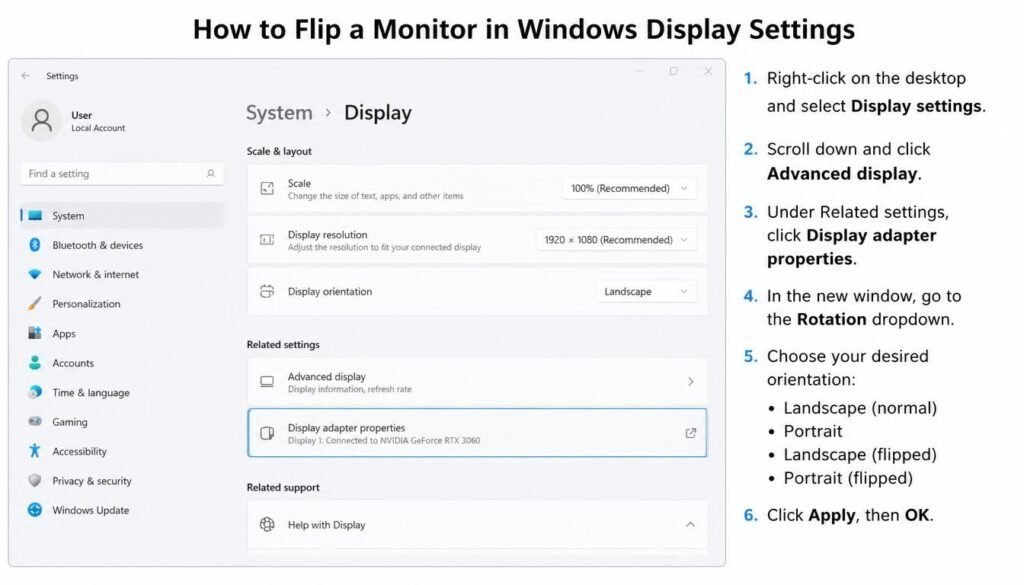
Older and current desktop releases share a nearly identical process, though the exact menu names shift slightly between versions. This section covers how to flip a monitor windows 10 users encounter most often, along with the equivalent steps for Windows 8 and Windows 7.
Windows 10 and Windows 8 Steps
- Right-click an empty area of the desktop and select Display Settings.
- If more than one monitor is connected, click the numbered monitor icon that represents the screen needing to be flipped.
- Scroll down to Orientation and open the drop-down menu.
- Choose Landscape (flipped) or Portrait (flipped), then click Apply.
- Confirm the change when the pop-up window asks whether to keep the new orientation.
Anyone specifically searching for how to rotate screen windows 10 steps, or the windows 10 rotate screen shortcut, can skip straight to step three above once Display Settings is open; the shortcut simply opens that same window faster.
Windows 7 Steps
Windows 7 places the same option inside the classic Control Panel rather than the modern Settings app, which is why how to flip a monitor windows 7 questions still come up regularly on tech forums.
- Right-click the desktop and choose Screen Resolution.
- Click the Orientation drop-down box.
- Select Landscape, Portrait, Landscape (flipped), or Portrait (flipped).
- Click Apply, then OK to confirm.
If the Orientation option does not appear at all in either version, the installed driver is likely a generic Microsoft display adapter rather than the manufacturer’s full driver package, and updating it, as covered in this Windows 11 slow performance troubleshooting guide, often restores the missing menu.
Flipping the Display on Windows 11
Microsoft moved several display options around in Windows 11, so the path looks a little different even though the underlying feature works the same way. Anyone who searched specifically for how to rotate screen windows 11 will find both a shortcut method and a full menu method below.
How to Flip a Monitor Windows 11 With a Keyboard Shortcut
Many readers searching for a shortcut to rotate screen windows 11 offers natively want an instant fix without opening any menu at all. On systems using Intel integrated graphics, or a dedicated card with hotkeys enabled, the following combination works immediately.
- Press Ctrl+Alt+Down Arrow to flip the display upside down.
- Press Ctrl+Alt+Up Arrow to return it to normal.
- Press Ctrl+Alt+Left Arrow or Ctrl+Alt+Right Arrow to rotate 90 degrees in either direction.
This is the fastest answer for anyone asking how to rotate computer screen with keyboard input alone, though it depends on the graphics driver supporting the hotkey, which is not universal.
Windows 11 Display Settings Method
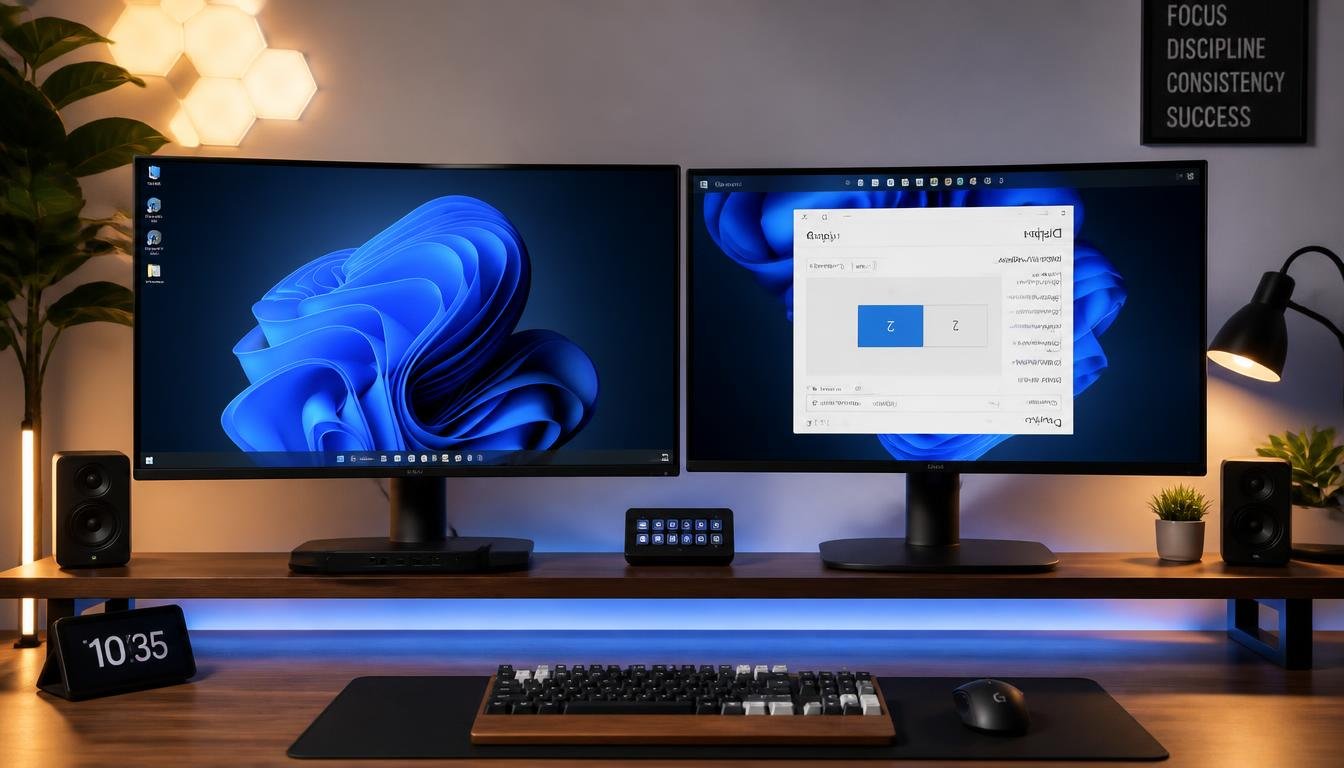
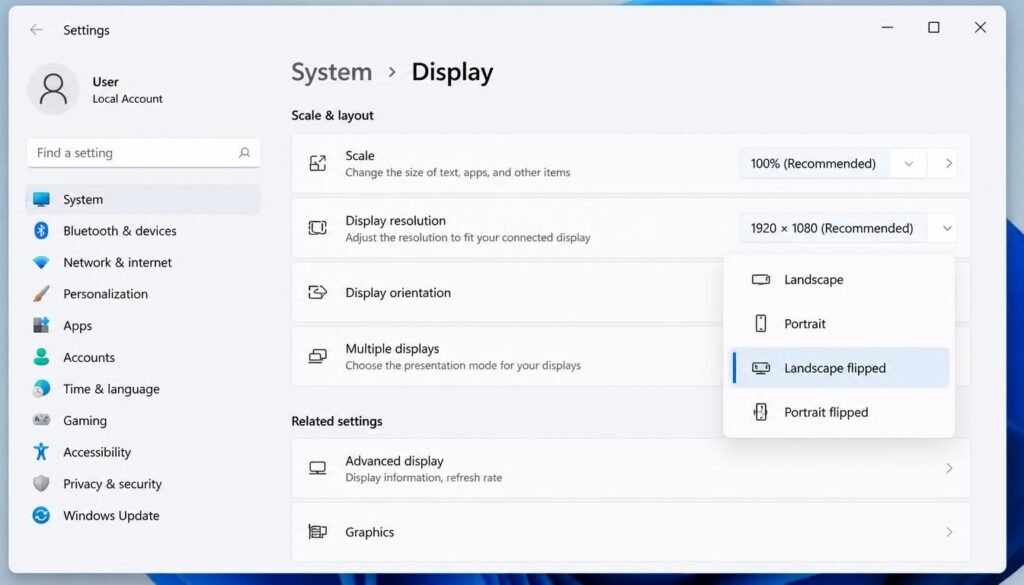
- Right-click the desktop and select Display Settings.
- If there is more than one screen, this is also where to handle how to rotate second monitor windows 11 setups: click the numbered box matching the correct display before changing anything.
- Scroll to Display orientation and open the drop-down list.
- Pick Landscape, Portrait, Landscape (flipped), or Portrait (flipped).
- Click Keep changes when prompted, or the setting reverts automatically after fifteen seconds.
For anyone who suspects a recent driver rollback caused the orientation menu to change unexpectedly, a forced update is often the trigger, and learning how to stop Windows Update from installing driver changes overnight can prevent the problem from returning.
Rotating the Screen on macOS
Apple’s process lives inside System Settings rather than a right-click menu, and it applies to both built-in MacBook displays and connected external monitors.
- Click the Apple icon in the top-left corner of the screen.
- Select System Settings, then click Displays in the sidebar.
- Choose the display to adjust if more than one is connected.
- Click the Rotation drop-down menu.
- Select the desired angle: Standard, 90 degrees, 180 degrees, or 270 degrees.
- Confirm the change in the on-screen prompt, or click Revert if the result is wrong.
Mac users who also dual boot into Windows for gaming or coursework should note that orientation settings do not carry over between operating systems; each system keeps its own independent display configuration, similar to the separation described in this guide to dual booting Ubuntu with Windows 11. Mac users relying on a Chromium-based teleprompter or mirroring app for the horizontal flip method covered later in this guide can find setup steps in this guide to downloading Chrome on Mac.
Advanced GPU Driver Settings for Rotating and Flipping Displays
When the operating system menu is missing, disabled, or simply will not stick, the graphics card’s own control software almost always has a more complete set of options, including the horizontal mirror mode that Windows and macOS do not offer natively.
Intel Graphics Command Center
- Right-click the desktop and select Intel Graphics Settings (or search for Intel Graphics Command Center in the Start menu).
- Open the Display tab.
- Select the target monitor from the display selector.
- Choose the rotation angle: 0, 90, 180, or 270 degrees.
- Apply and confirm the change.
NVIDIA Control Panel
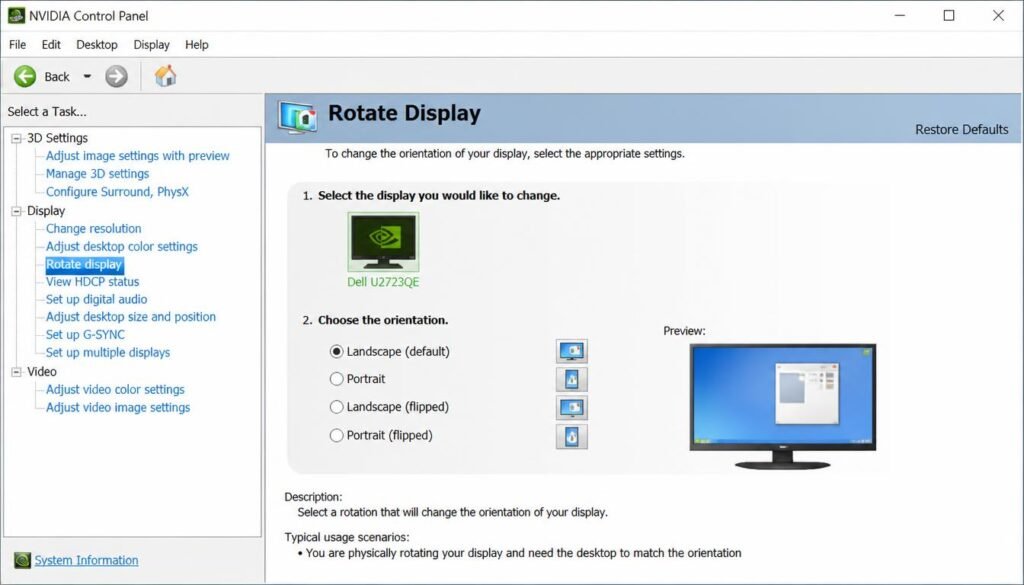
- Right-click the desktop and select NVIDIA Control Panel.
- Under Display, click Rotate display.
- Select the monitor to change, then choose the desired orientation from Landscape, Portrait, Landscape (flipped), or Portrait (flipped).
- Click Apply, then confirm the prompt to keep the setting.
AMD Radeon Software
- Right-click the desktop and open AMD Software: Adrenalin Edition.
- Go to the Display tab.
- Locate Orientation or Scaling settings, depending on the software version.
- Choose the rotation angle and apply the change.
Flipping a Monitor Horizontally: Mirror Mode for Teleprompters and Reversed Setups
Standard rotation, covered in the how to flip a monitor steps above, only turns the image 90, 180, or 270 degrees; it does not create a mirror image. Anyone asking how do I flip my screen horizontally is usually working on something different: a teleprompter setup, a rear-projection screen, or a reversed display meant to be read through glass or a mirror.
Windows and macOS do not include a native horizontal mirror toggle in their standard display settings, which is the single biggest gap in most other guides on this topic. Three real options exist instead.
- GPU control panel scaling tools.
Some NVIDIA and AMD driver packages include a horizontal flip option buried in advanced scaling settings, though availability varies by card generation. - Monitor OSD menu.
Certain professional and broadcast monitors include a built-in horizontal mirror setting accessible through the physical on-screen display buttons, independent of the connected computer. - Third-party software.
Dedicated flipping utilities and most teleprompter apps include a horizontal mirror function specifically because operating systems do not, since this feature has almost no everyday use outside of specialized video and presentation setups.
Troubleshooting Dual-Monitor Rotation Locks and Orientation Glitches
Multi-monitor setups introduce failure points that a single-screen system never encounters, and this is where most competing guides stop short.
- Wrong monitor selected.
Before changing anything, click the numbered display icon in Display Settings and confirm which physical monitor it represents by clicking Identify. - Rotation grayed out on one monitor only.
This usually means that monitor is connected through a different port type, such as HDMI versus DisplayPort, with a driver limitation tied to that specific connection. - Orientation resets after sleep or restart.
Update the graphics driver directly from the manufacturer’s website rather than relying on Windows Update, since generic drivers frequently forget custom rotation settings. - One screen flips when adjusting the other.
This points to a docking station or KVM switch misreading the monitor arrangement; disconnecting and reconnecting one display at a time isolates the faulty link. On wireless display adapters, confirming the computer’s IP address matches the adapter’s expected network range can also resolve a display that connects but will not accept orientation changes. - A hotkey is stuck or triggering by accident.
If a screen flips every time certain keys are pressed together, disable the rotation hotkey inside the graphics control panel settings, since accidental Ctrl+Alt+Arrow presses are the most common unintentional cause.
People asking how do you flip screens across two monitors, or how do I switch the direction of my monitor when both displays face opposite directions on a desk, should treat each monitor as a completely separate configuration inside Display Settings rather than expecting one change to apply to both.
Keyboard Shortcut Matrix for Windows and Mac
| System | Normal (0 degrees) | Flip 180 Degrees | Rotate 90 Left | Rotate 90 Right |
|---|---|---|---|---|
| Windows, Intel graphics | Ctrl+Alt+Up | Ctrl+Alt+Down | Ctrl+Alt+Left | Ctrl+Alt+Right |
| Windows, NVIDIA hotkeys enabled | Ctrl+Alt+Up | Ctrl+Alt+Down | Ctrl+Alt+Left | Ctrl+Alt+Right |
| Windows, AMD hotkeys enabled | Ctrl+Alt+Up | Ctrl+Alt+Down | Ctrl+Alt+Left | Ctrl+Alt+Right |
| macOS | No default shortcut | No default shortcut | No default shortcut | No default shortcut |
| ChromeOS | Ctrl+Shift+Refresh (press once per rotation) | Press twice from normal | Press once from normal | Press three times from normal |
Note that the Ctrl+Alt+Arrow combination is a driver feature, not a Windows feature, so it does not exist on systems running a generic or outdated display driver, which explains why the shortcut works on some laptops and does absolutely nothing on others.
Frequently Asked Questions About Flipping a Monitor
How do I flip my screen horizontally?
Standard Windows and macOS display settings do not include a horizontal mirror option. Use the graphics card’s control panel, a monitor’s built-in OSD menu, or dedicated teleprompter or mirroring software instead.
How do I rotate my screen to 90 degrees?
Open Display Settings on Windows or System Settings on macOS, select the correct monitor, then choose Portrait from the orientation or rotation menu, which rotates the display 90 degrees.
How do you flip screens on a dual-monitor setup?
Select the specific numbered monitor inside Display Settings before changing the orientation, since each connected display holds its own independent rotation setting.
How do I switch the direction of my monitor?
Use the orientation or rotation menu in Display Settings, System Settings, or the graphics card control panel, and choose the flipped or rotated option that matches the physical direction needed.
How do I flip a monitor upside down using only the keyboard?
Press Ctrl+Alt+Down Arrow. This shortcut is provided by certain graphics drivers, mainly Intel integrated graphics, and does not work on every system.
Why did my monitor flip by itself?
An accidental keyboard shortcut is the most common cause, followed by a graphics driver update that reset a saved orientation, or, on convertible laptops, an auto-rotate sensor reacting to the device being moved.
Can I flip a monitor without a keyboard shortcut or driver software?
Yes. Windows Display Settings and macOS System Settings both include a manual orientation menu that works regardless of whether the keyboard shortcut is supported.
Does flipping a monitor reduce its resolution or refresh rate?
No. Rotating or flipping a display changes only its orientation. Resolution and refresh rate remain the same, although portrait orientation on a widescreen monitor will look narrower since the same pixel count is arranged vertically.
Can I flip only one monitor in a dual-monitor setup?
Yes. Each display is configured independently in Display Settings, so one monitor can stay in normal landscape orientation while another is flipped or rotated.
How do I fix a monitor that will not stay flipped after a restart?
This is almost always a driver issue rather than a settings issue. Reinstalling the current graphics driver directly from the manufacturer’s website, rather than the generic driver Windows installs automatically, typically resolves settings that fail to persist.
Flipping a monitor is rarely complicated once the correct menu is located, whether that means a two-click fix inside Display Settings, a keyboard shortcut built into the graphics driver, or a dedicated tool for the rarer horizontal mirror scenario that most other guides skip entirely. Readers dealing with a driver that seems outdated, unstable, or missing options altogether may also want to browse the site’s broader Windows & PC Fixes section for related display and performance guides, since a stable driver is the foundation every rotation and flip method in this guide depends on. For anyone running background utilities that can conflict with graphics driver startup, clearing out unnecessary software, such as removing OneDrive following the steps in this guide to uninstalling OneDrive on Windows 11, can also reduce the odds of a rotation setting failing to save. With the operating system menu, the GPU control panel, and the keyboard shortcut all covered here, most orientation problems on any Windows version, or on macOS, are fixed in well under five minutes.