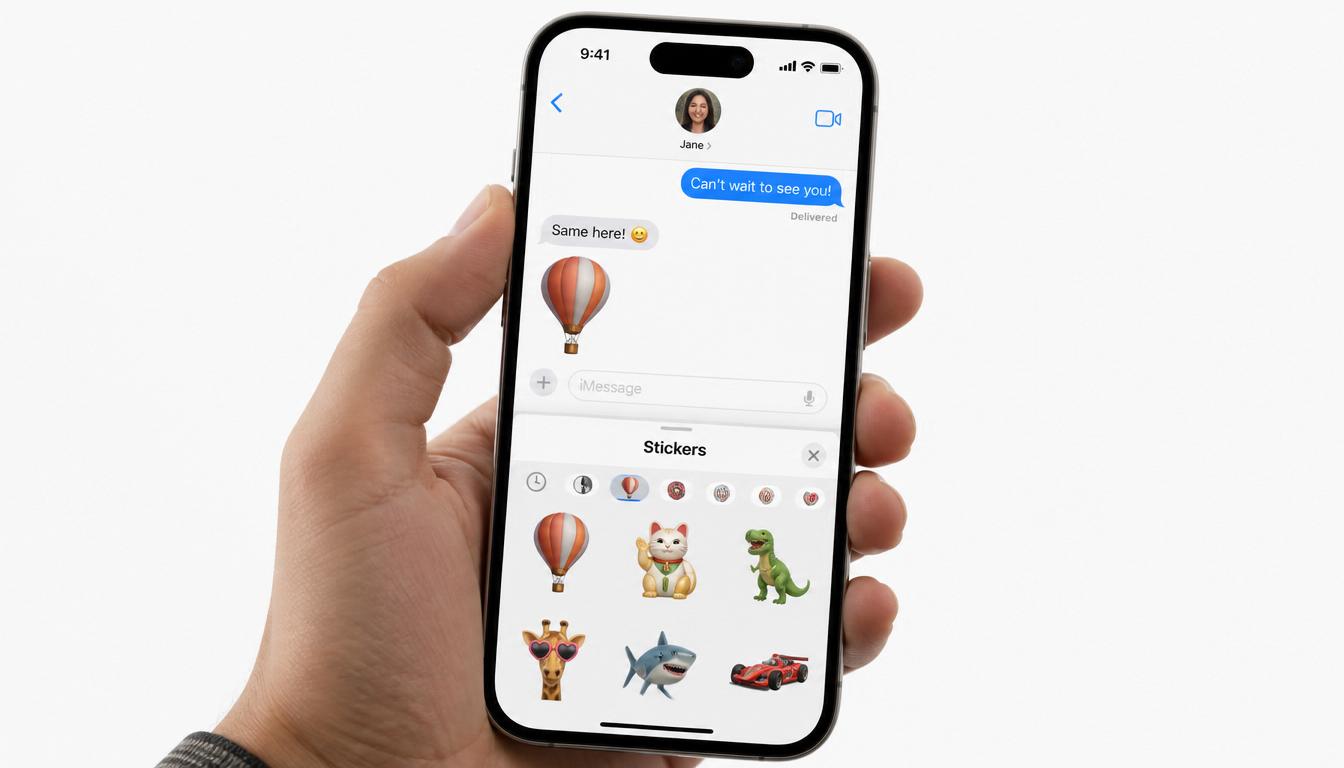
How to Delete Stickers on iPhone?
If your emoji keyboard feels cluttered, you can completely clean it up in under a minute by switching to the Live tab in your Messages app to delete custom ones, or by toggling off sticker settings in your General Keyboard options.
Quick Answer
No, deleting stickers on an iPhone is not complicated, but there is no single delete all button. Because Apple separates stickers into custom photo stickers, emojis, and third party App Store packs, each type has to be removed using a slightly different method.
So you have got stickers cluttering up your iPhone, and now you want them gone.
How to Delete Stickers on iPhone?
Maybe your emoji keyboard looks like a digital dumpster, you accidentally sent your boss a cartoon pizza slice, or you just want to clear up some valuable storage space. Whatever the reason, getting rid of them is actually pretty simple once you know where the settings are hidden.
The only catch? Apple has a few different types of stickers, and each one requires a unique removal step. In this complete guide, we’ll walk through every single method step-by-step so you can clean up your device today.
Quick Summary — Which Method Do You Need?
Save your screen time! Jump straight to the section that matches your exact problem:
- Deleted a photo sticker you made yourself? → See Method 1
- Got rid of a downloaded sticker pack? → See Method 2
- Want emoji stickers off your keyboard? → See Method 3
- Removed a sticker from a message bubble? → See Method 4
- Just want all stickers hidden quickly? → See Method 5
- Trying to free up storage space How to Delete Stickers on iPhone Know Your Type First
Before doing anything, figure out which type of sticker is bothering you:
- Custom Stickers: The ones you created yourself by long-pressing subjects in your own photos (introduced in iOS 17).
- iMessage Sticker Packs: Downloaded apps or cartoon packs from the App Store.
- Memoji Stickers: Apple’s built-in avatar characters and expressions.
- Message Bubble Stickers: Stickers that you or someone else dragged and dropped onto a text message.
The most common reason people search how to delete stickers on iPhone is because of custom stickers the ones made from your own photos.
Method 1: Delete Custom Photo Stickers
If you created stickers from your Photos app, they sync directly with your iCloud account. Here is how to delete them permanently:
- Open the Messages app and tap into any chat.
- Tap the “+” (plus) icon next to the text entry field.
- Select Stickers from the drop-down menu.
- Tap the “Live” icon (it looks like a small peeling comic sticker). Note: Do not try to delete from the “Recent” tab, as iOS won’t allow changes there.
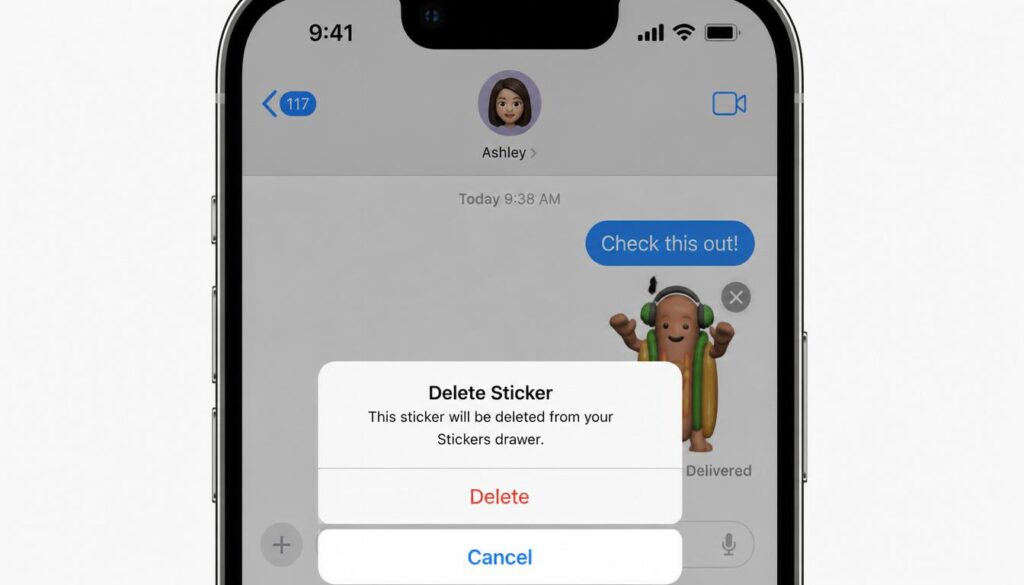
- Press and hold the specific sticker you want to remove.
- Tap Delete from the pop-up menu.
How to Delete Multiple Custom Stickers At Once
If you have dozens of stickers to clean up, don’t do them one by one. After pressing and holding a sticker, tap Rearrange. Your stickers will start to wiggle. Tap the minus (–) icon on every sticker you want to wipe out, then tap Done.
How to Delete Stickers on iPhone?
How to Delete Stickers on iPhone?
After removing sticker packs, if your iPhone still feels sluggish or apps are not loading properly, the issue might not be the stickers at all it could be your internet connection. Sticker packs in message rely on a stable connection to sync and display correctly. Before assuming something is wrong with your phone, check our complete fix guide WiFi Connected But No Internet Access — 7 Simple Fixes.
Method 2: Uninstall iMessage Sticker Packs
These are third party packs you installed from the App Store or extensions that came bundled with apps like Snapchat, emoji, or TikTok.
- Open Messages and go into any conversation thread.
- Tap the “+” button and select Stickers.
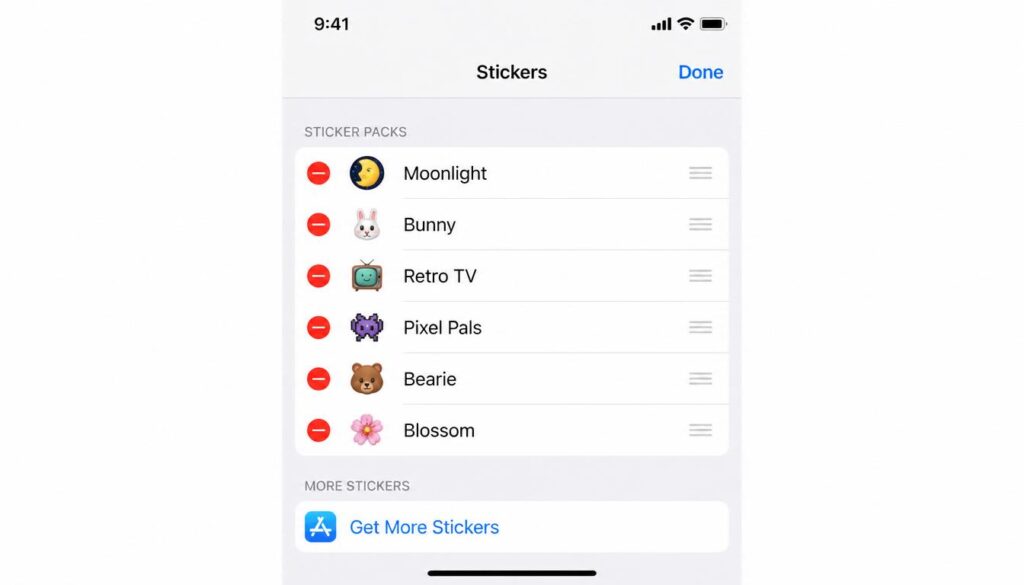
- In the app tray bar below the text field, swipe all the way to the right and tap Edit (or the manage settings icon).
- Look under the Sticker Apps or More Apps section.
- Turn off the toggle next to the pack you want to hide, or tap the red minus (−) button to delete it completely.
How to Delete Stickers on iPhone?
How to Delete Stickers on iPhone?
Note: If the stickers came inside a main app (like a third-party custom keyboard), you must delete that entire app from your iPhone’s home screen to completely remove the stickers.
After removing sticker packs, if your iPhone still feels sluggish or apps are not loading properly, the issue might not be the stickers at all it could be your internet connection. Before assuming something is wrong with your phone, it is worth doing a quick check. Here is a simple way to find out: Is My Internet Working?
Method 3: Hide or Remove Memoji Stickers from Keyboard
These steps work on iPhone 13, 14, 15, and 16 so no matter which model you have, you can delete stickers on iPhone the same way.”
You cannot permanently delete Apple’s default Memoji characters, but you can easily hide the Memoji sticker section so it stops hijacking your emoji keyboard grid.
- Open your iPhone Settings.
- Go to General and then select Keyboard.
- Scroll all the way down to the bottom of the page.
- Turn off the toggle next to Memoji Stickers.
How to Delete Stickers on iPhone?
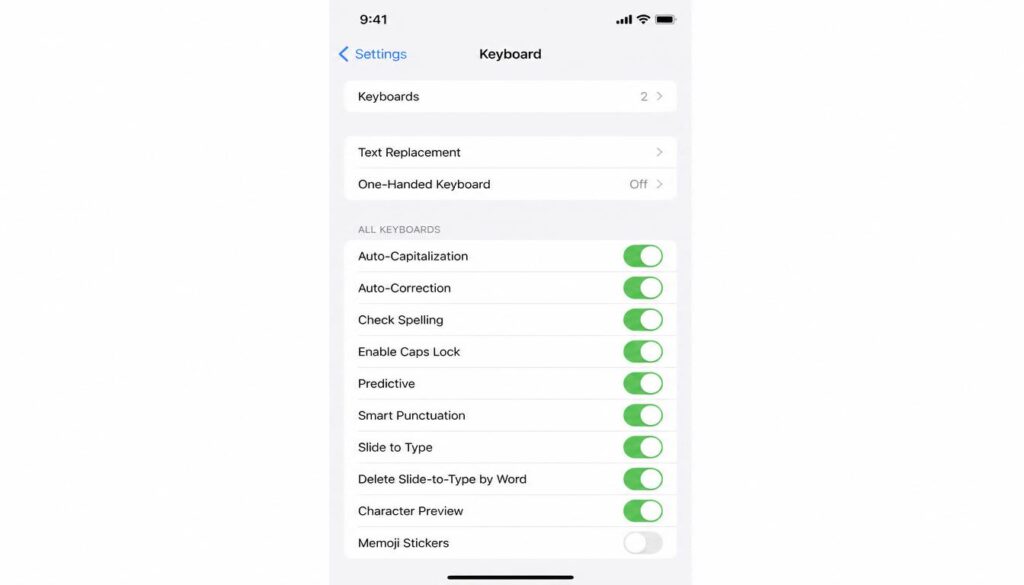
How to Delete Stickers on iPhone?
To Delete a Custom Memoji Character You Created:
If you created a personalized avatar that you want to completely erase:
Open your keyboard → Tap the Memoji icon → Tap the three dots (•••) on your avatar card → Select Delete.
Sticker packs are not the only thing eating your phone storage. On Android devices, cached app data from apps like WhatsApp, Instagram, and Chrome quietly piles up in the background without you noticing. If you use both an iPhone and an Android device, you can free up significant space on your Android by followingour detailed guide on How to Clear Cache on Android Without Deleting Apps.
Method 4: Remove a Sticker Placed on a Message Bubble
If someone (or you) peeled a sticker and dropped it directly on top of a text bubble as a quick reaction, you can peel it right off.
- Go to the specific text conversation.
- Press and hold the message bubble that has the sticker attached to it.
- Tap Sticker Details from the menu.
- Swipe left on the listed sticker and tap the red Delete button.
Note: You can easily remove any sticker you placed. However, you cannot remove stickers that another person added to your shared message bubbles.
For more details on iPhone storage management, you can checkthese easy steps guide.
Method 5: Turn Off All Stickers from the Emoji Keyboard (Quick Fix)
If you just want a clean, classic emoji keyboard without any unexpected sticker suggestions popping up, you can turn off the keyboard integration entirely.
- Open Settings on your phone.
- Tap General → Keyboard.
- Scroll down to the bottom and toggle off Send Stickers from Emoji Keyboard.
How to Delete Stickers on iPhone?
Running iOS 18 or iOS 19? Read This:
There is a known system cache lag in recent iOS versions where toggling this setting off does not immediately hide the stickers. If they are still showing up after turning off the toggle, manually delete your custom stickers using Method 1, then restart your iPhone. The keyboard cache will refresh completely.
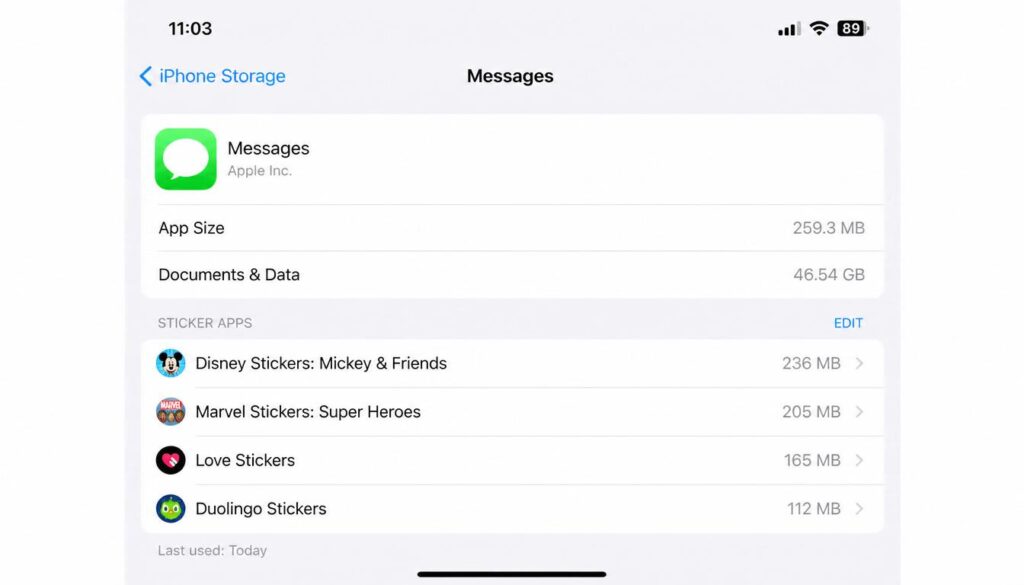
How to Reclaim Storage Space Taken by Sticker Packs
Animated and heavy third-party sticker packs can secretly eat anywhere from 50MB to 200MB of storage data each. Here is how to audit your storage:
- Go to Settings → General → iPhone Storage.
- Give it a few seconds to load the full application breakdown list.
- Scroll down and tap on Messages.
- Look for the Sticker Apps or Documents & Data breakdown.
- If a specific pack is using too much space, swipe left across it and tap Delete.
This removes the heavy sticker pack data from your local hardware without affecting your actual text message text history.
Troubleshooting: Common Problems and Fixes
If you are still stuck trying to delete stickers on iPhone, this quick table covers the most common problems
How to Delete Stickers on iPhone?
| Problem | What’s Happening | Fix |
| Sticker won’t delete from Recent tab | You are trying to delete from the wrong place. | Switch to the “Live” tab first, then long-press to delete. |
| Toggle is turned off but stickers still show | This is a known iOS keyboard cache lag. | Manually delete your custom stickers using Method 1, then restart your iPhone. |
| Sticker pack is deleted but still visible | The parent app is still installed on your device. | Find the main app on your home screen, long-press it, and choose Delete App. |
| Can’t find the Stickers option | Your iPhone is running an older software version. | Go to Settings → General → Software Update and update to iOS 17 or later. |
| Custom sticker option is missing | Your device or iOS version doesn’t support it. | Ensure you are on iOS 17+ and using a compatible iPhone (iPhone XR or newer). |
How to Delete Stickers on iPhone?
Sometimes iPhone syncing issues including sticker packs not updating or deleting properly are caused by an unstable WiFi connection in the background. If your phone keeps losing connection or shows an authentication error on WiFi, that could be the real problem. Check out this guide for a quick fix: Authentication Issue WiFi Easy Fix for All Devices
Frequently Asked Questions
Does deleting a sticker remove it from past chats?
No. Any sticker you have already sent to friends or family will remain visible inside those old chat logs. Deleting them only removes them from your active keyboard options going forward.
Do deleted custom stickers sync across my iPad and Mac?
Yes. Because custom photo stickers sync via your personal iCloud account, deleting a custom sticker on your iPhone will automatically remove it from your iPad and Mac, provided they are logged into the same Apple ID.
Can I recover a deleted sticker pack?
Yes, if it was a third-party pack from the App Store. Simply open the App Store → tap your Profile Icon → go to Purchased → search for the sticker pack, and tap the cloud icon to reinstall it for free.
While you are cleaning up your iPhone deleting stickers, clearing storage, and organizing your apps it is also a good time to think about your privacy. A lot of people wonder what activity is actually visible on a shared WiFi network. If that question has ever crossed your mind, this article has a clear and honest answer: Can You See Search History on a WiFi Bill?