How to Connect Echo Dot to WiFi: Complete 2026 Fix Guide
That spinning purple or orange light on your new speaker is not broken, and the frustration of a device that refuses to join your network usually comes down to one of four fixable causes. This guide on how to connect Echo Dot to WiFi covers the exact Action Button protocol, the dual band router conflict that most competitor guides skip entirely, and a browser based setup path for anyone who does not want to install the Alexa app at all.
Quick Answer: How to Connect Echo Dot to WiFi Instantly
Plug in the Echo Dot and wait for the light ring to turn blue, then orange. Open the Alexa app on a phone, tap Devices, select the plus icon, choose Add Device, and pick Amazon Echo. If the orange setup light does not appear on its own, hold the Action Button for fifteen seconds to force the device into setup broadcast mode. Select your home network from the list inside the app, connect your phone to the 2.4GHz band beforehand if your router broadcasts a single combined network name, enter the WiFi password exactly as it appears on the router label, and wait for the confirmation tone.
Echo Models and WiFi Setup Method Comparison
| Echo Model Generation | Primary Setup Method | Action Button Light Signal | Alternative Setup Method |
|---|---|---|---|
| Echo Dot (3rd Gen) | Alexa App | Orange spinning ring | Browser portal via phone |
| Echo Dot (4th Gen, sphere) | Alexa App | Orange spinning ring | Amazon Echo Buds app bridge |
| Echo Dot (5th Gen) | Alexa App or Action Button hold | Orange pulsing ring | Web based setup at alexa.amazon.com |
| Echo Dot with Clock | Alexa App | Orange spinning ring, clock shows setup code | Browser portal via phone |
| Echo Pop | Alexa App | Orange spinning light bar | Browser portal via phone |
| Echo Spot | Alexa App | On screen network wizard | Touchscreen manual entry, no app required |
| Echo (Standard, 4th Gen) | Alexa App | Orange spinning ring | Browser portal via phone |
Step by Step Core Guide
Method 1: How to Connect Echo Dot to WiFi via the Alexa App (Standard First Time Setup)
The Alexa app remains the fastest and most reliable path for a brand new device, and it works the same way whether you are setting up the compact sphere shaped speaker or the larger standard Echo. Most people who search for how to connect Echo Dot to WiFi land on this method first, and for a brand new device it is genuinely the quickest route to a finished setup.
- Download the Alexa app from the App Store or Google Play and sign in with your Amazon account.
- Plug the Echo Dot into power using the included adapter. Wait roughly sixty seconds for the light ring to turn blue and then orange.
- Inside the app, tap Devices in the bottom navigation bar, then tap the plus icon in the top right corner.
- Select Add Device, choose Amazon Echo, and follow the on screen prompts to pick your exact device model.
- The app searches for nearby Echo devices broadcasting a setup signal. Select your Echo Dot once it appears in the list.
- Choose your home WiFi network name from the list the app displays, enter the password, and tap Connect.
- Wait for the light ring to turn green and for Alexa to confirm the connection with a short greeting.
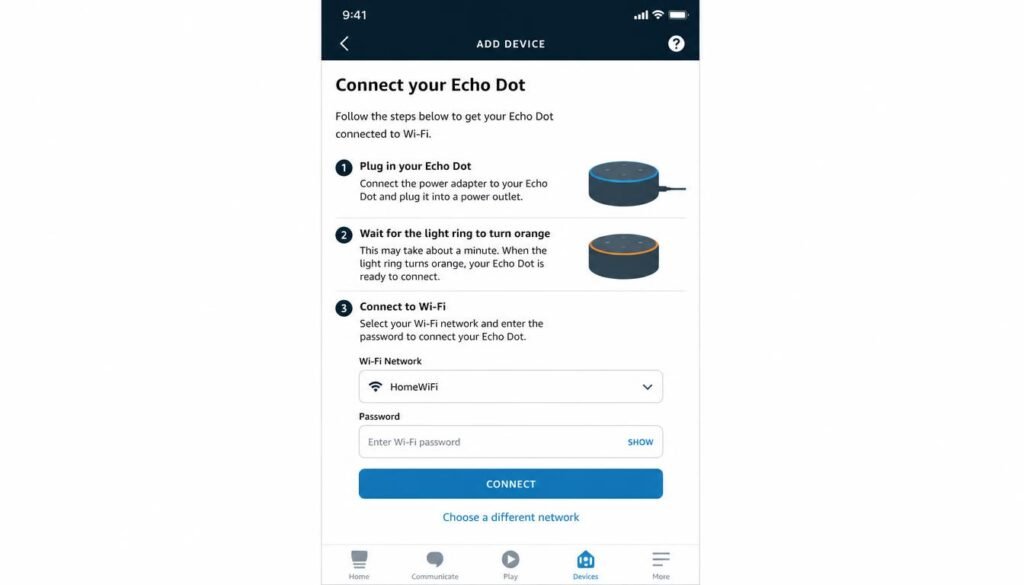
If the app never finds the device during step 5, the setup light is likely not active, which is exactly what the Action Button protocol in the next section resolves.
If your speaker fails to discover any network during setup, review our step-by-step guide on how to fix WiFi easy solution to clear baseline router connection errors quickly.
Method 2: How to Change WiFi Network on Echo Dot When Router or Password Changes
Moving to a new apartment, upgrading a router, or simply rotating the network password for security reasons all require the same reset path. Open the Alexa app, tap Devices, select the Echo Dot from the device list, tap the settings gear icon in the top right corner, and choose Change next to the WiFi Network field. The device automatically enters setup broadcast mode without needing a factory reset, and from there the process matches steps 5 through 7 above.
Anyone changing credentials should also review our guide on how to change WiFi password on router settings. A fresh router password means every connected smart device needs to be updated the same day.
Method 3: How to Connect Echo Dot to WiFi Without the App (Web Browser and AP Hotspot Trick)
Not everyone wants to install a dedicated app just to get a speaker online, and Amazon does provide a genuine no app path that most competitor guides never mention. When the Echo Dot enters setup mode, it briefly creates its own local access point network, typically named something similar to Amazon-XXX. On a phone or laptop, open WiFi settings and connect directly to that access point. Once connected, open any web browser and navigate to alexa.amazon.com, or the setup portal address printed in the included quick start card. Sign in with the Amazon account tied to the household, select the home WiFi network from the list, enter the password, and submit the form. This method is the answer for anyone specifically searching how to connect Alexa to WiFi without the app, and it works equally well for connecting Alexa to a new WiFi network after a move, since the access point step never depends on having the mobile app installed.
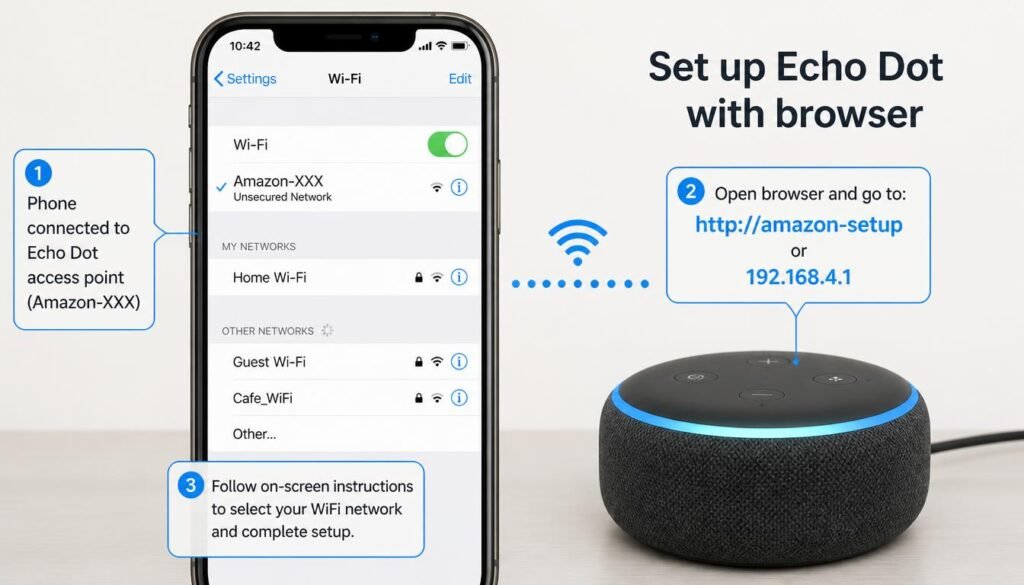
How to Connect Echo Dot to WiFi?
Method 4: How to Connect Echo Pop, Echo Spot, and Standard Echo Devices to WiFi
The core process is nearly identical across the entire Echo lineup, with two notable exceptions. The Echo Spot includes a small touchscreen, so the network name and password can be entered directly on the device without opening the Alexa app at all, which makes it the fastest device in the lineup for a no app setup. The Echo Pop follows the standard Alexa app flow exactly as described in Method 1, though its compact internal antenna makes it more sensitive to distance from the router, so placing it within roughly six meters of the access point during setup avoids most first time connection failures.
If you are setting up Alexa alongside a smart display, check our guide on how to connect a TV to WiFi. It walks through the complete setup process for streaming screens.
Method 5: Resolving Dual Band 2.4GHz vs 5GHz Connection Failures and Password Errors
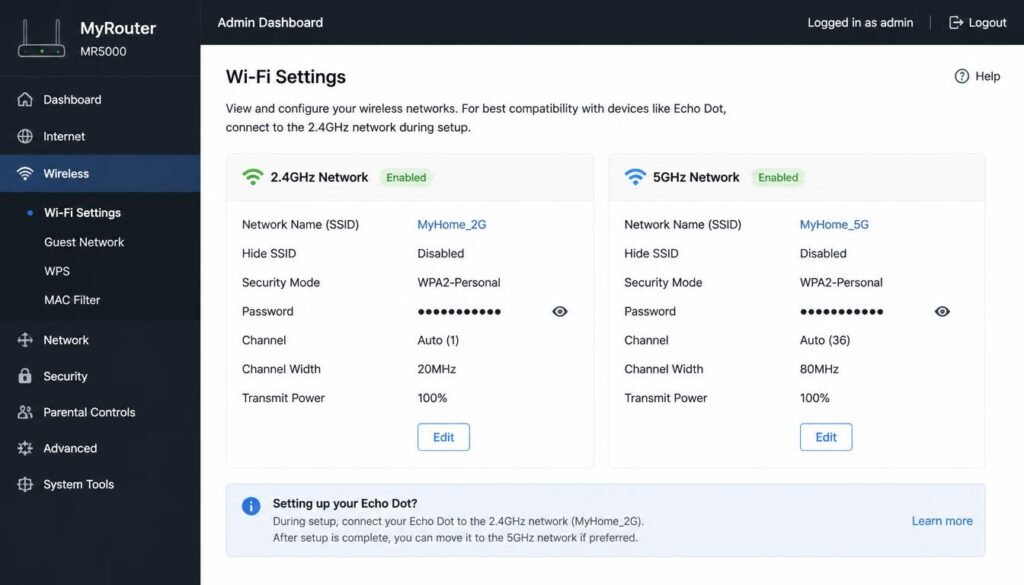
This is the single most common reason an Echo Dot appears to connect and then silently drops, and it is the gap that Amazon official help, HelloTech, and most university IT pages never explain clearly. Every Echo Dot only supports the 2.4GHz band, not 5GHz, yet most modern mesh routers broadcast both bands under one combined network name, a feature usually called band steering. During setup, the phone running the Alexa app sometimes stays connected to the 5GHz side of that combined network while the Echo Dot is actively trying to join the 2.4GHz side, and the mismatch causes the setup screen to hang indefinitely or fail with a generic network error.
To fix this permanently, open the router admin panel and check whether the 2.4GHz and 5GHz bands can be temporarily split into two separate network names, often labeled something like HomeNetwork and HomeNetwork_5G. Split them before starting Echo Dot setup, connect the phone to the 2.4GHz option specifically, complete the pairing, and then merge the bands back together afterward if a single combined name is preferred for day to day use. Routers that do not allow a temporary split can usually be worked around by standing closer to the router during setup, since proximity sometimes forces the phone to prefer the 2.4GHz signal automatically.
If your connection drops throughout the house, check our guide on how to fix a weak WiFi signal. It covers router placement and channel optimization steps.
Password related failures typically trace back to one of two causes. Special characters such as an ampersand, a percent sign, or an accented letter in an older router password can trigger a handshake error on first and second generation Echo Dot hardware, since older firmware was not built with full support for every character in the WPA3 standard. Resetting the router password to a simpler alphanumeric string, then updating it again after the Echo Dot finishes pairing, usually resolves this without any change on the speaker side. Separately, a router still set to WPA3 only, rather than the more universally compatible WPA2/WPA3 mixed mode, will silently reject connection attempts from any Echo Dot manufactured before 2023. Switching the router security setting to the mixed mode option restores compatibility instantly.
For broader network errors, read our breakdown of common WiFi authentication issues. It explains WPA3 handshake failures and router security fixes in detail.
Troubleshooting and Emergency Re Pairing Protocols
Resolving “Alexa Is Online but Will Not Connect to the Internet”
This specific error message means the Echo Dot has successfully joined the local WiFi network but cannot reach Amazon’s servers beyond the router. Start by confirming that other devices in the house have full internet access, since a router or modem outage will produce this exact symptom on every connected gadget at once. If only the Echo Dot is affected, unplug it for thirty seconds, plug it back in, and allow a full two minutes for it to reconnect before attempting anything else. Persistent cases often trace back to a router firewall rule blocking outbound traffic on the ports Alexa services require, which most home users never touch, so a full router restart typically clears the block without needing to open the admin panel at all.
How to Reset Echo Dot Hardware to Factory Defaults
A hardware reset clears every saved WiFi credential from the device and forces it back into first time setup mode, which is the correct fix when the Echo Dot repeatedly fails to find any nearby network. Locate the small reset pinhole on the underside of the device, or the dedicated reset button depending on the generation, and hold it for roughly twenty five seconds until the light ring cycles through orange and then blue. Once the reset completes, follow Method 1 above exactly as if the device were brand new.
Fixing Bluetooth Pairing and Phone App Discovery Issues
An Echo Dot that will not appear inside the Alexa app during setup is sometimes a Bluetooth problem rather than a WiFi problem, since certain setup steps briefly use Bluetooth to establish the initial handshake before switching to WiFi. Confirm Bluetooth is enabled in the phone’s settings, close and reopen the Alexa app, and move the phone within one meter of the Echo Dot during the discovery step. Phones running an older operating system version occasionally block this discovery silently, so checking for a pending system update before repeating the setup often resolves the issue on the first retry.
Frequently Asked Questions
How to connect Echo Dot to WiFi without app?
Put the device into setup mode, connect a phone or laptop directly to the temporary access point network it broadcasts, then open a browser and complete setup through alexa.amazon.com without ever installing the mobile app.
How to connect Alexa to WiFi without phone?
Use a laptop or tablet instead. Connect that device to the Echo Dot’s temporary access point network, open the setup portal in a browser, and enter the home WiFi credentials from there, since the process does not require a phone specifically.
How to connect Alexa to WiFi without the app Android?
The browser method in Method 3 above works identically on Android. Connect the Android device to the Echo Dot’s setup access point through the WiFi settings menu, then finish the network selection inside a mobile browser instead of the Alexa app.
How to connect Echo Dot to Bluetooth?
Say “Alexa, pair” or open the Alexa app, tap Devices, select the Echo Dot, then Bluetooth Devices, and choose Pair a New Device. Put the target speaker or headphones into pairing mode, and select it once it appears in the list.
How to connect Echo Pop to WiFi?
Echo Pop follows the identical Alexa app process used for the Echo Dot, though keeping the compact speaker within roughly six meters of the router during setup significantly reduces first attempt connection failures.
How to connect Alexa to phone?
Open the Alexa app, tap the More menu, select Settings, then Bluetooth Devices, and pair the phone the same way any Bluetooth accessory would connect, which allows audio streaming from the phone directly through the speaker.
How to connect Alexa to WiFi without Amazon account?
An Amazon account is required to complete setup, since Alexa services run through that account on Amazon’s servers. A free account can be created during the same setup flow without needing an existing Amazon shopping history.
How do I connect my Echo Dot to WiFi?
Plug the device in, wait for the orange setup light, open the Alexa app, tap Devices, then the plus icon, choose Add Device and Amazon Echo, and select your home network from the list once the app finds the speaker.
How to reset Echo Dot to new WiFi?
Open the Alexa app, tap Devices, select the Echo Dot, tap the settings gear, and choose Change next to WiFi Network. This clears the old credentials automatically without requiring a full factory reset.
How do I connect Alexa to new WiFi without an app?
Use the browser based access point method described in Method 3. It works exactly the same way whether the device is brand new or being moved to a different network entirely.
How do I connect my Alexa Echo Spot to WiFi?
The Echo Spot includes a built in touchscreen, so the network name and password can be entered directly on the device itself under Settings and Network, skipping the Alexa app entirely if preferred
Final Thoughts
Anyone who works through this entire guide on how to connect Echo Dot to WiFi will notice that most setup failures come down to one of three causes, an inactive setup light, a phone connected to the wrong WiFi band, or a router security mode the speaker does not recognize. Working through the Action Button reset, the band split fix, and the browser based no app path in order resolves the overwhelming majority of connection problems without needing a call to Amazon support.
If you are using a PC to configure smart home devices while experiencing heavy background lag, check our walkthrough on using a Windows 11 debloater to safely boost PC speed and free up system resources.