How to Connect TV to WiFi In under 60 Sec Fix Guide (2026)
Staring at a TV that will not find your network, or a remote that keeps typing the wrong password, is one of the most common frustrations in a modern living room. The good news is that learning how to connect tv to wifi takes only a few minutes once you know where each brand hides its network menu, and this guide covers every scenario, including smart TVs, older televisions, and phone based setups.
Quick Answer How to Connect TV to WiFi
To connect tv to wifi, open the TV Settings menu, select Network or Wireless Connection, choose your home WiFi name from the list, and enter the password using the remote. If the TV has no built in WiFi, plug in a streaming device such as a Fire Stick, Chromecast, or Roku into the HDMI port and connect that device to WiFi instead. Most connections complete in under three minutes.
Table of Contents
- What You Need Before You Start
- How to Connect TV to WiFi on a Smart TV
- Connect TV to WiFi With WPS (No Typing Required)
- How to Connect a Non Smart TV to WiFi
- How to Connect WiFi to TV From Your Phone
- Wireless vs Wired vs Streaming Device: Which Is Best
- Fixing Signal Interference and Distance Problems
- Updating TV Firmware for a Stable Connection
- TV Not Connecting to WiFi? Common Fixes
- Frequently Asked Questions
What You Need Before You Start
Before touching the remote, gather three things: your wireless network name, sometimes called the SSID, your WiFi password, and confirmation that your router itself is online. If you are unsure whether your home network is functioning correctly, our WiFi troubleshooting guide walks through the fastest ways to confirm the router is working before you blame the TV.
Most smart TVs from the last eight years, including every current Samsung, LG, Sony, TCL, Hisense, and Vizio model, include built in wireless adapters, so no extra hardware is required. Older televisions without smart features need either a streaming device or a USB WiFi adapter, both covered further down this guide.
Before blaming your television hardware for dropping the signal, you must confirm that the problem does not lie with your core network devices. If your connection drops completely, our complete master guide on 10 Ways to Fix WiFi Connection Problems Fast provides the exact diagnostic steps to rule out internet service outages or broken routers.
How to Connect TV to WiFi on a Smart TV
Every smart TV brand uses roughly the same logic even though the menu wording changes. Press the Home or Menu button on the remote, open Settings, look for a section labeled Network, General, or Connection, and select WiFi or Wireless. The TV then scans nearby networks and displays a list. Select your network name, enter the password using the on screen keyboard, and confirm.
Samsung Smart TV WiFi Setup
On a Samsung TV, press the Home button, scroll to Settings, then choose General and External Manager, followed by Network. Select Open Network Settings, choose Wireless, pick your network from the list, and type the password. Samsung TVs display a green checkmark once the connection succeeds.
LG Smart TV WiFi Setup
On an LG TV running webOS, press the Settings gear on the remote, go to All Settings, then Connection, and select WiFi. Turn WiFi on if it is toggled off, choose your network name, enter the password, and select Connect. LG TVs usually complete the handshake in under fifteen seconds on a healthy signal.
TCL, Android TV, and Vizio WiFi Setup
TCL and other Android TV or Google TV models keep the WiFi option under Settings, then Network and Internet, then WiFi. Vizio SmartCast TVs place it under Settings, Network, and Wireless. In both cases the flow is identical to Samsung and LG: select the network, enter the password, and confirm.
Connect TV to WiFi With WPS (No Typing Required)
If your router has a physical WPS button, you can skip typing the password entirely. Open the TV network menu and select WPS or Simple Connect instead of the standard wireless option, then press the WPS button on the router within two minutes. The devices exchange a temporary handshake automatically and the TV connects without any manual password entry. This method works well for televisions placed in awkward locations where using the remote to type long passwords is tedious, though it does require the router and TV to be reasonably close together during setup.
How to Connect TV to WiFi?

How to Connect a Non Smart TV to WiFi
An older television without built in wireless can still join your home network. There are two practical routes, and both give you a path for how to connect wireless internet to smart tv style features even on hardware that never shipped with them.
Using a Streaming Device
Plug a device such as an Amazon Fire TV Stick, Google Chromecast, or Roku into an open HDMI port, connect it to power, and follow the on screen setup, which includes its own WiFi connection step. This instantly adds every major streaming app, a voice remote, and a modern interface to a television that might be a decade old. Streaming sticks typically cost between twenty and one hundred dollars depending on video quality support.
Using a USB WiFi Adapter
Some non smart TVs include an Ethernet port and a hidden Smart Hub feature that only needs an internet connection to unlock built in apps. In that case, a small USB WiFi adapter that matches the TV manufacturer’s specification can provide wireless internet without a streaming stick. Check your TV manual for a supported adapter model before purchasing one, since unsupported adapters are a common source of failed connections.
Sometimes, your television hardware might share similar network issues with peripheral devices like laptops or office accessories when trying to recognize an internet signal. If your television or tracking hardware refuses to broadcast your network name, reading through our standard walkthrough on how to make WiFi Detect All Networks can help identify the hidden channel blocks causing the blackout.
How to Connect WiFi to TV From Your Phone
Many people search for how to connect wifi to tv from phone when the remote is missing or the TV supports app based setup. Samsung’s SmartThings app, LG’s ThinQ app, and the Google Home app can all locate a nearby smart TV over Bluetooth and push the WiFi credentials directly from your phone’s saved networks, removing the need to type a long password on screen. This process mirrors how you might connect a Google Home speaker to WiFi, since both use a companion app to hand off network credentials to a device that has no keyboard.
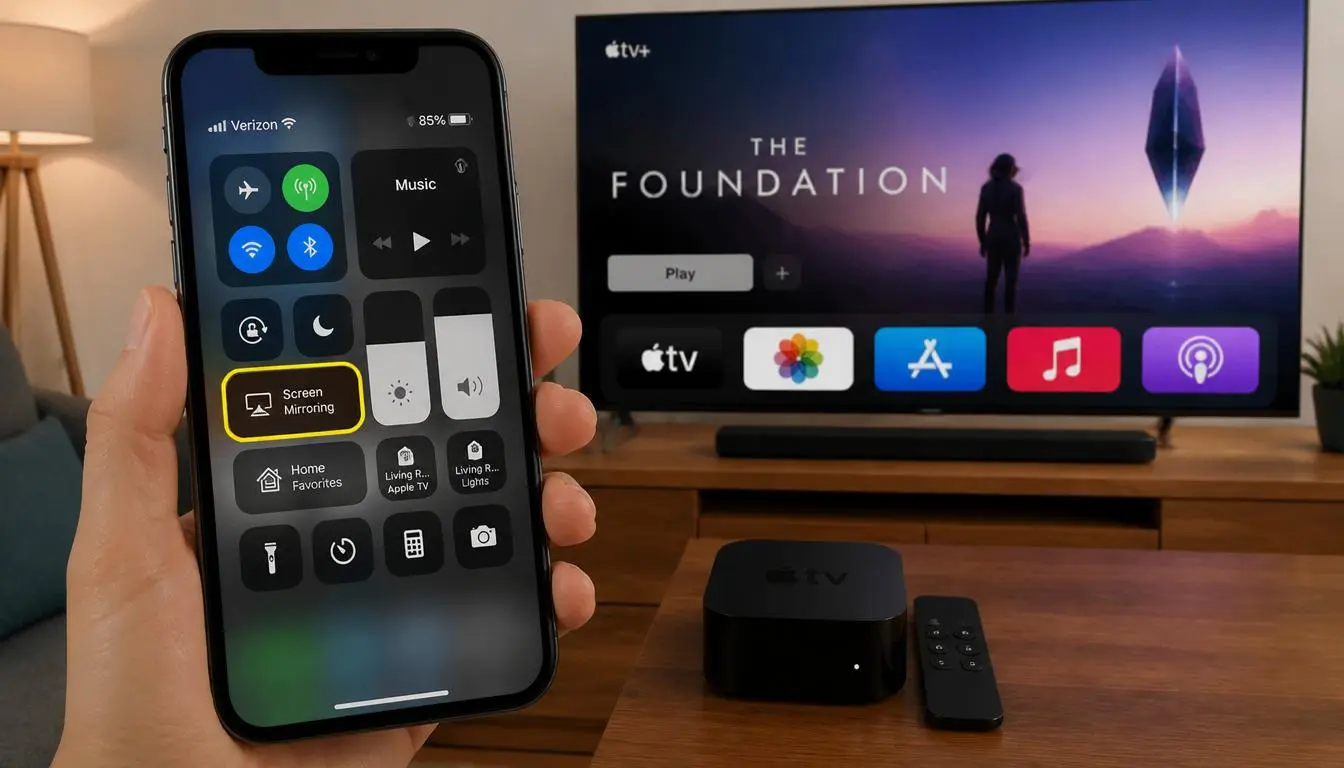
Screen mirroring is a separate feature from network setup. Once the TV is already online, most Android phones can cast their screen through a built in Cast option, while iPhones use AirPlay if the TV supports it. Screen mirroring does not connect the TV to WiFi by itself; the TV needs its own active connection first.
Wireless vs Wired vs Streaming Device: Which Is Best
| Method | Setup Time | Speed and Stability | Best For |
| Built in WiFi | 2 to 3 minutes | Good, depends on router distance | Smart TVs placed near the router |
| Ethernet cable | 5 minutes | Best possible stability | TVs within cable reach of the router |
| Streaming device over WiFi | 5 to 10 minutes | Good, matches TV WiFi performance | Older or non smart TVs |
| WPS connection | Under 2 minutes | Same as standard WiFi once paired | Skipping password entry |
A wired connection is worth considering any time the TV sits within reach of an Ethernet cable, since it avoids wireless interference entirely. Our guide on why Ethernet can sometimes run slower than WiFi explains the rare cases where cabling is not automatically the faster option, usually tied to outdated cable categories or a congested switch.

Fixing Signal Interference and Distance Problems
TVs are often placed against a wall, inside an entertainment unit, or on the opposite side of the room from the router, and all three positions weaken a wireless signal. As a general distance rule, keep the router within thirty feet of the TV with as few walls as possible between them, since brick, concrete, and metal studs absorb 2.4GHz and 5GHz signals far more than drywall.
Common interference sources near a TV include soundbars, gaming consoles with their own wireless features, microwaves, and neighboring routers broadcasting on the same channel. If the TV is in a media cabinet, leaving the cabinet door open during setup can measurably improve signal strength. For a deeper explanation of how these boosting tools actually work before buying one, see our breakdown of how WiFi boosters work.
When the router cannot realistically be moved closer, a mesh extender or dedicated range extender placed halfway between the router and the TV resolves most weak signal complaints. Our full walkthrough on setting up a WiFi extender covers placement and configuration in detail.
Placing your router on the floor or behind a thick wooden shelf can severely degrade the overall network packet transfer speed to your media center. To fix this without buying expensive new routers, you can follow our field-tested checklist on How To Set Up WiFi Extender Support to safely eliminate frustrating dead zones in under ten minutes.
Updating TV Firmware for a Stable Connection
Outdated firmware is a frequently overlooked cause of TVs that connect to WiFi but then drop the connection repeatedly. Manufacturers regularly patch WiFi driver bugs, so checking for updates under Settings, then Support or About, then Software Update, is worth doing immediately after the first successful connection. Most TVs can check for updates over an Ethernet cable even if the wireless connection is currently unstable, which is useful if the WiFi issue is severe enough to block the update over wireless.

TV Not Connecting to WiFi? Common Fixes
If the network name does not appear in the list at all, restart both the router and the TV, then try again, since routers occasionally stop broadcasting the SSID after extended uptime. If the network appears but the password is rejected, double check for confused characters such as a lowercase L and the number one, and confirm the password was not recently changed on the router. Our guide to changing a WiFi password on your router is useful if you suspect the credentials on file are simply outdated.
If the TV connects, then disconnects a few seconds later, the most common cause is an IP address conflict or a router running out of available addresses, similar to the authentication errors covered in our WiFi authentication issue guide. Restarting the router usually clears the conflict.
If your network status menu indicates that you are paired but you still see blank loading indicators across streaming apps, the issue might be a local address block. To quickly bypass this loop, our troubleshooting framework for fixing WiFi Connected But No Internet Access highlights how a simple modem restart cycle flushes out these address bugs.
How to Connect TV to WiFi Without a Remote or Router
If the remote is lost, most TV brands support pairing a replacement remote via a companion phone app, or a universal remote with the correct code can trigger the network menu using the physical buttons on the TV itself, which usually include a menu or source button. If there is no router at all, a phone’s mobile hotspot can act as a temporary wireless network. Open the hotspot on the phone, then select that hotspot name from the TV’s WiFi list exactly as you would a home network, and enter the hotspot password.
Frequently Asked Questions
How to connect non smart TV to WiFi wireless?
A non smart TV cannot connect to WiFi on its own, since it lacks a wireless adapter. Plug a streaming device such as a Fire TV Stick, Chromecast, or Roku into the HDMI port, then complete that device’s own WiFi setup during its first boot.
How to connect TV to WiFi using phone?
Open the manufacturer app, such as SmartThings for Samsung or ThinQ for LG, on your phone, let it discover the TV over Bluetooth, and choose to share your phone’s saved WiFi network. The app transfers the network name and password automatically.
How to connect Smart TV to WiFi Wireless?
Open Settings on the TV, select Network or Connection, choose WiFi, pick your network from the scanned list, and enter the password using the remote’s on screen keyboard.
How to connect WiFi to TV with HDMI?
HDMI itself does not carry a WiFi connection. Instead, plug a WiFi capable streaming device into the HDMI port and connect that device to your wireless network, which then delivers internet access to the TV through the HDMI cable.
How to connect TV to wifi Samsung?
Press Home, open Settings, go to General and External Manager, then Network, then Open Network Settings, select Wireless, choose your network, and enter the password.
How to connect TV to wifi LG?
Press the Settings gear, open All Settings, select Connection, then WiFi, turn WiFi on, choose your network name, and type the password to connect.
How to connect a TV to WiFi without a router?
Turn on a mobile hotspot from a smartphone, then select that hotspot as the network inside the TV’s WiFi settings menu, entering the hotspot password when prompted.
How to connect WiFi to TV without remote?
Use the TV manufacturer’s phone app to pair over Bluetooth and push network settings, or use the physical control buttons on the TV, which usually include a menu function even without a remote.
Why is my TV not connecting to Wi-Fi?
The most common causes are an incorrect password, the router being out of range, outdated TV firmware, or a temporary router glitch. Restarting both devices resolves the majority of cases.
How do I know if my TV can connect to Wi-Fi?
Check the Settings menu for a Network or Wireless option. If the television was manufactured after roughly 2016 and is marketed as a smart TV, it almost certainly includes built in WiFi.
How do I connect wireless to TV?
Open Settings, select Network, choose WiFi or Wireless Connection, pick your network name from the scanned list, and enter your password to finish connecting.
Final Thoughts
Once you understand where each brand hides its network settings, learning how to connect wi fi to tv becomes a five minute task rather than a source of frustration. Start with the built in method for smart TVs, fall back to a streaming device for older sets, and use the interference and firmware sections above if the connection is unstable rather than simply missing.
System glitches are not just limited to televisions; mobile devices face identical wireless driver drops when hardware configurations clash. If you encounter similar network drops on your secondary troubleshooting devices, you can cross-reference our solutions for Why Is My Phone Not Connecting to Wifi to resolve baseline protocol mismatches across your home hardware ecosystem.