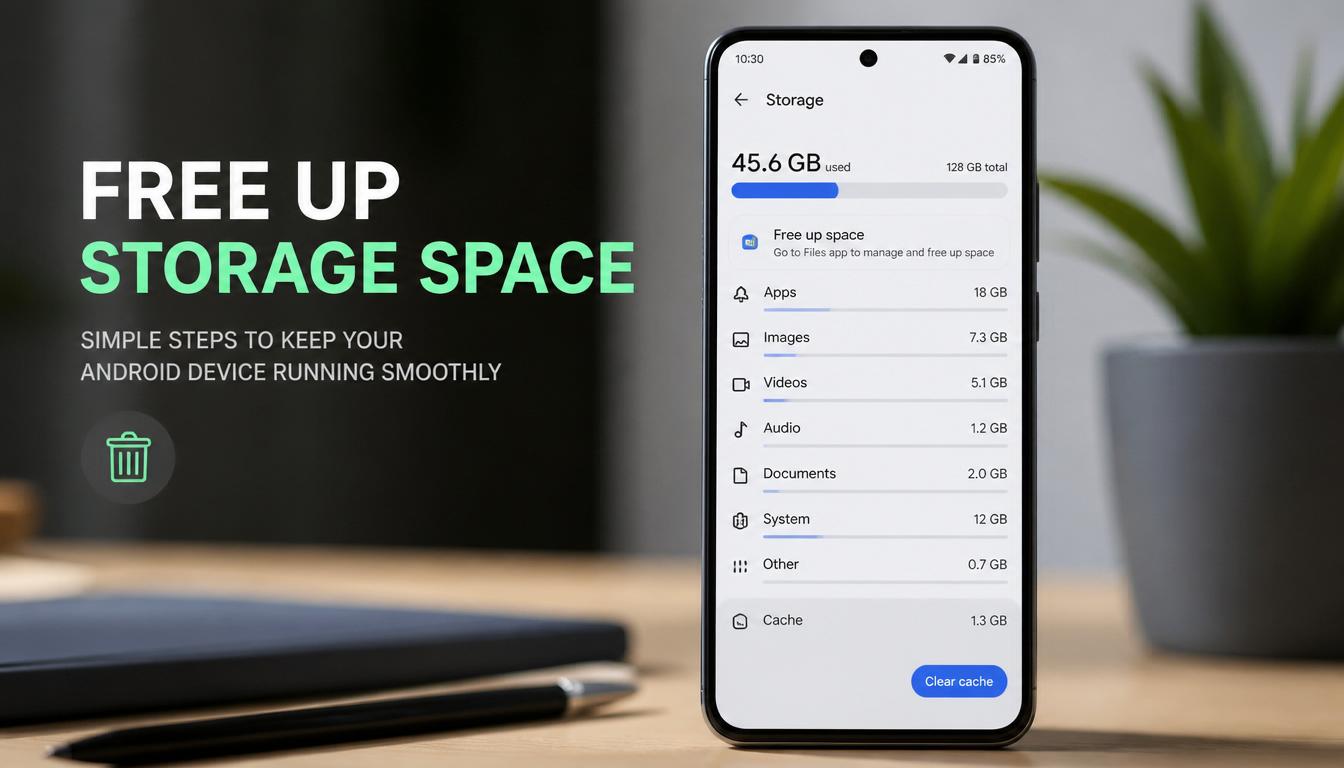
Is your Android phone becoming slower every day?
Maybe apps take longer to open, storage keeps filling up, or your phone freezes when switching between apps. Many people think they need to delete apps, photos, or important files to free up space. Fortunately, that’s not true.
One of the safest and quickest ways to improve your phone’s performance is to clear cached files. It takes only a few minutes and does not delete your apps, messages, photos, videos, or saved passwords.
Quick Answer
Yes, you can clear cache on Android without deleting apps, photos, messages, or login information. Simply go to Settings → Apps → Select App → Storage → Clear Cache. This removes temporary files that take up storage space while keeping your personal data completely safe. Clearing cache can also help improve performance, fix minor app issues, and free up storage within minutes.
How to Clear Cache on Android Without Deleting Apps
In this guide, you will learn exactly how to clear cache on Android without deleting apps, along with brand-specific instructions for Samsung, Xiaomi, Infinix, Tecno, and other Android devices.
What Is Cache and Why Does It Fill Up Your Phone?
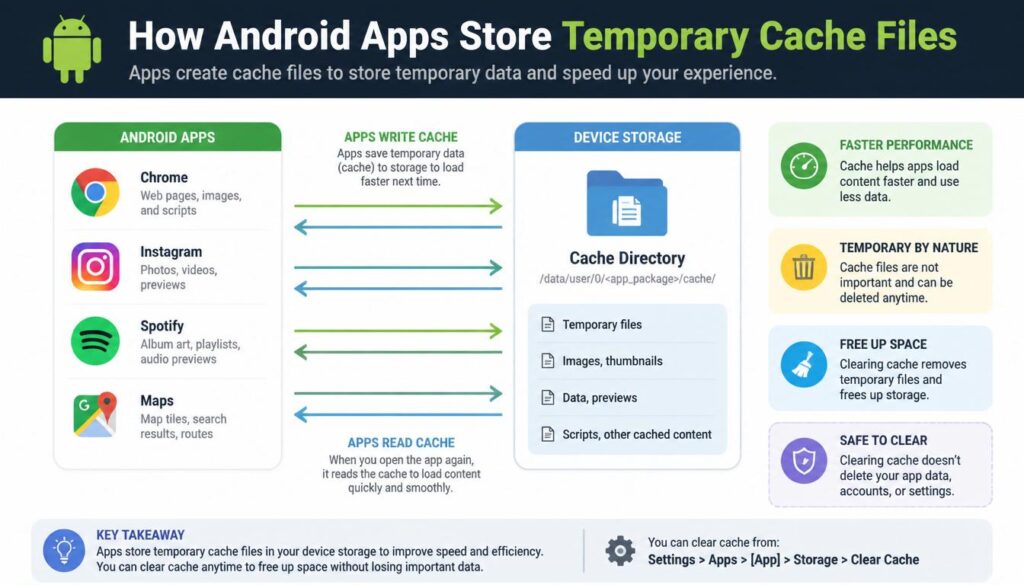
Cache is temporary data stored by apps to help them load faster.
For example, when you open Instagram, YouTube, Facebook, Chrome, or TikTok, these apps save certain files such as images, thumbnails, website elements, and temporary settings. The next time you open the app, it can load those files instantly instead of downloading them again.
This improves speed and reduces loading times.
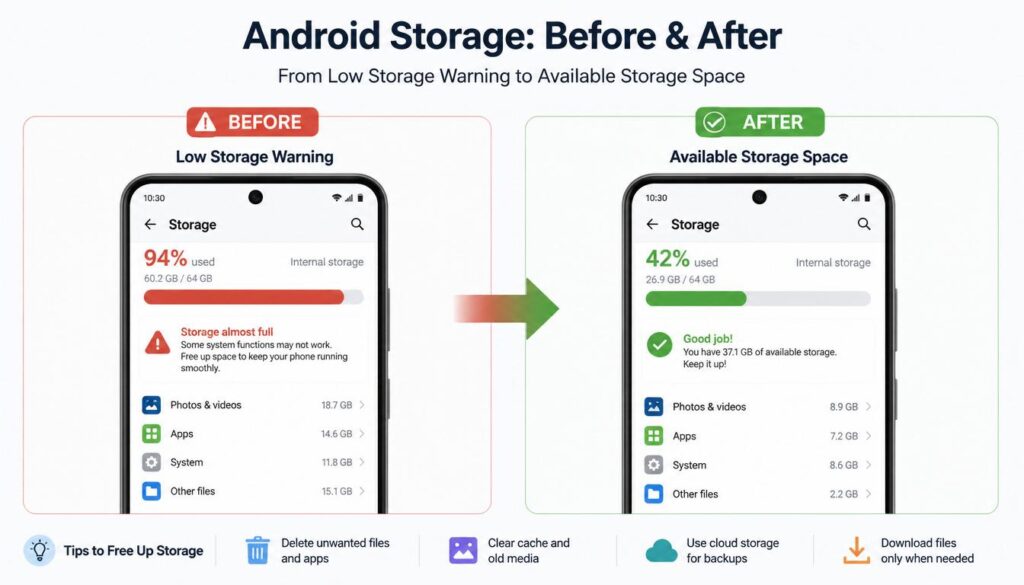
However, over time these temporary files accumulate and can take up hundreds of megabytes or even several gigabytes of storage.
The more apps you use, the larger your cache becomes.
That’s why many Android phones eventually show storage warnings even when you haven’t downloaded many new files.
How to Clear Cache on Android Without Deleting Apps
How to Clear Cache on Android Without Deleting Apps
The good news is that cache can be safely removed at any time.
When you clear cache:
✅ Apps remain installed
✅ Login information stays intact
✅ Photos and videos remain untouched
✅ Messages and documents are not deleted
✅ Saved passwords stay safe
The app simply creates new cache files as needed.
Clear Cache vs Clear Data: Know the Difference Before You Tap
Many users accidentally select the wrong option and end up logging out of apps.
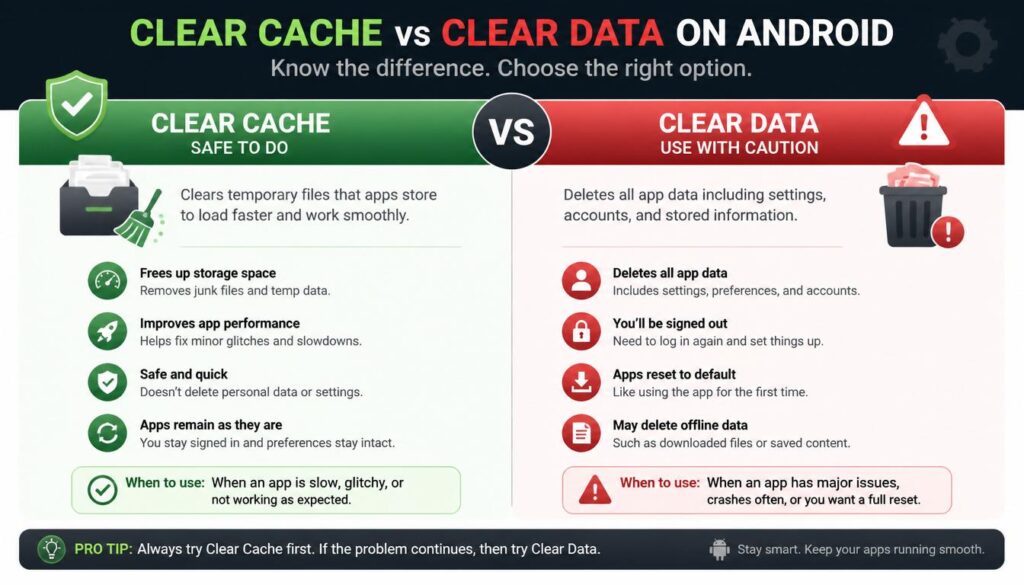
Before clearing anything, understand the difference between these two settings.
How to Clear Cache on Android Without Deleting Apps
How to Clear Cache on Android Without Deleting Apps
| Action | What Gets Deleted | Will You Be Logged Out? | Personal Files Deleted? | Recommended? |
|---|---|---|---|---|
| Clear Cache | Temporary files and app junk | No | No | Yes |
| Clear Data | App settings, accounts, and stored information | Yes | Sometimes | Only if necessary |
Clear Cache removes temporary files that apps can rebuild later.
Clear Data resets the app almost like a fresh installation. Depending on the app, it may remove saved preferences, downloaded content, and account information.
For routine maintenance, always choose Clear Cache.
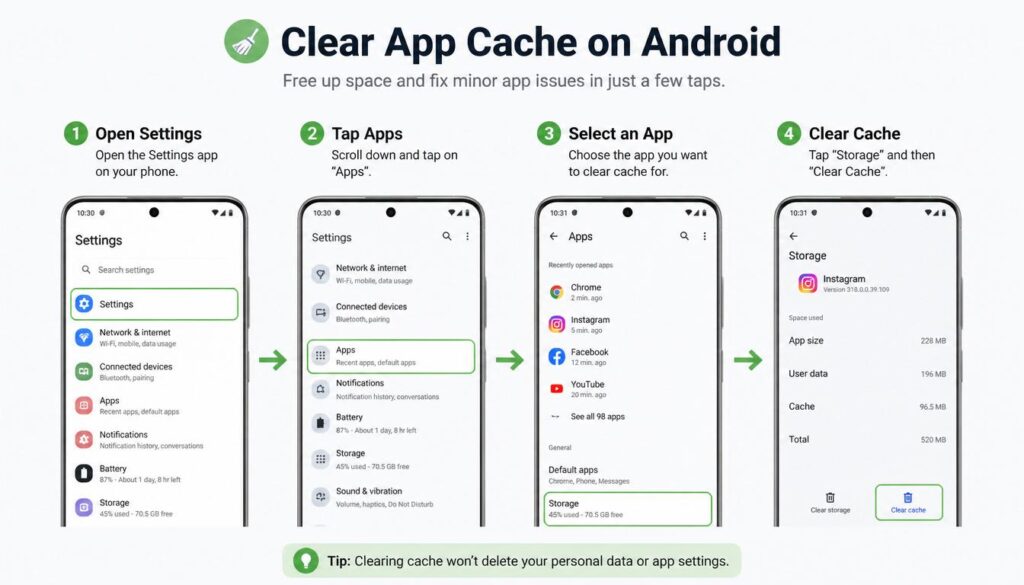
Method 1: Clear Cache on Android Without Deleting Apps
This method works on most Android devices regardless of brand.
Step 1: Open Settings
Unlock your phone and open the Settings app.
You can either tap the Settings icon from your app drawer or swipe down from the top of the screen and tap the gear icon.
Step 2: Open Apps
Scroll through Settings and find one of the following options:
- Apps
- Applications
- Apps & Notifications
- Application Manager
The exact name depends on your phone manufacturer.
Step 3: Select the App
Choose the app you want to clean.
Popular examples include:
- Chrome
- TikTok
- YouTube
Tap the app to open its information page.
Step 4: Open Storage Settings
Inside the app information screen, look for:
- Storage
- Storage & Cache
- Storage Usage
Tap it to view storage details.
Step 5: Tap Clear Cache
You will usually see two buttons:
- Clear Cache
- Clear Data
Select Clear Cache only.
Within seconds, the cache size will drop dramatically.
The app remains installed and fully functional.
You won’t lose your account, chats, media, or personal information.
Why Some Apps Use So Much Cache
Not all apps generate the same amount of cached data.
The biggest cache users are usually:
Social Media Apps
Instagram, Facebook, TikTok, Snapchat, and X constantly save images and videos you view.
Video Streaming Apps
YouTube, Netflix, Disney+, and similar apps store temporary media files to improve playback.
Web Browsers
Chrome, Firefox, Edge, and Opera save website elements, images, and scripts.
Messaging Apps
WhatsApp and Telegram create cached media previews and temporary downloads.
If your storage is running low, these are usually the first apps worth checking.
Benefits of Clearing Cache Regularly
Many people wait until storage becomes critically low before cleaning their phones.
A better approach is clearing cache periodically.
Benefits include:
More Free Storage
Temporary files often consume large amounts of space unnecessarily.
Removing them instantly frees storage.
Fewer App Glitches
Corrupted cache files can sometimes cause apps to freeze or crash.
Clearing cache often resolves these issues.
Better Overall Performance
While cache normally helps apps load faster, excessive or corrupted cache can occasionally slow things down.
Cleaning old cache can improve responsiveness.
Faster Troubleshooting
When an app behaves strangely, clearing cache is usually the first fix recommended by Android support teams.
Is Clearing Cache Safe?
Yes.
Clearing cache is one of the safest maintenance tasks you can perform on an Android device.
It does not delete:
- Photos
- Videos
- Contacts
- Documents
- WhatsApp chats
- Saved passwords
- Installed applications
The only thing removed is temporary data that apps can recreate automatically.
This is why Android itself provides a built-in cache clearing option.
How to Clear Cache on Android Without Deleting Apps
How to Clear Cache on Android Without Deleting Apps
Common Myths About Clearing Cache
Myth 1: Clearing Cache Deletes Apps
False.
Apps remain installed and continue working normally.
Myth 2: Clearing Cache Removes Photos
False.
Photos stored in your gallery are completely separate from app cache.
Myth 3: Clearing Cache Deletes WhatsApp Messages
False.
WhatsApp conversations are stored in app data and backups, not cache.
Myth 4: You Need a Cleaner App
False.
Android already includes everything required to clear cache safely.
Most third-party cleaner apps provide little benefit and often display unnecessary advertisements.
What Happens After You Clear Cache?
Immediately after clearing cache, you may notice:
- Apps take slightly longer to open the first time
- Websites reload fresh content
- Thumbnail previews regenerate
- Temporary files start rebuilding
This is completely normal.
Once the app recreates its cache, performance returns to normal.
In many cases, users notice improved storage availability and smoother operation.
Method 2: Clear Cache on Samsung Galaxy Phones
Samsung phones running One UI make cache clearing simple.
Clear Cache for a Single App
Follow this path:
Settings → Apps → Select App → Storage → Clear Cache
This method works on most Samsung devices, including:
- Galaxy S Series
- Galaxy A Series
- Galaxy M Series
- Galaxy Z Fold and Flip models
Clear Cache Using Device Care
Samsung also includes a built-in cleaning tool.
- Open Settings
- Tap Battery and Device Care
- Select Storage
- Tap Clean Now
This removes unnecessary temporary files and helps free up storage quickly.
A useful feature of Device Care is that it identifies apps consuming the most space, making it easier to clean only the apps that need attention.
Method 3: Clear Cache on Infinix, Tecno, and itel Phones
Infinix, Tecno, and itel devices use XOS or related Android skins.
Clear Cache for Individual Apps
Follow this path:
Settings → App Management → App List → Select App → Storage Usage → Clear Cache
Use Phone Manager
Most Infinix and Tecno phones also include a built-in cleaner.
- Open Phone Manager
- Tap Junk Clean
- Wait for the scan to finish
- Tap Clean
This removes temporary files from multiple apps without deleting personal data.
For most users, Phone Manager is the fastest way to recover storage space.
Method 4: Clear Cache on Xiaomi, Redmi, and POCO Phones
Xiaomi devices running MIUI or HyperOS include powerful cleaning tools.
Clear Cache for One App
Follow this path:
Settings → Apps → Manage Apps → Select App → Clear Cache
Use the Built-In Cleaner
- Open the Security app
- Tap Cleaner
- Start a scan
- Tap Clean Up
This removes unnecessary temporary files across multiple apps in one operation.
Many Xiaomi users can recover several hundred megabytes of storage using this tool alone.
Method 5: Clear Chrome Cache on Android
Web browsers often store a large amount of cached content.
Chrome is usually one of the biggest storage users on Android phones.
Steps to Clear Chrome Cache
- Open Chrome
- Tap the three-dot menu
- Select Settings
- Open Privacy and Security
- Tap Clear Browsing Data
- Select Cached Images and Files
- Tap Clear Data
Make sure only “Cached Images and Files” is selected if you want to keep browsing history, passwords, and saved logins.
Method 6: Check Android Storage for Large Cache Files
Sometimes a few apps are responsible for most of your storage usage.
To identify them:
- Open Settings
- Tap Storage
- Open Apps or Other Apps
- Sort apps by size
Large apps such as YouTube, Chrome, TikTok, Instagram, and Facebook often contain the largest cache files.
Clearing cache from these apps usually provides the biggest storage improvement.
If your phone still feels sluggish after clearing cache, the problem may be related to your internet connection rather than storage. Check out our detailed guide on Why Is My Internet So Slow to identify common causes and solutions.
Bulk Cache Clearing Methods for All Android Phones
Opening every app one by one can take time.
If you want a quicker solution, try one of these methods.
Option 1: Built-In Cleaning Tools
Most Android manufacturers include their own cleaner.
Examples include:
- Samsung Device Care
- Xiaomi Cleaner
- Infinix Phone Manager
- Huawei Optimizer
These tools safely remove temporary files without affecting personal content.
Option 2: Files by Google
Files by Google is one of the most trusted storage management apps.
Steps:
- Install Files by Google
- Open the app
- Tap the Clean tab
- Review recommendations
- Confirm cleanup
The app identifies junk files, duplicate content, and unnecessary temporary data.
Unlike many third-party cleaners, it does not bombard users with advertisements or misleading alerts.
Avoid These Common Mistakes
Tapping Clear Data Instead of Clear Cache
This is the most common mistake.
Always double-check before tapping.
Installing Random Cleaner Apps
Many cleaner apps promise huge performance boosts but offer little real benefit.
Some even run constantly in the background, consuming battery and memory.
Clearing Cache Every Day
There is no advantage to clearing cache daily.
Apps simply rebuild cache again.
For most users, monthly maintenance is more than enough.
What If an App Starts Acting Strange After Clearing Cache?
This is uncommon but can happen.
App Won’t Open Properly
Force stop the app and reopen it.
Path:
Settings → Apps → App Name → Force Stop
App Feels Slow
The app is rebuilding its cache.
Normal performance usually returns after a few minutes of use.
App Keeps Crashing
Try updating the app first.
If the issue continues, use Clear Data as a last resort and sign in again afterward.
Still Running Out of Storage?
Cache is only one possible cause.
Check these areas too:
Downloads Folder
Many users forget about downloaded PDFs, videos, and documents.
WhatsApp Media
Group chats often fill storage with photos and videos.
Offline Maps
Downloaded maps can consume several gigabytes.
Duplicate Photos
Photo libraries often contain duplicate images that waste space.
Reviewing these areas can free significantly more storage than cache alone.
How Often Should You Clear Cache?
There is no universal rule, but the following schedule works well for most people.
Heavy Users
If you spend hours daily on social media, streaming, or browsing:
Clear cache once per month.
Average Users
If you use your phone normally:
Every two to three months is enough.
Low Storage Situations
If available storage drops below 10 percent:
Clear cache immediately.
This helps prevent performance issues and storage warnings.
Experiencing connection problems after cleaning your device? Read our Authentication Issue WiFi guide for step-by-step solutions that work on Android phones and routers.
Frequently Asked Questions
Does clearing cache delete apps?
No. Clearing cache only removes temporary files. Your apps remain installed and fully functional.
Will clearing cache delete WhatsApp messages?
No. WhatsApp chats, photos, and account information remain safe when you clear cache.
Can clearing cache free up storage space?
Yes. Cached files can occupy hundreds of megabytes or even several gigabytes of storage.
How often should I clear cache on Android?
Most users should clear cache every one to three months or whenever storage becomes low.
Does clearing cache improve phone performance?
It can improve performance by removing temporary files and resolving minor app issues.
Quick Reference Guide
| Brand | Cache Clearing Path |
|---|---|
| Samsung | Settings → Apps → App → Storage → Clear Cache |
| Samsung Bulk Clean | Settings → Battery and Device Care → Storage → Clean Now |
| Infinix / Tecno | Settings → App Management → App List → App → Storage Usage → Clear Cache |
| Xiaomi / Redmi / POCO | Settings → Apps → Manage Apps → App → Clear Cache |
| Xiaomi Bulk Clean | Security App → Cleaner → Scan → Clean Up |
| Stock Android | Settings → Apps → Storage & Cache → Clear Cache |
| All Brands | Files by Google → Clean Tab |
| Chrome | Settings → Privacy and Security → Clear Browsing Data |
How to Clear Cache on Android Without Deleting Apps
How to Clear Cache on Android Without Deleting Apps
Final Thoughts
If your Android phone feels slow or your storage is nearly full, clearing cache is one of the safest maintenance steps you can take.
It removes temporary files, frees storage space, and can solve many minor app issues without deleting apps or personal data.
The key thing to remember is simple: always choose Clear Cache, not Clear Data.
In most cases, that’s all you need to keep your Android phone running smoothly.
Many Android users also wonder how wireless networks affect their data usage. Our Does WiFi Use Data guide explains exactly what happens when you’re connected to WiFi.