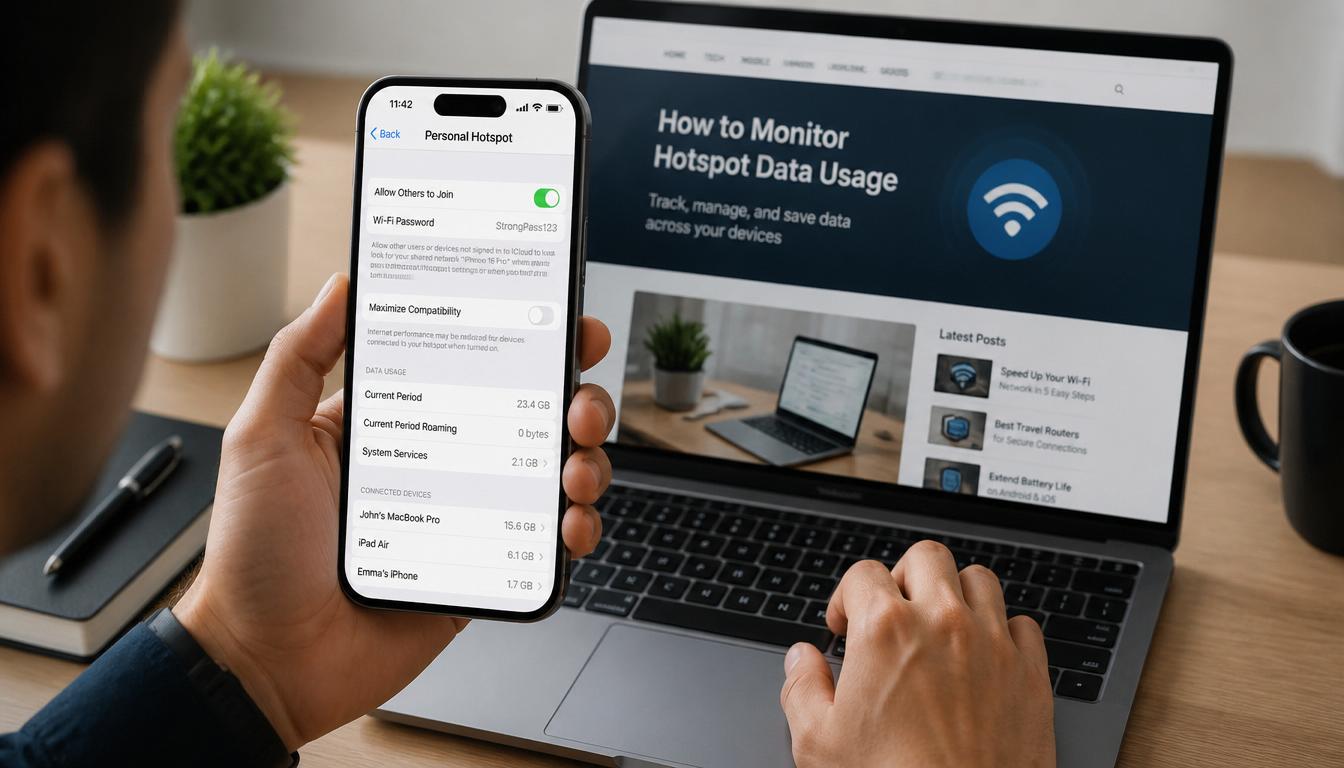
How to Know How Much Hotspot You Have Left(Android & iPhone Guide)
How to Know How Much Hotspot You Have Left (Easy Guide)
You are working on your laptop, watching a video, or attending an online class when your internet suddenly stops. At first, you think there is a network problem. Then you realize your hotspot may have run out of data.
It happens all the time.
Many people assume their hotspot uses the same data as their phone plan, but that’s not always true. A lot of mobile carriers give you a separate hotspot allowance. Once you reach that limit, your hotspot may slow down or stop working completely.
The good news is that checking your remaining hotspot data is quick and easy. Whether you use an Android phone, an iPhone, or simply want to check through your carrier, this guide will show you exactly what to do.
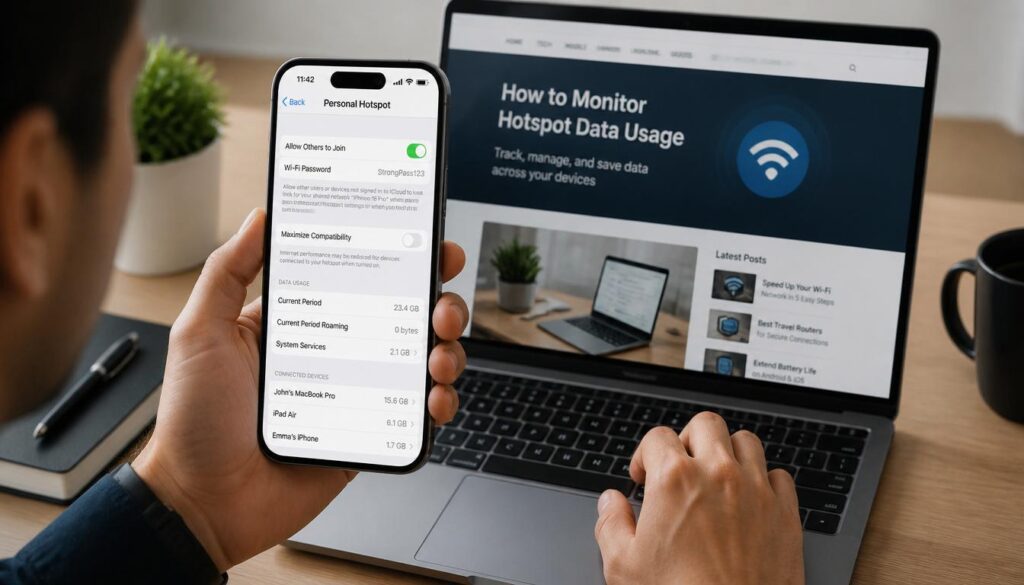
How Much Hotspot You Have Left
Quick Answer
If you want to know how much hotspot you have left, open your phone’s data usage settings or check your carrier’s mobile app. Android users can view hotspot usage through Data Usage settings, while iPhone users can find it under Cellular settings. Your carrier’s app usually gives the most accurate information because it tracks usage directly from the network.
What Is Hotspot Data?
A mobile hotspot lets you share your phone’s internet connection with another device.
For example, you can connect:
- A laptop
- A tablet
- A gaming console
- A smart TV
When those devices use the internet through your phone, they consume hotspot data.
Many carriers treat hotspot data differently from regular mobile data. Even if your phone plan says “unlimited data,” your hotspot may still have a monthly limit.
That is why it is important to keep an eye on your usage.
How to Know How Much Hotspot You Have Left on Android
Android phones make it fairly easy to check hotspot usage.
Keep in mind that menu names may look slightly different depending on your phone brand.
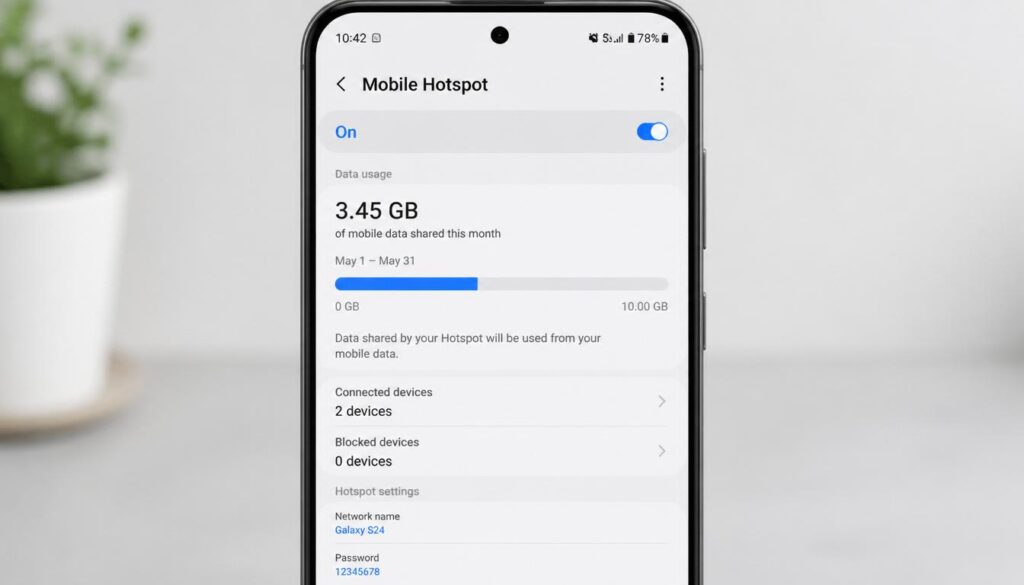
Check Hotspot Usage Through Settings
- Open Settings.
- Tap Network & Internet, Connections, or a similar option.
- Select Data Usage.
- Tap Mobile Data Usage.
- Look for Mobile Hotspot or Tethering.
How Much Hotspot You Have Left
How Much Hotspot You Have Left
You should see how much data has been shared during your current billing cycle.
Set a Hotspot Data Limit
If you often run out of data, setting a limit can help.
- Open your hotspot settings.
- Tap Advanced Settings or Configure.
- Look for Data Limit or Data Warning.
- Enter your preferred limit.
Your phone can notify you when you are getting close to the limit, helping you avoid surprises.
If your mobile internet feels slow even when you still have data remaining to check out our guide on why mobile data becomes slow and the simple fixes that can improve connection speeds.
How to Know How Much Hotspot You Have Left on iPhone
iPhone users can also track hotspot usage, although Apple handles it a little differently.
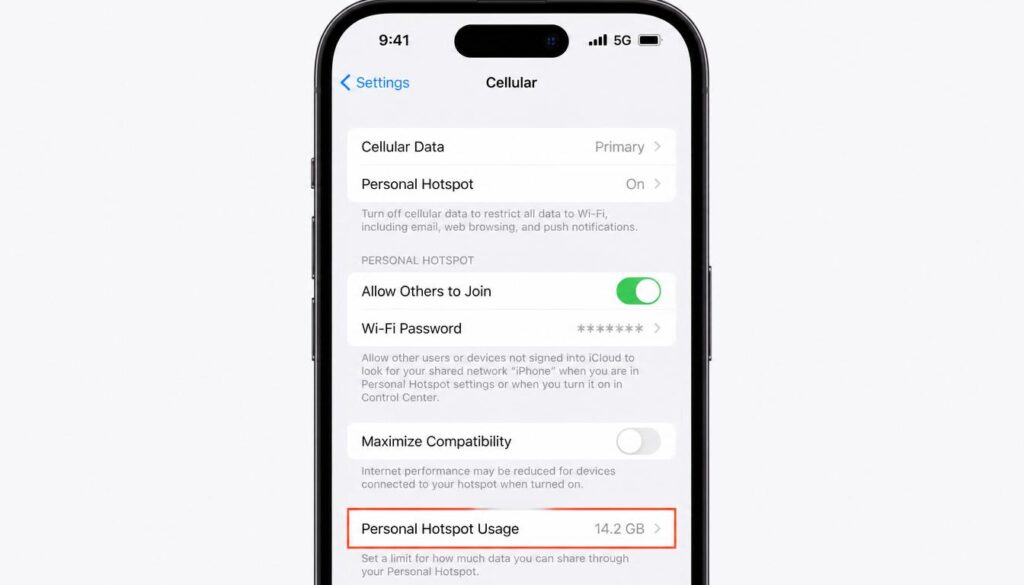
Check Personal Hotspot Usage
- Open Settings.
- Tap Cellular.
- Scroll down through the list.
- Look for Personal Hotspot.
The number shown there represents the amount of data shared through your hotspot.
How Much Hotspot You Have Left
How Much Hotspot You Have Left
Don’t Forget to Reset Statistics
One thing many iPhone users don’t know is that these statistics do not automatically reset every month.
If you want accurate monthly tracking:
- Open Settings.
- Tap Cellular.
- Scroll to the bottom of the page.
- Tap Reset Statistics when your new billing cycle begins.
This makes it much easier to track your hotspot usage month by month.
Check Your Remaining Hotspot Data Through Your Carrier
If you want the most accurate answer, check directly with your mobile carrier.
Your phone only provides an estimate. Your carrier knows exactly how much data has been used.
Use Your Carrier’s Mobile App
Most carriers have an official app where you can:
- Check remaining hotspot data
- View monthly usage
- Monitor your account
- Purchase extra data if needed
Simply log in and look for the usage section.
Check Through Your Online Account
Many carriers also allow you to view hotspot usage on their website.
This can be useful if you are using a computer and want a larger view of your account details.
Why Is My Hotspot Data Running Out So Fast?
A common question people ask is why their hotspot disappears so quickly.
Usually, the problem is not the hotspot itself. The issue is what connected devices are doing in the background.
Software Updates
Computers regularly download updates without asking.
A single update can use several gigabytes of data.
Cloud Storage Syncing
Services such as Google Drive, OneDrive, and iCloud automatically upload and download files.
If you have hundreds of photos or videos, this can use a lot of data very quickly.
How Much Hotspot You Have Left

How Much Hotspot You Have Left
Video Streaming
Streaming platforms consume more data than most people realize.
Watching videos in HD or 4K can drain hotspot data much faster than normal browsing.
Multiple Connected Devices
If several devices are connected at the same time, your data allowance can disappear surprisingly fast.
Using a hotspot regularly? You may also find our article on how WiFi boosters work helpful if you’re trying to improve internet coverage at home or in hard-to-reach areas.
How Much Data Do Common Activities Use?
The numbers below are only estimates, but they can help you understand where your hotspot data is going.
How Much Hotspot You Have Left
| Activity | Approximate Data Usage |
|---|---|
| Checking Email | 10 MB per hour |
| Web Browsing | 60 MB per hour |
| Music Streaming | 50–150 MB per hour |
| Zoom Meeting | 500 MB–1 GB per hour |
| YouTube 720p | 1–2 GB per hour |
| Netflix HD | Around 3 GB per hour |
| Netflix 4K | Up to 7 GB per hour |
How Much Hotspot You Have Left
If your hotspot allowance is only 15GB or 20GB, a few hours of HD streaming can use a large portion of it.
Tips to Make Your Hotspot Data Last Longer
A few simple habits can help you save data.
Lower Video Quality
Choose 480p or 720p instead of 1080p or 4K whenever possible.
Pause Automatic Updates
Delay updates until you connect to regular Wi-Fi.
Turn On Data Saver
Most phones include a built-in data-saving mode.
Turning it on can reduce background activity.
Disconnect When You’re Done
Many people leave their hotspot running without realizing it.
Turning it off when you’re finished can prevent unnecessary data usage.
Frequently Asked Questions
Can I check hotspot data without installing an app?
Yes. Both Android and iPhone devices allow you to check hotspot usage through built-in settings.
Does hotspot use more data than normal mobile browsing?
The hotspot itself does not use extra data. However, laptops and other connected devices often consume much more data than smartphones
Why did my hotspot stop working even though I still have phone data?
Many carriers have a separate hotspot limit. Your phone data may still be available while your hotspot allowance has been used up.
Does unlimited data include unlimited hotspot?
Not always. Many unlimited plans still place limits on hotspot usage.
What is the best way to check hotspot data remaining?
Checking your carrier’s app is usually the most accurate method because the information comes directly from the network.
Final Thoughts
Learning how to know how much hotspot you have left can save you from unexpected interruptions and frustrating internet slowdowns.
Whether you check through Android settings, iPhone settings, or your carrier’s app, it only takes a few seconds to see where you stand. A quick check every few days can help you avoid running out of data when you need it most.
If you regularly use your hotspot for work, school, or travel, keeping track of your remaining data is one of the easiest ways to stay connected without surprises.
If you need any more help you can visit our website and find easy ways to find your many problems about windows 11 ,WiFi issues and internet problems.