
How to Speed Up Windows 11 Laptop or PC :7 Easy Fixes (2026)
Is your Windows 11 laptop taking forever to boot, freezing randomly, or suddenly becoming painfully slow while opening apps? You are not alone. Many users notice their PC slowing down after a few months of use, especially after updates, background app overload, and temporary file buildup.
The good news? You do not need to buy a new laptop or spend money on upgrades immediately. A few smart changes can dramatically improve performance and make your PC feel fast again.
In this complete guide, you will learn how to speed up Windows 11, turn off unnecessary background apps, reduce high CPU usage, safely delete temporary files, and optimize your laptop for maximum speed.
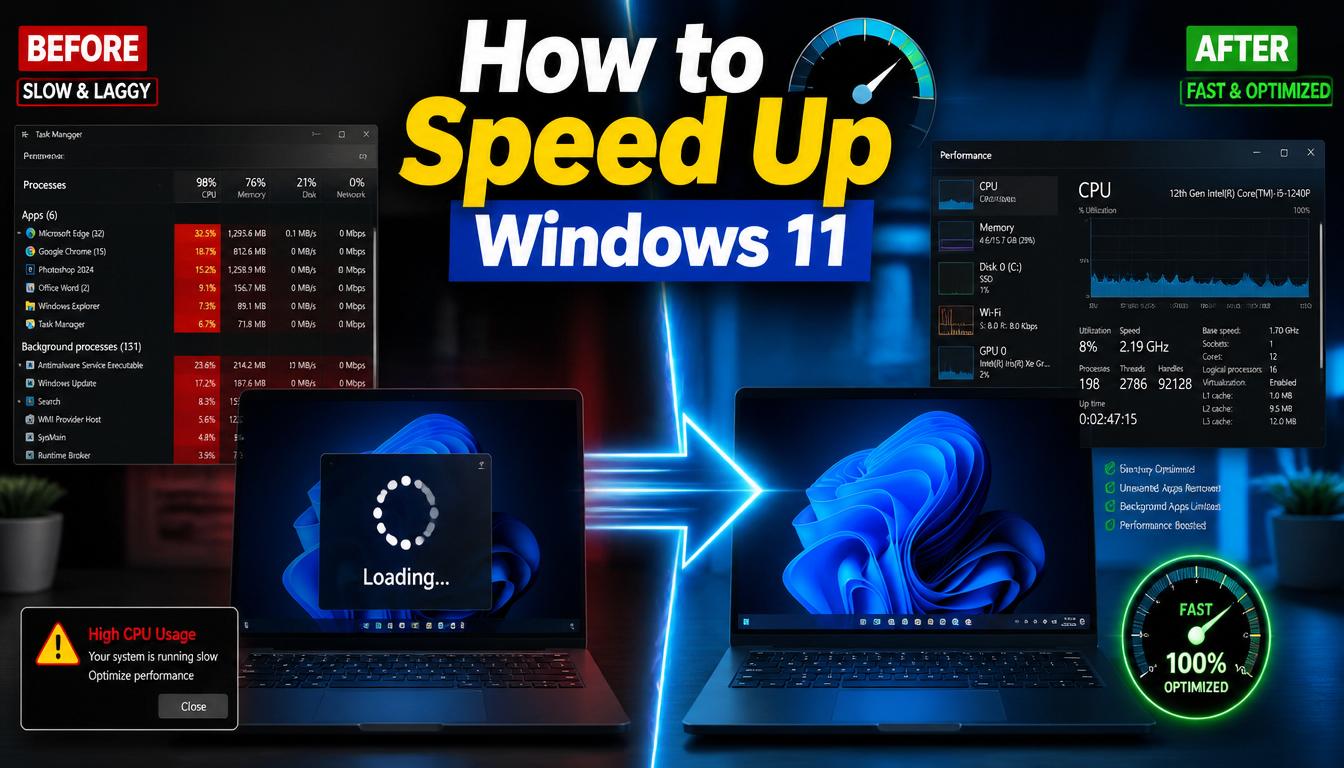
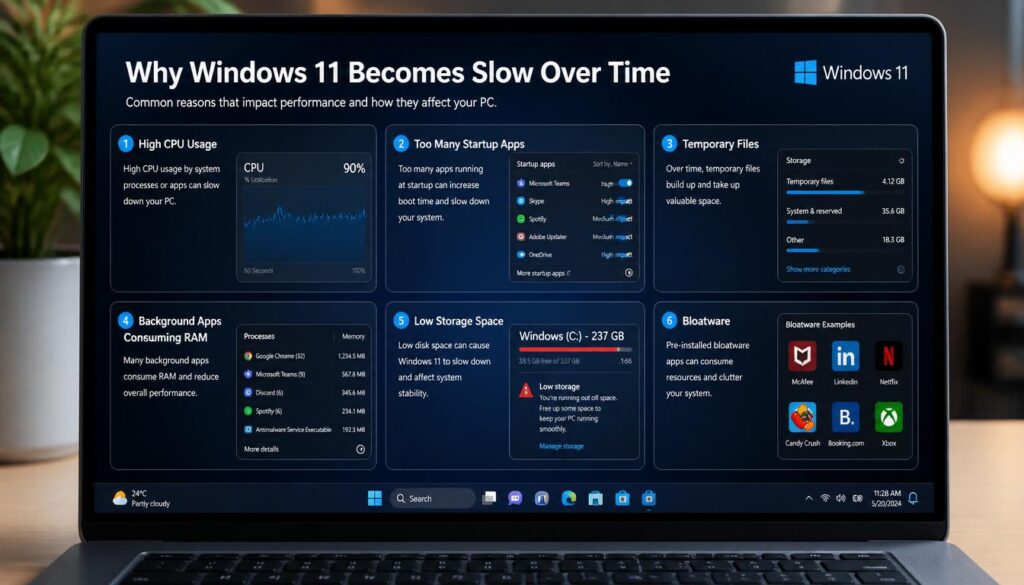
Why Is Your Windows 11 PC/Laptop Running Slow?
Before fixing the problem, it helps to understand why Windows 11 becomes slow over time.
Here are the most common reasons:
1. Too Many Background Apps
Many apps continue running silently in the background even when you are not using them. These programs consume:
- RAM
- CPU resources
- Battery life
- Internet bandwidth
This often causes high CPU usage and lag.
2. Startup Program Overload
Some software automatically launches when your computer starts. Over time, your startup list becomes crowded and slows boot time.
Examples include:
- Discord
- Spotify
- Microsoft Teams
- Adobe Services
- Gaming launchers
3. Temporary Files and Cache Buildup
Windows constantly stores temporary files, update leftovers, logs, and cache files. Over time, these files can take up several GBs of storage.
4. Hidden Bloatware
Many laptops come with pre-installed software you never use. These apps quietly consume system resources.
5. High CPU Usage
Sometimes Windows services, syncing apps, antivirus scans, or broken drivers cause Windows 11 high CPU usage, making your laptop feel slow.
The good news is that all of these problems are fixable.
Speed Up Windows 11
Method 1: Turn Off Background Apps in Windows 11 (Step-by-Step)
One of the fastest ways to speed up slow laptop Windows 11 is to stop unnecessary background apps.
If too many apps run silently, your laptop wastes RAM and CPU power.
How to Turn Off Background Apps Windows 11
Follow these simple steps:
Speed Up Windows 11
Step 1: Open Settings
Press:
Windows + I
This opens Windows Settings.
Step 2: Go to Installed Apps
Navigate to:
Apps → Installed Apps
You will see all installed applications.
Step 3: Find Background Apps
Choose an app you rarely use.
Click:
Three Dots (⋮) → Advanced Options
Step 4: Disable Background Permission
Scroll to:
Background Apps Permissions
Change it to:
Never
Repeat this for apps you do not need running all the time.
Apps You Can Safely Disable in Background
You can usually turn off background activity for:
- Spotify
- Discord
- Xbox App
- Skype
- Microsoft Teams
- Clipchamp
- Third-party launchers
Avoid disabling background access for:
- Windows Security
- Drivers
- Audio software
- Touchpad software
Why This Helps
Turning off background apps:
✔ Saves RAM
✔ Reduces CPU usage
✔ Improves battery life
✔ Speeds up Windows responsiveness
This method alone can make a noticeable difference on older systems.
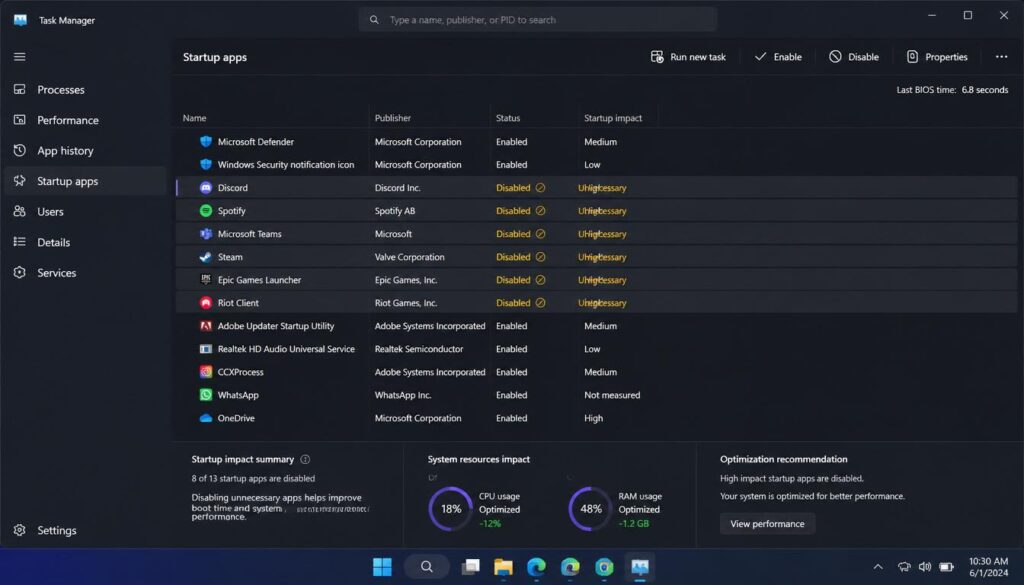
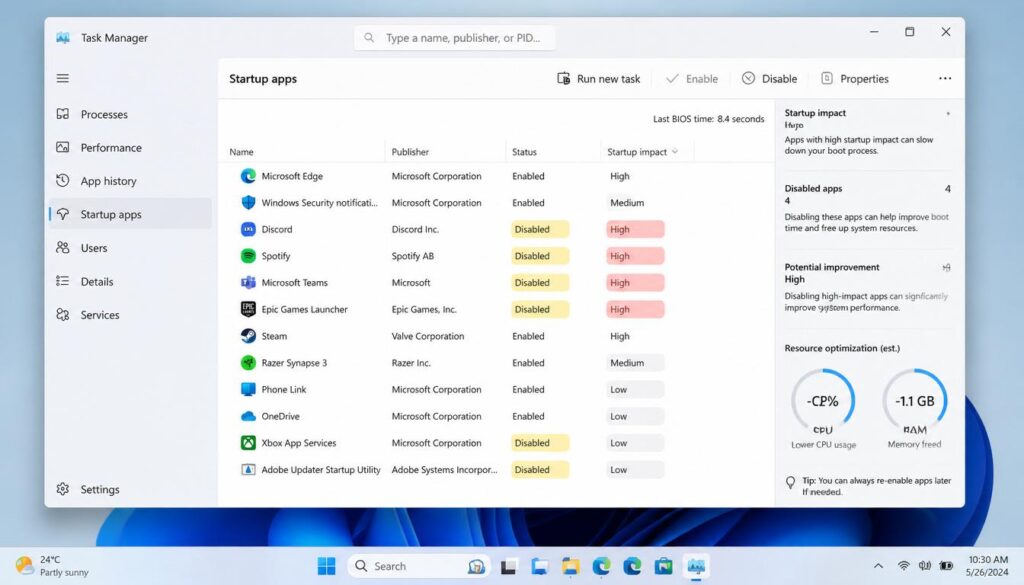
Method 2: How to Stop Programs Running in the Background via Task Manager
Another powerful fix is stopping unnecessary startup programs.
Many users ask how to stop programs running in the background, and Task Manager is the fastest solution.
Speed Up Windows 11
Speed Up Windows 11
How to Disable Startup Programs
Step 1: Open Task Manager
Press:
Ctrl + Shift + Esc
Or:
Right-click the taskbar → Task Manager
Step 2: Open Startup Apps
Click:
Startup Apps
You will see apps affecting startup speed.
Step 3: Sort by Startup Impact
Look at the Startup Impact column.
Programs marked High slow down boot time the most.
Step 4: Disable Unnecessary Apps
Right-click unwanted programs and select:
Disable
Safe programs to disable:
- Discord
- Steam
- Spotify
- Zoom
- Adobe Updater
- Microsoft Teams
- Epic Games Launcher
Do NOT Disable These
Keep these enabled:
- Graphics drivers
- Security software
- Audio drivers
- Touchpad software
Bonus Tip: End Heavy Processes
Inside Task Manager:
Go to Processes
Sort by:
CPU or Memory
If an unnecessary app is consuming excessive resources, right-click it and choose:
End Task
This can instantly reduce lag.
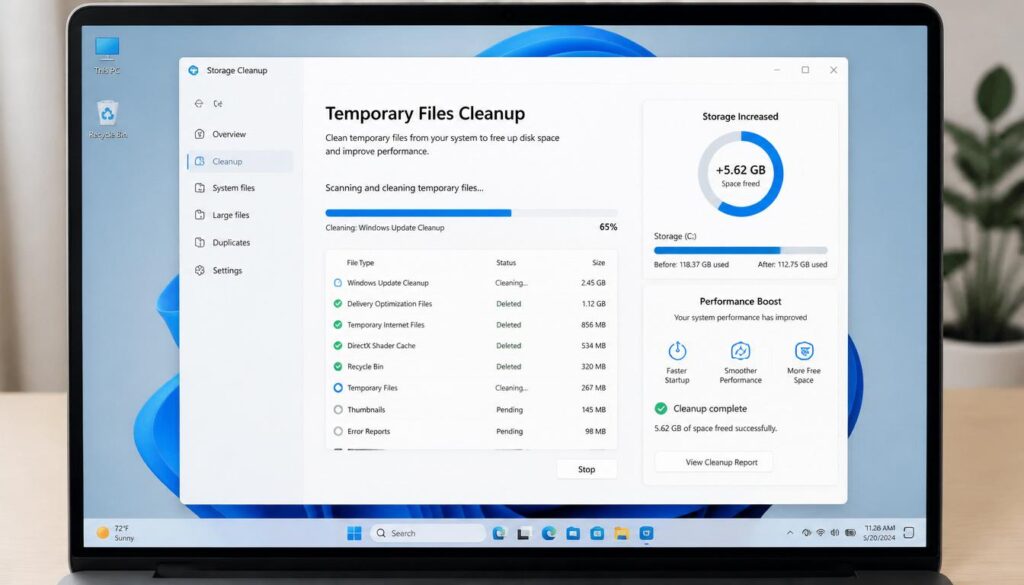
Method 3: Delete Temporary Files and System Cache Safely
One common question users ask is:
“Windows 11 temporary files delete safe?”
The answer is:
Yes — deleting temporary files is completely safe in most cases and can improve performance.
Temporary files are created for short-term tasks but often stay behind and clutter your storage.
Speed Up Windows 11
Speed Up Windows 11
How to Delete Temporary Files in Windows 11
Method 1: Storage Cleanup
Open:
Settings → System → Storage → Temporary Files
Windows will scan junk files.
Select:
✔ Temporary files
✔ Delivery Optimization Files
✔ Recycle Bin (optional)
✔ Windows Update Cleanup
Then click:
Remove Files
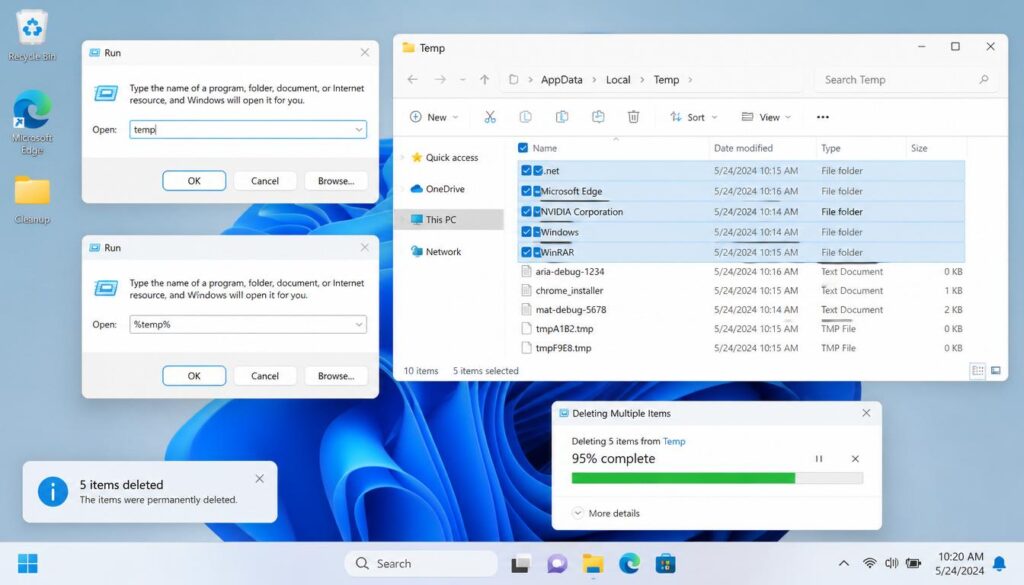
Method 2: Temp Folder Cleanup
Press:
Windows + R
Type:
temp
Click OK
Delete all files.
Repeat again using:
%temp%
Delete everything possible.
If Windows says some files are in use, skip them.
Is It Safe to Delete Temporary Files?
Yes.
Deleting temporary files will NOT delete your personal data, including:
- Photos
- Videos
- Documents
- Games
- Installed software
It only removes junk and leftover files.
Benefits of Removing Temp Files
You may notice:
✔ Faster performance
✔ More free storage
✔ Reduced lag
✔ Faster boot time
Especially on laptops with small SSDs.
Speed Up Windows 11
Speed Up Windows 11
Advanced Tip: Use Windows 11 Debloater Scripts Safely
If your laptop still feels slow, a Windows 11 debloater script can help.
Many laptops include unnecessary apps called bloatware.
These apps run background services and waste system resources.
Examples include:
- Trial antivirus programs
- Unused Microsoft apps
- Xbox features (for non-gamers)
- Sponsored software
A trusted debloater tool removes unwanted apps and disables unnecessary telemetry.
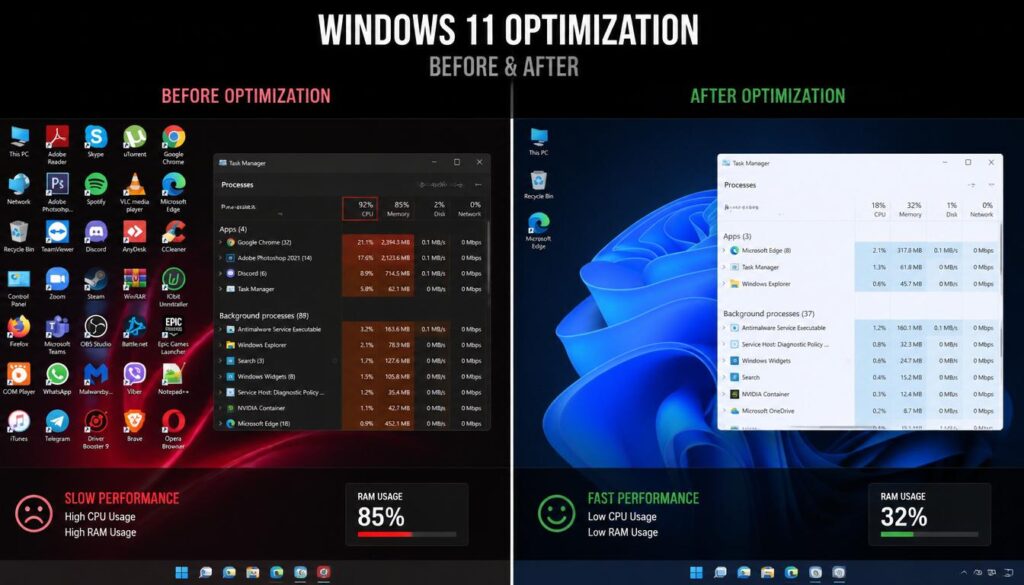
Why Debloating Helps
A clean system often feels like a fresh Windows install.
Benefits include:
✔ Faster startup
✔ Less RAM usage
✔ Lower CPU usage
✔ Better gaming performance
✔ Reduced background activity
Important Safety Advice
Only use trusted debloater scripts.
Before running any script:
- Create a System Restore Point
- Back up important files
- Read what the script removes
Avoid aggressive scripts that remove essential Windows services.
Done correctly, debloating can permanently improve performance on a slow laptop running Windows 11.
Speed Up Windows 11
Speed Up Windows 11
Extra Tips to Speed Up Windows 11 Even More
Want better results? Combine these fixes with the tips below.
1. Restart Your Laptop Regularly
Many users never restart their PC.
Restarting clears RAM and fixes temporary system glitches.
2. Update Windows
Sometimes bugs cause performance issues.
Go to:
Settings → Windows Update
Install updates.
3. Update Drivers
Outdated drivers can cause lag and high CPU usage.
Focus on:
- Graphics drivers
- Wi-Fi drivers
- Chipset drivers
4. Free Up Storage
Try keeping at least:
20–30% storage free
A nearly full drive slows Windows significantly.
5. Switch to SSD
If your laptop still uses an HDD, upgrading to an SSD can massively improve speed.
This is often the biggest performance upgrade possible.
Frequently Asked Questions (FAQs)
Q1: How do I turn off background apps in Windows 11?
Open Settings → Apps → Installed Apps, choose the app, open Advanced Options, then set Background Apps Permissions to Never. This reduces RAM usage, lowers CPU activity, and helps speed up Windows 11 performance.
Q2: How to turn off all background apps in Windows 11?
You can disable background apps individually through Settings → Apps → Installed Apps. For startup-related background programs, open Task Manager → Startup Apps and disable unnecessary software to stop apps from automatically running.
Q3: Will deleting temporary files delete my personal data?
No. Deleting temporary files in Windows 11 is safe and does not remove personal files such as photos, videos, documents, or installed apps. It only clears junk files, cached data, and leftover system files.
Q4: How can I fix Windows 11 high CPU usage permanently?
To fix high CPU usage permanently, disable unnecessary background apps, remove startup programs, delete temporary files, update drivers, scan for malware, and remove system bloatware. These steps reduce resource usage and improve overall speed.
Speed Up Windows 11
Speed Up Windows 11
Final Thoughts
If your laptop feels slow, do not panic. Most Windows 11 performance problems happen because of background apps, startup clutter, temporary files, and high CPU usage.
Start with the basics:
- Turn off background apps in Windows 11
- Stop unnecessary startup programs
- Delete temporary files safely
- Debloat Windows carefully
In many cases, these simple fixes can make your laptop feel fast again without spending money on new hardware.
If your PC is still slow after trying everything, an SSD upgrade or fresh Windows reinstall may be the next best step.
if you wants any more help you can visit our website and also read this blog for any help about windows 11.

