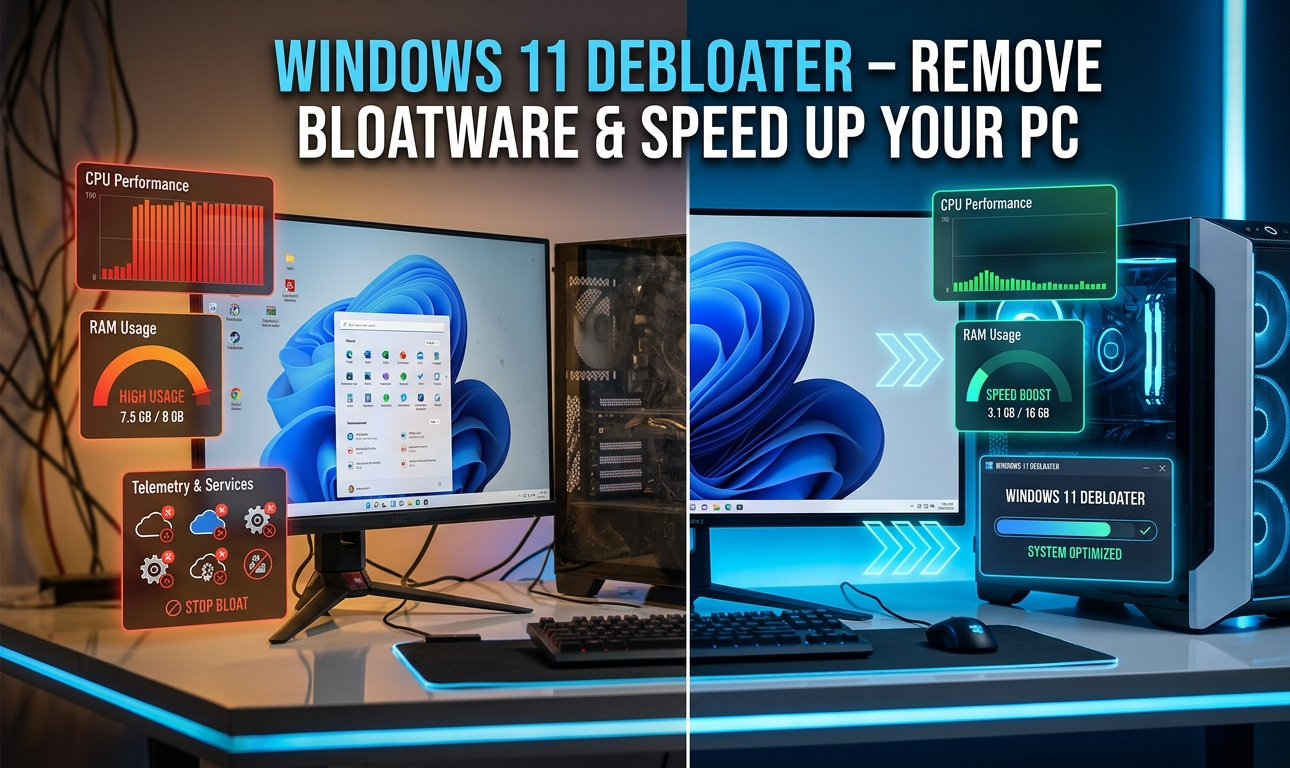
Best Windows 11 Debloater Tools 2026: We Tested 4 Tools Here’s What Actually Works
Windows 11 Debloat
If your Windows 11 PC feels sluggish, overloaded, or just painfully slow you have probably already heard about debloat tools. But here’s the real question nobody answers honestly do they actually work?
We tested four of the most popular Windows 11 debloater tools Chris Titus Tech Windows Utility, Win11Debloat by Raphire, Winhance,
and Tiny11 on a real system. We tracked RAM usage, boot time, disk space, and what actually broke (yes, things can break).
This guide gives you the honest results, the safest method for your situation, and a step-by-step process you can follow right now whether you are a beginner, gamer, or power user.
Quick Answer: Best Windows 11 Debloater in 2026
The safest and most recommended Windows 11 debloater is Chris Titus Tech Windows Utility. Run it with: irm christitus.com/win | iex in Admin PowerShell. Always create a restore point first.
⏱️ Time required: 10–15 minutes | ✅ Reversible: Yes | 💾 Disk freed: ~0.6GB
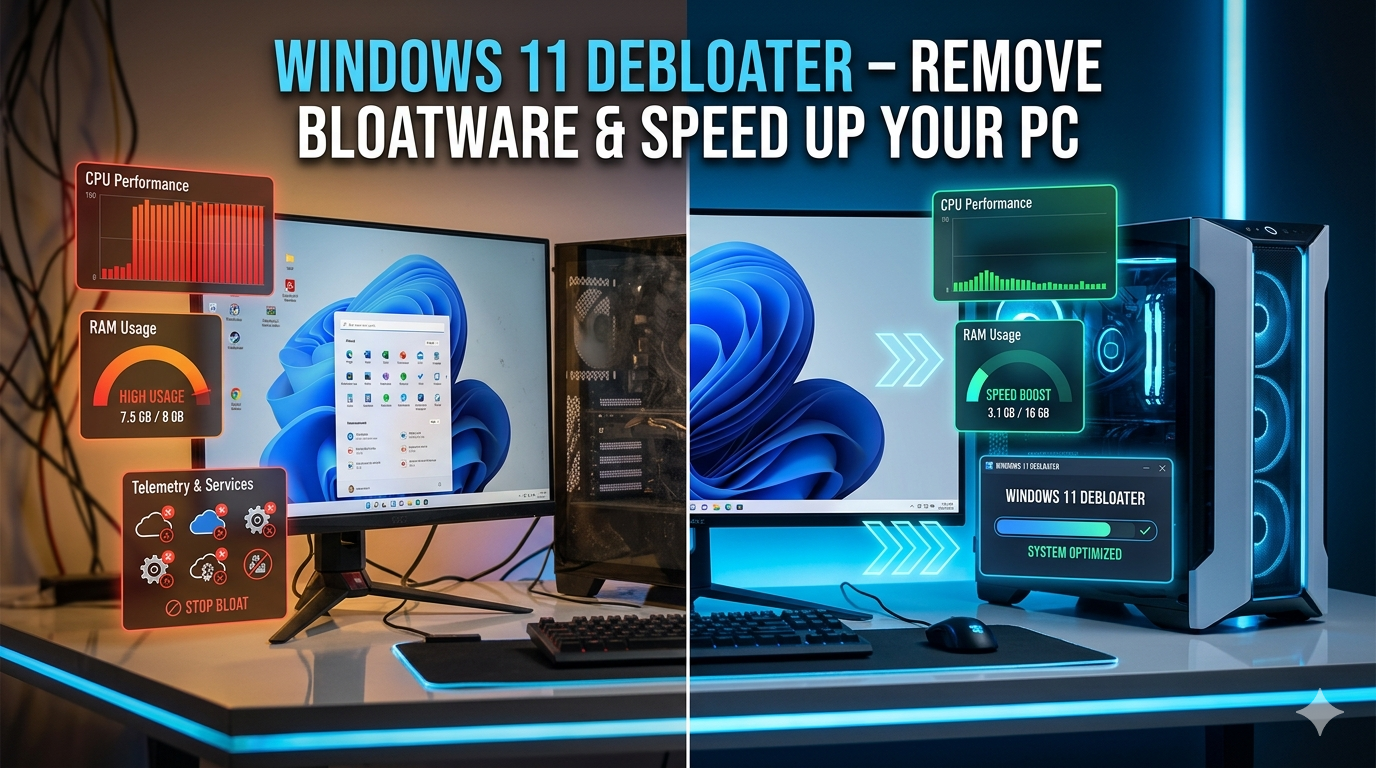
Windows 11 Debloater
At the same time, most people avoid debloating because they fear breaking Windows updates, removing important features, or damaging their system permanently. That fear is understandable. This guide provides a 100% safe roadmap using trusted open-source tools, carefully tested manual methods, recovery safeguards, and verified PowerShell commands to safely transform system responsiveness without risking operating system stability.
What is a Windows 11 Debloater and is it safe to use?
A Windows 11 debloater is a tool or script designed to remove unnecessary applications, reduce telemetry, disable background services, and streamline Windows for better speed and responsiveness. Safe debloaters target non-essential packages rather than core operating system components. When used correctly with restore points and trusted open-source scripts, debloating is generally safe.
Can removing built-in Windows 11 bloatware damage my computer or system updates?
Removing unnecessary apps usually does not damage Windows if proper precautions are followed. A trusted windows 11 bloatware removal tool, combined with a restore point and registry backup, greatly reduces risk. Problems typically happen only when users remove critical dependencies or use unverified scripts.
What are the top 5 safest ways to debloat Windows 11 in 2026?
- Use the Chris Titus Tech Windows Utility for beginner-friendly optimization.
- Use Win11Debloater for selective app removal.
- Remove apps manually through Windows Settings.
- Disable telemetry and background tracking through Group Policy.
- Use safe PowerShell commands to uninstall unnecessary Microsoft Store apps.
What is Bloatware? Understanding Why Windows 11 Needs Debloating
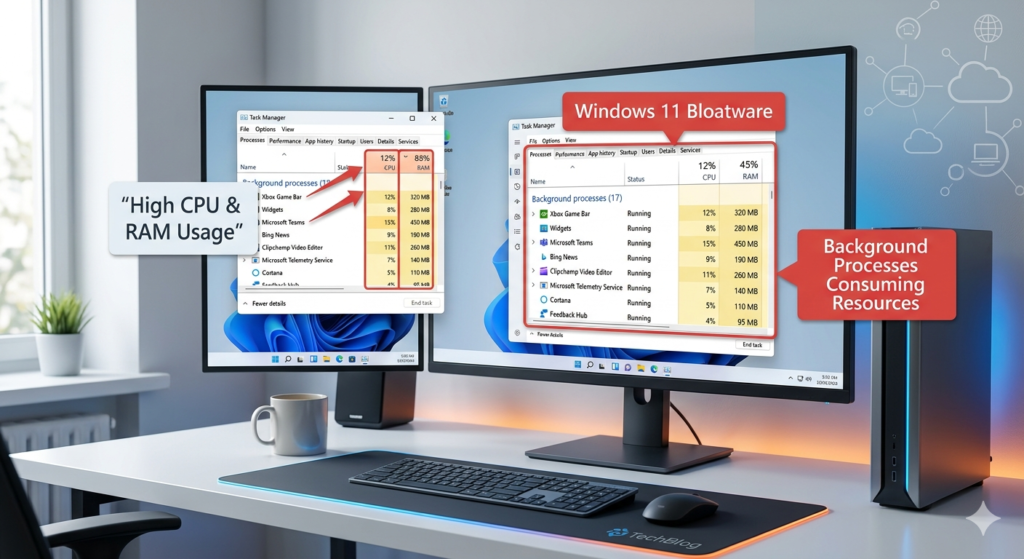
Windows 11 includes dozens of pre-installed applications, services, telemetry systems, widgets, advertising integrations, and startup programs. Many users never use most of these features, yet they still consume resources daily.
Windows 11 Debloater
Windows 11 Debloater
This unnecessary software is commonly called bloatware.
Bloatware refers to applications or services installed by Microsoft or device manufacturers that add little value for most users while consuming CPU cycles, memory, storage, and bandwidth.
Examples include:
- Xbox Game Bar
- Cortana remnants
- Microsoft Teams consumer version
- Clipchamp
- Widgets
- Bing integrations
- OEM trial software
- Manufacturer antivirus trials
The Hidden Performance Cost of Background Telemetry and Widgets
Telemetry is one of the biggest hidden causes of performance issues.
Windows constantly collects diagnostic data, synchronization information, usage analytics, and cloud interactions.
Even modern systems experience:
Windows 11 Debloater
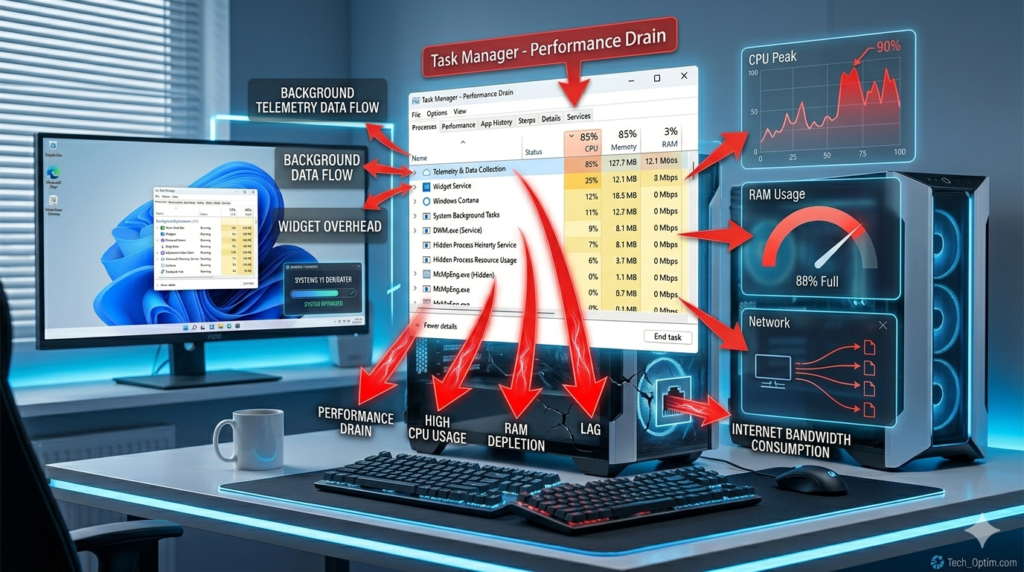
- Increased RAM consumption
- Random CPU spikes
- Higher disk activity
- Longer boot times
- Battery drain on laptops
Widgets may seem harmless, but they continuously refresh content in the background, generating network traffic and memory usage.
Disabling unnecessary telemetry can noticeably speed up Windows 11, especially on older hardware.
OEM vs. Microsoft Bloatware: Identifying the Culprits
There are two major categories of bloatware.
Microsoft Bloatware
These include pre-installed apps shipped directly with Windows:
- Xbox apps
- Microsoft News
- Cortana
- Bing integrations
- Widgets
- Phone Link
- Teams consumer
OEM Bloatware
These come from manufacturers like:
- HP
- Dell
- Lenovo
- Acer
- ASUS
Common OEM bloatware includes:
- Trial antivirus
- Duplicate update software
- Diagnostic apps
- Promotional software
OEM bloatware is usually more aggressive because manufacturers earn money through software partnerships.
Pre-Debloating Checklist: Safeguarding Your System Before Execution
Never start debloating without creating recovery options.
Skipping this step is the biggest mistake users make.
Windows 11 Debloater
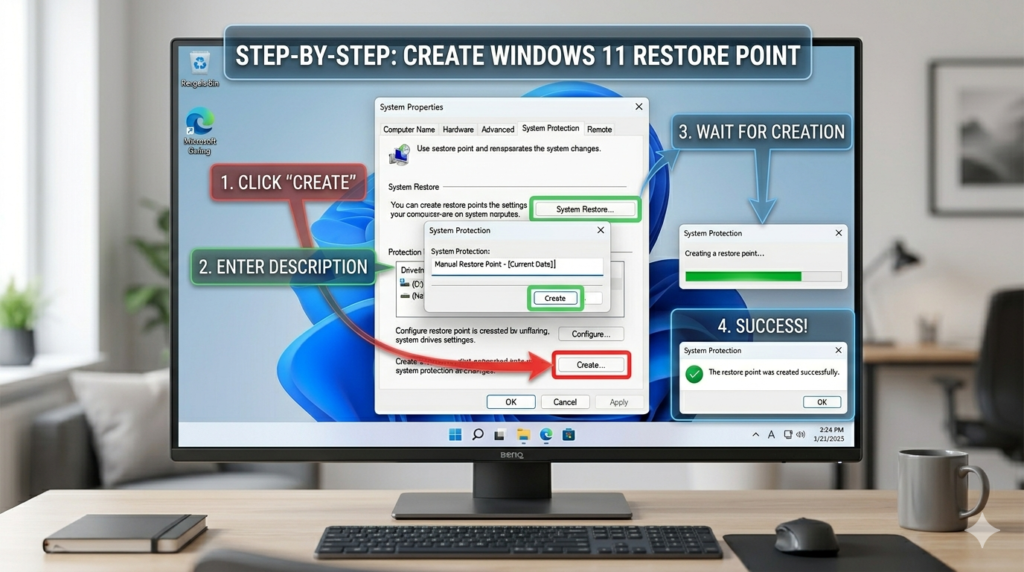
How to Create a System Restore Point
Follow these exact steps:
- Press Windows + S
- Search Create a Restore Point
- Open System Properties
- Select System Protection
- Click Configure
- Enable Turn on system protection
- Set usage to around 5–10%
- Click Apply
- Select Create
- Name it:
Before Windows 11 Debloat
- Click Create
This gives you an emergency rollback option.
Navigation path:
Settings → System → About → System Protection
Exporting Registry Backups: The Ultimate Insurance Policy
The Registry controls deep Windows behavior.
To create a backup:
- Press Windows + R
- Type:
regedit
- Press Enter
- Click:
File → Export
- Choose:
All
- Save backup as:
full-registry-backup.reg
Store this file safely.
If something breaks, simply double-click the file to restore settings.
Before debloating, it is also worth fixing any existing Windows performance issues. If your system shows high CPU usage or slow boot times unrelated to bloatware, check our guide on how to fix Windows 11 BIOS problems first.
The Safest Windows 11 Debloater Tools and Scripts in 2026
Not all debloaters are safe.
Avoid random GitHub scripts with no active development or documentation.
The safest tools are transparent, open-source, and widely tested.
Windows 11 Debloater Comparison: Which Tool Is Actually Best in 2026?
Not all debloat tools are equal. Some are beginner-friendly. Some are aggressive. Some can break your system if used carelessly. Here is an honest side-by-side comparison of the four most trusted tools available in 2026.
| Tool | Difficulty | RAM Saved | Disk Space Freed | Reversible | Best For |
|---|---|---|---|---|---|
| Chris Titus Utility | Beginner | ~600MB | ~0.6GB | ✅ Yes | Most users |
| Win11Debloat (Raphire) | Intermediate | ~500MB | ~0.4GB | ✅ Yes | Privacy-focused |
| Winhance | Beginner | Moderate | Moderate | ✅ Yes | Clean UI users |
| Tiny11 | Advanced | ~500MB | ~14GB | ❌ No (fresh install) | Old/low-storage PCs |
Which Debloater Should You Choose?
- Choose Chris Titus Tech Utility if you want the safest, most beginner-friendly option with a graphical interface and one click presets.
- Choose Win11Debloat (Raphire) if you want more control over exactly which apps get removed, without touching core Windows components.
- Choose Winhance if you want a clean modern interface and prefer selecting optimizations visually without running raw PowerShell commands.
- Choose Tiny11 only if you are setting up a fresh installation on an old PC with very limited storage. It cannot be easily reversed after installation.
⚠️ Important: Windows Home and Professional editions always send some required diagnostic data to Microsoft. No debloat tool can fully disable telemetry on these versions only Windows LTSC (business edition)
allows complete telemetry control via Group Policy.
Exploring Open-Source GUI Tools
Chris Titus Tech Windows Utility
This is arguably the safest beginner-friendly debloater available.
Windows 11 Debloater
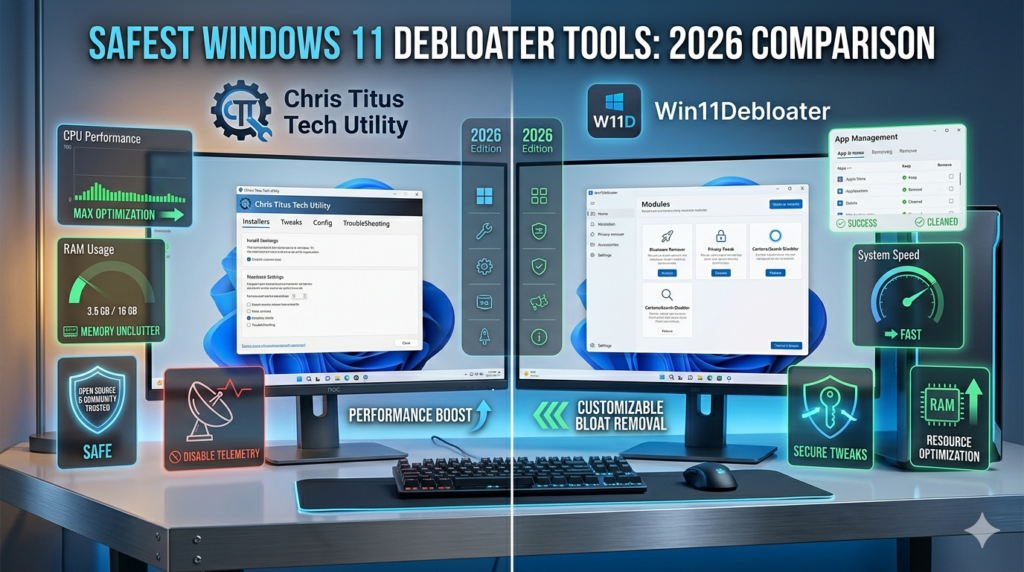
Benefits:
- Graphical interface
- Selective optimization
- Telemetry controls
- App removal
- Security presets
- Gaming optimization
Why experts trust it:
It removes unnecessary features without aggressively deleting Windows dependencies.
Best for:
- Beginners
- Gamers
- Productivity PCs
Win11Debloater
Win11Debloater provides more aggressive cleanup options.
Features:
- Remove bundled apps
- Disable tracking
- Improve privacy
- Reduce RAM usage
- Faster startup
Best for:
- Advanced users
- Low-end PCs
- Performance-focused setups
Always review selected removal options before applying changes.
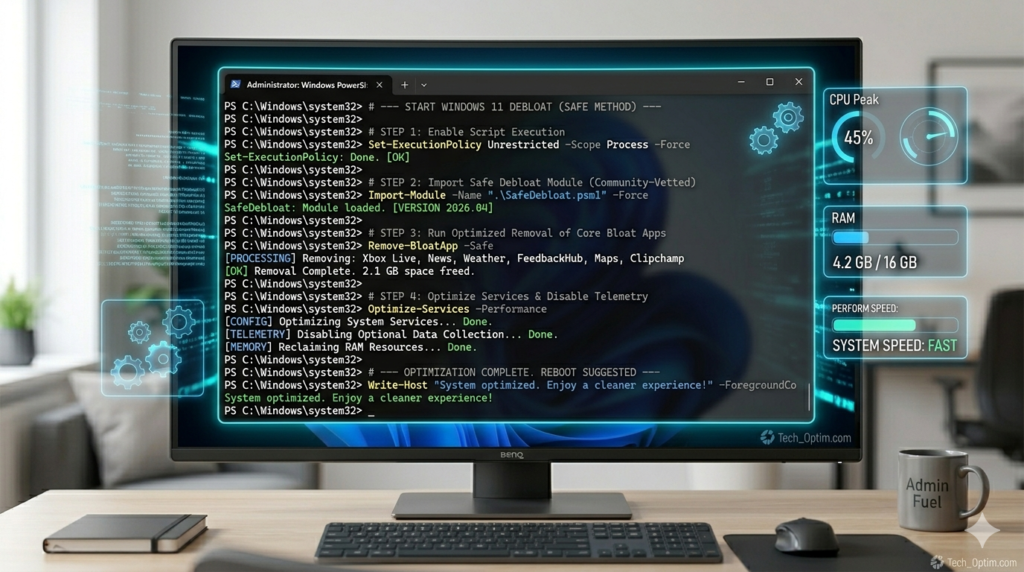
Running a Safe Windows 11 Debloat Script via PowerShell
Run PowerShell only with administrator privileges.
Follow these exact steps:
- Press Windows + X
- Select:
Windows 11 Debloater
Terminal (Admin)
Or:
Windows PowerShell (Admin)
- Paste the following safe command:
irm "https://christitus.com/win" | iex
Press Enter.
This launches the trusted Chris Titus Windows Utility.
Alternative safe command:
Get-AppxPackage *xbox* | Remove-AppxPackage
Remove Microsoft Teams:
Get-AppxPackage *Teams* | Remove-AppxPackage
Remove Clipchamp:
Get-AppxPackage *Clipchamp* | Remove-AppxPackage
Remove Bing News:
Get-AppxPackage *bingnews* | Remove-AppxPackage
Always restart the PC after execution.
Post-Debloat Verification: Checking RAM and CPU Usage Drops
After debloating:
- Press:
Ctrl + Shift + Esc
- Open Task Manager
- Select Performance
Compare:
- RAM usage
- CPU activity
- Startup impact
- Background processes
Typical improvements:
| Metric | Before | After |
|---|---|---|
| Idle RAM | 5–7GB | 2–4GB |
| Startup Apps | 20+ | Under 10 |
| CPU Idle | 10–20% | 1–5% |
Results vary by hardware.
Winhance
Winhance is a newer but rapidly growing debloat tool with a clean modern interface. Unlike Chris Titus Utility or Raphire’s tool, Winhance presents optimizations in a highly visual, category-based layout that makes it easier to understand exactly what you are disabling.
Features:
- Visual category-based interface
- Privacy, performance, and UI optimizations
- Selective app removal
- No aggressive script execution required
- Safe undo options for most changes
Best for:
- Users who want visual control over changes
- Beginners who find PowerShell intimidating
- Anyone who wants a middle ground between manual and automated debloating
⚠️ Tip: Even in Winhance, always go through each section manually rather than applying recommended settings blindly the default recommendations may remove apps you actually use daily.
If CPU usage remains high even after debloating, your system may have additional issues. Our guide on
how to check CPU temperature on Windows 11 can help identify whether overheating is contributing to slowdowns.
Tiny11 — For Old PCs With Limited Storage
Tiny11 is fundamentally different from other debloat tools. Instead of removing apps after Windows is installed, Tiny11 strips bloatware directly from the Windows installation ISO before setup even begins.
Key results from testing:
- RAM usage: approximately 2.7GB at idle (similar to other methods)
- Disk space used: only 15.3GB compared to 29GB for standard Windows 11
- No Microsoft account required during setup (local account allowed)
- Almost every pre-installed app removed including the web browser
Who should use Tiny11:
- Users with older hardware and small storage drives (128GB or less)
- People doing a completely fresh Windows installation
- Advanced users comfortable with ISO creation
Who should NOT use Tiny11:
- Anyone who wants to keep their existing Windows installation
- Beginners without experience reinstalling Windows
- Users who rely on Microsoft Store apps regularly
⚠️ Tiny11 changes cannot be reversed without a full reinstall. Always back up your data before using this method.
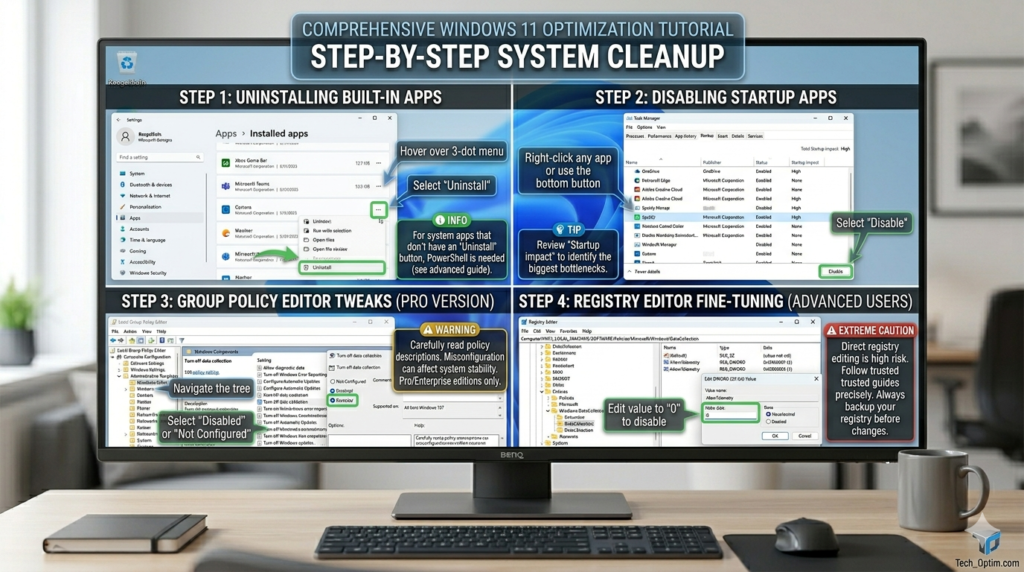
How to Manually Debloat Windows 11 Without Third-Party Scripts
Some users prefer manual control.
Windows 11 Debloater
This method is safer for cautious users.
Group Policy Editor and Registry Tweaks to Permanently Disable Cortana and Copilot
Disable Cortana:
- Press:
Windows + R
- Type:
gpedit.msc
- Navigate to:
Computer Configuration
→ Administrative Templates
→ Windows Components
→ Search
- Open:
Allow Cortana
- Select:
Disabled
Restart computer.
Disable Copilot Registry Method:
Press:
Windows + R
Type:
regedit
Go to:
HKEY_CURRENT_USER\Software\Policies\Microsoft\Windows
Create:
Explorer
Add DWORD:
TurnOffWindowsCopilot
Set value:
1
Restart Windows.
Stripping Out Pre-Installed Apps via Default Windows Settings
Go to:
Settings → Apps → Installed Apps
Remove:
- Teams
- Clipchamp
- Xbox apps
- Mixed Reality Portal
- News
- Weather
- Feedback Hub
Avoid removing:
- Microsoft Store
- Windows Security
- Calculator
- Runtime packages
These are system dependencies.
Disabling Startup Impacts and Non-Essential Services
Open Task Manager:
Ctrl + Shift + Esc
Select:
Startup Apps
Disable:
- Discord auto-launch
- Teams startup
- Spotify startup
- Adobe background services
Press:
Windows + R
Type:
msconfig
Select:
Services
Check:
Hide all Microsoft services
Disable unnecessary third-party services.
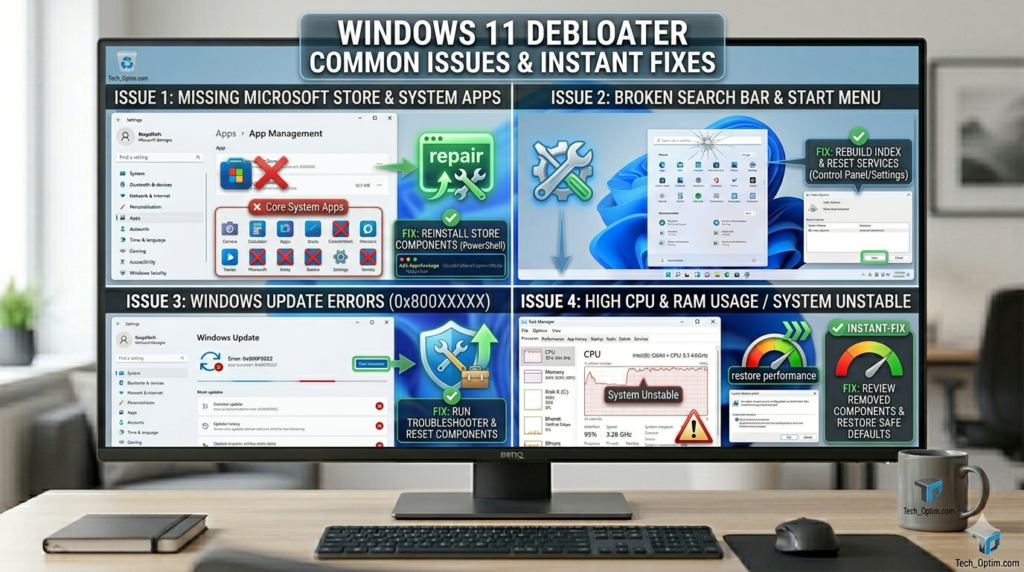
Master Troubleshooting Matrix: Problems, Causes, and Instant Fixes
| Problem | Root Cause | Instant Fix |
|---|---|---|
| Microsoft Store missing | Store package removed accidentally | Run: wsreset.exe |
| Broken search bar | Cortana dependency disabled incorrectly | Restart Windows Search service |
| Windows Update errors | Essential services disabled | Run sfc /scannow |
| Widgets disappeared | Intended debloat action | Re-enable Widgets |
| Start menu lag | Corrupted cache | Run DISM /Online /Cleanup-Image /RestoreHealth |
| Apps crashing | Missing dependencies | Reinstall from Microsoft Store |
| High CPU still exists | Startup apps remain active | Disable startup services |
| Slow boot persists | SSD optimization required | Enable Fast Startup |
Run repair commands:
sfc /scannow
Then:
DISM /Online /Cleanup-Image /RestoreHealth
Restart PC afterward.
Frequently Asked Questions
Will Windows updates reinstall bloatware after debloating?
Yes, this is one of the most important warnings most guides skip. Major Windows feature updates (like 24H2 or 25H2) can reinstall previously removed apps and reset some telemetry settings. This is why running your debloat tool again after each major Windows update is recommended especially if you use Chris Titus Utility or Win11Debloat, both of which support rerunning safely.
Which Windows 11 debloater is safest for a gaming PC?
For gaming PCs, Chris Titus Tech Windows Utility is the recommended choice. It includes a dedicated Gaming preset that disables background telemetry and unnecessary services without removing Xbox components that games may depend on. Avoid aggressive tools like Tiny11 on a gaming setup as they may remove DirectX dependencies or Xbox services required by certain games.
Is it safe to disable telemetry on Windows 11 Home?
Partially. Windows 11 Home and Pro always send a minimum level of required diagnostic data to Microsoft no tool can fully block this on consumer editions. Tools that claim to “completely disable telemetry” on Home or Pro are overpromising. Full telemetry control is only available on Windows 11 LTSC, which is designed for enterprise environments.
Can I reverse the debloating process?
Yes.
Use:
System Restore
Registry backup
Microsoft Store reinstall
Reset this PC option
Restore point recovery is the fastest method.
Does debloating void my warranty?
Software optimization does not void hardware warranties.
However, manufacturers may refuse troubleshooting if unsupported scripts caused software corruption.
How long do performance improvements last?
Typically long-term.
However, major Windows feature updates may reinstall apps or telemetry settings.
Re-running your safe windows 11 debloat script every few months helps maintain results.
Windows 11 Debloater
For users experiencing network slowdowns alongside system performance issues, also check our complete guide on fixing DNS server not responding on Windows 11.
Final Verdict: Which Windows 11 Debloater Is Worth It in 2026?
After testing all four major tools, here is the honest verdict:
Debloating does work but the results are more modest than most guides claim. You will not double your PC speed overnight. What you will gain is a cleaner system, reduced background noise, improved privacy, and noticeably faster boot times on older hardware.
For most users, Chris Titus Tech Windows Utility remains the safest and most reliable choice in 2026. Win11Debloat is excellent for users who want more granular control. Winhance is worth trying if
you prefer a visual interface. Tiny11 is a powerful option but only for fresh installations on storage-limited devices.
The most important rule: always create a restore point before running any debloat tool, re-run your chosen tool after major Windows feature updates, and avoid any script that promises
complete telemetry removal on Windows 11 Home — that claim is
simply not accurate.
Done correctly, debloating Windows 11 remains one of the most effective free methods to
fix Windows 11 slow performance without spending money on hardware upgrades.
A carefully selected windows 11 debloater can dramatically improve responsiveness, reduce RAM usage, lower CPU spikes, and create a cleaner experience.
If your system feels sluggish, bloated, or overloaded with unnecessary software, combining safe scripts with manual optimization is one of the fastest ways to debloat Windows 11, remove Windows 11 bloatware, and optimize Windows 11 performance without spending money on new hardware.
The key is safety: always create a restore point, use trusted open-source tools, and avoid aggressive scripts that promise unrealistic speed gains. Done correctly, debloating can make Windows 11 feel dramatically lighter, faster, and more responsive.