A slow browser, a hijacked new tab page, or a mystery toolbar icon usually points to one culprit, an extension you no longer want. Knowing how to delete Chrome extensions properly, rather than simply disabling them, is the fastest way to restore normal browsing speed and close a common privacy gap. This guide covers every platform, PC, Mac, Chromebook, Android, and managed work computers, plus the stubborn cases where Chrome refuses to let you remove something on its own.
Quick Answer(How to Delete Chrome Extensions)
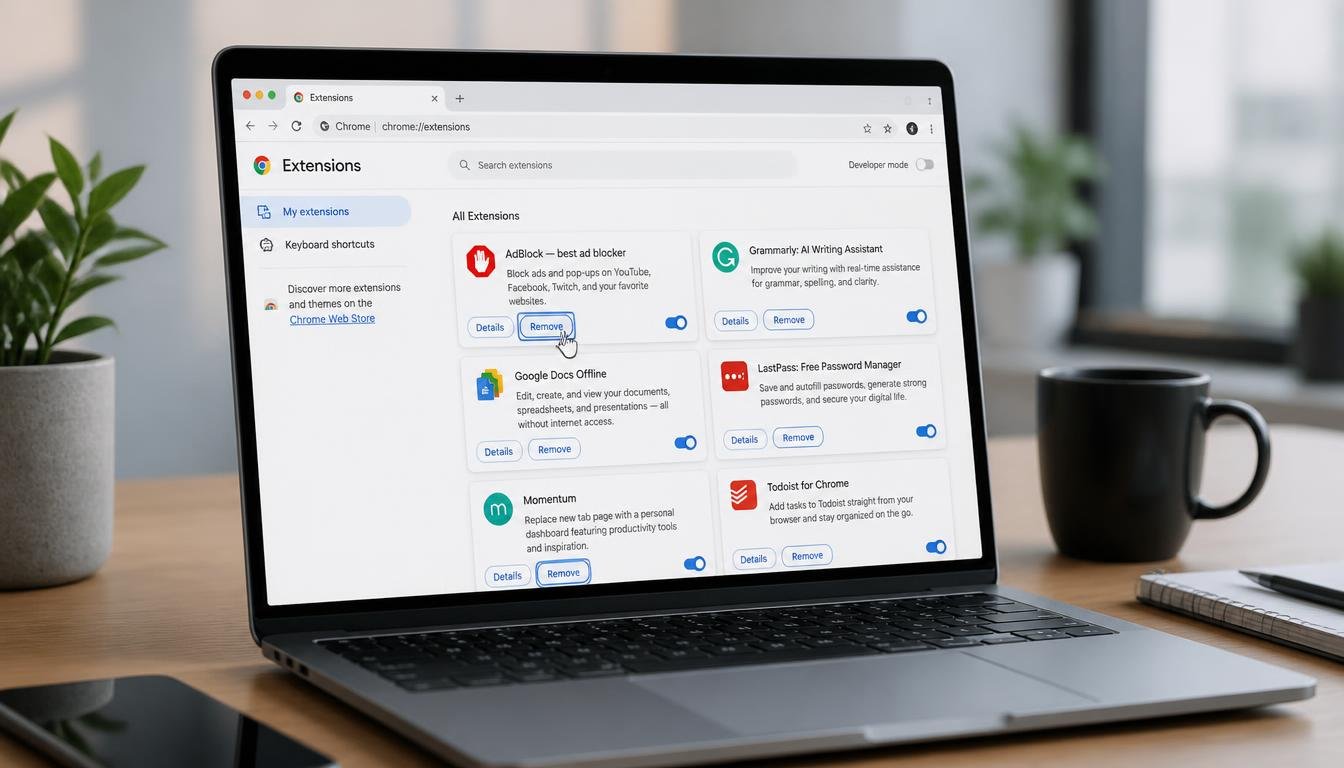
To delete a Chrome extension, open a new tab, type chrome://extensions into the address bar, and press Enter. Find the extension card, select Remove, and confirm the pop up. On mobile, extensions are not supported directly, so remove them from a desktop browser instead. Restart Chrome afterward to confirm the change took effect.
Chrome Extension Removal at a Glance
| User Platform / Scenario | Primary Removal Route | Troubleshooting Fallback |
|---|---|---|
| Windows PC or Mac (personal device) | chrome://extensions, click Remove | Right-click the toolbar icon and select “Remove from Chrome” |
| Chromebook (personal, unmanaged) | chrome://extensions, click Remove | Reset the device via Settings if the extension will not unload |
| Managed work or school computer | Ask an IT administrator to lift the policy | Inspect chrome://policy to confirm which rule is blocking removal |
| Extension “installed by administrator” | Remove the Group Policy Object or MDM profile | Edit the Windows Registry ExtensionInstallForcelist key directly |
| Android or mobile Chrome | Not applicable, extensions require desktop Chrome | Sign in to Chrome on a PC or Mac to manage extensions remotely |
| Chrome will not open at all | Launch Chrome in Safe Mode or Incognito, then remove | Delete the Extensions folder from the Chrome profile directory |
How to Delete Chrome Extensions on PC and Mac
The core method for how to delete Chrome extensions on PC and how to delete Chrome extensions on Mac is identical, since both versions of Chrome share the same interface. Only the location of the toolbar icons differs slightly between operating systems.
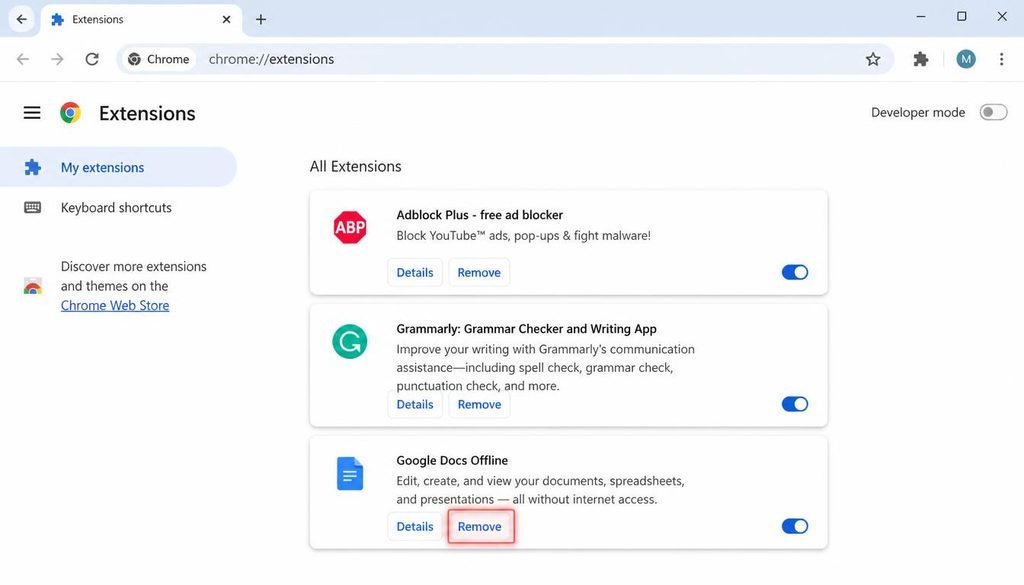
Method 1: How to Delete Chrome Extensions via chrome://extensions
- Open Chrome and click the three-dot menu in the top right corner.
- Hover over “Extensions,” then select “Manage Extensions.” You can also type chrome://extensions directly into the address bar and press Enter.
- Locate the extension you want gone, then click the “Remove” button on its card.
- A confirmation pop up will appear. Click “Remove” again to finish the process.
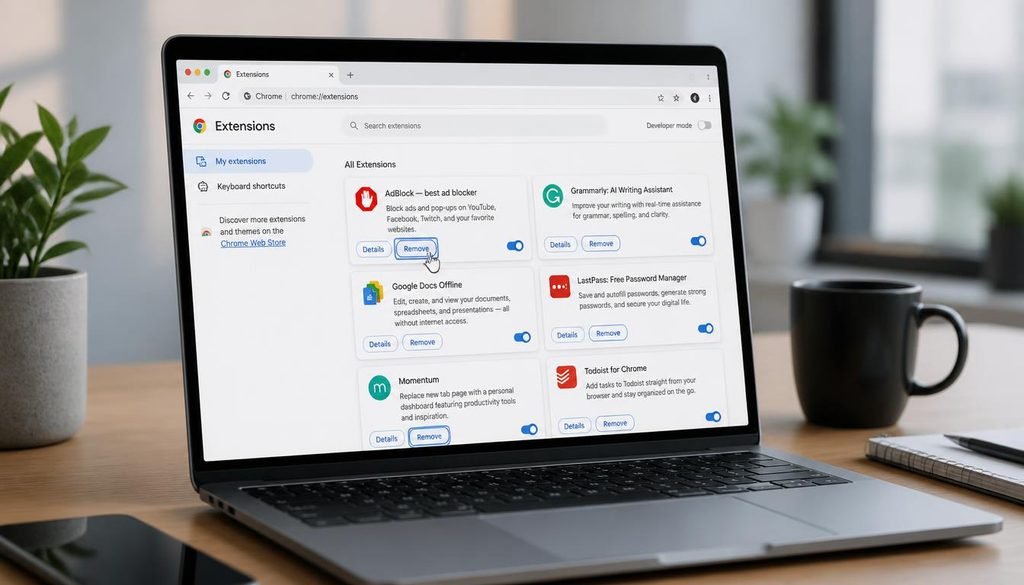
This chrome extension manager view lists every addition installed in the current profile, along with its permissions and whether it was added by the Chrome Web Store or a third-party installer. If you recently reinstalled Chrome on a new Mac and extensions did not carry over, our guide on how to download Chrome on Mac walks through setting up a clean profile from scratch.
How to Delete Chrome Extensions?
Method 2: Toolbar Right-Click Removal
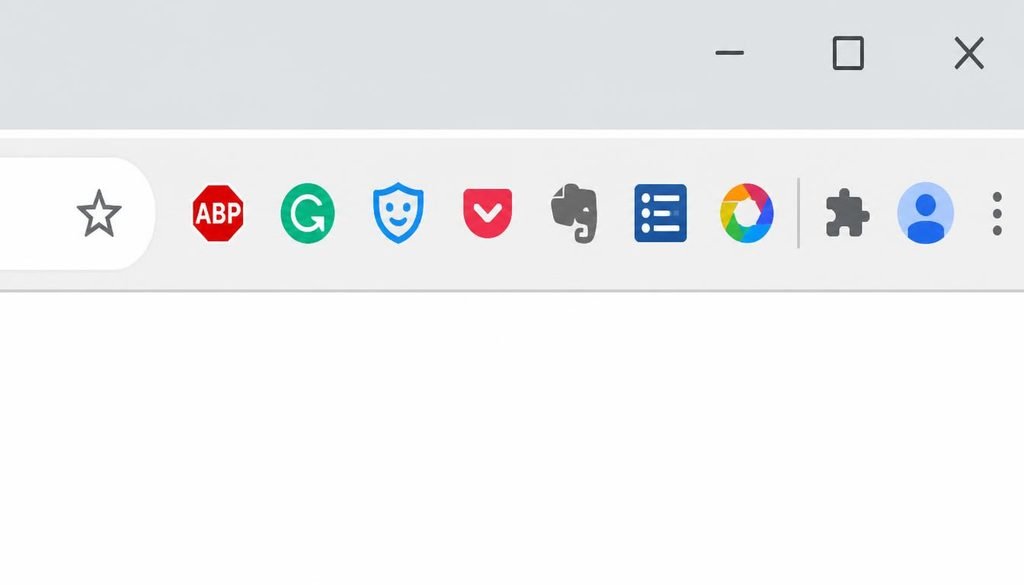
- Click the puzzle piece icon in the toolbar to reveal all installed extensions.
- Right-click the specific extension icon you want removed.
- Select “Remove from Chrome” directly from the context menu.
- Confirm the action in the dialog box that appears.
Both methods produce an identical result, full deletion of the extension’s files and permissions from that Chrome profile, so pick whichever feels faster.
How to Delete Chrome Extensions on Chromebook
Chrome OS treats extensions the same way desktop Chrome does, since Chromebooks run the same browser engine under the hood. Open a new tab, navigate to chrome://extensions, find the extension card, and click “Remove,” then confirm. There is no separate app store style uninstall process for standard Chrome extensions on Chromebook, only for Android apps or Linux packages installed through other channels.
If you use your Chromebook for development work and recently set up a Linux container, be aware that command-line tools and packages installed that way are managed separately from Chrome extensions. Readers who followed a guide on how to install Linux on a Chromebook sometimes confuse Linux package removal with browser extension removal, but the two systems do not overlap and each requires its own uninstall path. Likewise, anyone who set up a dual boot into a full desktop OS using a how to get Windows on Chromebook setup will need to manage the Windows side Chrome installation as a completely separate profile from ChromeOS.
How to Remove Chrome Extensions Installed by Administrator
This is the scenario that frustrates the most users, and the one most competitor guides gloss over. When an extension’s card in chrome://extensions displays the text “Installed by your administrator,” the standard Remove button is grayed out or entirely absent. Chrome disables manual removal here on purpose, because it assumes a workplace, school, or parental control policy is intentionally enforcing that extension.
Why This Happens: Group Policy and MDM Enforcement
On a Windows machine, forced extensions are typically controlled through a registry key. Administrators (or, in malware cases, an unwanted program) populate the following path:
HKEY_LOCAL_MACHINE\SOFTWARE\Policies\Google\Chrome\ExtensionInstallForcelist
or, for a per-user policy, the matching key under HKEY_CURRENT_USER. Each value in that key is a Chrome extension ID paired with an update URL, and Chrome checks this list on every launch to reinstall the listed extension if it detects removal.
On a Mac or Chromebook connected to a company Google Workspace account, the same enforcement happens through a configuration profile or a Chrome Enterprise policy pushed from the admin console rather than a Windows registry path.
Fixing It on a Personal or Home Computer
If this is your own device and you are the sole administrator, you can clear the enforcement yourself:
- Press Windows key + R, type regedit, then press Enter to open Registry Editor as an administrator.
- Navigate to HKEY_LOCAL_MACHINE\SOFTWARE\Policies\Google\Chrome.
- Locate the ExtensionInstallForcelist key, right-click it, and select Delete.
- Repeat the same check under HKEY_CURRENT_USER\SOFTWARE\Policies\Google\Chrome if it also exists.
- Restart Chrome, then return to chrome://extensions and confirm the Remove button is now active.
Users who reach this step because Chrome behaves erratically or a reinstall is required afterward may find our walkthrough on what to do when Windows installation has failed useful for diagnosing related system level configuration problems.
Confirming the Extension ID in Developer Mode
Before deleting registry entries blind, it helps to confirm exactly which extension you are targeting. Enable Developer Mode from the toggle in the top right corner of chrome://extensions, and every card will display a 32-character Extension ID beneath its description. Match that ID against the value listed inside the ExtensionInstallForcelist registry key so you remove the correct policy entry rather than an unrelated one.
Corporate and Enterprise Managed Environments
If the computer belongs to an employer or a school, editing the registry yourself is generally against acceptable use policy and the change will likely be overwritten the next time the machine syncs with the domain or Google Workspace admin console. In that case, the correct path is to submit a request to the IT department, referencing the specific extension name and the business reason for removal. IT teams typically manage these settings through the Google Admin console’s Chrome browser management section, and can lift the ExtensionInstallForcelist policy for your account or device group without touching individual machines by hand.
How to Delete Chrome Extensions on Android and Mobile
Google Chrome for Android and Google Chrome for iOS do not support third-party extensions at all, which is why searches for how to delete Chrome extensions on Android and on mobile technically have no on device answer. The mobile version of Chrome runs a stripped-down rendering engine that does not load the extension APIs desktop Chrome relies on.
To manage extensions tied to your Google account while away from a computer, the practical workaround is to sign in to Chrome on any desktop browser, PC, Mac, or Chromebook, and remove the extension there through chrome://extensions. Because extensions sync per Google account rather than per device, the removal will apply the moment your phone or tablet reconnects, even though the phone itself never displayed the extension.
How to Disable Browser Extensions in Chrome (Temporary vs Permanent)
Deleting an extension and disabling one are not the same action, and mixing them up is a common source of confusion. Disabling temporarily switches an extension off without removing its files, settings, or stored data, which is ideal for troubleshooting a site that behaves oddly, since you can enable it again it in seconds. To disable rather than delete, open chrome://extensions and simply toggle the switch on the extension’s card to the off position.
Deleting, by contrast, permanently removes the extension package, its stored data, and its permissions from the browser profile. If your goal is to free up memory or stop a chatty extension from consuming background resources for good, deletion is the correct choice, and readers troubleshooting sluggish page loads may also want to review our guide on how to fix slow internet, since extension bloat and connection issues frequently compound one another.
Frequently Asked Questions
Why can I not remove a Chrome extension?
Chrome typically blocks removal when the extension was installed through a Group Policy, an MDM profile, or a Chrome Enterprise setting on a managed device. The grayed out Remove button is Chrome’s way of respecting an administrator’s configuration rather than a bug in the browser itself.
How do I completely uninstall an extension?
Open chrome://extensions, locate the extension card, click Remove, and confirm the action in the pop up window. This deletes the extension’s code, stored settings, and granted permissions from that Chrome profile in a single step.
How do I remove my extensions?
Navigate to chrome://extensions in any Chrome window, review each installed extension card, and click Remove on every one you no longer need. You can also right-click a toolbar icon and choose “Remove from Chrome” for a quicker single removal.
Should I remove Chrome extensions?
Extensions you do not actively use still consume memory, request browser permissions, and occasionally introduce security or tracking risk, so removing anything unfamiliar or unused is generally good browser hygiene. Keep only extensions from developers you trust and permissions you understand.
How do I force uninstall a browser extension in Chrome on Windows 11?
If the standard Remove button is unavailable, open Registry Editor, navigate to HKEY_LOCAL_MACHINE\SOFTWARE\Policies\Google\Chrome\ExtensionInstallForcelist, and delete the key enforcing the extension. Restart Chrome afterward and the Remove option should become available again.
Does disabling a Chrome extension stop it from tracking my data?
Disabling stops an extension from running, which halts most tracking activity while it remains off, but the extension’s stored data and permissions stay on your device. For extensions with a documented history of tracking or privacy concerns, full deletion is the safer option, and privacy conscious users curious about related network exposure may also want to check whether a VPN changes your IP address for a broader picture of what an extension can and cannot see.
Where are Chrome extension files stored on my local computer hard drive?
On Windows, extension files live under the user’s AppData folder, specifically inside the Chrome profile’s “Extensions” subdirectory. On a Mac, the equivalent files sit inside the Library/Application Support/Google/Chrome/Default/Extensions path, though manually deleting files there is not recommended over using the built in Remove button.
Why does my Chrome browser say managed by your organization?
That message appears whenever any Chrome Enterprise policy is active on the profile, which can include a forced extension, a bookmark policy, a homepage restriction, or a security setting pushed from a Google Workspace admin console or a Windows domain. It does not necessarily mean anything is wrong, only that at least one setting is centrally controlled.
Can Chrome extensions contain malware or keyloggers?
Yes, malicious extensions have been documented capturing keystrokes, injecting ads, and exfiltrating browsing data, sometimes after a legitimate extension changes ownership and its update mechanism gets repurposed. Reviewing permissions before installing, and periodically auditing chrome://extensions for anything unfamiliar, are the two best defenses.
How do I remove extensions if Chrome will not open?
Try launching Chrome in Safe Mode from your operating system’s boot menu, or start it from the command line with the “–disable-extensions” flag, both of which let the browser open without loading any extension code so you can remove the problem one. If Chrome still will not launch at all, deleting the “Default” profile folder from the Chrome user data directory forces a fresh profile on next launch, though this also clears bookmarks and saved passwords, so back up anything important first.
Final Thoughts
Whether the goal is a faster browser, a cleaner privacy footprint, or getting past an administrator lock, the chrome://extensions page remains the single control center for every scenario covered here, on PC, Mac, Chromebook, and even the mobile workaround. Keep the extension list short, review permissions periodically, and reach for the registry or Group Policy fixes only when the standard Remove button genuinely will not do the job.
If you are performing system maintenance or resolving browser issues after removing unwanted additions, managing background background downloads can help maintain performance. You can read our step-by-step walkthrough on how to stop Windows Update to prevent unexpected system restarts during your work. Additionally, if network restrictions or policy settings on your local connection affect how your device behaves online, our comprehensive guide on how to access router settings explains how to log into your gateway and configure your network safely.