A wireless printer that refuses to print, will not scan across the network, or throws an offline error almost always traces back to one missing detail: the device IP address. Learning how to find printer IP address information on any operating system is the fastest route to fixing driver conflicts, setting up a static reservation, or connecting a second computer to the same machine. This guide covers every method that actually works, including options most articles skip entirely.
Quick Answer: How to Find Printer IP Address
- Windows: Open Settings, select Bluetooth & devices, click Printers & scanners, choose your printer, select Printer properties, and inspect the Ports tab.
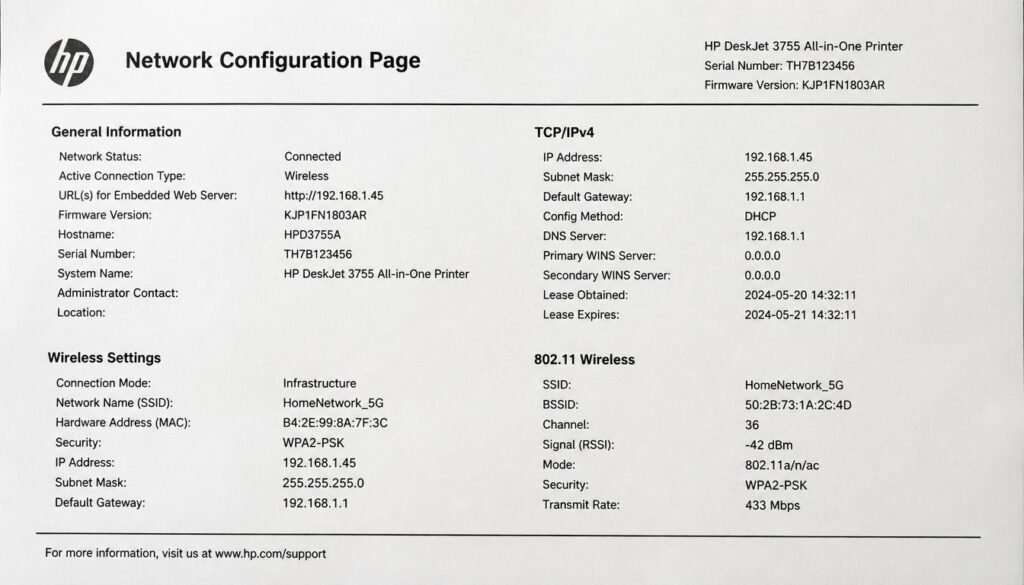
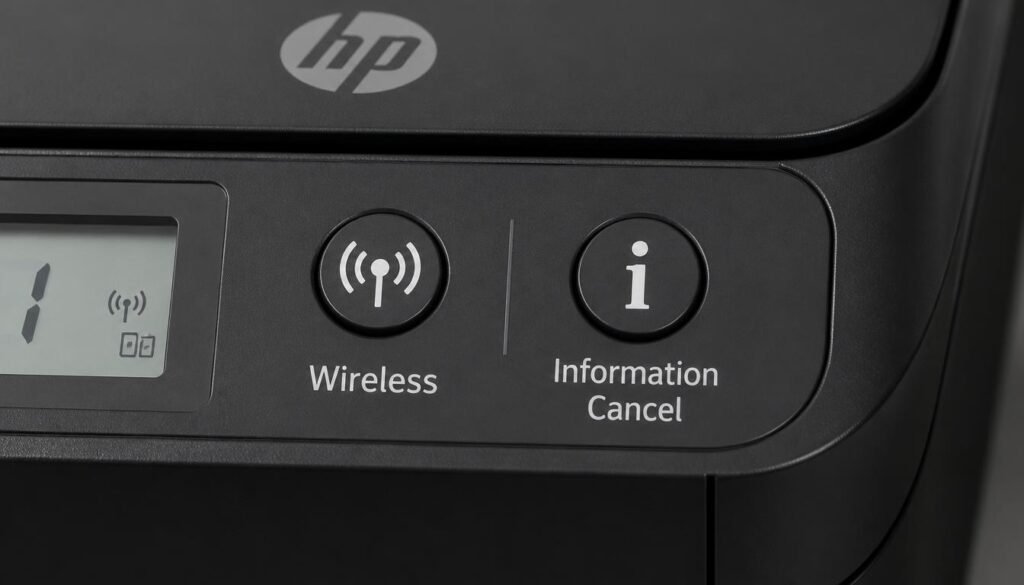
- Printer Hardware: Press and hold the Wireless or Information button for five seconds to print a Network Configuration Page.
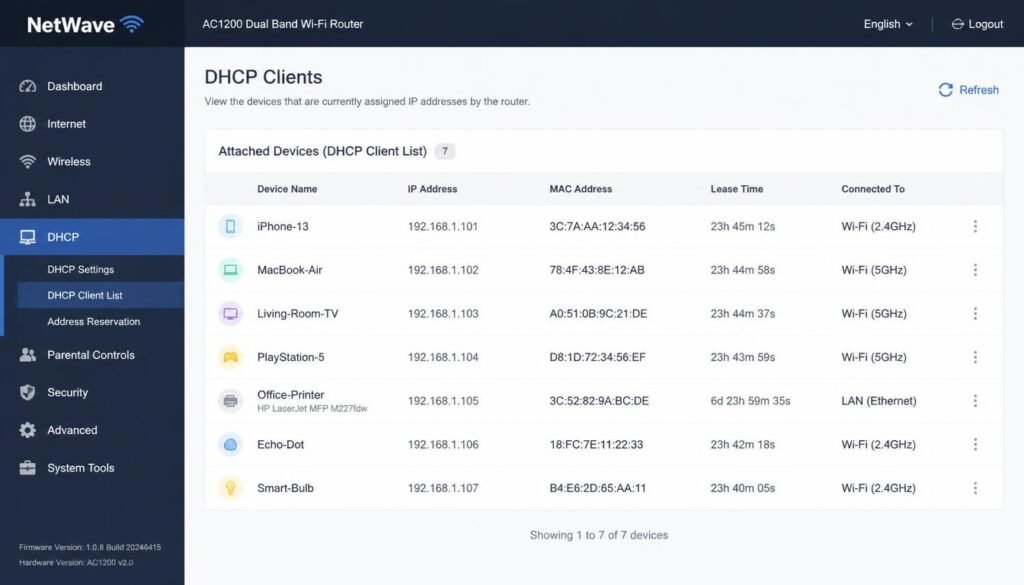
- Router Admin Panel: Access your gateway page in a browser, log in, and check the DHCP Client Table for your printer name.
Printer IP Address Lookup Methods Compared
| Method | Connection State Required | Technical Difficulty | Speed | Best For |
| Windows Settings / Control Panel | Printer must be added to PC | Beginner | Fast | Everyday desktop users |
| Command Prompt (arp -a, netstat) | Printer connected to same network | Intermediate | Instant | Technical troubleshooting |
| Printer Control Panel Network Page | Printer powered on, network optional | Beginner | Fast | Offline or unconnected printers |
| Router Admin Panel (DHCP Table) | Printer connected to router | Intermediate | Moderate | Confirming reserved or changing IP |
| Mac System Settings / CUPS | Printer added on Mac | Beginner | Fast | macOS users |
| Mobile App (Android or iOS) | Phone on same Wi-Fi network | Beginner | Fast | Checking IP without a computer |
Before diagnosing the printer itself, it often helps to confirm your own machine holds a valid network identity first. Reviewing how to find IP address on computer settings rules out a local adapter problem before you spend time chasing the printer.
How to Find Printer IP Address on Windows 11 and Windows 10
Windows exposes the printer IP address through several operating system layers, from the standard graphical menu down to low-level command line tools.
How to Find Printer IP Address Windows 11 Using Settings
- Press Windows key + I to open the Settings app.
- Select Bluetooth & devices from the left menu, then click Printers & scanners.
- Click your specific printer name from the list.
- Select Printer properties.
- Open the Ports tab and locate the checked port entry, which typically displays the raw TCP/IP address directly.
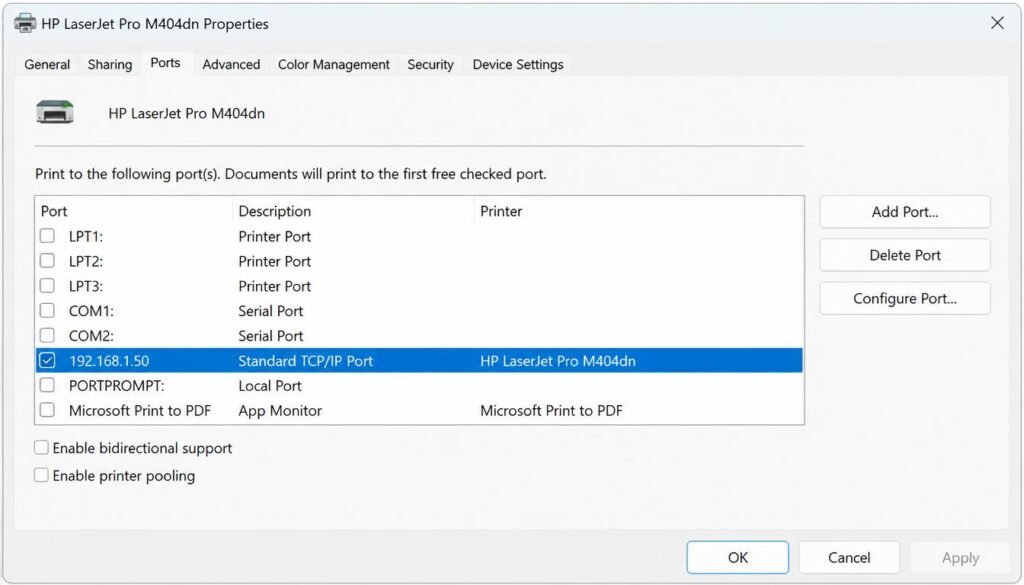
This exact sequence answers how to find printer ip address in laptop environments as well, because portable laptops and fixed desktop PCs use the exact same interface in Windows 11.
How to Find Printer IP Address Windows 10 Using Control Panel
- Open Control Panel and click Devices and Printers.
- Right click your printer icon and choose Printer properties.
- Select the Ports tab.
- Read the address listed beside the checked box, or click Configure Port for full IP configuration details.
Command Prompt Method: arp -a and netstat
Command line utilities reveal every active device communicating over your local network, which helps when a printer name does not display properly inside standard settings.
- Press Windows key + R, type cmd, and press Enter.
- Type
arp -aand press Enter to display a list of all active IP and MAC address pairs on your subnet. - Match the Physical Address (MAC) prefix against your printer brand, because manufacturers such as HP, Canon, and Brother use unique hardware prefix identifiers.
- Alternatively, type
netstat -rto view active routing tables, which confirms which local subnet your printer belongs to.
Plaintext
C:\Users\Admin> arp -a

Interface: 192.168.1.20 --- 0xc
  Internet Address      Physical Address      Type
  192.168.1.1            a0-b1-c2-d3-e4-f5     dynamic
  192.168.1.45           00-1f-29-aa-bb-cc     dynamic
  192.168.1.100           88-51-fb-11-22-33     dynamic
PowerShell Printer Port Query
Advanced users can retrieve the precise IP binding for every installed network device using a single terminal command.
- Right click the Start button and launch Windows PowerShell.
- Type
Get-Printer | Select Name, PortNameand press Enter to pair installed printers with their assigned ports. - Type
Get-PrinterPort | Select Name, PrinterHostAddressto reveal the actual numerical IP address bound to each active port.
If PowerShell displays a blank or unexpected port value, comparing it against your live network settings will clarify the mismatch. Our guide on inspecting how to find IP settings breaks down subnet and gateway numbers that explain why a printer suddenly stops responding.
How to Find Printer IP Address on Mac
macOS stores printer network details within System Settings and inside the built-in Unix printing architecture.
System Settings Method
- Click the Apple menu icon and select System Settings.
- Scroll down and click Printers & Scanners.
- Select your connected printer, then click Printer Details or the small information icon.
- Read the numerical IP listed in the Location or Address field.
CUPS Web Interface Method
- Open Safari or any web browser and enter
http://localhost:631into the address bar. - Select the Printers tab from the top menu.
- Click your printer entry from the list.
- Locate the Device URI field, which shows the full network path such as
ipp://192.168.1.45.
The CUPS web interface also reports physical connection errors directly. If your address keeps changing unexpectedly, setting up a static IP address through your router will prevent print jobs from breaking every time the network lease resets.
How to Find the IP Address of a Printer That Is Not Connected
An offline printer or a newly unboxed unit with no computer paired to it still holds a valid network address once joined to Wi-Fi. Two reliable solutions exist for this specific situation.
Print a Network Configuration Page Directly From the Printer
Almost every inkjet and laser unit can print a self-test sheet containing full network details without requiring a computer. This operation works even if the printer has never been installed on any PC, because the address assignment comes directly from your router.
Check the Router DHCP Client Table
- Open a web browser and type your router gateway address, commonly
192.168.1.1or192.168.0.1. - Log in using the admin credentials printed on your router label.
- Navigate to Attached Devices, DHCP Client List, or LAN Setup.
- Locate the printer by its hostname or MAC address prefix.
This method functions even when a printer is powered on without a PC link, because the router manages address leases independently of desktop computers.
Brand Specific Hardware Shortcuts for Printer IP Address
Physical control panel buttons provide the fastest way to extract network information straight from the hardware.
Where Is the IP Address on a Printer HP Wireless Models
On touchscreen units, tap the wireless icon at the top of the display, then select Print Report or View Network Summary.
For button-only units like where is the ip address on a printer hp deskjet or where is the ip address on a printer hp wireless models, press and hold the Wireless button along with the Information or Cancel button for five seconds until a Network Configuration Page prints.
How to Find Printer IP Address?
Where Is the IP Address on a Printer Epson EcoTank
For where is the ip address on a printer epson EcoTank models without a screen, press and hold the Wi-Fi status button for three seconds to print a full network status sheet. On touchscreen models, open Settings, select Network Settings, and choose Print Status Sheet.
Brother Network Configuration Sheet
On Brother machines with displays, open Settings, choose All Settings, select Network, and tap WLAN followed by TCP/IP. On models without a display, hold the Go or Setup button for five seconds to print a Network Configuration Report.
Canon Printer Network Settings Sheet
On Canon touchscreen models, open Setup, select Device Settings, choose LAN Settings, and click Confirm LAN Settings. On button-only Canon printers, hold the Stop button until the alarm light flashes fifteen times, then release to print a network diagnostic page.
How to Find Printer IP Address From Phone
You can complete a printer IP lookup from a mobile device without touching a desktop computer, provided your mobile device shares the same Wi-Fi connection.
Android Method
- Download and open your manufacturer app, such as HP Smart, Canon PRINT, or Epson Smart Panel.
- Select your connected printer from the main dashboard.
- Tap Printer Settings or the information icon to view the active IP address.
iOS Method
- Open Settings on your iPhone and confirm you are connected to the correct Wi-Fi network.
- Open your printer manufacturer management app to inspect device diagnostic information.
- If using AirPrint, select your document, tap Print, tap Printer, and view details.
Checking network identity on a mobile device follows the same principles used on desktop computers. If you manage network connections on mobile phones, our step-by-step guides on how to change IP address on Android and steps to change IP address on iPhone explain manual setup screens in full detail.
Why the Printer IP Address Might Change Automatically
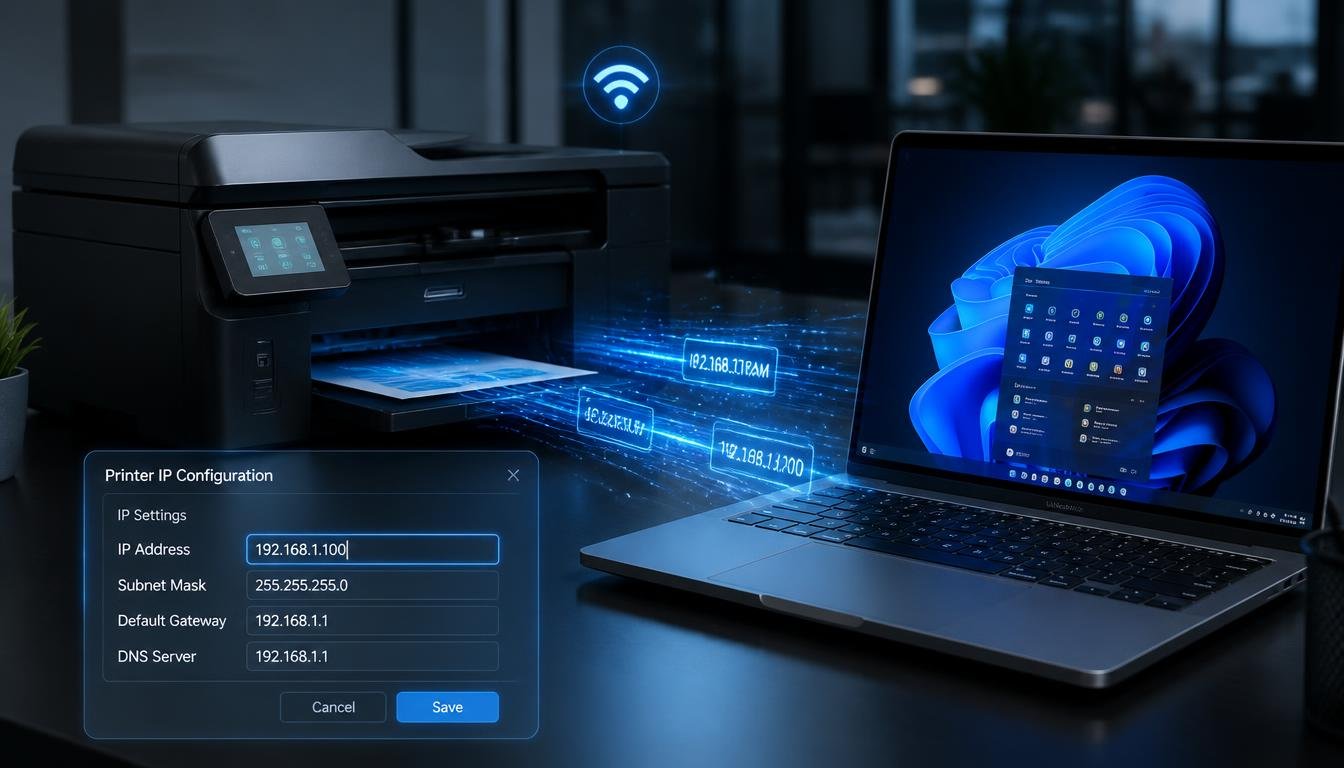
Most home routers assign addresses dynamically through DHCP (Dynamic Host Configuration Protocol), meaning your printer receives a temporary lease rather than a permanent number. This explains why print jobs fail weeks after a successful setup, because Windows or macOS still points to an outdated address. Assigning a DHCP reservation inside your router keeps the address fixed permanently.
If your wireless network drops connections frequently, signal interference on your Wi-Fi frequency band is often the cause. Learning how to adjust your Wi-Fi channel settings reduces wireless dropouts that force your router to issue a new IP lease. Connecting a computer to a VPN service will not change your printer local address, because a VPN routes public web traffic while keeping local subnet connections intact. To understand how external traffic isolation works, review our analysis on does a VPN change your IP address for complete network details.
Troubleshooting Common Printer IP Address Problems
Even after locating an address, underlying network mismatches can prevent your computer from sending print jobs.
The IP Address Ping Test Fails
Open Command Prompt on Windows or Terminal on Mac and type ping 192.168.1.45 (replacing the example with your printer IP). A series of successful replies confirms your network connection. Repeated timeouts mean your printer is offline, asleep, or sitting on an isolated guest Wi-Fi network.
The Printer Address Conflicts With Another Device
Two devices using the same IP address simultaneously cause dropped connections. Restarting your router forces a fresh DHCP lease for every device, resolving address collisions automatically.
Windows Shows a Different Address Than the Printer Itself
This mismatch occurs after power outages or router reboots. Remove the printer from Printers & scanners, then re-add it using the updated address printed from your hardware Network Configuration Page.
The Printer Only Appears Using a Hostname
Some units identify using mDNS or Bonjour hostnames, such as HP-ENVY.local. Typing this hostname into a browser bar or pinging it inside Command Prompt will resolve the underlying numerical IP address.
Frequently Asked Questions
Where can I find my IP number for my printer?
Open your printer control panel menu and print a Network Configuration Page, or inspect the Ports tab inside Printer properties on Windows.
How do I find the IP address of my Wi-Fi printer?
Open Settings on Windows, select Printers & scanners, choose your printer, click Printer properties, and open the Ports tab to view the active IP address.
Does a printer have its own IP address?
Yes. Every wireless or Ethernet printer connected to a network receives its own unique IP address from the router, completely separate from computers and mobile phones.
Where is the IP address on a printer HP Deskjet?
Press and hold the Wireless button and Information button together for five seconds to print a test report containing the IP address.
How to find printer IP address Windows 11 using Command Prompt?
Open Command Prompt, type arp -a, and press Enter. Match your printer brand hardware MAC address prefix against the list to locate its IP.
How to find the IP address of a printer that is not connected to a PC?
Print a Network Configuration Page using the physical buttons on the printer, or log in to your router admin panel to check the DHCP Client List.
Where is the IP address on a printer Epson EcoTank?
Press and hold the Wi-Fi button on the control panel for three seconds to print a network status sheet displaying the active IP address.
How to find printer IP address from phone without a computer?
Open your official manufacturer app such as HP Smart or Epson Smart Panel, select your connected printer, and tap Printer Settings.
Why does my printer IP address keep changing automatically?
Routers issue dynamic IP addresses through DHCP leases that expire over time. Assigning a static IP or router DHCP reservation keeps the address permanent.
How to find printer IP address in laptop on Windows 10?
Open Control Panel, click Devices and Printers, right click your printer, select Printer properties, and inspect the Ports tab
Final Thoughts
Locating a printer address becomes straightforward once you match the method to your situation. Desktop users find the fastest path through system settings, while an offline or unconnected printer requires a printed network status sheet or a quick check inside your router gateway panel. Once confirmed, setting a permanent address ensures uninterrupted printing across every device on your home network.
For users managing network settings across multiple devices, our full guide on how to modify IP address settings details step-by-step instructions to configure static network addresses on every major operating system.
If you are setting up a wireless device for the first time or reconnecting after a network change, our complete guide on how to connect Brother printer to Wi-Fi provides step-by-step instructions to get your hardware connected to your network quickly.