A missing or misconfigured network identity can immediately disconnect your PC from local network shares, wireless printers, or internet access. Learning how to find ip address on computer systems allows you to troubleshoot connectivity failures, set up port forwarding, and resolve IP conflict errors in minutes.
Quick Answer: How to Find IP Address on Computer
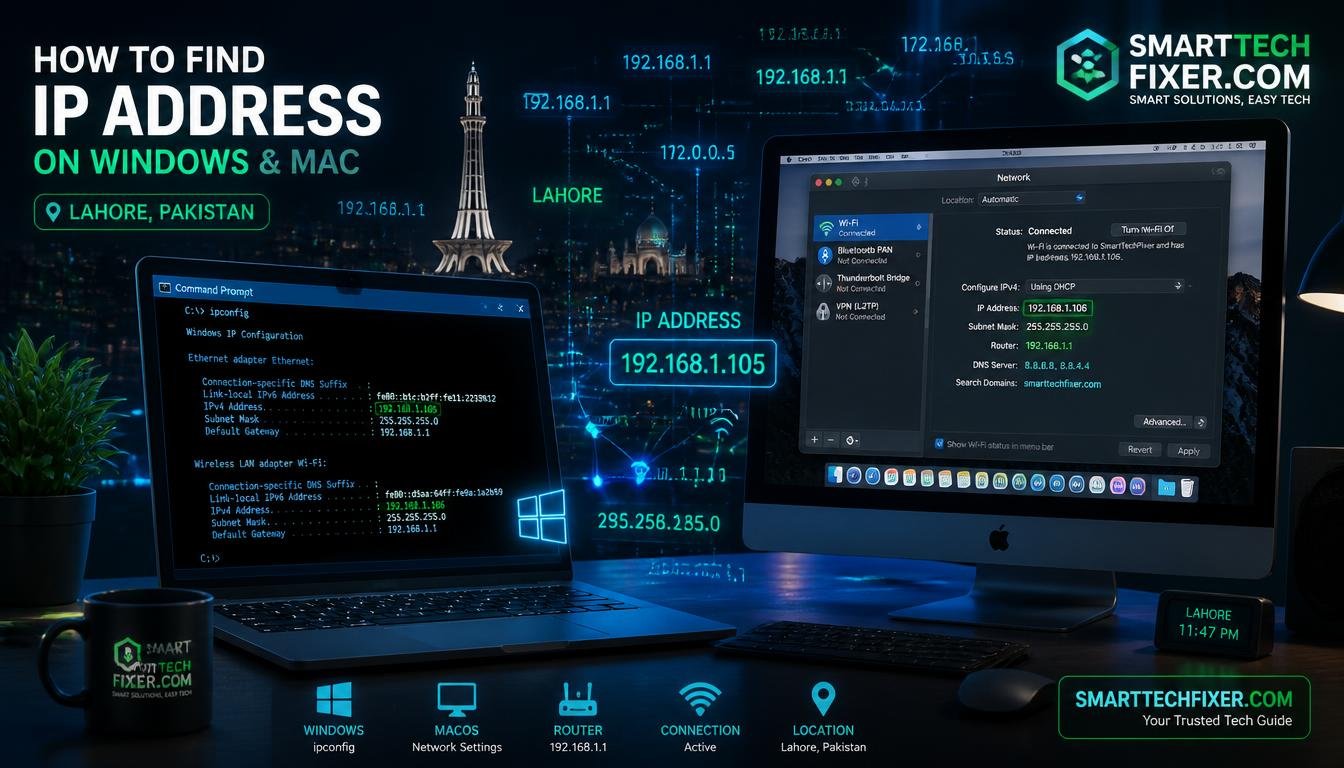
To find your internal IP address on Windows, open Command Prompt, type
ipconfig, and press Enter to view your IPv4 Address. On macOS, navigate to System Settings, select Network, click your active Wi-Fi or Ethernet connection, and view Details. For public IP addresses, search “what is my IP” in any browser.
Understanding your local network environment begins with proper hardware diagnostics. You can review our laptop Wi-Fi connection guide if your physical adapter fails to obtain a valid assignment from your local gateway router.
Computer IP Address Discovery Methods Comparison
| Method | OS Support | Execution Speed | Advanced Details Provided | Ideal Use Case |
| Command Prompt (CMD) | Windows 7, 10, 11 | Instant (Seconds) | Subnet Mask, Default Gateway, DNS | Fast technical diagnostic checks |
| Windows Settings App | Windows 10, 11 | Fast (A few clicks) | Connection Type, Link Speed, Wi-Fi Band | Everyday user verification |
| Control Panel | Windows 7, 10, 11 | Moderate | Physical Address (MAC), Lease Duration | Network adapter administration |
| PowerShell | Windows 10, 11 | Instant | Full Interface Metrics, IPv6 Scope | Advanced network scripting |
| macOS System Settings | macOS Ventura and Newer | Fast | Router IP, Hardware MAC, Subnet | Mac visual network management |
| macOS Terminal | All macOS Versions | Instant | Interface Flags, Broadcast Addresses | Advanced Mac terminal users |
| Online IP Checker | All Operating Systems | Instant | Public IP, ISP Info, Geolocation | VPN verification & remote access |
How to Find IP Address Windows 10 and Windows 11
Modern Windows operating systems provide distinct graphical options to inspect network properties. You can easily navigate the redesigned Settings menu or rely on classic utility windows.
Windows 11 Settings App Method
Open the Settings application by pressing Windows key + I on your keyboard. Click on Network & internet on the left menu pane, then select either Wi-Fi or Ethernet depending on your active medium.
Click on Properties near the top of the interface. Scroll down to the bottom section to read your internal IPv4 address, local subnet parameter, and default gateway identifier.
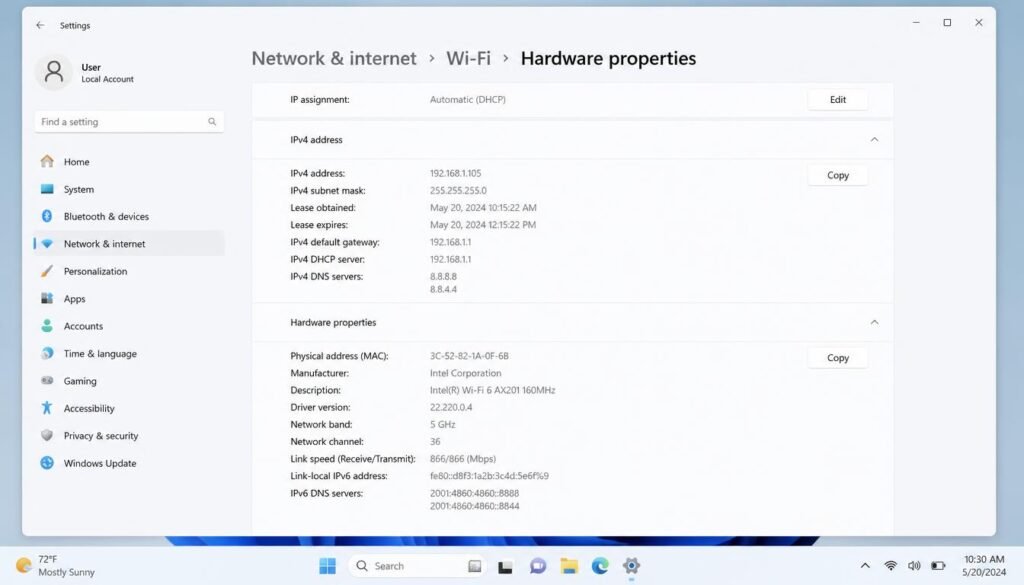
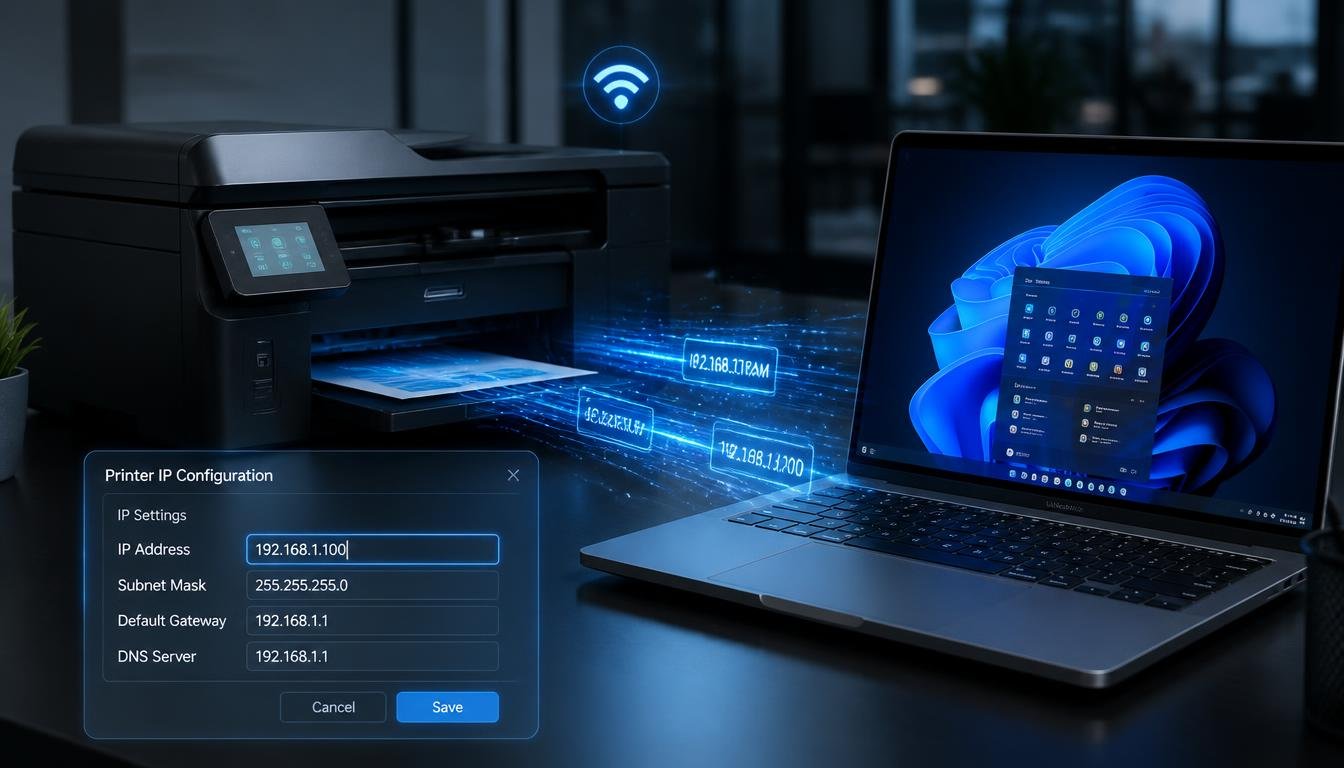
If you encounter address configuration mismatches here, consulting our static IP configuration guide will assist you in switching between manual and dynamic DHCP modes safely.
Windows 10 Settings App Method
Press Windows key + I to open Settings, then click on Network & Internet. Select Status from the left column, then click the Properties button located under your active network connection.
Scroll to the Properties list near the bottom of the window. Locate the line labeled IPv4 address to extract your machine local network identification code.
Legacy Control Panel Method (Windows 10 and 11)
Press Windows key + R, type ncpa.cpl, and press Enter to open Network Connections directly. Right-click your active Wi-Fi or Ethernet network card, then choose Status.
Click the Details… button inside the status popup window. A new window will display your IPv4 Address, MAC Address, Subnet Mask, and DHCP Server details clearly.
Press Windows key + R, type ncpa.cpl, and press Enter to open Network Connections directly. If you need a complete overview of your adapter parameters, review our guide on checking your current IP settings
before editing manual fields. Right-click your active Wi-Fi or Ethernet network card, then choose Status.
How to Find IP Address Windows 10 Using Command Prompt & CMD in Windows 11
The command line interface offers the most direct way when searching how to find IP address Windows 11 in cmd environments without relying on menus.
Step-by-Step Command Prompt Execution
- Press Windows key + R to launch the Run dialog box.
- Type
cmdand press Enter or click OK. - Type
ipconfiginside the black terminal window and press Enter. - Locate your active network adapter (such as Wireless LAN adapter Wi-Fi or Ethernet adapter).
- Read the numerical entry beside IPv4 Address.
Plaintext
C:\Users\Admin> ipconfig

Ethernet adapter Ethernet:
   Connection-specific DNS Suffix  . : localdomain
   Link-local IPv6 Address . . . . . : fe80::5132:98a1:882b%12
   IPv4 Address. . . . . . . . . . . : 192.168.1.105
   Subnet Mask . . . . . . . . . . . : 255.255.255.0
   Default Gateway . . . . . . . . . : 192.168.1.1
How to Find IP Address on Computer?
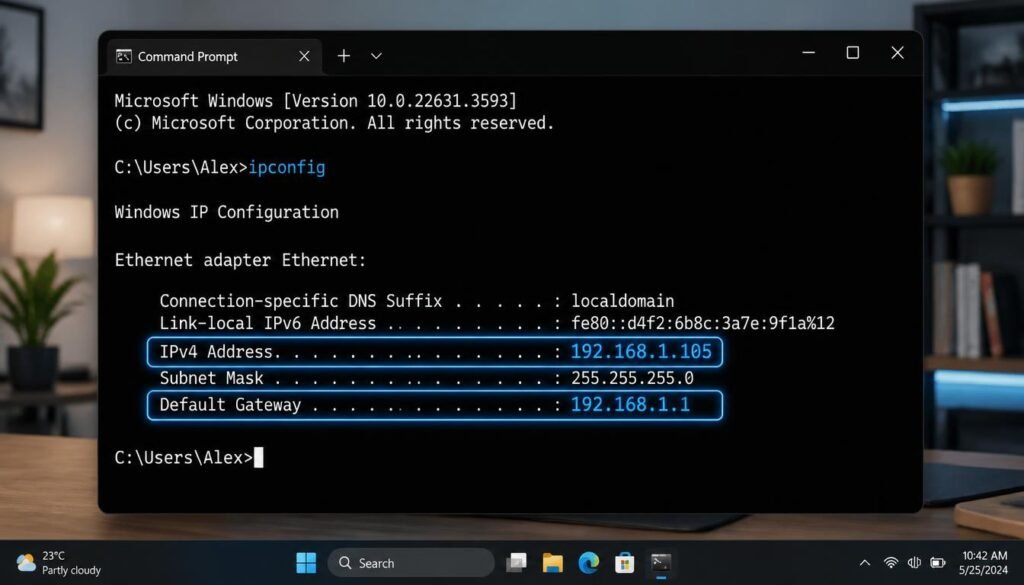
If you notice command line output errors or missing adapter entries, running our recommended DNS flush command sequence can clear out stale system network bindings.
Advanced PowerShell Execution
Right-click the Start menu button and select PowerShell or Terminal. Type Get-NetIPAddress -AddressFamily IPv4 and press Enter to view detailed index properties for every active network interface.
How to Find IP Address on Computer Windows 7
Legacy Windows builds rely heavily on classic administrative utilities for network diagnostic tasks.
- Click the Start Menu icon and select Control Panel.
- Click Network and Internet, then select Network and Sharing Center.
- Click on your active connection link located next to Connections (e.g., Local Area Connection or Wireless Network Connection).
- Select Details… in the pop-up window to locate your IPv4 address line.
Alternatively, you can open the Start menu, type cmd in the search bar, press Enter, and execute ipconfig just as you would on newer Windows releases.
How to Find IP Address on Computer on Mac
Apple systems allow users to read local network assignments through macOS System Settings or via Terminal commands.
macOS System Settings Method (Ventura, Sonoma, and Later)
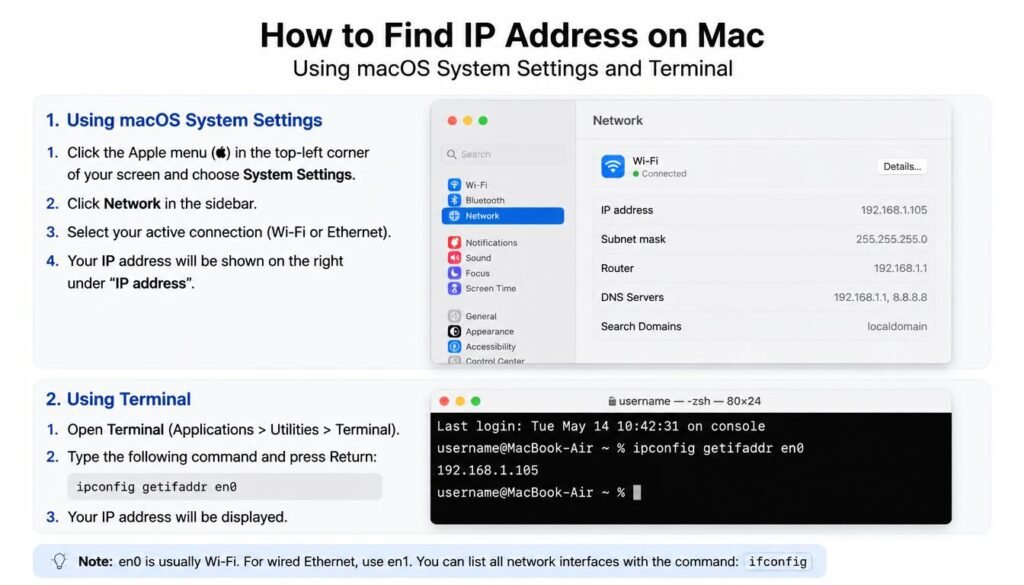
- Click the Apple logo in the top left corner of your screen and select System Settings.
- Click Network in the left sidebar.
- Select your connected network type (Wi-Fi or Ethernet).
- Click Details… next to your active network name to read your local IP address.
macOS Terminal Method
Open Spotlight Search by pressing Command + Spacebar, type Terminal, and press Enter. Type ipconfig getifaddr en0 for Wi-Fi or ipconfig getifaddr en1 for Ethernet, then press Enter to output your IP value instantly.
If your Mac receives an IP address starting with 169.254, check your wireless broadcast values using our SSID lookup guide to confirm your router is transmitting properly.
Advanced CMD Tricks: Hostnames and URL Resolution
Command-line utilities make it simple to resolve external web targets and locate other computers on your private LAN.
Find IP Address of Computer on Network by Name
If you need to connect to a shared computer or network printer by name, open Command Prompt and execute a reverse lookup ping command:
Plaintext
ping -a ComputerName
The system will resolve the machine hostname to its assigned internal numerical IP address before sending test ping packets.
How to Get IP Address in CMD from URL
To determine the host IP address behind any website domain name, use the built-in Name Server Lookup command line utility:
Plaintext
nslookup example.com
The command returns the canonical domain name alongside the public IPv4 and IPv6 addresses hosting that web server.
Private vs Public IP Addresses (192.168.x.x Breakdown)
Understanding how do I find my 192.168 IP address requires knowing the difference between local private subnets and external public interfaces.
- Private IP Address: Assigned by your local router via DHCP (commonly starting with 192.168.x.x or 10.x.x.x). It identifies your specific computer inside your home or office local area network.
- Public IP Address: Assigned by your Internet Service Provider (ISP) to your modem or primary gateway router. Every device on your local network shares this single public identity when accessing external websites.
If you suspect your local address overlaps with another device on your network, reviewing our subnet masking tutorial will help you understand how network boundaries isolate device addresses.
Frequently Asked Questions
How do I locate my IP address on my computer?
You can locate your IP address on Windows by opening Command Prompt and typing ipconfig. On Mac, navigate to System Settings, click Network, and view the active connection details.
How to find IP address in Windows 10?
In Windows 10, open Settings > Network & Internet > Status, then click Properties under your active connection to view your IPv4 Address instantly.
How can I check my IP address?
You can check your private local IP address using built-in system tools like Command Prompt (ipconfig) or macOS Terminal. To check your public IP address, search “what is my IP” in any web browser.
How do I find my 192.168 IP address?
Run ipconfig in Command Prompt on Windows or run ipconfig getifaddr en0 on macOS. Your 192.168.x.x address will be listed under your active Wi-Fi or Ethernet adapter properties.
What is the difference between a MAC address and an IP address?
A MAC address is a permanent hardware serial number assigned to your network card by the manufacturer. An IP address is a dynamic logical address assigned by your router to route traffic on a network.
Why does Command Prompt say ipconfig is not recognized?
This message appears if your Windows system path variables are missing. Open Command Prompt specifically from C:\Windows\System32\cmd.exe or run PowerShell to execute network commands.
Can two computers have the same IP address on one network?
No, two devices cannot actively share the same private IP address on a single local network without causing an IP conflict error that disconnects both machines.
How do I check if my IP address is static or dynamic?
Open Command Prompt, type ipconfig /all, and press Enter. Look for the line labeled DHCP Enabled. If it says Yes, your IP is dynamic; if it says No, your IP is static.
Does restarting my computer change my IP address?
Restarting your computer usually does not change your local IP address if your router holds an active DHCP lease for your device MAC address.
How do I find my default router gateway IP address?
Run ipconfig in Command Prompt on Windows. Look for the entry labeled Default Gateway, which is usually 192.168.1.1 or 192.168.0.1.
Mastering these basic diagnostic steps makes resolving home network outages much easier. You can use our router IP management guide to adjust DHCP ranges, or consult our printer Wi-Fi setup tutorial to configure persistent IP assignments across all your household devices.
Final Thoughts
Finding your local or public IP address is an essential diagnostic step whenever network connections drop, hardware devices fail to communicate, or local server shares become unreachable. Utilizing fast system tools like Command Prompt on Windows or System Settings on macOS allows you to retrieve your exact network parameters without third party software.
Once you retrieve your network details, you may need to adjust your dynamic settings to prevent future IP assignment conflicts. You can follow our complete guide on how to modify IP address configurations across all major operating systems if your router continuously assigns incorrect gateway parameters. Keeping your local address configurations properly structured ensures stable internet performance and consistent hardware connectivity across your entire local area network.