How to Switch Desktops In Just 60 Sec Easy Fix Guide (2026)
Your screen is buried under a dozen windows, your taskbar looks like a traffic jam, and you cannot find the one document you actually need. If that sounds familiar, learning how to switch desktops is the single fastest fix for a cluttered workflow, and it takes less time to master than it takes to read this sentence.
Quick Answer
To switch desktops in Windows 11, press Windows key + Ctrl + Right Arrow or Left Arrow to move between virtual desktops instantly. You can also click the Task View icon on the taskbar (or press Windows key + Tab) and select the desktop thumbnail you want. Both methods work in Windows 10 as well.
Once you know the exact combination, moving between desktops becomes a reflex rather than a chore. Below is a full breakdown of every method available, including a few tricks that most guides never mention.
Windows 11 vs Windows 10 Desktop Switching: Quick Comparison
| Shortcut Action | Windows 11 Combination | Windows 10 Alternative |
|---|---|---|
| Switch to next desktop | Windows key + Ctrl + Right Arrow | Windows key + Ctrl + Right Arrow |
| Switch to previous desktop | Windows key + Ctrl + Left Arrow | Windows key + Ctrl + Left Arrow |
| Open Task View | Windows key + Tab | Windows key + Tab |
| Create a new desktop | Windows key + Ctrl + D | Windows key + Ctrl + D |
| Close current desktop | Windows key + Ctrl + F4 | Windows key + Ctrl + F4 |
| Four finger touchpad swipe | Switches desktops by default | Requires manual gesture setup |
| Mouse scroll on Task View icon | Cycles through desktops | Not available |
| Rename a desktop | Click the name in Task View | Right click the desktop thumbnail |
How to Switch Desktops

Understanding Task View Before You Switch
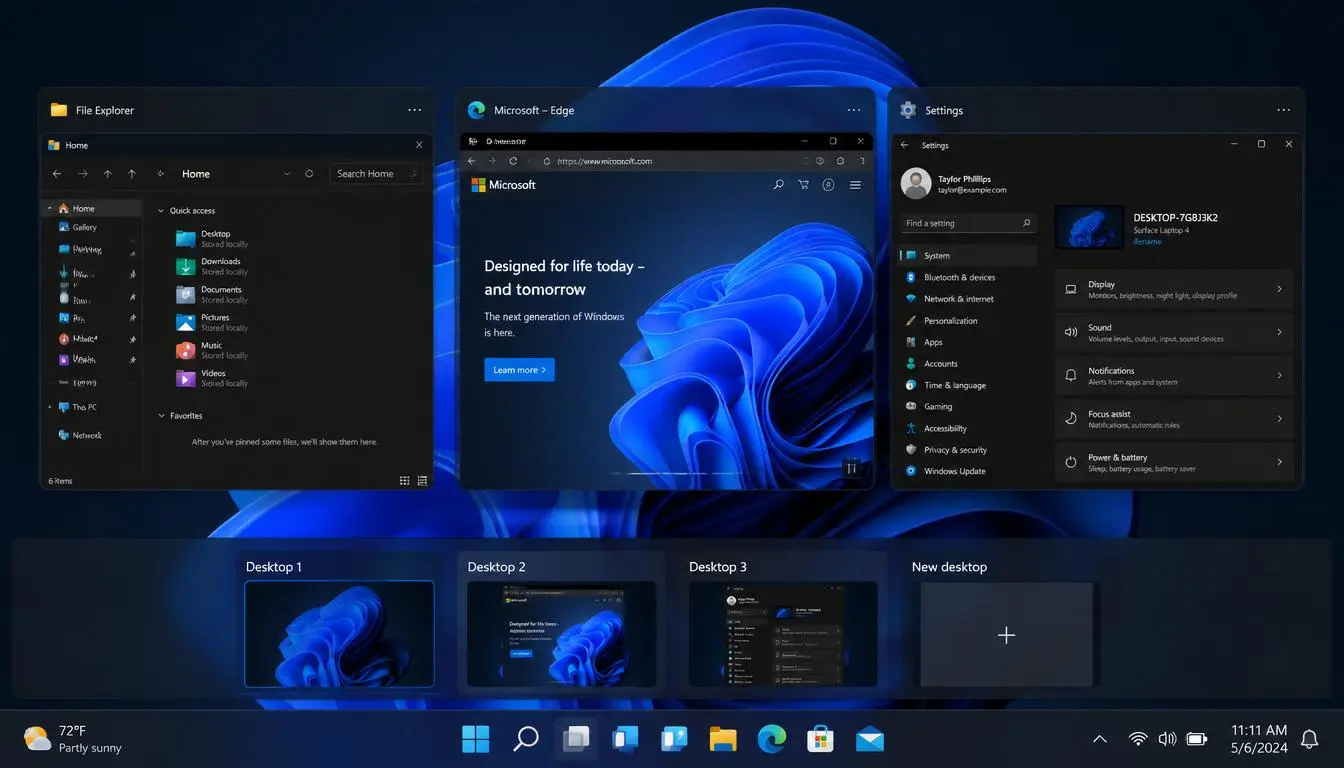
Task View is the control center for every virtual desktop on your PC, and it sits quietly on your taskbar as two overlapping rectangles. Before you can move confidently between desktops, it helps to know exactly what this icon does and where your extra workspaces actually live.
Task View shows you three things at once: your currently open windows, a strip of thumbnails representing every desktop you have created, and a button to build another one. Nothing you do inside Task View deletes your files or closes your applications permanently, so it is completely safe to experiment with.

How to Switch Desktops
If you cannot see the Task View icon on your taskbar, it may have been turned off accidentally. Right click an empty area of the taskbar, select Taskbar settings, and toggle Task View back on. This single fix solves the majority of cases where users think the feature has disappeared entirely.
How to Switch Desktops Using the Windows 11 Task View Icon
This is the most visual method, and it is ideal if you prefer clicking over memorizing key combinations.
- Locate the Task View icon on your taskbar.
It looks like two overlapping rectangles and usually sits near the search bar. - Click the icon once.
Every open desktop appears as a row of thumbnails along the bottom or top of your screen, depending on your Windows build. - Preview each thumbnail before committing.
Hover your cursor over a thumbnail to see a live preview of the apps running on that desktop without actually switching to it. - Click the thumbnail you want.
The transition happens instantly, and the Task View panel closes on its own. - Press Escape at any time.
If you open Task View by mistake and want to return to your current desktop without switching.
This workflow is also the fastest way to confirm which desktop holds a specific application, especially if you tend to lose track of where you left something open.
How to Open a New Desktop and Organize Individual Applications
Switching between desktops only becomes useful once you have more than one to switch to, so setting up your workspace correctly saves time later.
- Open Task View using Windows key + Tab, or click the taskbar icon directly.
- Click New Desktop, which usually appears as a small plus sign near the thumbnail row. A blank desktop, labeled Desktop 2, appears immediately.
- Switch to the new desktop by clicking its thumbnail, then open only the applications you want grouped there.
- Move an existing window to a different desktop by opening Task View, then dragging the window thumbnail from one desktop strip onto another.
- Rename each desktop for clarity. Open Task View, click directly on the desktop name above its thumbnail, and type something descriptive such as Research, Billing, or Testing.
- Repeat for as many desktops as your workflow needs. Most users find that three or four dedicated desktops cover every common task without becoming confusing.
A practical setup many professionals use looks like this: one desktop for communication apps such as email and chat, one for the actual work in progress, one for research and reference material, and one kept empty for anything that needs isolating temporarily.
While managing multiple virtual workspaces helps keep tasks organized, system slowdowns can interrupt smooth desktop switching; review our quick guide on how to speed up Windows performance to clear memory bottlenecks.
Windows 11 Hotkey to Switch Desktops (Every Keyboard Shortcut)
Keyboard shortcuts remain the fastest option once muscle memory kicks in, and the windows 11 hotkey to switch desktops is identical to the one used in Windows 10, so there is nothing new to relearn if you recently upgraded. If you searched for how to switch desktops windows 11 specifically because your old shortcuts stopped working after an update, rest assured that Microsoft has not changed the default combination.
- Windows key + Ctrl + Right Arrow: Move one desktop to the right.
- Windows key + Ctrl + Left Arrow: Move one desktop to the left.
- Windows key + Ctrl + D: Create a brand new desktop and jump straight to it.
- Windows key + Ctrl + F4: Close the desktop you are currently viewing.
- Windows key + Tab: Open Task View without switching yet, giving you a chance to choose visually.

How to Switch Desktops
There is no single desktop 2 shortcut that jumps directly to a numbered desktop. Windows only supports cycling one step at a time, so if you want to know exactly how to switch to desktop 1 from desktop 4, you would press the left arrow combination three times, or open Task View and click the correct thumbnail directly for a one step jump.
If you often ask how do I change desktop without lifting your hands from the keyboard, the arrow key combination above is the answer you are looking for. It works identically whether you are running the latest Windows 11 build or an older Windows 10 machine still waiting for windows 10 switch virtual desktop support, which has existed since the feature first launched.
If login prompts are slowing down your return to these desktops every time you restart your PC, our guide on Windows 11 automatic login walks through the safest way to skip that extra step.
Advanced Navigation Tricks Most Guides Skip
Most guides stop at keyboard shortcuts and Task View clicks, but Windows 11 includes two additional navigation tricks that rarely get mentioned anywhere.
How to Switch Desktops Using Mouse Scroll and Trackpad Gestures
- Hover your mouse cursor directly over the Task View icon on the taskbar without clicking it.
- Scroll the mouse wheel up or down. Each scroll instantly cycles you to the next or previous desktop, with no need to open Task View at all.
- On a laptop touchpad, place four fingers flat on the surface. This is the default gesture and requires no setup on most precision touchpads.
- Swipe left or right with all four fingers. Swiping left advances to the next desktop, while swiping right returns to the previous one.
- On a touchscreen device, swipe with four fingers directly on the display to trigger the identical motion.

How to Switch Desktops
The mouse scroll trick is particularly useful on a desktop computer with no touchpad and no interest in memorizing shortcuts, and it works even faster than clicking through Task View thumbnails one by one.
How to Swap Desktops Using a Custom Shortcut (AutoHotkey Method)
The built in shortcut requires three keys pressed together, which some users find awkward for a task performed dozens of times a day. A free tool called AutoHotkey lets you remap the action to a simpler combination.
- Download AutoHotkey from its official website and run the installer.
- Right click your desktop, select New, then AutoHotkey Script, and give the file a clear name such as desktop switch.
- Right click the new script file and choose Edit Script.
- Paste in a simple remap, for example assigning Windows key plus the left and right bracket keys to trigger the standard desktop switching shortcut.
- Save the file, then double click it to run the script. An icon appears in your system tray confirming it is active.
- Place a shortcut to the script inside your Startup folder if you want the custom shortcut available every time you turn on your PC.

This is an optional step for power users who want a windows switch desktop shortcut built with a shortcut to switch between desktops that matches their own habits rather than the Microsoft default.
Reassigning or Disabling the Touchpad Gesture
If a four finger swipe keeps triggering by accident while you type or browse, Windows 11 lets you reassign or turn it off entirely.
- Open Settings using Windows key + I.
- Go to Bluetooth and devices, then select Touchpad.
- Expand the section labeled Four finger gestures.
- Click the dropdown menu and choose a different action, such as switching between open apps, or select Nothing to disable the gesture completely.
- Close Settings. The new behavior applies immediately without a restart.
The same menu also controls three finger gestures, which some users prefer to reassign to desktop switching instead, freeing the four finger swipe for a different shortcut entirely.

If your system runs uncomfortably hot after keeping several desktops open with multiple heavy applications, our walkthrough on how to check CPU temperature on Windows 11 shows you how to confirm whether overheating is contributing to the lag.
How Do I Change Desktop Backgrounds for Each Workspace
A small detail that makes switching feel far less confusing is giving each desktop its own wallpaper, so a quick glance tells you exactly where you are. This is especially helpful once you have switched to desktop 2 or beyond and want instant visual confirmation of which workspace is active, and it also answers the common question of how to swap between desktops without reading a label every time.
- Right click your desktop background and choose Personalize, or open Settings and go to Personalization, then Background.
- Right click the wallpaper you want to assign.
- Select Set for Monitor 1, Desktop 1, or the equivalent option showing your current desktop number.
- Switch to a different desktop and repeat the process with a different image for each one.
Once every desktop has a distinct look, you rarely need to check the label at all, since the background alone tells you where you landed.
Troubleshooting Common Desktop Switching Problems
Even a simple feature occasionally misbehaves. Here are the fixes for the most common complaints.
Keyboard shortcut does nothing: Confirm that more than one desktop actually exists, since the shortcut has nothing to cycle to if only one is open. Also check whether Sticky Keys or Filter Keys is enabled under Settings, then Accessibility, then Keyboard, as either one can silently block combination shortcuts.
Task View button is missing from the taskbar: Right click the taskbar, choose Taskbar settings, and toggle Task View back on.
Touchpad gestures stopped working: Update your touchpad driver through Device Manager, then confirm the four finger gesture is still set to switch desktops inside Bluetooth and devices, then Touchpad.
Apps unexpectedly appear on every desktop: Open Task View, right click the app thumbnail, and check whether Show this window on all desktops has been toggled on by mistake.
Desktop order resets after restart: This is expected default behavior in Windows, since virtual desktops are not designed to persist their exact order across a reboot on most builds.
If your PC feels sluggish while switching between multiple open desktops and applications, the underlying cause is often unrelated background load rather than the desktop feature itself. Our guide on how to speed up a slow Windows 11 laptop or PC covers the exact settings worth checking first.
Frequently Asked Questions
How do I quickly switch desktops?
The fastest method is the keyboard shortcut Windows key + Ctrl + Right Arrow or Left Arrow, which moves you one desktop at a time without opening any menu. On a laptop, a four finger touchpad swipe achieves the same result almost as quickly, and hovering over the Task View icon while scrolling your mouse wheel works just as fast on a desktop computer.
How to split desktop 1 and 2?
Windows virtual desktops are already fully separated from each other by default, so no manual splitting is required. Simply open Task View, click New Desktop to create Desktop 2, then open different applications on each one to keep the two workspaces distinct. Renaming each desktop through Task View makes the separation easier to track visually.
How do you switch between desktops in Windows 11?
Press Windows key + Ctrl + Right Arrow or Left Arrow for an instant switch, or click the Task View icon on the taskbar and select the thumbnail of the desktop you want. Touchpad users can also swipe left or right with four fingers, and mouse users can scroll while hovering over the Task View icon.
How do I switch between two desktop screens?
If you mean two virtual desktops inside one monitor, use the same Windows key + Ctrl + Arrow shortcut or the Task View icon described above. If you mean two separate physical monitors, each monitor can display its own set of virtual desktops independently, and you can assign different wallpapers or applications to each screen through the Personalization settings covered earlier in this guide.
How do I quickly switch desktops?
The fastest way to switch desktops is using keyboard shortcuts. On Windows, press Ctrl + Windows Key + Left/Right Arrow. On Mac, swipe left or right with three or four fingers on the trackpad, or press Control + Left/Right Arrow.
How to split desktop 1 and 2?
To split apps across Desktop 1 and Desktop 2 on Windows:
Press Windows Key + Tab to open Task View.
Click + New desktop at the top or bottom bar to create Desktop 2.
Drag any open window from Desktop 1 and drop it into Desktop 2.
How do I switch between two desktops?
You can switch between two desktops either by pressing Ctrl + Win + Left/Right Arrow or by opening Task View (Win + Tab) and clicking directly on the desktop thumbnail you want to open.
How do you switch between desktops in Windows 11?
In Windows 11, press Ctrl + Windows Key + Left/Right Arrow to instantly slide between desktops. Alternatively, click the Task View icon (two overlapping squares) on your taskbar and select your desired desktop.
Final Thoughts
Mastering this workflow turns a cluttered, single screen setup into several organized, purpose built workspaces that you can jump between in a fraction of a second. Start with the keyboard shortcut for daily use, keep the Task View icon and mouse scroll trick in reserve for visual navigation, and rename each desktop so you never lose track of what lives where. Once the habit sticks, going back to a single crowded desktop will feel like a genuine downgrade.
And if a sudden network hiccup interrupts your workflow while multiple desktops are open, our fix for DNS server not responding on Windows 11 will get you back online in minutes.