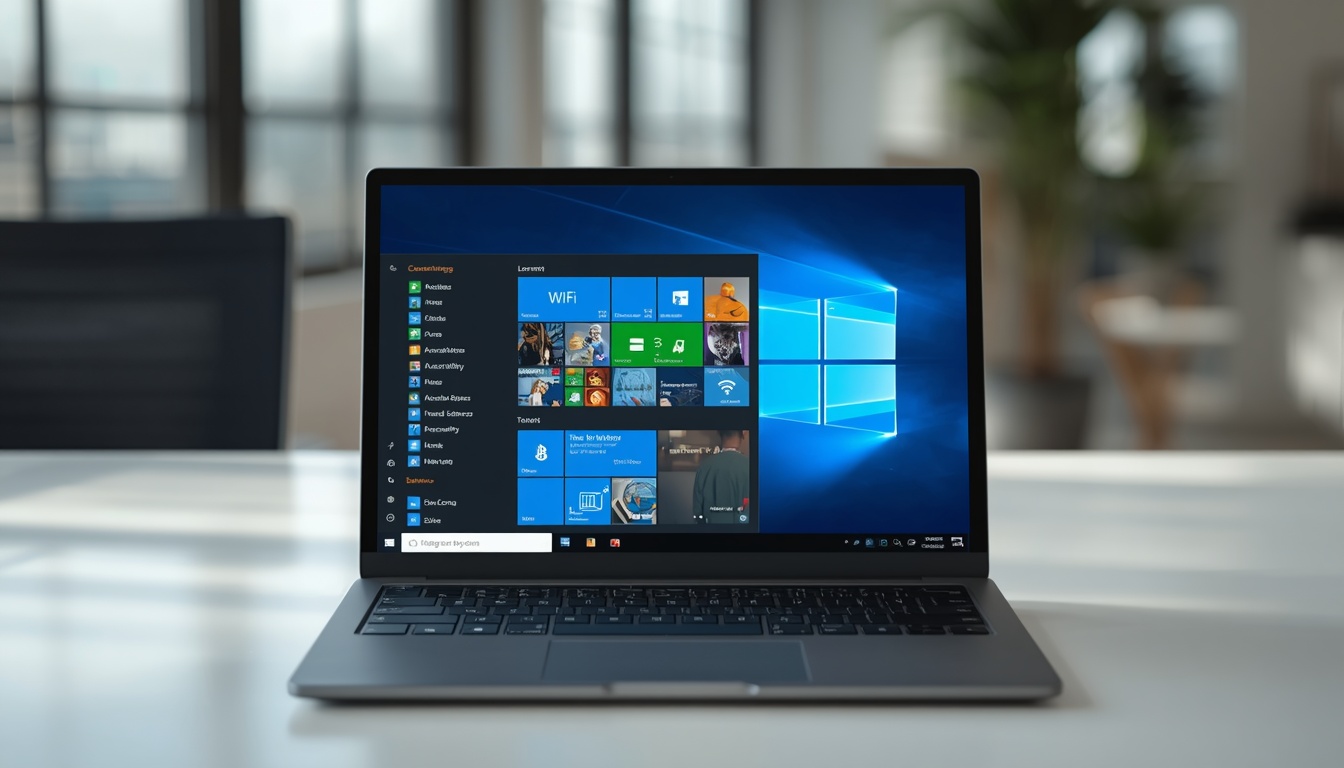
You boot up your computer only to find the wireless icon completely missing from the taskbar, preventing you from browsing the internet entirely. If you are currently dealing with a sudden windows 11 no wifi option error, you are not alone, as this is a frequent glitch caused by system updates or software misconfigurations.
Quick answer
When the windows 11 no wifi option bug occurs, it means your operating system has lost communication with your physical network card. You can usually restore the wireless menu immediately by performing a hard power reset on your laptop or running a built in network settings reset. If the issue happens during a fresh operating system installation, using a terminal command to bypass the internet setup screen will get you onto your desktop safely.
Many basic online troubleshooting guides only tell you to turn your wireless switch off and on. This extensive guide covers the real hardware level bugs and administrative fixes that competitors omit. If your computer is working but your phone is having wireless problems, you can read our complete guide on why is my phone not connecting to wifi to resolve mobile issues. Read on to restore your internet connection for good.
Many basic online troubleshooting guides only tell you to turn your wireless switch off and on. This extensive guide covers the real hardware level bugs and administrative fixes that competitors omit. If your computer is working but your phone is having wireless problems, you can read our complete guide on why is my phone not connecting to wifi to resolve mobile issues. Read on to restore your internet connection for good.
Main Reasons Why Your WiFi Option Disappeared in Windows 11
When your windows no wifi option crisis begins, it means something is actively blocking your operating system from reading the wireless chip. Real user discussions on tech forums highlight that this rarely happens at random. Instead, the problem usually stems from specific system triggers.
Operating System Registry Corruptions
A major cause behind wifi missing windows 11 reports is a broken system layout. During large monthly updates, the operating system can accidentally corrupt the network registry entries. When this happens, the entire network sub menu breaks, causing the system to behave as though no wireless card exists at all.
Corrupted or Crashed Network Drivers
Your wireless network card cannot function without software instructions called drivers. If a cumulative update replaces your stable hardware driver with an incompatible generic version, your pc not showing wifi option errors will trigger. The driver crashes in the background, making the icon disappear from your quick settings panel.
Aggressive Power Management Adjustments
Windows 11 features advanced power saving tools designed to preserve battery life on laptops. By default, the system is allowed to cut electricity to internal components when it assumes they are idle. If your hardware fails to wake up from a deep sleep state, it results in the laptop wifi not showing up next time you open the screen lid.
Note that a missing wireless option is a different problem from a network that connects but then throws an error afterward. If your adapter is visible and enabled but the connection itself keeps failing, check our dedicated guide on authentication issue wifi instead.
Master Solutions to Fix the Windows 11 No WiFi Option Error
Use these systematic methods starting from the absolute fastest resolution before moving to deeper administrative fixes.
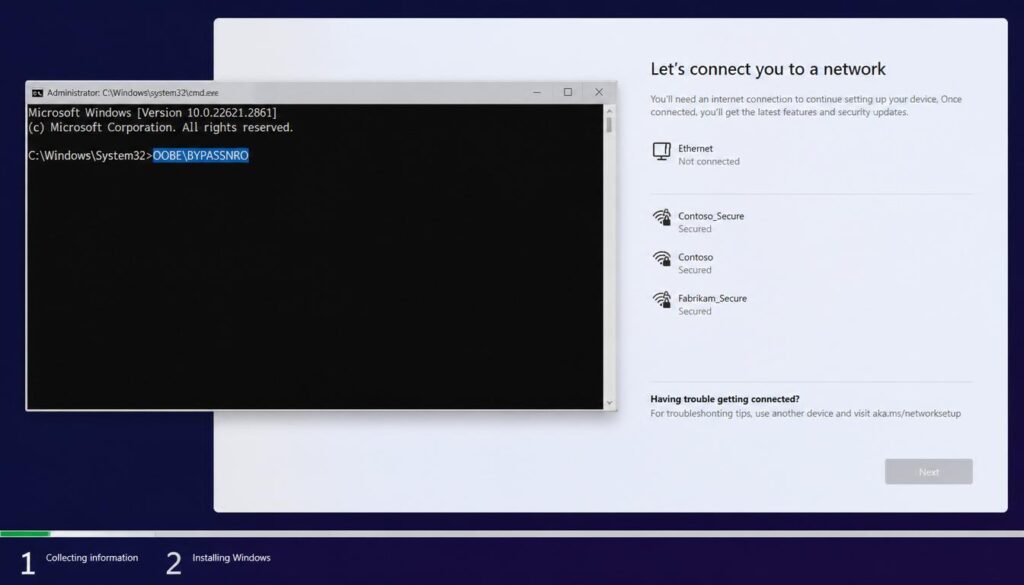
The New Setup Bypass Method (OOBE Bypass)
If you are setting up a brand new computer and find yourself completely stuck on the initial setup screen because of a windows wifi not showing up failure, you can bypass the internet requirement manually.
- On your setup screen, press Shift and F10 simultaneously to open the Command Prompt terminal.
- Type
OOBE\BYPASSNROinto the dark window and press Enter. - Your computer will automatically restart.
- When the network screen returns, you will see a new option that reads I do not have internet. Click it to complete your local profile setup without a wireless connection.
Windows 11 No WiFi Option?
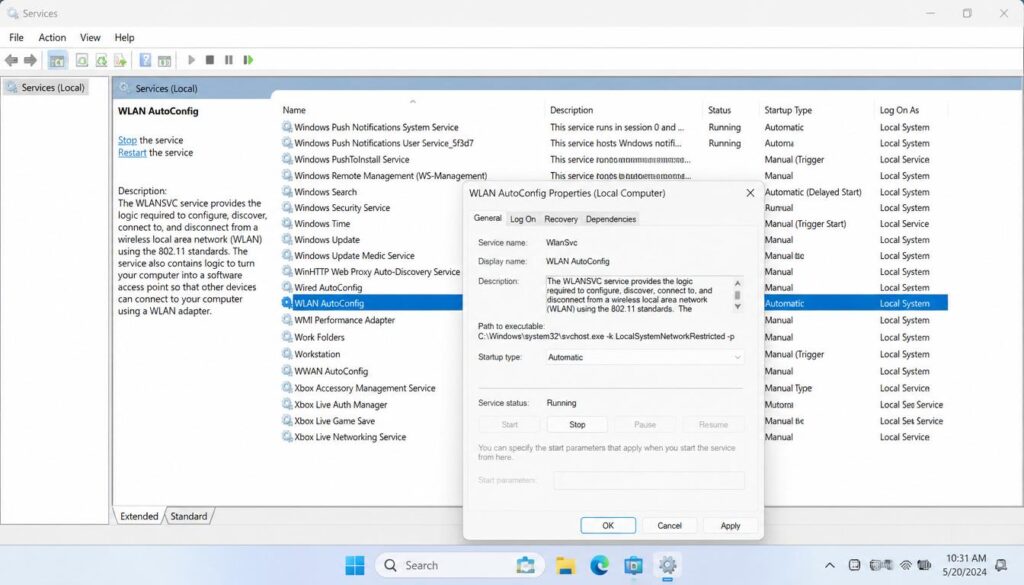
Launching the WLAN AutoConfig System Service
Windows uses background infrastructure processes to search for wireless networks. If this specific service stops running, you will experience wifi settings not showing errors.
- Press the Windows key and R key at the same time to launch the Run dialog box.
- Input
services.mscand hit Enter. - Scroll down until you locate the service named WLAN AutoConfig.
- Right click it and choose Properties.
- Change the startup type dropdown menu to Automatic.
- Click Start under the service status area, click Apply, and reboot your computer.
Windows 11 No WiFi Option?
Windows 11 No WiFi Option?
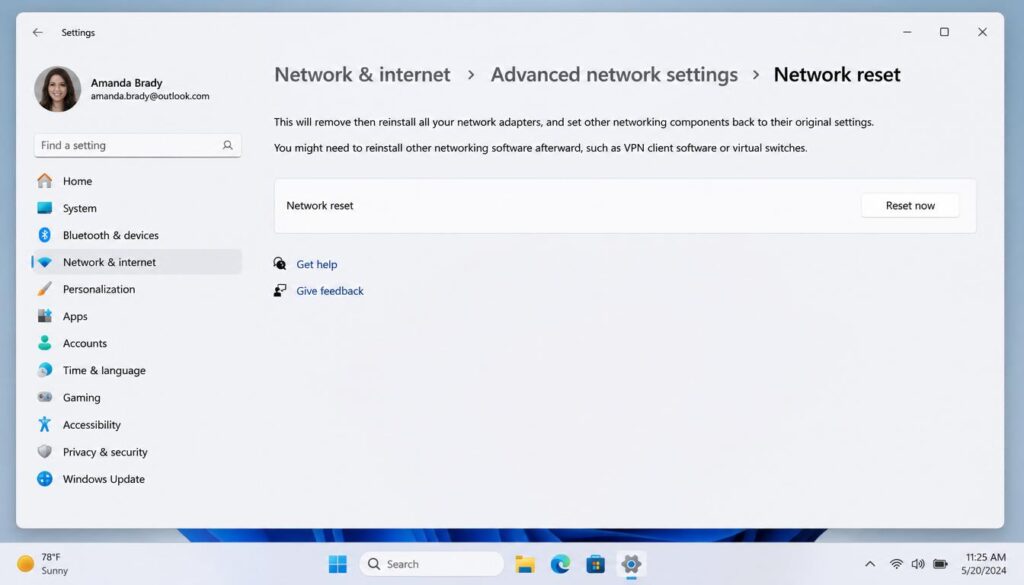
Initiating a Complete Network Reset
When your desktop profile cannot communicate with your hardware, clearing out your network cache completely is the cleanest option to restore a broken option wifi layout.
- Open your main settings panel and navigate to Network and Internet.
- Click on Advanced network settings at the bottom of the list.
- Select Network reset.
- Click the Reset now button and confirm your choice. Your operating system will restart after five minutes, rebuilding all network settings from scratch.
Windows 11 No WiFi Option?
Windows 11 No WiFi Option?
Open your main settings panel and navigate to Network and Internet.
Click on Advanced network settings at the bottom of the list.
Select Network reset.
Click the Reset now button and confirm your choice. Your operating system will restart after five minutes, rebuilding all network settings from scratch. Once your wireless option reappears, it is worth confirming your connection is actually stable by following our quick check on is my internet working.
Reinstating the Network Adapter Driver
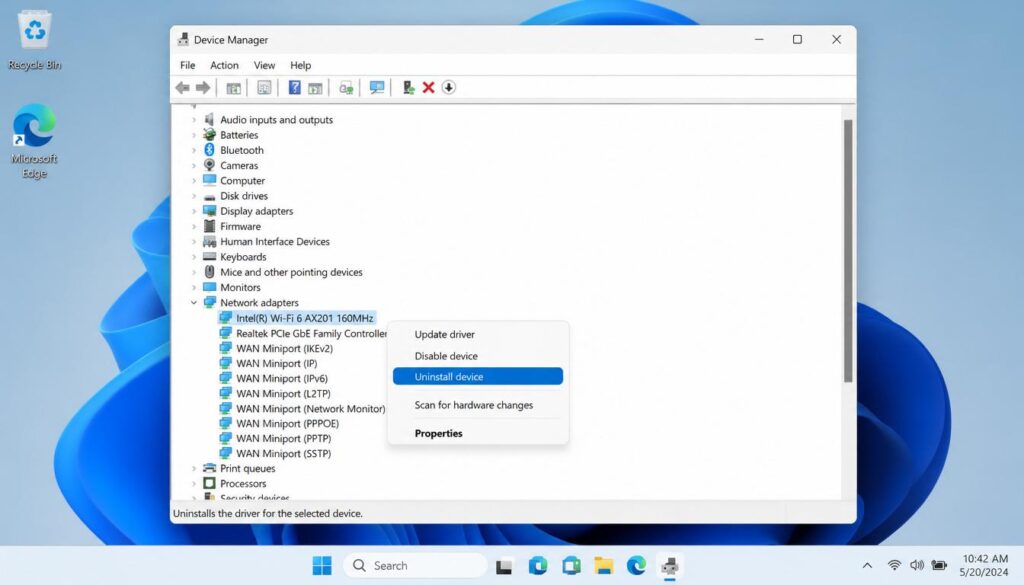
If your wifi option not showing in windows 11 error is tied to a corrupt driver file, you must force Device Manager to refresh the hardware controller.
- Right click the Start button and select Device Manager from the administrative menu.
- Locate the Network adapters section and double click it to reveal the items beneath.
- Find your primary wireless card (usually labeled as Intel, Realtek, or MediaTek Wi-Fi).
- Right click the wireless device and select Uninstall device.
- A confirmation window will appear. Do not select the box that offers to permanently delete the driver software. Click Uninstall.
- Once the process is finished, click the Action menu at the top of Device Manager and select Scan for hardware changes. Your operating system will automatically recognize the physical chip and install a fresh, clean copy of the driver file, resolving the windows not showing wifi option glitch.
Modifying Power Management Settings
Aggressive power saving modes frequently cause a temporary laptop not showing wifi option scenario to become permanent until altered.
- Return to the Device Manager window and expand your network adapter list once again.
- Right click your wireless network hardware and open its Properties window.
- Look for a tab at the very top named Power Management. If your specific hardware chip configuration supports this feature, you will see a checkable box.
- Uncheck the option that states Allow the computer to turn off this device to save power.
- Save your modifications by clicking OK. This ensures your computer keeps the wireless card fully powered even when your device enters sleep mode, preventing sudden wireless disconnects.
How to Handle Windows 10 WiFi Option Failures
Users operating on previous system builds frequently run into a similar windows 10 no wifi option dilemma. While the visual user interface differs, the underlying hardware structure is virtually identical.
When facing a windows 10 wifi option not showing failure, your primary tool should be the integrated system troubleshooter. Open your Control Panel, locate Update and Security, and access the Troubleshoot tab. Run the dedicated Network Adapter troubleshooter to clear out frozen IP address leases. Furthermore, out of date system firmware can block older machines from using modern router bands. Visiting your device manufacturer support page to install the latest BIOS file is an excellent way to address a persistent no wifi option on laptop error on older operating systems.
Once your wireless option is back and connected, a slow or unstable signal is usually a separate channel congestion issue, which our guide on how to change wi fi channel to fix slow internet covers in detail.
Frequently Asked Questions
Why is there no wifi option on my pc after a bios update?
A system firmware update can occasionally revert your motherboard configuration to factory default settings. If this happens, your wireless chip might be turned off inside the system motherboard menu. Restart your machine, tap your designated setup key to access your BIOS configuration, and verify that your internal wireless controller option is set to enabled.
Why is my laptop wifi not showing up even though ethernet works perfectly?
Ethernet connections utilize entirely separate physical hardware components and drivers inside your machine. A working cable connection confirms that your core internet service is operating correctly, while the missing wireless icon means your dedicated wireless hardware card or its driver file has crashed independently.
Can a physical hardware problem cause a windows 11 no wifi option failure?
Yes. If your computer was dropped or exposed to heavy vibration, the internal wireless network card can physically wiggle loose from its slot on the motherboard. If every software fix fails, a technician may need to open the case to verify that the wireless card and its two internal antenna cables are seated firmly in place
How do I get my WiFi option back on Windows 11?
Restart the WLAN AutoConfig service from services.msc, run a full network reset from Settings, then check Device Manager to confirm your wireless adapter is enabled and not disabled.
Why did my WiFi and Bluetooth disappear after sleep on Windows 11?
This almost always points to power management settings turning off the wireless adapter to save battery during sleep. Uncheck Allow The Computer To Turn Off This Device To Save Power under the adapter Power Management tab.
Why is my WiFi option greyed out on Windows 11?
A greyed out WiFi option usually means the adapter is disabled at the driver level or Airplane Mode is silently on. Check Network Connections through ncpa.cpl and enable the adapter manually if it appears dimmed.
Why did my WiFi option disappear after a Windows 11 update?
Cumulative updates sometimes overwrite a working wireless driver with a generic or incompatible version. Roll back the driver from Device Manager Driver tab, or reinstall the correct OEM driver from your manufacturer website.
How do I fix WiFi not showing up on a new laptop during Windows 11 setup?
Press Shift and F10 during the setup screen to open Command Prompt, type OOBE\BYPASSNRO, and press Enter. This restarts setup and adds an I Do Not Have Internet option so you can finish account creation without a live connection.
Conclusion
Resolving a missing wireless menu on your computer does not require complex software development skills. By systematically applying these fixes, you can eliminate the underlying issues that generic web guides fail to talk about. Start by ruling out basic registry freezes with a full network configuration reset or the WLAN AutoConfig tool. If the problem lingers, refreshing your network drivers inside Device Manager and disabling power management limits will restore your internet connectivity permanently.
And if your wireless option comes back but the signal itself still feels weak in certain rooms, our guide on how do wifi boosters work explains whether a booster is actually worth buying.