
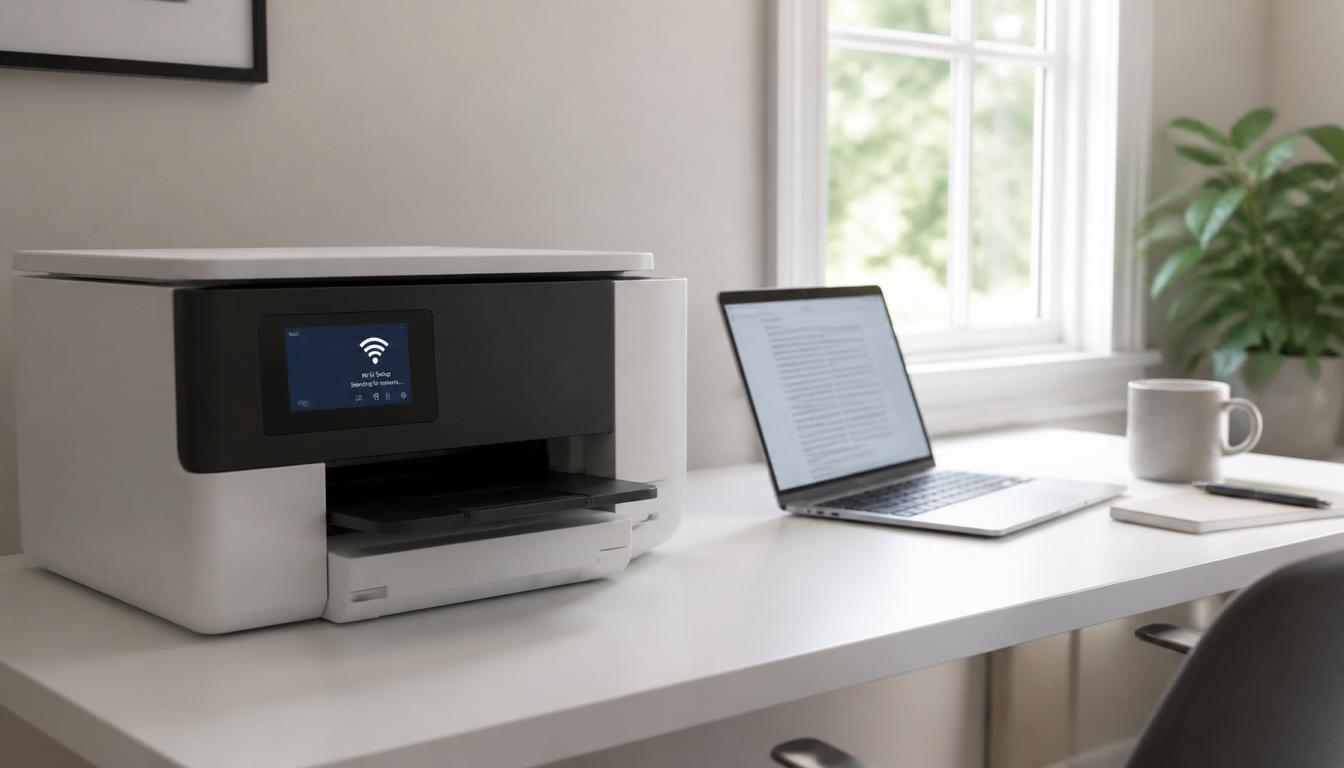
Trying to print a document only to discover your printer refuses to talk to your wireless network is one of the most common tech frustrations at home and in the office. If you are searching for how to connect printer to wifi, the process is not complicated once you understand the correct sequence, but it does change slightly depending on your printer brand, your router frequency, and the device you are printing from. This guide walks through the exact steps for HP, Canon, Epson, and Brother printers, plus every device you might print from, and the advanced fixes that most other guides leave out.
Quick Answer
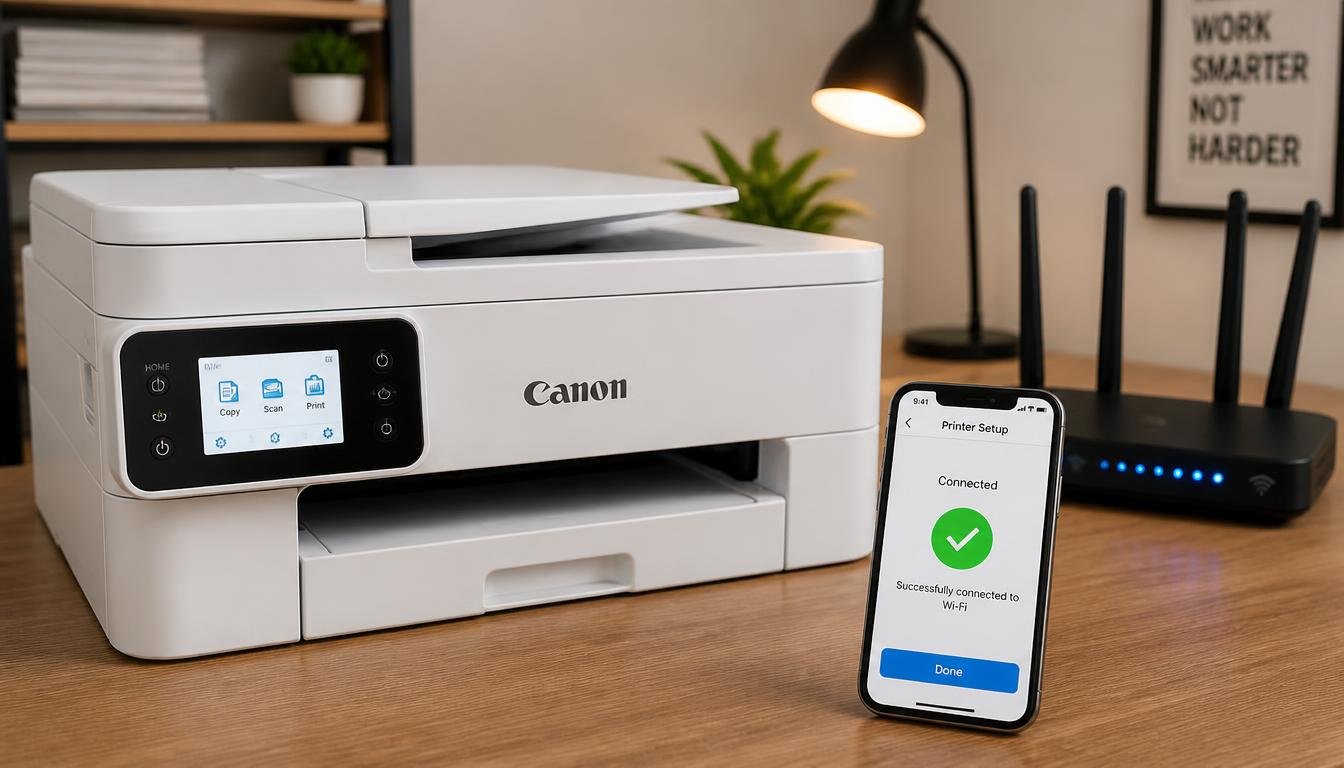
In most cases, you do not need a computer at all. Turn on your printer, open the touchscreen or control panel menu, select Network or Wireless Setup, choose Wireless Setup Wizard, pick your home network from the list, and enter your WiFi password. If your printer and router both support it, you can instead press the physical WPS button on your router and the WPS button on your printer within two minutes of each other to connect automatically, without typing a password at all.
Before You Start: Three Checks That Save Time
Skipping these checks is the reason most wireless printer setup attempts fail on the first try.
- Confirm your printer supports WiFi.
Look for a wireless icon on the control panel or check the model specifications on the manufacturer website. Older USB-only printers cannot connect wirelessly on their own. - Keep the printer close to the router during setup.
Move it closer temporarily even if you plan to relocate it afterward. Weak signal during the initial handshake is a frequent cause of failure. - Have your exact WiFi password ready.
Passwords are case sensitive, and a single mistyped character will cause the connection to fail silently on many models.
Once these checks are complete, you are ready to connect printer to wireless network in a single pass without the back and forth troubleshooting that usually follows a rushed setup.
How to Connect Printer to WiFi Using the Control Panel Method
This is the universal approach that works, with minor menu wording differences, across nearly every modern inkjet or laser printer with a screen or control buttons.
HP Printers
How to Connect Printer to WiFi
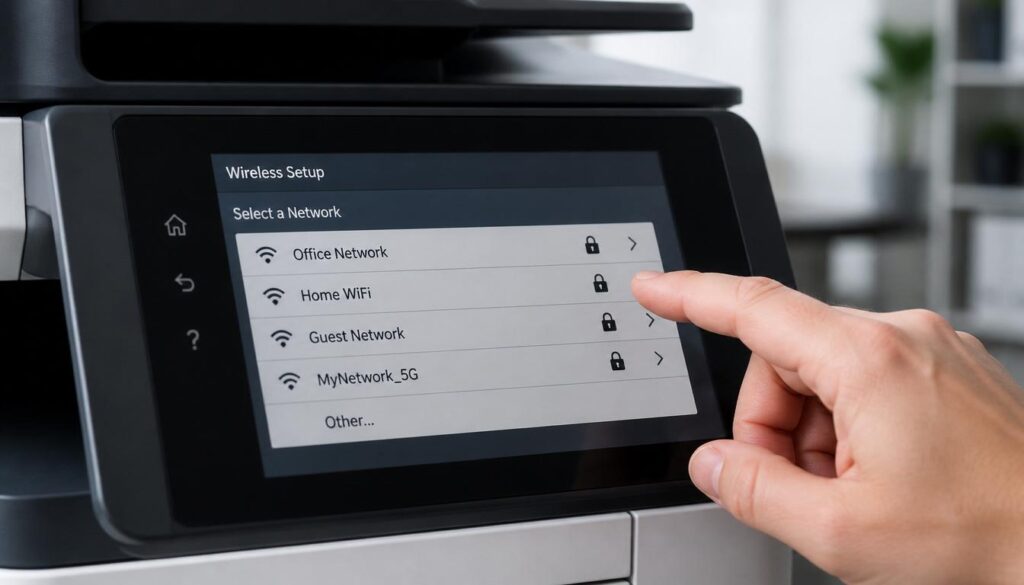
- On the printer touchscreen, tap the Wireless icon or go to Setup > Network Setup > Wireless Setup Wizard.
- Select your network name (SSID) from the list of available networks.
- Enter your WiFi password when prompted and confirm.
- Wait for the confirmation screen showing a solid blue or white wireless light, which indicates the printer is now on your network.
- Print a Network Configuration Page from the menu to confirm the assigned IP address.
Canon Printers
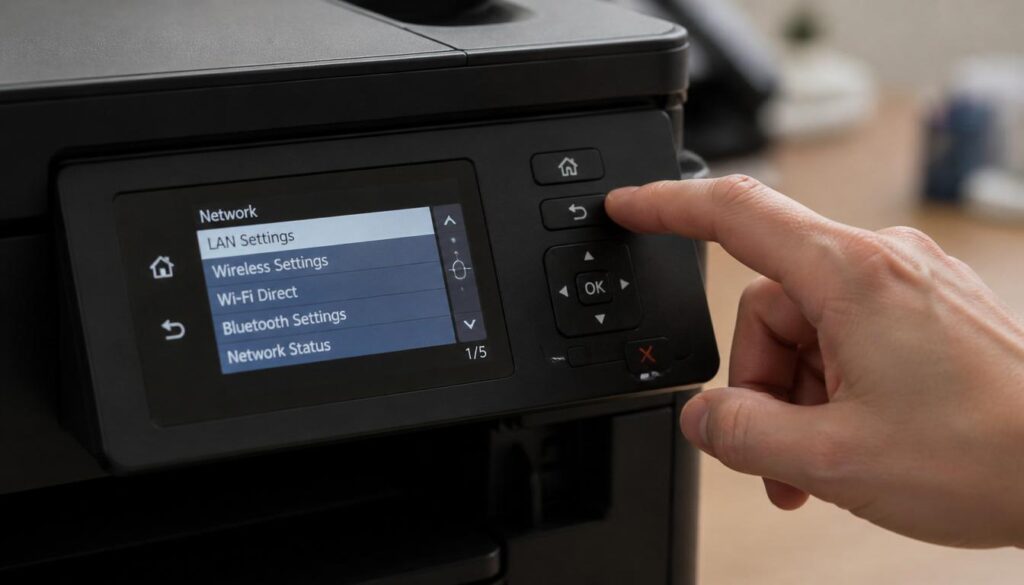
- Press the Setup button on the control panel, then choose Device Settings > LAN Settings > Wireless LAN Setup.
- Select Wireless LAN Setup Wizard.
- Choose your network from the list, or select Manual Entry if the network name is hidden.
- Enter the password and confirm the connection.
- Look for a steady (not blinking) WiFi indicator light on the printer body, which confirms a stable connection to the wireless network.
How to Connect Printer to WiFi
Epson Printers
- On the control panel, go to Wi-Fi Setup or tap the WiFi icon on the home screen.
- Select Wi-Fi Setup Wizard.
- Choose your network name and input your password using the on-screen keyboard.
- Confirm the settings when the summary screen appears.
- Print a network status sheet from Wi-Fi Setup > Check Connection to verify the printer wifi configuration was applied correctly and note the IP address for later use.
Brother Printers
- Press the Menu button, then navigate to Network > WLAN > Setup Wizard.
- The printer will search and display nearby networks. Select yours from the list.
- Enter the network password using the arrow keys or touchscreen keyboard.
- Press OK to save and connect.
- The control panel will display Connected once the wireless printer setup completes successfully.
Connecting Without a Touchscreen: The WPS Button Method
If your printer control panel is limited to a few buttons with no screen, WPS button setup is usually the fastest option.
- Locate the WPS button on your router, typically on the back or side panel.
- Press and hold the WPS button on the router for two to three seconds.
- Within two minutes, press and hold the WPS or wireless button on your printer until the wireless light begins blinking.
- Wait for both lights to turn solid, which confirms the two devices have paired successfully.
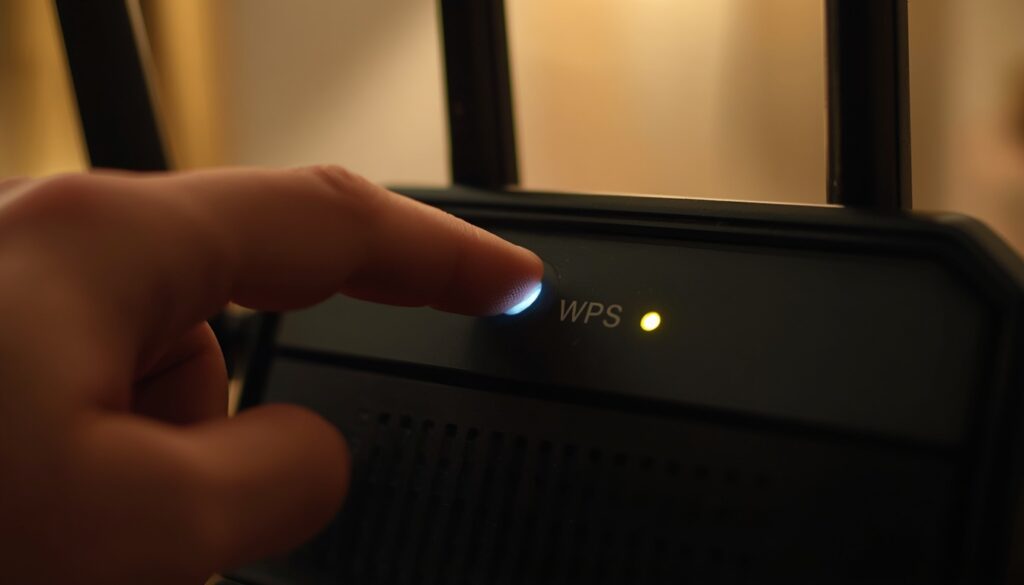
This method skips manual password entry entirely, since the router and printer exchange credentials automatically over a short, secure handshake.
Adding Your Printer on Windows 11, MacOS, Android, and iOS
Once the printer is active on the wireless network, each device still needs to be told the printer exists before it will appear as a printing option.
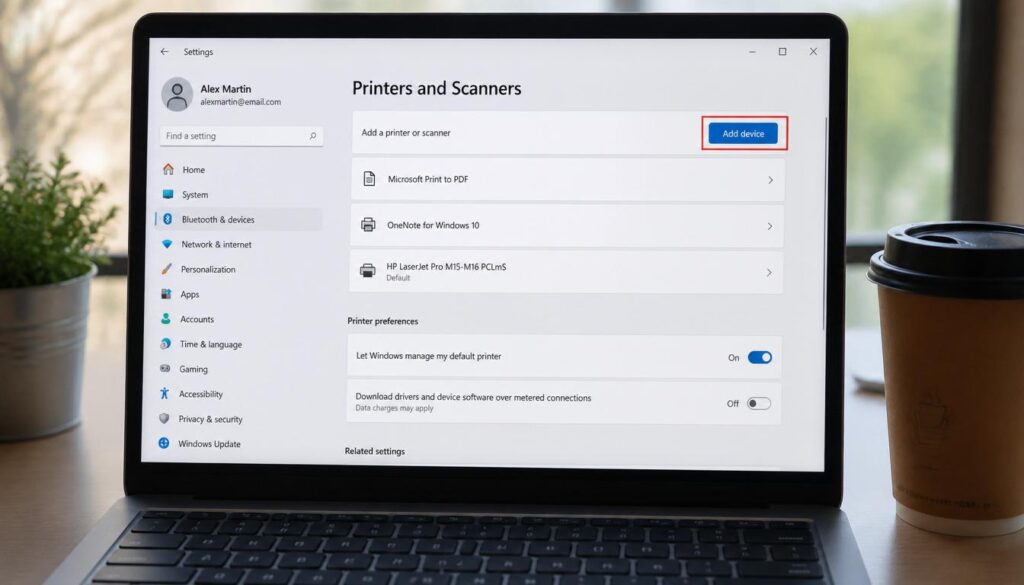
Windows 11
- Open Settings > Bluetooth and Devices > Printers and Scanners.
- Click Add Device and wait for Windows to scan the network.
- Select your printer once it appears in the list and click Add.
- Allow Windows to install the driver automatically, or download the manufacturer driver first if the printer does not appear.
If you also want your Windows 11 laptop to skip the login screen every time you sit down to print or work, see our guide on setting up Windows 11 Automatic Login safely.
How to Connect Printer to WiFi
MacOS
- Open System Settings > Printers and Scanners.
- Click the Add Printer, Scanner, or Fax button.
- Select your printer from the list under the Default tab.
- Choose the correct driver from the Use dropdown, or leave it on AirPrint if your printer supports it, then click Add.
Android
- Open Settings > Connected Devices > Printing.
- Enable the Default Print Service or install the manufacturer print app from the Play Store.
- Your printer should appear automatically when printing from any app, as long as the phone and printer share the same wireless network.
If your Android phone feels slow or storage keeps filling up while you are managing print jobs from apps, our guide on how to Clear Cache on Android Without Deleting Apps can help speed things up safely.
iOS (iPhone and iPad)
- Ensure the iPhone is on the same WiFi network as the printer.
- Open any app, tap Share, then Print.
- Tap Select Printer, and AirPrint compatible printers will appear automatically with no app or driver installation required.
If your phone connects to WiFi but printing from a mobile app still fails, the issue might not be the printer at all. Check our guide on Why Is My Phone Not Connecting to WiFi to rule out a phone-side network problem before troubleshooting the printer further.
Connection Type vs Setup Speed and Stability
| Connection Method | Setup Speed | Stability | Best For |
|---|---|---|---|
| Control Panel Wizard | Moderate (2 to 4 minutes) | High | Most home and office setups |
| WPS Button | Fast (under 1 minute) | High, if router supports WPS | Printers without a screen |
| USB Cable then Software Wizard | Slower (5 to 8 minutes) | High | Printers with no wireless setup menu |
| Direct WiFi Direct/AirPrint | Fast (under 1 minute) | Moderate, short range | Quick one-off mobile printing |
How to Connect Printer to WiFi
Troubleshooting Common WiFi Connection Problems
Even after you learn how to connect printer to wifi successfully, a number of gaps commonly appear later that most manufacturer guides never fully explain.
Router settings can affect more than just your printer. If your laptop itself keeps losing its connection after you split your network into separate bands, our guide on WiFi Connected But No Internet Access covers the exact fixes for that.
Printer Not Finding the WiFi Network
If your printer scan comes back empty or your network is missing from the list, the cause is almost always related to signal or band visibility rather than the printer itself.
- Move the printer within ten feet of the router for the initial setup, then relocate afterward if needed.
- Confirm the network is not hidden, since a hidden SSID requires manual entry of the exact network name.
- Restart both the router and the printer, since a stale wireless radio state on either device commonly blocks discovery.
How to Connect Printer to WiFi When the WPS Pin Setup Fails
WPS pin connection failure typically points to one of three underlying issues rather than a broken printer.
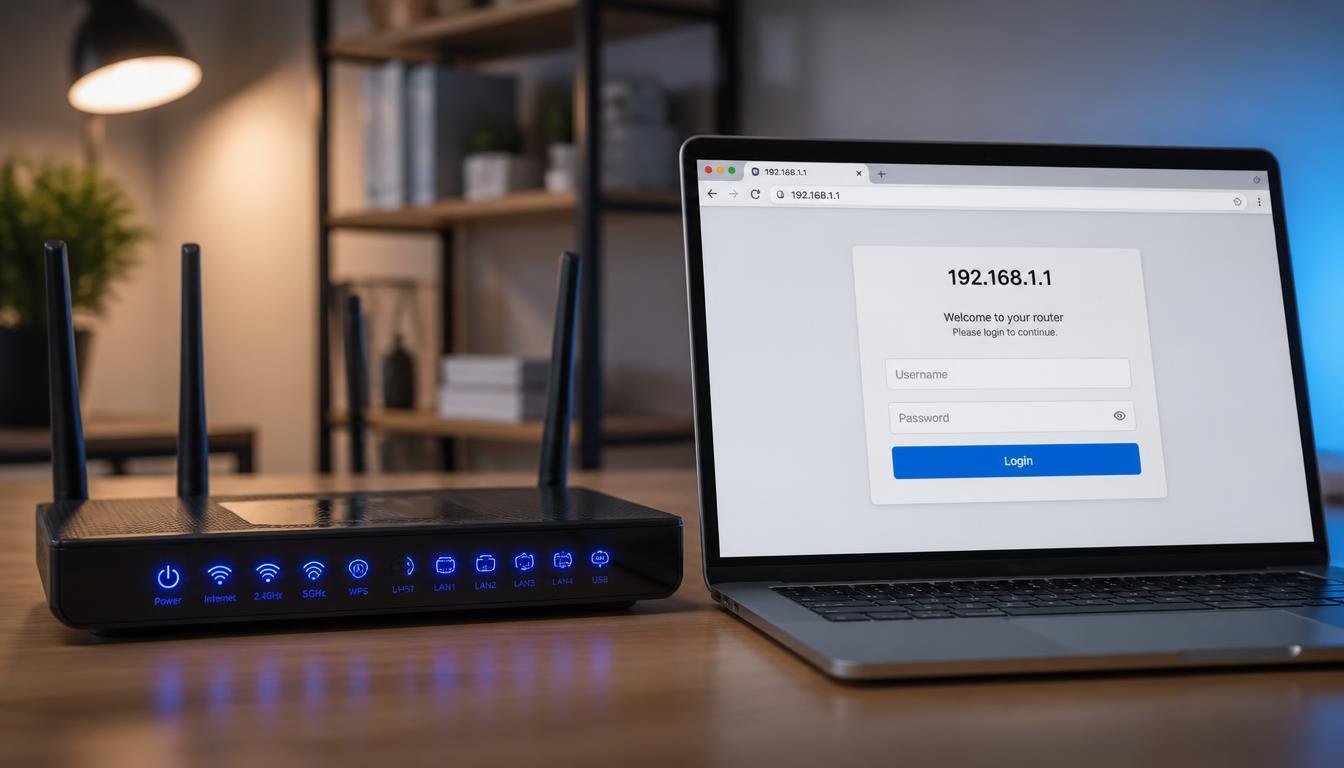
- Some routers disable WPS automatically after multiple failed attempts as a security measure. Check the router admin page and re-enable it if needed.
- Confirm the printer is set to WPS PIN mode rather than push button mode if your router only supports the PIN method, then enter the code shown on the printer screen into the router admin panel within the displayed time limit.
- If WPS keeps timing out, abandon it and use the standard Wireless Setup Wizard instead, since not every router and printer combination supports a reliable WPS handshake.
IP Address Conflict After Connecting the Printer
If the printer connects but intermittently disappears from your computer, an IP address conflict is a likely cause, especially on networks with many devices.
- Access your printer network settings and switch from a static IP to DHCP (Automatic), allowing the router to assign the address instead.
- If the printer must use a static IP for business reasons, set the router to reserve that specific address for the printer’s MAC address so it is never assigned to another device.
- Reboot the router after making the change so the address table refreshes fully. You can always find printer IP address details by printing a fresh network configuration page from the control panel menu.
IP and DNS issues do not stop at the printer. If your computer shows a connected WiFi icon but pages will not load, check our detailed walkthrough on DNS Server Not Responding on Windows 11 to rule out a deeper network problem.
5GHz vs 2.4GHz Network Frequency Mismatch
Most home routers broadcast two networks at once, and this is one of the most overlooked reasons a printer will not connect.
How to Connect Printer to WiFi
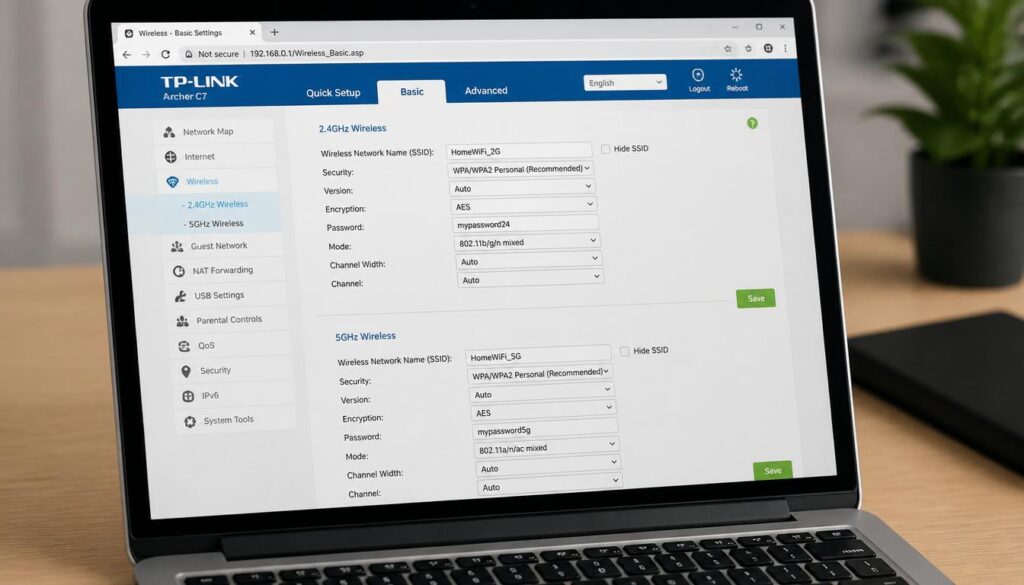
- The majority of consumer printers only support the 2.4GHz band, not 5GHz, even though many phones and laptops default to the faster 5GHz band.
- If your router shows a single combined network name, check the router settings and temporarily split it into two separate SSIDs, one for each band, then connect the printer specifically to the 2.4GHz option.
- Once connected, you can merge the bands back together if your router supports smart band steering, since most printers only need the initial 2.4GHz handshake to join.
Wrong WiFi Password
A rejected password is usually a formatting issue rather than an incorrect password.
- Check for a sticker on the underside or back of the router showing the exact password, since default passwords often mix zero and the letter O or use uppercase letters that are easy to mistype on a printer keyboard.
- If the password was recently changed, forget the saved network on the printer first, then run the setup wizard again from scratch rather than trying to edit the existing entry.
Curious what your internet provider can actually see once your devices are connected? Our article on Search History on a WiFi Bill explains exactly what is tracked and what is not.
Printer Shows Offline Status After Setup
An offline status after a previously working setup almost always points to an address or power-saving issue rather than a lost connection.
- Open the printer queue on your computer, right click the printer, and remove the checkmark next to Use Printer Offline if that option is selected.
- Confirm the printer has not been assigned a new IP address after a router restart by printing a fresh network configuration page and comparing it to the address saved on the computer.
- Disable the printer sleep or power saving mode in the printer settings if the offline status only appears after periods of inactivity.
Frequently Asked Questions
Can I connect a printer to WiFi without installing any software?
Yes. Most printers allow you to complete the entire wireless printer setup from the control panel screen alone, with software required only for advanced features like scanning or ink level monitoring.
Why does my printer keep disconnecting from WiFi?
Repeated disconnects are usually caused by router power saving settings, an outdated printer firmware version, or the printer defaulting back to a 5GHz network segment it does not fully support.
Can I connect my printer to wifi from my phone if I do not have a computer?
Yes. Most manufacturer apps, such as HP Smart, Canon PRINT, Epson Smart Panel, and Brother Mobile Connect, allow you to complete the full setup directly from a smartphone with no computer required.
Does my printer need internet access to print over WiFi?
No. The printer only needs to be on the same local wireless network as the device sending the print job. An active internet connection is not required for local printing.
Final Thoughts
Once you understand that the core process of how to connect printer to wifi barely changes between brands, connecting a printer to a wireless network stops being intimidating. Work through the control panel wizard or WPS button first, confirm the connection on each of your devices, and keep the frequency and IP address checks in mind if problems appear later. With this approach, you should be printing wirelessly within a few minutes, regardless of whether you are using an HP, Canon, Epson, or Brother printer.
Hi,
I hope you’re doing well.
I wanted to reach out and see if you are interested in improving your website’s http://smarttechfixer.com visibility on Google and attracting more potential customers through SEO. We offer SEO solutions designed to help businesses increase organic traffic, improve keyword rankings, and generate quality inquiries.
If this sounds interesting, I’d be happy to share our complete SEO packages, activities, timeline, and pricing details for your review.
Looking forward to your response.
Regards,
Anaya