How to Reset iPhone When Screen is Frozen (5 Quick Easy Fixes)
How to Reset iPhone When Screen is Frozen
Is your iPhone frozen and not responding to touch? Don’t panic. A frozen screen can happen suddenly, but in most cases, you can fix it within minutes.
The good news is that you usually do not need expensive repairs. A quick reset or force restart iPhone method often solves the problem fast.
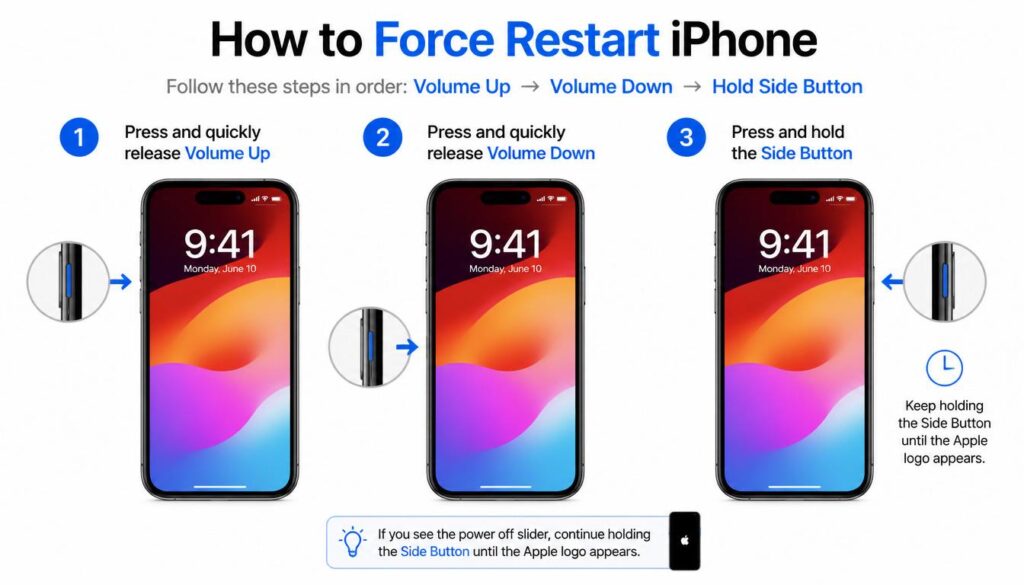
Quick Fix: If your iPhone screen is frozen, quickly press and release Volume Up, then quickly press and release Volume Down, and finally press and hold the Side/Power button only until the Apple logo appears. Do not hold the volume buttons. This is the mistake many users make.
How to Reset iPhone When Screen is Frozen (Quick Easy Fixes)
Why Does Your iPhone Screen Get Frozen?
Before trying a reset, it helps to understand why your iPhone touch screen is not responding.
Here are the most common reasons:
- Software bugs after iOS updates
A new iOS version can sometimes cause temporary glitches or app crashes. - Low storage space
When storage is nearly full, your iPhone may lag or freeze. - Heavy background app activity
Too many apps running or indexing in the background can overload the system.
Sometimes, the issue is temporary. A simple force restart iPhone process can fix it immediately.
Step-by-Step Guide
How to reset iPhone When Screen is Frozen
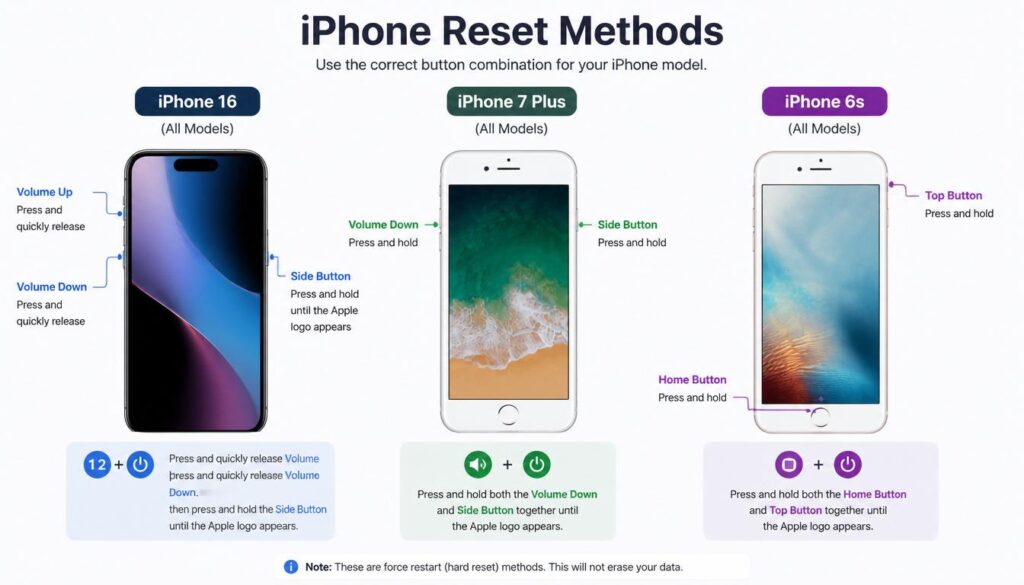
The reset steps depend on your iPhone model. Follow the method that matches your device.
For iPhone 8, X, 11, 12, 13, 14, 15, and 16 Series (Including Pro & Max)
If you own a newer iPhone, follow these steps carefully.
Important Before You Start
This is where many people go wrong.
How to Reset iPhone When Screen is Frozen
How to Reset iPhone When Screen is Frozen
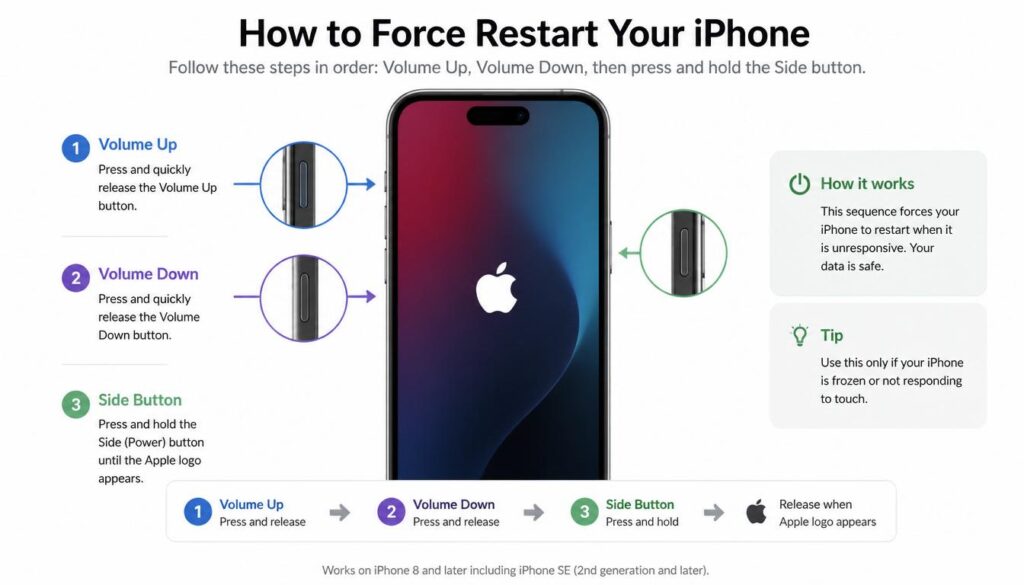
You must:
✅ Quickly press and release the Volume Up button
✅ Quickly press and release the Volume Down button
✅ Only press and hold the Side/Power button
❌ Do not hold the Volume Up or Down buttons
This small mistake stops the reset from working.
Steps to Force Restart
- Quickly press and release the Volume Up button.
- Quickly press and release the Volume Down button.
- Press and hold the Side/Power button.
- Keep holding it even if the screen turns black.
- Release the button when the Apple logo appears.
How to Reset iPhone When Screen is Frozen
Your iPhone should restart normally.
This method works when the unresponsive iPhone screen refuses to react to taps.
For iPhone 7 and iPhone 7 Plus
The steps are different for iPhone 7 models.
Follow these instructions:
- Press and hold the Volume Down button.
- At the same time, press and hold the Power button.
- Keep holding both buttons together.
- Release them once the Apple logo appears.
Wait for the phone to reboot fully.
For iPhone 6s and Older Models (With Home Button)
If your iPhone has a physical Home button, use this method.
- Press and hold the Home button.
- At the same time, press and hold the Power button.
- Continue holding both buttons.
- Release when the Apple logo appears.
Your iPhone should turn back on within a minute.
How to Power Off iPhone When Screen is Frozen (Alternative Method)
Sometimes, users only want to know how to power off iPhone when screen is frozen.
If the display is completely stuck and the slider does not work, try these methods.
Option 1: Use a Force Restart
A force restart is usually the fastest solution.
For newer iPhones:
- Quickly press and release Volume Up.
- Quickly press and release Volume Down.
- Press and hold the Side button.
Your phone will restart automatically.
Option 2: Connect Your iPhone to a Computer
If the Power button is broken or the device stays frozen:
- Connect your iPhone to a Mac or Windows PC
- Open Finder (Mac) or iTunes (Windows)
- Wait for the phone to appear
- Try restarting through recovery tools
This can help if your iPhone touch screen is not responding at all.
Option 3: Wait for the Battery to Drain
If nothing works, allow the battery to fully drain.
After the phone turns off:
- Connect it to a charger.
- Wait around 20–30 minutes.
- Turn it back on.
This method is slow but sometimes effective.
Advanced Fixes: What to Do If Your iPhone is Still Stuck?
If your iPhone still freezes after restarting, try these advanced fixes.
1. Plug Into a Certified Charger for 60 Minutes
A low battery can cause strange system behavior.
Try this:
- Use an Apple-certified charger
- Leave the phone charging for at least 60 minutes
- Try another force restart
2. Connect to a Mac or PC
Sometimes software issues stop the iPhone from booting properly.
Connect your iPhone to:
- Finder on Mac
- iTunes on Windows
If your device appears, back up important data immediately.
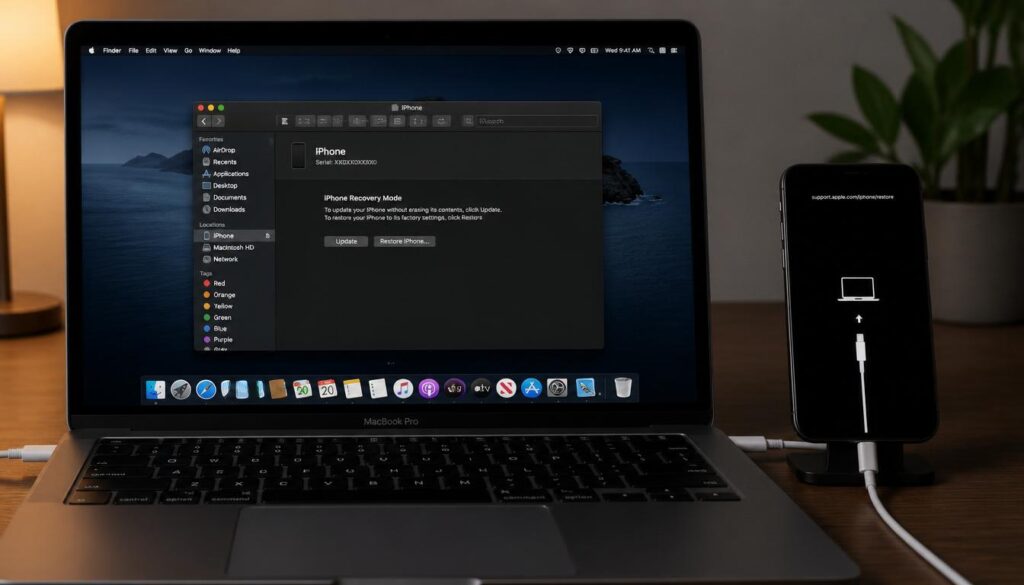
3. Use Recovery Mode (Without Losing Data)
Recovery Mode can repair iOS problems.
The best part?
You may fix the issue without deleting your data.
How to Reset iPhone When Screen is Frozen
How to Reset iPhone When Screen is Frozen
Follow these steps:
Step 1: Connect iPhone to Computer
Use a USB cable and open Finder or iTunes.
Step 2: Enter Recovery Mode
For iPhone 8 and newer:
- Quickly press and release Volume Up.
- Quickly press and release Volume Down.
- Press and hold the Side button.
- Keep holding until the Recovery Mode screen appears.
Step 3: Choose “Update”
You will see two options:
- Update
- Restore
Click Update first.
This reinstalls iOS without erasing personal files.
Only choose Restore if Update fails.
Practical Tips to Prevent iPhone Screen Freezing in the Future
Want to avoid this problem again?
Try these simple habits.
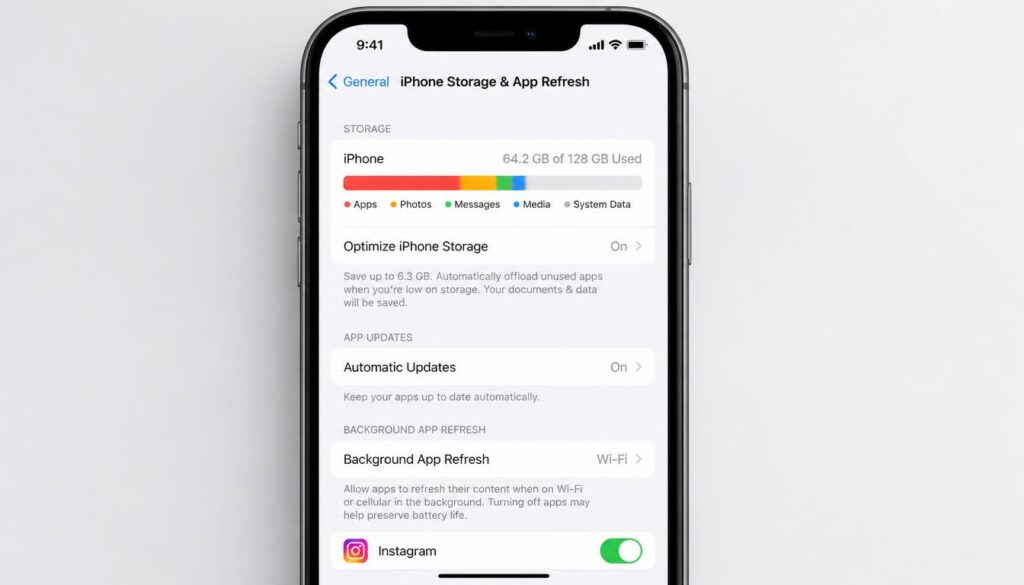
Free Up Storage Space
Keep at least 10–15GB free storage.
Delete:
- Unused apps
- Large videos
- Old downloads
How to Reset iPhone When Screen is Frozen
How to Reset iPhone When Screen is Frozen
Update Buggy Apps
Old apps can crash and freeze the system.
Open the App Store and:
- Install app updates
- Remove apps that keep crashing
Manage Background App Refresh
Too many apps running in the background can slow performance.
To disable unnecessary activity:
Settings → General → Background App Refresh
Turn off apps you rarely use.
Conclusion
A frozen iPhone feels stressful, especially when nothing responds. Thankfully, the fix is usually simple.
In most cases, a force restart iPhone process solves the issue within minutes. Just remember the most important rule:
Quickly press and release the Volume buttons, then only hold the Side/Power button.
That small detail is the reason many people fail to reset their device.
If your iPhone still stays frozen, try Recovery Mode before thinking about repairs.
FAQs
Will hard resetting my iPhone delete my data?
No. A force restart or hard reset usually does not delete data. Your photos, apps, and files stay safe.
However, choosing Restore inside Recovery Mode may erase data if no backup exists.
How long should I hold the Side button?
Usually, 10–20 seconds is enough.
Keep holding until you see the Apple logo appear. Do not release the button too early.
If you need any more help you can visit our website and also read our about wifi and internet problems.