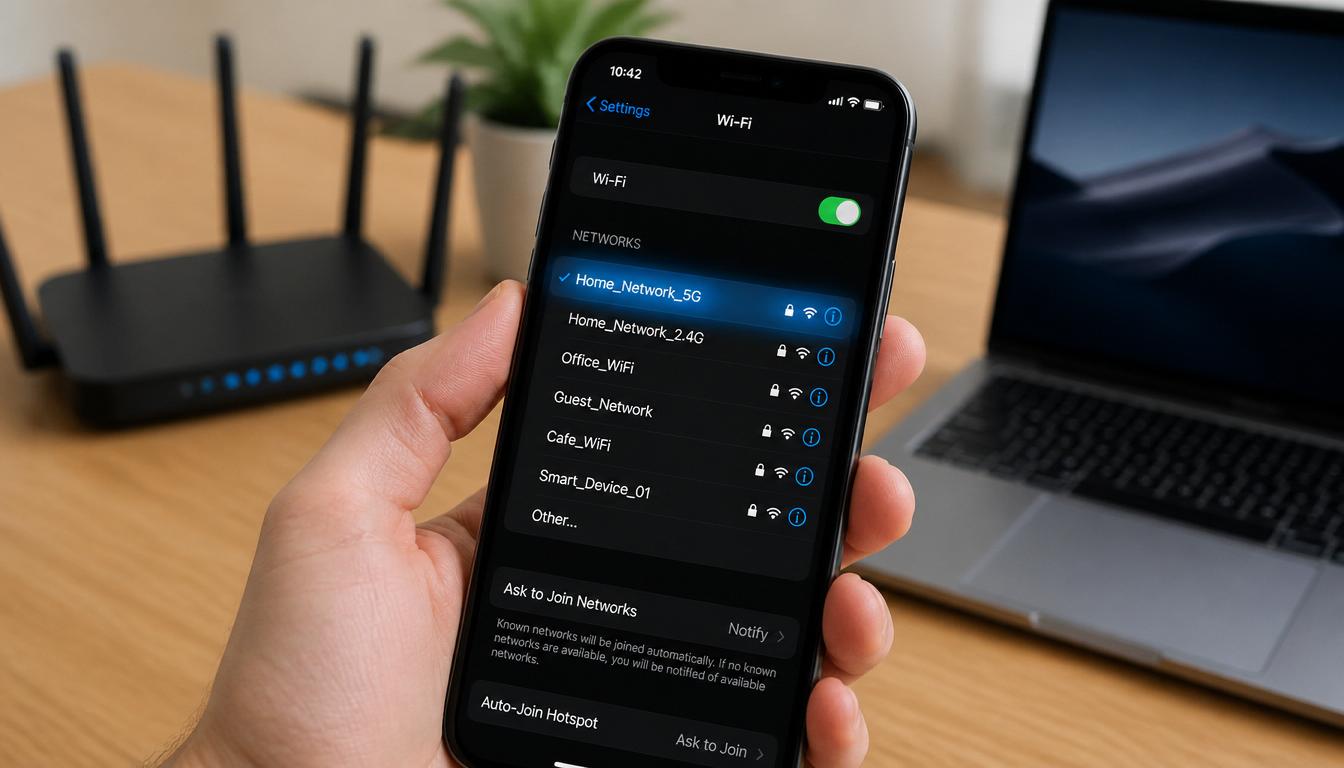
How to Find SSID of WiFi: Step-by-Step for Any Device (2026)
Can not connect a new device because you do not know your WiFi name? You are not alone.
Many people get confused when they are asked for their WiFi SSID during setup. Whether you are connecting a smart TV, printer, gaming console, or a new phone, knowing your WiFi SSID is important.
⚡ Quick Answer
Your SSID is simply your WiFi network name. On Windows, click the WiFi icon in the taskbar the connected network name is your SSID. On Android and iPhone, go to WiFi settings and look for the network with a checkmark. If you can not connect to any device, check the sticker on the bottom or back of your router it usually lists the default SSID and password.
The good news is that finding it is usually very easy. In this guide, you will learn how to find SSID of WiFi on Windows, Android, iPhone, and directly from your router. We’ll also explain hidden networks, common problems, and expert tips to help you manage your wireless network better.
What Is an SSID of WiFi?
SSID stands for Service Set Identifier.
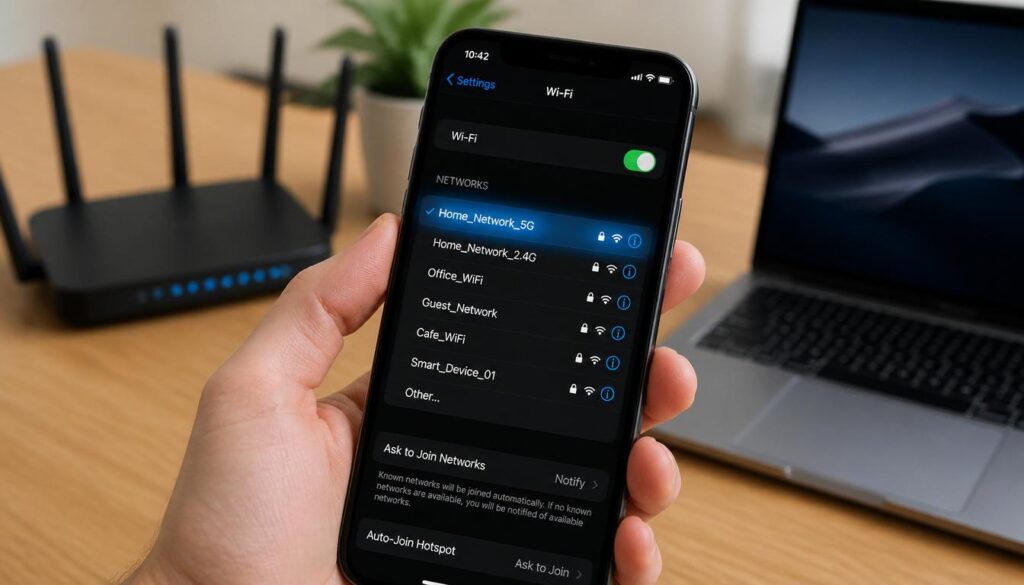
In simple words, your SSID is your WiFi network name. It is the name you see when your phone, laptop, or tablet shows available WiFi networks.
For example:
- Home_WiFi
- MyInternet
- SmithFamilyWiFi
- TP-Link_5G
These names are SSIDs.
When someone asks for your network SSID, they are simply asking for your wireless network name.
Quick Example
Imagine your neighborhood has 20 WiFi networks.
Your phone may show:
- HomeNet
- OfficeWiFi
- TP-Link123
- FastFiber
Each one is a different SSID.
Why You May Need to Find Your WiFi SSID
You may need to find WiFi SSID when:
- Connecting a new phone
- Setting up a smart TV
- Installing a WiFi printer
- Connecting security cameras
- Changing router settings
- Troubleshooting internet problems
- Sharing your network with guests
Without knowing the correct router SSID, connecting devices becomes difficult.
How to Find SSID of WiFi on Windows 11
If your computer is already connected to WiFi, Windows 11 makes it easy to find the SSID.
Method 1: From the Taskbar
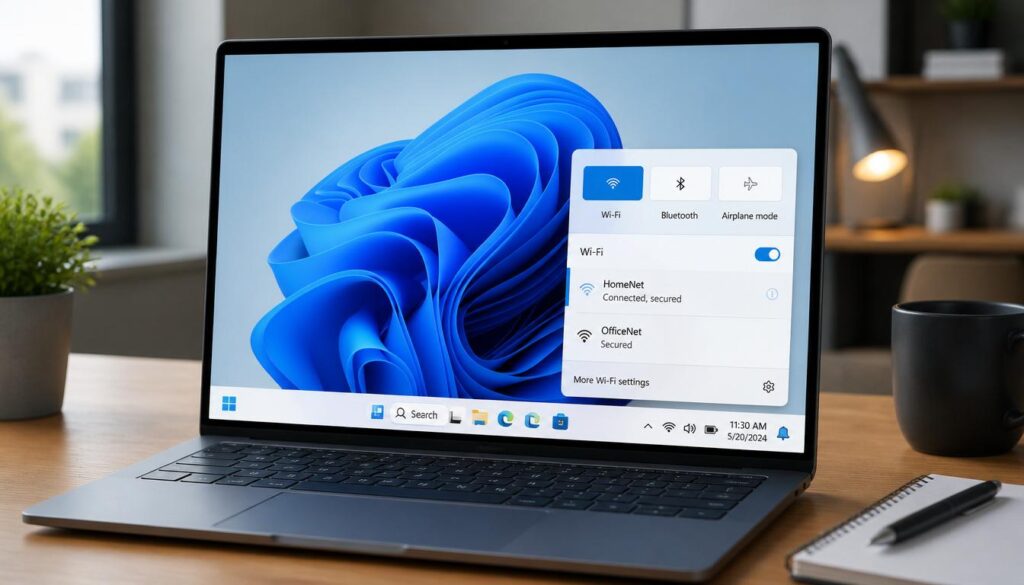
- Click the WiFi icon in the bottom-right corner.
- Select the connected network.
- The network name shown is your SSID.
How to Find SSID of WiFi
Method 2: From Settings
- Open Settings.
- Click Network & Internet.
- Select Wi-Fi.
- Click Properties.
- Your connected network name will appear.
This is one of the easiest ways to find SSID on Windows 11.
How to Find SSID Using Command Prompt (Advanced Method)
If you prefer using commands, Windows lets you check your SSID directly
through Command Prompt.
- Press Windows + R, type
cmd, and press Enter. - Type the following command and press Enter:
- Look for the line labeled SSID this is your current WiFi network name.
This method is especially useful for IT professionals or anyone
troubleshooting multiple networks at once.
How to Find SSID of WiFi on Windows 10
Windows 10 users can follow similar steps.
Method 1: WiFi Icon
- Click the WiFi symbol.
- Look at the network currently connected.
- The displayed name is your SSID.
Method 2: Network Settings
- Open Settings.
- Click Network & Internet.
- Select Wi-Fi.
- Open your network details.
You will see your current wireless network name.
How to Find SSID of WiFi on Mac
Mac users can find their SSID just as easily.
- Click the WiFi icon in the top-right menu bar.
- The connected network name shown at the top is your SSID.
- For more detail, hold the Option key and click the WiFi icon
this shows the SSID along with signal strength and channel info.
You can also check via System Settings → WiFi to see the full
connected network name.
How to Find SSID of WiFi on Android
Trying to find SSID on Android? Follow these steps:
- Open Settings.
- Tap Wi-Fi or Network & Internet.
- Tap WiFi.
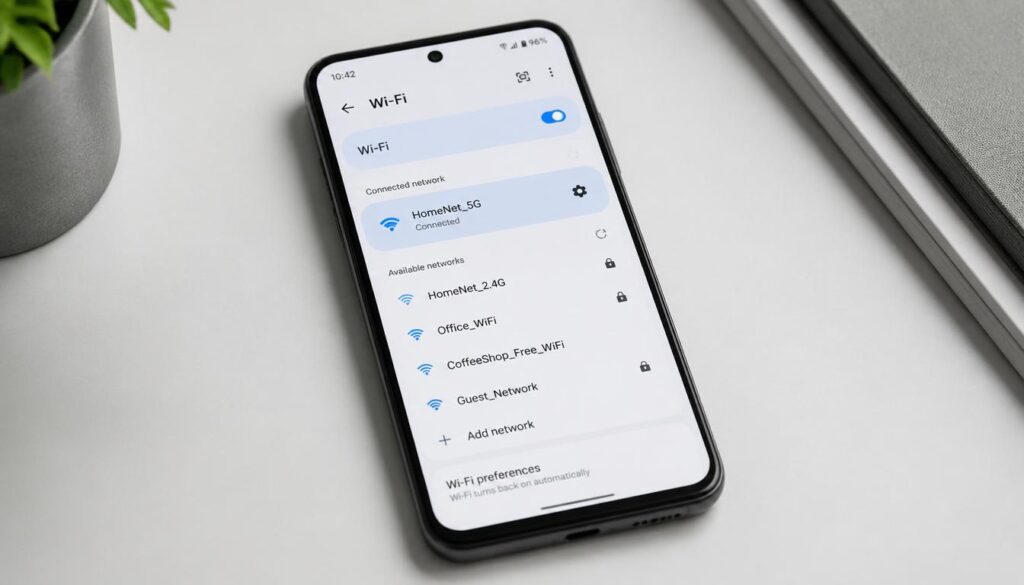
- Look for the connected network.
The network name shown at the top is your SSID.
How to Find SSID of WiFi
Example
If your phone shows:
Connected: HomeFiber5G
Then HomeFiber5G is your SSID.
Alternative Method
- Open Settings.
- Tap WiFi.
- View saved networks.
You can see previously connected SSIDs there as well.
How to Find SSID of WiFi on iPhone
If you’re trying to find SSID on iPhone, here’s the easiest method:
- Open Settings.
- Tap Wi-Fi.
- Look for the network with the checkmark.
The checked network name is your SSID.
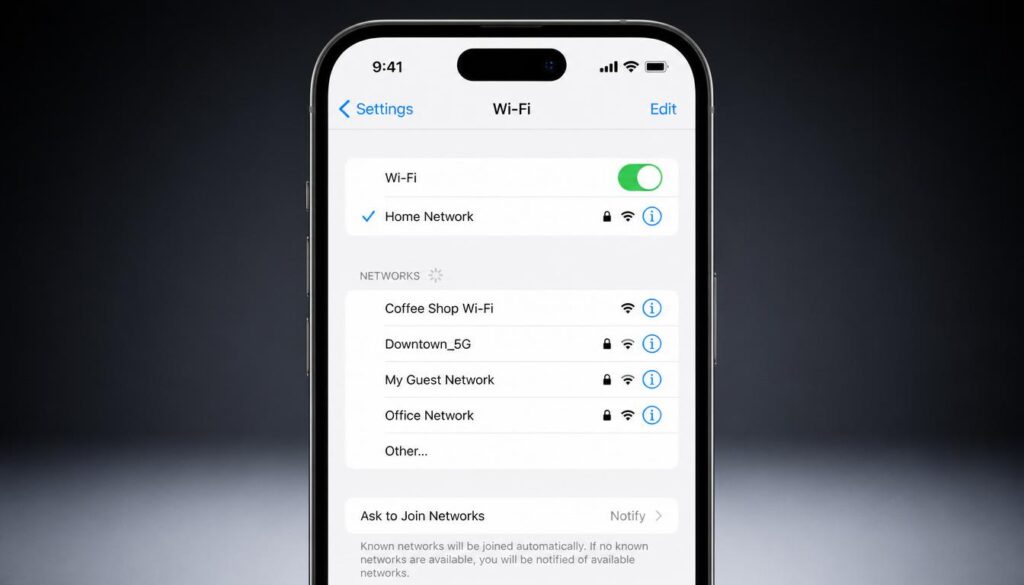
Example
If the checkmark appears beside:
FamilyInternet
Then that is your WiFi SSID.
How to Find SSID of WiFi on a Router
Sometimes the easiest answer is checking the router itself.
Many routers have a sticker containing:
- SSID
- Default WiFi password
- Router model
- Login details
How to Find SSID on Router
- Look underneath the router.
- Check the back panel.
- Find labels marked:
- SSID
- WiFi Name
- Wireless Name
- Network Name
How to Find SSID of WiFi
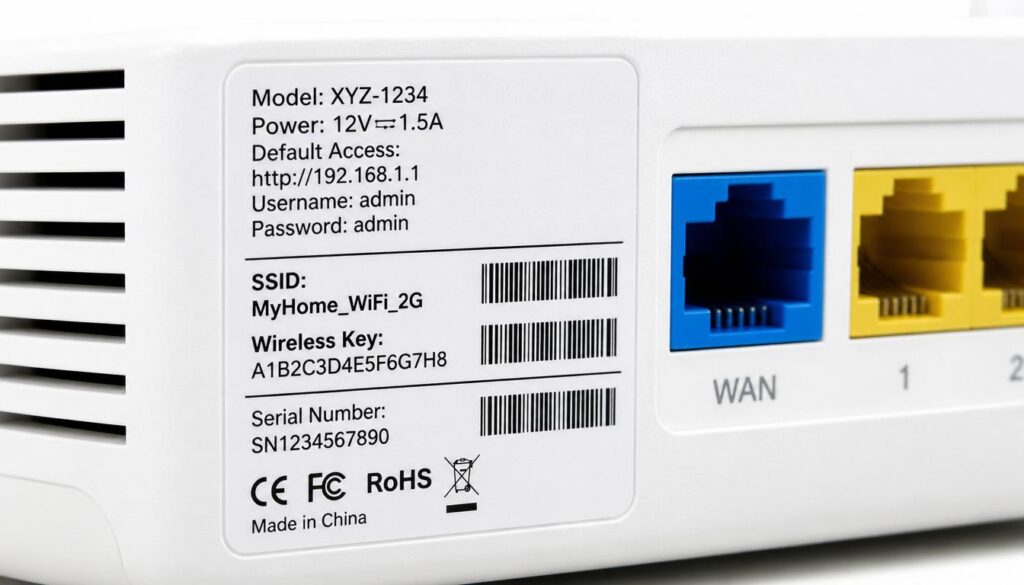
This is the quickest way to how to find SSID on router.
How to Find SSID by Logging Into Your Router
If the sticker is missing or the SSID was changed after setup, you can
find the current network name directly from your router’s admin panel.
- Open a browser and type your router’s IP address usually
192.168.1.1or192.168.0.1 - Log in using your router’s admin username and password (often
printed on the same sticker) - Go to Wireless Settings or WiFi Settings
- Your current SSID will be listed here along with the option to
change it
This method shows the actual current SSID, even if it was changed
after the router was first set up.
Important Note
If someone changed the WiFi name after setup, the sticker may show the original SSID rather than the current one.
How to Find a Hidden SSID
Some people disable SSID broadcast for extra privacy.
When this happens, the WiFi network does not appear in the list of available networks.
Signs of a Hidden SSID
You may see:
- Hidden Network
- Other Network
- Manual Connection Required
How to Connect
You’ll need:
- Exact SSID
- WiFi password
- Security type
If you don’t know the hidden SSID, check:
- Router settings
- Router label
- Another connected device
Why You Might See Two WiFi Networks With Similar Names
Many modern routers broadcast two separate SSIDs one for each
frequency band:
- 2.4GHz band longer range, slower speed (often labeled with
no suffix or “_2.4G”) - 5GHz band shorter range, faster speed (often labeled with
“_5G” or “_5GHz”)
Example:
HomeNet_2.4GHomeNet_5G
This is completely normal. Connect to the 5GHz network for faster
speeds when you’re close to the router, and the 2.4GHz network for
better range in larger homes.
SSID vs WiFi Password
Many users confuse these two things.
| SSID | WiFi Password |
|---|---|
| Network name | Security key |
| Visible to users | Usually hidden |
| Used to identify WiFi | Used to access WiFi |
| Example: HomeNet | Example: HomeNet@123 |
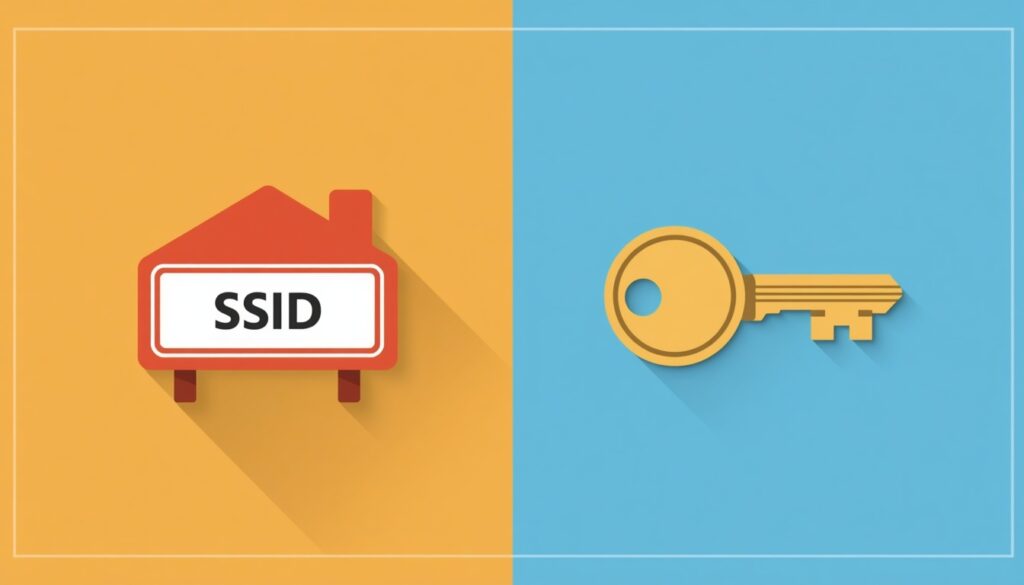
Think of it this way:
- SSID = House address
- Password = House key
You need both to connect.
Common Problems When Finding an SSID
SSID Not Showing
If your network does not appear:
- Restart the router
- Restart your device
- Move closer to the router
- Check if WiFi is enabled
- Verify that SSID broadcast is enabled
Hidden Network Issue
A hidden SSID won’t appear in normal WiFi scans.
You must manually enter:
- Network SSID
- Password
- Security settings
Router Label Missing
If the sticker is damaged or missing:
- Log into router settings.
- Open Wireless Settings.
- Check the current SSID.
You can also use a device already connected to the network.
Pro Tips to Manage Your WiFi SSID
Here are some useful tips many users ignore:
Use a Unique Name
Avoid names like:
- WiFi123
- TP-Link
- Router123
Choose something recognizable.
Avoid Personal Information
Don’t use:
- Full name
- Phone number
- Home address
Enable Strong Security
Use:
- WPA2
- WPA3
for better protection.
Rename Your Network
Changing your SSID can help you:
- Identify your network quickly
- Avoid confusion with neighbors
- Improve network organization
Keep SSID Broadcast Enabled
For most home users, enabling SSID broadcast makes connecting devices easier. SSID broadcast is the feature that allows your WiFi network name to appear in available network lists.
Formatting Issue: “SSID vs WiFi Password” Table
| Feature | WiFi SSID | WiFi Password |
| What is it? | Wireless Network Name | Security Key / Passphrase |
| Visibility | Publicly visible to everyone | Hidden (only known to you) |
| Purpose | To identify and find your WiFi | To securely connect to the network |
| Example | HomeNet or SmartTech_WiFi | HomeNet@1234 |
How to Find SSID of WiFi
How to Find SSID of WiFi
Frequently Asked Questions
1. What is WiFi SSID?
A WiFi SSID is the name of your wireless network that appears when devices search for available WiFi connections.
2. How do I find my SSID on my phone?
Open WiFi settings and check the connected network name.
3. How do I find SSID on Android?
Go to Settings > WiFi. The connected network name is your SSID.
4. How do I find SSID on iPhone?
Open Settings > Wi-Fi and look for the network with the checkmark.
5. How do I find SSID on Windows 11?
Click the WiFi icon in the taskbar and view the connected network name.
6. Does changing the SSID affect internet service?
No. Changing the network name does not affect your internet connection.
7. Is SSID the same as my WiFi address?
No. The SSID is your network’s name, while the WiFi address (MAC
address) is a unique identifier assigned to your device’s network
hardware not the network itself.
8. Why do I see two networks with almost the same name?
This usually means your router is broadcasting separate 2.4GHz and
5GHz bands. Both belong to the same router just pick whichever
works best for your device’s location.
SSID broadcast is the feature that allows your WiFi network name to appear in available network lists.
Final Thoughts on How to Find SSID of WiFi
Now you know how to find SSID of WiFi on Windows 11, Windows 10, Android, iPhone, and directly from your router.
In most cases, the process only takes a few seconds. Simply open your WiFi settings and look for the connected WiFi network name. If the network is hidden, check your router settings or another device that is already connected.
If you need any more help about any problems you can visit our website and also find out the solution of wiFi problems.
If your device shows the correct SSID but still won’t connect, check
out our guide on WiFi connected but no internet access.
And if you’re having trouble with WiFi performance after connecting,
see our complete guide on WiFi not working fixes.