How to Fix Audio Renderer Error Windows 11? Fix It Permanently (Easy Guide)
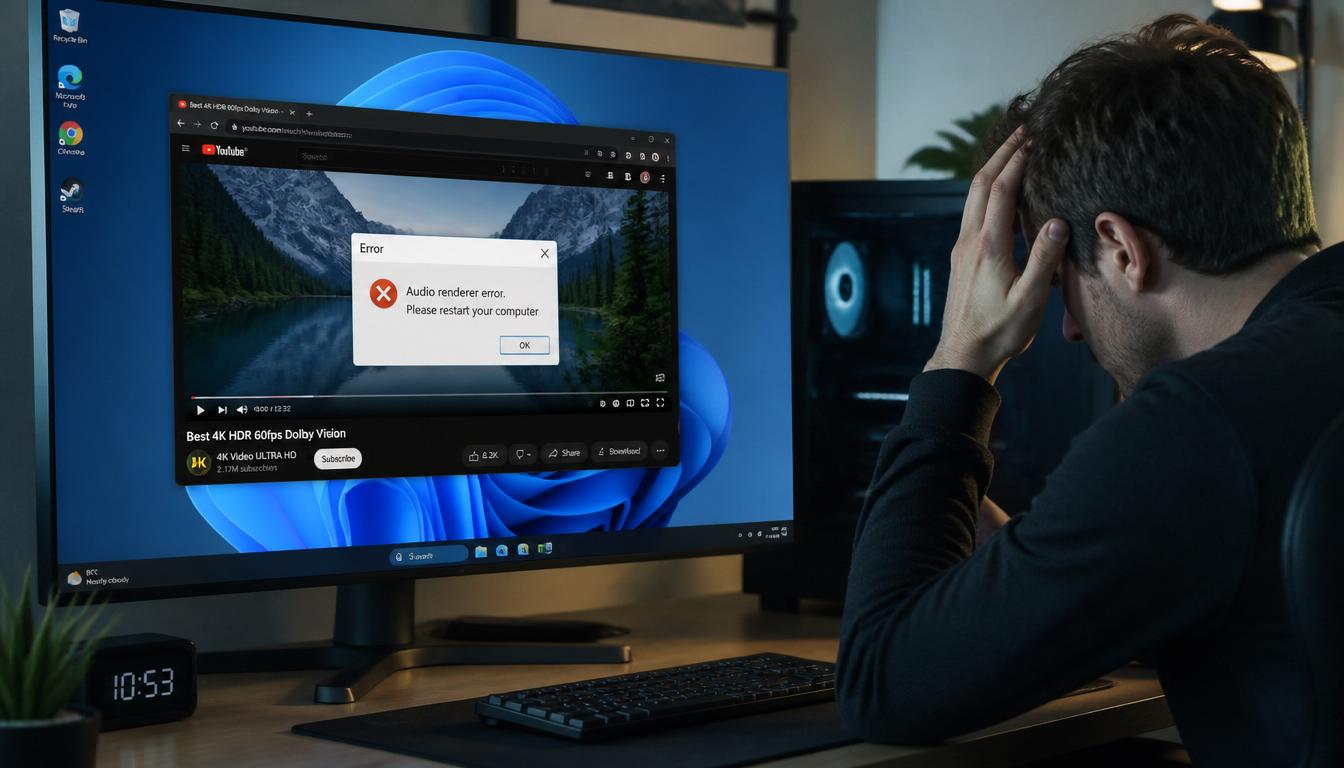
You’re watching an YouTube video or an online Zoom meeting or an intense gaming session and you face Audio Renderer Error Windows 11. Then the sound ceases and a gruelling message pops up:
“Audio renderer error. Restart your PC .”
At this point the idea of restarting your computer seems as the only option. But what happens if the issue isn’t going away?
If you’re having trouble in the wake of Audio renderer problem in Windows 11, you’re not the only one. Many users face this issue following Windows updates drivers, driver problems, browser issues, or problems with sound settings. The positive side? It is possible to fix it permanently without having to reinstall Windows.
This thorough guide will show you the steps to correct the audio renderer errors on Windows 11 using proven techniques that work, not generic suggestions that waste your time.
Why Does the Audio Renderer Error Happen on Windows 11?
Before tackling fixes it is important to know what’s causing this Audio renderer error Windows 11 problem.
The majority of the time, this error occurs due to Windows stops communicating with your audio devices or the software. These are the most commonly-cited reasons for this error:
1. Audio Driver Conflicts
Windows 11 updates can sometimes install incompatible drivers which interfere with your existing audio equipment.
This can be a result of:
- Realtek audio drivers
- Intel Smart Sound Technology
- NVIDIA High Definition Audio
- USB audio devices
- Bluetooth headphones
2. Windows Audio Service Glitches
Sometimes, the main Windows audio services will stop responding or freeze. in a timely manner.
In the event that this happens:
- YouTube audio stops
- Spotify is refusing to stream
- The sound of the browser disappears
- Games lose audio unexpectedly
3. Browser Hardware Acceleration Problems
Edge, Chrome Edge Chrome, Edge Firefox are able to cause an Audio Renderer Error Windows 11 issue due to hardware acceleration conflict.
This is particularly common in:
- Watching YouTube
- Streaming Netflix
- Multiple tabs are open
- Using Bluetooth devices
4. Audio Enhancements Causing Interference
Windows 11 includes sound enhancements that are designed to enhance the audio quality.
Unfortunately, these improvements can cause conflicts with
- Realtek audio software
- Gaming headsets
- USB DACs
- External speakers
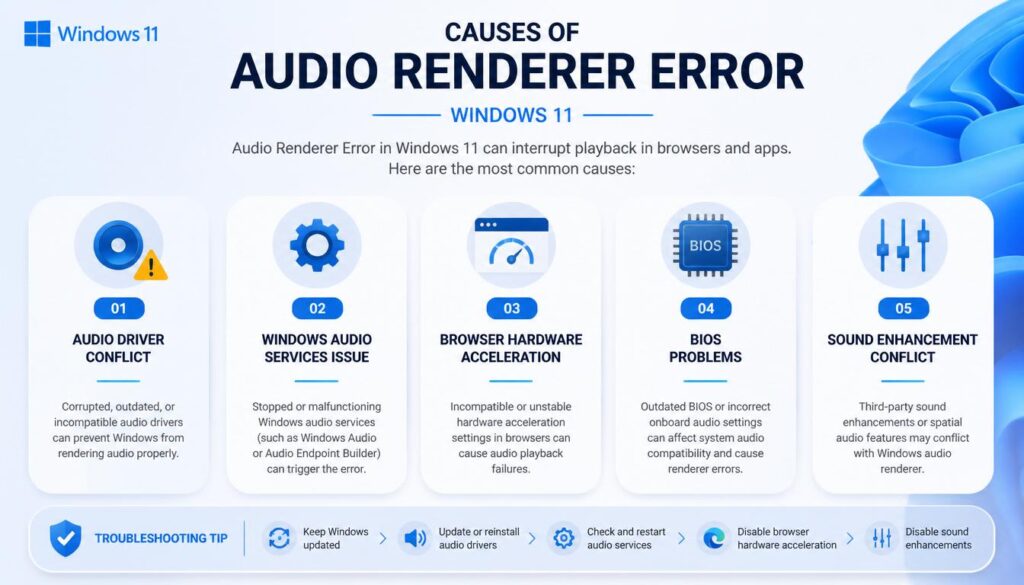
5. BIOS or Firmware Problems
In rare instances, out of date motherboard firmware may cause problems with the Audio Renderer Error Windows 11.
It usually affects:
- Gaming laptops
- Custom-built PCs
- Older motherboards have been upgraded to Windows 11
The good thing is that most of the time, you will not require a major repair to resolve this issue.
Step-by-Step Guide: How to Fix Audio Renderer Error Windows 11
Make sure to follow these steps in a specific order. Begin with the easiest fix first.
Fix 1: Quick Audio Device Toggle (Fastest Solution)
One of the simplest methods to resolve one of the easiest ways to fix problem with the Audio Renderer Error Windows 11 issue is to turn off and then re-enable your audio device.
This will refresh the sound driver immediately.
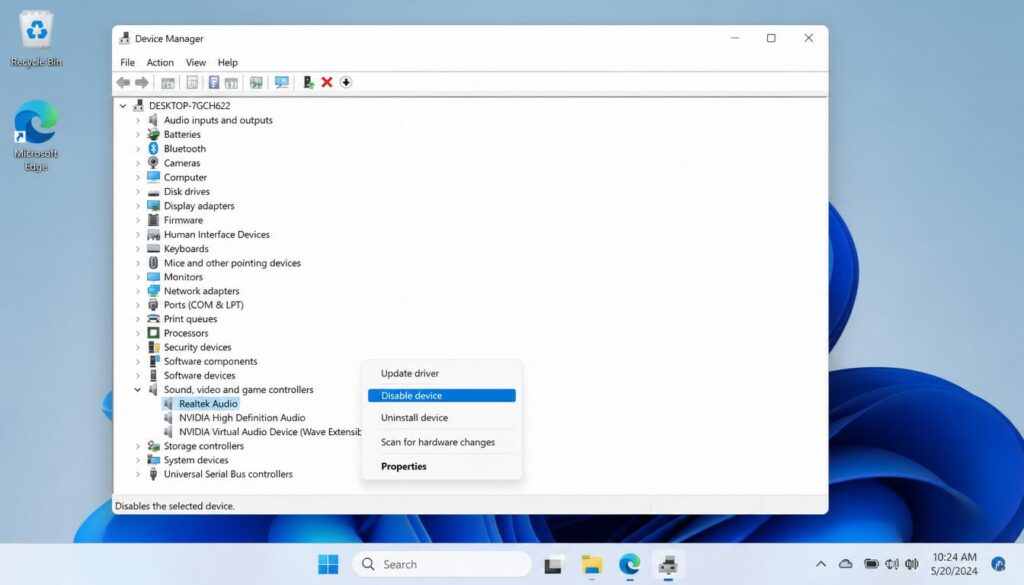
Steps to Disable and Enable Audio Device
- Press Windows + X
- Click Device Manager
- Expand Sound, Video and Game Controllers
- Find your audio device
Examples:
- Realtek(R) Audio
- High Definition Audio Device
- Intel Smart Sound Technology
- Right-click your audio device
- Select Disable device
- Wait 10 seconds
- Click again to right-click
- Click Enable device
Start your web browser, and then test the audio once more.
Many people solve this Audio renderer errors Windows 11 problem instantly by using this technique.
[Insert Screenshot Here – Device Manager Audio Driver]
Why This Works
Enabling or disabling the device causes Windows 11 to reload audio communication, without the need for a full reboot.
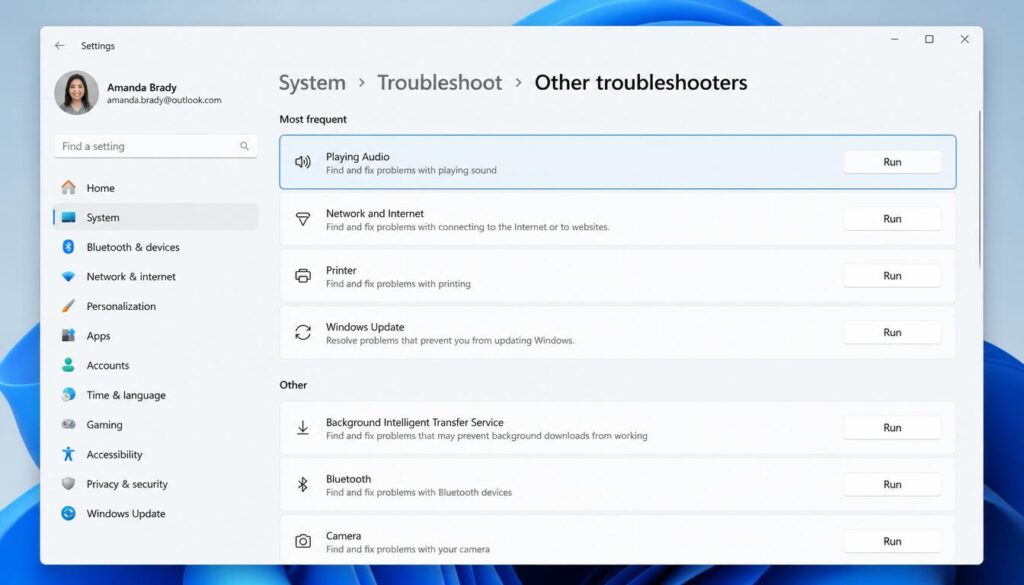
Fix 2: Run the Windows 11 Audio Troubleshooter
Windows 11 includes a built-in audio repair tool that detects audio issues.
If you’re thinking how to fix an audio renderer errors Windows 11 without technical work this is a fantastic solution.
Steps to Run Audio Troubleshooter
- Click Windows + I to open Settings
- Go to:
System: Troubleshooting Other troubleshooters
- Find Playing Audio
- Click Run
Windows will scan itself for:
- Audio driver problems
- Muted devices
- Incorrect sound output
- Service errors
- Issues with playback
Follow the suggested fix.
After the completion of:
- Restart your computer
- Open YouTube or Spotify
- Test sound
[Insert Screenshot Here – Windows 11 Audio Troubleshooter]
Why This Works
The troubleshooter can reset broken audio settings automatically and corrects the inconsistencies in playback.
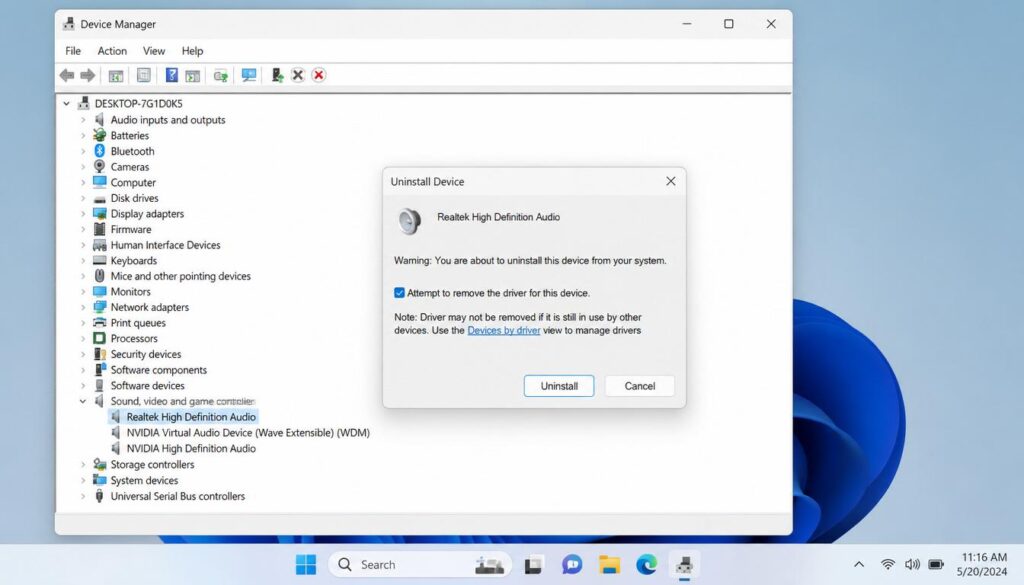
Fix 3: Uninstall and Reinstall Audio Drivers
If you’re getting the audio renderer error Windows 11 keeps coming back, the audio driver could be damaged.
A fresh install usually resolves the issue.
Step 1: Open Device Manager
- Press Windows + X
- Select Device Manager
Step 2: Remove Existing Audio Driver
- Expand:
Sound, Video and Game Controllers
- Right-click your audio device
- Select Uninstall device
If this option is available:
Try to uninstall the driver associated with this device
- Click Uninstall
Step 3: Restart Your Computer
After restarting:
Windows 11 usually installs a new audio driver on its own.
Step 4: Install Official Driver (Recommended)
For greater stability, download the drivers from the manufacturer of your PC.
Examples:
- Dell Support
- HP Support
- Lenovo Support
- ASUS Support
- MSI Support
Directly from
- Realtek website
- Intel website
[Insert Screenshot Here – Uninstalling Realtek Audio Driver]
Why This Works
Drivers that are corrupted are among the main reasons behind this errors with the audio rendering software Windows 11 issue.
A new installation will remove the damaged configurations and restores stability playback.
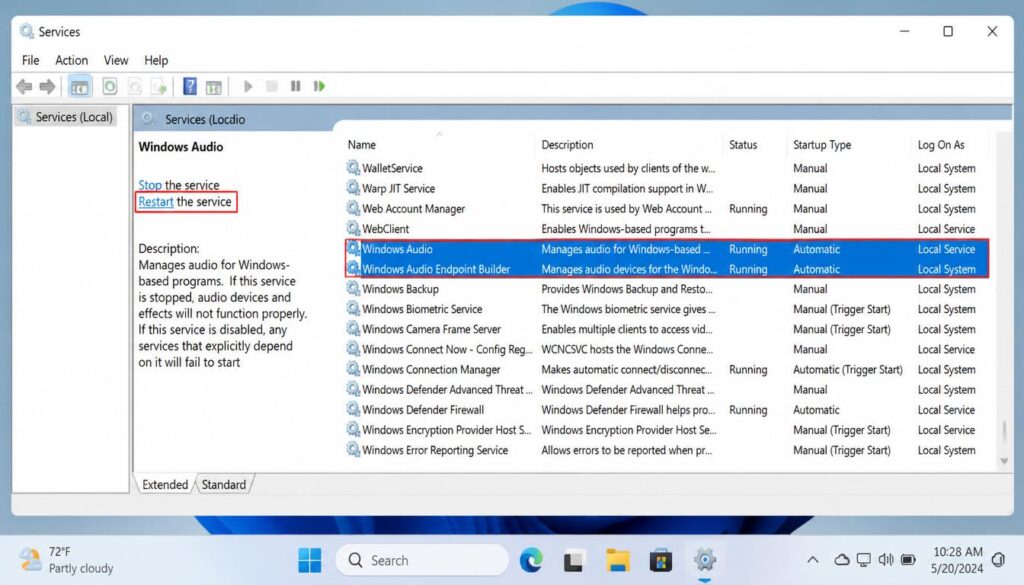
Fix 4: Restart Windows Audio Services
Sometimes, the audio system itself gets stuck in the background.
The process of restarting Windows audio services will instantly bring back audio.
Steps to Restart Audio Services
- Press Windows + R
- Type:
services.msc - Press Enter
These are the services you can find:
Windows Audio
- Right-click
- Click Restart
Windows Audio Endpoint Builder
- Right-click
- Click Restart
Remote Procedure Call (RPC)
It should say:
Running
If there is no:
- Right-click
- Click Start
[Insert Screenshot Here – Restart Windows Audio Services]
Why This Works
Restarting the service refreshes the sound engine and resolves temporary issues that can cause audio Renderer Error Windows 11 message.
Fix 5: Disable Audio Enhancements or Browser Hardware Acceleration
If the problem is seen mostly on YouTube or other streaming sites it could be due to browser acceleration. the cause.
This solution is particularly useful for those who are trying to figure out how to fix the audio renderer errors Windows 11 for Chrome or Edge.
Disable Audio Enhancements
Method 1: Turn Off Sound Enhancements
- Open Settings
- Go to:
System – Sound
- Click your output device
Examples:
- Speakers
- Headphones
- Bluetooth audio
- Scroll down
- Turn Audio Enhancements OFF
[Insert Screenshot Here – Disable Audio Enhancements]
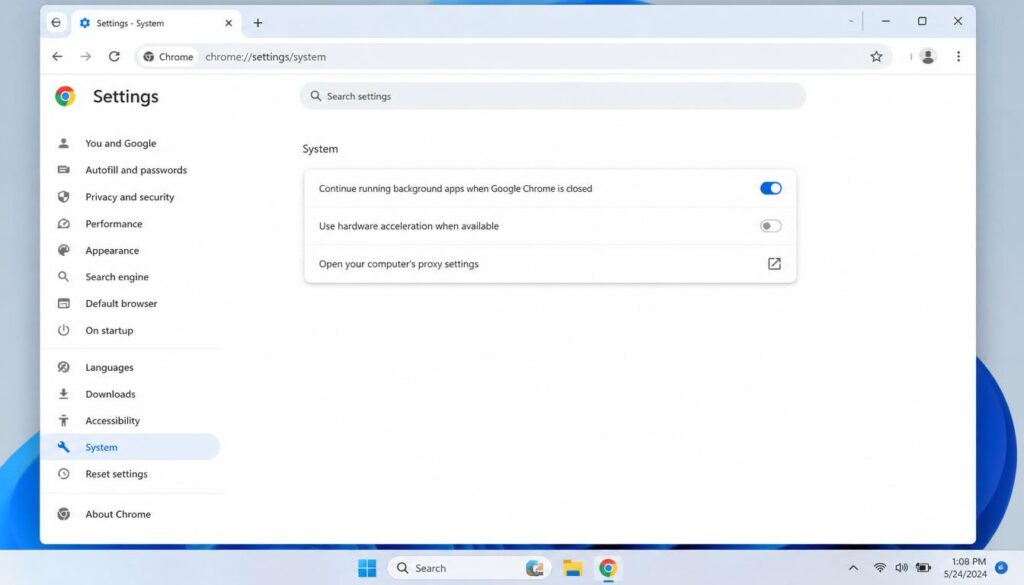
Disable Hardware Acceleration in Chrome
- Open Google Chrome
- Click 3 dots to open the menu
- Open:
Settings – System
- Turn OFF:
Utilize hardware acceleration if it is available
- Restart Chrome
Disable Hardware Acceleration in Microsoft Edge
- Open Edge
- Go to:
Settings – System and Performance
- Disable:
Utilize hardware acceleration when there is hardware acceleration
- Restart your browser
[Insert Screenshot Here – Chrome Hardware Acceleration Settings]
Why This Works
Hardware acceleration may cause problems with Windows Audio drivers as well as browsers. which triggers problems with the Audio renderer errors Windows 11 problem.
Extra Fixes If Nothing Works
If the issue persists If the issue persists, try these methods:
Install Windows Updates
Go to:
Settings – Windows Update – Check for Updates
Install all pending updates.
Change Default Audio Device
Sometimes Windows chooses the incorrect playback device.
Go to:
Settings – System – Sound
Select the appropriate output device.
Disconnect External Audio Devices
Try to remove:
- USB microphones
- Gaming headsets
- Bluetooth Earbuds
- External speakers
Sometimes, hardware issues trigger the issue.
Update BIOS (Advanced Users)
If you have an outdated motherboard If you have an older motherboard or gaming laptop, a BIOS update could resolve issues with sound communication.
Make sure you do this on the official site of your manufacturer.
Final Thoughts
It is possible that the Error in the Audio Renderer Error Windows 11 issue may appear to be annoying, but the issue is generally simple to fix once you find the source.
For the majority of users, turning off the audio device or reinstalling drivers will solve the issue for good. If this doesn’t work restarting audio services, or removing browser hardware acceleration typically restores audio immediately.
The most important thing is to follow the steps step-by-step rather than randomly attempting solutions.
If you’re looking for for a solution to the Audio Renderer Error Windows 11, start by using the first fix and then move down until the issue disappears.
The majority of users can fix it in 5-10 minutes.
FAQ: Audio Renderer Error Windows 11
Why does YouTube say “Audio renderer error” on Windows 11?
Most often Audio Renderer Error Windows 11, it is due to:
- Audio driver conflicts
- Hardware acceleration of the browser is a problem
- Broken Windows audio services
- Sound enhancement conflicts
This is among the most frequent causes of this errors with the audio rendering software Windows 11 issue.
Can outdated audio drivers cause audio renderer errors?
Yes. The driver’s age or corruption is one of the major causes for this error.
Reinstalling or updating drivers frequently can solve the problem permanently.
Do I have to install Windows 11?
No.
In the majority of instances, you can resolve the Audio Renderer Error Windows 11 issues using these methods, without having to install Windows.
If you need any more help you can visit our website and if you wants to make faster your pc and laptop then you can read this pillar post.