
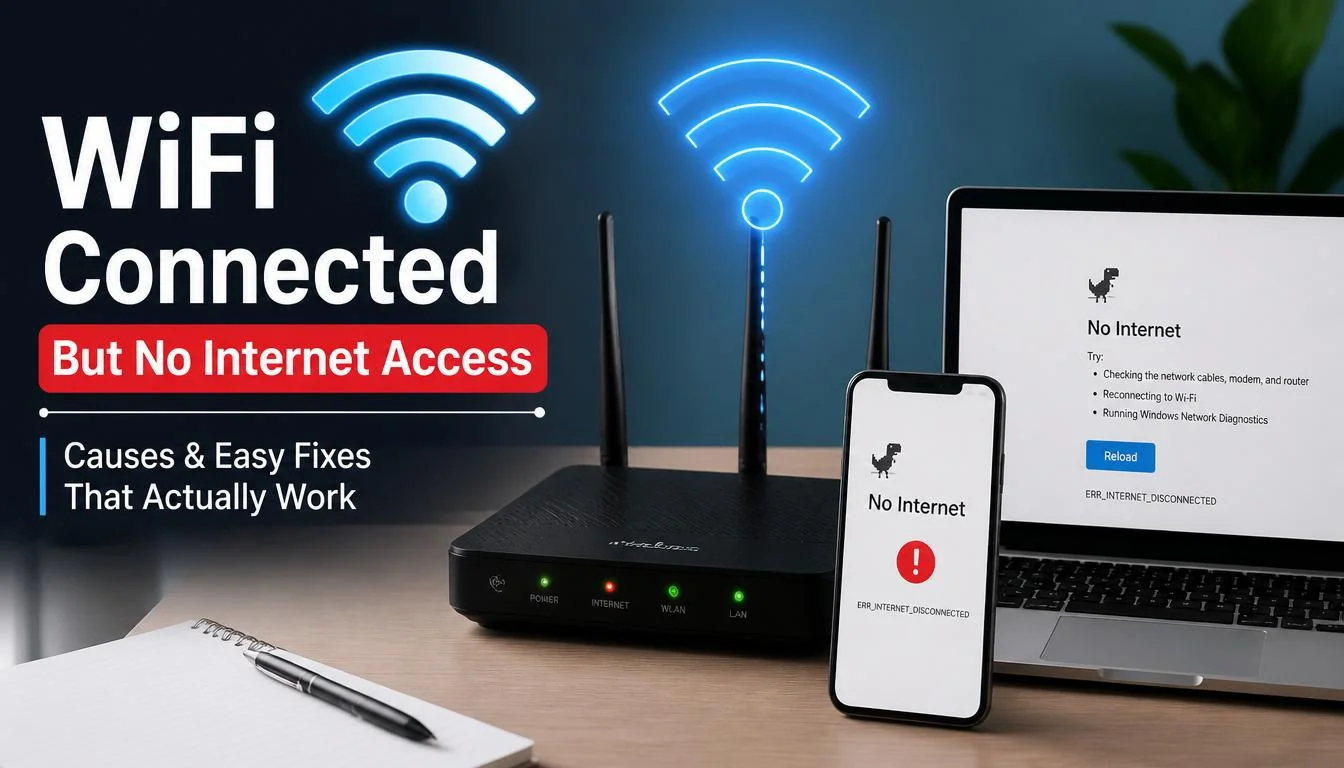
The WiFi connected, but no internet access issue is a common one. It can occur on phones, laptops, Windows PCs and Android devices. There may be full WiFi bars but no internet access. YouTube will not load, apps will not connect, and websites will not open. This can happen due to router problems, DNS issues, IP conflicts, or incorrect network settings.
Quick Answer
WiFi connected but no internet usually means your device has a local network connection but cannot reach the internet through your router or ISP. Restart your router, forget and reconnect to the WiFi network, run Windows Network Reset, or switch your DNS to 8.8.8.8 (Google DNS). Most cases resolve in under 5 minutes without a technician.
When your device is connected via WiFi but your internet does not work, this usually means the router is not receiving internet access, or your device cannot reach it properly.
This is one of the most common WiFi errors alongside issues like WiFi not connecting at all see our complete WiFi troubleshooting guide for the full picture.
Is It a WiFi Problem or an Internet Problem?
Before trying any fix, run this 30 second check. It tells you whether the issue is your device, your router, or your internet provider, so you do not waste time on the wrong fix.
- Check if other devices on the same WiFi can browse the internet. If only your device is affected, the problem is local to your device or its WiFi adapter.
- Connect a device directly to the router with an ethernet cable. If the internet still does not work, the problem is with your router or your ISP, not your WiFi.
- Check your router’s status lights. A blinking or red Internet or WAN light usually means the outage is on your ISP’s side.
- Try a different WiFi network, such as a mobile hotspot. If your device connects to the internet fine on another network, your original router or modem is the cause.
Once you know which category you are in, jump to the matching fix below.
Why Does This Happen?
Router or Modem Glitch Routers run small onboard software that can freeze after days of continuous uptime, cutting off internet access while keeping the local WiFi signal alive.
DNS Server Issues DNS translates website names into addresses your device understands. If your ISP’s DNS server is slow or down, pages fail to load even though your connection is technically active.
IP Address Conflict Two devices on the same network can occasionally be assigned the same IP address, blocking one of them from reaching the internet. This often shows up as an address starting with 169.254.
Outdated or Corrupted Network Drivers On Windows and Android, an outdated WiFi adapter driver can maintain a WiFi handshake without completing an actual internet connection.
ISP Outage Your internet provider may be experiencing a local outage that has not yet been reported as resolved, even though your router shows a WiFi signal.
Security Software or VPN Interference Antivirus programs and VPN clients sometimes block outbound traffic while allowing the local WiFi connection to remain active.
Router Placement and Interference Physical distance, walls, and interference from other 2.4GHz devices such as microwaves and baby monitors can degrade a connection enough to break internet access while keeping the WiFi icon connected.
Quick Fix Comparison by Cause
| Cause | Fastest Fix | Time Needed | Works On |
|---|---|---|---|
| Router glitch | Restart router | 2 minutes | All devices |
| DNS server issue | Change DNS to 8.8.8.8 | 3 minutes | Windows, Android |
| IP conflict / 169.254 error | ipconfig /release and /renew | 2 minutes | Windows |
| Outdated network driver | Update WiFi adapter driver | 5 minutes | Windows |
| ISP outage | Check provider status page, wait | Varies | All devices |
| VPN or antivirus blocking | Disable VPN, whitelist network | 1 minute | All devices |
| Weak signal / interference | Switch to 5GHz or change channel | 2 minutes | Router-side |
WiFi Connected But No Internet
Good News: Most users can resolve this issue within 10 minutes using the fixes below.
Fix 1: Restart Your WiFi Router and Device
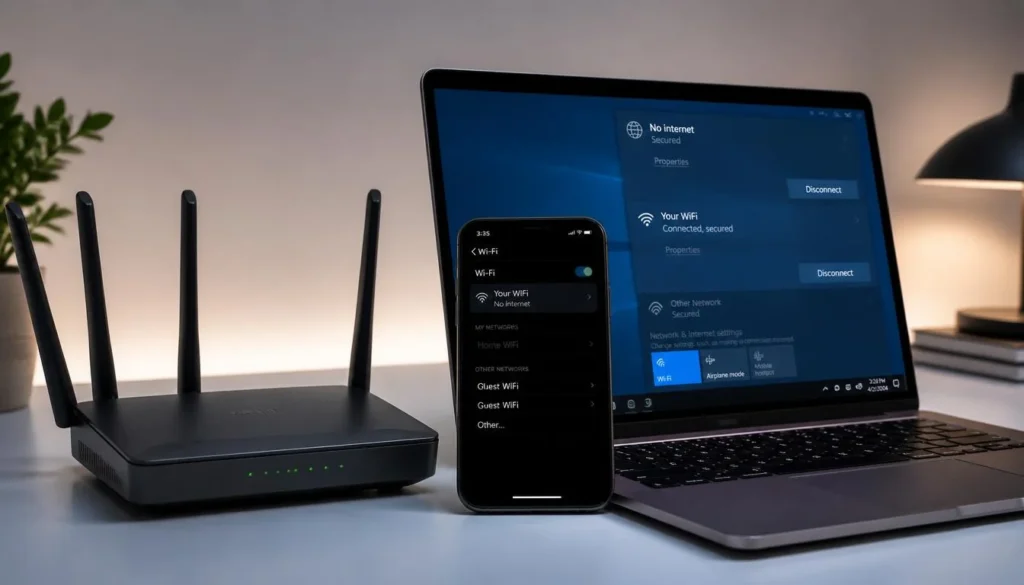
Why Is Restarting Your Router a Good Idea?
The restart clears any temporary bugs from the router and refreshes the connection between your device and your internet provider.
How to Properly Restart Your WiFi Router
- Switch off your WiFi router.
- Remove the power cable.
- Wait for 60 seconds.
- Reconnect the plug.
- Wait 2-3 minutes after turning it on.
- Restart your laptop or computer if necessary.
Reconnect to WiFi now and check if the internet is working. If it is not, and you are on a laptop specifically, check our dedicated guide on laptop not connecting to WiFi for laptop-specific driver and adapter fixes. Otherwise, move to the next fix below.
Fix 2: Check If Your Internet Provider Is Down
Is It Possible the Problem Is Caused by Your Internet Provider?
Yes. Your WiFi may be working perfectly, but your internet service provider could be experiencing an outage.
WiFi Connected But No Internet
How to Check for an Internet Outage
- Ask your neighbors if they have internet.
- Open the mobile app of your ISP.
- Restart the modem and router.
- Try mobile data.
Your ISP could be to blame if you cannot connect to WiFi but mobile internet is working.
Fix 3: Forget WiFi Network and Reconnect
Why Does Reconnecting WiFi Sometimes Solve This?
Saved WiFi settings can occasionally become corrupted, which forgetting and rejoining the network resolves.
WiFi Connected But No Internet
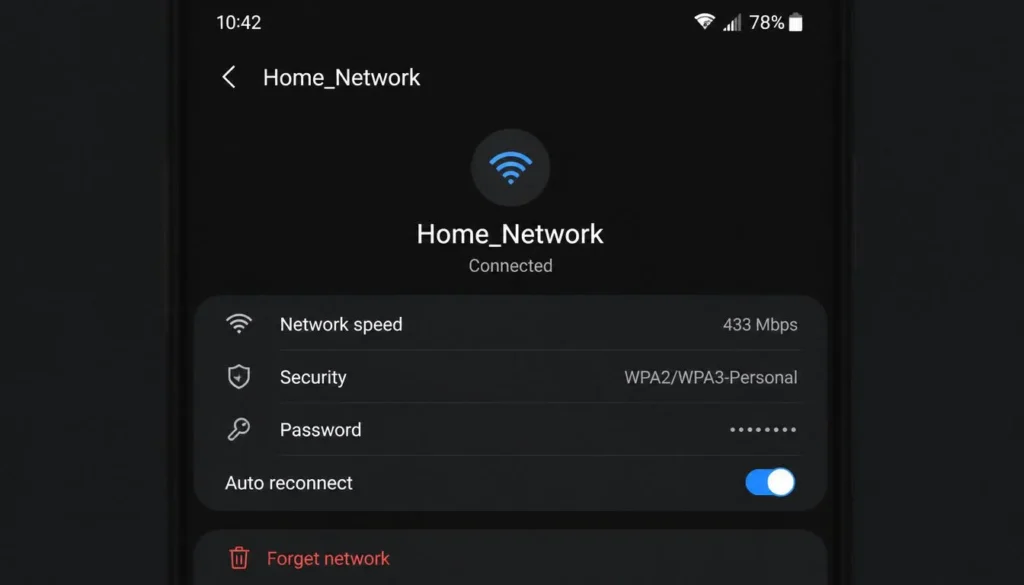
Steps for Android and iPhone
- Open WiFi Settings.
- Tap the WiFi name.
- Select Forget Network.
- Reconnect your device.
- Enter the password.
Windows 11 Steps
- Open Settings.
- Click Network & Internet.
- Click WiFi.
- Open Manage Known Networks.
- Forget the network.
- Connect again.
Often, this fixes authentication and IP issues. If this is happening only on your phone, see our full phone not connecting to WiFi troubleshooting guide for Android and iPhone specific steps.
What Does a 169.254.x.x IP Address Mean?
If your device shows an IP address starting with 169.254, it means Windows or Android assigned itself a temporary address because it could not reach your router’s DHCP server. This is called an APIPA address, and it always means your device is connected to WiFi but not actually communicating with the router.
To check your IP address on Windows:
- Open Command Prompt.
- Type ipconfig and press Enter.
- Look at the IPv4 Address under your WiFi adapter.
If it starts with 169.254, restart your router and run the commands below.
Fix 4: Run Windows Network Troubleshooter
Windows Shows Connected But There Is No Internet
Windows comes with a built-in troubleshooter that automatically detects internet issues.
Steps
- Open Settings.
- Click System.
- Select Troubleshooting.
- Select Other Troubleshooters.
- Run the Internet Connections tool.
Windows can automatically fix common internet settings.
Fix 5: Change DNS Settings
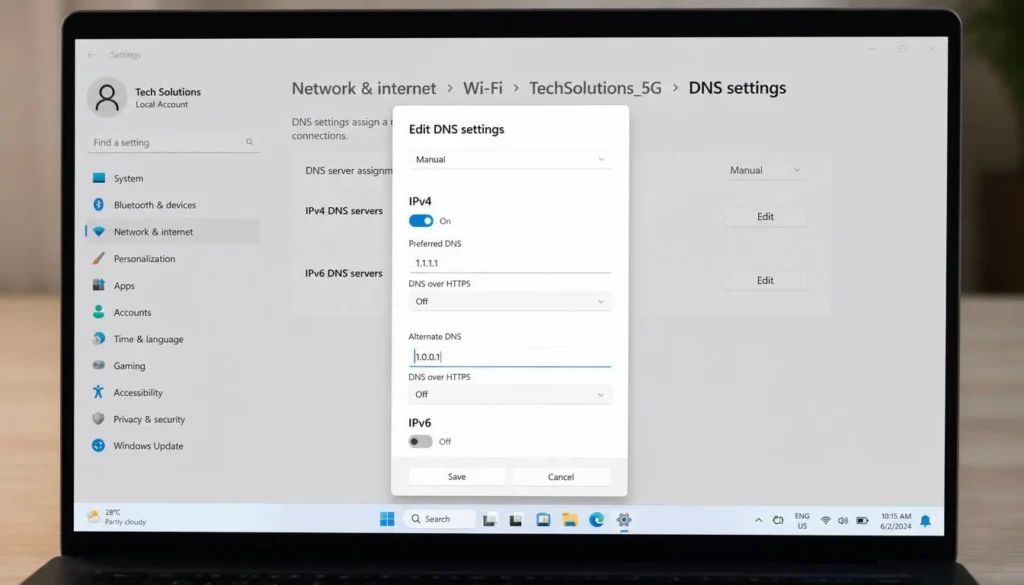
Can DNS Cause WiFi Connected But No Internet?
Yes. Even if the WiFi appears connected, a slow or unresponsive DNS server can prevent websites from loading.
Best DNS Servers for 2026
Google DNS
- 8.8.8.8
- 8.8.4.4
Cloudflare DNS
- 1.1.1.1
- 1.0.0.1
How to Change DNS on Windows
- Open Control Panel.
- Open Network and Sharing Center.
- Click Change Adapter Settings.
- Open WiFi Properties.
- Select IPv4.
- Add the DNS addresses manually.
Save the changes and reconnect.
Windows Command Fixes (Advanced but Fast)
Open Command Prompt as Administrator and run these one at a time:
ipconfig /release
ipconfig /renew
ipconfig /flushdns
netsh winsock reset
netsh int ip reset
Restart your computer after running these commands. If the issue continues, see our guide on DNS Server Not Responding on Windows 11 for deeper DNS-specific fixes.
Switch WiFi Channel or Band
If you are on a dual-band router, switch your device from the 2.4GHz network to the 5GHz network, or the other way around, in your WiFi settings. The 2.4GHz band is more prone to interference from other household devices and neighboring networks in apartments, which can cause exactly this connected-but-no-internet symptom.
If your router allows manual channel selection, switch to channel 1, 6, or 11 on 2.4GHz, since these have the least overlap with neighboring networks.
Fix 6: Reset Network Settings
What Happens When You Reset Your Network Settings?
Resetting removes broken network configurations that manual fixes cannot always clear.
Android: Settings > System > Reset > Reset WiFi
iPhone: Settings > General > Transfer or Reset iPhone > Reset Network Settings
Windows: Settings > Network & Internet > Advanced Network Settings > Network Reset
After reconnecting, your WiFi should work normally. If Windows still does not show a WiFi option after this reset, follow our guide on Windows 11 No WiFi Option to restore the missing adapter.
Fix 7: Update WiFi Drivers or Software
Can Older Drivers Block Internet Access?
Yes. Old network drivers can create a WiFi connection that never fully completes an internet handshake.
How to Update Drivers on Windows
- Open Device Manager.
- Open Network Adapters.
- Select the WiFi driver.
- Click Update Driver.
- Choose Search Automatically.
Restart your PC after the update. If none of the fixes above worked, the issue may be on your ISP’s side. Revisit the diagnostic section above to confirm.
Frequently Asked Questions (FAQ)
WiFi Connected But No Internet

Why does my WiFi work but not the internet?
It can be caused by router problems, ISP issues, incorrect DNS settings, or software problems on your device.
What does it mean when my phone says connected but has no internet?
It usually means your phone has saved incorrect WiFi settings, a network glitch, or a temporary IP conflict.
Does restarting the router fix a WiFi connected but no internet issue?
Yes, restarting the router clears temporary connection errors and refreshes the IP lease, which resolves the issue in most cases within two minutes.
Why can WiFi only work on certain devices?
It may be that the affected device has incorrect settings, outdated software, or corrupted network data, while other devices on the same network are unaffected.
Why is my WiFi connected but showing no internet on my phone only?
This usually means the issue is local to your phone, not your network. Forget the WiFi network in your phone settings, restart the phone, and reconnect. If other devices on the same network work fine, the phone’s WiFi driver or a saved network profile is the likely cause.
Why does my WiFi say connected but no internet after a power outage?
Routers and modems can fail to fully re-sync with your ISP after a power cut. Unplug both the modem and router for 30 seconds, plug the modem back in first, wait one minute, then plug in the router.
Can a VPN cause WiFi connected but no internet access?
Yes. A VPN client can fail to establish a tunnel while your device still shows a WiFi connection. Disconnect the VPN, confirm internet access returns, then reconnect using a different server.
Does changing DNS settings fix WiFi connected but no internet on Android?
Yes, in most cases. Go to WiFi settings, tap your network, choose Private DNS or Advanced, and set DNS to 8.8.8.8 and 8.8.4.4. This bypasses a slow or unresponsive ISP DNS server.
How do I know if it is my router or my internet provider?
Connect a device directly to the modem with an ethernet cable, bypassing the router entirely. If internet works over ethernet but not WiFi, the router is the cause. If it fails on ethernet too, contact your ISP.
Final Thoughts
In most cases, the WiFi is connected but there is no internet access issue can be frustrating, but it is easy to fix. Start by restarting the router, checking for ISP outages, and reconnecting WiFi. If the problem continues, update your drivers, change your DNS, or try a full network reset.

You can fix internet connectivity issues quickly on Windows, Android, and iPhone by following these 7 simple fixes. Visit our Home Page for more helpful tech guides.
If you are facing this on a console, check our Xbox Series X WiFi guide.
One thought on “WiFi Connected But No Internet? 7 Fixes That Work Fast”