A wrong or conflicting IP address can knock a device offline in seconds, and most guides online skip the exact menu paths you actually need. This walkthrough shows you how to modify IP address settings safely, on every major platform, without breaking your connection.
Quick Answer: How to Modify IP Address
To modify IP address settings, open your device network settings, select the active connection, and edit the IP assignment from Automatic (DHCP) to Manual. On Windows, use Settings > Network & Internet > Properties, or run ipconfig /release and ipconfig /renew in Command Prompt. On Android and iPhone, edit the same field inside WiFi advanced settings.
Most people who search for this topic are dealing with one of three problems: a duplicate address conflict, a router that keeps handing out the wrong gateway, or a desire to route traffic through a different region using a VPN. This guide covers all three, plus the command line shortcuts that most competing articles leave out entirely.
Before touching any setting, it helps to understand the difference between a private and a public address. Your private IP identifies your device on your home or office network, and your router assigns it through DHCP. Your public IP is what the wider internet sees, and it belongs to your internet service provider. If your device connected fine yesterday and drops today with no changes on your end, the fix usually lives on the WiFi troubleshooting guides side of things rather than the IP side, so rule that out first.
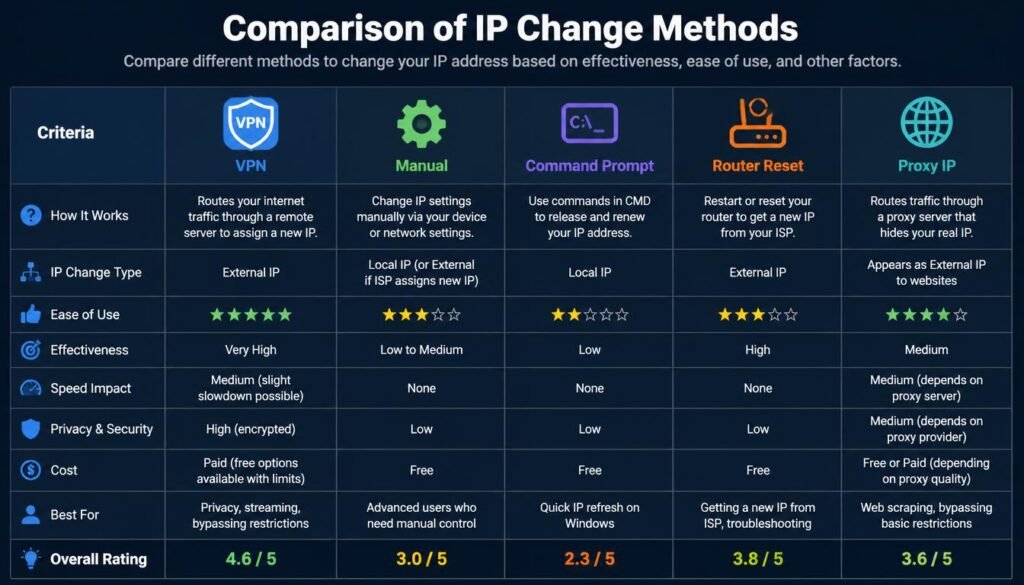
IP Address Modification Methods Comparison
| Method | Speed | Security | Ease of Use | Cost | Best Used For |
|---|---|---|---|---|---|
| VPN | Fast (seconds to connect) | High, traffic is encrypted | Very easy, one tap | Free to paid tiers | Changing public IP, region switching |
| Manual Device Settings | Moderate, a few clicks | Medium, local network only | Easy with guided steps | Free | Fixing conflicts, setting a static local IP |
| Command Prompt / Terminal | Fast, seconds per command | Medium, requires admin rights | Moderate, typed commands | Free | Renewing a DHCP lease, flushing DNS |
| Router Reset | Slow, full reboot cycle | Medium, resets to defaults | Easy, one button | Free | Clearing a stuck DHCP pool network wide |
| Proxy | Fast | Low to medium, often unencrypted | Easy, app or browser setting | Free to paid | Quick browser only IP masking |
How to Modify IP Address?
How to Modify IP Address on Windows 10 and Windows 11
Windows gives you two reliable ways to modify IP address values: the graphical Settings app and Command Prompt. Both work on Windows 10 and Windows 11, though the menu layout differs slightly between the two.
Windows 11: Settings App Method
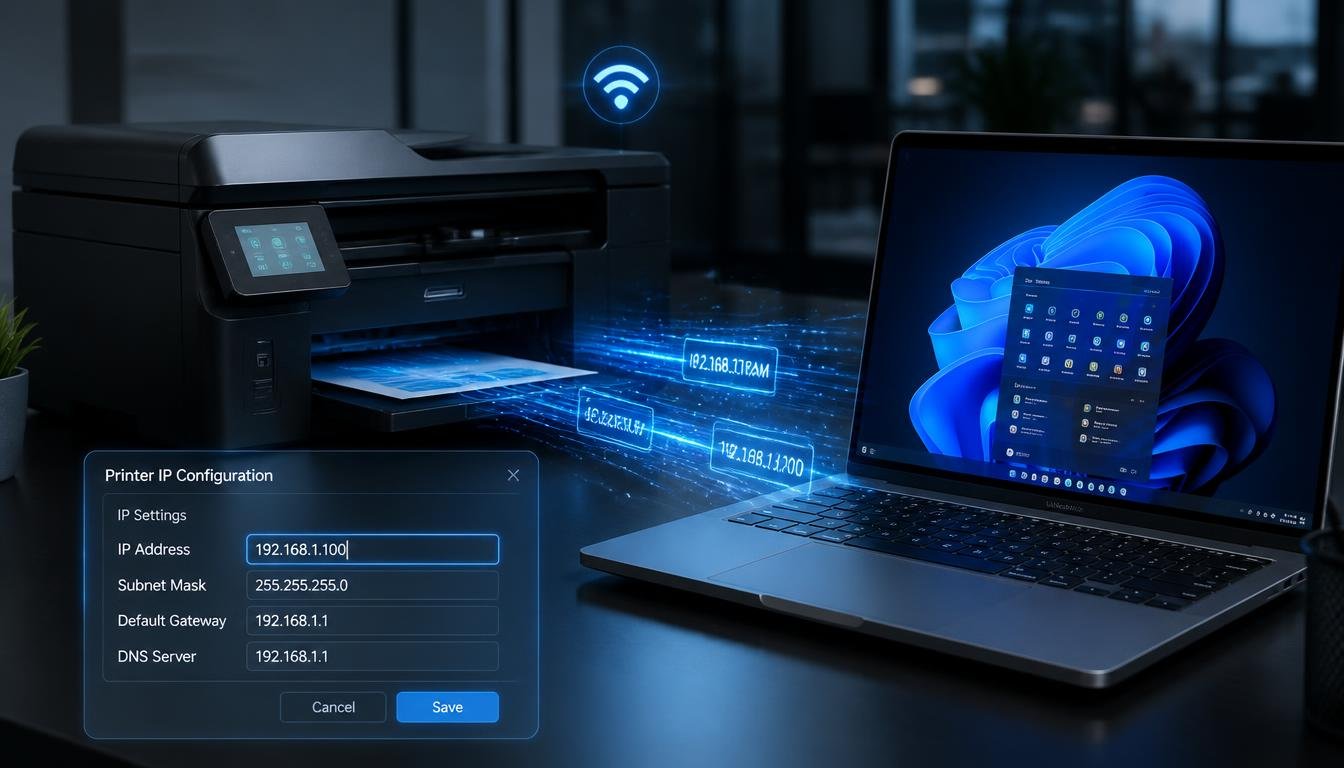
Open Settings by pressing Windows key + I, then select Network & Internet. Choose WiFi or Ethernet depending on your connection type. Select the network name, then click Hardware Properties, or Manage Known Networks if you are on WiFi. Next to IP Assignment, click Edit. Switch the dropdown from Automatic (DHCP) to Manual, toggle IPv4 on, and enter the IP address, subnet mask, gateway, and DNS values your network requires. Select Save when finished.
Windows 10: Control Panel Method
On Windows 10, open Control Panel, then Network and Sharing Center, then Change Adapter Settings. Right click your active connection and choose Properties. Select Internet Protocol Version 4 (TCP/IPv4), click Properties again, and choose Use the Following IP Address. Fill in the same four fields listed above, then click OK twice to apply the change.
Command Prompt Method (Windows 10 and 11)
For a quick DHCP renewal instead of a permanent static change, open Command Prompt as an administrator. This route is the fastest way to modify ip address windows 10 or windows 11 settings without opening any menus at all.
Run these commands in order:
ipconfig /release— this drops your current lease and disconnects the adapter from its assigned address.ipconfig /flushdns— this clears cached DNS records that can point to the wrong server after an address change.ipconfig /renew— this requests a fresh address from your router DHCP server.
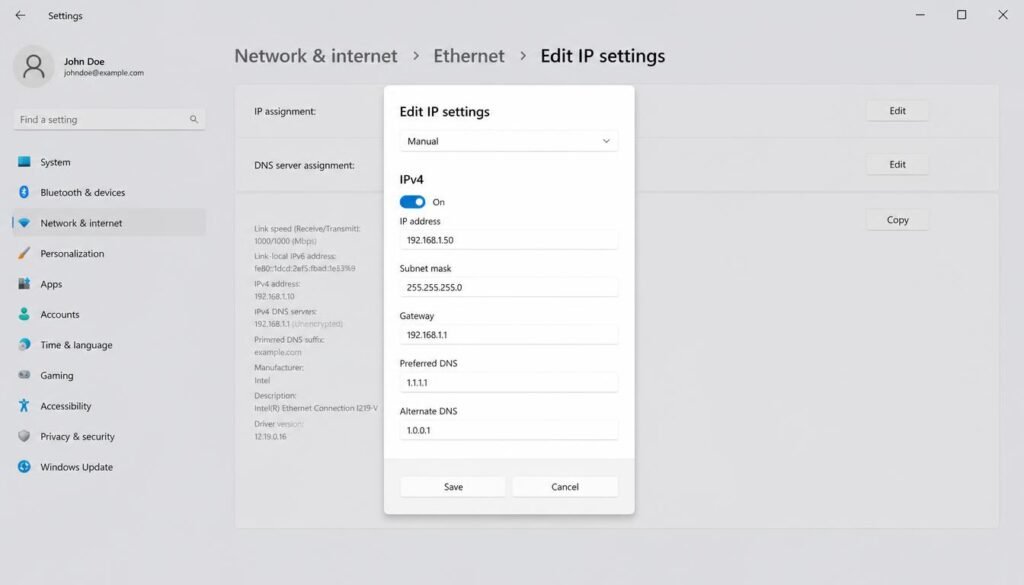
Next to IP Assignment, click Edit. Switch the dropdown from Automatic (DHCP) to Manual, toggle IPv4 on, and enter the IP address, subnet mask, gateway, and DNS values your network requires. If you are unsure about your network values, checking your current IP settings first will provide the exact default gateway and DNS parameters needed before saving.
If ipconfig /renew returns an error or hangs, your router DHCP service may be full or disabled, which usually means it is time to check a router troubleshooting guide rather than repeating the command.
How to Change IP Address on Android
Android keeps its IP controls inside the advanced WiFi menu, and the exact steps below apply to how to modify ip address android across most modern versions of the OS, including brands that customize their settings layout.
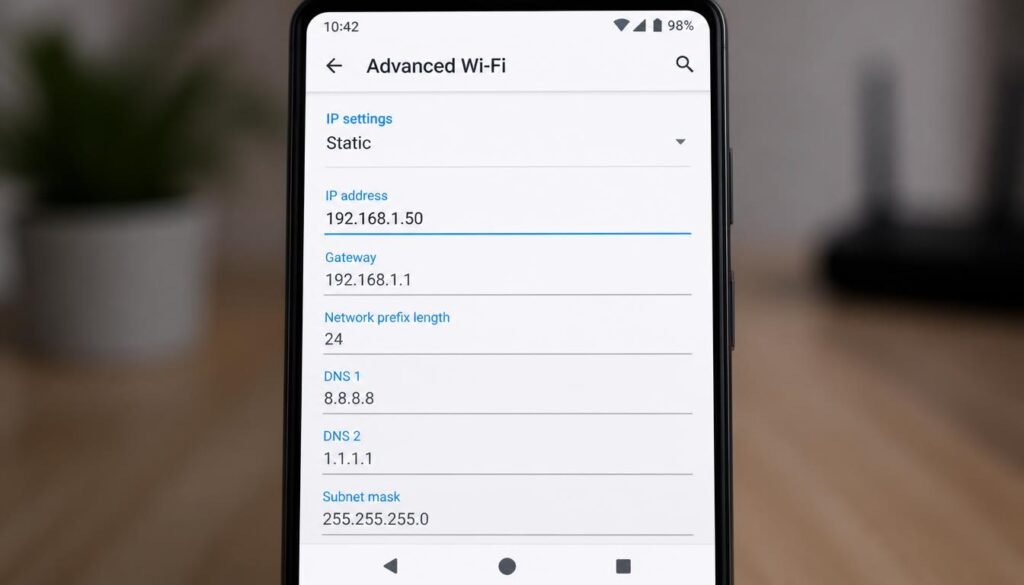
- Open Settings and tap Network & Internet, then WiFi.
- Long press the network you are connected to, then tap Modify Network or the pencil icon.
- Tap Advanced Options to expand the hidden fields.
- Under IP Settings, switch from DHCP to Static.
- Enter the IP address, gateway, network prefix length (this replaces the older subnet mask field on newer Android builds), and DNS values.
- Tap Save, then reconnect to the network if it does not apply automatically.
A static IP set this way only applies to that one saved network profile. If you connect to a different WiFi network later, the phone reverts to DHCP unless you repeat the process there as well.
A permanent change means the setting persists across reconnects and reboots. On a phone, this means saving a fixed profile for that specific network, as covered in the Android and iPhone sections above. The process of configuring a static IP address prevents the router from reassigning a new dynamic address every time the connection drops or the device restarts.
How to Modify IP Address on iPhone and iOS
iPhone uses a shorter menu path than Android, but the terminology in Apple’s interface confuses people who are used to seeing “static” as an explicit label.
- Open Settings, then tap WiFi.
- Tap the blue information (i) icon next to your connected network.
- Scroll to the Configure IP section and tap Manual.
- Enter the IP Address, Subnet Mask, and Router (this field acts as your gateway) values.
- Tap Save or simply leave the screen, since iOS applies the change automatically.
How to Modify IP Address?
If your iPhone shows a self assigned address starting with 169.254, the device could not reach a DHCP server at all, and switching to Manual will not fix that on its own. Restart the router first, and if the problem returns repeatedly on the same network, an authentication issue with WiFi is a more likely root cause than the address itself.
How to Change Phone IP Address to Another Country
Changing your local device address never changes what websites see, since that number only exists on your private network. To actually appear in another country, you need to change your public IP, and that requires routing your traffic through a server located there.
VPN routing is the most reliable option. Install a reputable VPN app, connect to a server located in the target country, and the app assigns you a public address from that region for as long as the connection stays active. Encryption is built in, so this method also protects the data itself, not just the location it appears to come from.
Proxy routing works for browser only traffic. A proxy reroutes requests through a remote server without encrypting them, so it is faster for simple browsing but weaker for anything sensitive, like logging into a bank account.
Whichever method you pick, confirm the change actually worked by checking a “what is my IP” page before and after connecting, rather than assuming the app succeeded silently.
How to Change Phone IP Address Permanently vs Temporarily
A temporary change lasts only as long as the current connection or VPN session. The moment you disconnect from WiFi, reboot, or close the VPN app, the device requests a brand new address from DHCP or reverts to your ISP’s assigned public address.
A permanent change means the setting persists across reconnects and reboots. On a phone, this means saving a static IP profile for that specific network, as covered in the Android and iPhone sections above, or keeping a VPN app set to auto connect on launch. On a router, it means setting up a DHCP reservation, which ties a fixed address to your device’s MAC address so it always receives the same number without any manual configuration on the phone itself.
For most home users, a router side DHCP reservation is the more durable choice, since it survives a factory reset of the phone and does not depend on remembering to reconfigure a new device later.
Troubleshooting Edge Cases and Error Fixes
Why IP Conflicts Happen
An IP conflict occurs when two devices on the same network receive or claim the identical address. This usually happens after manually assigning a static IP that falls inside your router’s active DHCP pool, so the router later hands that same number to a different device. The fix is to either move your static addresses outside the DHCP range, or set up a reservation on the router itself instead of configuring the device manually.
Fixing Subnet Mask Mismatches
A subnet mask mismatch happens when one device is configured with a different mask than the rest of the network, for example 255.255.0.0 on a network where every other device uses 255.255.255.0. The symptom is usually that the device can reach some machines on the local network but not others, or cannot reach the internet at all despite showing a connected status. Match the subnet mask to whatever the majority of devices use, which you can check from any working device’s network details screen.
Resolving Gateway Errors
A gateway error appears when the address entered in the gateway field does not match your router’s actual local IP address. If you recently reset the router, it may have generated a new base address, which breaks every manually configured device that still points to the old one. Check the current gateway address from the router’s label or admin panel, and update it on any device using a manual configuration. If the DNS server not responding error also appears at the same time, flush DNS after correcting the gateway, since a stale cache can persist even after the underlying network problem is fixed.
A subnet mask mismatch happens when one device is configured with a different mask than the rest of the network, for example 255.255.0.0 on a network where every other device uses 255.255.255.0. Understanding standard subnet mask parameters ensures that your device can route local data correctly. The primary symptom is usually that the device can reach some machines on the local network but fails to access external internet resources.
Fixing Restricted Account Errors
On managed Windows machines, especially work laptops, a standard account often cannot open Command Prompt as an administrator or edit adapter properties, which blocks both methods described earlier in this guide. If you see an “Access Denied” message when running ipconfig /release, try running Command Prompt as a different user with administrator credentials through the Shift + right click menu, or ask your IT department to grant temporary elevated access. On a personal PC where you simply forgot your own administrator password, resetting that password restores full access to these settings.
Frequently Asked Questions
Can I modify my IP address?
Yes. Every operating system provides a built in way to modify IP address settings, either through manual configuration in network settings or by requesting a new address through Command Prompt or Terminal commands.
How do I manually edit an IP address?
Open your device’s network settings, select the active connection, switch the IP assignment from Automatic to Manual, and enter the IP address, subnet mask, gateway, and DNS values your network requires.
Can I change my IP address online, without installing anything?
Not directly. Some web based proxy services let you browse specific sites through a different address, but they do not change the actual IP assigned to your device or connection, and the change only applies inside that browser session.
Can I change my WiFi IP address?
Yes, though it only affects your private local address unless you also change your public IP through a VPN. Editing the WiFi IP through advanced network settings changes how your device appears to other devices on that same network.
Does changing my IP address affect my internet speed?
Not on its own. A manually configured address does not add or remove bandwidth. A VPN can slow a connection slightly, because traffic routes through an extra server, but a straightforward local IP change has no measurable speed impact.
Is changing my IP address legal?
Yes, changing your own device’s IP address is legal in virtually every country. What you do with that changed address, such as accessing content in violation of a service’s terms, carries its own separate rules that vary by service and location.
Why does my IP address keep changing on its own?
Most home internet plans use dynamic IPs, meaning your ISP can assign a new public address whenever your modem reconnects, such as after a power outage or a scheduled lease renewal. This is normal and does not indicate a problem
What is the difference between a static and dynamic IP lease?
A dynamic lease is temporary and gets renewed or reassigned by DHCP after a set period, often 24 hours on home routers. A static lease, whether set manually or through a router reservation, does not expire and stays fixed until someone changes it.
Will modifying my IP address fix a “duplicate IP” error?
Usually, yes, if the modification moves your device to an address outside the range your router actively assigns. Simply picking a different random number without checking the DHCP range risks recreating the same conflict with a different device.
Do I need administrator access to modify an IP address?
On Windows, yes, for both the Settings app method and Command Prompt commands. On Android and iPhone, standard user access is enough, since neither platform separates a distinct administrator account for personal use.
What happens if I enter the wrong subnet mask by accident?
The device may still show a connected status while failing to reach some or all other machines on the network, since the subnet mask tells the device which addresses count as local and which need to go through the gateway. Correct the value to match the rest of your network, save the change, and the device should regain full access immediately without needing a restart.
Final Thoughts
Modifying an IP address is a routine fix once you know which field controls which problem, whether that is a stubborn duplicate conflict, a mismatched subnet mask, or a desire to browse from a different region. Stick to manual changes only when necessary, keep static addresses outside your router’s DHCP pool, and reach for a router side reservation instead of a device side static IP whenever the setting needs to survive a phone reset or a new laptop. When in doubt, a simple ipconfig /release and ipconfig /renew resolves more everyday connectivity problems than a full manual reconfiguration ever will, and if the issue keeps returning after that, our laptop not connecting to WiFi guide, SSID lookup guide, printer WiFi connection guide, and general internet connectivity check cover the surrounding issues that often get mistaken for an IP problem in the first place.