Windows 11 Media Creation Tool: Complete Fix Guide [2026]
Your download bar is frozen at zero percent, the tool will not open, or you are stuck wondering how to reinstall Windows without losing another hour of your day. The Windows 11 media creation tool is supposed to make this simple, yet for thousands of users every week it becomes the exact opposite. This guide walks through every official step, every workaround, and every fix that the top ranking articles leave out, including Mac and Linux deployment, TPM 2.0 bypass configurations, and the exact command sequence that unfreezes a stalled download.
Quick Answer: How to Use the Windows 11 Media Creation Tool Instantly
For readers who need the fastest path to a working installation drive, here is the direct summary before the full walkthrough begins.
- Download the Windows 11 media creation tool only from the official Microsoft software download page.
- Insert a USB flash drive with at least 8GB of storage and back up any existing data on it, because the process will erase the drive.
- Run the executable as an administrator, accept the license terms, and select “Create installation media for another PC” when prompted.
- Choose your language and edition, then select USB flash drive as the media type.
- Allow the tool to download Windows 11 and build the bootable drive, which typically takes between twenty and forty five minutes depending on connection speed.
- If the tool freezes at 0 percent, stop the Windows Update and BITS services, clear the SoftwareDistribution folder, and restart the download.
- If your device does not meet the TPM 2.0 or Secure Boot requirements, use the registry bypass method or a third party tool such as Rufus during ISO installation.
- On Mac or Linux systems, skip the executable entirely and download the Windows 11 ISO directly, then use a cross platform tool to build the bootable media.
Deployment Method Comparison Table
Different systems and different goals call for different tools. The table below compares the realistic options available in 2026 so you can pick the right one for your hardware and operating system.
| Installation Method | Target OS | Minimum USB Size | File System Format | System Requirements Bypass Supported? |
|---|---|---|---|---|
| Official Media Creation Tool | Windows 10/11 | 8GB | FAT32 | No |
| Direct ISO plus Windows built in USB tool | Windows 10/11 | 8GB | NTFS or FAT32 | Partial, via registry edit |
| Rufus | Windows 10/11 | 8GB | NTFS or FAT32 | Yes, built in extended options |
| Ventoy | Windows, macOS, Linux | 16GB recommended | exFAT or NTFS | Depends on ISO used |
| WoeUSB | Linux | 8GB | NTFS | No |
| Terminal dd command | macOS, Linux | 8GB | Raw ISO write | No |
How to Download and Run the Official Windows 11 Media Creation Tool
The Windows 11 media creation tool is a small executable published directly by Microsoft, and it should always be sourced from the official Microsoft download page rather than a third party mirror. Third party mirrors are one of the most common sources of corrupted downloads, bundled adware, and failed installations, so this single decision prevents most of the problems users report later in the process.
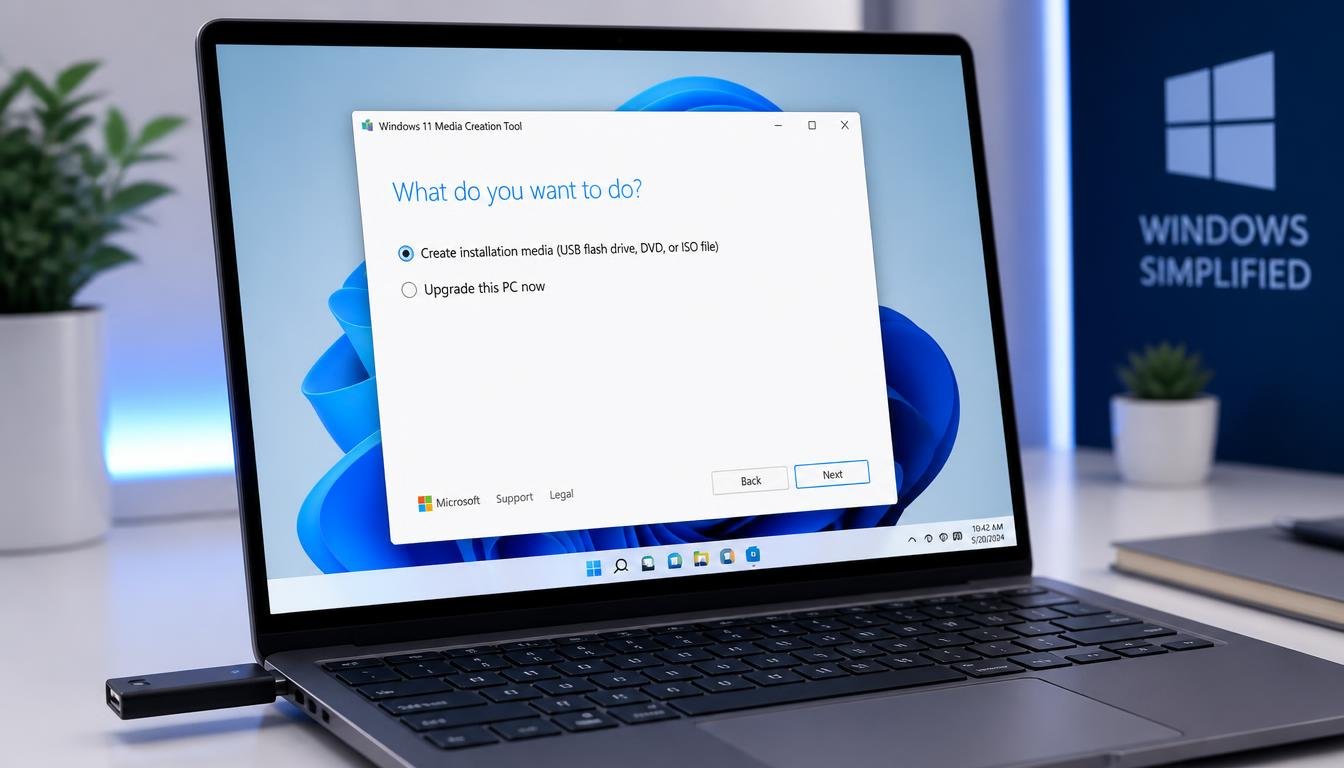
Once downloaded, right click the file and choose “Run as administrator.” Running the tool without administrator privileges is a frequent cause of silent failures where the application opens but refuses to proceed past the license agreement screen. After accepting the terms, the tool presents two paths: upgrading the current PC immediately, or creating installation media for another PC. For anyone building a bootable USB drive, the second option is the correct choice.
The tool will then ask whether to use the recommended options for the current PC or choose language, edition, and architecture manually. If you are preparing media for a different machine, such as one running an older processor or a different edition of Windows, uncheck the recommended options box and select the correct architecture manually, since mismatched architecture is a common reason the resulting Windows 11 download will not boot on the target device.
After a fresh Windows 11 installation, some users find that their network adapter does not detect WiFi or Ethernet at all, which can also affect the media creation tool’s ability to download files properly. If this happens, our detailed breakdown on network adapter not working walks through the exact driver and settings fixes.
How to Create a Windows 11 Bootable USB Drive
Creating Windows 11 installation media on a physical drive is the most reliable way to install the operating system on a machine with no existing operating system, a corrupted operating system, or a fresh solid state drive. When the media type screen appears in the Windows 11 media creation tool, select USB flash drive rather than ISO file.
Insert a flash drive of at least 8GB before this step, and understand that every file currently on that drive will be permanently erased during the formatting stage. The tool automatically detects connected drives, so select the correct one carefully, particularly on systems with multiple external drives attached, since selecting the wrong drive results in irreversible data loss.
Once selected, the tool downloads the Windows 11 files and writes them to the USB drive automatically. This single process satisfies the two most common consumer intents: needing the Windows 11 Media Creation Tool USB pathway for a physical installer, and needing to create Windows 11 installation media without manually partitioning or formatting anything beforehand.
After the drive finishes building, safely eject it from your operating system before removing it physically. Plugging it into the target machine and booting from it typically requires entering the BIOS or UEFI boot menu during startup, commonly triggered by pressing F12, F2, Esc, or Del depending on the motherboard manufacturer.
How to Download a Windows 11 ISO Directly
Some users do not need a physical drive at all. Virtual machine software, certain enterprise deployment tools, and advanced users who prefer manual control over the Windows 11 Media Creation Tool ISO process can select “ISO file” instead of USB flash drive during the media type step.
This produces a single .iso file saved to a location of your choosing. That file can then be mounted directly in Windows by double clicking it, which allows setup.exe to run without any USB drive involved at all. This method is particularly useful for users running virtual machines in software such as VirtualBox, VMware, or Hyper-V, since virtual machine software can boot directly from an ISO file without any physical media.
It is worth noting that Microsoft also hosts a standalone ISO download page separate from the executable tool itself, which is the fastest route for anyone who only wants the raw installation files without running any application at all.
If the freeze happens because the Windows Update service itself is misbehaving in the background, it is worth checking whether an update process is silently interfering with your download. Our guide on how to stop Windows Update fast covers both the emergency fix and the permanent method to keep this service from causing repeated conflicts.
Cross Platform Workarounds: Media Creation Tool on Mac and Linux
This is the section most competing guides skip entirely, and it causes real confusion because the official Windows 11 media creation tool executable file is a Windows-only program. It cannot run natively on macOS or Linux because it is compiled specifically for the Windows API and relies on Windows-only system libraries that do not exist on other operating systems. Attempting to open the .exe file on macOS or a Linux distribution will simply fail or do nothing at all, since neither operating system has a native way to execute Windows binaries without emulation layers such as Wine, which Microsoft does not officially support for this tool.
The correct approach for Windows 11 Media Creation Tool Mac users, and separately for Windows 11 media creation tool Linux users, is to bypass the executable entirely and work directly with the ISO file.
Building Bootable Media on macOS
Mac users should first download the Windows 11 ISO directly from Microsoft’s ISO download page using a browser. Once the ISO is saved, there are two realistic paths forward.
The first is Ventoy, a free open source tool that installs once onto a USB drive and then allows you to simply drag and drop any ISO file onto it, including the Windows 11 ISO, without needing to reformat or rebuild the drive for each new operating system. Ventoy works on macOS, Windows, and Linux, which makes it the most flexible option for anyone who regularly builds installation media for multiple operating systems.
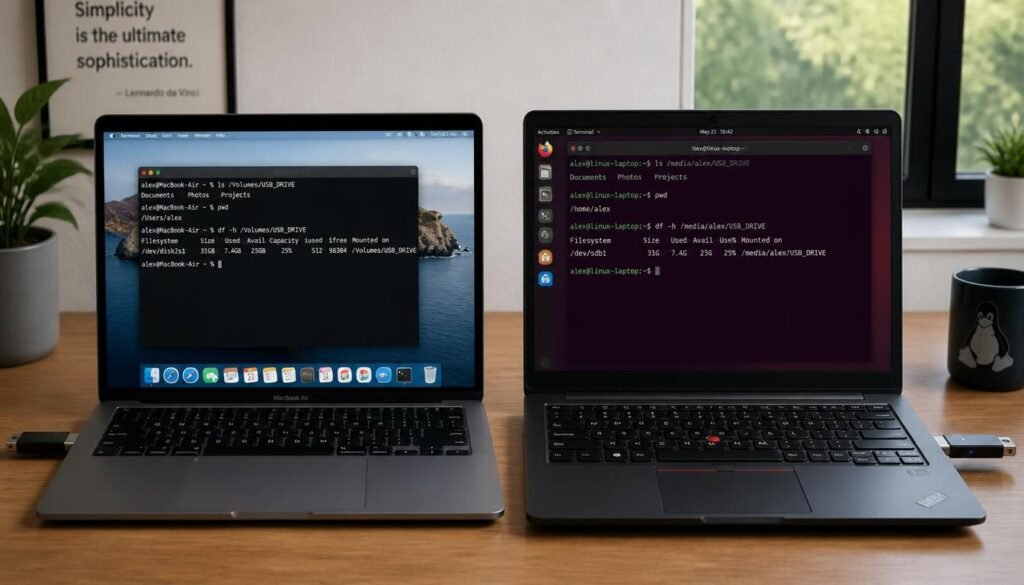
The second path is the Terminal dd command, which writes the raw ISO file directly to the USB drive at the block level. This requires identifying the correct disk identifier using the diskutil list command, unmounting the target disk, and then executing a dd command pointing at the ISO file and the correct disk path. This method carries real risk if the wrong disk identifier is selected, since dd will overwrite any drive specified without a confirmation prompt, so double checking the disk identifier before running the command is essential.
Windows 11 Media Creation Tool
Building Bootable Media on Linux
Linux users have three practical options. Ventoy remains the simplest, using the same drag and drop workflow described above. WoeUSB is a purpose built Linux application designed specifically to create Windows bootable USB drives from an ISO file, and it handles the NTFS formatting and boot flag configuration that Windows installation media requires automatically.
The Terminal dd command works identically to the macOS method, using lsblk to identify the correct device path before writing the ISO. Regardless of which method is chosen, the underlying requirement is the same: download the ISO directly rather than attempting to run the Windows-only executable.
Once Windows 11 is freshly installed using the media you just created, the next logical step is making sure the system actually runs fast. Check out our guide on how to speed up Windows 11 laptop or PC with 7 easy fixes to get the new installation running at its best from day one.
Troubleshooting: Windows 11 Media Creation Tool Stuck at 0 Percent
The single most frequently searched problem related to this tool is the Windows 11 Media Creation Tool stuck at 0 percent error, where the download bar simply does not move regardless of how long you wait. This almost always traces back to a corrupted Windows Update cache or a conflict with the Background Intelligent Transfer Service, commonly known as BITS.
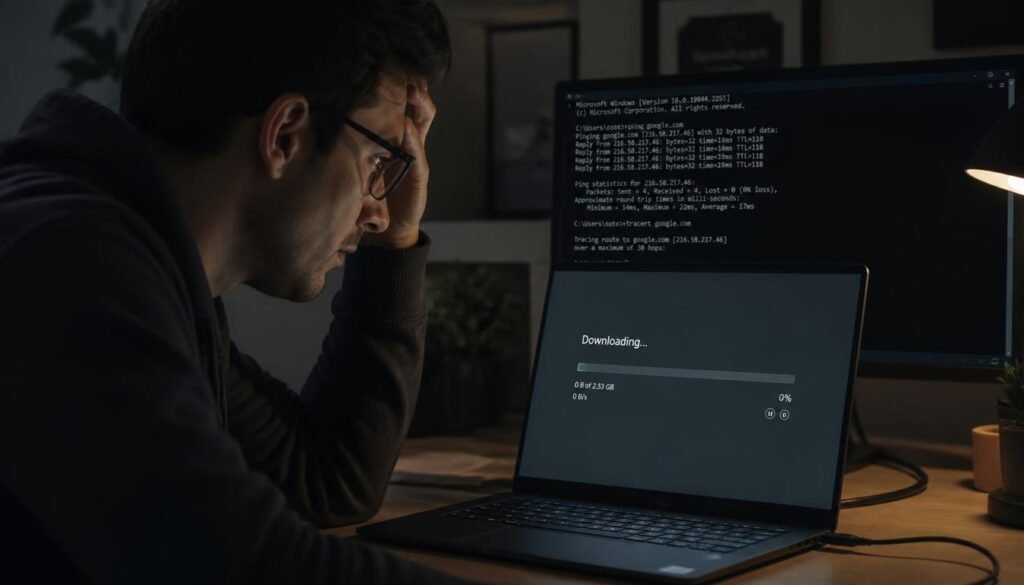
The fix requires stopping both services, clearing the corrupted cache folder, and restarting the download. Open Command Prompt as an administrator and run the following commands in sequence.
net stop wuauserv
net stop bits
With both services stopped, navigate to the Windows installation directory and rename or delete the SoftwareDistribution folder, which stores temporary update and download data that frequently becomes corrupted.
cd C:\Windows
ren SoftwareDistribution SoftwareDistribution.old
Renaming the folder rather than deleting it outright preserves the option to restore it later if needed, though in most cases it can simply be deleted once the fix is confirmed successful. After renaming the folder, restart both services so Windows rebuilds a fresh cache automatically.
net start wuauserv
net start bits
Once both services report that they have started successfully, close Command Prompt and relaunch the Windows 11 media creation tool. In the overwhelming majority of cases, the download proceeds normally past 0 percent immediately after this fix. If the freeze persists, temporarily disabling third party antivirus software and confirming that no VPN or proxy is interfering with the connection resolves the remaining cases, since some antivirus products flag the tool’s outbound connections and silently throttle them.
After setting up a clean Windows 11 environment, learning basic productivity shortcuts makes daily use much smoother. Our article on how to switch windows using the trick most people miss is a quick read worth bookmarking for new installations.
Media Creation Tool vs Rufus and TPM 2.0 Bypass Options
The official Windows 11 media creation tool intentionally enforces Microsoft’s minimum system requirements, including TPM 2.0, Secure Boot, and a supported processor generation. This is by design, since Microsoft ties these requirements to hardware based security features. For users with unsupported but otherwise capable hardware, there are two legitimate paths to bypass these checks.
The first is a manual registry edit performed during the Windows setup process itself, before the operating system installs. When the setup screen displaying “This PC cannot run Windows 11” appears, pressing Shift plus F10 opens a Command Prompt within the setup environment. From there, running “regedit” and creating a new key at HKEY_LOCAL_MACHINE\SYSTEM\Setup\LabConfig, followed by adding DWORD values named BypassTPMCheck, BypassSecureBootCheck, and BypassRAMCheck, each set to 1, allows setup to continue despite failing the hardware check.
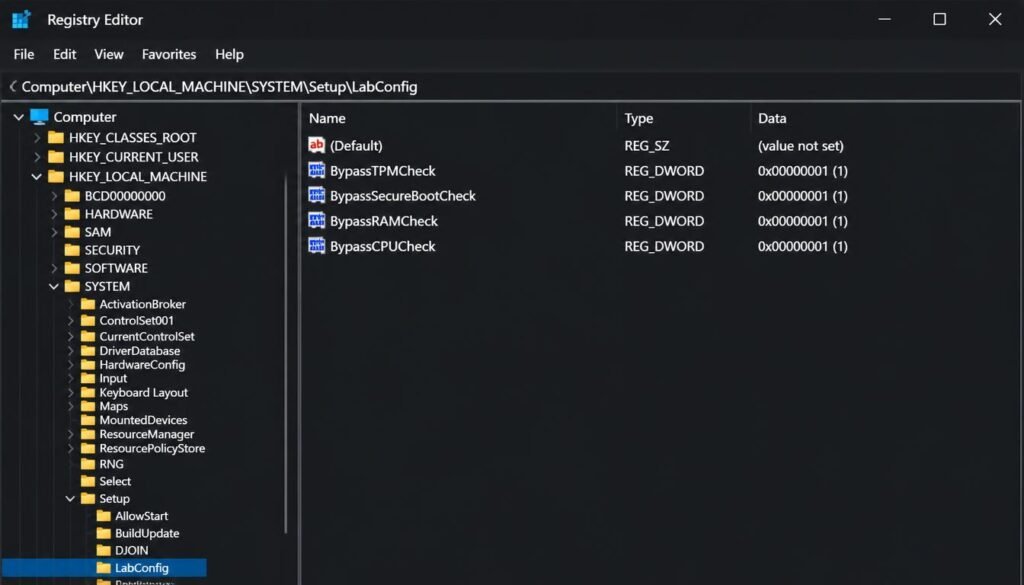
The second path is Rufus, a free third party tool that has built in extended Windows 11 installation options specifically designed to strip these requirement checks automatically when building a bootable USB drive from an ISO file. Rufus is generally considered the more convenient option for users who plan to install Windows 11 on multiple unsupported machines, since it applies the bypass automatically without requiring manual registry edits on each install.
It is worth being direct about the tradeoff here. Bypassing TPM 2.0 and Secure Boot means the device will not receive the full hardware backed security protections Microsoft designed the requirement around, and Microsoft has stated that devices which do not meet requirements may not be guaranteed to receive all future updates. This is a reasonable tradeoff for many users with capable but slightly older hardware, but it should be an informed decision rather than an accidental one.
Since enabling TPM 2.0 and Secure Boot both happen inside the BIOS or UEFI settings, it helps to understand the broader picture of BIOS related issues on Windows 11. Our guide on how to fix Windows 11 problems including BIOS, audio errors, and lag is a useful companion resource for this step.
Frequently Asked Questions
Is the Windows 11 media creation tool free to download?
Yes. The Windows 11 media creation tool is provided at no cost directly by Microsoft, and no license key or payment is required to download the tool itself or to build installation media. A valid product key is only required later, during activation.
Why is my Windows 11 Media Creation Tool stuck at 0 percent?
This is almost always caused by a corrupted Windows Update cache or a conflict with the BITS service. Stopping the wuauserv and bits services, renaming the SoftwareDistribution folder, and restarting both services resolves the issue in the majority of reported cases.
Can I run the Windows 11 Media Creation Tool on a Mac?
No, the executable file cannot run natively on macOS because it is built exclusively for the Windows operating system. Mac users should instead download the Windows 11 ISO directly and use a tool such as Ventoy or the Terminal dd command to build bootable media.
How big of a USB flash drive do I need for Windows 11 installation media?
A minimum of 8GB is required, though a 16GB or 32GB drive is recommended if you plan to reuse the same drive for other operating systems or ISO files using a tool such as Ventoy.
Will using the Windows 11 Media Creation Tool erase my USB drive?
Yes. The tool completely formats the selected USB drive before writing installation files to it, which permanently erases any existing data on that drive. Back up important files from the drive before beginning the process.
How do I create a Windows 11 bootable USB on Linux?
Download the Windows 11 ISO directly, then use either Ventoy for a drag and drop workflow, WoeUSB for a purpose built Windows media creation application, or the Terminal dd command for a manual block level write to the drive.
What is the difference between Windows 11 ISO and Media Creation Tool?
The Media Creation Tool is an application that downloads Windows 11 files and can either build a USB drive automatically or output an ISO file. The ISO itself is simply the raw installation image, which can be mounted directly, burned to a drive manually, or used inside virtual machine software without running any additional application.
How do I bypass TPM 2.0 using Windows 11 installation media?
During setup, pressing Shift plus F10 opens Command Prompt, where running regedit and adding a LabConfig key with BypassTPMCheck, BypassSecureBootCheck, and BypassRAMCheck DWORD values set to 1 allows installation to continue on unsupported hardware. Alternatively, Rufus offers this bypass automatically when building the installation drive from an ISO file
Final Thoughts
Choosing the right deployment method comes down to your hardware, your operating system, and how much control you want over the installation process. Windows users with supported hardware should stick with the official Windows 11 media creation tool for the simplest and most reliable experience. Users on unsupported but capable hardware should consider Rufus or the manual registry bypass. Mac and Linux users should skip the executable entirely and work directly with the ISO file using Ventoy, WoeUSB, or the Terminal dd command. Whichever path fits your situation, the fixes outlined above for stuck downloads, cross platform limitations, and hardware requirement bypasses cover the gaps that leave most users stuck partway through the process.
Since a fresh operating system install is also the ideal time to review your network security settings, pairing this guide with our full walkthrough on how to secure home WiFi ensures the new setup starts on a protected network from the very first boot.