

How to Turn On Lenovo Laptop: Try This First (2026)
You press the button, you wait, and the screen stays completely dark. No fan noise, no light, no chime, nothing that tells you the machine is even alive. Learning how to turn on Lenovo laptop hardware when the normal button fails is not complicated once you know which of four different failure types you are actually facing, and this guide walks through every one of them in the exact order a Lenovo technician would check them.
Most guides stop at “press the power button” and “charge the battery.” This one goes further, into the hidden Novo pinhole reset, the static flea power drain that fixes a black screen even when the power light is already on, and the keyboard wake sequence that Lenovo built into newer ThinkPad, IdeaPad, Yoga, and Legion chassis. Work through the sections below in order, and do not skip the diagnostic table, because it will save you from testing five fixes when the correct one is obvious in thirty seconds.
Quick Answer: How to Turn On Lenovo Laptop Instantly
Locate the physical power button for your exact model first, since ThinkPad, IdeaPad, Yoga, and Legion chassis place it in different spots. Plug the laptop directly into a wall outlet using the original charger and confirm the charging light responds. If the button produces no response at all, insert a straightened paperclip into the small Novo pinhole reset button located near the power port or on the left edge, and hold it for three to five seconds to open the boot menu. If the power light turns on but the screen stays black, perform a static power drain by disconnecting the charger and any battery, holding the power button for sixty seconds, then reconnecting power and trying again. On newer flip to boot models, simply opening the lid or pressing the Fn key can trigger startup without touching a button at all.
Lenovo Power Button and Boot Method Comparison
| Lenovo Model Series | Power Button Location | Alternative Boot Method | Emergency Reset Type |
|---|---|---|---|
| ThinkPad | Top right corner of the keyboard deck, sometimes recessed into the hinge | Fn plus F1 keyboard wake, or dock connection | Novo pinhole near the charging port |
| IdeaPad | Right side edge of the chassis, near the volume rocker | Opening the lid on flip to boot models | Novo pinhole near the power port or left edge |
| Yoga | Top right edge, shared with the tablet mode lock switch | Fn plus Esc, or lid open trigger on 360 degree hinges | Novo pinhole hidden beside the USB C charging port |
| Legion | Center top of the keyboard deck, integrated into the vent design | Legion Space app remote start, or Ethernet dock wake | Recessed pinhole near the rear I O panel |
| ThinkBook and V Series | Top left of the keyboard deck near the escape key | Fn plus F12 on select firmware versions | Novo pinhole beside the memory card slot |
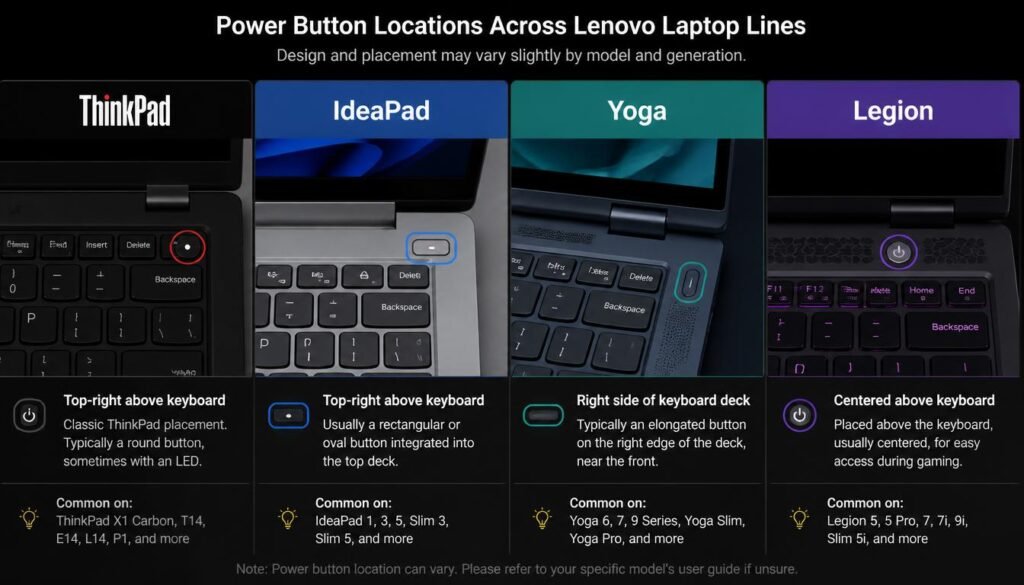
Method 1: Locating the Power Button Across Different Lenovo Models
Before assuming a hardware fault, confirm you are pressing the correct button, since Lenovo genuinely moves this control between product lines and even between generations of the same product line.
Where Is the Power Button on a Lenovo Laptop by Series
On a ThinkPad, the power button sits directly above the keyboard on the top right, often flush with the deck and marked with a small LED ring that glows red when charging and white or blue once powered. On an IdeaPad, the button typically sits on the right side edge of the chassis rather than the top deck, which trips up a lot of first time Lenovo owners searching where is the power button on Lenovo laptop because they are looking at the keyboard instead of the sides. Yoga convertibles place the button on the top edge near the hinge, close to a physical tablet lock switch that some people mistake for the power control itself. Legion gaming laptops center the button within the vent housing at the top of the keyboard deck, and it doubles as an RGB status indicator on several 2023 and later models.
If your model does not match any of these descriptions, check the underside of the chassis for a printed model number and search that exact number alongside “power button location” on Lenovo’s official support pages, since niche business lines occasionally place the control in a nonstandard spot.
Method 2: How to Turn On Lenovo Laptop Without Power Button Using the Novo Button
This is the single most overlooked fix in every competing guide, and it solves the majority of cases where the physical button feels dead but the laptop itself has no fault at all.
The Lenovo Novo Button and Pinhole Reset Explained
Nearly every modern Lenovo consumer laptop includes a small pinhole reset button distinct from the main power button, officially named the Novo Button. It usually sits near the charging port, along the left edge of the chassis, or occasionally beside the memory card slot on slimmer Yoga and IdeaPad units. Unlike the main power button, the Novo button is not a toggle switch, it is a recessed contact that requires a thin, straightened paperclip or a SIM eject tool to reach.
To use it, ensure the laptop is fully powered off and connected to the charger. Insert the straightened paperclip gently into the pinhole and press until you feel light resistance, holding for three to five seconds. On most models this opens the Lenovo Novo Button Menu, a small on screen menu offering Normal Startup, BIOS Setup, Boot Menu, and System Recovery. Selecting Normal Startup from this menu is effectively how to turn on Lenovo laptop power button hardware indirectly, bypassing whatever is preventing the main button from registering a press. If the laptop boots successfully from the Novo menu but not from the physical button, the fault sits in the button itself or its ribbon connector, and the laptop is otherwise healthy.
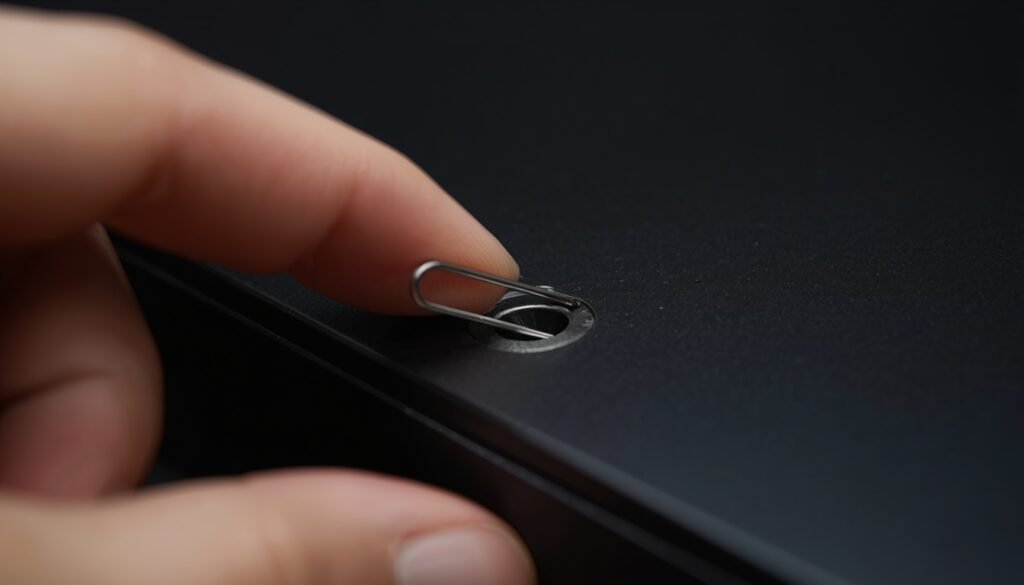
If the Lenovo Novo button reset produces no response whatsoever, even with the charger connected and the battery indicator lit, move directly to the static discharge method below, since a stuck internal charge is the next most common blocker.
For situations where the wireless toggle icon vanishes completely from your taskbar after a system recovery, consult our guide on restoring a missing Windows 11 Wi-Fi option to fix hidden system tray settings.
Method 3: How to Turn On Lenovo Laptop When It Will Not Boot Using a Static Power Drain
A power light that stays on while the screen remains completely black is one of the most alarming symptoms a Lenovo owner encounters, and it is also one of the easiest to fix once you understand what is actually happening internally.
Fixing the Black Screen With Power Light On Bug
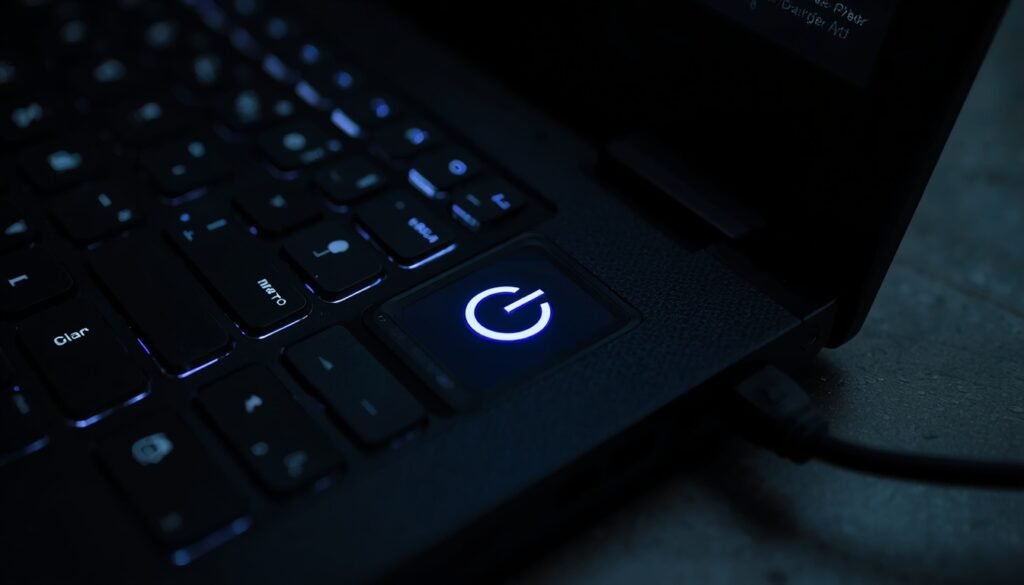
When you notice that your Lenovo laptop will not turn on but the power light is on, the laptop is not actually off. The motherboard has power and the charging circuit is functioning, but a residual static charge trapped in the capacitors is preventing the display initialization sequence from completing. This is commonly called flea power, and clearing it requires a full static discharge rather than a simple restart.
Disconnect the AC adapter completely, and if your model has a removable battery, remove it as well. With everything unplugged, press and hold the main power button for a full sixty seconds. This drains any residual charge sitting in the capacitors that a normal shutdown or restart does not clear. Release the button, wait ten seconds, then reconnect the battery if you removed one, plug the charger back in, and press the power button normally. In the overwhelming majority of reported cases, the screen initializes correctly on this attempt.
If the static drain does not resolve the black screen and the power light still comes on with no display at all, even on an external monitor, the fault is very likely on the motherboard or the display cable rather than anything you can fix through button sequences, and professional diagnosis is the next step.
If your display continues to show flickering lines or dark spots after completing the static power drain, check our complete guide on how to fix Lenovo laptop screen problems to isolate physical panel damage from system power bugs.
Method 4: How to Turn On Lenovo Laptop With Keyboard and Flip to Boot Features
Several Lenovo lines released since 2021 quietly removed the requirement to press any button at all under normal conditions, and most owners never discover this because nothing in the box mentions it.
Newer ThinkPad and Yoga models with the flip to boot feature enabled will power on automatically the moment you lift the display lid from a closed position, provided the laptop was fully shut down rather than left in sleep. This setting lives inside BIOS under Power Management, usually labeled Flip to Boot or Wake on Lid Open, and it ships enabled by default on most 2023 and later ThinkPad X1 and Yoga 9i units. If your laptop has this feature and it appears disabled, entering BIOS through the Novo button menu described above lets you toggle it back on.
Separately, how to turn on Lenovo laptop with keyboard is possible on select models through a BIOS setting called Power On by Keyboard, sometimes listed as Wake on Keyboard. Once enabled, pressing any key while the laptop is connected to AC power triggers a full startup, which is a genuinely useful workaround while you wait to replace a failing physical button. Access this option through BIOS Setup from the Novo menu, navigate to the Power tab, and enable the keyboard wake option before saving and exiting.
When a forced system reboot leaves your device stuck in an endless restart loop triggered by background installation files, review our walkthrough on how to stop a Windows update on your PC to prevent unexpected system freezes.
Method 5: Connecting the AC Power Adapter and Reading Battery Indicator LED Signals
Before troubleshooting anything else, rule out the simplest possible explanation, since a depleted battery combined with a faulty charging cable accounts for a surprisingly large share of Lenovo laptops that appear completely dead.
Connect the original Lenovo charger, or a verified replacement matching the exact wattage, directly into a wall outlet rather than a power strip or extension cord. Watch the small LED built into the charging port or the front edge of the chassis. A solid amber or white light typically confirms the laptop is receiving power and charging normally. A light that flashes rapidly or does not illuminate at all usually points to a charger fault, a damaged DC jack, or a battery that has failed to the point where it can no longer accept a charge. Leave the laptop connected for at least thirty minutes on a confirmed working outlet before attempting to power on again, since a fully depleted lithium battery sometimes needs a short charging window before the power button will respond.
Troubleshooting Emergency Forced Starts and Related Failures
Once your Lenovo laptop is powering on again, a small number of secondary issues tend to surface immediately afterward, and addressing them now prevents a repeat trip through this entire guide.
How Do I Force a Lenovo Computer to Start After a Bad Windows Update
If your laptop refused to turn on shortly after a Windows update installed, the issue may not be power related at all, but rather an update that failed mid installation and left the system stuck at a black screen that mimics a power fault. Force a shutdown by holding the power button for ten seconds, then power back on while repeatedly tapping F8 or holding Shift while clicking Restart from a recovery screen if one appears, to reach the Advanced Startup Options menu and roll back the problematic update.
When your wireless hardware fails to initialize inside Device Manager following an emergency restart, read our guide on fixing a network adapter that is not working to reinstall corrupt device drivers.
Fixing Dark Laptop Screen Brightness Versus Complete Power Failure
Do not confuse a dimmed display with a power fault, since the two look nearly identical in a dark room. Press Fn plus the dedicated brightness key, usually mapped to F5, F6, or the up arrow row, six to eight times and wait a few seconds between presses. If the laptop was already on and simply dimmed, brightness returns gradually. A true power failure shows no fan spin, no keyboard backlight, and no reaction from any LED anywhere on the chassis, which confirms the problem sits with power delivery rather than the display.
Connectivity Problems That Appear Right After a Forced Restart
A forced restart or emergency power recovery can occasionally leave your wireless networking hardware in an unstable power state, even though the laptop itself successfully powers back on. When Windows recovers from a sudden hardware shutdown, network drivers may fail to re-initialize properly, leading to missing network icons or disabled adapters.
If your wireless connection drops completely after waking your machine from a hard shutdown, follow our step-by-step tutorial on resolving a laptop that will not connect to Wi-Fi to re-establish your wireless connection quickly.
When the Fault Is Cosmetic Rather Than a Power Problem
Do not mistake physical screen panel layer damage for an ongoing motherboard power delivery issue. Users frequently assume their device has a power control bug when a bright spot or cloudy patch appears on the display, but this symptom usually indicates localized physical pressure rather than electrical failure.
If your laptop screen powers back on successfully but displays bright uneven patches across the panel, check our diagnostic guide on removing a white spot on a Lenovo laptop screen to fix display backlight layer pressure.
Frequently Asked Questions
How to turn on Lenovo laptop without power button?
Insert a straightened paperclip into the Novo pinhole reset button, usually located near the charging port or along the left edge of the chassis, and hold for three to five seconds until the Novo menu appears. Select Normal Startup from that menu to boot the laptop without touching the main power button at all.
Where is the power button on Lenovo laptop?
Location varies by series. ThinkPad places it on the top right of the keyboard deck, IdeaPad places it on the right side edge of the chassis, Yoga places it on the top edge near the hinge, and Legion centers it within the top vent housing of the keyboard deck.
How to turn on Lenovo laptop without power button using keyboard?
On models with Power On by Keyboard enabled in BIOS, connect the charger and press any key on the keyboard to trigger startup. Enable this option through BIOS Setup, accessed via the Novo button menu, under the Power tab.
How to turn on Lenovo laptop screen?
If the laptop itself is running, indicated by fan noise or a lit keyboard backlight, but the screen stays dark, press Windows plus Shift plus Ctrl plus B to restart the display driver, or check brightness with Fn plus the brightness key row before assuming a hardware fault.
My Lenovo laptop will not turn on but the power light is on, what does that mean?
This indicates a static charge trapped in the internal capacitors rather than a true power failure. Disconnect the charger and battery, hold the power button for sixty seconds to drain the residual charge, then reconnect power and try again.
How to turn on a Lenovo laptop when it will not respond at all?
Confirm the charger is delivering power by checking the LED indicator, then attempt the Novo pinhole reset. If neither produces a response, perform a full static discharge by removing all power sources and holding the power button for sixty seconds before reconnecting.
How to turn on Lenovo laptop power button when it feels physically stuck?
A button that depresses but produces no response, versus one that will not depress at all, point to different faults. If the button moves freely, test the Novo pinhole instead to isolate whether the fault is the button itself or something deeper in the system. A button that will not physically move at all typically needs professional repair.
How to turn on Lenovo laptop with keyboard on models without a Power On by Keyboard setting?
Not every Lenovo model supports this BIOS option. Check your specific model number against Lenovo’s official support documentation before assuming the feature exists, since older business class ThinkPad units frequently lack it entirely.
How do I get my Lenovo laptop to turn on after it sat unused for months?
Extended storage drains the battery completely and can trigger a deep sleep protection state. Connect the charger and leave it plugged in for a full thirty minutes before attempting to power on, since a battery at zero percent sometimes needs this window before the button responds.
Where is the power button on a Lenovo laptop that is a 2 in 1 or tablet mode device?
On Yoga and other convertible models, the power button typically sits on a hard edge of the chassis rather than the keyboard deck, since the keyboard folds away in tablet mode. Check the top edge near the hinge first.
How do I force a Lenovo computer to start when it is stuck at a black screen after an update?
Hold the power button for ten seconds to force a shutdown, then power on again and immediately tap F8 repeatedly, or wait for an automatic repair screen to reach Advanced Startup Options and roll back the failed update.
Why does my Lenovo laptop refuse to turn in properly and shut down again immediately?
A laptop that powers on briefly and then shuts down is almost always a thermal protection response or a battery that cannot sustain a charge under load. Perform the static discharge method first, and if the pattern continues, the battery itself likely needs replacement.
Final Checklist Before You Call a Technician
Work through these steps in order, since each one rules out a specific category of fault before you move to the next.
- Confirm the charger is connected to a working outlet and the LED indicator responds.
- Try the Novo pinhole reset with a straightened paperclip.
- If the power light is on but the screen is black, perform a full sixty second static discharge.
- Check whether Flip to Boot or Power On by Keyboard is available and enabled in BIOS.
- Test brightness controls before assuming a display fault.
- If none of these produce a response, the fault is very likely the motherboard, DC jack, or battery, and professional diagnosis is the appropriate next step.
Most Lenovo laptops that appear completely dead are recovered through the Novo button reset or the static discharge method alone, without needing any parts replaced or any technician visit at all.
If your system powers on and connects to your router but fails to load web pages, follow our detailed fix for a DNS server not responding in Windows 11 error to clear cached network address errors.
If your Lenovo laptop connects to the router after a power reset but suffers from frequent buffering or dropped wireless range, read our practical troubleshooting steps on how to fix a weak Wi-Fi signal to boost your network reception and connection stability.


