You open the lid, click the network icon, and nothing happens. The bars sit there, the spinner spins, or the list of networks stays empty while your phone connects without any complaint at all. A laptop not connecting to wifi is one of those problems that feels bigger than it is, mostly because there are several completely different causes that all look identical from the outside.
Quick Answer
In most cases the problem is caused by a disabled adapter, airplane mode, an outdated driver, or a saved network profile that no longer matches your router. Start by confirming wifi is on and airplane mode is off, then forget and reconnect to the network, update the wireless driver, and run the built in network troubleshooter. Around 90 percent of cases are solved within the first five steps below.
This guide walks through the same order a technician would use, from the quick checks to the deeper driver and hardware tests, so you stop guessing and start narrowing the problem down.
Sometimes the issue is not just with one device, but your laptop configuration struggles with the specific band settings of your router. For a broader look at fixing system-wide wireless drops and adapter issues, check out our comprehensive guide on How to Fix WiFi errors instantly.
Quick Wi-Fi Troubleshooting Reference Table
| Wireless Status | Most Likely Cause | Instant Fix Action |
| No Networks Visible | Wi-Fi adapter is disabled or Airplane mode is turned on. | Press the physical Fn wireless key or toggle Wi-Fi in Settings. |
| Endless Loading Spinner | Stale network profile or outdated Wi-Fi password. | Select Forget Network and type the current password character by character. |
| Connected, No Internet | Active VPN block, proxy misconfiguration, or DNS error. | Disable your VPN software and run ipconfig /flushdns in Command Prompt. |
| Frequent Drops on Battery | Power Management is putting the wireless card to sleep. | Uncheck “Allow the computer to turn off this device” in Device Manager. |
| Disappeared From Device Manager | Corrupted wireless driver or loose internal antenna card. | Uninstall the device and restart the laptop to let Windows reinstall it. |
Why Is My Laptop Not Connecting to Wifi in the First Place
Before touching any settings, it helps to understand that this is rarely one single fault. It is usually one of four categories, and knowing which one you are dealing with saves a lot of wasted effort.
- Radio is off: wifi is disabled, airplane mode is on, or a physical switch or function key has been pressed by accident.
- Software or driver fault: the wireless driver is outdated, corrupted, or was broken by a recent Windows update.
- Saved profile mismatch: the laptop is holding onto an old password, security type, or network name that the router no longer uses.
- Signal or router side issue: the laptop can see the radio just fine, but the connection to the router or the internet beyond it is failing.
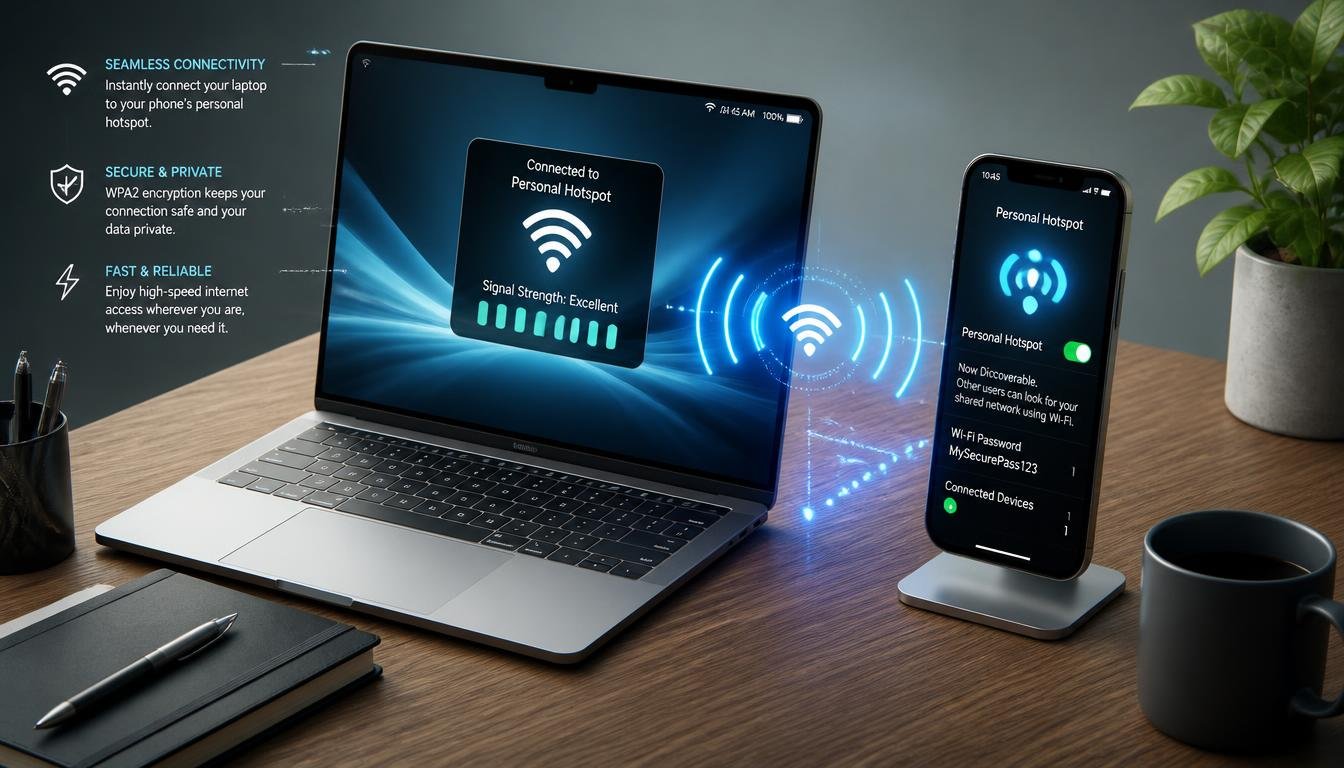
One test settles this faster than anything else. Try connecting your laptop to a phone hotspot instead of your home network. If it connects instantly, your laptop hardware and drivers are fine, and the real fault sits with your router or home network. If it still fails on a hotspot, the problem is on the laptop itself, and you should focus on the driver and adapter steps below.
If your laptop is working perfectly but you notice that other devices in your house are experiencing similar wireless drops, the root cause might be completely different. For mobile users facing network drops, you can follow our main pillar guide on Why Is My Phone Not Connecting to WiFi to clear android and iOS network glitches instantly.
How Do I Get My Laptop to Connect to Wifi? Start With the Quick Checks
Before opening Device Manager or a command prompt, run through these in order. They take less than two minutes combined and solve a surprising share of cases on their own.
Turn Wifi and Airplane Mode Off and On Again
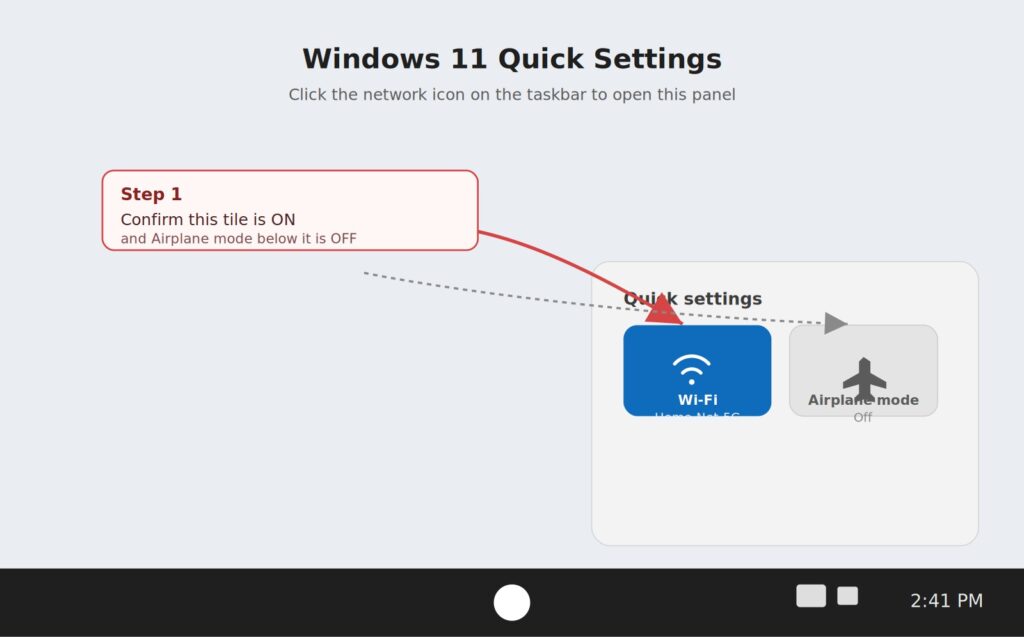
Open the network icon on the taskbar and confirm two things: airplane mode is off, and the wifi toggle is on. Many laptops also carry a function key shortcut, commonly Fn plus F2, F8, or F12 depending on the brand, that toggles the wireless radio independently of Windows. If that key was pressed by mistake, Windows will show no networks at all, which mimics a much more serious fault.
On some machines the radio can also be disabled at the hardware level, not just in software. If Fn key combinations and the Settings toggle both look correct but nothing changes, restart the laptop and enter the BIOS or UEFI setup screen, then check for a Wireless or WLAN option under Advanced or System Configuration. A handful of business laptops ship with this switched off by default from IT imaging.
Restart the Laptop and the Router Together
A full restart clears stuck network services that build up after sleep, long uptime, or a recent update. Restart the laptop first, then unplug the router and modem for thirty seconds before powering them back on. If several devices in the house are struggling, not just the laptop, this step alone frequently resolves it because it forces the router to reissue a clean address to everyone.
Fix a Laptop Not Able to Connect to Wifi After Forgetting the Network
If quick toggles do not help, the laptop is most likely holding a broken memory of the network rather than failing to see it.
Forget the Network and Reconnect From Scratch
When a laptop connects to a network for the first time, Windows stores a profile containing the password and security settings. That profile can go stale if you changed the wifi password, updated router security, or renamed the network, and a laptop not able to connect to wifi with that kind of leftover profile will often show an endless spinner or an authentication error instead of a clear message.
To clear it on Windows 11:
- Open Settings (Press Windows Key + I)
- Go to Network & internet, then Wifi
- Select Manage known networks
- Choose your network and click Forget
- Reconnect and type the password again, character by character
While you are typing, double check for characters that are easy to mix up, particularly the letter O against zero and a lowercase L against a capital I. If another device is already connected successfully, you can confirm the exact password there instead of guessing.
Pro-Tip: One overlooked cause sits outside the network menu entirely. If the laptop clock is wrong, often after a dead CMOS battery or a factory reset, wifi authentication can fail because the security certificate check compares against the current date. Open Settings, then Time & language, and confirm Set time automatically is switched on before you spend more time on the network settings.
Update or Reinstall the Wireless Driver
If wifi became unreliable right after a Windows update, or the connection issue appeared out of nowhere with no changes on your end, the driver is a strong suspect. The driver is the translation layer between Windows and the physical wireless chip, and a corrupted or mismatched one produces symptoms ranging from missing networks to constant disconnects.
- Open Device Manager (Right click the Start button and select it)
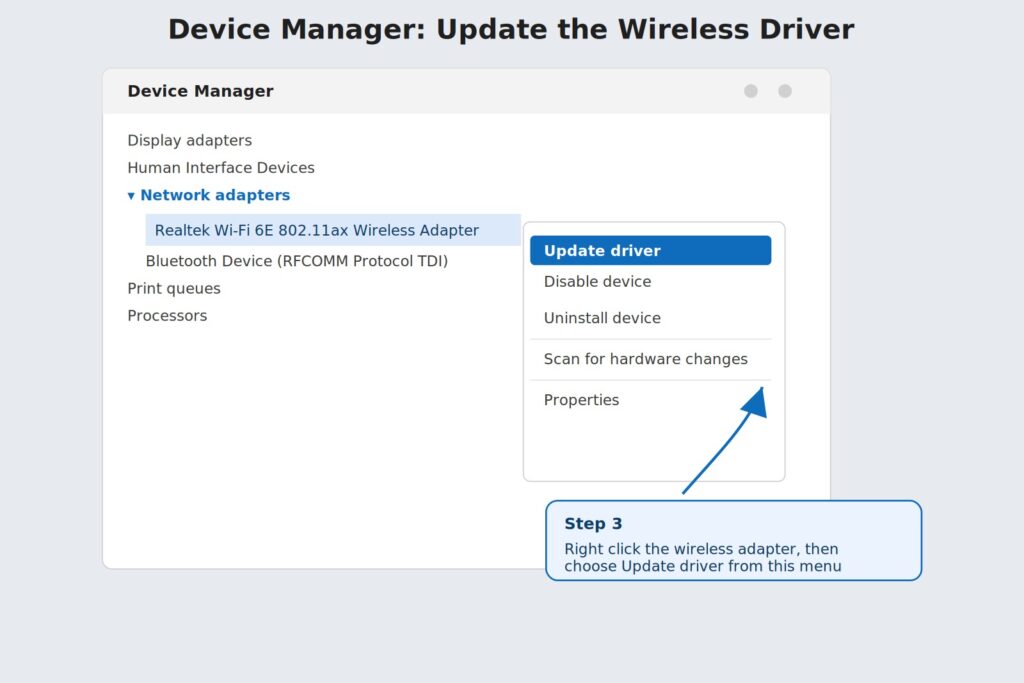
- Expand Network adapters and locate your wireless adapter, commonly listed under Intel, Realtek, Qualcomm, or MediaTek
- Right click the adapter and choose Update driver
- If that does not help, right click again, choose Uninstall device, and check the box to remove the driver software if it appears
- Restart the laptop so Windows reinstalls the adapter automatically
Laptop Not Connecting to Wifi
If the update happened recently and everything worked before it, look for a Roll Back Driver option under the adapter Properties on the Driver tab instead of uninstalling. This restores the previous version in one click and is often faster than a fresh install.
In some severe cases, the problem is not just a failed connection, but the wireless icon and settings disappear entirely from your taskbar. If your laptop hardware is fine but you are facing this specific glitch, follow our advanced walkthrough on how to fix the Windows 11 No WiFi Option error to restore your missing network toggle.
Check Power Management Settings That Silently Kill Wifi
Windows can put the wireless adapter into a low power state to extend battery life, and on some hardware it fails to wake cleanly afterward. This shows up as wifi that works fine when plugged in but drops constantly on battery, or a connection that disappears shortly after the laptop wakes from sleep.
- Open Device Manager, expand Network adapters
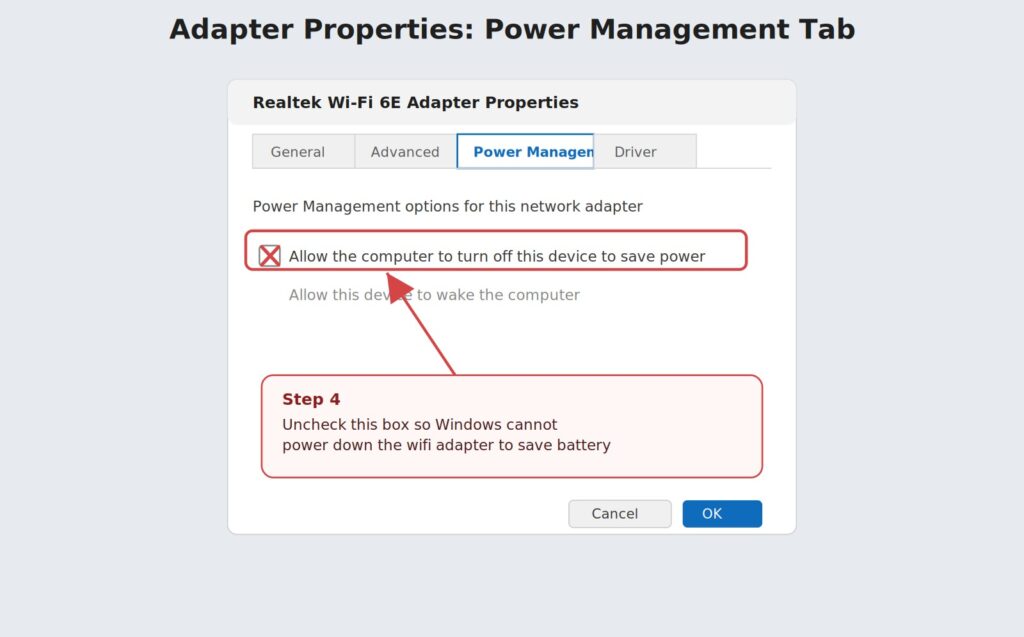
- Right click your wifi adapter and choose Properties
- Select the Power Management tab
- Uncheck Allow the computer to turn off this device to save power
Laptop Not Connecting to Wifi
Laptop Not Connecting to Wifi
While you are there, it is worth checking your overall power plan too. Go to Control Panel, then Power Options, select your active plan, click Change plan settings, then Change advanced power settings, and set the Wireless Adapter Settings to Maximum Performance.
If your laptop is still dropping the connection on battery power, background telemetry and system bloat might be interfering with your network services. You can speed up your overall system performance and optimize connection stability by using a Windows 11 Debloater guide to disable unnecessary power draining apps.
Run the Windows Network Troubleshooter and Reset Commands
Windows ships with automated diagnostics that catch a wide range of misconfigurations without any manual digging. Go to Settings, then System, then Troubleshoot, then Other troubleshooters, and run the Network and Internet tool. It scans adapters, IP configuration, and DNS settings, and applies safe fixes automatically where it can.
If that does not fully resolve things, open Command Prompt as an administrator and run these commands one at a time:
netsh winsock resetnetsh int ip resetipconfig /releaseipconfig /renewipconfig /flushdns
Restart the laptop after running them. These commands rebuild the TCP/IP stack and the Winsock catalog, clearing the kind of low level corruption that a simple restart cannot touch.
When the Laptop Connects but Shows No Internet
A different and equally common scenario is a laptop that shows a full signal and a Connected label, yet nothing actually loads in the browser. This means the wifi link itself is fine, but something between the laptop and the wider internet is blocked.
Work through these in order:
- VPN or proxy: disconnect any active VPN and check Settings, then Network & internet, then Proxy, for anything enabled that you did not configure yourself.
- Captive portal: on hotel, cafe, or campus networks, open a browser and try loading any website. A sign in page often needs a manual nudge to appear.
- DNS problems: if some sites load while others fail, DNS is a likely cause. Flushing it with
ipconfig /flushdnsor switching to a public DNS server such as 1.1.1.1 frequently clears it. - IP address stuck at 169.254.x.x: this means the laptop could not get an address from the router at all. Renewing the IP with the commands above, or restarting the router, is the standard fix.
When your device shows a solid connection but refuses to load web pages, your domain resolution system is likely jammed. If running the basic diagnostic commands does not work, follow our step-by-step tutorial on Fixing DNS Server Not Responding on Windows 11 to restore your internet access.
Signal, Band, and Router Placement Fixes
If the laptop connects near the router but drops or slows down farther away, the fault is rarely the laptop at all.
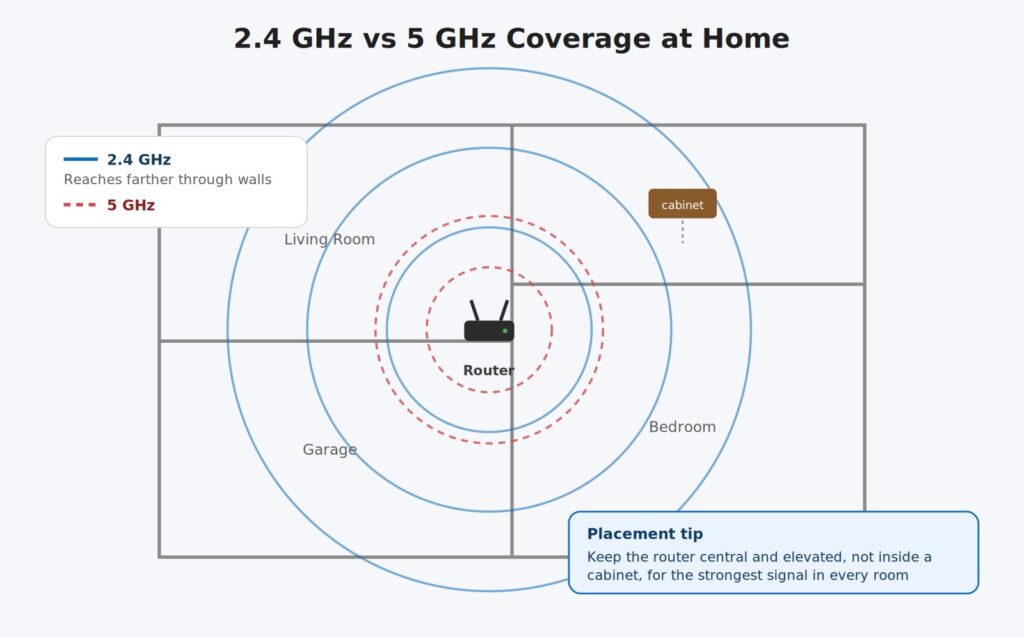
- Most routers broadcast two separate networks, one on 2.4 GHz and one on 5 GHz. The 2.4 GHz band travels further through walls, while 5 GHz is faster at close range. If your laptop is on 5 GHz and struggling in another room, switch it to the 2.4 GHz network from the list.
- Keep the router elevated and out in the open rather than inside a cabinet or behind a television, since both placements absorb a large share of the signal before it leaves the room.
- Test with a laptop connected directly to the router using an Ethernet cable. If that connection is fast and stable while wifi is not, the issue is confirmed to be coverage or interference rather than the internet plan itself.
Laptop Not Connecting to Wifi
Laptop Not Connecting to Wifi
When It Is Time to Suspect a Hardware Problem
Software fixes solve the overwhelming majority of cases, but a small number come down to a failing wireless card or antenna connection.
Consider hardware if any of the following apply:
- The laptop cannot detect any wifi networks anywhere, including a phone hotspot placed right next to it
- The wireless adapter has disappeared entirely from Device Manager, not just showing an error icon
- Wifi only behaves normally when the lid is held at a specific angle, which points to a loose antenna cable
- The problem started right after a drop, a spill, or an internal repair
A simple USB wifi adapter is the cheapest diagnostic tool available. Plug one in and try connecting through it. If the USB adapter connects normally while the internal wifi still fails, the internal card or its antenna connection is almost certainly the fault, and the laptop should go to a repair technician rather than through more software steps.
Frequently Asked Questions
Why is my laptop not connecting to wifi but my phone connects fine?
This almost always points to the laptop rather than the router, since the phone proves the network itself is working. Check that wifi and airplane mode toggles are correct on the laptop, update the wireless driver, and forget then reconnect to the network.
How do I fix a laptop that is not able to connect to wifi after a Windows update?
Start with the wireless driver, since updates frequently install a version that conflicts with older hardware. Roll back the driver from Device Manager if the option is available, or uninstall it and let Windows reinstall a fresh copy after a restart.
Why does my laptop keep disconnecting from wifi even though it connects at first?
Frequent disconnects are usually caused by power management turning the adapter off to save battery, a weak signal at your usual working distance, or interference from other devices on the same band. Disabling the power saving option on the wireless adapter and switching to the 2.4 GHz band for better range are the two most effective first steps.
Can an incorrect date and time really prevent my laptop from connecting to Wi-Fi?
Yes, this is a highly overlooked cause that happens frequently after a dead internal CMOS battery reset. Many modern secure networks require certificate validation that checks the current date and time handshake. If your laptop clock drifts far behind the current time, the security validation check will fail and block your internet access.
Does performing a network reset delete my saved Wi-Fi passwords?
Yes, a full network reset completely removes every saved network profile and encryption password from your laptop system. It reinstalls all your network adapters at their absolute default factory configurations. Make sure to write down your important network keys before applying this reset because you will have to enter them again manually.
Final Thoughts on Fixing Laptop Wi-Fi Connectivity
Dealing with a laptop that refuses to connect to the internet can be highly frustrating, but following a systematic troubleshooting process always yields results. In most scenarios, the issue comes down to a quick setting mismatch, a corrupted driver update, or an aggressive power saving feature rather than an actual hardware failure. By working through these steps from simple toggles to deep network resets, you can isolate the root cause and restore a stable wireless connection without paying for expensive repair services.