
Authentication Issue WiFi? Easy Guide for All Devices (2026)
WiFi Showing Full Signal But Still Not Connecting?
You are not alone.
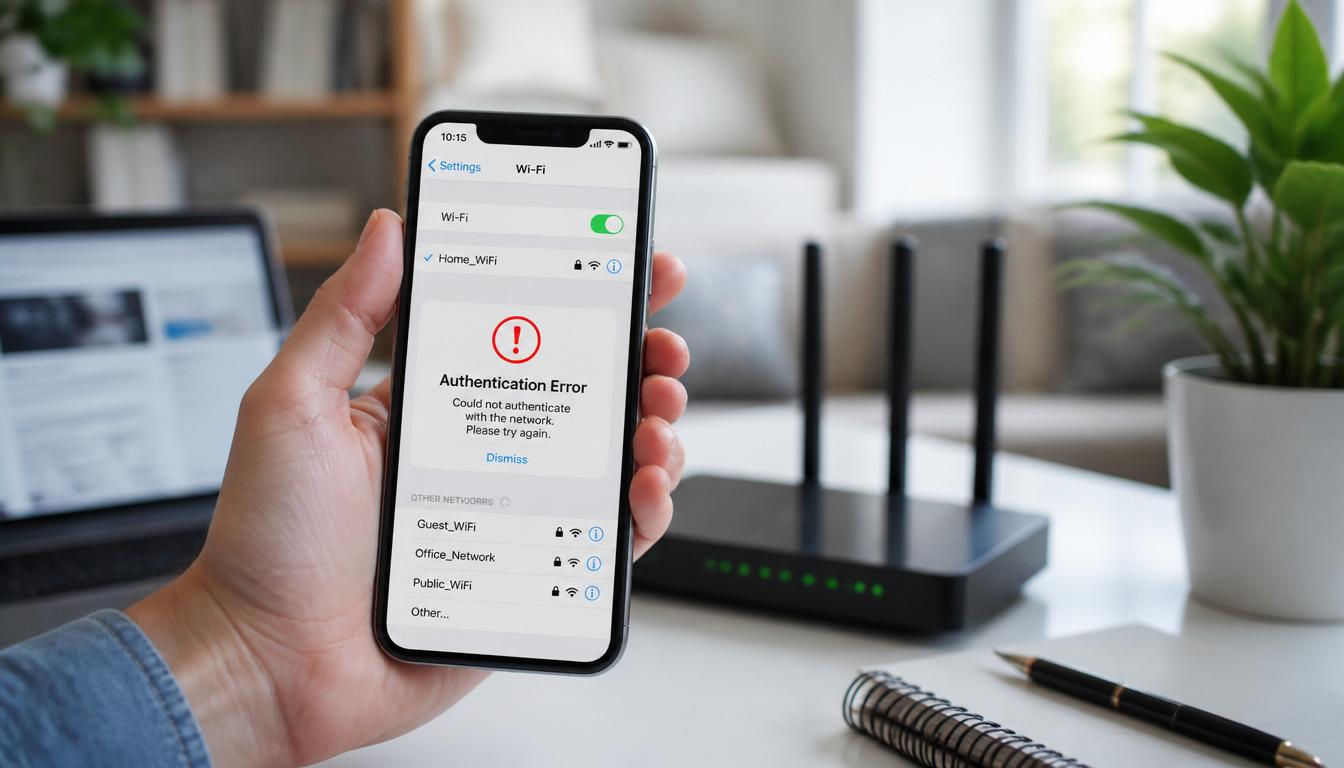
Imagine sitting down to watch a video, attend an online class, or finish some important work. Your WiFi is visible, the signal is strong, and you are sure the password is correct. But instead of connecting, your device shows an annoying message like Authentication Problem or Authentication Error.
It can be frustrating, especially when everything seems fine.
The good news is that this problem is usually easy to fix. In this guide, you will learn the most effective solutions that work on Android phones, iPhones, Windows laptops, tablets, and even WiFi routers.
Authentication Issue WiFi
Quick Answer: How to Fix Authentication Issue WiFi
If you want the fastest solution, try these steps first:
- Forget the WiFi network.
- Restart your device.
- Restart your router.
- Enter the WiFi password again carefully.
- Turn off MAC address randomization.
- Reset network settings.
- Change router security from WPA3 to WPA2-AES.
- Update your router firmware.
In most cases, one of these fixes solves the problem within a few minutes.
Quick Checklist Before You Start
Check these simple things first:
✅ WiFi password is correct
✅ Router has been restarted
✅ Device has been restarted
✅ Other devices can connect to the same WiFi
✅ Router firmware is updated
✅ WPA2/WPA3 settings are compatible
✅ MAC randomization is disabled
✅ DHCP is enabled
✅ Airplane Mode is turned off
✅ VPN is not causing interference
If everything looks fine and the problem continues, move on to the fixes below.
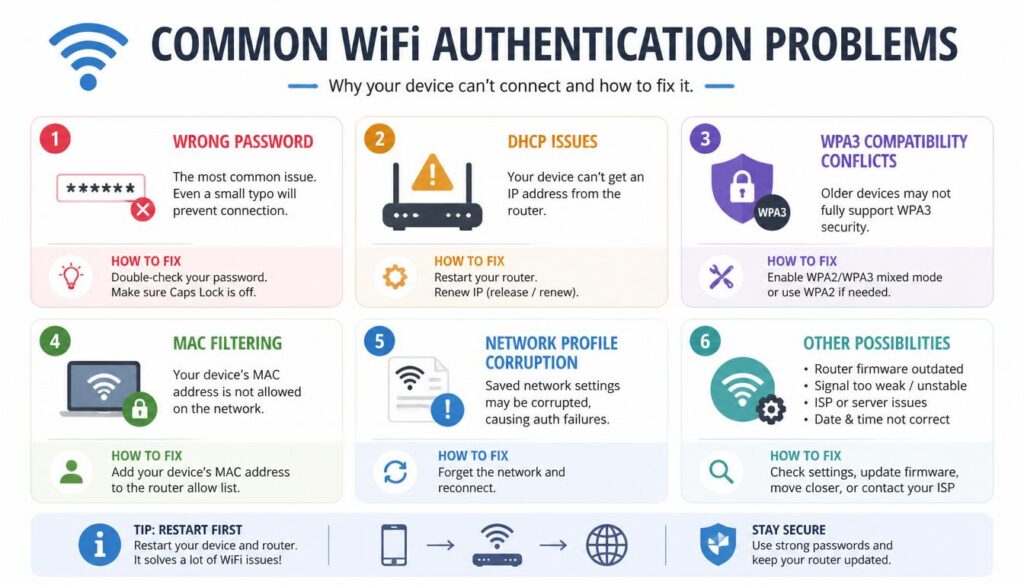
Why Does the Authentication Issue WiFi Error Happen?
This error appears when your device and router cannot properly verify each other during the connection process.
Common reasons include:
- Incorrect WiFi password
- Router security conflicts
- Corrupted network settings
- MAC filtering restrictions
- DHCP problems
- Outdated router firmware
- Network driver issues
- WPA3 compatibility problems
- Encryption mismatches
Authentication Issue WiFi
Authentication Issue WiFi
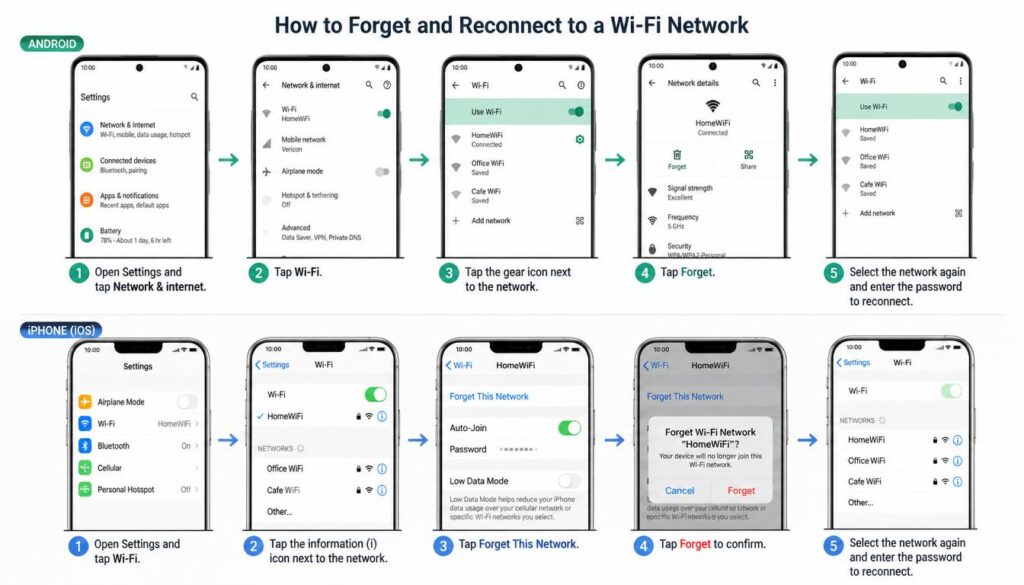
Fix 1: Forget the Network and Connect Again
Sometimes the saved WiFi profile becomes corrupted.
Removing it and reconnecting creates a fresh connection.
Android
- Open Settings
- Tap WiFi & Network
- Select your WiFi network
- Tap Forget
- Connect again and enter the password
iPhone
- Open Settings
- Tap WiFi
- Select your network
- Tap Forget This Network
- Reconnect
Windows
- Open Settings
- Go to Network & Internet
- Click WiFi
- Select Manage Known Networks
- Remove the network and reconnect
This simple fix works surprisingly often.
Having trouble connecting even after fixing authentication errors? Read our complete guide on internet connection problems and learn how to get back online quickly.
Fix 2: Double-Check the WiFi Password
Many authentication errors happen because of small typing mistakes.
Look out for:
- Capital and small letter differences
- Extra spaces
- Incorrect symbols
- Changed router passwords
- Different keyboard languages
If possible, check the password directly in your router settings and compare it carefully.
Fix 3: Turn Airplane Mode On and Off
This refreshes your wireless connections.
Steps
- Turn Airplane Mode ON
- Wait about 30 seconds
- Turn it OFF
- Try connecting again
It only takes a minute and often solves temporary connection issues.
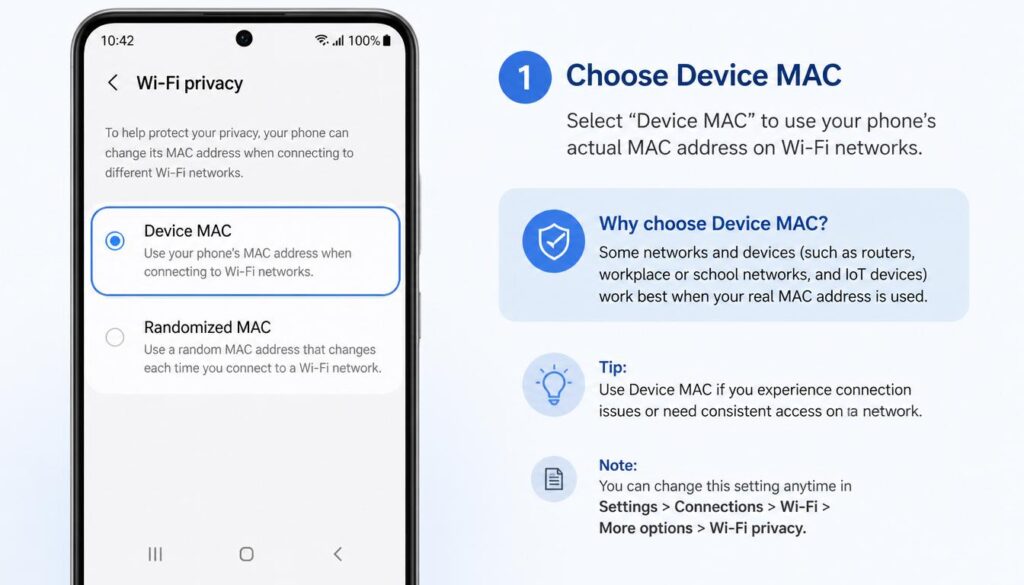
Fix 4: Disable MAC Address Randomization
Many users overlook this setting.
Some routers do not work well with randomized MAC addresses and may reject the connection.
Android
- Open WiFi settings
- Select your network
- Open Privacy
- Change Randomized MAC to Device MAC
iPhone
- Open Settings
- Tap WiFi
- Select your network
- Turn off Private WiFi Address
Reconnect after making the change.
Authentication Issue WiFi
Authentication Issue WiFi
Fix 5: Reset Network Settings
If network settings become corrupted, authentication errors can appear repeatedly.
Android
- Settings
- System
- Reset Options
- Select Reset WiFi, Mobile & Bluetooth
iPhone
- Settings
- General
- Transfer or Reset iPhone
- Reset Network Settings
Windows
Open Command Prompt as Administrator and run:
netsh winsock reset
netsh int ip reset
ipconfig /flushdns
Restart your computer afterward.
Authentication Issue WiFi
Authentication Issue WiFi
If you’re using a mobile hotspot as a backup internet source, learn how to check your remaining hotspot data before it runs out.
Authentication Issue WiFi on Android
Android phones experience this problem more often than other devices.
Try a Static IP Address
- Open WiFi Settings
- Select your network
- Open Advanced Options
- Change IP Settings from DHCP to Static
Example:
- IP Address: 192.168.1.150
- Gateway: 192.168.1.1
- DNS: 8.8.8.8
This can help if the router is having trouble assigning IP addresses automatically.
Remove Old WiFi Profiles
Delete old saved WiFi networks and connect again from scratch.
This helps remove corrupted connection data.
Authentication Issue WiFi on Windows
Windows laptops can sometimes develop driver or profile issues.
Delete the Wireless Profile
Open Command Prompt and enter:
netsh wlan delete profile name=”YourWiFiName”
Then reconnect manually.
Update WiFi Drivers
- Open Device Manager
- Expand Network Adapters
- Update your wireless adapter driver
Updated drivers often fix authentication problems after Windows updates.
Wondering whether your WiFi connection uses mobile data? This guide explains how WiFi and cellular data work and how to avoid unexpected data charges.
Router Fixes That Solve Authentication Problems
If several devices cannot connect, the router is probably causing the issue.
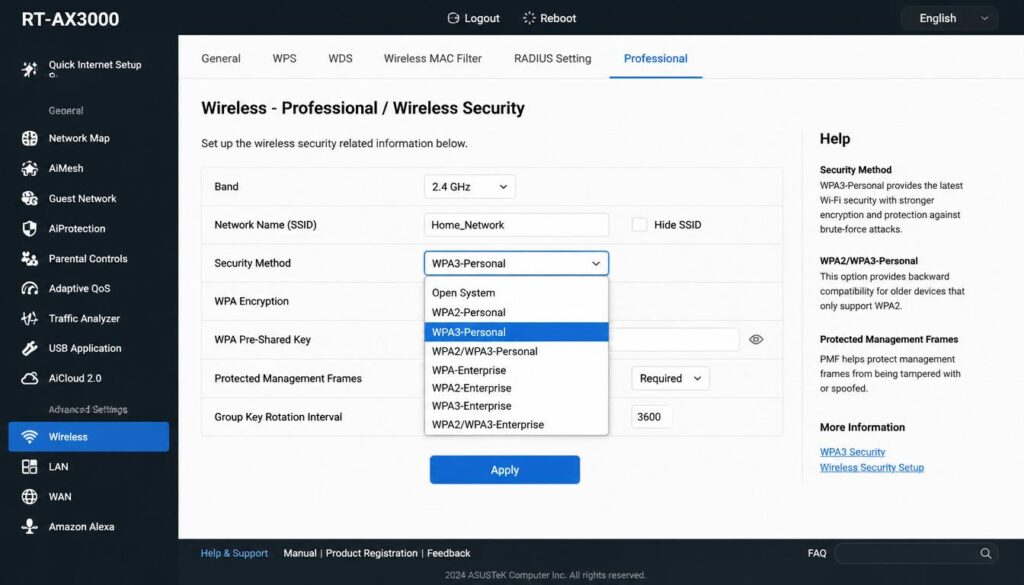
Change WPA3 to WPA2-AES
Many older devices struggle with WPA3 security.
For best compatibility, use:
WPA2-PSK (AES)
Avoid:
- WPA Only
- TKIP
- Mixed TKIP/AES modes
After changing the setting, reconnect your devices.
Check DHCP Settings
Routers use DHCP to assign IP addresses.
If the available address range is full, devices may fail to connect properly.
A common DHCP range looks like:
192.168.1.100 – 192.168.1.254
If necessary, increase the available range.
Update Router Firmware
Router manufacturers regularly release updates that fix bugs and improve compatibility.
Benefits include:
- Better security
- Improved device support
- WPA3 fixes
- More stable connections
Always install the latest firmware version available for your router.
Disable MAC Filtering
If MAC filtering is enabled, your router may block devices it does not recognize.
For testing purposes:
- Open router settings
- Find MAC Filtering or Access Control
- Disable it temporarily
- Try connecting again
Restart the Router Properly
Many people simply press the power button.
A better method is:
- Unplug the router from power
- Wait 60 seconds
- Plug it back in
- Wait until it fully starts
This clears temporary network errors and refreshes DHCP assignments.
Quick Troubleshooting Table
| Problem | Possible Cause | Solution |
|---|---|---|
| Password rejected | Wrong password | Enter password again |
| Connects then disconnects | DHCP issue | Use Static IP |
| Android authentication error | MAC randomization | Use Device MAC |
| Older device won’t connect | WPA3 conflict | Switch to WPA2-AES |
| Windows authentication error | Corrupted profile | Delete WiFi profile |
| Multiple devices affected | Router issue | Restart router |
| No internet after connection | DHCP problem | Expand DHCP range |
| Random connection failures | Firmware bug | Update firmware |
| Authentication loop | Encryption mismatch | Enable WPA2-AES |
| Device blocked | MAC filtering | Disable MAC filter |
When Should You Reset the Router?
A factory reset should be your last option.
Consider resetting only if:
- You forgot the WiFi password
- Firmware updates failed
- Router settings became corrupted
- Multiple devices cannot connect
Before resetting, save:
- ISP details
- WiFi network names
- Passwords
- Custom settings
Authentication Issue WiFi
Authentication Issue WiFi
Frequently Asked Questions
Why do I get an authentication issue even when the password is correct?
The password may be correct, but problems such as WPA3 conflicts, DHCP issues, MAC filtering, or damaged network settings can still prevent the connection.
Why does only my phone show the authentication error?
Usually, this means the problem is with the phone itself. Common causes include:
MAC randomization
Corrupted WiFi profile
Outdated software
Incorrect saved password
Can a VPN cause authentication issues?
Yes. Some VPN apps change network settings and may interfere with WiFi connections. Try disabling the VPN temporarily.
Will resetting network settings delete my personal data?
It only removes:
Saved WiFi networks
Bluetooth connections
Network preferences
Your photos, apps, videos, and files remain safe.
Is WPA3 better than WPA2?
WPA3 is more secure, but WPA2-AES is still the most compatible option for older phones, laptops, printers, and smart home devices.
Final Fix Order for the Best Results
For the highest chance of success, follow these steps in order:
- Forget the WiFi network
- Restart the router
- Restart the device
- Re-enter the password
- Disable MAC randomization
- Reset network settings
- Change WPA3 to WPA2-AES
- Check DHCP settings
- Update router firmware
- Factory reset the router if nothing else works
Following these steps fixes the vast majority of authentication issue WiFi errors on Android phones, iPhones, Windows laptops, tablets, smart TVs, and home routers.
If you need any more help then you can visit our website and find many solutions of your problems about windows11 , Wifi error, and Internet problems.


