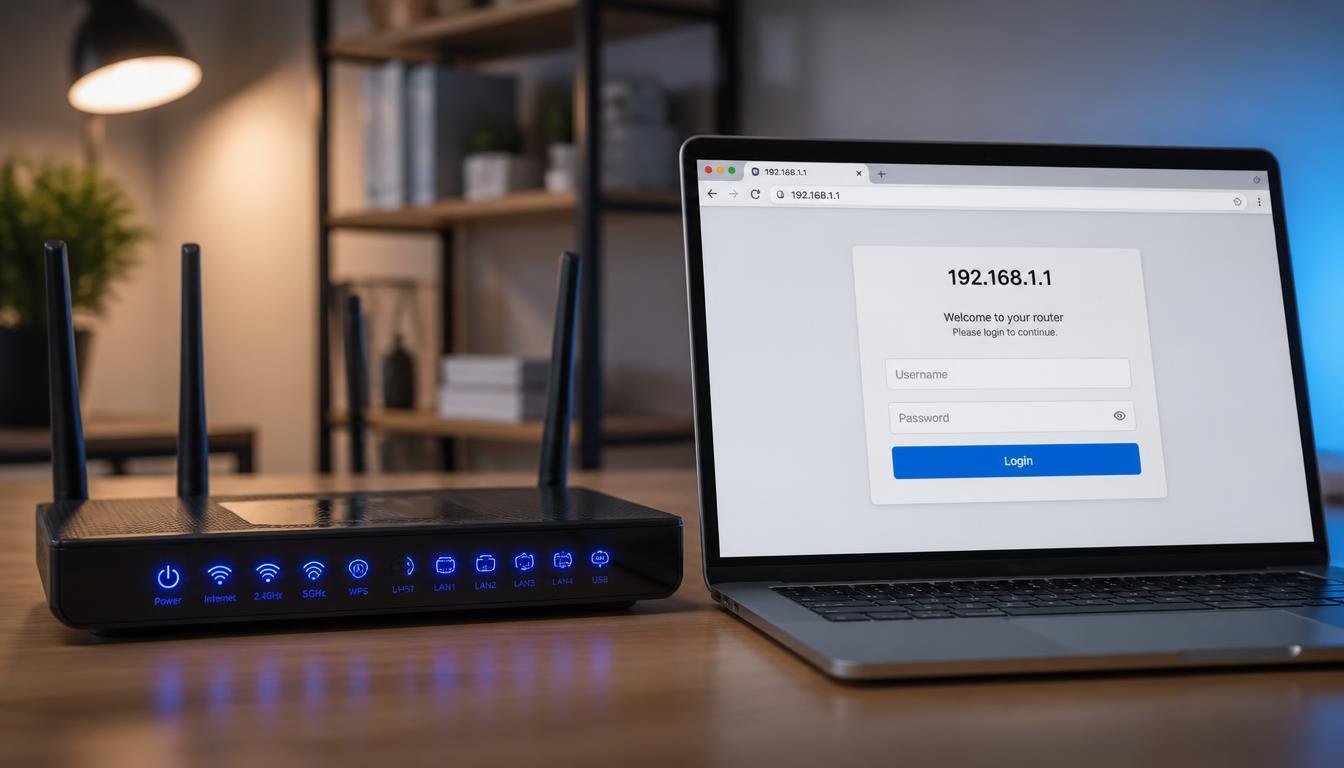
Your internet just started acting up, a new device will not join the network, or you finally need to change that embarrassing WiFi name from three apartments ago. Whatever the reason, you are now staring at a browser tab wondering how to access router settings without breaking anything. The good news is that the process takes less than two minutes once you know your device’s default gateway address.
Quick Answer
To access router settings, connect a phone, computer, or laptop to the WiFi network or an Ethernet cable, then find the router’s gateway IP address, commonly 192.168.1.1, 192.168.0.1, or 10.0.0.1. Enter that address into a web browser, then sign in using the administrator username and password printed on the router or set during original setup.
Quick Comparison: Which Method Should You Use?
Different situations call for different entry points into the router’s admin panel. Use the table below to jump straight to the method that matches your current setup.
| Method | Connection Type | Default Gateway IP | Best Used For |
|---|---|---|---|
| Browser on PC or Mac | WiFi or Ethernet | 192.168.1.1 / 192.168.0.1 | Full configuration, firmware updates, port forwarding |
| Mobile browser (Android or iPhone) | WiFi only | 192.168.1.1 / 192.168.0.1 | Quick password or SSID changes on the go |
| Manufacturer app (TP-Link, Netgear, ASUS) | WiFi or Bluetooth | App handles it automatically | Beginners, guided setup, mesh systems |
| Direct Ethernet connection | Wired | 192.168.1.1 / 10.0.0.1 | Troubleshooting when WiFi itself is broken |
How to Access Router Settings From a Computer
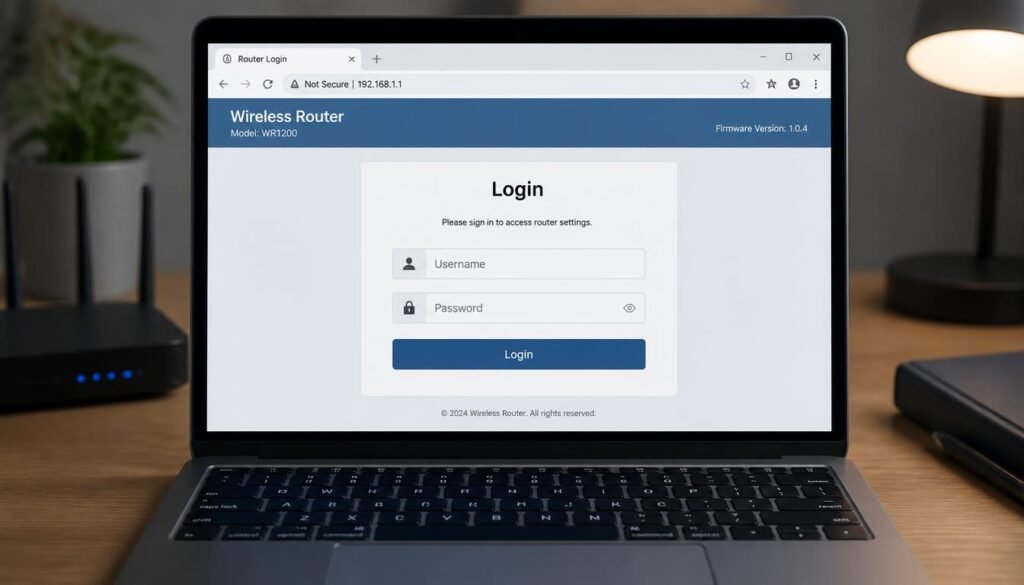
A laptop or desktop remains the most reliable way to reach the full admin dashboard, since desktop browsers render every menu correctly and rarely run into the layout bugs that sometimes affect mobile screens.
- Connect your computer to the same network as the router, either over WiFi or a direct cable.
- Open Command Prompt on Windows and type
ipconfig, then look for Default Gateway under your active adapter. On a Mac, open System Settings, select Network, choose your active connection, and check the Router field under Details. - Open any browser and type that address directly into the URL bar, not a search bar. Pressing enter should load a login screen.
- Enter the administrator username and password. If you never changed these, check the sticker on the bottom or back of the router, since most manufacturers print default admin credentials there.
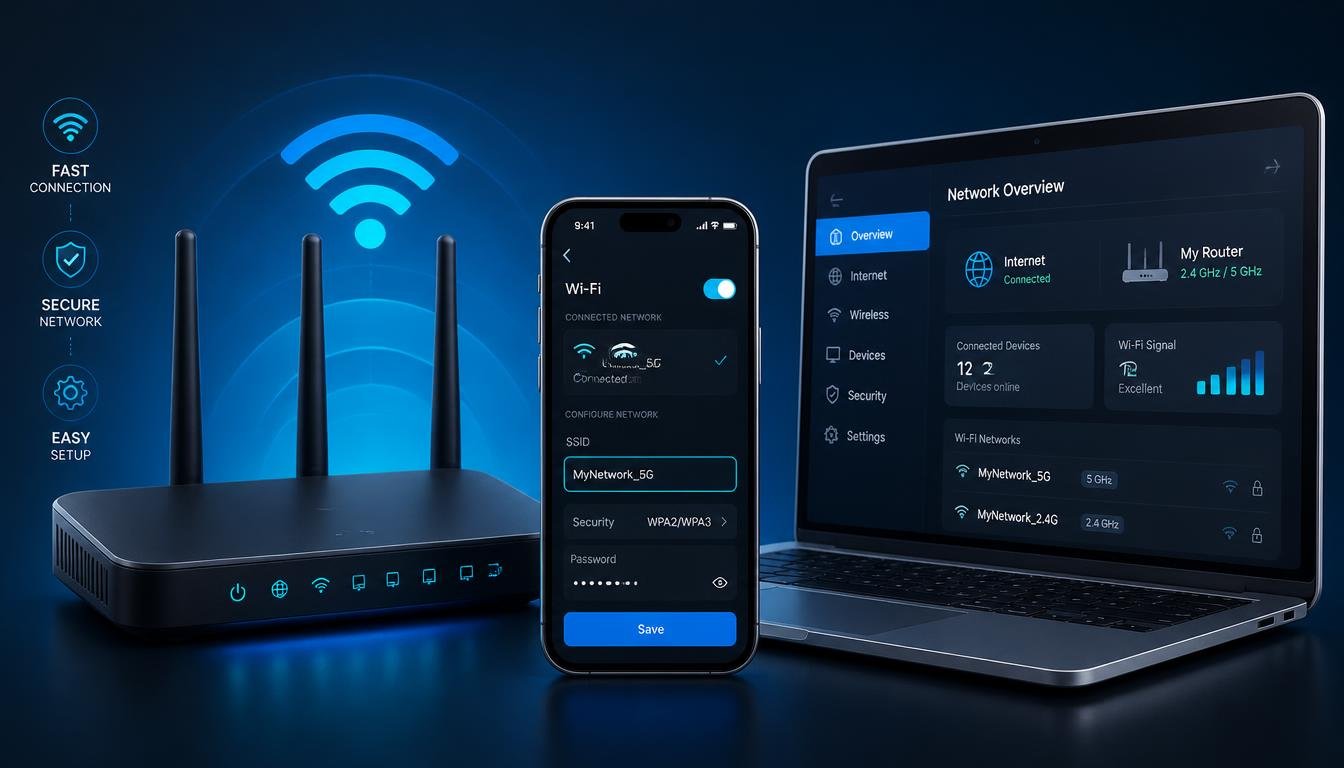
- Once logged in, you land on the main dashboard, where WiFi name, password, port forwarding, and parental controls all live under their own tabs.
If the page will not load at all, confirm your device is actually connected to that specific router first. Our guide on fixing a laptop that will not connect to WiFi walks through the exact steps to restore that base connection before you try logging in again.
Learning how to access router settings from PC differs slightly from Mac only in where the gateway address is displayed, since Windows buries it inside Command Prompt output while Mac surfaces it directly in the Network settings panel. Either way, the browser step that follows is identical, and neither operating system requires additional software to reach the login page.
How to Access Router Settings From Phone
Mobile access works almost identically, though a handful of phone specific quirks trip people up more than they should.
How to Access Router Settings Android
- Open Settings, then WiFi, and tap the gear icon next to your connected network to reveal the current gateway IP, usually listed as Router or Gateway.
- Open Chrome or your default browser and type that IP address directly into the address bar.
- Confirm your phone is on the 2.4GHz or 5GHz band that actually belongs to this router, not a neighboring network with a similar name. This single mismatch causes a large share of failed login attempts.
- Enter your admin credentials on the login page that appears.
Samsung, Pixel, and other Android manufacturers occasionally rename this menu path slightly, but the gateway IP is always visible somewhere inside the active WiFi connection details.
How to Access Router Settings iPhone
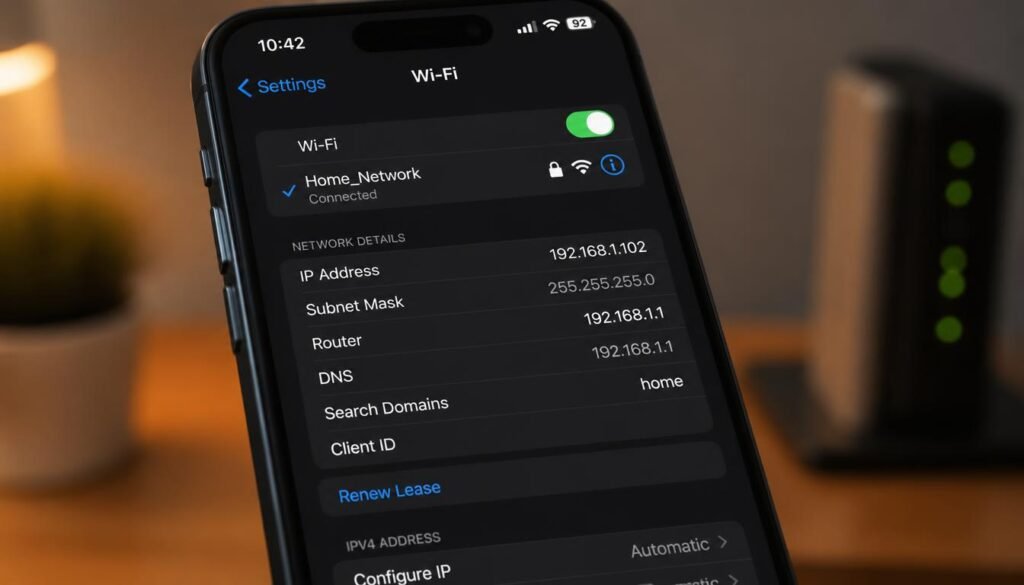
- Go to Settings, tap WiFi, then tap the blue information icon next to your connected network.
- Look for the Router field near the top of that screen and note the IP address shown.
- Open Safari, type the address into the URL bar, and press go.
- If Safari shows a blank white screen instead of a login form, this is a known mobile browser rendering bug on certain router firmware versions. Switching to Chrome for iOS or requesting the desktop site from Safari’s share menu almost always resolves it.
How to Access Router Settings?
How to Access Router Settings via Ethernet
A wired connection removes WiFi entirely from the equation, which makes it the most dependable option when wireless itself is the problem you are trying to diagnose.
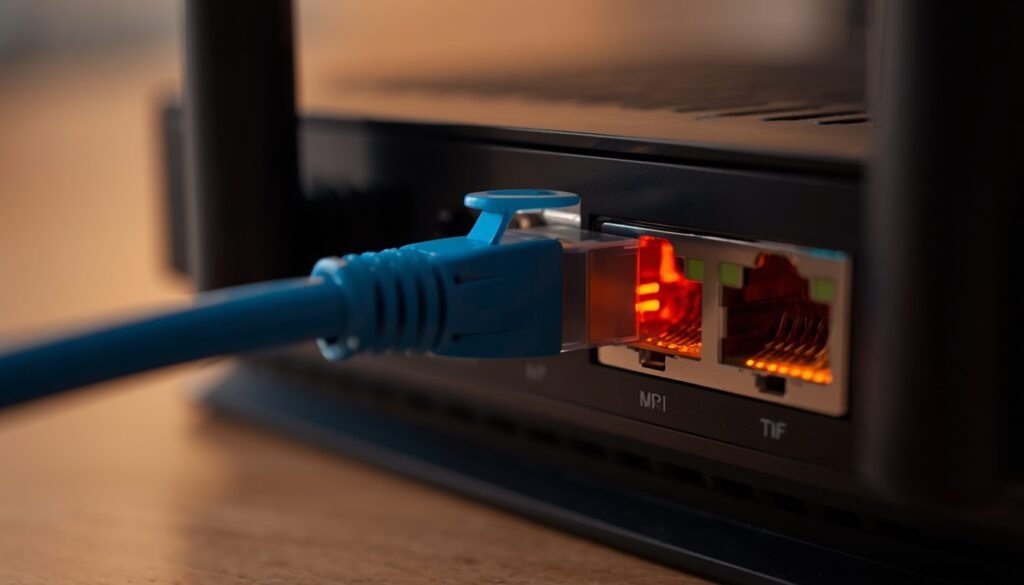
- Plug an Ethernet cable directly from your computer into any open LAN port on the router, not the WAN port used for the modem connection.
- Wait a few seconds for the connection to register, then check your network adapter settings to confirm you received an IP address automatically.
- Enter the router’s default gateway address into your browser exactly as you would over WiFi.
This method is also the fastest fix when your WiFi network keeps dropping mid session. If disconnections are a recurring headache beyond just reaching the settings page, our breakdown of why WiFi keeps disconnecting covers the deeper causes.
Knowing how to access router settings via Ethernet also matters for a second reason many guides skip entirely: some routers require a wired connection the very first time an admin password is created, refusing wireless logins until that initial handshake happens over a cable. Keeping a short Ethernet cable near your router solves this before it becomes confusing.
How to Access Router Settings TP-Link
TP-Link routers add one extra layer worth knowing about, since the company increasingly pushes users toward its Tether app instead of the traditional browser login.
- Type tplinkwifi.net into any browser instead of the numeric IP address, since TP-Link maps this domain directly to the router’s local login page.
- If that domain does not load, fall back to the standard 192.168.0.1 address, which remains TP-Link’s factory default gateway on most models.
- Alternatively, open the free TP-Link Tether app, which detects the router automatically over the local network and skips manual IP entry entirely.
- Sign in with the admin credentials from the sticker, or the custom ones you created during initial setup.
Other brands follow the same logic with their own shortcuts. Netgear uses routerlogin.net, ASUS uses router.asus.com, and most manufacturer apps will detect the hardware over the local network the moment your phone joins the same WiFi signal, which removes the IP address step entirely for anyone who prefers an app based dashboard over a browser tab. Setting up a new mesh device through one of these apps is also where a mismatched WiFi band commonly causes pairing failures, similar to the connection issues covered in our guide on connecting Google Home to WiFi.
Default Router IP Gateway Addresses Explained
Not every router uses the same starting address, and typing the wrong one is the single most common reason people believe their router settings are inaccessible.
- 192.168.1.1 is the most common default across brands including Netgear, Linksys, and many ASUS models.
- 192.168.0.1 appears frequently on TP-Link, D-Link, and various ISP supplied gateways.
- 10.0.0.1 shows up on some AT&T, Xfinity, and Google WiFi hardware.
If none of these load, the safest way to confirm the exact address is checking your active connection details directly on the connected device rather than guessing from a list, since some ISPs assign custom ranges. This is especially common with combined modem and router units provided directly by an internet service provider, which sometimes use an entirely custom gateway address printed only on the device label rather than one of the three defaults listed above.
What to Do When You Cannot Access Router Settings
Sometimes the address is correct and the login page still refuses to appear. These are the fixes competitors rarely cover in enough depth to actually solve the problem.
- Clear your DNS cache. On Windows, open Command Prompt as administrator and run
ipconfig /flushdns. A stale cache occasionally redirects the numeric IP request incorrectly. - Double check for the common typo. Many people search variations that read like 192.168 l l instead of 192.168.1.1, mistaking the lowercase letter L for the number one, or typing it with spaces instead of periods. Browsers will not resolve either version.
- Switch connection type. If WiFi will not load the login page, plug in an Ethernet cable and try again, since some routers temporarily block wireless admin access as a security default until wired access confirms the request.
- Try a different browser or private window. Cached login cookies occasionally cause an endless redirect loop back to the same failed page.
- Restart the router. Unplug it for thirty seconds, then plug it back in. This resolves temporary firmware glitches that block the admin interface without affecting your saved WiFi settings.
If your device still refuses to connect to the network at all before you even reach the login screen, work through our full guide on fixing common WiFi connection problems, then return here to finish logging into the admin panel.
A weak signal between your device and the router can also stall the login page long enough that it looks broken when it is really just slow. If pages across your whole network feel sluggish, not only the admin dashboard, our guide on fixing a weak WiFi signal is worth working through first, since a stronger connection makes every method above load faster and more reliably.
How to Access Router Settings Without Password
Losing the admin password does not mean starting over from scratch in most cases.
- Check the physical label on the router itself, since many households never actually changed the factory default.
- Try common factory defaults such as admin for both username and password, or admin and password, which remain shockingly common across budget routers.
- If nothing works, locate the small reset pinhole on the back of the router and hold it for ten to fifteen seconds to restore every setting to factory defaults, including WiFi name and password.
- After a factory reset, you will need to set up the network again from scratch, so have your ISP account details ready if the router also handles modem authentication.
Keep in mind that a factory reset also removes any custom WiFi password you previously shared with guests. Our guide on sharing a WiFi password the easy way makes reconnecting everyone afterward much faster.
Frequently Asked Questions
These are the specific questions people ask most often once they already know the basics but hit a snag along the way.
How do I log into my 192.168.1.1 router?
Type 192.168.1.1 directly into a browser address bar while connected to that network, then enter the administrator username and password found on the router’s label or set during initial setup.
How do I log in to my 192.168.0.1 router?
The process is identical to 192.168.1.1. Connect to the network, type 192.168.0.1 into the browser, and sign in with your admin credentials. This address is common on TP-Link and D-Link hardware.
Why is 192.168 l l not opening?
This almost always comes down to a typing error where the number one is mistaken for a lowercase letter L, or periods are replaced with spaces. The correct address is 192.168.1.1, typed with periods and the digit one, not letters.
How do I log in to my home router?
Find your router’s gateway IP address inside your device’s network settings, enter it into any browser, and sign in with the admin username and password, which is usually printed on a sticker attached to the router itself.
What is the default password for most routers?
Many routers ship with admin as both the username and password, though this varies by brand. The exact combination is almost always printed on the router’s physical label.
Can I access router settings from a phone that is not connected to WiFi?
No. You must be connected to the router’s own network, either over WiFi or a wired connection, since the admin page only exists on the local network and is not reachable from the open internet by default.
Why does the router login page keep timing out?
This usually points to a weak signal between your device and the router, an incorrect IP address, or a browser cache issue. Moving closer to the router or switching to a private browser window typically resolves it.
Can I access router settings while connected to a guest network?
Most routers block admin access from a guest network for security reasons. Connect to your main private network instead to reach the login page.
Does resetting the router change the WiFi password?
Yes, a full factory reset restores the WiFi name and password to their original factory defaults, erasing any custom network name or password you previously configured.
How do I find my router’s admin panel if I forgot the IP address?
Check your device’s active network connection details, which always display the gateway address the moment you are connected, regardless of whether you remember it or wrote it down.
Final Thoughts
Once you know your router’s gateway address and where your device stores its network details, accessing router settings becomes a routine two minute task rather than a recurring headache. Whether you are troubleshooting a dropped connection, changing a network name, or checking who else is using your bandwidth, the browser login page is always just one correctly typed IP address away.