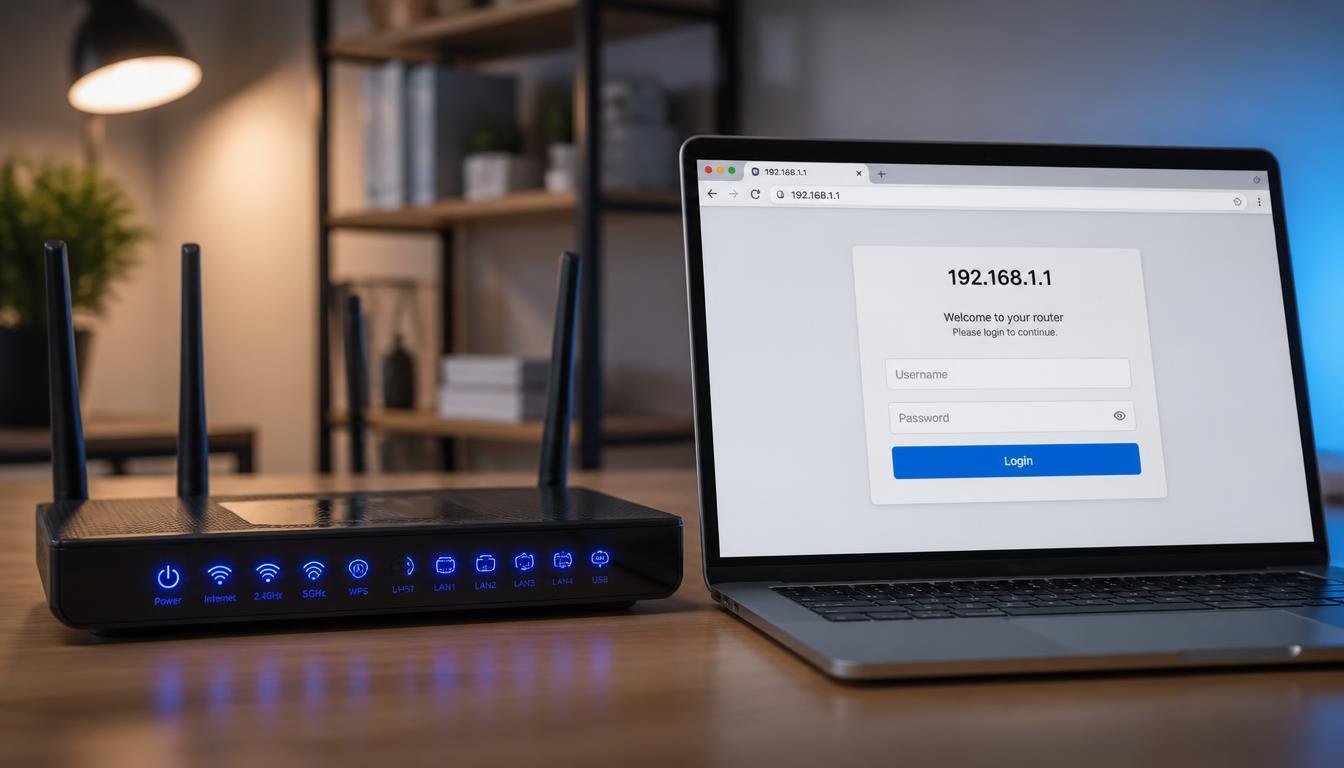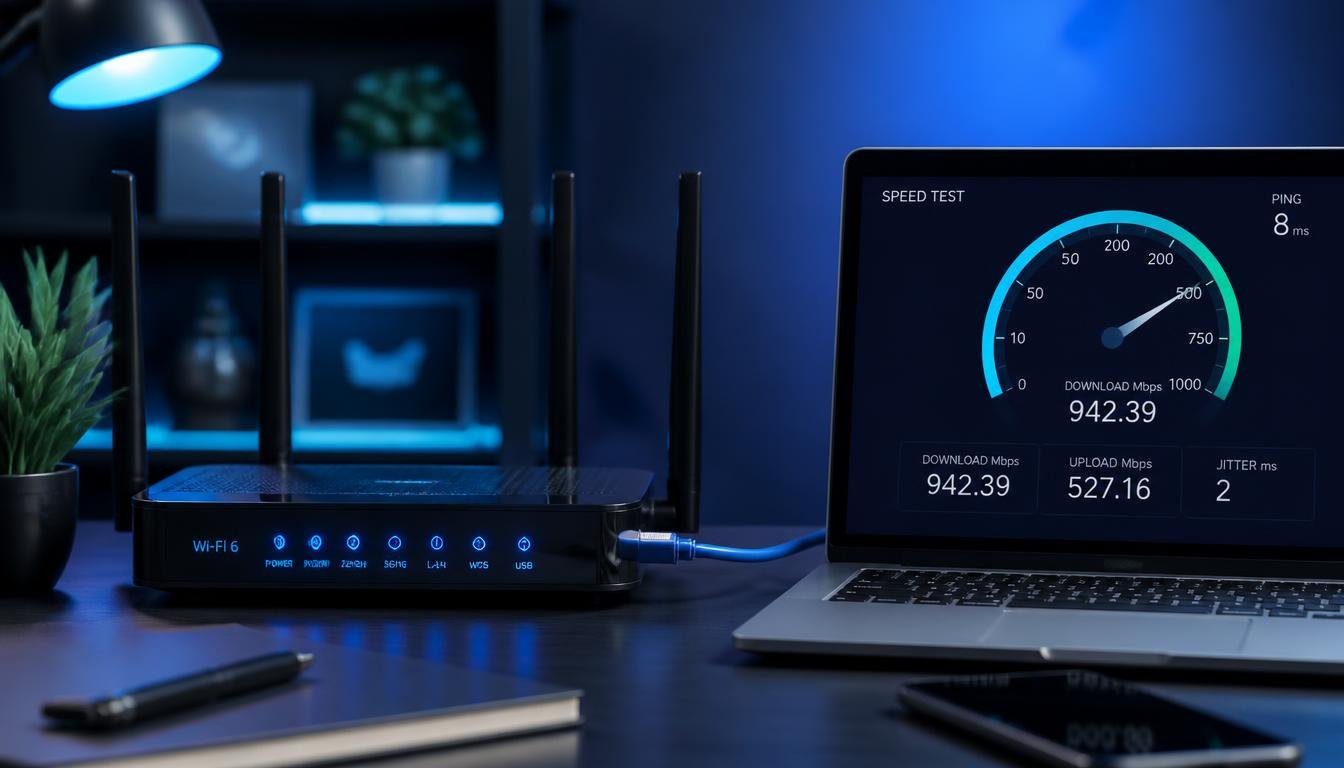
You are staring at a download status bar that has not moved in ten minutes. Your speed test shows full allocated bandwidth, yet your actual file transfer crawls at kilobytes per second. You are left asking why is my download speed so slow when your underlying internet plan appears perfectly functional. The fundamental technical truth is that local network throughput bottlenecks almost never stem from your base internet subscription package.
Quick Diagnostic Summary
Slow download speed despite a fast internet subscription plan is usually caused by network adapter duplex setting mismatches, Wi-Fi radio band interference, background peer-to-peer system updates, ISP traffic shaping policies, or storage drive write speed throttling. Test each OSI model layer independently to isolate local system faults before contacting your internet service provider.
Download Speed Slow But Internet Fast: Diagnostic Matrix
Use this comparative matrix to map your exact system symptoms directly to the underlying technical fault before performing deep system troubleshooting.
| Symptom Scenario | Primary Root Cause | Immediate Remediation Step |
| Download Speed Slow But Internet Fast | Application-level bandwidth limits or storage drive write bottlenecks. | Adjust application throughput caps and flush local client download cache. |
| Slow Ethernet Speed on Windows 11 or PC | Network Interface Card (NIC) Auto-Negotiation failure. | Manually set link speed to 1.0 Gbps Full Duplex in Device Manager. |
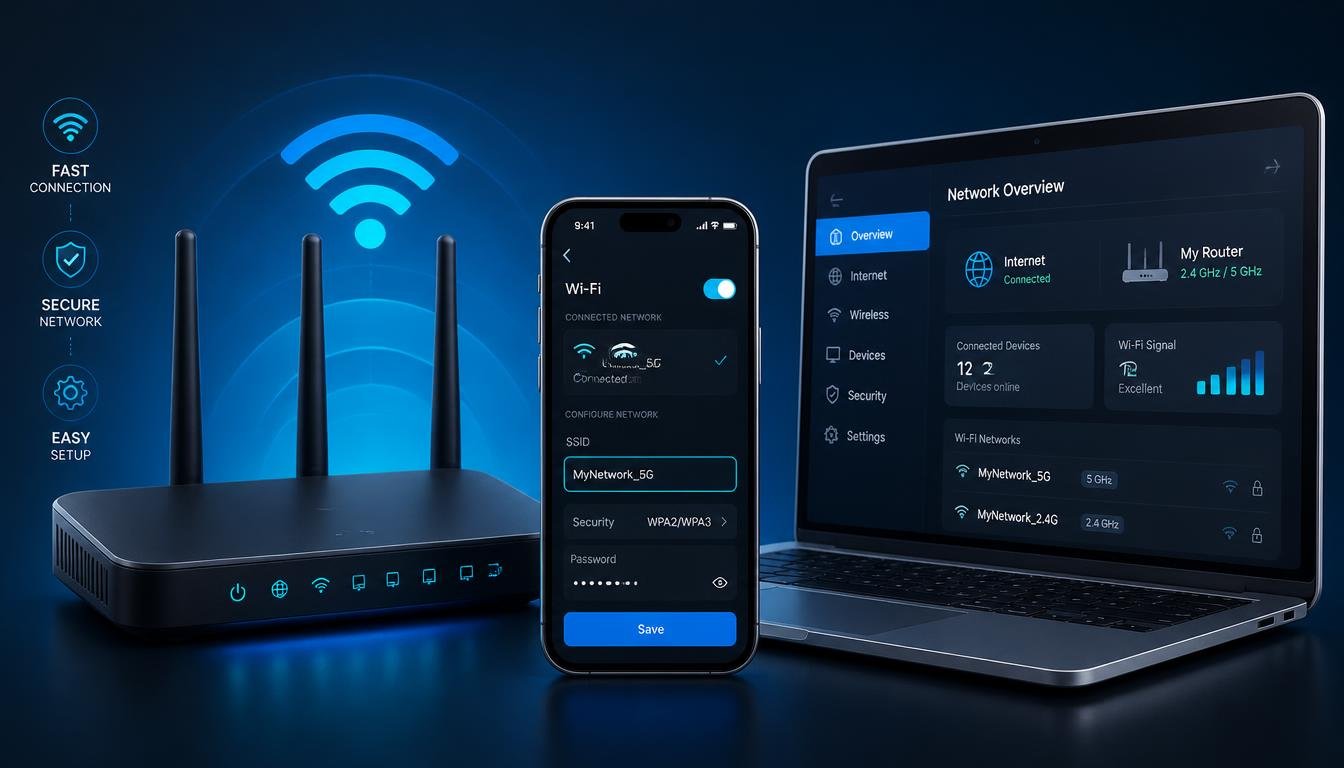
| Wi-Fi Drops or Low Speed on Mobile | 2.4 GHz spectrum radio congestion and signal attenuation. | Force connection to 5 GHz or 6 GHz Wi-Fi band and reset network settings. |
| Console Downloads Crawling (Xbox/PlayStation) | Background game state suspension or high-latency DNS resolvers. | Terminate Quick Resume titles and assign public low-latency DNS servers. |
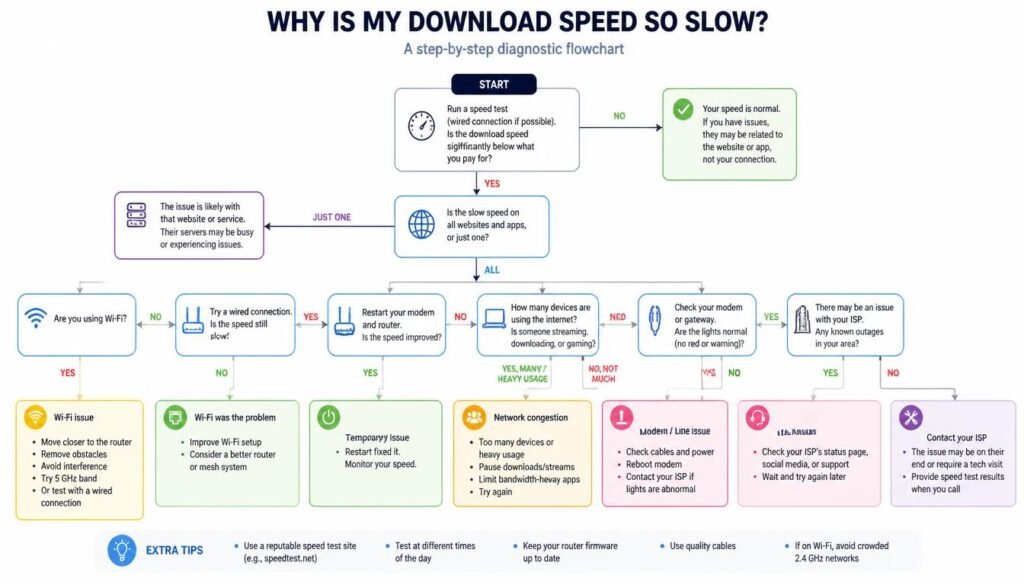
Why Is My Download Speed So Slow on Windows 11 and PC
Windows 11 regulates network throughput via the TCP Receive Window (RWIN) autotuning feature. When the TCP window scaling algorithm malfunctions, the operating system limits the amount of unacknowledged data buffered in network memory, causing severe download throttling on gigabit connections.
To restore default TCP dynamic scaling parameters, open an elevated Command Prompt with administrative privileges and execute the following network shell configuration:
netsh int tcp set global autotuninglevel=normal
Network Interface Card power state policies are another frequent cause of silent throughput degradation. When Windows power management drops PCI Express bus power states to conserve energy, network adapters reduce clock frequencies and drop incoming packets mid-transfer.
System background updates also silently consume available network capacity. Windows Update Delivery Optimization uploads system files to remote peers across the internet by default. Disable this functionality by navigating to Settings, selecting Windows Update, opening Advanced Options, selecting Delivery Optimization, and toggling off the option labeled Allow downloads from other PCs.
Why Is My Download Speed So Slow on PC Ethernet
A physical wired Ethernet connection should consistently deliver full wire-speed performance. When Ethernet throughput fails to match local network capacity, the fault is almost always an Auto-Negotiation failure between your Network Interface Card and the switch port.
Plaintext
[Network Adapter] <--- (Negotiation Failure: Drops to 100 Mbps) ---> [Router / Switch Port]
         |                                                                    |
         +-----> FIX: Force Properties -> Speed & Duplex -> 1.0 Gbps Full Duplex <-----+
When Auto-Negotiation fails, the hardware link falls back to 100 Mbps Half Duplex or 10 Mbps Full Duplex mode, capping your physical transfer speed regardless of your internet tier.
- Open Device Manager: Access network card settings. Press Win + X on your keyboard and select Device Manager from the administrative user menu.
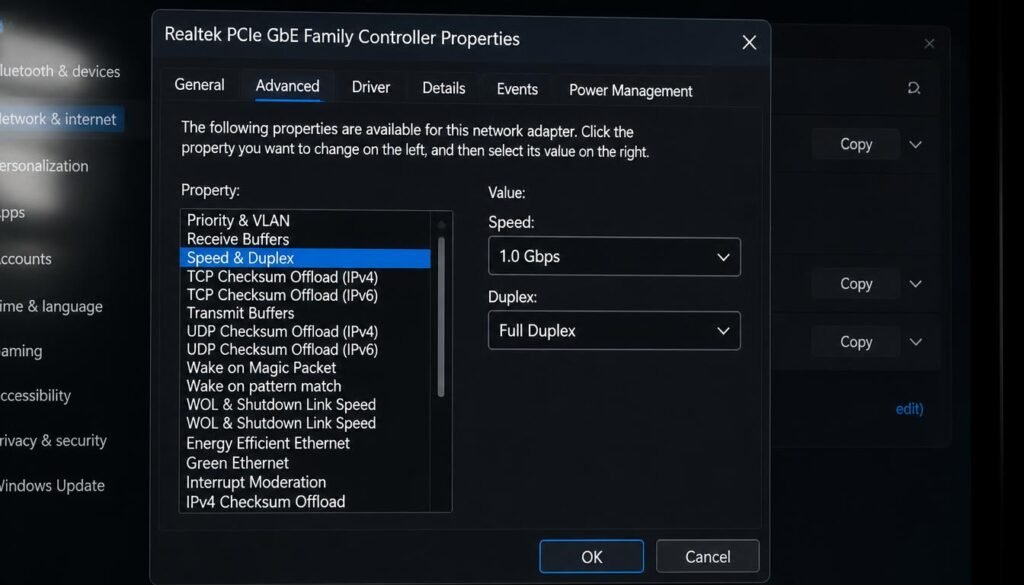
- Locate Network Interface Card: Target your physical Ethernet adapter. Expand the Network adapters directory and right-click your primary PCIe or onboard Ethernet hardware controller. Select Properties.
- Modify Duplex Mode: Eliminate Auto-Negotiation fallback. Select the Advanced tab, navigate through the property list to Speed & Duplex, and change the value from Auto Negotiation to 1.0 Gbps Full Duplex. Click OK to apply changes.
If manually locking your link speed causes physical link disconnection, your Ethernet cabling may be physically damaged or under-spec. Cat5 cabling lacks the twist density required to sustain Gigabit operations over longer distances; ensure your infrastructure uses certified Cat5e or Cat6 cables.
Physical cables and hardware ports can degrade over time, leading to unexpected speed drops on wired connections. Read our comprehensive analysis on why Ethernet runs slower than Wi-Fi on SmartTechFixer to resolve physical cabling limits.
System-level updates and corrupted network adapter settings often restrict your overall bandwidth on desktop computers. For step-by-step solutions on restoring system network stability, check our detailed tutorial on fixing Windows network adapter issues on SmartTechFixer.
ISP Throttling Versus Local Bandwidth Bottlenecks
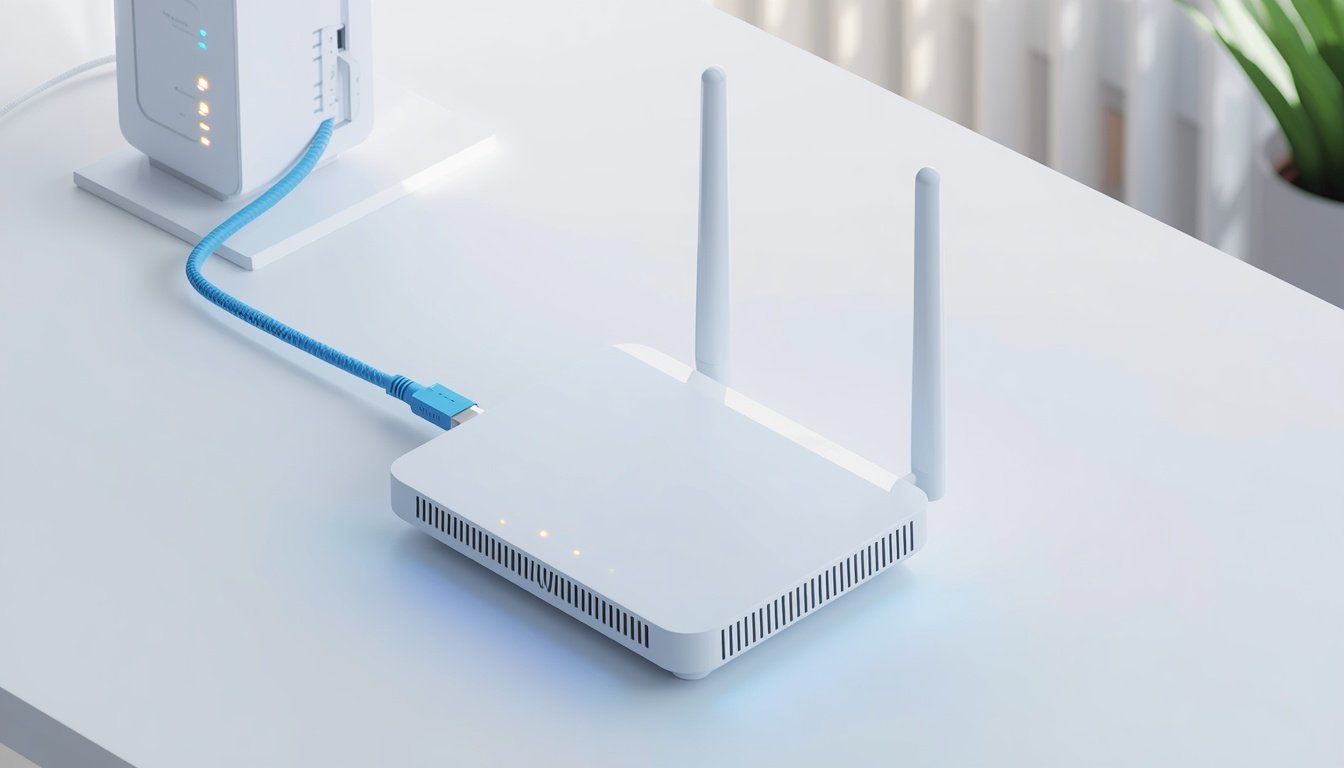
Separating upstream service provider network shaping from home network hardware bottlenecks requires systematic isolation testing. Connect a single desktop computer directly to your modem or optical network terminal (ONT) using a Cat6 cable, bypassing all local routers, switches, and access points.
Plaintext
[ISP Fiber / Cable Node]
           |
           v
   [Modem / ONT Unit]
           |
           +---> (Isolated Direct Cat6 Connection) ---> [Diagnostic PC]
Run a standardized diagnostic test to an unthrottled endpoint. If direct connection tests achieve full provisioned speeds, your throughput degradation originates inside your local network hardware or internal routing tables.
If direct modem connection speeds remain low during specific hours, your connection is suffering from local node congestion or ISP traffic management policies. Internet providers frequently throttle high-bandwidth protocols (such as peer-to-peer or bulk file transfers) during peak usage hours. Using an encrypted connection or reviewing your provider’s fair usage policy can confirm if upstream traffic shaping is active.
Slow Downloads on Steam: Disk, CPU, or Region Bottlenecks
Steam reports download statistics differently than standard web browsers or speed test tools, leading to widespread misinterpretation of actual network performance. Web benchmarks display transfer rates in megabits per second (Mbps), whereas Steam reports speed in megabytes per second (MB/s). Because one byte contains eight bits, a 100 Mbps connection yields a theoretical maximum Steam transfer rate of 12.5 MB/s.
100 Mbps (Megabits per second) / 8 = 12.5 MB/s (Megabytes per second)
Beyond metric conversion, Steam downloads are heavily bound by CPU decompression algorithms and storage drive write speeds. Steam streams compressed archive chunks, requiring your processor to unpack data in real time while your storage drive writes files to disk.
Plaintext
[Network Data Stream] ---> [CPU Decompression] ---> [Storage Drive Write]
                                   |                       |
                         (High CPU Usage Cap)     (Slow HDD/SSD Cap)
If your storage drive or processor maxes out at 100% utilization during a download, your download speed will drop to match your system’s hardware writing ceiling.
why is my download speed so slow?
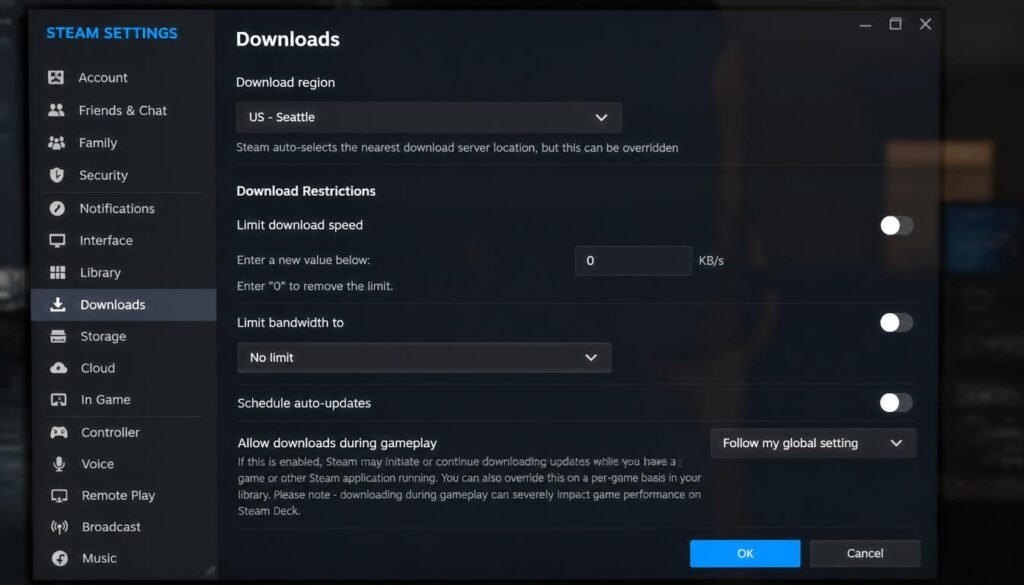
To resolve network-side Steam limits, open Steam Settings, navigate to Downloads, and update your Download Region to a geographically proximate secondary server to bypass regional server congestion. Additionally, clicking Clear Download Cache flushes corrupted local allocation maps that cause download speeds to drop to zero mid-transfer.
Fixing Slow Download Speed on Android
Android hardware manages multiple wireless radios across overlapping frequency channels. Radio frequency interference between active Bluetooth connections, nearby USB 3.0 controller hubs, and the 2.4 GHz Wi-Fi spectrum can severely degrade wireless throughput. Moving mobile devices away from unshielded external storage enclosures or disabling Bluetooth temporarily eliminates local radio interference.
Modern Android implementations use randomized MAC addresses per network profile by default. While this improves privacy, it can cause local router Quality of Service (QoS) rules to misidentify your mobile hardware and assign it to a low-priority bandwidth pool.
Navigate to Settings, tap Network & internet, select your active Wi-Fi network properties, find Privacy, and toggle the setting from Use randomized MAC to Use device MAC. Additionally, ensure background cloud synchronization operations are paused during large active downloads.
Mobile radios frequently experience frequency interference when switching between different Wi-Fi bands and Bluetooth devices. See our troubleshooting post on fixing Android Wi-Fi keeps disconnecting for mobile network stabilization.
Fixing Slow Download Speed on Mac
macOS maintains an internal Domain Name System (DNS) cache to accelerate hostname resolution. Over time, corrupted or stale DNS entries prevent macOS from establishing low-latency socket connections to content delivery networks (CDNs), resulting in delayed file downloads.
To flush the system-level DNS resolver cache on macOS, open the Terminal application and execute the following administrative command:
sudo dscacheutil -flushcache; sudo killall -HUP mDNSResponder
Mac hardware waking from low-power sleep modes may also lock onto a legacy 2.4 GHz Wi-Fi frequency band rather than selecting an available high-throughput 5 GHz or 6 GHz network. Toggle Wi-Fi off and back on while positioned near your wireless router to force macOS to re-evaluate local radio frequencies and negotiate a high-bandwidth connection channel.
Fixing Slow Download Speed on Xbox
Xbox Series X and Series S consoles prioritize active gaming sessions over system background downloads by design. Suspended game states saved in Quick Resume memory retain system hypervisor resources and cap network download speeds to preserve local gaming performance.
To release network allocation caps on Xbox:
- Press the Xbox button on your controller to open the system guide.
- Highlight My games & apps and select See all.
- Select Group, then locate Quick Resume.
- Highlight each suspended game title, press the Menu button, and select Quit game.
Plaintext
[Active / Suspended Game in Quick Resume]
                  |
                  v  (Consumes System & Network Reservation)
   [System Caps Background Download Bandwidth]
                  |
                  v
[SOLUTION]: Guide Menu -> Quick Resume -> Select Game -> Quit Game
In addition, verify that QoS Tagging is enabled inside Xbox network settings. Navigate to Settings, tap General, select Network settings, choose Advanced settings, and enable DSCPIP Tagging and WMM Tagging to instruct your router to prioritize console data packets over general local traffic.
High disk usage and background client updates can cause download speeds to drop to zero while unpacking game files. You can follow our complete guide on how to speed up slow Steam downloads to fix client-side allocation delays.
Hardware Bottlenecks That Cap Every Device on Your Network
When every independent hardware client across your local infrastructure suffers from slow transfer speeds simultaneously, the underlying bottleneck resides in your network processing layer.
Plaintext
                  [Combined Local Network Traffic]
                                 |
                                 v
          [Router Hardware NAT Engine / Routing Table]
                                 |
        +------------------------+------------------------+
        |                                                 |
(Table Memory Exhaustion)                     (Overheated Hardware)
        |                                                 |
        +------------------------+------------------------+
                                 |
                                 v
               [Network-Wide Speed Degradation]
Consumer routers rely on internal processors to execute Network Address Translation (NAT). When multiple connected devices open hundreds of simultaneous socket connections, the router’s NAT connection table fills up, causing processing bottlenecks and network-wide speed drops. Rebooting the router clears these routing tables and restores nominal throughput.
Physical cable integrity is equally critical. Older Cat5 Ethernet cables lack the structural shielding required to transport gigabit speeds without high packet loss. Upgrading home infrastructure to shielded Cat6 or Cat6A cabling guarantees full throughput across long cable runs.
Router processing limits and background system drivers frequently overlap, causing network-wide throughput drops across all household devices. Learn how to optimize your operating system performance in our Windows 11 slow performance troubleshooting guide.
Step-by-Step System Diagnostic Checklist
Follow this prioritized diagnostic sequence to systematically isolate and resolve system-level download throttling:
- Launch Elevated Command Shell: Press Win + R, type cmd, and press Ctrl + Shift + Enter to launch an administrative Command Prompt window.
- Reset TCP Window Scaling: Execute
netsh int tcp set global autotuninglevel=normalto ensure your operating system dynamically scales dynamic network buffers. - Flush Resolver and Re-bind IP Address: Execute
ipconfig /flushdns, followed byipconfig /releaseandipconfig /renewto clear corrupted routing assignments. - Force Network Adapter Link Speed: Open Device Manager, navigate to your Ethernet adapter properties, and change Speed & Duplex to 1.0 Gbps Full Duplex.
- Disable Windows Peer-to-Peer Uploads: Open Windows Update settings, locate Delivery Optimization, and switch off background upload sharing.
- Bypass Local Router Infrastructure: Connect your PC directly to your modem using a certified Cat6 cable to verify whether speed issues originate from your ISP or your local hardware setup.
If direct modem speed tests reveal persistent speed capping during peak hours, your service provider might be actively shaping traffic. Review our step-by-step guide on how to switch internet providers without downtime to find better unthrottled alternatives.
Frequently Asked Questions
How do I fix slow download speeds?
Fix slow downloads by connecting your computer directly to your modem via an Ethernet cable to isolate network hardware. Next, lock your Network Interface Card to 1.0 Gbps Full Duplex, flush your operating system DNS cache, disable peer-to-peer background updates, and switch Wi-Fi devices to the 5 GHz band.
Is 70 Mbps download speed fast?
Yes, a 70 Mbps connection provides ample bandwidth for simultaneous 4K video streaming, high-definition video conferencing, and online multiplayer gaming for typical households. However, downloading large modern video game files (100 GB or larger) will take significantly longer compared to gigabit connections.
Is 100 Mbps download speed slow?
No, 100 Mbps is a reliable, high-speed tier suitable for multi-device households. If downloads feel slow on a 100 Mbps connection, the issue is typically caused by local hardware bottlenecks—such as Wi-Fi channel interference or background updates—rather than insufficient bandwidth from your provider.
Why is my internet slow when I have 1000 Mbps?
A 1000 Mbps (Gigabit) subscription rate is usually capped by local client hardware. Legacy storage drives with slow write speeds, Wi-Fi signal degradation, outdated Ethernet cabling, or network adapters stuck in lower duplex modes will prevent individual devices from utilizing full gigabit speeds.
Why is Ethernet not reaching full speed on Windows 11?
Ethernet throughput drops on Windows 11 when Auto-Negotiation fails between your network adapter and router port. To resolve this, open Device Manager, locate your network adapter properties, select the Advanced tab, and manually change the Speed and Duplex setting to 1.0 Gbps Full Duplex.
Does Steam slow down other downloads on the same network?
Yes, Steam utilizes max-allocation network sockets that can consume your entire available bandwidth pipe. To reserve network capacity for other devices on your network, open Steam Settings, click Downloads, and set an explicit maximum bandwidth download limit.
How do I know if my router is limiting my download speed?
Run a speed benchmark test while connected directly to your modem via Ethernet, then run the same test while connected through your router. A significant drop in throughput during the router test indicates that your router’s NAT processing limits or routing table memory are bottlenecking your connection.
Why does download speed drop when multiple devices are connected?
Download performance drops when combined local network traffic exceeds your router’s NAT processing capacity or available radio spectrum. You can prevent device competition by enabling Quality of Service (QoS) rules in your router settings to prioritize key system traffic.
Can a VPN cause slow download speeds?
Yes, Virtual Private Networks introduce data encryption overhead and route network traffic through intermediate servers, which reduces total throughput. Switching to a geographically closer VPN server or changing to lightweight protocols like WireGuard helps minimize this speed loss.
Does changing DNS servers actually increase download speed?
Changing your DNS server decreases domain name resolution latency, reducing the initial lookup delay before a download starts. However, it does not alter your physical raw connection speed once data transfer begins.
Why is my download speed so slow on Steam compared to speed tests?
Speed tests measure network throughput in megabits per second (Mbps), while Steam displays download progress in megabytes per second (MB/s). Since one byte equals eight bits, a 100 Mbps speed test result equals a maximum theoretical Steam download speed of 12.5 MB/s.
Why is my download speed so slow on PC Ethernet compared to Wi-Fi?
Ethernet can run slower than Wi-Fi if your network card is forced into a 100 Mbps Auto-Negotiation state, if you are using an under-spec or damaged Cat5 cable, or if you are connecting through an unpowered, low-bandwidth USB Ethernet hub.
Final Thought: Restoring Your Full Network Potential
Slow download speeds are rarely a sign that you need to upgrade your internet subscription tier. In the vast majority of cases, the bottleneck is driven by misconfigured network adapters, TCP dynamic scaling glitches, storage write throughput limits, or local radio interference. By methodically working through each diagnostic layer forcing full duplex modes, clearing resolver caches, and prioritizing hardware traffic you can isolate the exact source of latency and restore your connection to its full potential without unnecessary ISP service upgrades.