How to Extend WiFi Range: Up to 1,000 Feet Fix (2026 Guide)
You are standing in the one corner of the house where the router signal simply refuses to reach. The video call freezes on your face mid sentence, the smart speaker in the kitchen drops offline every evening, and the shed where you actually wanted to work has no connection at all. If you have typed how to extend wifi range into a search bar out of pure frustration, you are dealing with a physics problem, not a bad luck problem. Radio waves lose strength every time they pass through a wall, travel farther than roughly 30 feet indoors, or fight against a neighboring network on the same channel. The good news is that every one of those losses is measurable, and once you understand the numbers, fixing them becomes a checklist rather than a guessing game.
This guide goes past the usual six step overview you find on most retailer blogs. It covers the exact decibel loss you should expect from brick, concrete, and drywall, the difference between AP mode and WDS bridging on a second router, the geometry you need for a directional antenna aimed at a shed 500 feet away, and the newer MoCA 2.5 and Point to Point bridge options that most guides skip entirely.
Quick Answer:
First, move your router to a central, elevated position and switch to the 20MHz channel width on 2.4GHz for maximum wall penetration. Second, add a mesh node or a wired Access Point roughly halfway between the router and the dead zone rather than at the edge of the existing signal. Third, for distances beyond 150 feet or for a separate building, skip wireless repeaters entirely and install either a MoCA 2.5 adapter over existing coax cable or a Point to Point wireless bridge with a clear line of sight, since both retain close to full throughput where a repeater cannot.
WiFi Extension Comparison: Which Method Actually Works Best
Every extension method trades distance, speed, and setup difficulty against each other. The table below compares the six most common approaches so that you can match a method to your actual floor plan instead of buying whatever a big box store recommends by default.
| Extension Method | Maximum Distance | Throughput Retained | Wall Penetration Ability | Setup Cost | Technical Complexity |
|---|---|---|---|---|---|
| Mesh System | 150 to 200 feet per node | 85 to 95 percent | Good, self healing | High ($150 to $400) | Low |
| Wireless Repeater/Extender | 100 to 150 feet | 40 to 60 percent | Fair, one hop penalty | Low ($30 to $80) | Low |
| Powerline Adapter | Anywhere on same electrical circuit | 60 to 80 percent | Excellent (uses wiring) | Medium ($60 to $120) | Low |
| MoCA 2.5 Adapter | Anywhere with existing coax | 90 to 98 percent | Excellent (uses coax) | Medium ($70 to $150) | Medium |
| Point to Point (P2P) Wireless Bridge | 500 to 5,000+ feet | 80 to 95 percent | None needed (line of sight) | High ($150 to $600) | High |
| Secondary Router (AP Mode) | Length of Ethernet run | 95 to 100 percent | Excellent (uses cable) | Low ($40 to $100) | Medium |
How to Extend WiFi Range Without an Extender (Zero Cost Native Methods)
Before buying anything, it is worth exploiting settings you already have. A surprising number of people ask how to extend wifi range without extender because their router, left on default settings, is already capable of far more coverage than it is currently delivering.
For anyone whose weak signal is closer to an intermittent dropout than a true coverage gap, our detailed walkthrough on how to fix a weak WiFi signal covers the driver, channel, and interference fixes that solve the problem before you spend a single dollar on hardware. It pairs well with the placement and antenna steps below.
Router Placement and Antenna Polarization Rules
Radio waves radiate outward and downward from a router antenna, which means a unit tucked inside a cabinet or set on the floor is already losing a large share of its range before it reaches the first wall. Place the router centrally in the home, elevated on a shelf at roughly chest height, and keep it one meter away from metal cabinets, mirrors, and large appliances that reflect or absorb 2.4GHz and 5GHz waves.
Antenna angle matters more than most people realize. A router with two external antennas should have one antenna vertical and one antenna set at a 90 degree angle, horizontal. This creates both vertical and horizontal polarization, which improves the odds that a device held at any angle, such as a phone in a pocket or a laptop lying flat, still receives a clean signal instead of a polarization mismatch that can cost several dB of effective strength.
Attenuation figures explain why some rooms feel impossible to reach. A single layer of drywall costs roughly 3 dB of signal loss. A wood door costs about 4 dB. A brick wall costs 8 to 15 dB depending on thickness, and reinforced concrete, common in basements and multi unit buildings, can cost 15 to 25 dB, which is enough to reduce a strong signal to almost nothing after only two walls. Every 3 dB lost cuts effective signal power roughly in half, so two brick walls in sequence, at 10 dB each, cut the original signal to about one sixteenth of its starting strength.
Channel Width Selection: 20MHz vs 40MHz vs 80MHz
Dual band routers broadcast on 2.4GHz and 5GHz simultaneously, and the two bands behave completely differently once distance and obstacles enter the picture. The 2.4GHz band uses a longer wavelength, which lets it pass through walls and floors with less attenuation, but it caps out at lower speeds and suffers more interference from cordless phones, microwaves, and neighboring networks. The 5GHz band moves data faster and suffers less interference, but the shorter wavelength loses strength quickly through solid objects, often dropping to unusable levels after a single interior wall at any real distance.
Channel width compounds this trade off. A 20MHz channel width sacrifices raw speed but concentrates power into a narrower slice of spectrum, extending usable range and improving wall penetration. An 80MHz channel width on 5GHz delivers excellent throughput at close range but the signal degrades far faster with distance and materials. For a home where coverage matters more than peak speed, set the 2.4GHz band to 20MHz channel width in the router firmware, under Wireless settings, and leave band steering enabled so devices automatically pick whichever band currently performs better at their specific location.
Extending WiFi to Sheds, Outbuildings, and Distances of 500 to 1000 Feet
Standard consumer routers and mesh systems were never engineered for the distances involved in reaching a shed, detached garage, or second building on a property. Anyone asking how to extend wifi range outside or how to extend wifi range to shed needs to move past consumer mesh hardware and into equipment designed for genuine long range point to point transmission.
Point to Point Wireless Bridges and Fresnel Zone Clearance
A Point to Point (P2P) wireless bridge uses two matched directional antennas, one mounted near the main router and one mounted at the destination building, aimed directly at each other. Unlike an omnidirectional router antenna that spreads signal in every direction and loses strength quickly, a directional antenna focuses almost all of its power into a tight beam, which is why P2P bridges reliably cover 500 feet, 1,000 feet, and considerably farther with minimal throughput loss, provided the beam path is clear.
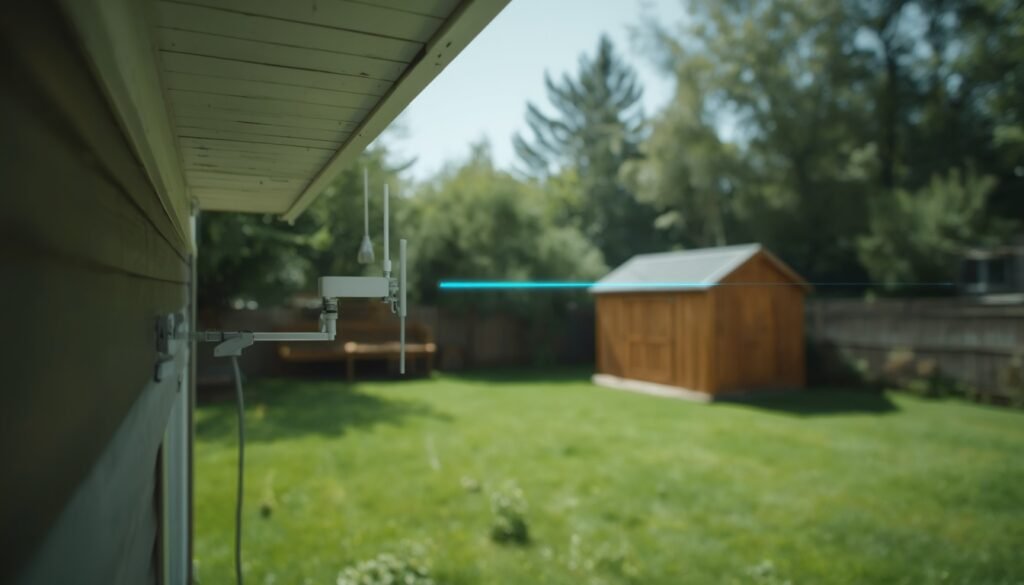
That clear path requirement is the single most common mistake in outdoor setups, and it comes down to the Fresnel Zone. Even with a visual line of sight between two antennas, radio waves travel in an elliptical zone around the straight line connecting them, not a perfectly straight beam. A tree branch, a fence, or a roofline that appears to be well below the visual line of sight can still sit inside this ellipse and cause significant signal degradation. As a rough planning rule, at the midpoint between two antennas 500 feet apart, you want roughly 3 to 4 feet of vertical clearance above any obstruction for a typical 5GHz P2P link, with the required clearance increasing toward the middle of the run and decreasing near either antenna.
Long Range Outdoor Access Points and Starlink Extension Strategies
For outbuildings that need general WiFi coverage rather than a single point to point hop, a long range outdoor access point, rated IP67 for weatherproofing, mounted under an eave or on a pole, can broadcast a usable signal 300 to 800 feet in open terrain. These units accept Power over Ethernet, so a single cable run carries both data and power, removing the need for an outdoor electrical outlet.
Starlink households face a specific version of this problem, since the Dishy sits outdoors and the router often sits far from the areas that need coverage. If you are wondering how to extend wifi range Starlink, the most reliable method is running Ethernet from the Starlink router to a mesh node or a second Access Point placed at the point in the house or yard where signal is weakest, since Starlink’s own mesh add ons still rely on the same physical distance and wall penetration limits as any other WiFi router.
For a building 200 feet or more away with an available power source but no easy trench for cable, a MoCA 2.5 adapter is worth considering if the property already has unused coaxial cable running to both locations, a common situation in homes previously wired for cable television. MoCA repurposes that existing coax as a wired backbone, delivering 90 to 98 percent of your available throughput with none of the line of sight requirements a P2P bridge demands, making it the best option for anyone asking how to extend wifi range to another building where trenching new cable is not practical.
If your printer or a smart device on the property keeps losing its connection during this kind of expansion, our guide on a WiFi authentication issue walks through the handshake and security mismatch errors that commonly appear right after a network topology change like this one.
Secondary Router Configuration: Wired AP Mode and Wireless WDS Bridging
Many people already own a second router sitting unused in a closet after an ISP upgrade, and turning it into an extension point is often cheaper and more reliable than buying a dedicated extender. This section covers exactly how to extend wifi range in house with another router, using both a wired connection and a fully wireless bridge.
Configuring a Second Router in Access Point Mode (Wired)
Access Point mode is the most reliable secondary router configuration because it relies on an Ethernet cable rather than a second wireless hop, which means it delivers close to full router speed with none of the throughput penalty a wireless repeater introduces.
- Run an Ethernet cable from any LAN port on your primary router to the LAN port, not the WAN or Internet port, on the secondary router.
- Log into the secondary router’s admin page and locate the DHCP server setting, usually under LAN or Network settings, and turn it off completely. Only one device on the network should assign IP addresses.
- Assign the secondary router a static IP address outside the primary router’s DHCP range, for example 192.168.1.250 if your main router hands out addresses starting at 192.168.1.100.
- Set the secondary router’s SSID and password to match the primary router exactly if you want smooth automatic roaming between the two, or give it a distinct name if you want to manually choose which access point a device connects to.
- Save the settings, reboot the secondary router, and connect a device near it to confirm internet access flows correctly through the wired backbone.
Wireless WDS Bridging Without an Ethernet Cable
Wireless Distribution System (WDS) bridging accomplishes a similar result without running any cable, which matters when the second router sits somewhere a wire simply cannot reach, and it directly answers how to extend wifi range with another router wirelessly. The trade off is throughput, since a wireless WDS link carries both the connection to the primary router and the connection to client devices over the same radio, typically halving available bandwidth on that segment.
To configure WDS, open the wireless settings on the secondary router and locate the WDS or Wireless Bridge option, commonly found under Wireless > WDS on many router brands including TP-Link and D-Link. Enter the primary router’s SSID and security key exactly as configured, disable the secondary router’s own DHCP server the same way described above, and assign it a static IP in the same subnet. Once both routers reboot, the secondary unit will maintain a dedicated wireless link back to the primary router while still broadcasting WiFi to nearby client devices, extending coverage into rooms a single router alone cannot reach.
Anyone setting up a second router for the first time often runs into an old, familiar problem the moment client devices try to join it. Our full breakdown of WiFi connected but no internet access is worth bookmarking, since duplicate DHCP servers on two routers create exactly this symptom when the DHCP step above gets skipped.
Mobile Device WiFi Range Optimization
Phones and tablets often report a weaker signal than a laptop sitting in the exact same spot, and the reason usually has nothing to do with the router. Mobile radios are smaller, run at lower transmit power to save battery, and include software level restrictions that a laptop’s wireless card does not.
A weak SSID broadcast on the router side compounds every mobile issue below, so before adjusting phone settings, confirm your network name is actually visible and correctly broadcast using our guide on how to find WiFi SSID on any device, including hidden network cases.
How to Extend WiFi Range on Android and iOS Settings
On Android, open Settings, then Network and Internet, then WiFi, and check whether Adaptive WiFi or a similar power saving toggle is limiting background scanning. Clearing the network cache under Settings > Apps > Show system apps > WiFi services and forgetting then rejoining the network resolves a large share of persistent slow connections. On iOS, turning WiFi off and then back on entirely, rather than only toggling airplane mode, forces the radio to run a fresh scan and often resolves a phone that appears connected but performs poorly.
MAC randomization, a privacy feature that generates a new hardware address for each network on modern Android and iOS versions, occasionally interferes with routers that use MAC filtering or that assign a reserved IP address by hardware address. If a specific phone consistently reconnects slower than every other device on the network, turning off Private WiFi Address for that one saved network, found under the network’s settings screen on both platforms, often fixes it immediately. Power saving thresholds are the final piece: most phones reduce WiFi scan frequency once battery drops below 20 percent, which can feel identical to a weak signal even though the router side of the connection has not changed at all.
If a laptop rather than a phone is the device struggling on your extended network, our dedicated guide on laptop not connecting to WiFi separates driver issues, adapter hardware failures, and router side problems into a clear diagnostic order.
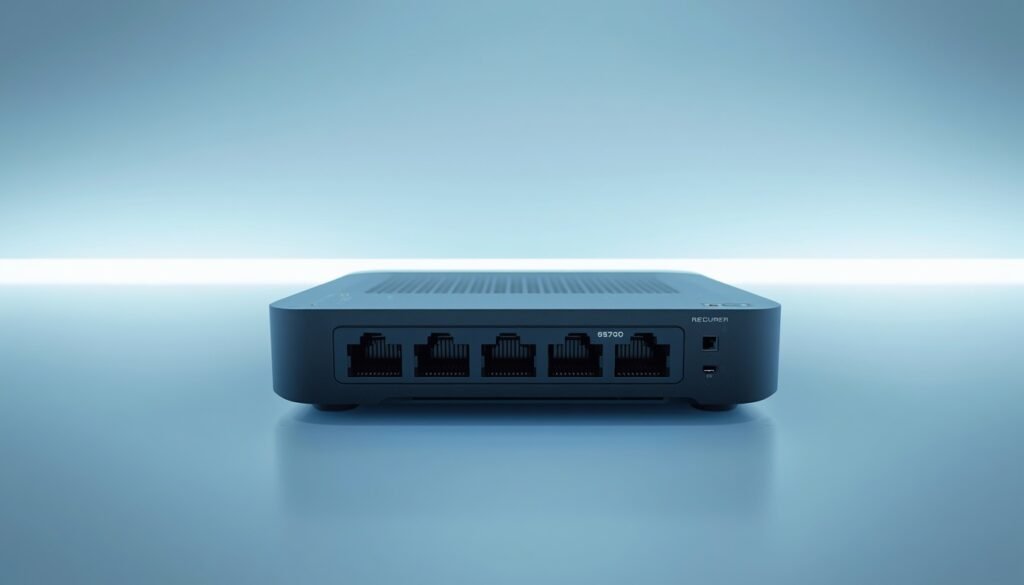
If your extended network uses a mobile hotspot as a backup connection point, forgetting the correct credentials is a common side effect of adding new nodes and routers to a network. Our guide on how to find your hotspot password covers the exact menu location on every major phone brand and operating system.
Frequently Asked Questions About Extending WiFi Range
How do I extend my WiFi signal to another building 500 feet away?
A Point to Point wireless bridge with directional antennas mounted at both buildings, aimed with a clear Fresnel Zone, is the most reliable method at this distance. A MoCA 2.5 adapter over existing coaxial cable is a strong wired alternative if trenching a new cable is not practical.
How do I extend the range of my home WiFi?
Start with router placement, antenna polarization, and a 20MHz channel width on the 2.4GHz band, since these changes cost nothing. If dead zones remain, add a mesh node or a wired secondary router in Access Point mode positioned halfway between the router and the affected area.
Are WiFi extenders really work?
Wireless extenders do work, but they typically retain only 40 to 60 percent of the original throughput because they must both receive and rebroadcast the same signal on one radio. They remain a reasonable low cost fix for a single nearby dead zone, but a wired Access Point or a mesh system will outperform them in every larger home.
How to extend WiFi signal 1000 feet?
At this distance, only a Point to Point directional bridge or a long range outdoor Access Point reliably maintains a usable connection. Consumer mesh systems and repeaters are not engineered for distances beyond a few hundred feet and will drop to unusable speeds well before reaching 1,000 feet.
How to extend WiFi range Starlink?
Run an Ethernet cable from the Starlink router to a mesh node or Access Point positioned at the weak coverage area, since Starlink’s own hardware faces the identical wall penetration and distance limits as any other WiFi router once the signal leaves the Dishy.
How to extend WiFi range to shed?
For sheds within roughly 150 feet with a clear path, a long range outdoor Access Point powered over Ethernet is the simplest solution. Beyond that distance, a Point to Point bridge with proper Fresnel Zone clearance becomes necessary for a stable connection.
How to extend WiFi range in house with another router?
Connect the second router to the primary router with an Ethernet cable, disable its DHCP server, assign it a static IP, and configure it in Access Point mode. This wired approach delivers close to full router speed in the new coverage area.
How to extend WiFi range without extender?
Optimize router placement, antenna angle, and channel width first, since these free adjustments recover a meaningful amount of lost range on their own. Repurposing an old spare router in Access Point mode is the next step if free adjustments are not enough.
How to extend WiFi range in mobile?
Disable MAC randomization for your home network, clear the WiFi network cache, and confirm power saving mode is not throttling background wireless scanning. These three changes resolve the majority of mobile specific range and speed complaints.
How to extend WiFi range to another building?
A Point to Point wireless bridge with directional antennas is the standard solution for a genuinely separate building, since it maintains 80 to 95 percent throughput over distances a mesh system or extender cannot reach at all.
If any of the settings above led you into your router’s advanced firmware menu and something there is behaving unexpectedly, our guide on network adapter not working covers the client side symptoms that sometimes appear right after a firmware change, alongside the driver level fixes that resolve them.
Extending WiFi coverage reliably comes down to matching the method to the actual distance and obstacle path involved rather than defaulting to whatever extender sits on the nearest store shelf. Native router adjustments solve the majority of in home dead zones for free, a wired secondary router or mesh node handles the next tier of coverage, and a proper Point to Point bridge or MoCA 2.5 adapter is what actually works once you are trying to reach a shed, garage, or separate building hundreds of feet away. Apply the method that matches your real distance, and the dead zone that sent you searching for how to extend wifi range in the first place should disappear for good.
If your PC has felt sluggish while you have been troubleshooting all of this network hardware, our guide on the Windows 11 debloater tools that safely boost PC speed is worth a look, since a heavier system can make even a perfect WiFi signal feel slow.