Nothing kills a movie night, a work call, or a gaming session faster than a WiFi bar that keeps dropping to zero. You restart the router, you move closer to it, and the signal still feels unreliable. If you are searching for how to fix weak WiFi signal right now, you are not dealing with a rare problem. It is one of the most common home network complaints, and in almost every case it comes down to a small number of fixable causes: placement, interference, outdated firmware, or a device side setting nobody ever checks.
Quick Answer: How to Fix Weak WiFi Signal Fast
Move your router to a central, elevated, open spot away from metal and thick walls. Switch to a less congested WiFi channel or let band steering choose automatically. Update router firmware and your device network adapter driver. If the dead zone remains, add a mesh node or extender halfway between the router and the weak area.
This guide walks through every layer of the problem, starting with the fastest fixes and moving into the technical adjustments that most competing guides skip entirely, including router side channel congestion, client side adapter conflicts, and the exact settings that Microsoft support forums quietly point to when a signal stays weak even a few feet from the router.
Why Your WiFi Signal Is Weak: Causes and Fixes at a Glance
Before touching any settings, it helps to see the full picture in one place. The table below lines up the most common causes of a weak WiFi signal against the fastest practical solution for each one.
| Cause | What It Looks Like | Fastest Solution |
|---|---|---|
| Poor router placement | Signal drops as soon as you leave the room | Move router to a central, elevated, open location |
| Physical barriers | Concrete, brick, or metal walls block coverage | Reposition router or add a mesh node past the barrier |
| Channel congestion | Signal is fine at night but weak during the day | Manually set channel 1, 6, or 11 on 2.4GHz, or switch band |
| Outdated firmware | Random drops that a restart only partly fixes | Update firmware from the router admin panel |
| Wrong frequency band | Fast up close, unusable a few rooms away | Use 2.4GHz for range, 5GHz for speed near the router |
| Outdated network adapter driver | Weak signal even sitting next to the router | Update or reinstall the wireless adapter driver |
| Too many connected devices | Everything slows down in the evening | Disconnect unused devices or enable QoS |
| Router overheating or age | Performance degrades gradually over months | Improve ventilation or replace an aging router |
| ISP or modem limitation | Speed test is slow even one meter from router | Contact ISP or upgrade the modem |
How to Fix Weak WiFi Signal ?
Physical Optimization: Fix Weak WiFi Signal Placement Issues First
Most weak WiFi signal complaints are solved before a single setting gets changed, simply by fixing where the router sits. This is the step every competitor guide agrees on, and for good reason. It costs nothing and it is often responsible for the entire problem.
Give the Router Open Space
WiFi signals travel outward and downward from the antennas, so a router hidden in a cabinet, behind a television, or on the floor loses a large portion of its range before it even reaches the first wall. Place the router in a central location in your home, ideally elevated on a shelf, with the antennas pointing upward. Keep it at least one meter away from metal filing cabinets, mirrors, aquariums, and large appliances, since all of these reflect or absorb radio waves.
Identify and Remove Physical Barriers
Concrete, brick, and plaster walls with metal lath are some of the worst offenders for signal loss, and they are also the reason the exact same router can perform perfectly in one home and poorly in another. If your dead zone is on the other side of a load bearing wall or on a different floor, no amount of channel tweaking will fully compensate. In that case, skip ahead to the hardware upgrade section for a mesh node or extender placed past the barrier.
Keep Interference Sources Away
Microwaves, older cordless phones, Bluetooth speakers, and baby monitors often operate in the same 2.4GHz range as your WiFi and can cause intermittent drops that look exactly like a weak signal. If your connection dips at the same time every day, check whether a kitchen appliance or a neighbor’s overlapping network is the real cause before assuming the router itself is broken.
Technical Router Adjustments to Fix Weak WiFi Signal at the Source
Once placement is handled, the next layer is the router configuration itself. This is where most guides stop at “change the channel,” but there is more nuance worth understanding.
Choose the Right Band for the Right Task
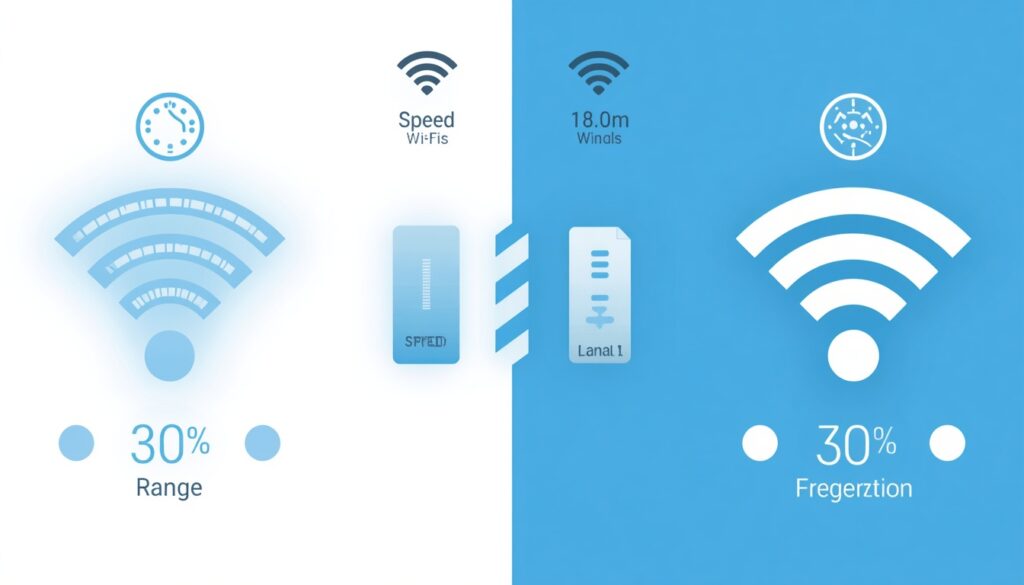
Modern routers broadcast on two bands. The 2.4GHz band travels farther and passes through walls more easily, but it is slower and more crowded. The 5GHz band is faster and cleaner but loses strength quickly through walls and distance. As a rule, connect devices that are far from the router, such as a smart TV in a back bedroom, to 2.4GHz, and connect devices near the router, such as a gaming console in the same room, to 5GHz. If your router supports band steering, enable it so devices are shifted automatically to whichever band performs best at that moment.
Switch to a Less Congested WiFi Channel
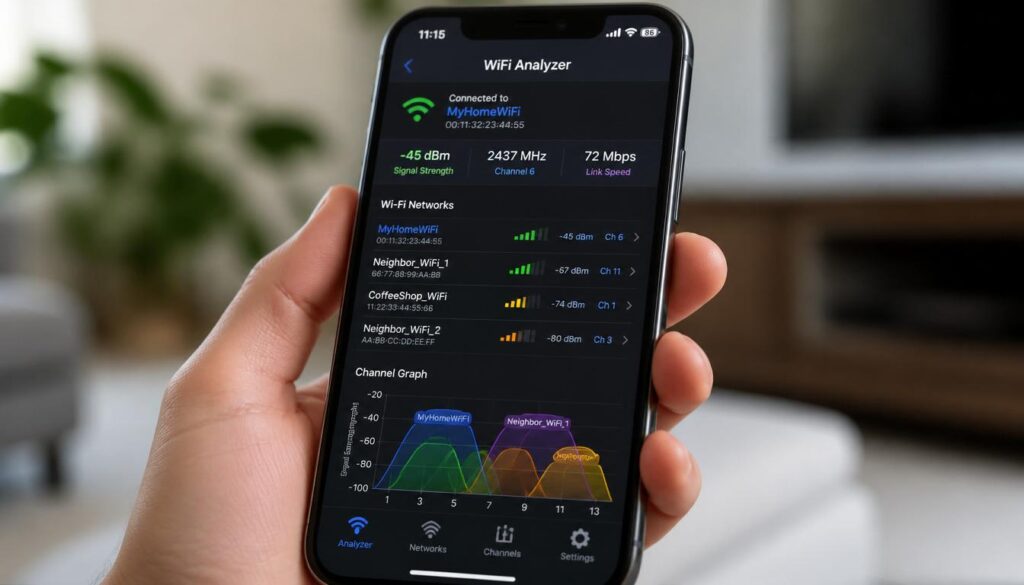
Most routers default to an automatic channel, which sounds convenient but frequently lands on whatever channel every other router in the building is also using. On the 2.4GHz band, only channels 1, 6, and 11 do not overlap with each other in North America, so those three are the safest manual choices. On 5GHz there are more non overlapping options, but the principle is identical: use a free WiFi analyzer app on your phone to see which channels your neighbors are already using, then pick one with the least traffic. This single change is one of the most effective ways to fix weak WiFi signal problems in apartment buildings and dense neighborhoods, where channel overlap is the real cause far more often than distance.
Update Router Firmware and Enable Advanced Features
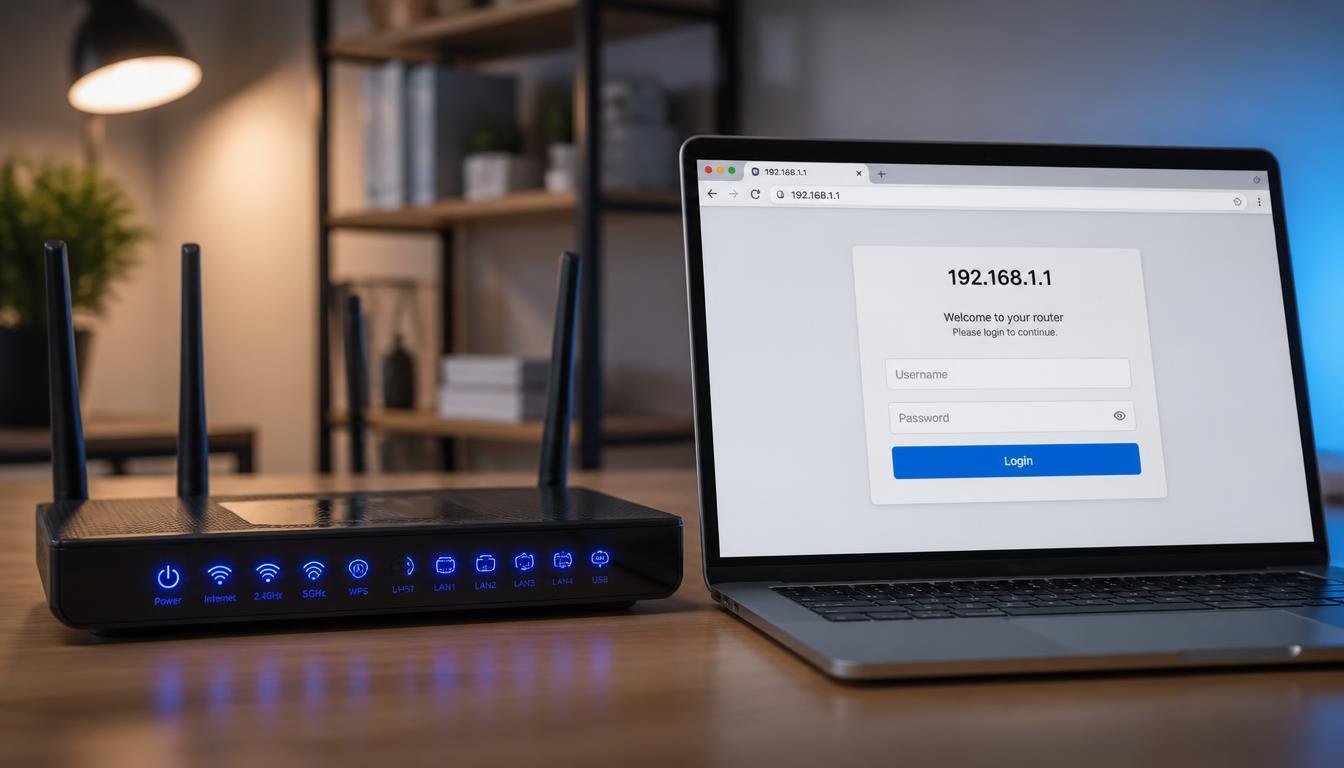
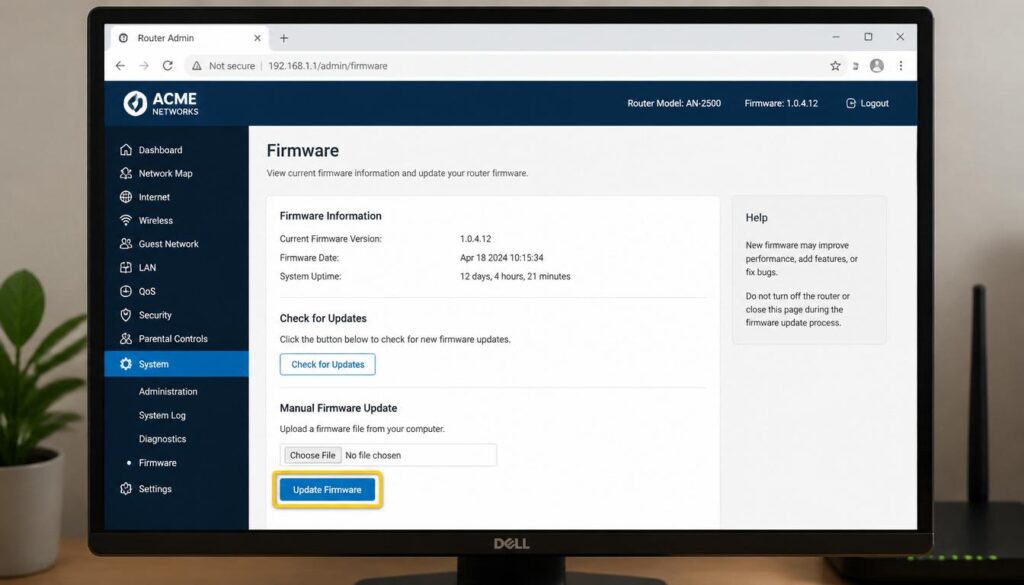
Firmware updates are easy to forget because routers rarely announce them, yet outdated firmware is a documented cause of degraded coverage, security vulnerabilities, and random disconnects. Log into your router’s admin panel, usually by typing 192.168.1.1 or 192.168.0.1 into a browser, and check the firmware or system update section. While you are there, confirm that features like beamforming and MIMO, if your router supports them, are switched on, since both are designed specifically to improve range and reduce interference between multiple devices.
Restart the Router and Modem the Right Way
Power cycling is not just a cliché first troubleshooting step. Unplug both the modem and the router, wait a full 60 seconds, plug the modem back in first, wait for its lights to stabilize, then plug the router back in. This clears temporary memory glitches and forces your ISP to assign a fresh connection lease, which resolves a surprising number of intermittent weak signal reports on its own.
Client Device Diagnostics: The Gap Most Guides Miss
Here is the part almost every competing article skips entirely, and it is exactly the scenario that shows up repeatedly on Microsoft support forums: a device that shows a weak signal even sitting directly next to the router, while every other device in the house connects at full strength. When that happens, the router is almost never the problem. The device itself is.
Update or Roll Back the Wireless Adapter Driver
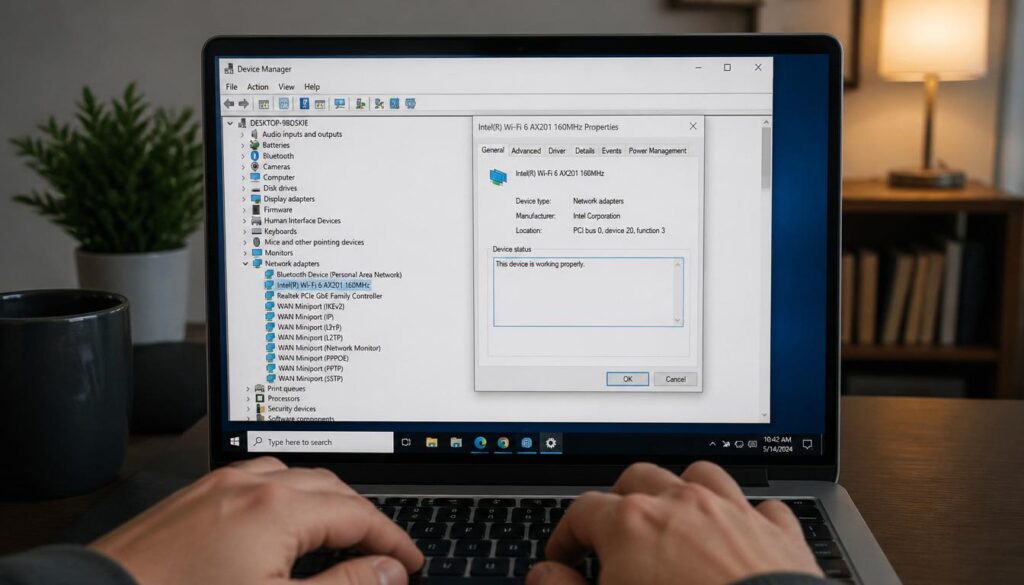
An outdated, corrupted, or mismatched wireless adapter driver can cause a laptop to report full bars while actually transferring data at a fraction of normal speed, or to show two bars while every other device in the same room shows five. Open Device Manager, locate the network adapter, and check for a driver update directly from the manufacturer’s website rather than relying only on Windows Update, since chipset specific drivers are often more current and more stable.
How to Fix Weak WiFi Signal ?
Check the Wireless Mode Setting
Inside the advanced properties of a network adapter, there is usually a setting labeled Wireless Mode or 802.11 Mode. If this is manually locked to an older standard, such as 802.11n only, the adapter cannot take advantage of the faster, more resilient standards your router supports, and the reported signal strength suffers as a result. Setting this back to automatic often resolves signal issues that look identical to a router problem but have nothing to do with the router at all.
Disable Conflicting Adapters
If you use an external USB WiFi adapter on a laptop that also has a built in wireless card, leaving both active at the same time can cause exactly the kind of unstable, low signal behavior reported in troubleshooting forums, even when the laptop is sitting right beside the router. Disable the adapter you are not using in Device Manager, and test the connection again before assuming a hardware failure.
Reset the Network Stack
If a device has been unreliable for weeks despite a strong router signal, a full network reset can clear corrupted settings that a simple restart will not touch. On Windows, open Command Prompt as an administrator and run netsh winsock reset, followed by a restart. This clears stuck configurations left behind by VPN software, antivirus tools, or previous driver installs, and it frequently succeeds where repeated router restarts fail.
Clear the DNS Cache and Consider a Faster DNS Server
A weak feeling connection is sometimes actually a slow name resolution problem rather than a true signal issue. Flushing the DNS cache with ipconfig /flushdns and switching to a faster public DNS provider, such as 1.1.1.1 or 8.8.8.8, in your network adapter settings can noticeably reduce the lag that many people mistake for weak WiFi, particularly when loading new websites feels sluggish even though streaming already in progress runs smoothly.
How to Fix Weak WiFi Signal ?
Advanced Hardware Upgrades to Permanently Fix Weak WiFi Signal Coverage
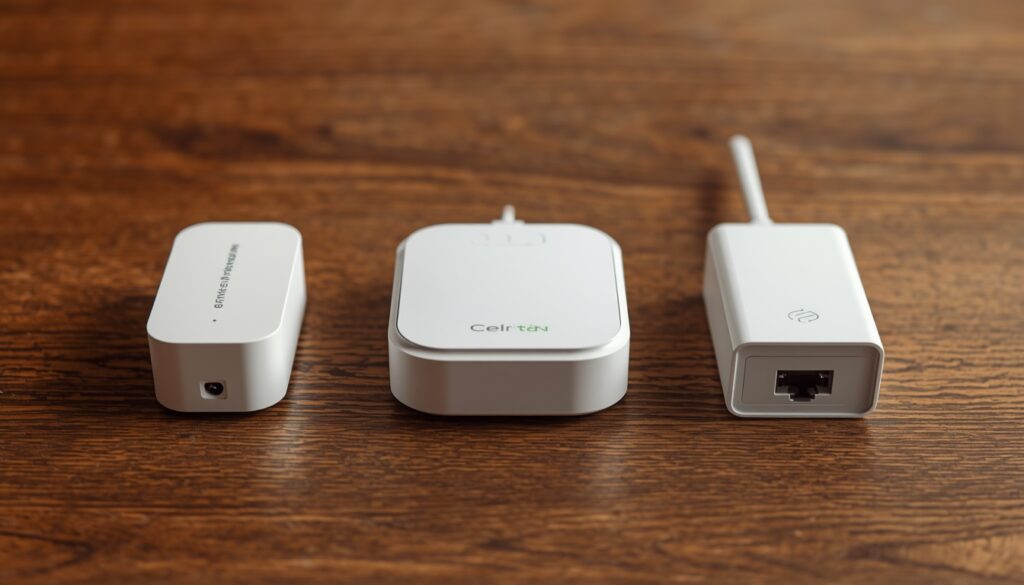
If placement, channel changes, and device side fixes still leave a persistent dead zone, it is time to consider hardware. The three main options solve different problems, and choosing the wrong one is a common and costly mistake.
WiFi Extenders
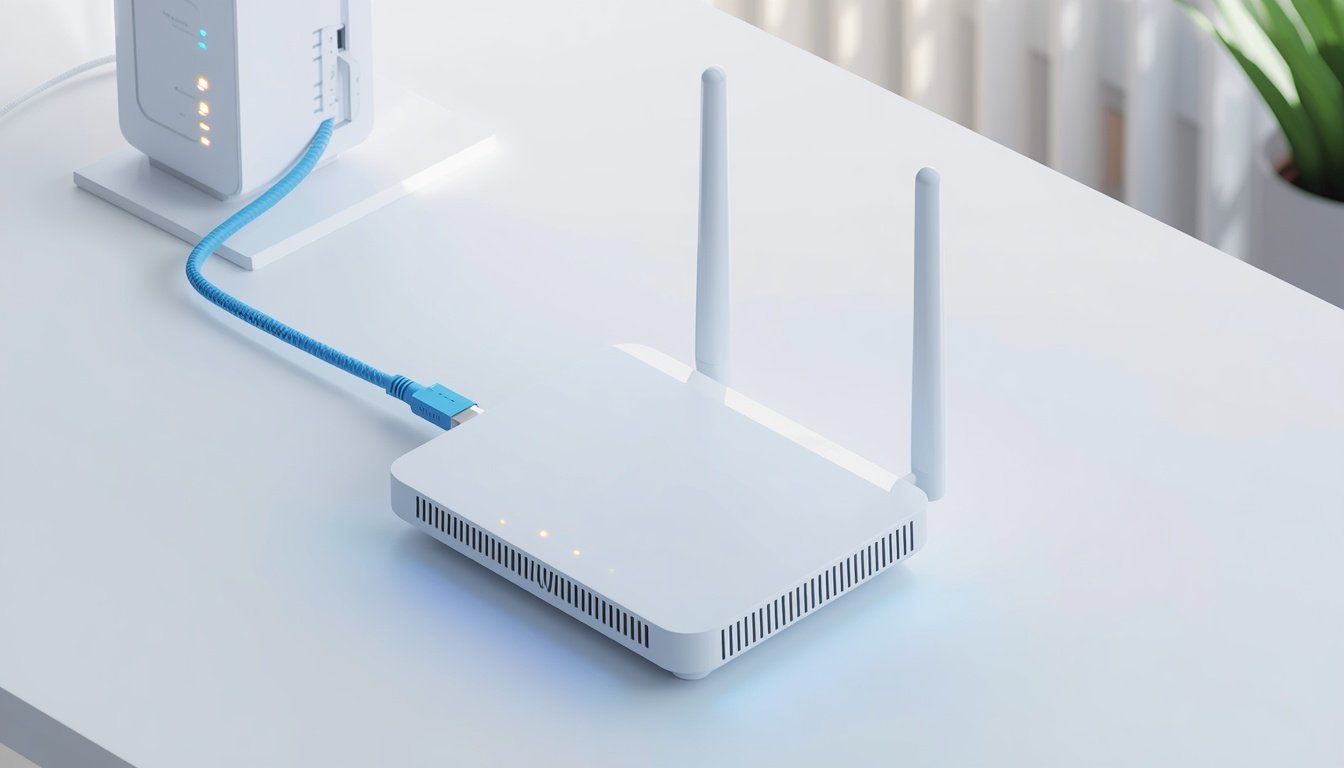
An extender captures your existing signal and rebroadcasts it into a weak area. It is the cheapest option and easy to set up, but it typically cuts available bandwidth roughly in half in the extended zone, since the device is simultaneously receiving and retransmitting. Extenders work best for a single dead zone with light usage, such as a garage or a back porch.
Mesh WiFi Systems
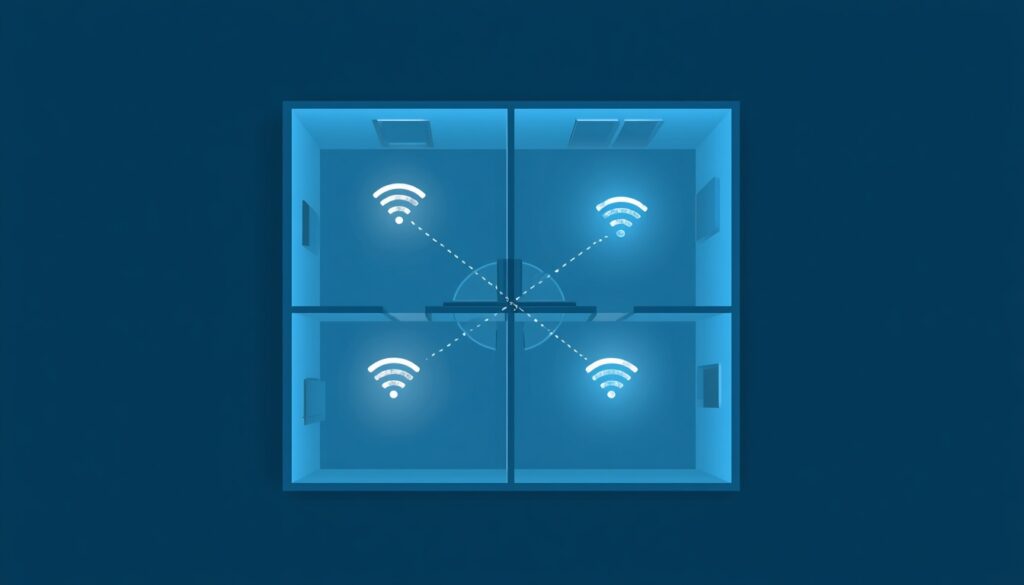
A mesh system uses a main router plus one or more satellite nodes that work together to form a single seamless network across your entire home. Unlike an extender, a properly wired or well placed mesh node does not suffer the same bandwidth penalty, and it eliminates the need to manually switch networks as you move between rooms. Mesh systems cost more, but for larger homes, multiple floors, or thick walls, they are consistently the most effective long term fix.
How to Fix Weak WiFi Signal ?
Powerline Adapters
A powerline adapter sends your internet signal through your home’s existing electrical wiring, then creates a new wired or wireless access point wherever you plug it in. This is an excellent option for areas where WiFi consistently struggles no matter what you try, such as a basement office, since it sidesteps wireless interference entirely by using the wiring already in your walls.
Upgrade to a Modern Router
If your router is several years old, it may simply lack the standards needed for a modern household full of connected devices. A router supporting WiFi 6 or WiFi 6E offers meaningfully better range, faster speeds, and far better performance when many devices are connected at once, which matters more every year as smart home device counts continue to climb.
How to Fix Weak WiFi Signal ?
Frequently Asked Questions
Why is my WiFi signal weak even next to the router?
This usually points to the connected device rather than the router. An outdated network adapter driver, a wireless mode setting locked to an older standard, or a conflict between a built in adapter and an external USB adapter can all cause a weak reported signal at close range. Update the driver, set the wireless mode to automatic, and disable any unused adapter before assuming the router is faulty.
How do I know if my WiFi problem is interference or distance?
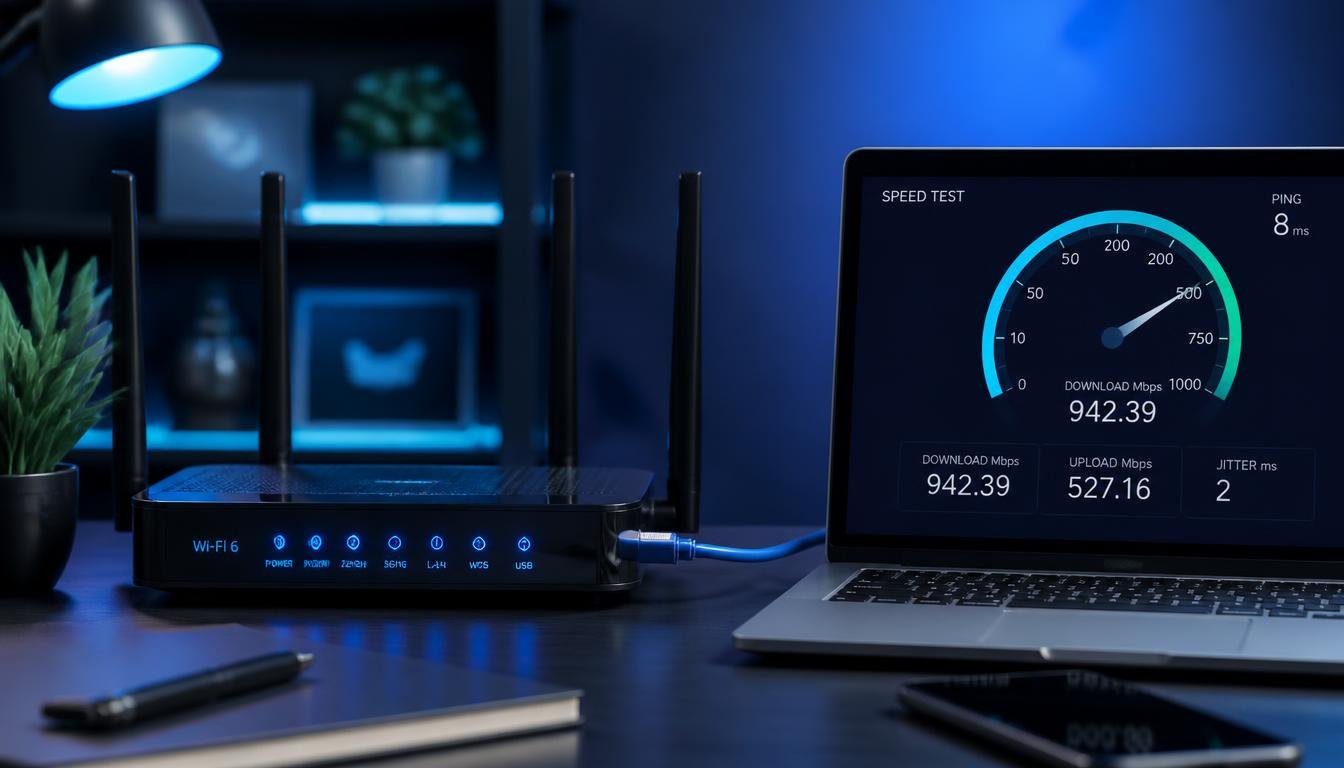
Run a speed test close to the router and again in the weak area. If speeds are strong close up and drop steadily as you move away, distance and physical barriers are the likely cause. If speeds are inconsistent even close to the router, especially at certain times of day, channel congestion or interference from nearby devices is more likely.
Does changing the WiFi channel help fix weak WiFi signal problems?
Yes, particularly in apartments and dense neighborhoods where dozens of networks compete for the same three non overlapping 2.4GHz channels. Manually selecting channel 1, 6, or 11 based on what a WiFi analyzer app shows as least congested can noticeably improve stability without spending any money.
Should I buy a WiFi extender or a mesh system?
An extender is a reasonable, low cost fix for a single small dead zone with light usage. A mesh system is the better investment for larger homes, multiple floors, or when several dead zones exist at once, since it avoids the bandwidth loss that extenders introduce and creates one continuous network instead of several separate ones
Can old router firmware really cause a weak signal?
Yes. Outdated firmware is a documented source of reduced performance, random disconnects, and security vulnerabilities. Checking for and installing firmware updates through your router’s admin panel takes only a few minutes and is one of the simplest ways to fix weak WiFi signal issues that a restart alone will not resolve.
Final Thoughts
A weak WiFi signal almost always traces back to one of a handful of causes: router placement, channel congestion, outdated firmware, or a device side setting that nobody thinks to check until the router has already been blamed and replaced. Work through the fixes in this guide in order, starting with placement and channel selection, moving into the device side diagnostics that most guides skip, and reaching for a mesh system or extender only once the free fixes have been exhausted. Following this sequence resolves the vast majority of weak WiFi signal cases without spending a cent on new hardware.
If your printer keeps dropping off the network along with everything else in the house, our guide on how to connect a printer to WiFi walks through the same channel and placement principles applied specifically to printer connections. Laptop users dealing with a connection that refuses to hold steady should also read why a laptop will not connect to WiFi, which covers several of the same driver and adapter fixes in more depth. If your phone is the device struggling most, our guide on why a phone is not connecting to WiFi covers the mobile specific side of the same troubleshooting process. For anyone still seeing a full signal but no actual internet access, WiFi connected but no internet access explains the difference between a coverage problem and a connectivity problem. And if you are curious about extenders and boosters as a long term fix, how do WiFi boosters work breaks down exactly how they extend coverage and where their limits are.
If your device shows a strong signal but still refuses to connect, that is a different problem than a weak signal, and our guide on authentication issue WiFi walks through the exact fixes for that scenario across every device type. And if you switched to a wired connection expecting an automatic speed boost only to find it slower than WiFi, why Ethernet is slower than WiFi explains the cabling, port, and adapter causes behind that surprisingly common issue.