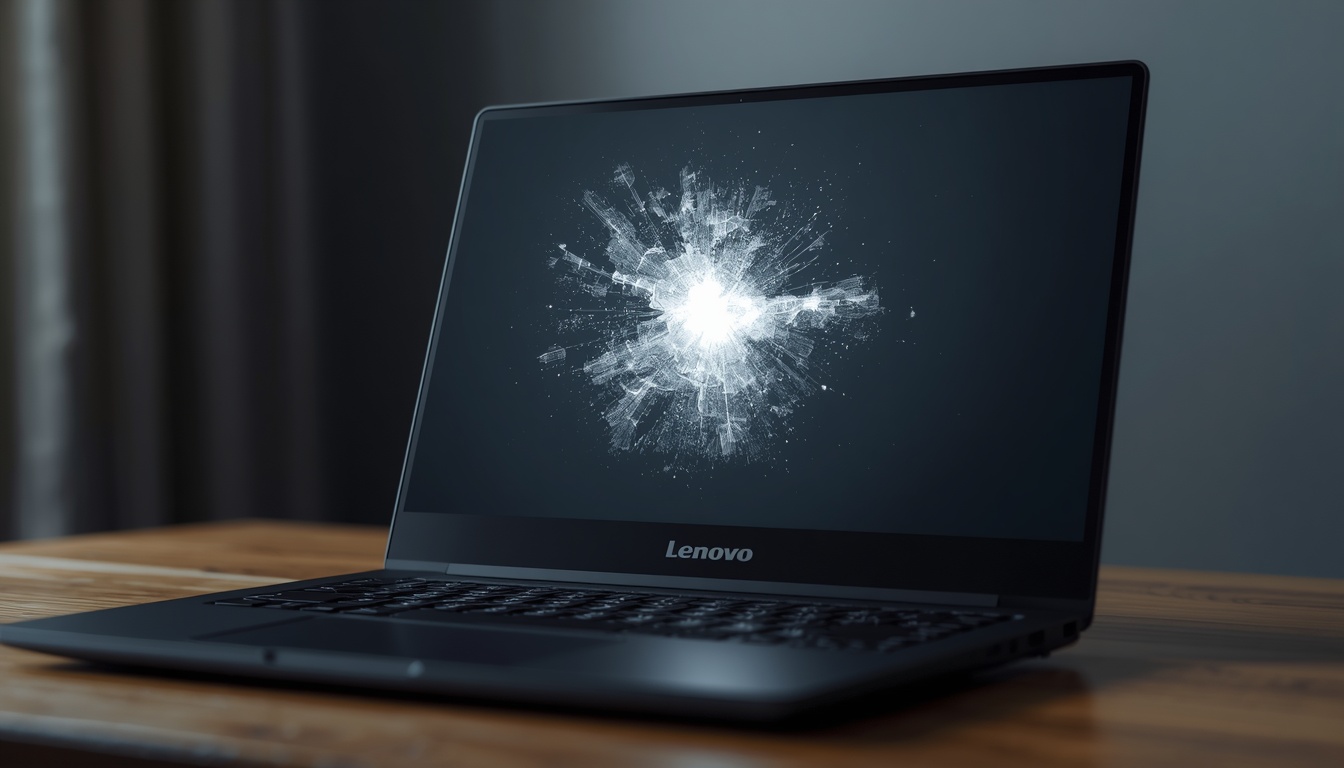
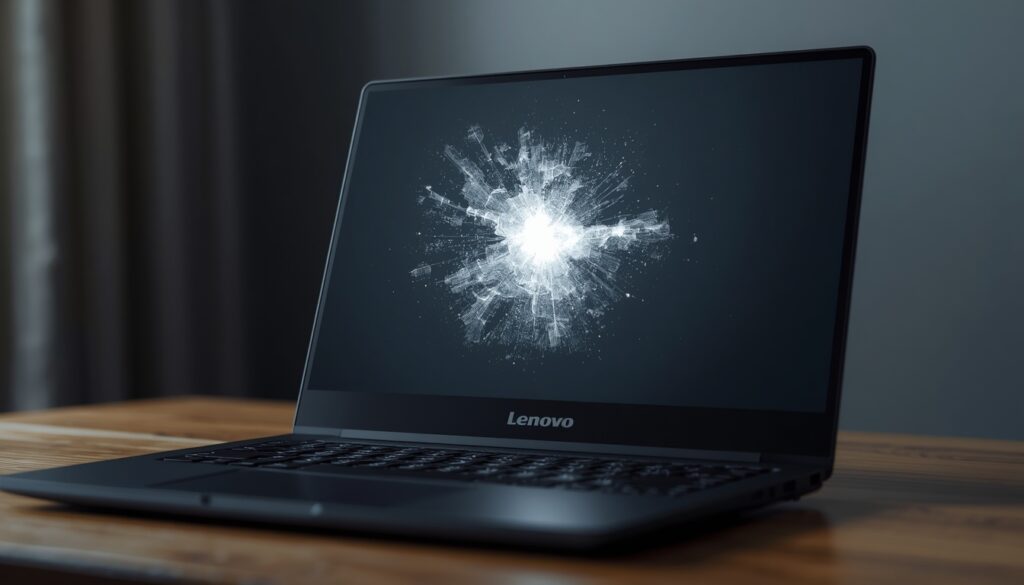
A bright glowing patch suddenly appearing on your Lenovo display can feel alarming. One moment your screen looks perfect, and the next you notice a distracting white area that refuses to disappear.
The good news is that a white spot on lenovo laptop screen does not always mean the display is permanently damaged. In many cases, the issue comes from a stuck pixel, temporary pressure imbalance, or a software related display glitch that can be fixed at home without spending money on a replacement screen.
Quick Answer
What should you do first when you notice a bright patch? You must determine whether it is an isolated stuck pixel or physical LCD layer damage. A stuck pixel often appears as a tiny pinpoint bright dot and may respond to a software pixel repair tool.
Larger glowing patches or cloudy shapes usually indicate LCD display pressure marks, screen pressure damage, or backlight diffuser layer bleed. Running a thorough Lenovo Vantage system check and performing simple manual diagnostic tests can help identify the exact cause before you consider an expensive screen replacement.
White Spot on Lenovo Laptop Screen?
What Causes a White Spot on Lenovo Laptop Screen?
A white spot on lenovo laptop screen can originate from multiple delicate layers inside the display assembly. The most common causes include the following issues:
- Stuck or defective liquid crystal sub pixels
- LCD display pressure marks from external force
- Physical screen pressure damage during transport
- Backlight diffuser layer bleed due to crushed layers
- Internal panel defects or manufacturing imperfections
- Excessive pressure on the laptop lid while packed in a bag
Understanding the exact source is critical because each issue requires a completely different troubleshooting path.
Your Lenovo display issues rarely stop at a single bright spot. Flickering, dim patches, dead zones, and color bleeding are all part of a wider pattern of panel hardware failures that Lenovo users experience across multiple models. If you want a complete picture of every common Lenovo screen problem and how each one is diagnosed and fixed, our full guide on Lenovo Laptop Screen Problems: Complete Fix Guide covers every issue in one place.
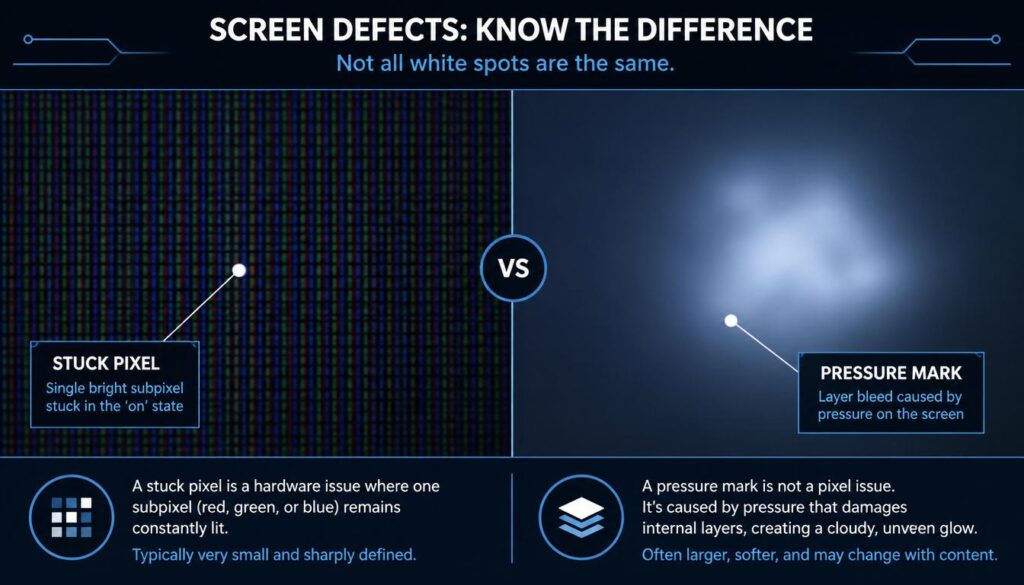
Lenovo Screen Patch Diagnostic: Stuck Pixel vs. Physical Pressure Mark
| Visual Symptom | Stuck Pixel | Physical Pressure Mark |
| Appearance | Tiny, sharp bright dot | Larger cloudy white patch |
| Size | Usually exactly one pixel | Several millimeters or larger |
| Changes with Screen Color | Remains visible on dark backgrounds | Often more visible on solid backgrounds |
| Response to Repair Tools | Sometimes improves with software | Rarely improves with software |
| Primary Root Cause | Pixel remains permanently lit | External pressure on LCD layers |
| Home Repair Success Rate | Moderate to High | Low to Moderate |
| Replacement Required? | Rarely necessary | Sometimes required |
| Recommended Test | Stuck pixel fixing utility | Panel hardware diagnostic |
White Spot on Lenovo Laptop Screen?
This simple comparison matrix helps identify the real source of the anomaly before you attempt any manual repairs.
White Spot on Lenovo Laptop Screen?
White Spot on Lenovo Laptop Screen?
Understanding LCD Pressure Marks
One of the most overlooked causes of a bright patch on a notebook screen is physical pressure damage. Laptop displays contain multiple delicate sheets compressed closely together. When external force presses against the panel, these sensitive layers can deform permanently.
Common pressure sources include:
- Carrying the laptop inside an overloaded backpack.
- Closing the lid with objects like pens or charging cables left on the keyboard.
- Applying excessive force while cleaning the display surface.
- Accidental impact to the outer top lid during travel.
The result of this compression is often a bright patch that resembles a tiny flashlight shining directly behind the glass screen.
Signs of LCD Display Pressure Marks
You are highly likely dealing with LCD display pressure marks if:
- The white area looks cloudy or foggy rather than a sharp pinpoint.
- The spot becomes intensely obvious on plain light backgrounds.
- The shape and position remain unchanged during system restarts.
- Pixel repair software has absolutely no effect on the spot.
How to Check Whether the White Spot Is a Stuck Pixel
Not every glowing defect is a sign of permanent hardware damage. Sometimes a single pixel becomes trapped in an active electrical state and continuously emits full light.
White Spot on Lenovo Laptop Screen Stuck Pixel Test
To confirm this at home, follow these precise diagnostic steps:
- Open a web browser and load a full screen pure black image.
- Observe the affected area closely in a dark room.
- Use a magnifying glass or zoom in with a smartphone camera if necessary.
- Look for an isolated, extremely small pinpoint light source.
If the spot appears incredibly small with sharp edges, it is likely a software or electrical stuck pixel rather than structural panel layer damage.
Run a Lenovo Vantage System Check
Before attempting any physical fixes, always perform a software level hardware diagnostic.
Execution Steps:
- Open the Windows Start menu and launch Lenovo Vantage.
- Navigate directly to the Device Health or hardware section.
- Launch the specialized Display Diagnostics utility.
- Check for any graphics driver or display related warnings.
- Install any recommended display updates or patches.
A Lenovo Vantage system check can help rule out underlying graphics driver corruption and verify that the internal display hardware is communicating correctly with the motherboard.
While running Lenovo Vantage diagnostics, you may notice that your laptop also flags a network connectivity issue alongside the display check. A broken WiFi connection on a Lenovo laptop is one of the most searched problems on our site. If Vantage shows any network warnings during your panel hardware diagnostic session, our guide on WiFi Connected But No Internet Access: 7 Simple Fixes covers every cause and solution in order.
Home Fix #1: Using a Stuck Pixel Fixing Utility
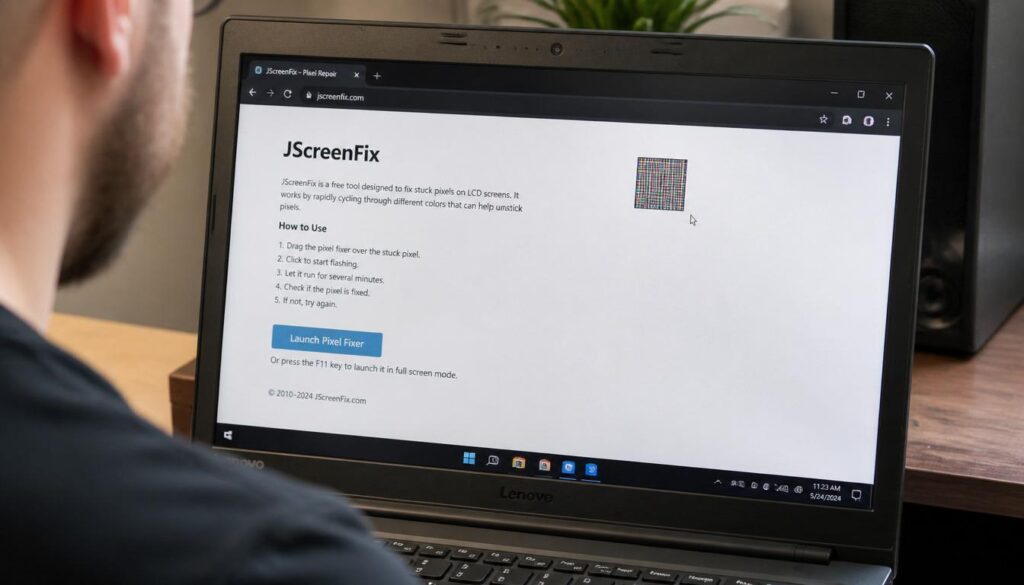
A stuck pixel fixing utility rapidly cycles primary colors across the screen to encourage inactive or locked liquid crystal cells to return to normal operation. These popular pixel refresh tools work by rapidly flashing a localized square matrix through specific sequences: Red, Green, Blue, White, and Black.
Expected Results:
- Minor Stuck Pixels: May recover fully within 30 minutes of running the tool.
- Older Locked Pixels: May require several continuous hours of color cycling.
- Physical Pressure Marks: Will show absolutely zero improvement from this method.
If the bright spot disappears after using a stuck pixel fixing utility, the white spot on lenovo laptop screen was simply pixel related rather than a hardware breakdown.
How to use JScreenFix:
- Navigate to the official jscreenfix.com website in your browser.
- Click the large Launch JScreenFix button.
- Drag the flashing colorful repair square directly over the bright spot on your screen.
- Leave the utility running for at least 30 to 60 minutes without interruption.
- Close the window and inspect the panel on a pure black background.
White Spot on Lenovo Laptop Screen?
White Spot on Lenovo Laptop Screen?
If the cost of panel replacement makes you reconsider the value of your current machine, the first thing worth doing is squeezing more life out of your existing hardware through software. A slow, bloated Windows installation makes every laptop feel older than it is. Our detailed guide on How to Fix Windows 11 Slow Performance and Lag gives you 7 tested fixes that can restore your system speed without spending a single rupee on hardware.
Home Fix #2: The Microfiber Friction Test
This physical correction method should be performed with extreme care and light pressure.
The Microfiber Friction Test Procedure
- Completely turn off the laptop and disconnect the power charger.
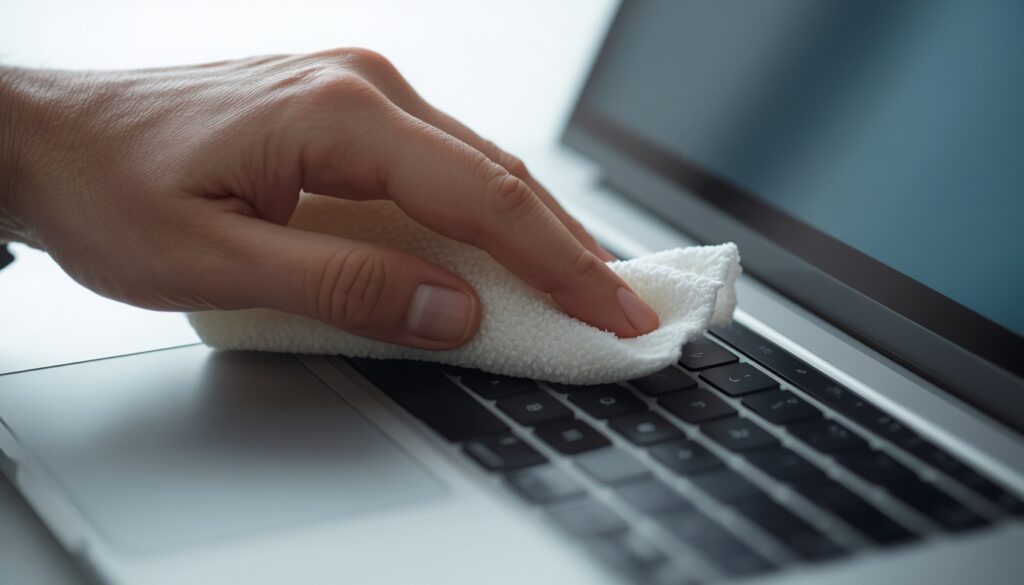
- Grab a clean, completely dry microfiber cloth to protect the outer glass.
- Apply extremely light, gentle circular pressure directly around the affected pinpoint area.
- Turn the laptop back on to inspect the screen state.
- Check whether the bright spot has changed in shape or brightness.
This specialized technique occasionally helps massage minor liquid crystal irregularities back into alignment. However, you must never press hard on the panel surface because additional screen pressure damage can easily occur.
White Spot on Lenovo Laptop Screen?
Home Fix #3: Reduce Temporary Pressure Distortion
Some mild pressure marks improve on their own when the compressed display layers naturally settle back into position.
Try this simple environmental recovery process:
- Keep the laptop open on a flat desk overnight to relieve lid pressure.
- Avoid carrying the device inside a tightly packed or cramped travel bag.
- Store the laptop flat on a stable surface instead of propping it up vertically.
- Avoid stacking heavy textbooks, boxes, or smart devices on top of the closed lid.
If the white spot on lenovo laptop screen gradually becomes fainter or smaller over several days, temporary pressure distortion was responsible and the layers are recovering.
Understanding Backlight Diffuser Layer Bleed
Modern Lenovo displays use thin plastic diffuser sheets to distribute LED light evenly across the entire surface. When these layers shift, separate, or become permanently crushed due to impact, a concentrated bright patch can appear. This condition is technically known as backlight diffuser layer bleed.
Symptoms of diffuser damage include:
- Soft glowing white areas with zero defined borders.
- Uneven overall brightness across that specific quadrant.
- Extreme visibility when working in dim or dark rooms.
- Persistent appearance regardless of what content or colors are displayed.
Unfortunately, deep diffuser layer issues cannot be resolved with software and usually require a professional hardware intervention.
Perform a Panel Hardware Diagnostic
If home software solutions fail, proceed with a definitive isolation test to find where the fault lies.
Test your display across these different environments:
- The System BIOS Screen: Press
F2or the Novo button during startup. - Windows Safe Mode: Boot with basic generic video drivers active.
- An External Monitor: Connect via an HDMI or USB-C cable.
Results Interpretation
- Panel Fault: If the white patch appears in the Windows environment, inside the BIOS screen, and during the initial boot animation, the problem exists within the physical display assembly itself.
- Software Fault: If the spot mysteriously vanishes inside the BIOS screen or only appears when specific Windows programs are open, a graphics setting or software bug is involved.
When Screen Replacement Becomes Necessary
A white spot on lenovo laptop screen will require a complete panel replacement if you experience these compounding issues:
- The bright patch continues growing or changing shape over several weeks.
- Physical cracks or visible pressure indentations are apparent on the outer lid.
- Multiple bright spots develop across different areas of the display.
- The internal backlight components begin flashing or failing completely.
Modern laptop LCD panels are tightly sealed manufacturing assemblies. Replacing individual internal plastic diffuser sheets is rarely economical, meaning a complete panel swap is the standard industry solution.
Can a White Spot Spread Over Time?
Yes, it certainly can. A white spot on lenovo laptop screen caused by localized pressure damage or internal layer separation can become larger over time.
Factors that accelerate this expansion include:
- Heat Exposure: Running heavy processing loads causes thermal expansion in the panel.
- Continued Lid Pressure: Carrying the device in the same cramped backpack daily.
- Frequent Transportation: Constant vibrations can cause a crushed diffuser layer to separate further.
Early identification and changing your laptop handling habits reduce the risk of worsening the existing display damage.
Display Prevention Tips
To avoid experiencing future display issues, incorporate these highly effective protective habits into your daily technical routine:
- Always use a dedicated padded laptop sleeve inside your primary carry bag.
- Never place loose items like flash drives or pens on the keyboard before closing the lid.
- Clean the display gently using light strokes with a dry microfiber cloth.
- Avoid placing heavy objects directly on top of the laptop structure when it is closed.
- Always open and close the laptop lid using the center section to distribute torque evenly.

White Spot on Lenovo Laptop Screen?
These clean habits significantly reduce the risk of another white spot on lenovo laptop screen developing in the future.
Display driver corruption on Windows 11 does not only affect the screen it can slow down your entire system as the GPU struggles to render with a broken driver. If you notice your Lenovo running sluggishly alongside the screen issue, background system bloat is often making things worse. Our guide on How to Use a Windows 11 Debloater to Safely Boost PC Speed walks you through removing the unnecessary background processes that overload your display pipeline.
FAQ
Will a white spot on laptop screen spread?
It can spread depending on the root cause. Pressure related panel damage and diffuser layer bleed issues may gradually expand due to daily vibrations and closing pressure. Isolated stuck pixels, however, always remain the exact same size.
Does Lenovo warranty cover bright spots?
Coverage depends entirely on Lenovo’s official pixel policy, display type, warranty terms, and the exact number of defective pixels detected. Manufacturing component defects are highly likely to qualify for coverage, whereas accidental pressure marks caused by carrying or dropping the device are excluded.
Is a white spot always a hardware problem?
No, it is not always a permanent hardware issue. Small pinpoint bright dots can result from simple stuck liquid crystal cells that can be unstuck, while large cloudy patches usually indicate physical hardware layer compression.
Can I fix screen pressure damage at home?
Minor, fresh pressure distortions sometimes improve naturally over time if all external weight is removed from the laptop. However, permanent physical screen pressure damage typically requires a professional repair or panel replacement.
How do I know if my LCD is damaged?
If the white area remains clearly visible inside the system BIOS screen, survives multiple full reboots, and shows zero reaction to digital pixel repair utilities, physical LCD panel damage is the most likely cause.
Final Diagnosis
When a white spot on lenovo laptop screen appears, your very first step must be identifying whether you are dealing with a software level stuck pixel or genuine physical panel damage. Small pinpoint dots often respond to a free stuck pixel fixing utility, while larger glowing clouds or patches usually point toward LCD display pressure marks, backlight diffuser layer bleed, or permanent screen pressure damage.
Run a thorough Lenovo Vantage system check, perform an independent panel hardware diagnostic, and test the screen layout against solid dark backgrounds. These simple troubleshooting steps can quickly reveal whether a free home fix is completely possible or whether professional screen replacement is the smartest path forward for your device.