How to Flip Screen on Chromebook: Easy Ways to Rotate It
Did your Chromebook screen suddenly turn sideways or upside down?
You can fix it in seconds.
The easiest way to rotate a Chromebook screen is with a keyboard shortcut. Press Ctrl + Shift + Refresh together. Each press rotates the screen by 90 degrees.
You can also change the screen orientation from Chromebook Settings. This is useful when the keyboard shortcut does not work or when you want to choose the orientation manually.
This guide explains how to flip screen on Chromebook using both methods. It also covers sideways screens, upside-down displays, tablet mode, external monitors, and common rotation problems.
How to Flip Screen on Chromebook?
To flip your Chromebook screen, press Ctrl + Shift + Refresh at the same time.
Each press rotates the display by 90 degrees. Keep pressing the shortcut until the screen reaches the orientation you want.
If ChromeOS asks you to confirm the rotation, click Continue.
Google’s current Chromebook keyboard shortcut guide lists Ctrl + Shift + Rotate as the shortcut for rotating the screen 90 degrees. The Rotate key is the circular-arrow Refresh key on compatible Chromebook keyboards.
If the shortcut does not work, you can change the orientation from:
Settings → Device → Displays → Orientation
Google also confirms that orientation can be changed for the built-in display and connected monitors from Display settings.
How Do I Flip My Screen?
The fastest way is to use the Chromebook screen rotation shortcut.
Use the Chromebook Keyboard Shortcut
Press these keys together:
Ctrl + Shift + Refresh
The Refresh key is the circular-arrow key in the top row of most Chromebook keyboards.
When you press the shortcut, the screen rotates by 90 degrees.
If your screen is currently sideways, press the shortcut again until it returns to normal.
Google’s Chromebook Help documentation lists this shortcut under system and display settings.
Where Is the Refresh Key on a Chromebook?
The Refresh key is usually found in the top row.
It has a circular arrow icon.
On many Chromebook keyboards, it appears near the left side of the top row.
The key can also be referred to as the Reload or Rotate key in Chromebook documentation.
So when a guide says Ctrl + Shift + Refresh, use the circular-arrow key.
How Many Times Should I Press the Shortcut?
The screen rotates 90 degrees with each activation.
The common orientations are:
- 0° — normal landscape view
- 90° — rotated sideways
- 180° — upside down
- 270° — sideways in the opposite direction
For example, if your screen is upside down, rotate it 180 degrees to return to normal.
If you do not know the current orientation, simply repeat the shortcut until the display looks correct.
How to Rotate Your Chromebook Screen Using Settings
The keyboard shortcut is not the only way to rotate a Chromebook display.
You can also change the orientation manually through ChromeOS settings.
Step 1: Open Chromebook Settings
First, click the time in the bottom-right corner.
Then select the Settings gear icon.
Step 2: Open Display Settings
In Settings, find the Device section.
Select Displays.
Google’s current Chromebook documentation uses this path for display controls.
Step 3: Find Orientation
Select the display you want to change.
For the built-in Chromebook screen, select Built-in display.
Then find the Orientation option.
Step 4: Choose Your Screen Rotation
Choose the orientation that matches how you want the display to appear.
You can use the available orientation options for landscape or portrait viewing.
The exact choices can vary based on the Chromebook and connected display.
Step 5: Return the Screen to Normal
If your screen is already rotated, select the standard orientation.
This returns the display to its normal position.
This Settings method is also useful if you cannot use the keyboard shortcut.
My Chromebook Screen Is Flipped Sideways. How Do I Fix It?
A sideways Chromebook screen is usually easy to correct.
You do not need to reset your Chromebook or delete your files.
Use Ctrl + Shift + Refresh
Press:
Ctrl + Shift + Refresh
Each press changes the display by 90 degrees.
Continue pressing the shortcut until the screen is back in the normal orientation.
Google’s Chromebook Community also recommends this shortcut for accidentally rotated screens.
Check the Display Orientation Setting
If the shortcut does not work, open:
Settings → Device → Displays
Select the affected display.
Then check Orientation.
Choose the standard orientation to return the screen to normal.
Restart the Chromebook if the Screen Stays Rotated
If the display still looks wrong after changing the orientation, restart the Chromebook.
A restart can help when the display state does not update correctly.
You should not need to Powerwash the device just because the screen is rotated.
How Do I Flip My Chromebook Screen Upside Down?
An upside-down screen uses the same rotation controls.
Rotate the Screen 180 Degrees
If the screen is upside down, use:
Ctrl + Shift + Refresh
The shortcut rotates the display 90 degrees at a time.
Press it until the screen reaches the normal position.
For example, an upside-down display needs two 90-degree rotations to return to 0 degrees.
Use Display Settings Instead
You can also open:
Settings → Device → Displays → Orientation
Then select the desired orientation.
This method can be easier when the keyboard is difficult to use because of the current screen position.
How Do I Rotate a Chromebook Screen 90 Degrees?
You only need one keyboard shortcut.
Press:
Ctrl + Shift + Refresh
One activation rotates the screen by 90 degrees.
This can change a landscape display into a portrait orientation.
Rotate It Again
Press the same shortcut again if you want another 90-degree rotation.
You can cycle through the available orientations until the display is positioned correctly.
This is useful when you accidentally rotate the screen and do not know which direction it moved.
What Is the Chromebook Screen Rotation Shortcut?
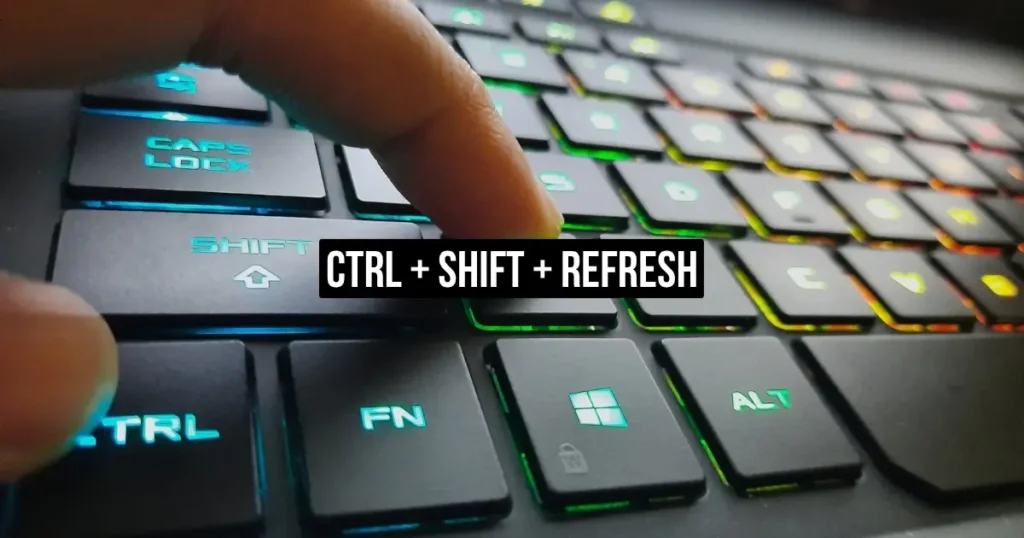
The Chromebook screen rotation shortcut is:
Ctrl + Shift + Refresh
Google lists Ctrl + Shift + Rotate as the keyboard shortcut for rotating the screen 90 degrees.
What the Shortcut Does
The shortcut changes the orientation of the Chromebook display.
It does not change your files or reset ChromeOS.
Each activation rotates the screen by 90 degrees.
This makes it useful for:
- Fixing an upside-down screen
- Fixing a sideways screen
- Switching to portrait orientation
- Rotating a connected display
- Quickly changing screen orientation
Does It Change the Chromebook Permanently?
No.
Screen rotation is a display setting.
You can change it again whenever you want.
It does not require Developer Mode, a Powerwash, or a factory reset.
What Does Ctrl + Alt + Z Do on a Chromebook?
Ctrl + Alt + Z turns ChromeVox on or off.
ChromeVox is ChromeOS’s built-in screen reader.
It provides spoken feedback to help users navigate ChromeOS.
It is not the screen rotation shortcut.
Google’s current Chromebook Help documentation confirms that Ctrl + Alt + Z turns ChromeVox on or off.
So remember the difference:
- Ctrl + Shift + Refresh → rotates the screen
- Ctrl + Alt + Z → turns ChromeVox on or off
If your goal is to fix a sideways screen, use the first shortcut.
How Do I Rotate a Chromebook Screen in Tablet Mode?
Some Chromebooks are 2-in-1 devices.
They can work as both laptops and tablets.
Screen orientation can behave differently in tablet mode.
Does a Chromebook Rotate Automatically in Tablet Mode?
Supported 2-in-1 Chromebooks can use device orientation features when the hardware and ChromeOS configuration support them.
This allows the display to change based on how you hold the device.
However, not every Chromebook behaves in exactly the same way.
Hardware and ChromeOS versions can affect available orientation features.
Check Auto-Rotate
If your Chromebook supports automatic rotation, check the available orientation controls.
If automatic rotation is disabled, the screen may remain in its current orientation.
You can still use the manual display controls when available.
Why Is My Chromebook Not Auto-Rotating?
Several things can cause this behavior.
For example:
- Auto-rotation may be disabled.
- The Chromebook may not currently be in tablet mode.
- The device may handle orientation differently.
- A ChromeOS update may have changed available controls.
- The Chromebook may have a device-specific limitation.
Google Chromebook Community discussions also show that automatic rotation behavior can differ between 2-in-1 and tablet-style Chromebook hardware.
If manual screen rotation works but automatic rotation does not, check your Chromebook model’s support documentation.
How Do I Stop My Chromebook Screen From Rotating Automatically?
Automatic rotation can be useful in tablet mode.
However, it can become annoying when you want the screen to stay fixed.
Turn Off Auto-Rotate
If your Chromebook provides an automatic rotation control, use it to disable automatic orientation changes.
The exact control can vary between ChromeOS devices.
Lock the Current Orientation
When available, an orientation lock keeps the display in its current position.
This can be useful when:
- Reading
- Drawing
- Watching videos
- Using tablet mode
- Holding the Chromebook at an unusual angle
If your device does not provide the same option, use the manual Orientation setting under Displays.
When Should You Disable Auto-Rotate?
You may want a fixed orientation when using the Chromebook as a tablet for a long period.
It can also help when you are reading or drawing and do not want small movements to change the display orientation.
How Do I Flip an External Monitor Connected to a Chromebook?
ChromeOS can manage the orientation of connected displays.
This is useful when using a portrait monitor or another display that needs a different orientation.
Open Display Settings
Click the time in the bottom-right corner.
Then go to:
Settings → Device → Displays
Select the External Monitor
If multiple displays are connected, select the monitor you want to change.
Google’s current documentation explains that you can select the built-in display or the connected monitor separately.
Change Orientation
Find Orientation.
Then select the orientation you want.
This lets you rotate the external display without necessarily changing the orientation of the other display.
Google confirms that display orientation can be adjusted for connected monitors from the Displays settings.
Why Won’t My Chromebook Screen Rotate?
If the normal shortcut does not work, try these troubleshooting steps.
The Keyboard Shortcut Does Nothing
First, make sure you are using the correct shortcut:
Ctrl + Shift + Refresh
Press all three keys together.
Also confirm that you are using the circular-arrow Refresh key.
Google’s current keyboard shortcut documentation identifies this combination for screen rotation.
If the shortcut still does nothing, use the Settings method.
The Screen Is Still Sideways After Using the Shortcut
Open:
Settings → Device → Displays → Orientation
Select the normal orientation.
This is the best fallback when the keyboard shortcut does not solve the problem.
The Orientation Option Is Missing
Display options can vary depending on the Chromebook and connected display.
If you are using an external monitor, make sure it is detected.
Google’s display documentation shows that connected displays appear separately under the Displays section.
If you are using a 2-in-1 Chromebook, also check whether tablet mode is active.
My Chromebook Is in Tablet Mode but Will Not Auto-Rotate
First, check whether automatic rotation is enabled.
Then try these basic steps:
- Return the device to laptop mode.
- Switch back to tablet mode.
- Check the available orientation controls.
- Restart the Chromebook.
- Check for available ChromeOS updates.
- Test manual screen rotation.
If manual rotation works but automatic rotation does not, the issue may be related to the device’s orientation sensor or model-specific behavior.
The Screen Rotates When I Do Not Want It To
If your 2-in-1 Chromebook keeps changing orientation, look for the available auto-rotation control.
You can also set the desired orientation manually through:
Settings → Device → Displays → Orientation
This is useful when you want the display to stay fixed.
Can You Flip the Screen Without a Keyboard?
Yes.
You can use Chromebook Display settings instead of the keyboard shortcut.
Use Chromebook Display Settings
Open:
Settings → Device → Displays
Then select the display and change Orientation.
Google’s current instructions confirm this method for Chromebook displays and connected monitors.
Use Touch Controls on a 2-in-1 Chromebook
Some 2-in-1 Chromebooks provide touch-based controls for orientation.
The exact controls depend on the device.
If you cannot find an auto-rotate or orientation control, use the Displays settings instead.
Does Flipping the Chromebook Screen Affect My Files?
No.
Changing screen orientation is a display function.
It does not normally:
- Delete your files
- Remove applications
- Sign you out
- Reset ChromeOS
- Enable Developer Mode
- Powerwash your Chromebook
Screen rotation simply changes how the display is oriented.
This is very different from actions such as Powerwash or switching ChromeOS modes.
Can I Flip Only One Screen on a Chromebook?
Yes, when you have multiple displays and ChromeOS provides separate display controls.
Built-In Display
Open:
Settings → Device → Displays
Then select the Built-in display.
You can adjust its display settings separately.
External Display
Select the connected monitor from the Displays section.
Then change its Orientation.
Google confirms that Chromebook users can select the built-in display or a connected monitor individually when adjusting display settings.
This is useful for multi-monitor setups where one display needs portrait orientation.
How Do I Rotate My Chrome Page 90 Degrees?
This question can be confusing because rotating a Chromebook screen is different from rotating content on a webpage.
If you want to rotate the entire Chromebook display, use:
Ctrl + Shift + Refresh
If you only want to change the size of content in Chrome, use browser zoom instead.
Chrome’s keyboard shortcuts include Ctrl + + for zooming in, Ctrl + – for zooming out, and Ctrl + 0 to reset the zoom level.
Normal browser zoom does not rotate the entire Chromebook screen.
Chromebook Screen Rotation vs Browser Zoom
These two features solve different problems.
| Feature | Screen Rotation | Browser Zoom |
| Changes display orientation | Yes | No |
| Changes webpage size | No | Yes |
| Rotates the entire screen | Yes | No |
| Works through ChromeOS Display settings | Yes | No |
| Main keyboard shortcut | Ctrl + Shift + Refresh | Ctrl + + / Ctrl + – |
| Useful for sideways screens | Yes | No |
If the entire display is sideways, changing Chrome’s zoom will not fix it.
Use the Chromebook screen rotation shortcut instead.
Is It Safe to Flip the Screen on a Chromebook?
Yes.
Screen rotation is a normal ChromeOS display feature.
It does not require advanced system access.
It does not require Developer Mode.
It also does not normally delete or modify your personal files.
You can safely change the orientation and return it to normal later.
If you want to learn about Developer Mode separately, see How to Turn On Developer Mode on Chromebook.
When Should You Use Screen Rotation on a Chromebook?
Screen rotation is useful in more situations than fixing an accidental sideways display.
Portrait Reading
Portrait orientation can make long webpages and documents easier to read.
Tablet Mode
A 2-in-1 Chromebook can be easier to use when the display matches the way you hold the device.
Presentations
Portrait orientation can be useful for certain presentations or digital signage setups.
External Displays
Some external monitors are designed to be used vertically.
ChromeOS lets you change the orientation of supported connected displays through Display settings.
Troubleshooting an Accidentally Flipped Screen
This is one of the most common reasons people search for screen rotation instructions.
If your Chromebook suddenly looks sideways or upside down, the keyboard shortcut is usually the fastest solution.
If you are experiencing a broader display problem, see our guide on How to Fix a Glitchy Chromebook Screen.
Frequently Asked Questions About Chromebook Screen Rotation
How do I flip my screen?
Press Ctrl + Shift + Refresh. Each activation rotates the screen by 90 degrees.
My Chromebook screen is sideways. How do I fix it?
Press Ctrl + Shift + Refresh until the screen returns to its normal orientation. You can also use Settings → Device → Displays → Orientation.
How do I rotate my Chromebook screen 90 degrees?
Press Ctrl + Shift + Refresh once.
How do I flip my Chromebook screen upside down?
Press Ctrl + Shift + Refresh until the display reaches the desired orientation. An upside-down display is 180 degrees from the normal position.
What is the Chromebook screen rotation shortcut?
The shortcut is Ctrl + Shift + Refresh. Google lists it as the shortcut for rotating the screen 90 degrees.
Does flipping the screen delete anything?
No. Changing the display orientation does not normally delete your files or reset the Chromebook.
How do I rotate a Chromebook in tablet mode?
On supported 2-in-1 devices, you can use automatic orientation or available display controls. The exact behavior depends on the Chromebook model and ChromeOS configuration.
Why is my Chromebook not auto-rotating?
Auto-rotation may be disabled, the device may not be in tablet mode, or the Chromebook may handle orientation differently. Check the available orientation controls and your device documentation.
Can I rotate an external monitor with a Chromebook?
Yes. Open Settings → Device → Displays, select the connected monitor, and change its Orientation setting.
What does Ctrl + Alt + Z do on a Chromebook?
Ctrl + Alt + Z turns ChromeVox on or off. It does not rotate the screen.
Can I flip the screen without using the keyboard?
Yes. Open Settings → Device → Displays and change the Orientation setting.
Does screen rotation require Developer Mode?
No. Screen rotation is a normal ChromeOS display feature.
Final Checklist: How to Flip Screen on Chromebook
Before troubleshooting further, try these steps:
- Press Ctrl + Shift + Refresh.
- Confirm the rotation if ChromeOS asks.
- Press the shortcut again for another 90-degree rotation.
- Open Settings → Device → Displays if the shortcut does not work.
- Check the Orientation setting.
- Select the correct display if you use an external monitor.
- Check auto-rotation on supported 2-in-1 Chromebooks.
- Restart the Chromebook if the orientation appears stuck.
- Avoid Powerwash for a simple screen-rotation problem.
- Check your Chromebook model’s documentation if the expected orientation controls are missing.
Final Thoughts
Flipping a Chromebook screen is usually quick and simple.
The fastest method is Ctrl + Shift + Refresh. Each press rotates the display by 90 degrees.
If the shortcut does not work, open Settings → Device → Displays → Orientation and choose the orientation you need.
For 2-in-1 Chromebooks, automatic rotation can add another layer. The available behavior depends on the device and ChromeOS configuration.
The key point is simple:
Screen rotation changes your display orientation. It does not require Developer Mode, does not normally delete your files, and does not require a factory reset.
If your Chromebook screen is sideways because of an accidental shortcut, try Ctrl + Shift + Refresh first. In most cases, that is all you need.