How to Turn On Developer Mode on Chromebook: Step-by-Step Guide
Chromebooks are designed to be secure, simple, and easy to manage. However, advanced users sometimes need more control over ChromeOS.
That is where Chromebook Developer Mode comes in.
Developer Mode relaxes some ChromeOS security restrictions and provides access to advanced developer features. It can be useful for development, testing, certain Android workflows, and other advanced tasks.
However, there is one important warning you should know first.
Switching into or out of Developer Mode wipes local data on the Chromebook.
Back up your important files before you begin. Save files from your Downloads folder and anything else stored only on the device.
Also, school and work Chromebooks may have administrator policies that block Developer Mode.
Quick Answer
To turn on Developer Mode on most Chromebooks,
- Shut down the device and enter Recovery Mode by pressing Esc + Refresh + Power.
- At the recovery screen, press Ctrl + D,
- Then press Enter to turn OS verification off.
- The Chromebook will restart and erase local data during the mode transition.
- Afterward, press Ctrl + D at the Developer Mode warning screen to boot ChromeOS.
The exact screens can vary by Chromebook model and ChromeOS version. ChromiumOS documentation confirms that switching into Developer Mode triggers a Mode Transition Wipe.
What Is Developer Mode on a Chromebook?
Developer Mode is a special ChromeOS device mode designed for developers and advanced users.
Normal ChromeOS devices use security features such as verified boot to help ensure that the operating system has not been modified.
Developer Mode relaxes some of those restrictions. This gives users greater access to the underlying ChromeOS system.
What Does Chromebook Developer Mode Do?
Developer Mode can provide:
- More control over ChromeOS
- Access to developer-oriented tools
- Access to advanced shells
- Greater control over system software
- Support for certain advanced Android workflows
- Options for alternative operating-system workflows on supported hardware
It also reduces some of the normal security protections.
ChromiumOS states that Developer Mode makes verified boot more permissive and provides access to a root shell.
Developer Mode does not automatically install Linux, Windows, or another operating system.
Those are separate processes with their own hardware and software requirements.
If you want a complete guide, see How to Get Windows on Chromebook.
Is Developer Mode the Same as Developer Channel?
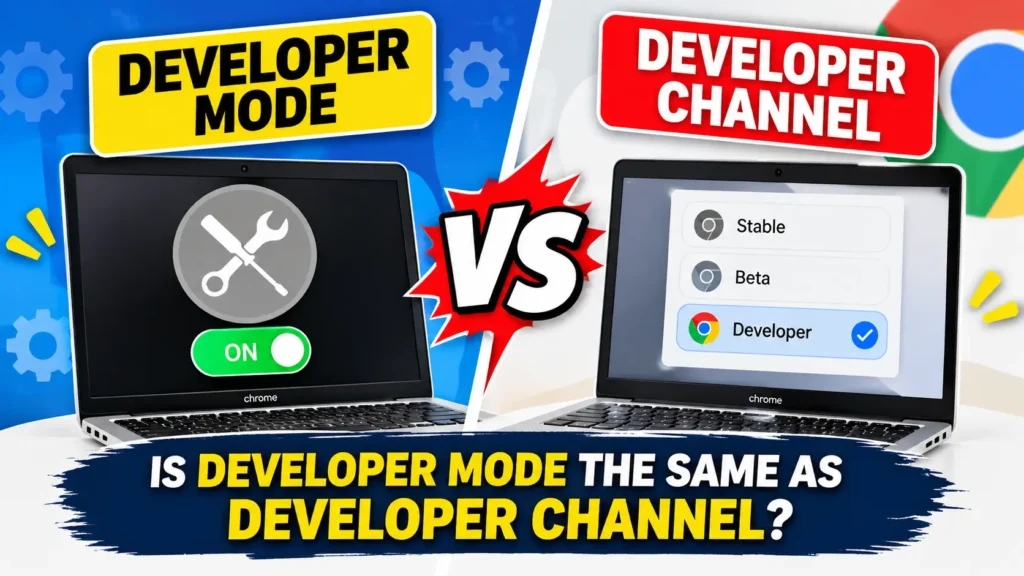
No.
Developer Mode changes the security and boot state of the Chromebook.
Developer Channel is a ChromeOS software update channel.
The two features have different purposes.
You can use a different ChromeOS update channel without putting the Chromebook into Developer Mode.
Who Should Use Developer Mode?
Developer Mode is mainly intended for people with a specific advanced task.
It may be useful for:
- Developers
- ChromeOS testers
- Advanced Chromebook users
- Users working with certain sideloading workflows
- Users experimenting with supported system-level features
Most Chromebook owners do not need Developer Mode for normal browsing, schoolwork, documents, streaming, or everyday apps.
Does Turning On Developer Mode Delete Everything on a Chromebook?
Yes. Switching between Normal Mode and Developer Mode triggers a mode-transition wipe.
This means local data stored on the Chromebook can be erased.
ChromiumOS documentation specifically states that transitioning into or out of Developer Mode wipes the device’s stateful partition.
This is why you should back up your files before starting.
What Gets Deleted?
You should expect locally stored Chromebook data to be removed during the transition.
This can include files saved in places such as:
- Downloads
- Local storage
- Other folders stored only on the device
- Local account data
Do not assume that an important file will survive the process.
What Should You Back Up First?
Before you learn how to turn on Developer Mode on Chromebook, create a backup.
Check your Chromebook for:
- Documents
- Photos
- Downloads
- Videos
- School files
- Work files
- Important project folders
- Files stored only offline
You can copy important files to Google Drive, an external storage device, or another safe location.
Open your backup and confirm that the files are actually there before continuing.
Will Google Drive Files Be Deleted?
Files already synchronized with Google Drive are stored in Google’s cloud rather than only on the Chromebook.
Those cloud files are different from files stored only in local Chromebook storage.
Still, check your synchronization status before starting.
If a file is important, make an additional backup rather than relying on one copy.
How Do You Turn On Developer Mode?
This is the standard process for most modern Chromebooks with a keyboard.
The process uses Recovery Mode and the Ctrl + D keyboard shortcut.
Step 1: Back Up Your Chromebook
Back up all important local files first.
Pay special attention to your Downloads folder.
Then connect your Chromebook to its charger.
Keeping the device connected to power helps prevent an interruption during the mode transition.
Step 2: Turn Off the Chromebook
Shut down the Chromebook completely.
Do not simply close the lid.
Wait until the device has fully powered off.
Step 3: Enter Recovery Mode
With the Chromebook powered off, press and hold:
Esc + Refresh + Power
The Refresh key is normally located in the top row of the Chromebook keyboard.
On many models, it looks like a circular arrow.
ChromiumOS documentation uses Esc + Refresh + Power for modern keyboard-based Chromebook recovery mode.
Some devices use different recovery procedures.
Chromebooks without a standard keyboard, such as some tablets, can use different buttons.
Step 4: Open the OS Verification Prompt
After entering Recovery Mode, the Chromebook should display a recovery screen.
The wording can vary between ChromeOS versions and devices.
You may see a message related to ChromeOS recovery or OS verification.
Do not worry if your screen does not look exactly like another Chromebook.
Step 5: Press Ctrl + D
At the appropriate recovery screen, press:
Ctrl + D
This starts the Developer Mode transition.
On supported devices, ChromiumOS documentation identifies Ctrl + D as the shortcut used to enter Developer Mode from Recovery Mode.
Step 6: Confirm That OS Verification Should Be Turned Off
The Chromebook will show a confirmation message.
Press Enter to confirm.
This changes the OS verification state and begins the Developer Mode transition.
The device will warn you that local data will be cleared.
That warning is important.
Step 7: Wait for the Chromebook to Prepare Developer Mode
The Chromebook will restart and prepare the device for Developer Mode.
During this process, local data is erased.
The process can take several minutes depending on the device.
Do not turn off the Chromebook during the transition.
Let the Chromebook complete the process.
Step 8: Boot Into Developer Mode
After the transition finishes, you should see the Developer Mode warning screen.
Press:
Ctrl + D
This tells the Chromebook to boot ChromeOS from its internal storage.
The warning screen can appear during future boots.
ChromiumOS documents Ctrl + D as the shortcut for booting the system from the internal disk from the Developer Mode screen.
How Do I Know Developer Mode Is Enabled?
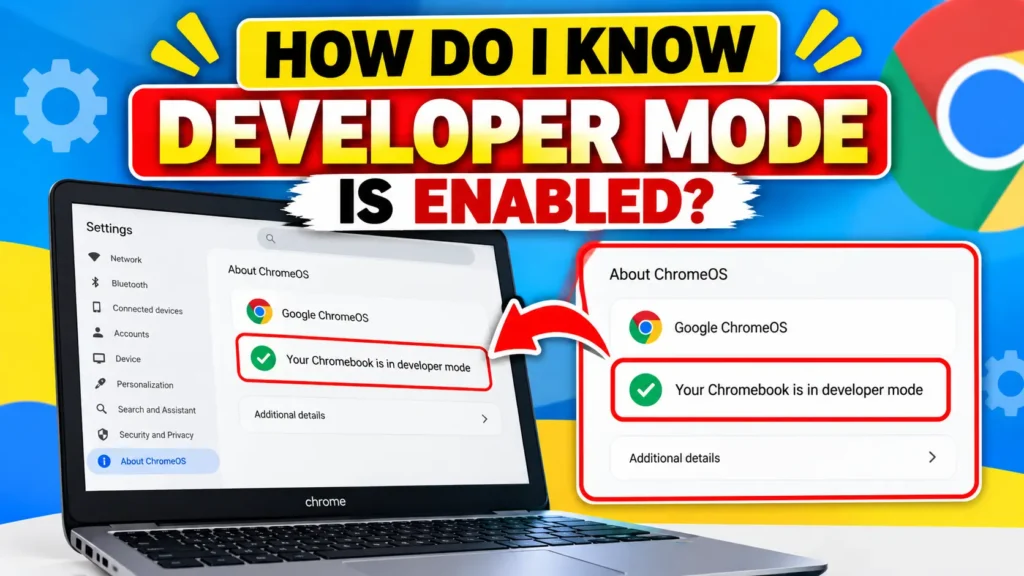
The startup screen provides the clearest indication.
Look for the OS Verification Warning
A Developer Mode warning screen should appear during startup.
The exact design and wording can vary between ChromeOS versions.
The important sign is that the device indicates OS verification is disabled or that the device is operating in Developer Mode.
ChromiumOS says the Developer Mode warning screen appears on every boot.
Test the Developer Environment
Advanced users can access developer-oriented shells after enabling Developer Mode.
However, you do not need to run advanced commands just to confirm that Developer Mode works.
The startup warning is normally enough for basic confirmation.
Why Does the Warning Screen Appear Every Time?
The warning is intentional.
Developer Mode relaxes some of ChromeOS’s normal verified-boot protections.
The warning reminds you that the Chromebook is operating with a different security state.
On supported devices, the warning screen can automatically continue after a timeout.
What Happens After You Turn On Developer Mode?
Several important changes occur after the mode transition.
Your Chromebook Shows a Warning at Startup
You will normally see a Developer Mode warning screen when the Chromebook starts.
Press Ctrl + D to continue booting ChromeOS.
ChromeOS Becomes Less Secure
Developer Mode makes verified boot less restrictive.
This means the device can allow system modifications that normal ChromeOS blocks.
ChromiumOS warns that Developer Mode makes the device less secure and can expose it to additional risks.
Local Data Is Wiped During Mode Changes
The data wipe happens when transitioning between Normal Mode and Developer Mode.
This is a core part of the security design.
Always maintain backups before changing modes.
Some Advanced Features Become Available
Depending on the device and ChromeOS version, Developer Mode can provide access to:
- Developer shells
- Advanced system controls
- Certain sideloading workflows
- Alternative boot workflows
- Development and testing features
Not every feature works on every Chromebook.
Hardware, firmware, ChromeOS version, and device policies can affect what is available.
How Do I Activate Developer Mode in Chrome?
If you mean the Chrome browser, there is an important terminology difference.
Chrome browser Developer Tools are not the same as ChromeOS Developer Mode.
You do not enable ChromeOS Developer Mode from the Chrome browser settings.
Chrome Developer Tools vs Chromebook Developer Mode
Chrome DevTools
- Used to inspect websites.
- Helps developers test web pages.
- Lets developers inspect HTML, CSS, JavaScript, and network activity.
- Runs inside the Chrome browser.
ChromeOS Developer Mode
- Changes the Chromebook’s boot and security state.
- Starts from Recovery Mode.
- Changes OS verification.
- Wipes local data during the mode transition.
So, if you only want to inspect a website, you do not need Chromebook Developer Mode.
Is Developer Mode Safe on a Chromebook?
Developer Mode is not as secure as the normal ChromeOS configuration.
That does not mean every device in Developer Mode will immediately have problems.
It means some built-in protections are intentionally relaxed.
Why Developer Mode Reduces Security
Normal ChromeOS uses verified boot to help protect the operating system from unauthorized changes.
Developer Mode makes verified boot less restrictive.
This allows advanced system modifications but also reduces some protection against modified software.
What Risks Should You Understand?
Before enabling Developer Mode, understand these risks:
- Local data is wiped during mode changes.
- Boot-time security protections are reduced.
- Unsafe system modifications can cause software problems.
- Incorrect changes may require recovery.
- Some modifications can affect updates or system stability.
- Warranty or support treatment may depend on the manufacturer and circumstances.
ChromiumOS specifically warns that system modifications are not supported by Google and may cause hardware, software, or security issues.
Should You Leave Developer Mode Enabled?
Keep Developer Mode enabled when you have a clear reason to use it.
If you no longer need advanced features, you can return the Chromebook to Normal Mode.
Remember that disabling Developer Mode also triggers a data wipe.
Can You Enable Developer Mode on a School or Work Chromebook?
Sometimes you cannot.
A school or work Chromebook may be managed by an organization.
Why Developer Mode May Be Blocked
Administrators can use ChromeOS management policies to control device behavior.
These policies can prevent users from entering Developer Mode.
ChromiumOS also documents administrator restrictions as a possible reason Developer Mode cannot be enabled.
What Does an Administrator-Blocked Chromebook Mean?
It usually means the Chromebook is controlled by a school, business, or other organization.
The restriction is part of the device’s management policy.
Should You Try to Bypass the Administrator?
No.
Do not try to bypass organizational controls on a managed Chromebook.
If you need Developer Mode for a legitimate school or work task, contact the organization’s administrator.
They can tell you whether the device can be placed into Developer Mode.
Why Can’t I Turn On Developer Mode on My Chromebook?
Several issues can prevent the process from working.
The Ctrl + D Shortcut Does Not Work
First check that:
- The Chromebook is actually in Recovery Mode.
- The device was fully powered off first.
- You are pressing the correct Ctrl and D keys.
- You are using the recovery screen rather than the normal login screen.
If the device is managed, an administrator policy may also prevent Developer Mode.
Developer Mode Keeps Turning Off
Check whether the Chromebook is managed by a school or organization.
Also consider whether the device has unusual firmware or device-specific restrictions.
If the problem continues, check documentation for your exact Chromebook model.
Chromebook Returns to Normal Mode
A managed Chromebook may have restrictions that prevent Developer Mode.
Device-specific firmware or configuration can also affect the process.
The Chromebook Does Not Enter Recovery Mode
The standard combination for many modern keyboard Chromebooks is:
Esc + Refresh + Power
However, some devices use different recovery controls.
ChromiumOS documents different procedures for tablets, Chromeboxes, and older hardware.
Developer Mode Is Not Available on My Device
Do not assume that every ChromeOS device uses exactly the same procedure.
Chromebook tablets can use volume buttons during the Developer Mode process.
Older hardware can also have different mechanisms.
Check documentation for the exact device model if the standard method does not work.
How Do I Turn Off Developer Mode on a Chromebook?
You can return the Chromebook to Normal Mode.
However, this also causes a data wipe.
Step 1: Restart the Chromebook
Restart the Chromebook until the Developer Mode warning screen appears.
Step 2: Press the Spacebar
At the Developer Mode screen, press the Spacebar.
This selects the option to restore OS verification on supported keyboard devices.
Step 3: Confirm the Change
Follow the confirmation prompt shown on the screen.
The Chromebook will begin switching back to Normal Mode.
Step 4: Wait for the Reset
The device will erase local data and restore the normal ChromeOS security state.
Allow the process to finish.
What Happens When You Disable Developer Mode?
After the transition:
- Local data is wiped.
- OS verification is restored.
- Normal ChromeOS boot behavior returns.
- Developer Mode access is removed.
ChromiumOS confirms that pressing Spacebar at the Developer Mode firmware screen returns supported keyboard devices to Normal Mode.
Do You Need Developer Mode to Install APK Files on a Chromebook?
Not necessarily.
The answer depends on the Chromebook model, ChromeOS version, Android support, and the method you are trying to use.
When Developer Mode May Be Used for APK Sideloading
Developer Mode can be part of certain advanced Android application workflows.
However, it should not be treated as a universal requirement for every Android app installation.
ChromeOS has changed its Android and debugging capabilities over time.
Can You Install APKs Without Developer Mode?
Some supported workflows can use Android debugging or Linux-based tools without changing the Chromebook’s boot mode.
The exact options depend on the device and ChromeOS version.
If your only goal is installing an Android app, check the supported method for your specific Chromebook before enabling Developer Mode.
Do You Need Developer Mode to Install Linux on a Chromebook?
No, not for the standard ChromeOS Linux development environment.
ChromeOS provides a separate Linux development environment on supported devices.
Developer Mode vs Linux Development Environment
| Feature | Developer Mode | Linux Development Environment |
| Changes boot security | Yes | No |
| Wipes data during mode transition | Yes | No normal mode-transition wipe |
| Designed for advanced system access | Yes | No |
| Runs Linux applications | Not automatically | Yes |
| Needed for every Linux setup | No | No |
Developer Mode and the Linux development environment serve different purposes.
If your goal is simply to run Linux apps, check whether your Chromebook supports ChromeOS’s built-in Linux environment first.
For a complete Linux setup guide, see How to Install Linux on a Chromebook.
Developer Mode vs Recovery Mode: What’s the Difference?
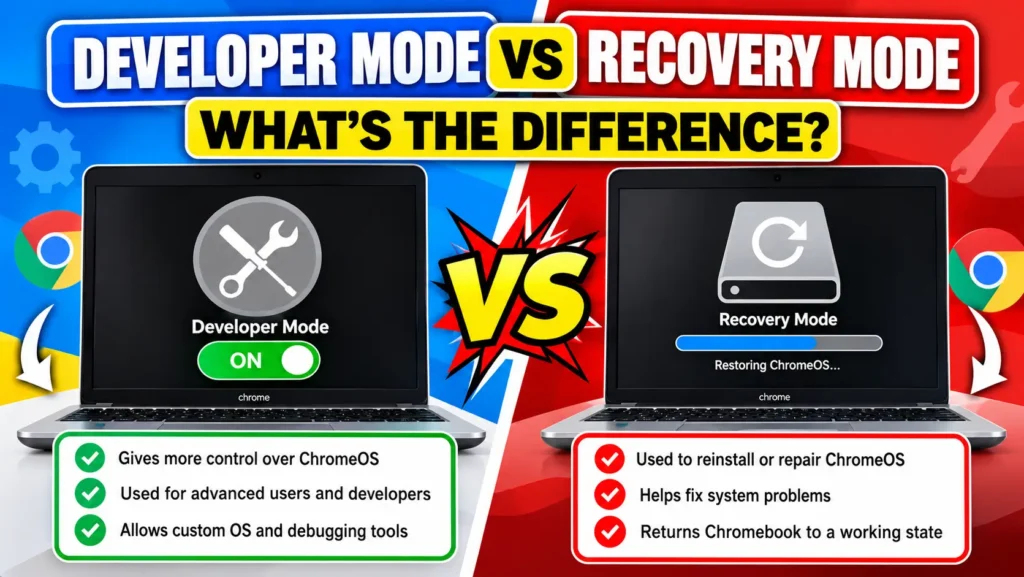
These two terms are closely related but mean different things.
Recovery Mode is a boot environment used for recovery and certain system procedures.
Developer Mode is a persistent ChromeOS device mode with relaxed security restrictions.
Recovery Mode is commonly used as the starting point for enabling Developer Mode.
Think of it this way:
Recovery Mode → Developer Mode setup → Developer Mode
They are not the same feature.
What Does Ctrl + D Do on a Chromebook?
Ctrl + D has an important role in the Developer Mode process.
At the Recovery Mode screen, Ctrl + D starts the process of enabling Developer Mode.
After Developer Mode is enabled, Ctrl + D at the warning screen boots ChromeOS from the internal storage.
ChromiumOS documents both uses in its Developer Mode instructions.
The exact behavior depends on which screen the Chromebook is showing.
What Does Ctrl + Alt + Z Do on a Chromebook?
Ctrl + Alt + Z turns ChromeVox spoken feedback on or off.
ChromeVox is ChromeOS’s built-in screen reader for accessibility.
It is not a Developer Mode shortcut.
Google’s current Chromebook keyboard shortcut documentation lists Ctrl + Alt + Z as the shortcut for turning ChromeVox on or off.
So if you are trying to enable Developer Mode, do not use Ctrl + Alt + Z.
The relevant Developer Mode shortcut is Ctrl + D at the appropriate Recovery Mode screen.
Frequently Asked Questions About Chromebook Developer Mode
Does Developer Mode erase everything?
Yes. Switching between Normal Mode and Developer Mode triggers a mode-transition wipe of local device data. Back up important files first.
How long does Developer Mode take to enable?
The preparation can take several minutes. The exact time depends on the Chromebook and ChromeOS version.
Do I need Developer Mode for Linux?
No. The standard Linux development environment works separately from Developer Mode on supported Chromebooks.
Can I enable Developer Mode without losing data?
The standard Developer Mode transition is designed to wipe local data. You should back up your Chromebook before starting.
Can a school Chromebook use Developer Mode?
A school-managed Chromebook may have Developer Mode blocked by administrator policy.
Does Developer Mode make a Chromebook less secure?
Yes. Developer Mode relaxes some verified-boot protections and allows greater system access.
Can I go back to normal mode?
Yes. You can disable Developer Mode and restore OS verification. However, switching back also wipes local data.
Does Developer Mode void my Chromebook warranty?
Warranty treatment can depend on the manufacturer, device, and circumstances. Check the current warranty terms for your specific Chromebook before making system modifications.
Can I install Windows after enabling Developer Mode?
Developer Mode alone does not install Windows.
Windows compatibility depends on the Chromebook’s processor, firmware, drivers, storage, and available installation methods.
Enabling Developer Mode is therefore not a guarantee that Windows will run.
Final Checklist: Before Enabling Developer Mode
Before you start, make sure you have completed these steps:
- Back up your local files.
- Check your Downloads folder.
- Confirm important files are safely backed up.
- Connect the Chromebook to power.
- Understand that the mode transition wipes local data.
- Shut down the Chromebook.
- Enter Recovery Mode.
- Press Ctrl + D.
- Confirm the OS verification change.
- Wait for the Chromebook to finish preparing Developer Mode.
- Press Ctrl + D at the Developer Mode warning screen.
- Expect the warning screen during future boots.
- Avoid changing system files unless you understand the risks.
Final Thoughts
Developer Mode gives advanced Chromebook users more control over ChromeOS.
The process is straightforward on most modern keyboard-based Chromebooks. You enter Recovery Mode, use Ctrl + D, confirm the OS verification change, and wait for the mode transition to finish.
The most important part is not the keyboard shortcut.
It is understanding what Developer Mode changes.
The transition wipes local data and reduces some built-in ChromeOS security protections. Managed school and work Chromebooks may also block the feature.
Developer Mode is also different from Chrome DevTools and the ChromeOS Developer Channel.
If you have a specific reason to use Developer Mode, back up your files first and follow the steps carefully.