Few office frustrations match the annoyance of a print job that will not start because your equipment refuses to communicate with the network. If your print job is stuck, your printer icon shows an offline status, or the display on your machine will not stop flashing a blinking WiFi symbol, you are not alone. Knowing how to connect brother printer to wifi is a common technical hurdle that often stems from unclear control panel interfaces or modern dual-band router configurations. This authoritative guide breaks down the exact procedure to get your printing equipment online immediately, bypassing the confusing jargon found in standard manuals.
Quick Answer
To initiate a standard brother printer setup, press the Menu or Settings button on your machine. Navigate to Network or LAN, select WLAN, and choose the Setup Wizard. Select your 2.4GHz network name, enter your password, and your connection is complete.
Brother WiFi Setup Methods Compared
Choosing the correct installation approach saves time and ensures network stability. The table below outlines how the three main paths compare for your brother printer set up.
| Setup Method | Setup Speed | Connection Stability | Best Use Case Scenario |
| Control Panel Setup Wizard | Moderate (3 to 5 minutes) | High | Touchscreen or button models with known SSID and password |
| WPS Button Handshake | Fast (Under 60 seconds) | Medium | Displayless models or routers positioned close together |
| USB Cable Installation | Slower (5 to 10 minutes) | Maximum | Older routers without WPS, hidden SSIDs, or initial provisioning |
Each column matters for a specific reason. Setup speed tells you how much time to set aside. Stability tells you how likely the connection is to drop later. Best use case tells you which method to reach for first, based on your router and your printer model, rather than guessing and starting over.
If you own a different printer brand alongside your Brother machine, the same core wireless logic applies across almost every manufacturer. For a broader walkthrough that works for non-Brother models too, check out our complete guide on how to connect a printer to WiFi.
How to Connect Brother Printer to WiFi Using the Touchscreen Wizard
Newer Brother models, including many in the MFC and HL series, use a color touchscreen instead of physical arrow buttons. If your printer has a screen you can tap, this is the fastest and most reliable brothers printer setup path available.
Step 1: Gather Your Network Credentials First
Before touching the printer, write down your WiFi network name, which is also known as the Service Set Identifier (SSID), and your network password. You will usually find both printed on a sticker on the side or bottom of your internet router. Brother machines are case sensitive when entering this information, so copy it exactly, including capital letters and symbols.
Step 2: Run the WLAN Setup Wizard From the Home Screen
- Tap the Settings icon (often represented by a spanner and screwdriver) on the home screen.
- Tap All Settings, then select Network or LAN.
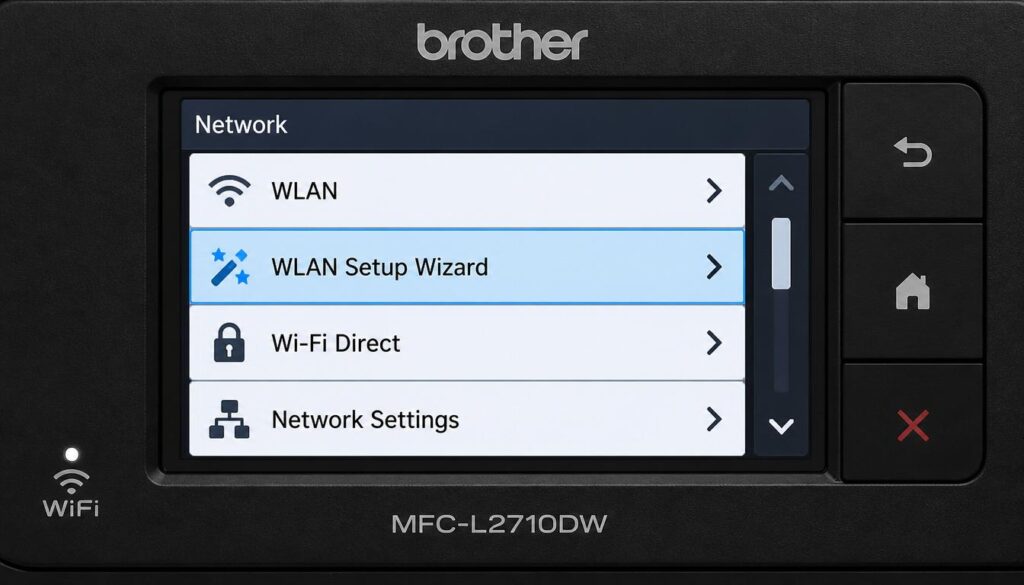
- Choose WLAN from the list, and then select Setup Wizard or WLAN Assistant.
- When the screen asks WLAN Enable?, tap Yes. The printer will search the airwaves and display every visible network name within range.
- Tap your specific network name from the list. If your router hides its SSID broadcast, tap New SSID instead and type the name manually.
- Enter your password when prompted, then tap OK to apply the settings.
How to Connect Brother Printer to WiFi ?
How to Connect Brother Printer to WiFi ?
Step 3: Confirm the Connection With a WLAN Report
Once you apply the settings, the printer attempts to connect and prints a wireless status report automatically. Look at the Connection field near the top of the page. If it reads Connected, you are finished, and the WiFi indicator on the printer should turn solid blue.
Setting Up Brother Printers Without a Touchscreen: The WPS Button Method
Older and budget Brother models, like many entry level HL and DCP series printers, skip the touchscreen entirely and rely on a small set of arrow keys plus a Menu button. Do not worry. These machines can still connect wirelessly, and in some ways the process is even simpler if your router supports Wi-Fi Protected Setup (WPS).
How to Connect Brother Printer to WiFi Using the WPS Button (No Screen Required)
- Confirm your router has a physical WPS button. It is usually labeled WPS and sits on the back or side panel of the router.
- Go to your printer control panel. Press the Menu button.
- Use the up or down arrow keys to select Network or LAN, then press OK.
- Scroll to WLAN and press OK, then select WPS or WPS/AOSS and press OK again.
- When the LCD asks you to enable WLAN, press the appropriate arrow key for Yes.
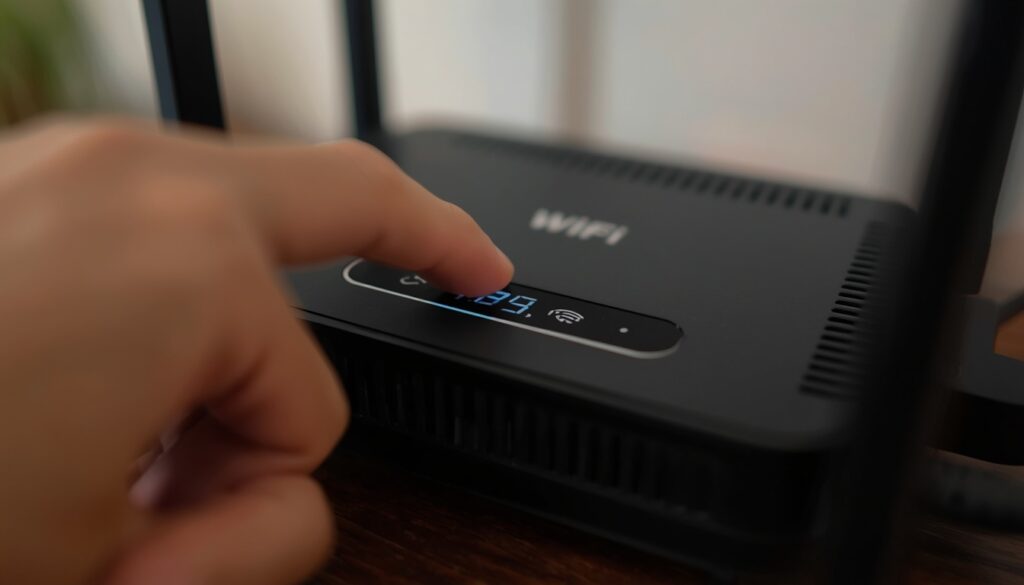
- Within two minutes, walk to your router and press its physical WPS button down for a few seconds.
- The printer and router will perform an automatic digital handshake. The Wi-Fi LED light on the printer will flash during the search and turn into a solid light when the connection succeeds.
How to Connect Brother Printer to WiFi ?
How to Connect Brother Printer to WiFi ?
If your router does not have a WPS button, or the handshake keeps failing, fall back to the manual Setup Wizard path instead. On button only models, the menu sequence is nearly identical to the touchscreen version described above, just navigated with arrow keys rather than screen taps. This is exactly how to hook up brother printer to wifi on legacy hardware that never shipped with a color display.
Adding Your Brother Printer to Windows 11 and macOS
Getting the printer onto your wireless network is only half the job. Your computer or laptop still needs to see it before you can print anything. This is where most people who search for how to add brother printer to computer or how to install brother printer actually get stuck, since the default setup guides often assume your computer discovers network paths perfectly.
How to Add Brother Printer to Computer on Windows 11
- Confirm the printer is already connected to WiFi using either method above and shows a solid connection light.
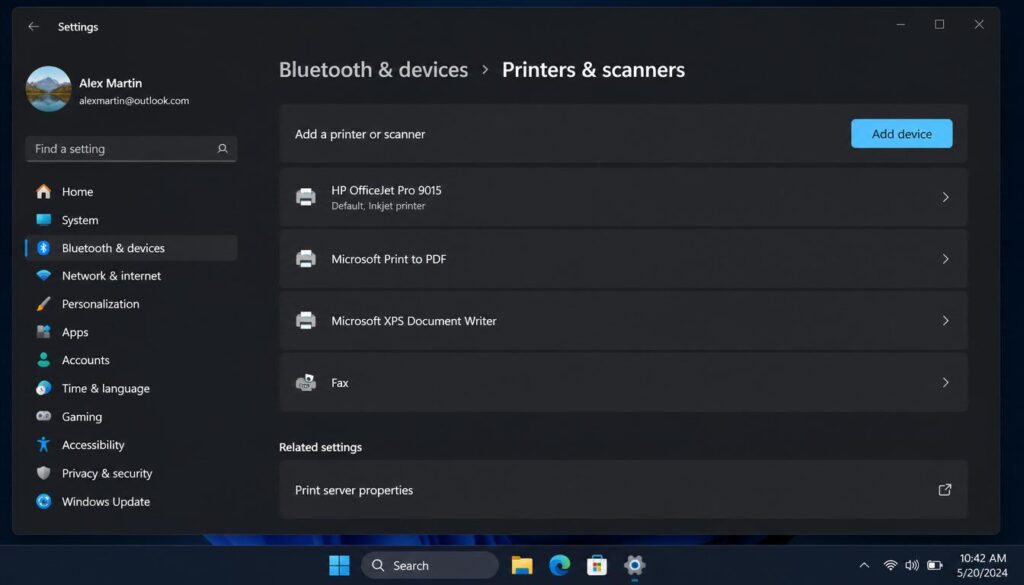
- Open the Settings application by pressing the Windows Key + I simultaneously.
- Click on Bluetooth & devices in the left sidebar, then select Printers & scanners.
- Click the Add device button at the top of the window. Windows will scan the network and list your Brother machine by model name.
- Click Add next to it. Windows will download and install the correct driver automatically in most cases.
How to Connect Brother Printer to WiFi ?
How to Connect Brother Printer to WiFi ?
If the printer does not appear, download the full driver package from the official website instead, which handles the discovery step manually and is the more reliable way to add brother wifi printer connections on networks with strict firewall rules.
If your computer’s WiFi option has disappeared entirely and you cannot even scan for your printer’s network, the problem may sit with Windows itself rather than the printer. Our guide on fixing a missing WiFi option in Windows 11 walks through restoring it step by step.
How to Add Brother Printer to Laptop on macOS
- Open System Settings from your Apple menu, then select Printers & Scanners.
- Click the Add Printer, Scanner, or Fax… button situated below the device list (represented by a plus icon).
- Select your Brother model from the list once it appears under the same WiFi network via Bonjour protocols.
- macOS usually selects the correct driver option like AirPrint automatically. If it does not, choose the dedicated driver package, then click Add.
This same sequence applies whether you are working from a desktop tower or a laptop, since macOS and Windows both discover network printers the same way once you successfully configure brother wireless printer settings on the correct network band. This ensures that knowing how to add brother printer to laptop systems becomes a straightforward task.
If your laptop itself struggles to join any wireless network, not just your Brother printer’s, the issue is likely on the laptop’s WiFi adapter rather than the printer setup. Our guide on laptop not connecting to WiFi covers the most common real fixes.
Advanced Troubleshooting: The Problems Other Guides Ignore
Most articles stop the moment the setup wizard finishes, but that is often exactly when new problems appear. Here is what to check when you have followed every step above and the connection still refuses to hold.
The 2.4GHz vs 5GHz Frequency Trap
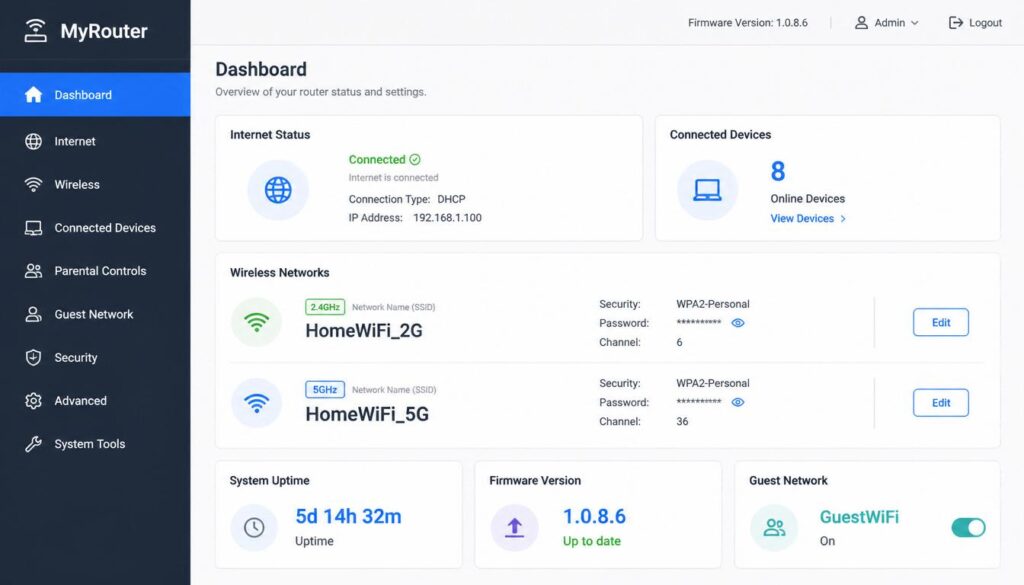
This is the single biggest cause of failed connections, and it is almost never mentioned in official documentation. The vast majority of Brother printers only support the 2.4GHz wireless band, not the 5GHz band. If your router broadcasts a combined network name that automatically pushes devices onto whichever band it prefers, your printer may never see it at all, or it may connect briefly and then drop.
How to Connect Brother Printer to WiFi ?
How to Connect Brother Printer to WiFi ?
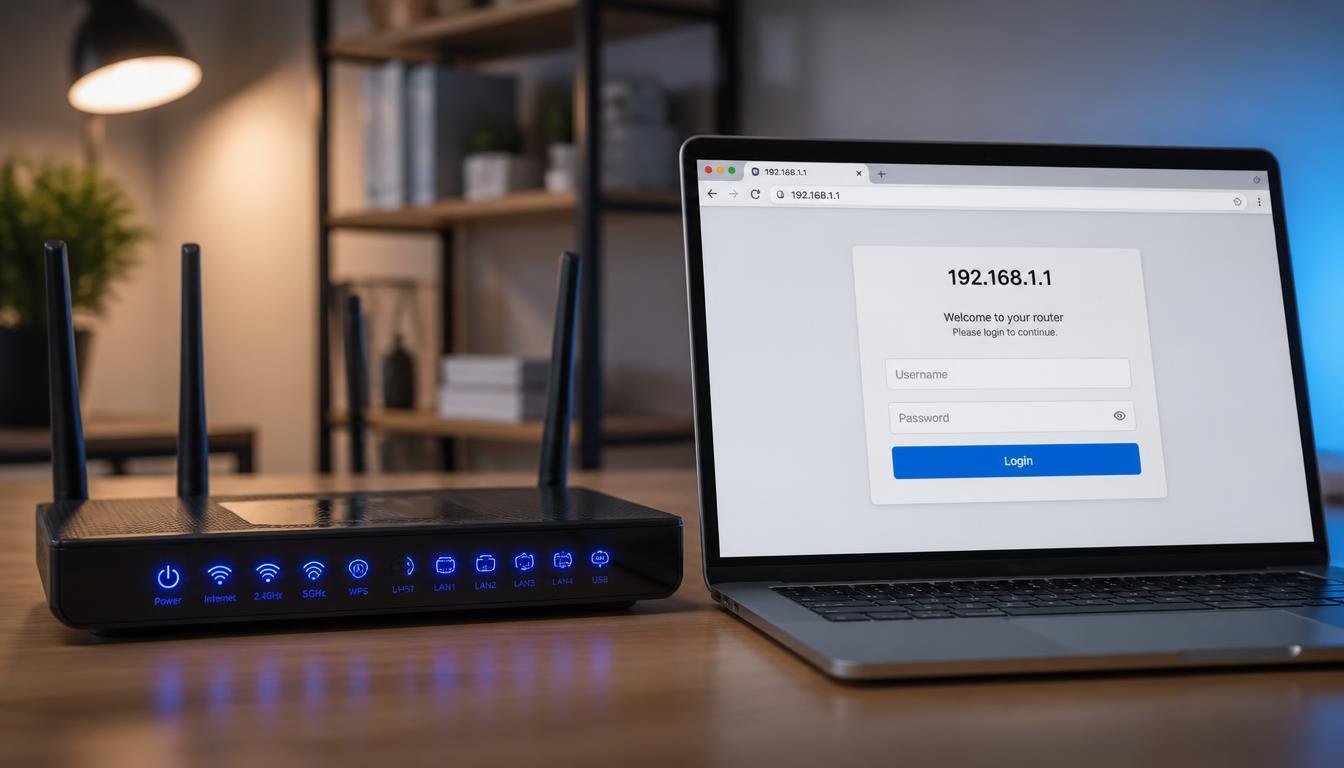
The fix is to log into your router administration page and split the combined network into two separate names, one ending in something like “-2.4G” and one ending in “-5G.” Point your Brother printer specifically at the 2.4GHz network. Your phone and laptop can stay on 5GHz without any issue, since only the printer needs the slower, long range band. This single change is the core of a successful brother wifi setup.
Wrong Password or Network Key Errors
If the WLAN report or on screen message says “Wrong Network Key,” the printer connected to the correct SSID but rejected the password. Double check for commonly confused characters, particularly the number zero versus the capital letter O, and the number one versus a lowercase L. Also confirm your router uses WPA2-PSK with AES encryption, since older Brother machines do not support modern WPA3 or old WPA2-PSK with TKIP security and will reject the connection outright.
A wrong network key error on your Brother printer is a specific version of a much more common problem. If other devices on your network throw similar errors, our detailed guide on fixing a WiFi authentication issue covers the fix for phones, laptops, and other devices too.
Printer Shows Offline After a Successful Connection (The DHCP Fix)
If the WLAN report says “Connected” but your computer still lists the printer as offline, the most likely cause is a changed IP address. Most home routers assign addresses dynamically via DHCP, and a printer that sat idle for a while can be handed a new address by the router. Consequently, your computer looks for the device at its old location.
To fix this permanently, open the printer internal web management page by typing its current IP address into any computer browser URL bar. Navigate to the network settings, and change the IP Config method from DHCP to Static. This locks the IP address permanently so your local computer operating systems never lose track of the hardware, even if you need to how to add brother wireless printer devices to the network later.
If your printer connects to WiFi successfully but your computer still cannot reach it, this is often tied to a wider network issue rather than the printer itself. Take a look at our guide on WiFi connected but no internet access for a deeper fix.
Summary Table for Future Reference
| Technical Problem | Immediate Root Cause | The Permanent Solution |
| Flashing WiFi Light | Printer cannot find the router SSID | Move closer to the router or split the 2.4GHz network band |
| Wrong Network Key | Incorrect password entry or bad encryption | Re-enter password; change router encryption to WPA2-AES |
| Printer Shows Offline | Router changed the dynamic IP address | Assign a Static IP address via the internal web management page |
Getting a Brother printer online does not have to mean starting over three times or calling a family member for help. Work through the method that matches your model, correct for the 2.4GHz frequency issue if your network is combined, and confirm the connection with the printed report before moving to your computer.
FAQ How to Connect Brother Printer to WiFi ?
1. Why does my Brother printer keep disconnecting from WiFi?
This usually happens when the printer sits too far from the router or when the router changes channels automatically. Power cycle both devices, move the printer closer to the router if possible, and confirm your router is not switching between 2.4GHz and 5GHz bands, since Brother printers only stay stable on 2.4GHz.
2. Why is my Brother printer not showing up on the WiFi network list?
If the network name does not appear during the Setup Wizard scan, your router is likely broadcasting on 5GHz only, or the SSID is hidden. Split your router into separate 2.4GHz and 5GHz networks, or manually enter the SSID using the “New SSID” option on the printer.
3. Can a Brother printer connect to 5GHz WiFi?
No. The overwhelming majority of Brother printers only support the 2.4GHz wireless band. If your router uses a combined network name, log into the router settings and create a separate 2.4GHz network specifically for the printer, while other devices can stay on 5GHz.
4. Why does my Brother printer show connected but still print offline?
This almost always means the printer’s IP address changed after your router reassigned it. Remove the printer from your computer’s printer list and add it again so your system picks up the current address, instead of trying to reach the old one.
5. Do I need to update firmware before connecting my Brother printer to WiFi?
It is not required, but it is recommended if the connection keeps failing after correct setup. Outdated firmware can cause compatibility issues with newer router security settings, so checking Brother’s support site for the latest update is a smart first step if problems persist.
Final Thoughts
Connecting your Brother printer to WiFi does not have to be a frustrating process. By choosing the correct method for your specific model and fixing common network traps like splitting your 2.4GHz router band and assigning a static IP address you can eliminate offline errors permanently. Once these core settings are active, your hardware will remain stable, responsive, and ready to print whenever you need it.