Is My Internet Working? Check Just In 60 Seconds
Have you ever stared at a full Wi-Fi signal icon, opened a website, and been hit with a No Internet error?
It is frustrating.
One moment you are streaming, working, gaming, or scrolling social media, and the next everything stops. The confusing part is that your device still shows it is connected to Wi-Fi.
If you are asking, Is my internet working?, this guide will help you find the answer in minutes. You will learn how to identify the real problem, test your connection, and fix the most common internet issues on phones, laptops, and routers.

How to Check If the Internet Is Down in Your Area
Sometimes the problem isn’t your device at all.
A local outage can affect hundreds or even thousands of customers at the same time.
Signs of an outage include:
- Multiple devices losing internet access
- Router showing a red or orange internet light
- Mobile data working while Wi-Fi doesn’t
- Friends or neighbors reporting similar issues
Before changing settings, check your ISP’s outage page or mobile app. If an outage is confirmed, you will need to wait until service is restored.
Quick Answer
Is My Internet Working Right Now? Here’s a 60-Second Check
If you need a quick answer, try these tests:
- Open Google or YouTube.
- Turn Wi-Fi off and switch to mobile data.
- Check whether other devices can access the internet.
- Look at your router’s internet light.
- Run a speed test.
If websites load and the speed test works, your internet connection is active. If nothing loads across multiple devices, the problem is likely your router or internet provider.
This is the fastest way to answer the question: Is my internet working?
Quick 3-Second Diagnostics Box
Before trying complicated fixes, check these three things:
✅ Can other devices access the internet?
✅ Can you open Google or another website?
✅ Are there any red, orange, or blinking lights on your router?
Results:
- If no devices work, the issue is likely your router or internet provider.
- If only one device fails, the problem is probably that device.
- If Wi-Fi connects but websites won’t load, you may have a DNS or network configuration issue.
If you’re still wondering, Is my internet working?, keep reading for a complete diagnosis.
Why Is My Internet Not Working Even Though I’m Connected?
One of the most common internet problems is seeing a connected Wi-Fi icon while having no actual internet access.
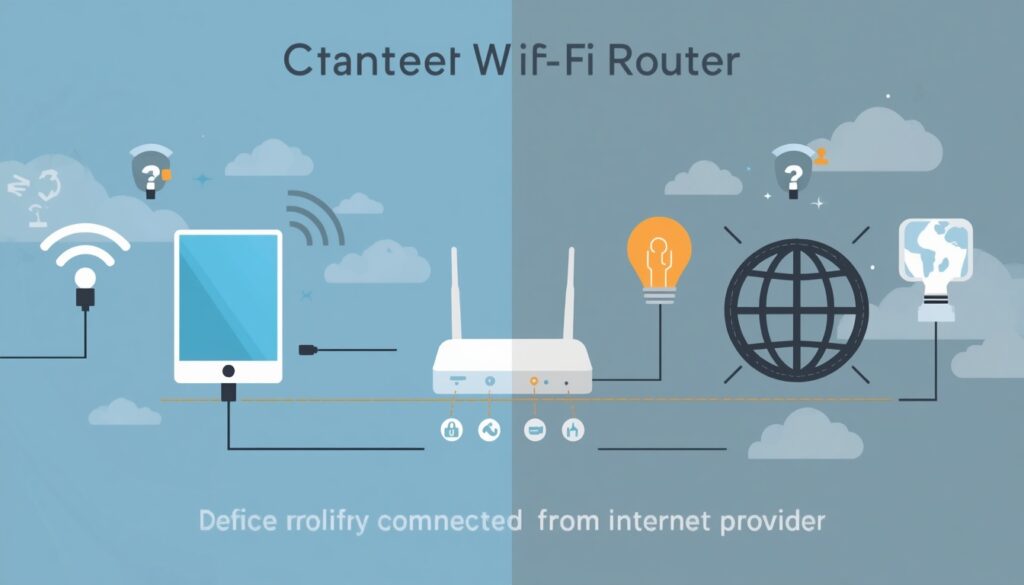
This happens because Wi-Fi and internet service are not the same thing.
Your device may successfully connect to your router, but the router itself may have lost its connection to your Internet Service Provider (ISP).
Think of it like this:
- Wi-Fi = Road between your device and router
- Internet = Road between your router and the outside world
If the second road breaks, you’re connected but offline.
Common Reasons
- Temporary ISP outage
- Router malfunction
- Loose modem cable
- DNS failure
- Network configuration errors
- Expired ISP service
- Congested public Wi-Fi
Is My Internet Working
When people search why is my internet not working, this connection gap is often the hidden cause.
A quick test is to connect another device to the same network. If nothing works, your internet service is likely down.
If multiple devices are offline, ask yourself again: Is my internet working? If the answer appears to be no, focus on your router and ISP first.
How to Fix “My Internet is Not Working” on Mobile Devices
Smartphones have additional settings that can interfere with internet access even when Wi-Fi appears connected.
If my internet is not working on a phone, try the following fixes before resetting everything.
Why Is My Internet Not Working on My Phone?
Both Android and iPhone devices use intelligent network features that sometimes create connection problems.
On iPhone
Check these settings:
- Wi-Fi Assist
- Private Wi-Fi Address
- VPN settings
- Low Data Mode
Try turning Wi-Fi off and back on.
If that doesn’t help:
- Forget the Wi-Fi network.
- Restart the phone.
- Reconnect using the password.
On Android
Look for:
- Adaptive Connectivity
- Intelligent Wi-Fi
- Battery Saver restrictions
- VPN apps
These features sometimes switch networks automatically and create confusion.
If you’re repeatedly asking why is my internet not working on my phone, disabling these features temporarily can often solve the issue.
Is My Internet Working
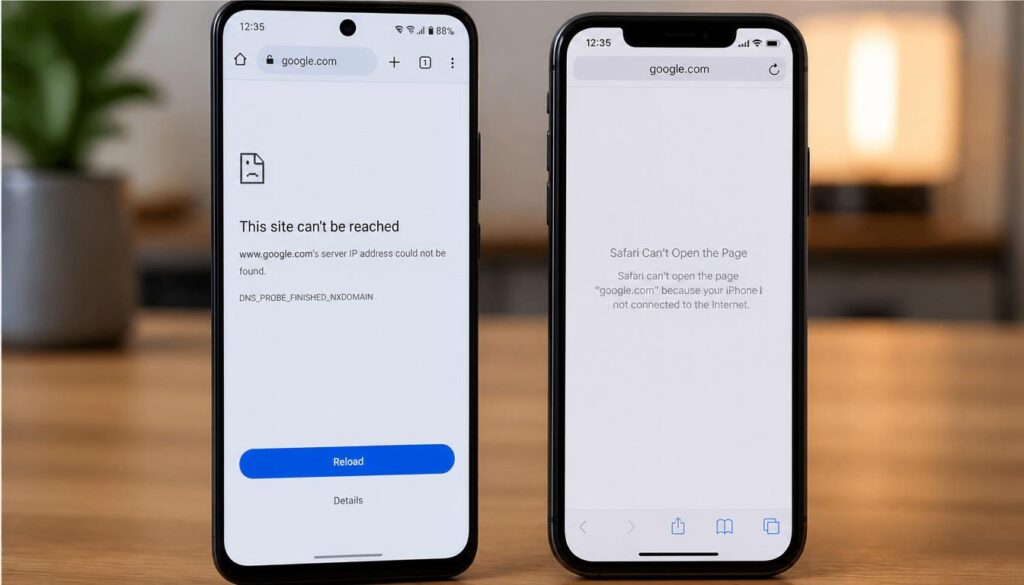
Is My Internet Working on Apps but Not Browsers?
This is a surprisingly common problem.
Apps like YouTube, Instagram, or WhatsApp may work while Chrome or Safari refuses to load websites.
In most cases, the issue involves:
- DNS errors
- Browser cache corruption
- VPN conflicts
- Security software restrictions
Try these steps:
- Clear browser cache.
- Disable VPN temporarily.
- Restart the browser.
- Switch DNS servers.
Popular DNS options include:
- Google DNS: 8.8.8.8
- Cloudflare DNS: 1.1.1.1
If apps work but websites don’t, your answer to Is my internet working? is actually yes the browser is the problem.
Advanced Network Troubleshooting for Laptops and Routers
When basic fixes fail, it’s time for deeper network troubleshooting.
Laptop Won’t Connect to Wi-Fi but Phone Does
A situation where the phone works but the laptop does not usually points to a laptop-specific issue.
Common causes include:
- Corrupted network drivers
- Disabled network adapter
- DNS conflicts
- Saved network errors
- Windows update issues
Try this checklist:
Restart the Network Adapter
Windows:
- Open Network Connections.
- Disable Wi-Fi Adapter.
- Wait 10 seconds.
- Enable it again.
Forget and Reconnect
Delete the saved network and reconnect using the Wi-Fi password.
Flush DNS Cache
Open Command Prompt as Administrator and type:
ipconfig /flushdns
Press Enter.
This removes outdated DNS records that may block websites.
Many users searching laptop won’t connect to wifi solve the issue with this simple command.
Understanding Router Error Lights and Spectrum/ISP Issues
Router lights provide valuable clues.
Green Light
Everything is functioning normally.
Blinking Light
Router is attempting to establish a connection.
Red or Orange Light
Usually indicates:
- ISP outage
- Signal failure
- Modem issue
- Damaged cable
Is My Internet Working
If you are specifically searching why is my spectrum internet not working check your Spectrum service status and look for outage notifications.
Restart both the modem and router:
- Unplug both devices.
- Wait 60 seconds.
- Power on modem first.
- Wait until fully connected.
- Turn on router.
This simple reset fixes countless internet issues every day.
If the warning lights remain, ask yourself again: Is my internet working? The router indicators often reveal the answer immediately.
Step-by-Step Guide: How to Test If Your Internet Connection Is Stable
If you want a reliable answer to Is my internet working?, follow this testing checklist.
Step 1: Test Multiple Devices
Check:
- Phone
- Laptop
- Tablet
- Smart TV
If all devices fail, the issue is network-wide.
Step 2: Check Router Lights
Inspect the Internet, WAN, and DSL indicators.
Look for warning colors.
Step 3: Open Multiple Websites
Try:
- YouTube
- Wikipedia
- News websites
A single website may be down while your internet remains functional.
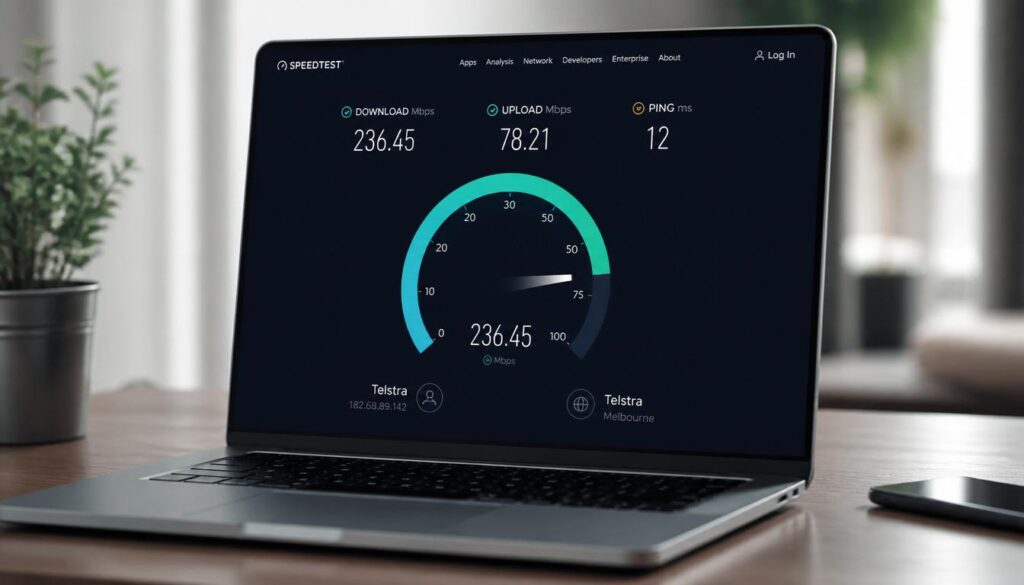
Step 4: Run a Speed Test
Check:
- Download speed
- Upload speed
- Ping
Extremely low results may indicate ISP problems.
Step 5: Test Using Mobile Data
Disconnect Wi-Fi.
Switch to mobile data.
If websites load normally, your home network is causing the problem.
Step 6: Restart Networking Equipment
Power-cycle:
- Router
- Modem
- Mesh system
- Extenders
Step 7: Check ISP Outages
Many providers maintain outage maps and service status pages.
Step 8: Check for “Wi-Fi Connected but No Internet”
This warning usually indicates:
- DNS failure
- ISP outage
- Router authentication issues
- Modem synchronization problems
When you see wi-fi connected but no internet, the router connection exists, but internet traffic is not reaching the web.
Quick Internet Troubleshooting Guide: Problems & Fixes
| Problem | Most Likely Cause | Quick Fix |
|---|---|---|
| Wi-Fi connected but no internet | ISP outage | Restart modem and check outage status |
| Phone won’t connect | Network settings issue | Forget and reconnect Wi-Fi |
| Laptop won’t connect | Driver problem | Reset network adapter |
| Apps work but browser doesn’t | DNS issue | Change DNS server |
| Slow internet | Network congestion | Restart router and test speed |
Frequently Asked Questions (FAQ)
How do I know if my internet is working?
Try opening multiple websites on different devices. If websites load normally, your internet connection is working
Why am I connected to Wi-Fi but have no internet?
Your device may be connected to the router, but the router may have lost its connection to your ISP.
Why is my internet not working on my phone only?
This is often caused by Wi-Fi settings, VPN apps, DNS issues, or software conflicts specific to the phone.
What does “Wi-Fi connected but no internet” mean?
It means your device can communicate with the router, but the router cannot access the internet.
How do I test my internet connection?
Check multiple devices, open several websites, run a speed test, inspect router lights, and verify whether your ISP is experiencing an outage.
Is My Internet Working

Is My Internet Working
Final Verdict: Is My Internet Working Now?
If you’ve completed the tests above, you should have a clear answer.
If websites load on at least one device, your internet is working and the issue is likely isolated to a specific device or browser.
If no devices can access the web, focus on your modem, router, and ISP connection.
The fastest path is usually:
- Restart modem and router.
- Test multiple devices.
- Check outage reports.
- Reset network settings.
- Contact your ISP if the problem continues.
When most people ask “Is my internet working?”, the answer is discovered within a few minutes using these simple checks.
The good news is that many internet problems can be fixed without technical support once you know where the connection is failing.
If you need any more help you can visit our website and find many solutions of yours problems about WiFi problems , internet problems and windows 11 problems.