
How to Fix Windows 11 Slow Performance (7 Proven Methods 2026)
Does your PC seem to be running slowly? Is it taking forever for you to open applications, freezing when multitasking or making even simple tasks painfully slow? Many users experience Windows 11 slow performances and random lag after updating.
What’s the good news? The good news is that you do not have to reset your computer or lose important data. This guide will show you seven easy fixes that can speed up Windows 11 safely, improve system responsiveness and stop annoying lag, without damaging your data.
These methods work on both high-end and low-end computers.
Why is Windows 11 running slow?
It is important to first understand the causes of Windows 11 laggy.
Some of the most common reasons are:
| Problems with the? | Effect on Performance |
|---|---|
| There are too many startups | Slow boot time |
| Background Apps | High CPU and RAM usage |
| Full storage | Sluggish performance |
| Older drivers | Stuttering or lag |
| Visual Effects | Reduced System Speed |
| Windows Update Issues | Unexpected delays |
The problem can usually be resolved within minutes if it is software related.
Fix 1: Disable startup apps to make Windows 11 faster
Too many applications are launched automatically by your PC when it starts. This is one of the main causes for a Windows 11 slow system.
Often, programs like Discord and Spotify run in the background. Adobe services, Teams, Adobe Services, and cloud applications are also silently running. This slows down boot times and consumes RAM.
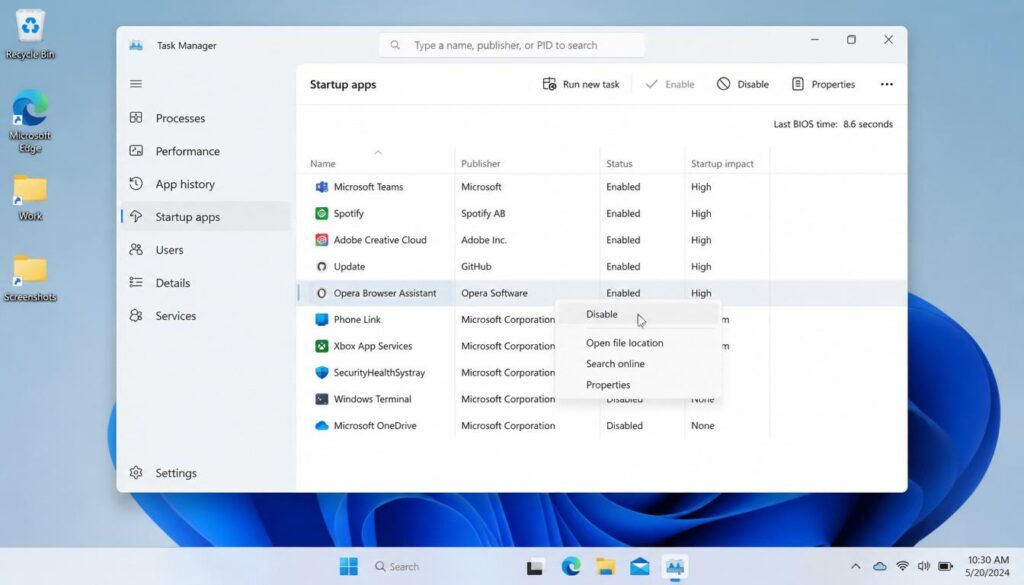
Why this Fix works for Windows 11 performance
Disabling startup applications that are unnecessary can:
- Increase boot speed
- Instantly free up RAM
- Reduce CPU usage
- Multitasking made easier
- Installing nothing to make Windows 11 faster
How to disable startup apps
Step 1: Open Task manager
- Press Ctrl + Shift + Esc
- Click Task Manager
step 2 : Open Startup Apps
- Click Startup Apps in the left-sidebar
Step 3: Disable high impact apps
Apps marked with:
High-Intensity
Click on the unwanted programs by clicking:
Disable
Avoid disabling:
- Audio drivers
- Graphics drivers
- Security software
Disable safe apps
- Spotify
- Discord
- Teamwork
- OneDrive (optional).
- Adobe updater
- Steam
[Insert screen shot here: Task Manager > Startup apps showing high impact programs]
The Result That You Should Be Aware
When you restart your computer:
Faster startup time
Less freezing
Better Windows 11 performance
Fix 2: Turn off background apps to fix Windows 11 lag
Background apps can be the cause of slow PCs even when they are not being used.
Apps that sync data constantly can consume silently:
- RAM
- The following are some of the ways to get in touch with each other
- Internet bandwidth
- Battery
It is a major Windows 10 lag on laptops that have 4GB or more RAM.
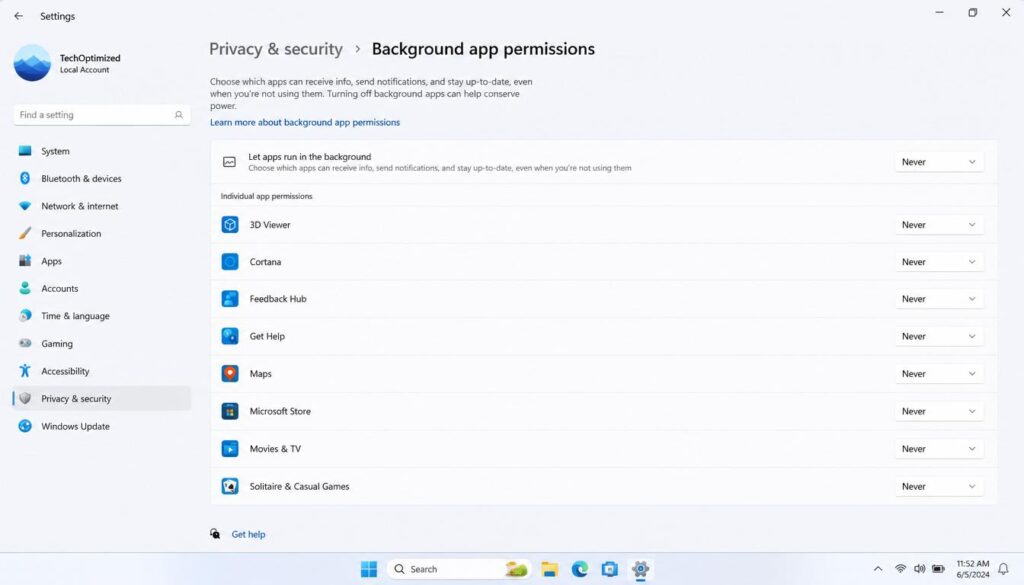
Why background apps slow Windows 11
Even after closing the application, many applications will continue to run.
Examples:
- Microsoft Teams
- Widgets
- Xbox services
- Weather Apps
- Skype
- Cortana
- Third-party Launchers
can be accelerated by removing unnecessary applications.
Step-by-Step Guide
Step 1: Open Settings
Press:
Windows + I
Click here:
Apps Installed
Step 2: Select an App
Find out what apps you seldom use.
Click:
Three dots
Then:
Advanced Options
Step 3: Disable Background Permission
Under:
Background app permissions
Choose:
Never
Repeat the process for all unnecessary applications.
[Insert screenshot here: Background app permissions are set to Never]
Windows 11: Bonus Tips for Better Optimization
If you don’t use them, disable these:
- Xbox Game Bar
- Widgets
- Skype
- Teams auto-start
- Cortana
The Result That You Should Be Aware
Users typically see:
- Less RAM usage
- Better responsiveness
- Reduced lag spikes
- Faster app loading
Fix 3 : Increase Storage Space for Windows 11 Performance
Did you know that a nearly full hard drive can severely affect Windows 11’s performance?
Windows will struggle to use your system drive (C) if it is nearly full.
- Create temporary files
- Install Updates
- Virtual memory
- Download apps with ease
Keep free at least 20% of the time to maintain a healthy performance.
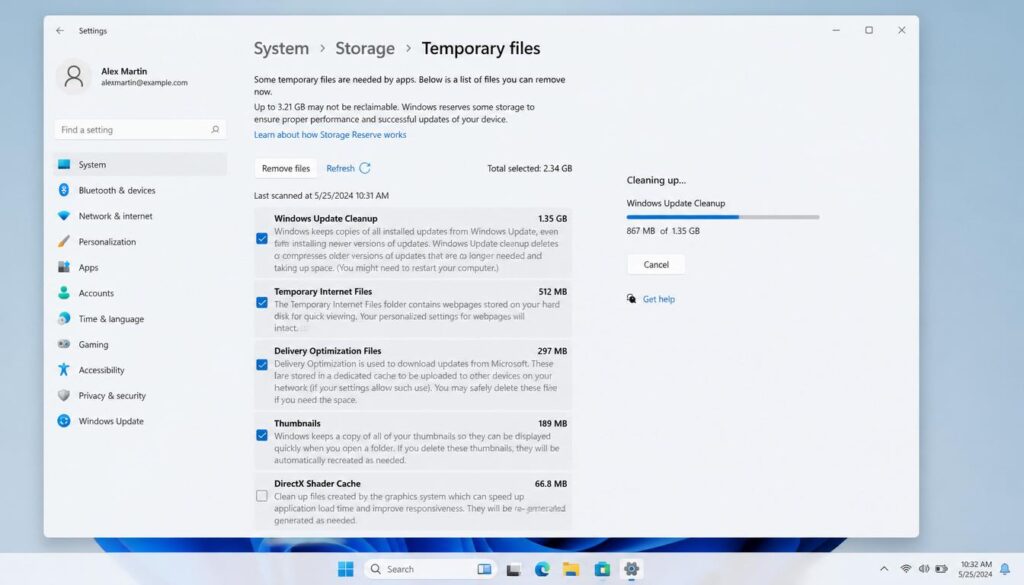
Windows 11 slow performance: How storage affects it
When the storage is full
Apps freeze
Updates fail
Boot becomes slower
File Explorer lags
This is the cause of Windows 11 slow issues.
How to Clean Your Driveway Step-by-Step
Step 1: Open Storage Settings
Click here:
Settings – System – Storage
Step 2: Open temporary files
Click:
Temporary files
You’ll see garbage like:
- Windows Update Cleanup
- Recycle Bin
- Delivery Optimization Files
- Temporary Internet files
Step 3: Remove Safe Junk Files
Remove all unnecessary items.
Click:
Remove Files
[Insert screenshot here: Windows 11 Temporary files Cleanup Screen]
Enable Storage Sense
Storage Sense deletes all junk files automatically.
Click here:
Settings – Storage – Storage Sense
Turn it around
ON
This is a great way to maintain Windows 11 Optimization.
Extra Cleanup Tips
Remove or move:
- Large Videos
- Downloads folder junk
- Files duplicated
- Old Installers
Uninstall any software that you no longer need.
Apps – Installed Apps
The Result That You Should Be Aware
After cleaning:
Improved app performance
Faster file loading Reduced lag Less lag Faster file load
Quick Performance Checklist
Make sure that you’ve already completed the following:
| You can fix it yourself. | Status |
|---|---|
| Disable startup apps | |
| Background apps turned off | |
| Storage space is freed up |
The first three fixes are often enough to fix 70% or more of Windows 11 lag issues.
Fix 4 : Change Visual Effects in Windows 11 to Speed It Up
Windows 11 is modernized with animations, shadows and transparency effects.
Here’s the problem:
These effects can be very resource-intensive, especially for older laptops and PCs with low RAM.
Windows 11 will become faster if you disable unnecessary visuals.
Why this Fix Improves Windows 11 performance
Use visual effects:
- RAM
- GPU power
- CPU resources
It is better to turn them down than not.
App opening speed Desktop responsiveness
Multitasking performance
Overall Windows 11 optimization
This is a powerful fix for:
- Laptops with 4GB RAM
- SSD and HDD systems older than 5 years
- Budget PCs
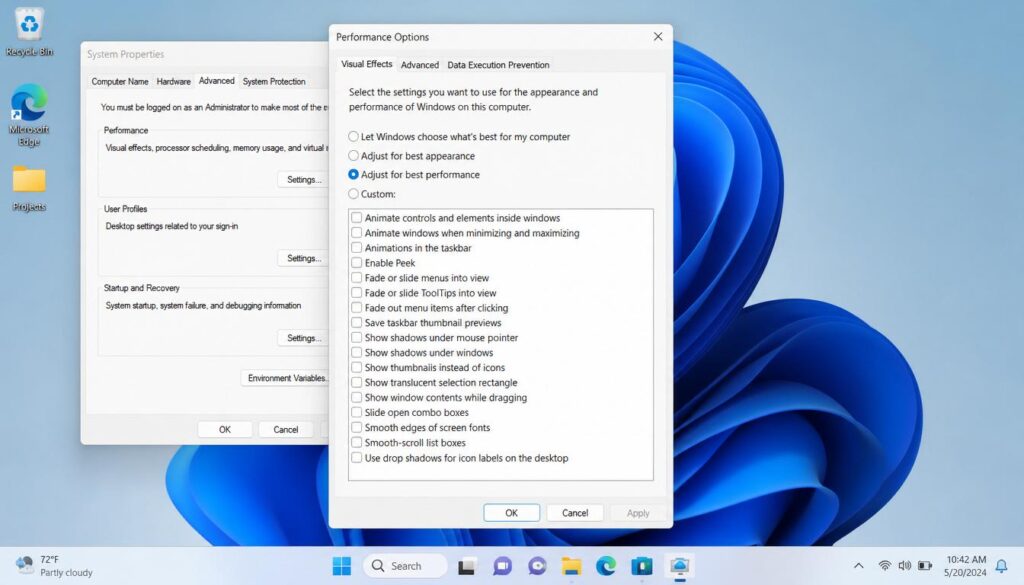
Windows 11 Slow Performance
How to disable visual effects
Open Advanced System Settings
Press:
Windows + S
Search:
View Advanced System Settings
Click here to learn more.
Open Performance Settings
Under:
Performance
Click:
Settings
Step 3: Select the Best Performance
Select:
Optimize performance
Keep:
Smooth edges for screen fonts
Display thumbnails instead icons
Disable all other applications.
Click:
Apply – OK
[Insert Screenshot: Performance Options Window With “Adjust for best Performance” Selected]
The Result That You Should Be Aware
After restarting
- Less stuttering
- Menus open faster
- Windows 11 Performance Upgrade
- Reduced animation lag
Fix 5 : Update drivers to fix Windows 11 Lag
Windows 11 lag can be caused by outdated or damaged drivers.
Most users blame Windows, but outdated drivers are often to blame.
- Freezing
- Drops FPS
- Slow Startup
- Random lag spikes
The following are the most important drivers:
- Graphics driver
- Chipset driver
- Driver Wi-Fi
- Storage controller driver
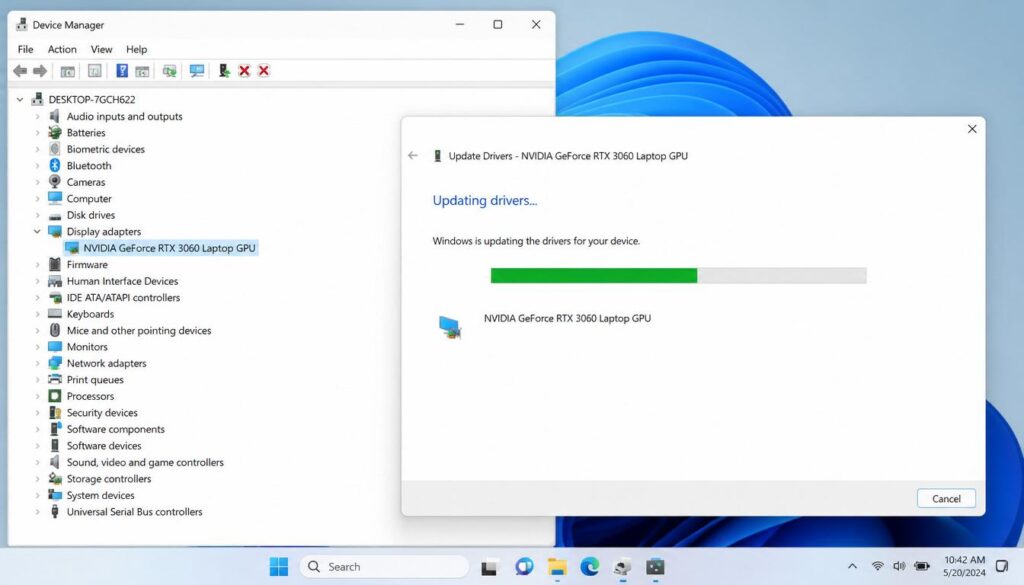
Windows 11 Slow Performance
Windows 11 Slowdowns Are Caused by Drivers
Drivers allow Windows to communicate with hardware.
They are out of date:
Slow performance
Crash
Screen lag
Slow Internet issues
Updating drivers is important for Windows 11 optimization.
How to Update Drivers: Step-by-Step
Step 1: Open Device Management
Press:
Windows + X
Click:
Device Manager
Step 2: Locate Important Drivers
Expand:
- Display adapters
- Network adapters
- Disk drives
Step 3: Update Driver
Right-click device.
Select:
Update Driver
Choose:
Search for drivers automatically
Repeat for major components.
[Insert Screenshot: Device Manager updating Graphics Driver]
Pro Tip
You have:
- NVIDIA GPU update via official NVIDIA App
- AMD Adrenalin – AMD GPU
- Intel Driver Assistant – Intel graphics
The Result That You Should Be Aware
Users frequently report:
More responsiveness
Less freezing
Improved gaming performance
Faster system overall speed
Fix 6 : Switch to high performance power mode
Windows can intentionally slow down your system in order to conserve battery power.
Laptops are powered by:
Balanced mode
This limits the CPU’s power.
Windows 11 can be significantly accelerated by switching to a power mode that is performance-oriented.
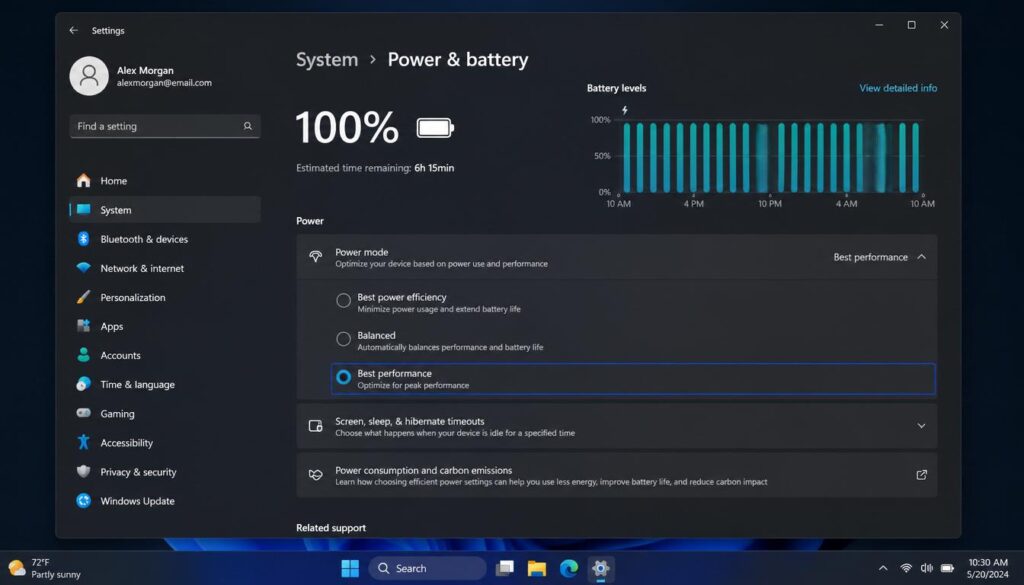
Windows 11 Slow Performance
Why This Works
Balanced mode can be:
- Reduce processor speed
- Delay background tasks
- Lower system responsiveness
The High Performance mode puts speed first.
It is easy to fix Windows 11 slow system.
Step-by-Step Guide
Open the Power Settings
Press:
Windows + I
Click here:
System – Power & Battery
Step 2: Locate Power Mode
Under:
Power Mode
Change to:
Balanced
To:
Best Performance
[Insert screenshot here: Windows 11 Power mode set to best performance]
Alternative Method
Open:
Control panel – Power Options
Select:
High-Performance
If available
Important Note
For laptops:
- Battery usage increases with better performance
When plugged in, use this mode for maximum speed.
The Result That You Should Be Aware
After enabling:
Faster system response
Improved multitasking
Reduction in Windows 11 lag
Fix 7 : Uninstall Bloatware and Unnecessary Applications
Many new PCs come with applications you will never use.
These apps are running in the background, and they affect Windows 11 performance.
This software is called:
Bloatware
Examples include:
- Try antivirus software
- Pre-installed Games
- Manufacturer apps
- Duplicate utilities
- Shopping Apps
can make Windows 11 run faster by removing them.
Bloatware slows Windows 11
Bloatware is a waste of time and resources.
- Stores
- RAM
- Start-up resources
- CPU power
When you have too many apps, they can lead to:
Slow startup
Random lag
Background processor usage
How to Remove unwanted Apps
Step 1: Open installed apps
Click here:
Apps – Installed Apps
Step 2: Remove unnecessary programs
Search for:
- Apps you never use
- Try out the latest software
- Manufacturer junk
Uninstall the program
Click:
Three Dots
Select:
Uninstall
[Insert screen shot here: Installed apps screen showing app removal]
Apps That You Can Remove Normally Safely
- Try out the latest antivirus software
- Xbox Apps (if not used)
- Skype
- Weather App
- News App
- Third-party cleaners
Avoid removing:
Hardware drivers
audio software
security essentials
The Result That You Should Be Aware
After cleaning:
Less RAM usage
faster startup
better Windows 11 optimization
improved overall responsiveness
Bonus Windows 11 Tips for Optimization
Try these additional steps if your PC still seems slow.
Disable Search Indexing on Low-End PCs
Search indexing scans all files constantly.
To disable:
- Search Services
- Open Windows Search
- Click Stop
- Disable as the startup type.
[Insert Screenshot Here: Windows Search Service Disabled]
Restart Your PC Weekly
Most people don’t restart their computer.
Clearing the restart:
- RAM cache
- Temporary Bugs
- Frozen processes
This simple habit can improve Windows 11 Performance.
Upgrade to SSD for the fastest speed boost
You can still use HDDs:
Upgrade to a SSD
This is the biggest upgrade for to make Windows 11 faster.
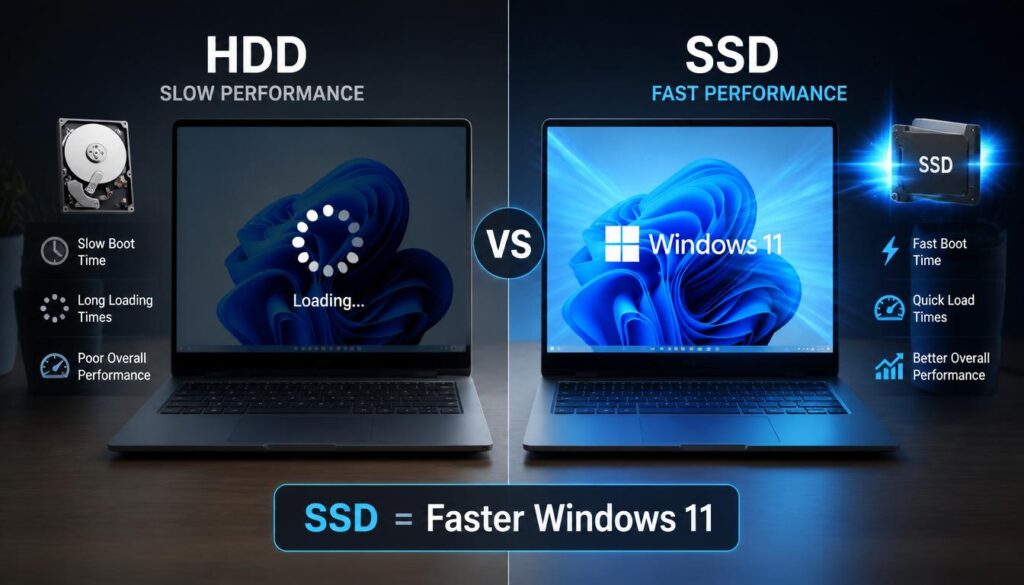
Windows 11 Slow Performance
Examples of improvements
| You can also find out more about Task | HDD | SSD |
|---|---|---|
| Boot Time | The shortest time between 1-3 minutes | 10-20 Seconds |
| App Opening | Slow down | Instantly |
| File Transfers | Slow down | Much Faster |
Windows 11 Hardware Problems: Signs to Look Out For
Some software fixes may not be enough.
If:
- RAM usage remains above 90%
- Disk always shows 100%
- PC overheats
- Old HDD still installed
- Laptops older than 6 years
Recommended Minimum Specifications for Smoother Performance:
| Component | You can also read about Recommended Products |
|---|---|
| RAM | Minimum 8GB |
| Stores | SSD |
| The following are some of the ways to get in touch with each other | Intel i5 / Ryzen 5, or newer |
| Free Space | 20% available |
These updates dramatically improve Windows 11 Performance.
Windows 11 slow performance: Frequently Asked questions
Why has my Windows 11 laptop suddenly become so slow?
Most often, a slow Windows 11 laptop is caused by background applications, too many startup apps, outdated drivers, insufficient storage space or recent Windows updates. A high RAM or disk usage may also affect performance. Often, deleting startup apps or releasing storage can fix the problem quickly.
How can I get Windows 11 to run faster on my old laptop?
To speed up Windows 11, you can disable startup programs on an older laptop, reduce visual effects and remove unwanted apps. You can also switch to the Best Performance mode and free storage. Upgrade from HDD to SSD for a significant speed boost.
Windows 11 Debloater: Is it safe for performance?
A Windows 11 debloater will improve Windows 11’s performance if it is used with care. When removing unwanted apps, trusted debloating software is generally safe. Deleting essential Windows services and system apps can cause problems with stability or features.
How can I speed up Windows 11 by clearing the RAM cache?
Windows 11 will clear the RAM cache if you restart your computer or shut down unnecessary background programs through Task Manager. If performance issues persist, you can disable startup applications and use Windows Memory Diagnostic. The RAM usage is instantly refreshed by restarting frequently.
What Windows 11 background applications should I disable?
It is safe to disable apps that are not needed, such as Teams, Skype and Xbox services. You can also safely remove cloud apps, Cortana or Widgets. To maintain Windows 11 security and stability, avoid disabling graphics drivers, antivirus software or hardware-related applications.
Final Thoughts – Speed up Windows 11 without losing your data
Do not panic if your computer is running slowly. Most Windows 11 lag issues are software-related.
You can speed up Windows 11 by following these tested fixes. This will improve responsiveness and stop slowdowns.
Take these steps to get started:
Disable startup applications Remove background processes Reduce visual effects Free up storage space Update drivers Switch to best performance mode Remove bloatware
These tweaks will solve Windows 11 slow problems for most users within minutes.
The best upgrade for your system if it still struggles after you’ve tried everything is to switch to an HDD, and increase RAM to at least 8GB.
Just a few simple settings can make your PC run faster and smoother.
If you need any more help you can visit our website and read the solutions of windows 11 problems.


